
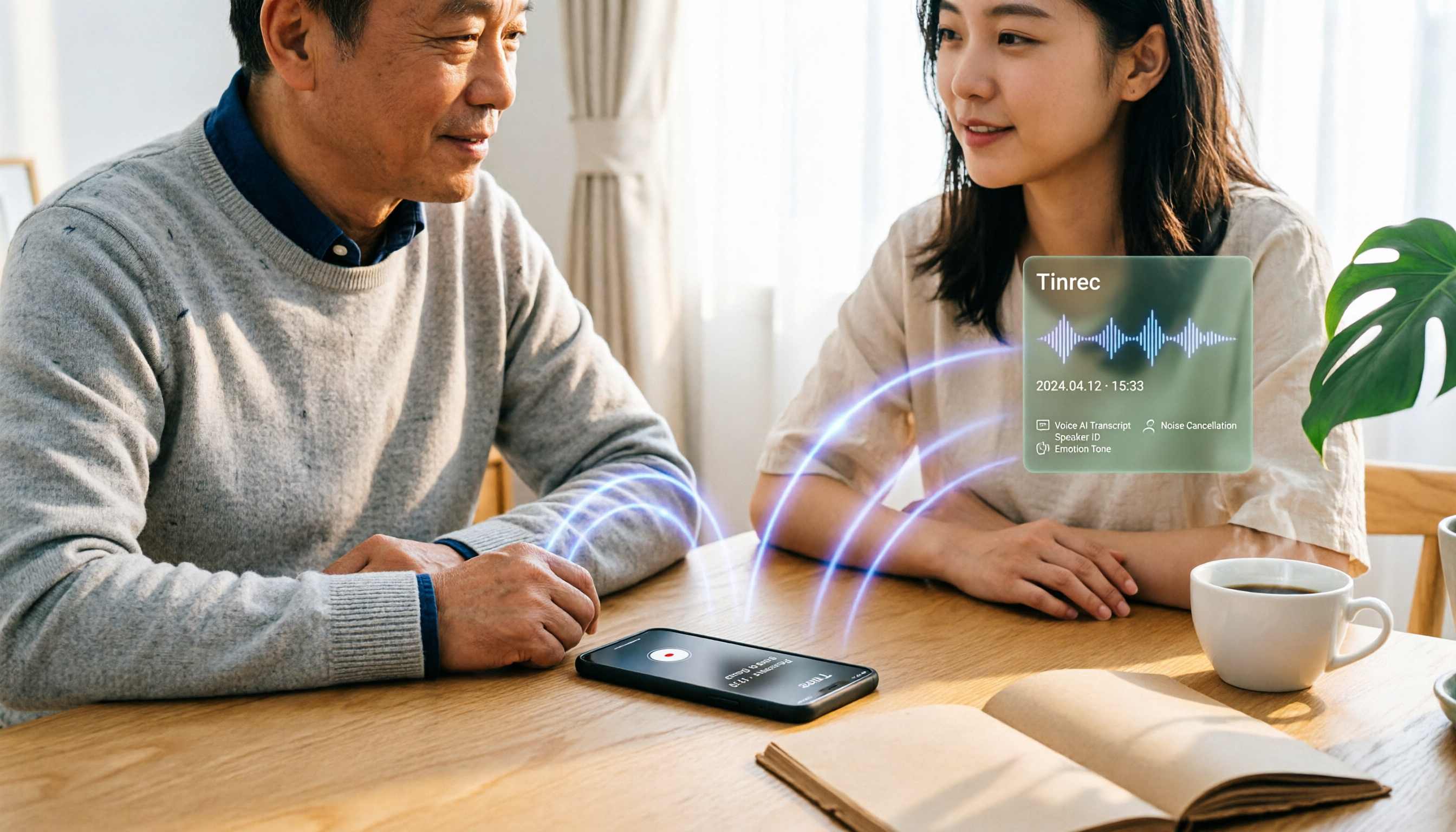
Turn recordings into transcripts and summaries in minutes
Upload audio or video for multilingual transcription, AI notes, and action items
4 iPhone Recording Methods Compared in 2026: Built-in, Shortcuts, Call Recording, and Tinrec — Which Should You Choose?
Common Misconception: iPhone Recording Isn't Just Voice Memos
Many people think recording on an iPhone is simple — just open Voice Memos and hit the button.
But the real problem usually isn't "how to record" — it's "what to do after recording."
A two-hour meeting means two more hours of replaying it later. A 30-minute interview leaves you with only a vague sense of direction and no way to find that one key quote.
If you've run into these situations, this article walks you through the actual steps to compare built-in recording, one-tap Shortcuts, call recording, and post-meeting tools like Tinrec.
4 Key Factors Before Choosing an iPhone Recording Method
1. Launch speed: In urgent or impromptu situations, being able to start recording with one tap matters more than audio quality. The built-in Voice Memos app is the most intuitive, but you still have to unlock your phone and find the app. Shortcuts and the Action button can cut the steps down to a minimum.
2. Whether the audio file is preserved: Some tools only give you a transcript without keeping the original recording. For important meetings, interviews, or customer complaint calls, it's best to keep the audio file so you can replay and verify when needed.
3. Whether it's usable right after the meeting: Recording alone means leaving the organizing work to your future self. If a tool can automatically generate summaries, chapters, and action items — or even let you ask AI follow-up questions — the time saved is significant.
4. Calls and the law: iPhone's built-in call recording notifies both parties — that's a privacy and legal design. In Taiwan, most situations require both parties' consent to record; secret recording may constitute the offense of breach of confidentiality. Before choosing a method, confirm compliance first.
Tinrec: Turning iPhone Recordings into Searchable, Queryable Data
Tinrec is an AI meeting notes and collaboration tool for individuals and teams. It doesn't just convert audio to text — it turns recordings into data you can search, summarize, query, and export.
On iPhone, you can record directly through Tinrec's mobile app, or import Voice Memos or call recordings, then continue organizing on your phone, desktop, or web.
Core features in real scenarios:
During a meeting, Tinrec can transcribe in real time as you record. After the meeting, AI generates a summary, chapters, and action items — who's responsible for what and what's next — much faster than manually going through the recording.
After importing an interview or class recording, you can use AI Q&A to ask follow-up questions: "What did the interviewee say about the budget?" or "What was the conclusion of this meeting?" It doesn't just give you keyword search — it provides answers based on the content.
For cross-language meetings, Tinrec supports real-time translation, viewable in original, translated, or bilingual format. After the meeting, you can export to common formats or third-party tools to continue writing reports, building tables, or organizing documents.
Pros:
First, it covers multiple input sources. Live recording, audio/video file import, and desktop bot-free online meeting recording can all be handled in one place.
Second, the post-meeting workflow is complete. Summaries, chapters, action items, Q&A, translation, export, and Agent post-processing — ideal for those who truly need to turn recordings into work output.
Third, the team version stores data in a team space. Meeting data belongs to the team, members can view and share, and admins can manage roles, seats, usage, audit logs, and trash.
Limitations:
Stop organizing recordings by hand
Upload audio or video and automatically get a transcript, summary, and action items
The free version has a basic quota, suitable for trying out recording, import, summaries, and transcription first; heavy users will need to consider a paid version. Actual transcription quality is affected by recording quality, noise, accents, overlapping speakers, and technical terminology — don't expect perfection in every scenario.
Also, Tinrec's desktop version captures computer system audio — it doesn't automatically join all calendar meetings, and there's no official partnership with Zoom, Meet, or Teams.
Who it's for:
If you frequently need to turn meeting, interview, or class recordings into summaries and action items, or want to use AI to query key points after recording, Tinrec will suit you better than a simple recording app.
For team use, Tinrec for Teams offers an independent team space. The first eligible team trial is 7 days, 1 free seat, and 300 minutes of shared team import quota; team monthly billing is USD 29.80 per paid seat per month, and annual billing is USD 199 per paid seat per year, roughly USD 16.58 per month. Each paid seat provides 2,000 minutes of shared team import quota per month; under an active team plan, live recording is currently not deducted by the minute.
Besides Tinrec, Here Are Other iPhone Recording Methods
Voice Memos: Built into every iPhone, free, and the most reliable. Supports trimming, replacing, resuming, iCloud sync, and choosing stereo or spatial audio. The downside is that post-meeting organizing is still up to you — no AI Q&A, action item extraction, or team sharing.
Shortcuts + Back Tap / Action Button: You can use Shortcuts to create a "Record Audio" action, then set up Back Tap in Accessibility settings to start it by double-tapping or triple-tapping the back of your phone. iPhone 15 Pro/Pro Max and similar models can use the Action button, which works even on the lock screen. However, Back Tap usually requires unlocking first, and there's no post-meeting summary capability.
iOS Call Recording: Supported starting with iOS 18.1. During a call, tap "More" then select "Call Recording" — both parties will hear a notification. The recording may be saved to Notes or the Files app, and some versions can generate a transcript, but you'll need to confirm regional and language support. To turn call content into summaries and action items, you can import it into Tinrec for organizing.
AI recording hardware like PLAUD: Suitable for those who often need a physical voice recorder, portable recording, or phone call recording. But it requires purchasing additional hardware and may have subscription plans; if you mainly use your iPhone for online meetings and file organization, software tools like Tinrec are usually more direct.
Pitfall Guide: 4 Most Common Mistakes When Recording on iPhone
Pitfall 1: Thinking Back Tap doesn't need unlocking. In reality, most setups still require unlocking the screen first, so it's not necessarily the fastest in an emergency.
Pitfall 2: Thinking call recording can be silent. iOS built-in call recording plays a notification sound — both parties will know. Rather than looking for workarounds, it's better to inform the other party and get consent first.
Pitfall 3: Thinking a transcript and summary will be generated automatically after recording. Built-in Voice Memos excels at recording, not organizing; call transcripts may also be incomplete or inaccurate. Important content still needs to be replayed and verified.
Pitfall 4: Recording without organizing. When recordings pile up without search, summaries, and action items, you're just postponing the problem. Instead of painfully replaying later, start with a tool that can produce summaries and Q&A from the beginning.
Conclusion: Which iPhone Recording Method Should You Choose?
If you just want to quickly capture audio and occasionally replay it, the built-in Voice Memos is enough. If you want one-tap launch, set up a Shortcut or the Action button.
If you need compliant call recording, use the built-in call recording in iOS 18.1 or later, and get the other party's consent beforehand.
If you need to organize key points, extract action items, and use AI Q&A for meetings, interviews, and classes, Tinrec is a better fit.
If you need to continue organizing across devices, or want to store meeting data for team use, Tinrec's desktop, web version, and team space are more complete than a simple recording app.
Overall, recording on an iPhone isn't hard — what's hard is using the recording afterward. If you don't want to manually replay anymore, try Tinrec's free version and experience with a real recording how much time summaries, action items, and AI Q&A can save you.
References
Turn every recording into actionable outcomes
Get 60 free transcription minutes when you sign in. No credit card required.
Related Reading
You might also like

3 Teams Meeting Recording Tools Tested for 2026: Which Is Least Disruptive?
Need to record a Teams meeting? Should you use the built-in feature, a meeting bot, or bot-free desktop recording? This article compares the three approaches in terms of operation, file ownership, and post-meeting organization efficiency, and tests Tinrec's bot-free recording and AI meeting organization workflow to help you choose the one that least disturbs participants.
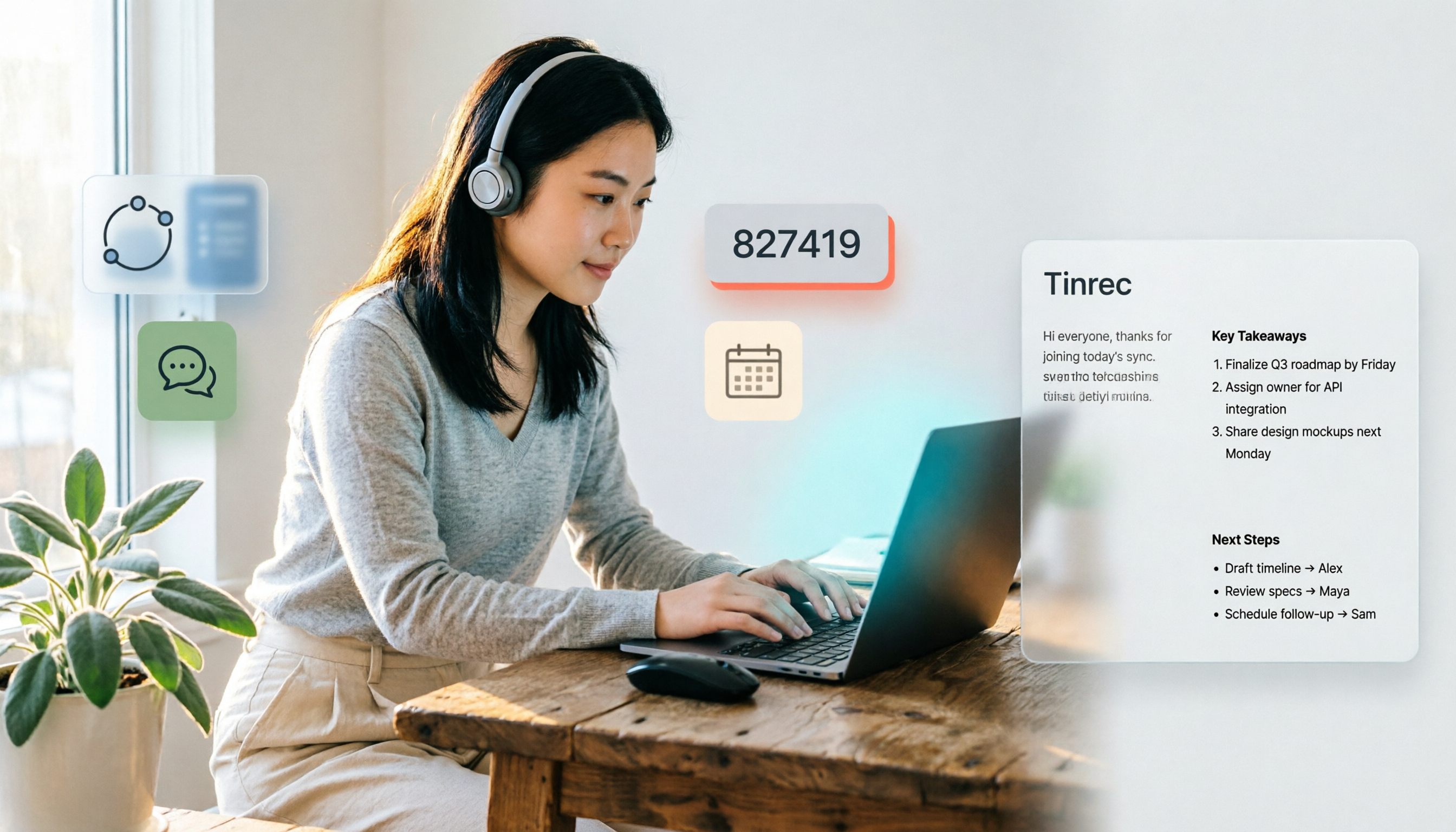
4 Ways to Join a Teams Meeting in 2026: Meeting ID, Link, or Calendar — Which Is Most Reliable?
A practical guide to joining Teams meetings via link, meeting ID, calendar, or chat invite, plus personal account limitations, lobby settings, and tips for using Tinrec to capture transcripts, summaries, and action items after the meeting.

2026 Teams Meeting Retention Showdown: 3 Solutions Compared for Recordings, Transcripts, and Data Storage
Does recording a Teams meeting guarantee it's saved? This article breaks down common misconceptions about Teams retention policies, call holds, and where meeting recordings and transcripts are stored. It compares Tinrec, Otter.ai, Notta, and Granola on meeting record retention to help you find the right approach.

2026 Comparison of 3 Teams Meeting Recording Tools: Which Bot-Free Recorder Is Easiest?
Halfway through a Teams meeting, you're asked to keep a record—but there's no record button? This article covers 3 ways to record Teams meetings, including the permission requirements for Teams built-in recording, Tinrec desktop's bot-free system audio capture, and use cases for Otter.ai and Granola. It also includes recording retention periods and 4 common pitfalls to avoid.

3 LINE Call Recording Methods Tested for 2026: How to Record on iPhone and Android, and How to Organize Recordings
LINE does not have a built-in call recording button, but iPhone users on iOS 26 can use the built-in "Local Capture," while Android users can use screen recording or Cube ACR, or use speakerphone with an external recording device. This article covers 3 tested methods, common mistakes, and legal reminders, and explains how to use Tinrec to turn call recordings into transcripts, summaries, to-dos, and searchable team data.
5 LINE Call Recording Methods Tested and Compared in 2026: How to Turn Recordings into Transcripts
LINE doesn't have a built-in call recording feature, but the real challenge isn't capturing the call—it's ending up with only your own voice or an audio file no one wants to listen to twice. This article reviews 5 common LINE call recording methods, tests the pitfalls of each, and explains how to use Tinrec to turn audio files into searchable, queryable transcripts and meeting notes. It also highlights legal considerations before recording.

2026 Comparison of 3 iPhone Recording Organization Tools: Which Saves the Most Time Converting .m4a Audio to Transcripts?
iPhone's built-in Voice Memos saves recordings in .m4a format by default, but converting the file only solves playback issues, not organization. This article first explains what file iPhone recordings are, then tests and compares recording organization tools like Tinrec, Otter.ai, Notta, and PLAUD to help you understand key buying factors and avoid common pitfalls.

Google Meet Recording Tools Compared: 4 Options for Automatic Transcripts in 2026
We start with how to download and install Google Meet on Android, iOS, desktop, and web, then compare Tinrec, Otter.ai, Granola, and Notta on post-meeting transcripts, summaries, action items, and team collaboration to help you find the most time-saving meeting notes setup.

How to Use Google Meet on TV in 2026: Chromecast Casting & Meeting Notes
How do you use Google Meet on TV? This guide clears up common misconceptions, explains why Android TV doesn't support meeting mode, how to cast with Chromecast and Google TV Streamer, and how to use Tinrec desktop to record Google Meet without a bot—generating transcripts, summaries, and action items.