
Turn recordings into transcripts and summaries in minutes
Upload audio or video for multilingual transcription, AI notes, and action items
5 Ways to Put Google Meet on TV in 2026: Real-World Comparison and How to Capture Meetings on the Big Screen
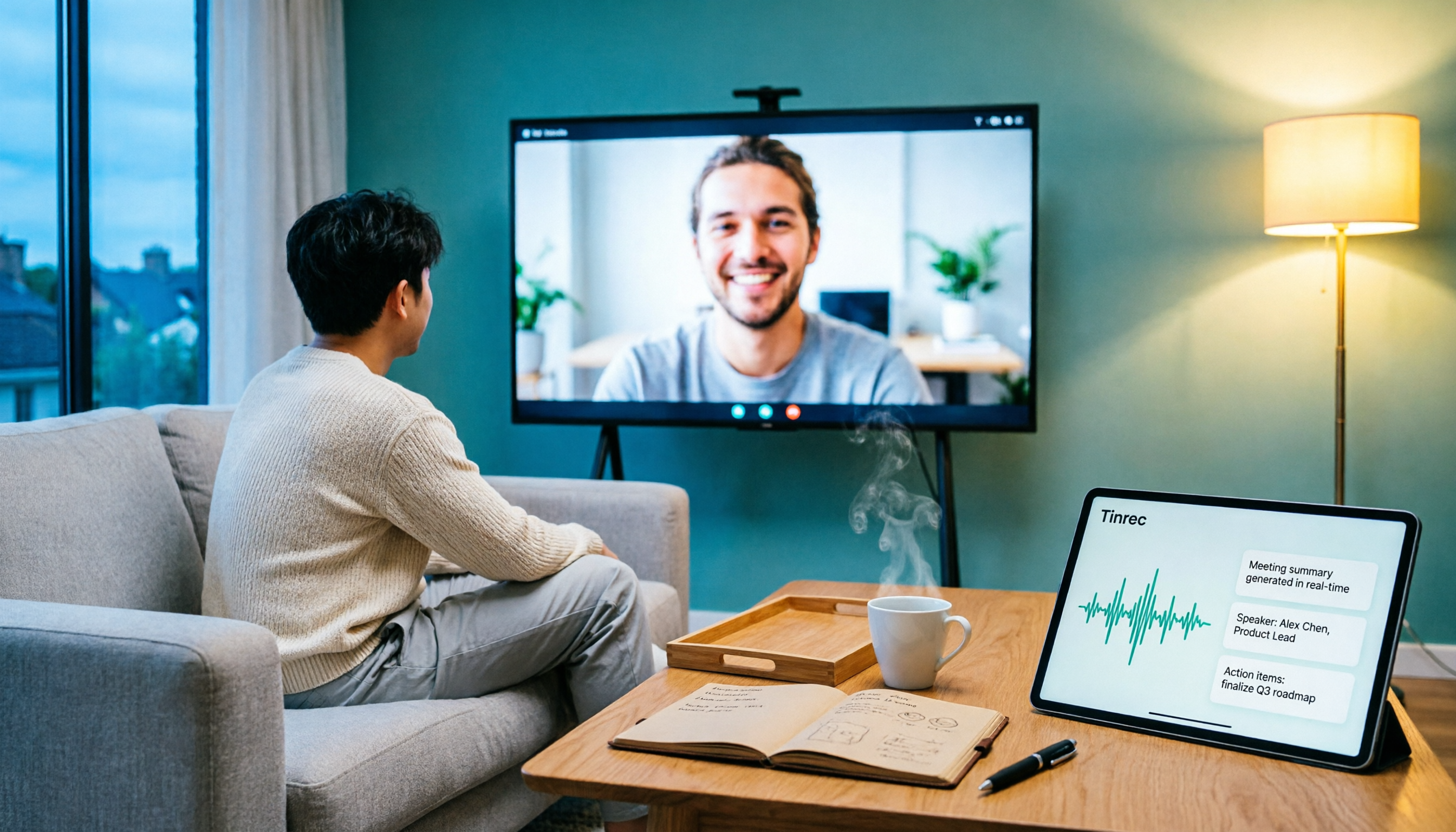
Why Do You Need Google Meet on Your TV?
If you're searching for "can Google Meet be installed on a TV," you're really trying to answer two questions.
First, how do you get the picture onto the big screen?
Second, after the meeting ends, where does all that discussion go?
I've seen too many people solve only the first problem. They buy the TV, cast successfully, finish the meeting, and their notes are still scattered.
So this guide covers 5 approaches. The first 4 handle "how to get the picture on TV," and the first one handles "what to do after the meeting."
Option 1 | Tinrec — The Most Complete AI Meeting Notes Assistant
In one sentence: Turn meetings held on your TV into searchable, queryable, transferable data.
Bot-free recording, no extra participant in the meeting Tinrec's desktop version captures your computer's system audio directly, without sending a meeting bot to join. The Google Meet you see on TV can have its transcript saved simultaneously on the same computer. This is especially noticeable in client meetings—the other side won't see a strange account on the participant list.
More than just a transcript After the meeting, it automatically organizes summaries, chapters, key points, and action items. You can continue asking questions about the entire meeting, such as "What were the client's concerns about the budget?" without having to rewatch two hours of recording.
Output that fits back into your existing workflow Transcripts and notes can be exported to Notion, Google Docs, OneNote, and other tools. You can also use the Agent to further generate reports, tables, and meeting documents.
Team version turns meetings into team assets Meeting data belongs to the team, not individuals. When members leave or are removed from their seats, their assigned resources can be handed over to others. Admins can view members, seats, usage, and audit logs.
For plan selection, individuals can start with the free version. For short-term intensive meetings, use the weekly pass. For regular use, choose the Pro monthly or annual plan. The Team version offers a 7-day trial for first-time eligible users, 1 free seat, and 300 minutes of shared team import quota. Monthly billing is USD 29.80 per paid seat per month; annual billing is USD 199 per paid seat per year, about USD 16.58 per month. Each paid seat provides 2,000 minutes of shared team import quota per month. Real-time recording under an active team plan is currently not deducted by minutes.
Who it's for: Individuals and teams who have meetings every week and want the content to be searchable, queryable, and transferable later.
Option 2 | Chromecast with Google TV / Google TV Streamer Casting
In one sentence: Cast your meeting screen to the TV without changing devices.
According to Google Meet's official documentation, you can cast meetings to Chromecast, Chromecast with Google TV, Google TV Streamer (4K), TVs that support Google Cast, or Nest smart displays.
Stop organizing recordings by hand
Upload audio or video and automatically get a transcript, summary, and action items
After casting, the picture is on the TV, but the microphone and camera remain on your original phone or computer.
Best for people who just want a bigger picture and don't want to change any other part of their workflow.
Option 3 | Meet Calling on Android TV
In one sentence: Video call family and friends on your TV, but be aware of official limitations on "meetings."
Google's official page clearly states: Android TV does not support meeting features.
What is supported is 1:1 and group video calls. If your device doesn't have a built-in camera and microphone, you'll need to connect a USB camera and microphone. Also, Chromecast devices that are not Android TV do not support Meet.
Best for family living room calls with friends and relatives.
Option 4 | Google TV Built-in Browser with USB Camera
In one sentence: If you already have a TV stick, you can try the browser route.
On devices like Google TV Streamer, you can open the Google Meet web version in a browser and connect a USB camera and microphone.
The advantage is not needing to buy more equipment. The actual experience depends on browser and hardware support.
Best for people who want to try with their existing devices first.
Option 5 | Platform Built-in Transcription (Free Option)
In one sentence: If you don't want to spend extra, start with the meeting platform's own captions and transcription.
Zoom, Google Meet, and Microsoft Teams all offer built-in transcription or caption features.
Limitations to be clear about: Text is scattered across different platforms, hard to centralize across platforms, and hard to use for summaries or further processing.
Best for people with zero budget who just need to review text afterward.
With So Many Options, How Should You Choose?
• Want a summary, chapters, and action items right after the meeting → Tinrec
• Need transcripts for Chinese or mixed Chinese-English meetings → Tinrec
• Meeting data needs to become a team asset, with personnel changes → Tinrec Team version
• Just want the picture on TV without changing other workflows → Chromecast casting
• Want to video call family and friends on TV → Meet Calling on Android TV
• Zero budget, just need text afterward → Platform built-in transcription
3 Things to Know Before Using Google Meet on TV
First, casting the picture is not the same as recording the meeting. Casting only solves "seeing clearly," not "remembering." Design these two things separately.
Second, Android TV's "calling" and "meetings" are two different things. Official support for meetings is limited. Confirm your use case before buying.
Third, confirm legal requirements and participant consent before recording. This is a prerequisite for using any meeting notes tool, not an optional add-on.
Conclusion
Getting Google Meet on your TV isn't technically difficult—casting or a browser can do it.
What really makes the difference is the 10 minutes after the meeting ends: whether someone captures the key points, action items, and decisions.
If you want to start with the smallest steps, I'd suggest this order: first use casting to solve the big screen, then use Tinrec desktop to solve recording, and finally worry about how the team shares it.
Test step by step, and you'll gradually find the approach that best fits your meeting rhythm.
References
Turn every recording into actionable outcomes
Get 60 free transcription minutes when you sign in. No credit card required.
Related Reading
You might also like

2026 Google Meet Note-Taking Tools Compared: Tinrec Leads for Chinese Transcription
Google Meet can't be purchased separately; business use requires a Google Workspace subscription. This article breaks down the differences between Google Meet free and paid versions, and compares Tinrec, Otter.ai, and Notta to help you find the best post-meeting solution for Chinese meetings.

Google Meet 2026 Update Review: Built-in Notes vs. Tinrec — Which Saves More Time?
We break down Google Meet's 2026 updates and compare its built-in meeting notes with Tinrec's AI recorder across recording methods, Chinese transcription, post-meeting organization, export, and team collaboration to help you decide which fits your meeting workflow.

Tinrec vs Notta 2026: 5-Dimension Comparison for Chinese Meeting Notes
Searching for Tenrec App brings up unrelated results. The real comparison is between meeting transcription tools. This article uses Tinrec as an example to walk through 5 steps from recording to meeting minutes, and compares Tinrec and Notta across 5 dimensions to help you decide which is better for your Chinese meeting scenarios.

2026 Comparison of 4 Google Meet Meeting Note Solutions: How Tinrec Turns Transcripts into Actionable Data
Google has never separately disclosed Google Meet revenue; 2024 figures are hidden within Workspace subscriptions and cloud business. This article compiles verifiable revenue context and compares the practical differences among four types of meeting note solutions, explaining how Tinrec uses bot-free desktop recording to turn meeting content from Google Meet, Teams, and Zoom into searchable, actionable team data.

Google Meet Transcription vs. Tinrec: Which Meeting Notes Tool Wins in 2026?
Google Meet's plans are tied to Google Workspace, with separate pricing and bundles in India. But built-in transcription only handles a single meeting—post-meeting organization, cross-platform consolidation, and team knowledge retention remain gaps. From a mid-level manager's practical perspective, this article explains how Tinrec fills these gaps with bot-free recording, AI Q&A, action item extraction, and team spaces.

How to Buy Google Meet Recording in 2026: 4 Steps to the Best Deal
Does Google Meet recording cost money? Why can't free users find the record button? Starting from a student budget, this guide uses 4 steps to help you decide whether to upgrade to Workspace, use built-in recording, or switch to a bot-free AI meeting notes tool like Tinrec, with buying criteria and pitfalls to avoid.

Tinrec vs Google Meet in 2026: 4 Key Differences to Know Before You Pay
People searching for Google Meet purchase price usually want to know: Do I need to pay for meetings, and where should the money go? This article breaks down Google Meet's pricing logic using real scenarios for students and small teams, and explains how Tinrec fills the gap in meeting notes, transcripts, and action items so you can decide before paying.

Arsenal vs Nottingham Forest Preview 2026: 3 Key Storylines and H2H Data
On October 18, 2026, Nottingham Forest host Arsenal in Premier League Matchday 7. This preview covers kickoff time, both teams' recent form, head-to-head record, and injury lists to help you get up to speed before the match.
Tenrec Large-Scale Multipurpose Recommender System Benchmark Dataset Explained: 5 Million Users, 140 Million Interactions, 4 Scenarios
Tenrec is a large-scale multipurpose benchmark dataset covering four recommendation scenarios. This article summarizes its five core features, four scenarios, ten evaluation tasks, how to access it, and usage considerations to help you decide if it suits your recommender systems research.