

Turn recordings into transcripts and summaries in minutes
Upload audio or video for multilingual transcription, AI notes, and action items
Searching for Tenrec App: What You Really Need to Choose
When you search for "Tenrec App," you'll first encounter a bunch of unrelated things with the same name: Tenrec, a website design company with 25 years of experience; Tenrec Labs, which makes a zero-based budgeting app; the Tenrec dataset used in recommender system research; and a reverse-engineering command-line tool also called tenrec.
So the key isn't "which Tenrec is the right one," but rather what kind of app you're looking for. If you want a tool that records meetings, transcribes them, and automatically organizes minutes, then you should be comparing products like Tinrec.
In this article, I'll use Tinrec as the main example, walking you through 5 steps from recording to meeting minutes. I'll also discuss how it differs from Notta to help you decide which is better for your meeting scenarios.
Before You Start | What You Need to Prepare
• A device: Tinrec has iOS, Android apps, and a desktop version. For online meetings, the desktop version is recommended because it directly captures system audio without needing to add a meeting bot. • Content to organize: Live recordings, Zoom/Google Meet/Teams/Webex meetings, or existing audio/video files. • An account: Free registration to get started and try out the free quota. • Stable internet: Real-time transcription requires an internet connection. • Compliance reminder: Before recording, obtain consent from participants according to local regulations.
Step 1 | Record the Content You Want to Transcribe
Goal: Get a clean recording file, which is the foundation for all subsequent steps.
How: Open Tinrec and start recording from the main screen. For mobile, place the phone as close to the speaker as possible; for one-on-one, put it between the two people; for group meetings, place it in the center of the table. For online meetings, use the desktop version to capture system audio.
Why: Transcription quality depends on audio. Instead of spending time proofreading later, spend 30 extra seconds confirming placement during recording.
After completion: The recording appears in the list with its duration.
(Illustrative image: A person sitting in a meeting room, phone placed in the center of the table recording, with several participants nearby, professional and natural atmosphere)
Step 2 | Let AI Transcribe for You
Goal: Turn sound into searchable, quotable text.
How: Generate a transcript directly after recording; existing audio or video can also be imported. Supports Chinese, mixed Chinese-English, and multilingual meetings.
Why: Without a transcript, meeting content relies only on memory. With text, you can search, quote, and follow up.
After completion: Get a timestamped transcript that you can refer back to anytime.
(Illustrative image: Transcript appears sentence by sentence on screen as the meeting progresses, while the speaker is still talking)
Step 3 | Quickly Proofread the Transcript
Goal: Fix the most error-prone areas: technical terms, names, product names.
How: Edit while listening; maintain common terms in team hotwords in advance.
Stop organizing recordings by hand
Upload audio or video and automatically get a transcript, summary, and action items
Why: AI is least familiar with specialized terms. Feed it correct terminology first, and every future meeting benefits.
After completion: A transcript ready to use directly.
Step 4 | Let AI Generate Meeting Minutes
Goal: Turn the transcript into decisions, key points, and action items.
How: Use AI summaries and chapters to capture structure, extract action items, and use AI Q&A to follow up on details.
Why: Bosses want conclusions, not transcripts.
After completion: Summary, chapters, key points, and action items all in one place.
(Illustrative image: A manager in the office quickly browsing meeting summary and to-do list)
Step 5 | Export and Share
Goal: Bring results into your existing workflow.
How: Export to Notion, Google Docs, OneNote, Dropbox, etc.; also use Agent to further generate reports, tables, documents.
Why: Meeting notes are valuable only if they can be further processed.
After completion: Meetings become deliverable data, not recordings sitting on your phone.
Common Questions and Troubleshooting
Q: Many typos in the transcription? Usually due to a noisy recording environment or too much distance. Confirm placement before recording; for imported old files, choose a cleaner version to rerun. Most tools use the same default mode for all recordings, but Tinrec can use team hotwords to reinforce specialized terms.
Q: Do online meetings require a meeting bot to join? No. Tinrec's desktop version directly captures system audio, doesn't take up a meeting seat, and doesn't show a strange bot to participants. The meeting bot mode requires it to join as a participant.
Q: Is the free version enough? Depends on your meeting frequency. For occasional one or two recordings, the free quota is enough to try; for weekly regular meetings, Pro is smoother; for short-term sprints, there's a weekly pass.
Q: If a team member leaves, will their data disappear? It won't be taken away directly. Team resources belong to the team. When a member exits or loses their seat, their resources need to be handed over to other active members.
Q: Can you guarantee 100% accuracy? It's not recommended to expect that. Actual results are affected by recording quality, noise, accents, and overlapping speech. For important content, verify with recording playback.
Advanced Tips | 3 Ways to Double Tinrec's Efficiency
- Use AI Q&A to mine past meetings: No need to re-listen to the entire meeting. Just ask "What was the budget cap the client mentioned last time?" and let AI find the answer in the meeting.
- Real-time translation and bilingual view: For cross-language meetings, view original, translation, or bilingual simultaneously without waiting until after the meeting.
- Team space + hotwords + seats: Centralized meeting data storage, unified terminology maintenance; administrators manage roles and seats, and use usage analytics and audit logs to monitor usage.
If You Don't Use Tinrec, Here Are Other Options
Notta: Mature multi-platform transcription, free 120 minutes per month, 3 minutes per session. Suitable for pure file transcription; for bot-free online meeting recording and team knowledge retention, Tinrec is more aligned.
Otter.ai: Mature for English business meetings, Basic free 300 minutes per month. If your meetings are mainly in Chinese, Tinrec is smoother for Chinese and bot-free recording.
Summary
You've learned how to use Tinrec to take any meeting from recording all the way to transcript, summary, action items, and export. What it really solves isn't just "recording," but turning meetings into searchable, collaborative, actionable team data. Next step: Take one of your own meeting recordings and run through the complete process with the free quota to feel how much time you save after meetings. If your team needs to share data, manage seats and usage, then evaluate the team version.
References
Turn every recording into actionable outcomes
Get 60 free transcription minutes when you sign in. No credit card required.
Related Reading
You might also like

2026 Google Meet Note-Taking Tools Compared: Tinrec Leads for Chinese Transcription
Google Meet can't be purchased separately; business use requires a Google Workspace subscription. This article breaks down the differences between Google Meet free and paid versions, and compares Tinrec, Otter.ai, and Notta to help you find the best post-meeting solution for Chinese meetings.

Google Meet 2026 Update Review: Built-in Notes vs. Tinrec — Which Saves More Time?
We break down Google Meet's 2026 updates and compare its built-in meeting notes with Tinrec's AI recorder across recording methods, Chinese transcription, post-meeting organization, export, and team collaboration to help you decide which fits your meeting workflow.

2026 Comparison of 4 Google Meet Meeting Note Solutions: How Tinrec Turns Transcripts into Actionable Data
Google has never separately disclosed Google Meet revenue; 2024 figures are hidden within Workspace subscriptions and cloud business. This article compiles verifiable revenue context and compares the practical differences among four types of meeting note solutions, explaining how Tinrec uses bot-free desktop recording to turn meeting content from Google Meet, Teams, and Zoom into searchable, actionable team data.

Google Meet Transcription vs. Tinrec: Which Meeting Notes Tool Wins in 2026?
Google Meet's plans are tied to Google Workspace, with separate pricing and bundles in India. But built-in transcription only handles a single meeting—post-meeting organization, cross-platform consolidation, and team knowledge retention remain gaps. From a mid-level manager's practical perspective, this article explains how Tinrec fills these gaps with bot-free recording, AI Q&A, action item extraction, and team spaces.
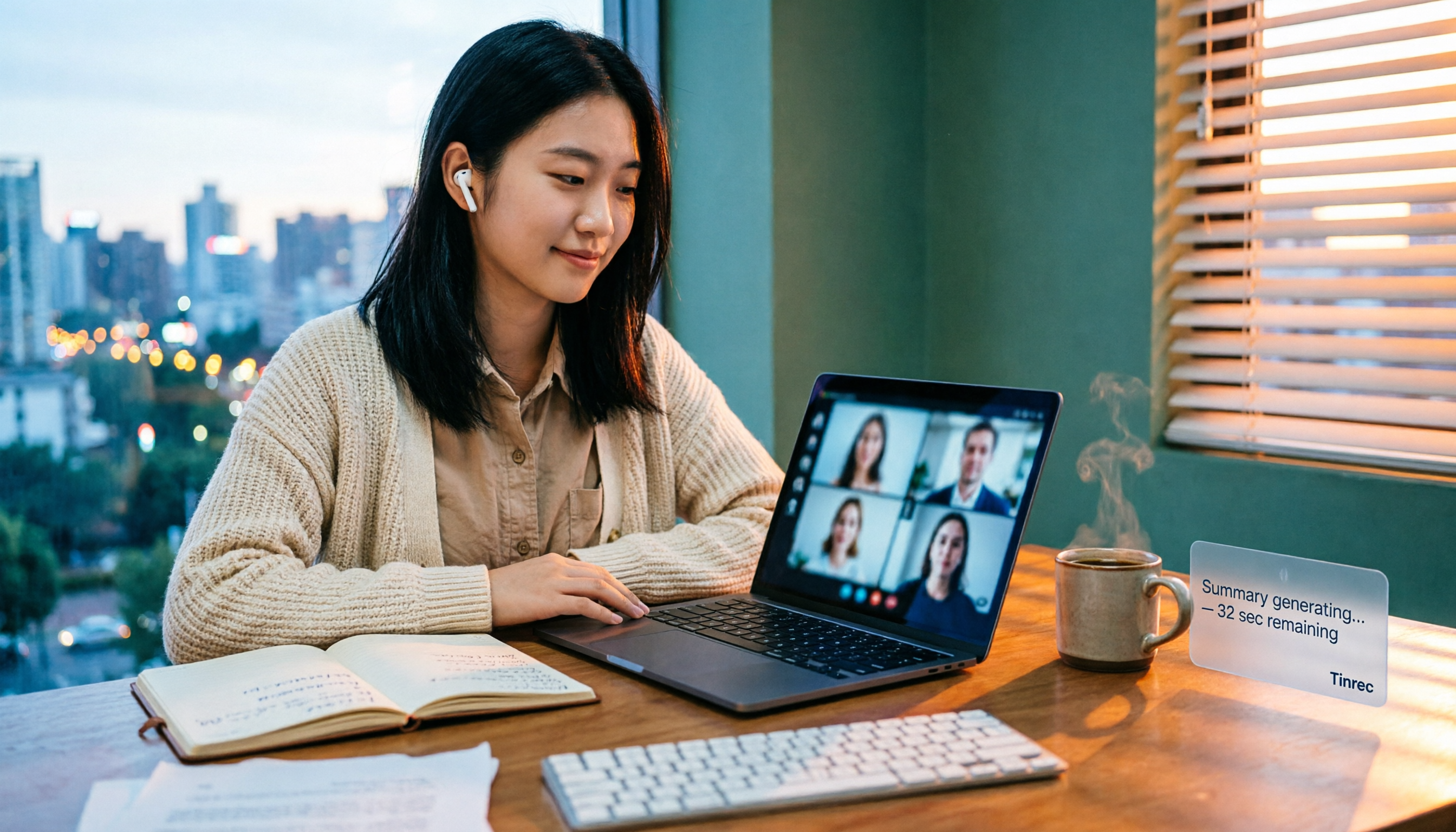
How to Buy Google Meet Recording in 2026: 4 Steps to the Best Deal
Does Google Meet recording cost money? Why can't free users find the record button? Starting from a student budget, this guide uses 4 steps to help you decide whether to upgrade to Workspace, use built-in recording, or switch to a bot-free AI meeting notes tool like Tinrec, with buying criteria and pitfalls to avoid.

Tinrec vs Google Meet in 2026: 4 Key Differences to Know Before You Pay
People searching for Google Meet purchase price usually want to know: Do I need to pay for meetings, and where should the money go? This article breaks down Google Meet's pricing logic using real scenarios for students and small teams, and explains how Tinrec fills the gap in meeting notes, transcripts, and action items so you can decide before paying.

Arsenal vs Nottingham Forest Preview 2026: 3 Key Storylines and H2H Data
On October 18, 2026, Nottingham Forest host Arsenal in Premier League Matchday 7. This preview covers kickoff time, both teams' recent form, head-to-head record, and injury lists to help you get up to speed before the match.
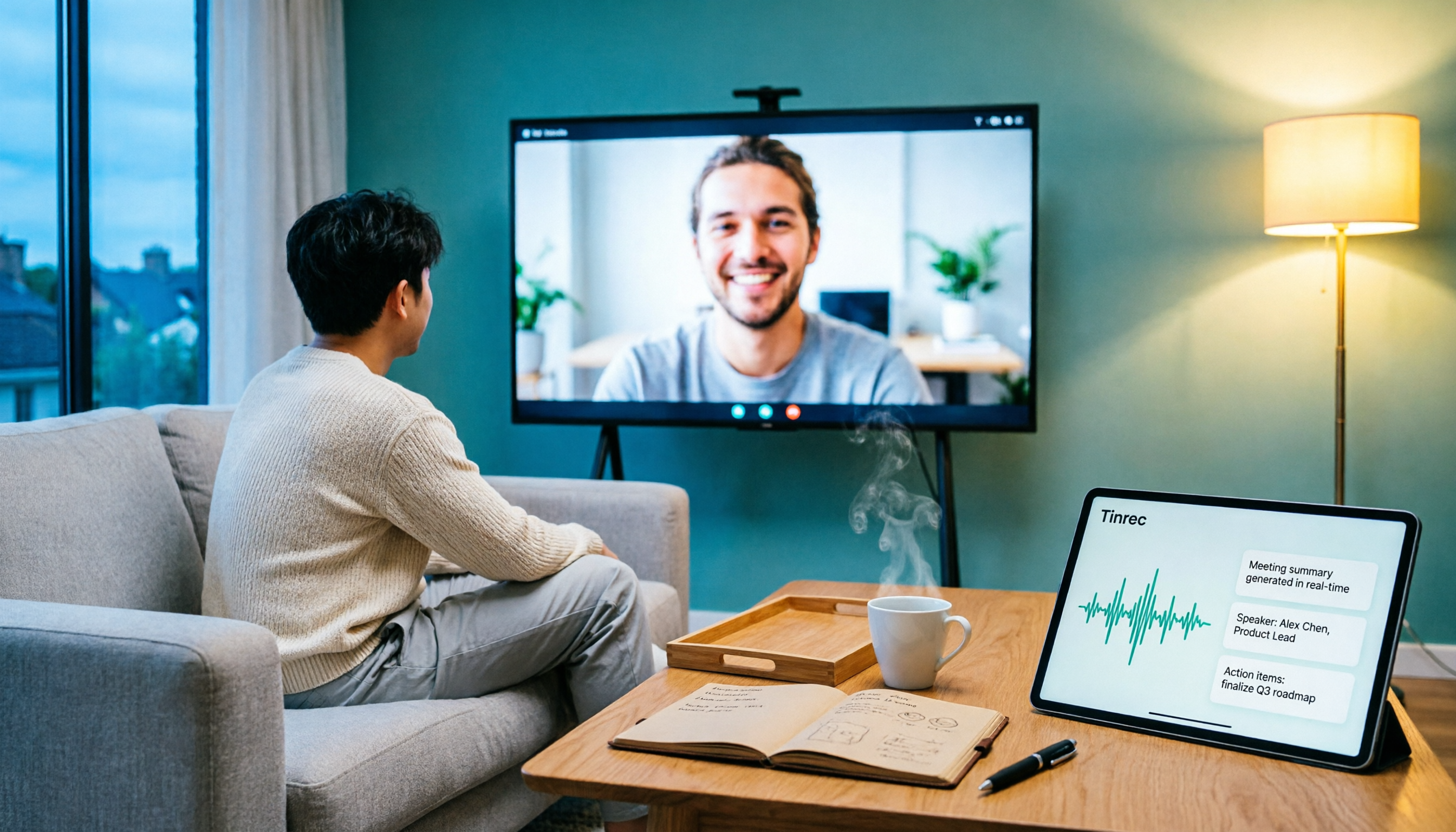
5 Ways to Put Google Meet on TV in 2026: Real-World Comparison and How to Capture Meetings on the Big Screen
To get Google Meet on your TV, you need to solve two problems: how to get the picture on the big screen, and where the meeting content goes after it ends. This guide covers 5 methods, from bot-free recording to Chromecast casting, Android TV calling, and browser-based options, explaining when each one makes sense.

Tenrec Large-Scale Multipurpose Recommender System Benchmark Dataset Explained: 5 Million Users, 140 Million Interactions, 4 Scenarios
Tenrec is a large-scale multipurpose benchmark dataset covering four recommendation scenarios. This article summarizes its five core features, four scenarios, ten evaluation tasks, how to access it, and usage considerations to help you decide if it suits your recommender systems research.