
Turn recordings into transcripts and summaries in minutes
Upload audio or video for multilingual transcription, AI notes, and action items
Many business professionals and administrative staff have long struggled with the lack of built-in call recording on iPhone, often resorting to using speakerphone and a secondary device to record—both inconvenient and prone to missing key points. Now, iOS 18 has finally introduced native call recording! However, you may soon face issues like "the other party hearing the recording alert tone and feeling awkward," "inaccurate Chinese speech-to-text," or "still not knowing how to organize a one-hour recording."
This article will walk you through the steps and limitations of iOS 18's built-in feature, and provide a comparison table of current transcription tools, a selection guide, and hands-on tutorials. If you simply want to back up call content, the built-in iOS 18 feature works fine; but if you value cross-language accuracy and need meeting recordings to automatically generate decision summaries and action items, pairing with professional AI voice processing tools like Tinrec is a more efficient choice.
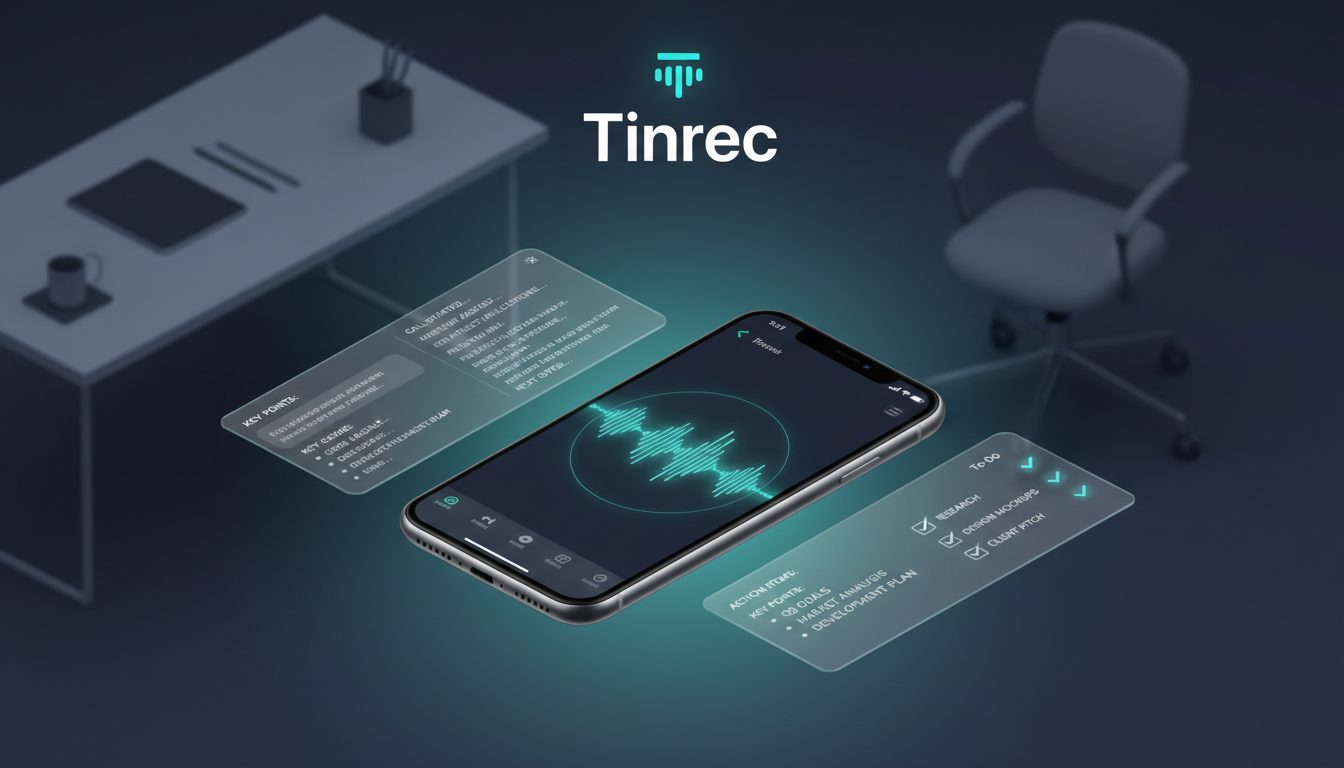
1. Complete Breakdown of the New iPhone Call Recording Feature in iOS 18
Apple has finally delivered a long-awaited update in iOS 18 by integrating call recording directly into the system, eliminating the need for complex third-party workarounds or external devices.
How to Enable iOS 18 Call Recording?
The feature is intuitive: during a call (outgoing or incoming), a "Call Recording" button appears on the screen. Tapping it initiates a 3-second countdown, followed by an audible system announcement: "This call will be recorded" to both parties. As long as the other party doesn't hang up, consent is implied, and the system begins recording the entire call.
Speech-to-Text and Privacy Protection
After the call ends, the recording is automatically saved to the Voice Memos app. If your device supports and has Apple Intelligence enabled, the system can also transcribe the audio and attempt to generate a summary.
For privacy protection and to avoid legal issues, Apple currently does not allow users to disable the recording alert tone. This means that during sensitive business negotiations or customer service recordings, the sudden announcement may disrupt the conversation flow.
2. Is the Built-in Feature Enough? 3 Common Pain Points with Call Recording
While the built-in feature solves the "can we record?" problem, professionals often encounter these bottlenecks regarding "usability" and "post-processing":
- Social pressure from the alert tone: The mandatory two-way notification is unsuitable for certain business communications or legal evidence gathering.
- Multilingual and Chinese recognition limitations: The native AI processing often falls short in accuracy when dealing with mixed Chinese-English, dialects (e.g., Taiwanese Hokkien, Cantonese), or specialized terminology compared to dedicated voice models.
- Lack of decision and action item extraction: A long conference call lasting tens of minutes is meaningless if you only get a massive transcript. Traditional tools cannot tell you "who said what," "what was the final conclusion," or "who needs to do what next."

3. Advanced Options: Comparison Table of AI Recording and Transcription Tools
To lower your decision-making cost, here's a core comparison across "iOS 18 built-in feature," "generic third-party transcription tools," and "multi-device AI recording assistant Tinrec" to help you find the best solution.
Stop organizing recordings by hand
Upload audio or video and automatically get a transcript, summary, and action items
| Comparison Dimension | iOS 18 Built-in Call Recording | Generic Speech-to-Text Tools | Tinrec (Instant Voice Recorder) |
|---|---|---|---|
| Privacy Alert Tone | Mandatory two-way notification, cannot be disabled | Relies on external recording, no system-enforced alert | Relies on device microphone recording, no mandatory call alert tone |
| Language Support & Recognition | Depends on device settings; initially mostly English | Most support major languages, but weaker with dialects | Auto-detects 10 languages including Chinese, English, Japanese, Taiwanese Hokkien, Cantonese |
| Summary & Action Items | Basic summary (depending on device hardware) | Only raw text transcripts | Automatically generates meeting minutes, conclusions, and to-do lists |
| AI Query & Interaction | None (only keyword search) | None | Supports AI conversational queries; can ask questions directly about the recording content |
| Export & Cross-Platform | Tied to Apple ecosystem | Mostly single-platform export | Supports iOS, Android, Web multi-device sync, multiple export formats |
| Pricing & Free Tier | Built-in, free to use | Mostly paid, very limited free tier | Free version (100 minutes/month), paid plans available for more |
4. Hands-On Tutorial: 4 Steps to Turn Call Recordings into High-Value Meeting Minutes
If your calls involve important project discussions, using Tinrec's complete workflow (Record → Understand → Act) keeps everything organized. Here are the specific steps:
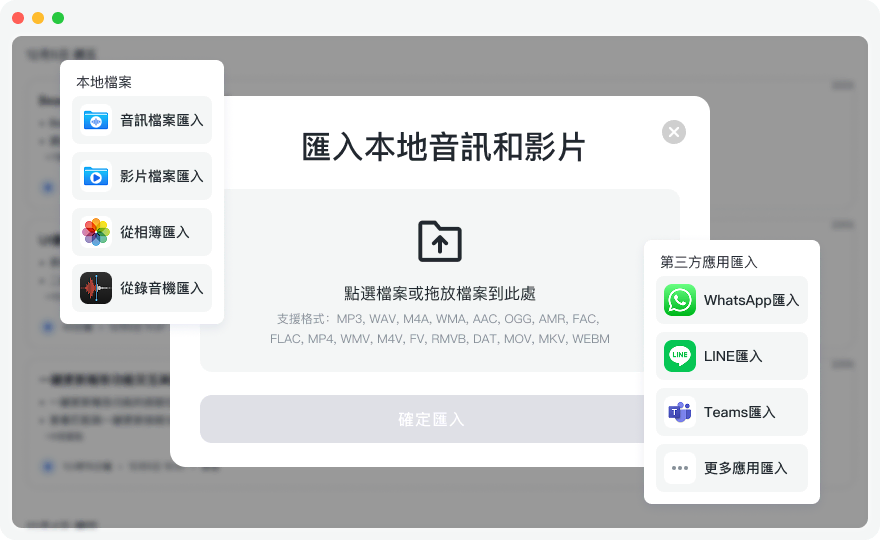
Step 1: Audio File to Text (Process Recorded Calls)
If you've already recorded a call on your iPhone or have files from another recorder:
- Open Tinrec's Audio to Text feature page.
- Upload the M4A or MP3 file from Voice Memos to the platform.
- The system automatically identifies speakers and produces a complete transcript within minutes.
- Filler words are automatically filtered, and a structured meeting summary is generated.
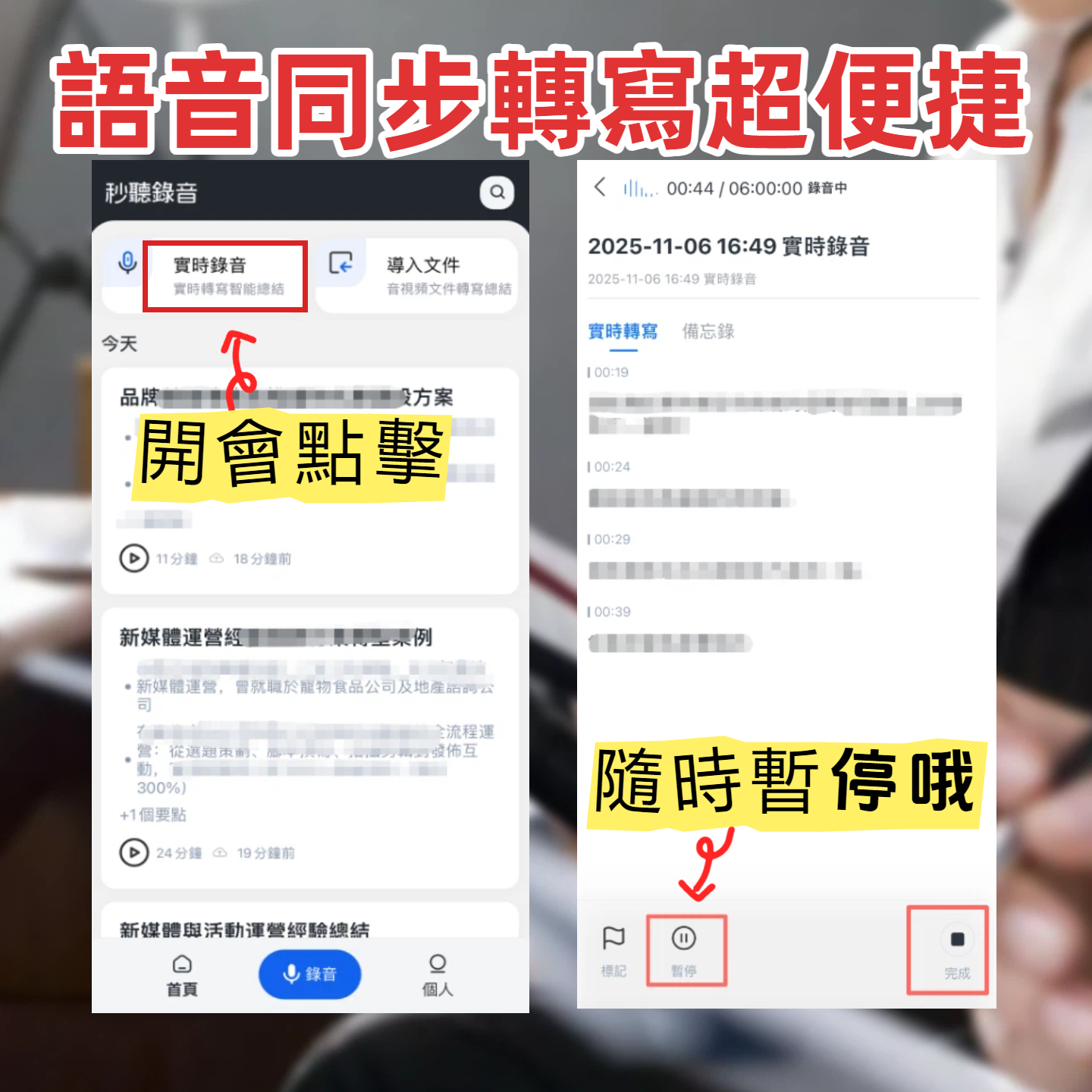
Step 2: Real-Time Recording to Text (Speakerphone or In-Person Meeting Scenarios)
To avoid triggering the system call alert tone, you can put the call on speaker and use another device (like an iPad or laptop):
- Go to Tinrec homepage or open the app on your device.
- Tap "Start Recording"; the system instantly transcribes the speech on screen in real time, no waiting.
- You can mark key points during the meeting, and a to-do list is generated immediately when the recording ends.
Step 3: Online Video to Text (Process Video Conference Recordings)
Sometimes business calls turn into online videos (e.g., unlisted YouTube links or cloud meeting recordings):
- Copy the URL of the video or podcast.
- Go to the Podcast/Online Video to Text page and paste the link.
- The tool automatically extracts the audio track and condenses a one-hour video into a quickly readable text report.
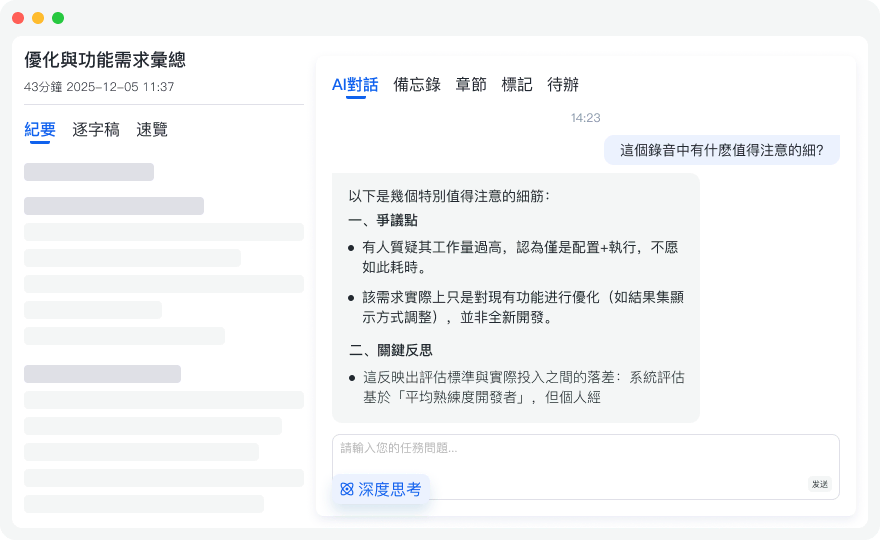
Step 4: Use AI Chat Query to Quickly Find Key Points
Traditional transcripts only allow Ctrl+F word searches; if you forget exactly what someone said, it's hard to locate.
- On the right side of a processed recording, open the AI Chat Query feature.
- Simply type natural language questions, such as: "What was the budget limit the client mentioned?" or "List all tasks due by next Tuesday."
- The AI responds intelligently based on that specific recording, making information retrieval as simple as asking an assistant.
5. Frequently Asked Questions (FAQ)
Q1: Can I disable the alert tone on iPhone call recording? Currently, Apple has not provided an option to disable the "This call will be recorded" alert tone, to protect privacy and avoid legal issues.
Q2: Besides regular calls, can I transcribe LINE voice calls or Teams/Meet meetings? iOS native call recording mainly targets standard PSTN and cellular calls. For online meetings like Teams or Meet, it's recommended to use speakerphone on your computer and pair with Tinrec's real-time recording-to-text feature, or directly upload the meeting recording file for transcription.
Q3: Does the transcription support Taiwanese accents or Hokkien? The built-in recognition has limited support for regional accents. For high accuracy, use advanced tools that support mixed Chinese/English and Hokkien recognition to significantly reduce post-editing time.
Q4: How long does it take to transcribe a one-hour call recording? Professional tools typically have high-performance processing; after uploading a one-hour audio file, the transcript and AI summary are usually generated within a few minutes—much faster than manually re-listening.
Q5: Do these tools offer free usage? It depends on the platform. For example, Tinrec provides 100 minutes of free transcription per month, which is quite useful for individual users who occasionally need to record important calls. For higher volume, paid plans with hundreds to thousands of minutes per month are available.
Q6: What formats can the transcripts be exported as? Advanced AI tools generally support multiple export formats, including TXT, Word, PDF, or SRT subtitle files, making it easy for professionals to paste into proposals or meeting minutes archives.
Turn every recording into actionable outcomes
Get 60 free transcription minutes when you sign in. No credit card required.
Related Reading
You might also like

Best AI Meeting Notes Tools in 2026: Testing 2 Options for Chinese Meetings
AI meeting notes aren't just about feeding recordings to AI. This article covers three common pitfalls, compares Tinrec and Otter.ai across multiple dimensions, and breaks down the pre-meeting, in-meeting, and post-meeting workflow that actually works for Chinese meetings—helping you decide which tool to choose.

2026 AI Meeting Recorder Comparison: Tinrec vs Vocol.ai — Which Should You Choose?
Tinrec and Vocol.ai have similar positioning but different approaches. This article addresses three common misconceptions, explains how meeting audio gets into each tool, what you get after transcription, and who owns team data. It also covers third-party observations of Vocol.ai, Tinrec's bot-free recording and AI Q&A workflow, and provides scenario-based guidance on which tool to choose.

2026 Voice Collaboration Platform Comparison: Why Tinrec Is the Top Vocol.ai Alternative
Vocol.ai has gained traction in Taiwan, but when use cases shift from personal recording to weekly department meetings, bottlenecks often appear in online meeting recording, post-meeting action items, team seats, and data handover. This article compares Tinrec and Vocol.ai across four dimensions, breaking down Tinrec's bot-free recording, AI Q&A, Agent post-processing, and team governance capabilities to help you make a clear case in procurement meetings.

Tinrec vs Vocol 2026: 5-Factor Comparison for Chinese Meeting Notes
People searching for "vocol 2026 annual report" often encounter two completely different results: one is the annual financial report of Veken Technology, and the other is the voice collaboration platform Vocol AI. This article first clarifies this confusion, then compares Tinrec and Vocol across 5 dimensions: transcription output, meeting capture method, audio retention, Chinese language experience, and team governance, so you know what you're choosing.

How to Generate AI Meeting Notes in 2026: Bot-Free Recording + Automatic Summaries & Action Items
How do you generate AI meeting notes in 2026? This guide breaks down the process from scratch: recording online meetings without a bot, real-time transcription, AI summaries, and action item extraction. It includes 5 key buying criteria and FAQs, with Tinrec as a demo to help you wrap up within half an hour after the meeting.
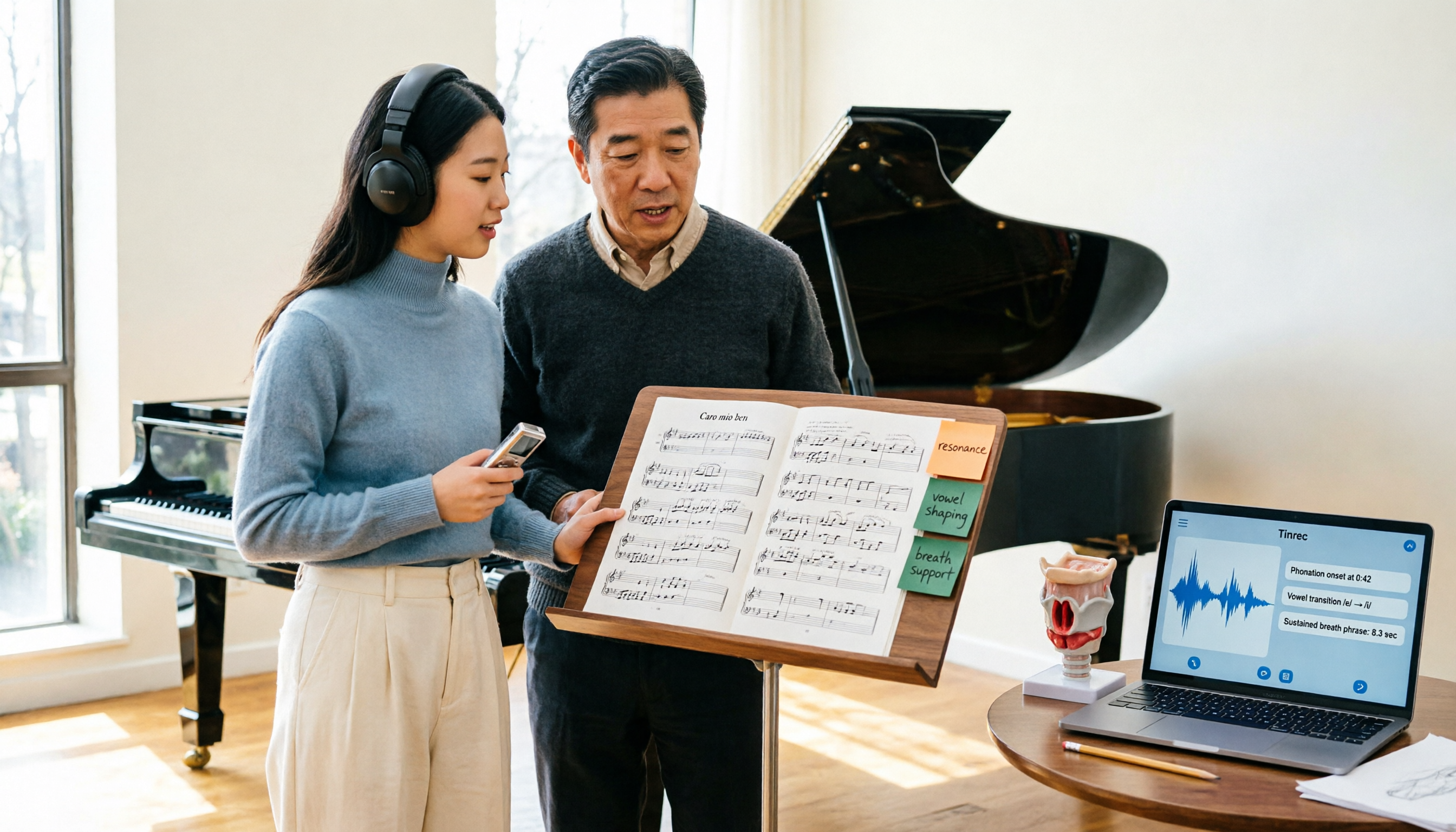
2026 Vocologia Master's Degree Complete Guide: 5 Real-World Learning Scenarios Tested, How to Organize Class Recordings Most Efficiently
Admissions for the 2025-2026 academic year in Vocologia Artistica (vocalogy) master's programs are gradually opening, but the courses are entirely in Italian and span voice medicine and singing pedagogy—handwritten notes alone won't capture it. This article breaks down what the master's covers, who it suits, and tests 5 real learning scenarios, demonstrating how to use Tinrec to turn lectures, clinical discussions, and thesis interviews into searchable, queryable data.

VOCOlinc vs Atuvos: Price Comparison Logic and Why Tinrec Is Better for Meeting Notes
VOCOlinc and Atuvos are Apple Find My-compatible trackers with nearly identical specs, so comparing them is straightforward. But for mid-level managers, the real time drain is post-meeting organization and follow-up. This article explains in 3 minutes how to compare VOCOlinc vs Atuvos, then applies the same 'specs don't equal experience' logic to show how Tinrec turns meetings into searchable, actionable team data.

Vocol vs Tinrec 2026: 5-Dimension Comparison for Chinese Meeting Notes and Team Collaboration
Vocol and Tinrec are both practical tools for Chinese meeting notes, but one focuses on recording organization and the other on team meeting assets. This article compares them across 5 dimensions: capture method, Chinese performance, post-meeting outputs, team governance, and quota billing, to help you decide which suits your team.

2026 AI Voice Collaboration Tools Comparison: Vocol.ai, Tinrec, and Otter.ai Features and Team Collaboration
This article starts with common misconceptions and compares three AI voice collaboration tools: Vocol.ai, Tinrec, and Otter.ai. It explains selection criteria, feature differences, team collaboration, and pricing limitations to help you decide which one suits Chinese meetings and team knowledge retention.