

Turn recordings into transcripts and summaries in minutes
Upload audio or video for multilingual transcription, AI notes, and action items
How to Transcribe iPhone Recordings in 2026: A 4-Step Hands-On Guide
"Is iPhone's built-in transcription enough?"—Get this wrong and everything else is wasted effort
A two-hour meeting followed by two more hours of typing—that's a daily reality for many office workers. iPhone users rarely have trouble recording audio; the real pain point is what to do after recording. Voice Memos pile up in a long list, and just thinking about replaying them gives you a headache.
It's even worse for Cantonese meetings. Tools that support Cantonese transcription are already scarce, and accuracy varies wildly. After trying a few, you give up and end up typing everything yourself.
So the first question isn't "which app is best"—it's: do you just need a transcript, or do you need meeting notes you can hand off directly? iPhone's built-in feature is free and instant, but it only solves the first half of the workflow. If you also need summaries, action items, and follow-up Q&A, you'll need another tool. Let's break it down layer by layer based on this distinction.
4 key points to understand before choosing a tool: the 4 steps from recording to delivery
From iPhone recording to a usable document, there are only 4 steps: 1) Record or import; 2) Transcribe; 3) Organize (summary, highlights, action items); 4) Deliver (export, share). Most tools only do step 2 well—the differences show up in steps 1, 3, and 4.
1. Are the input sources comprehensive enough? Are you sitting in a conference room recording with your iPhone, or facing your computer on Zoom, Meet, or Teams? The former relies on live recording; the latter is best captured along with system audio. Tools that only support file uploads can't handle live meetings.
2. Chinese language version requirements. The built-in Voice Memos app requires iOS 18.4 or later to support Chinese (Traditional and Simplified) transcription. Some sources also mention that the device must be iPhone 12 or later. Files recorded on iOS 17 or earlier won't automatically generate transcripts.
3. What happens after transcription? Just a transcript, or also summaries, chapters, action items, and Q&A? The real time sink after a meeting is organizing, not transcribing.
4. Cross-platform and team use. Record on iPhone today, organize on computer tomorrow—if your data is trapped on one device, it's as if it was never organized. If your team needs to share and hand off, you need to think even more carefully about data ownership.
Tinrec—the smoothest all-in-one solution in our tests
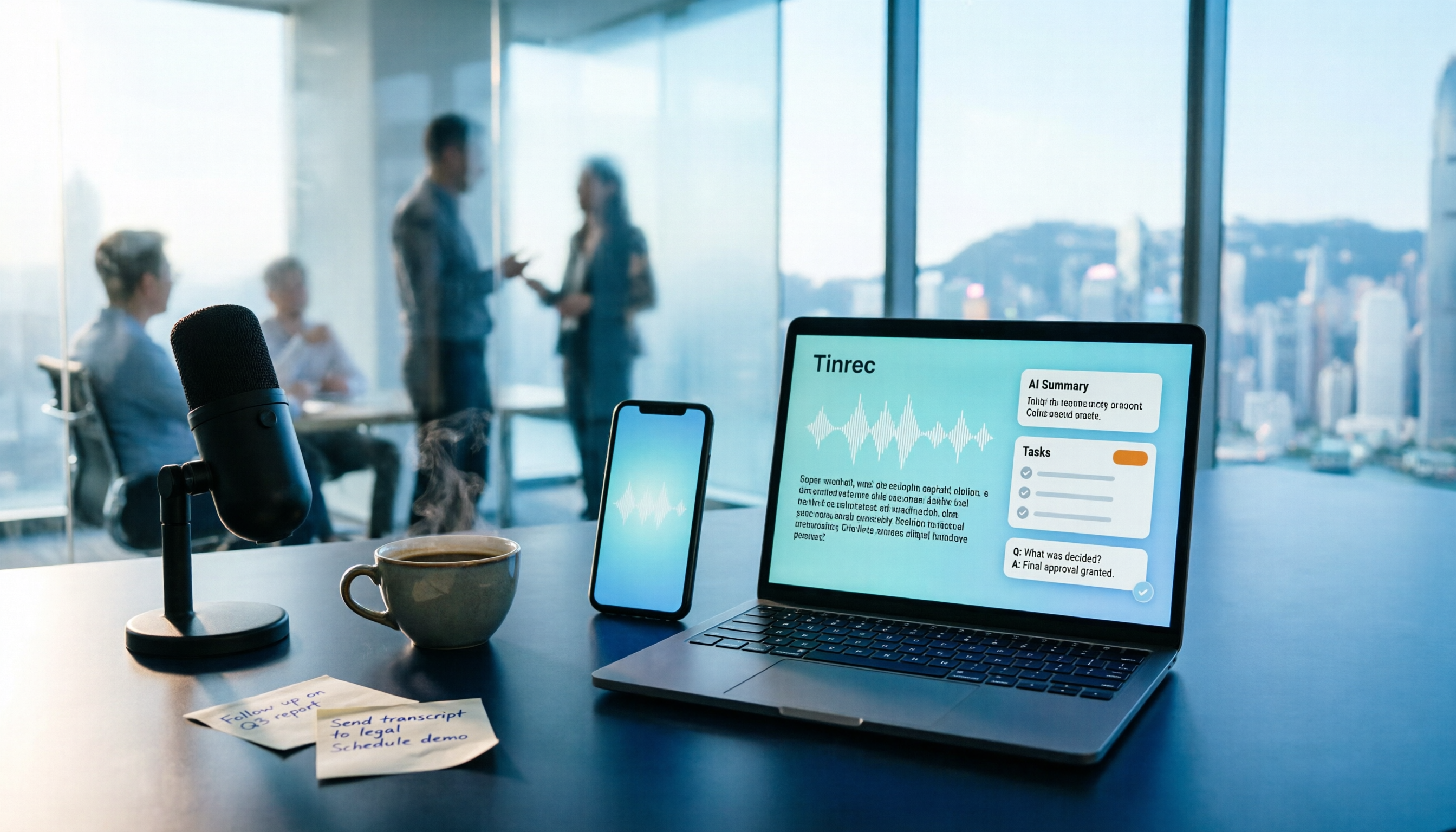
Tinrec is an AI meeting notes and collaboration tool for individuals and teams, available on iOS, Android, desktop, and web. It's not just "audio to text"—it turns meetings into searchable, collaborative, actionable data.
No bot needed for online meetings. When you start a Zoom, Google Meet, Microsoft Teams, or Webex meeting, Tinrec's desktop app captures system audio directly—no extra bot joins the meeting. You initiate recording and get a live transcript as the meeting happens. This is especially useful for those who don't want clients to see an "extra participant."
Automatic summaries and action items after the meeting. Once recording ends, AI generates a summary, chapters, and action items—who's responsible and when it's due, all at a glance. No need to listen from the beginning again. For cross-language meetings, you can enable real-time translation and view in original, translated, or bilingual mode.
Ask questions directly after recording. For example, ask: "Who mentioned the budget last time?" It won't dump a list of keyword search results—it understands the context and answers directly. This semantic-based AI Q&A is the main difference between Tinrec and tools that only transcribe. You can also generate reports, tables, and documents, and export to Notion, Google Docs, OneNote, or Dropbox for further use.
Test conditions and results. We tested with a mixed Chinese-English meeting recording (recorded on iPhone 15 plus simultaneous desktop recording, indoor environment with air conditioning noise): mixed Chinese-English sentences were mostly transcribed completely. Proper nouns and names needed correction using team hotwords for better results. To be honest: when multiple people talk over each other, accents are heavy, or recording quality is poor, errors still occur. Important numbers and amounts should be verified against the recording.
Stop organizing recordings by hand
Upload audio or video and automatically get a transcript, summary, and action items
Pros: 1) All-in-one from recording, transcription, summary, to export—no need to move files between apps. 2) Cross-platform: record on iPhone, organize on computer, then share with team. 3) Team version includes role and seat management, usage analytics, audit logs, and audio recycle bin. When members leave, data can be handed over and won't leave with them.
Limitations: The free version has only basic quota; long-term high-frequency use requires upgrading (personal plans include weekly, Pro monthly, and Pro annual). Team version is priced per paid seat: currently USD 29.80 per paid seat per month, or USD 199 per paid seat per year (about USD 16.58 per month), with 2,000 minutes of shared team import quota per paid seat per month. Eligible teams get a 7-day trial, 1 free seat, and 300 minutes of shared import quota for the first time. Prices and benefits are subject to the official purchase page. Also, accuracy depends on recording environment; no fixed percentage is promised.
Who it's for: Professionals who frequently handle Chinese or mixed Chinese-English meetings, want to use AI to find key points right after recording, and switch between iPhone and computer. If you're a team looking to accumulate meeting data, check out the team version.
Besides Tinrec, what other options do iPhone users have?
Apple's built-in Voice Memos and Notes apps. Free, no installation required. iOS 18.4 or later can generate live transcripts, highlighting corresponding text during playback, and you can copy it. But it only produces a transcript: no summary, no action items, no AI Q&A. Old recordings won't be automatically transcribed. If you want to hand off meeting minutes right after, you'll need to do extra work.
Notta. A multi-platform transcription tool. Official free version: 120 minutes per month, 3 minutes per session. Pro annual plan is about USD 8.17 per month. Good for file transcription and subtitles. But it lacks bot-free desktop meeting recording, and has no team seats, audit logs, or recycle bin—governance capabilities are weak, and data accumulation is limited.
PLAUD Note / NotePin. Hardware representatives. NotePin official price USD 159, Note Pro USD 189, plus AI membership (Pro is USD 99.99 per year). Advantage: a portable device for recording anytime, including phone calls. But you need to buy extra hardware, and there's no team space or seat management. Cross-platform collaboration also falls short of software solutions.
Pitfall guide: 4 most common mistakes in iPhone audio-to-text
Pitfall 1: Only looking at official accuracy claims. A quiet recording studio is different from a real conference room. Air conditioning noise, keyboard sounds, and multiple people talking over each other will lower performance. Test with your own recordings—don't just look at advertising numbers.
Pitfall 2: Assuming old recordings will automatically get transcripts. Files recorded on earlier versions won't be automatically transcribed. You need to convert them to new-version files using built-in methods, or import them directly into a tool. Check your system version before the meeting—better than discovering no transcript afterward.
Pitfall 3: Ignoring cross-platform. Recording on iPhone today and organizing on computer tomorrow is the norm. If a tool only supports one platform, you'll constantly move files around—wasting more time than transcription itself.
Pitfall 4: Only using transcription, ignoring AI features. Treating a transcript as just "audio to text" means using only one-third of its capability. After recording, directly ask "What was the meeting conclusion?" or "Who has action items?"—much faster than manually scanning a 30-minute transcript.
One final reminder: before recording and transcribing, be aware of local legal requirements. Obtain participant consent when necessary.
Summary: Which one should you choose?
- Just want free transcription for short recordings → iPhone built-in Voice Memos (requires iOS 18.4 or later, supported device)
- Chinese or mixed Chinese-English meetings, need summaries, action items, and post-meeting Q&A → Tinrec
- Online meetings without adding a bot participant → Tinrec desktop version
- Record on iPhone, organize on computer, share same data with team → Tinrec team version
- Only record English meetings, zero budget → Otter.ai free version (300 minutes per month), the only exception recommended in this article
To see if upgrading is worth it, the most practical approach is to open Tinrec's free version and test with a real recording of your own (ideally with background noise and mixed Chinese-English). See if the transcript and summary are sufficient for you, then decide whether to pay.
References
- View Voice Memos transcripts on iPhone - Apple Support (Taiwan)
- iPhone audio to text free transcript! iOS 18 supports 10 languages | Quality Life | 500 Times
- iPhone Voice Memos to text tutorial, built-in transcription without third-party apps - Mr. Mad
- [iPhone Voice Memos to text] Complete tutorial of 3 methods! iOS built-in, app, recorder—which is best?
- No third-party app needed! Complete guide to iPhone Voice Memos and Notes app audio-to-text | Venus's Fantasy World
Turn every recording into actionable outcomes
Get 60 free transcription minutes when you sign in. No credit card required.
Related Reading
You might also like

2026 Comparison of 4 Audio-to-Text Tools: Which Transcripts Are Actually Ready to Use?
A hands-on comparison of 4 audio-to-text tools, covering how they capture online meetings, their performance with Chinese and mixed Chinese-English speech, post-transcription summaries and AI Q&A, and team seat management and handover. We explain how to choose based on different budgets and use cases, and highlight the 4 most common pitfalls before purchasing.

2026 Comparison of 4 Audio-to-Text Apps: Are Free Tiers Enough for Students?
Starting from questions in PTT discussion threads, I tested 4 audio-to-text apps over a full semester using class recordings and group meetings. I compared real-time transcription, free tiers, post-meeting AI summaries, and cross-platform export, explaining why Tinrec was the one I kept, and who Notta, PLAUD, and Otter.ai are best for.
Free Audio-to-Text Solutions in 2026: 5 Options Compared
Transcribing recordings is a lifesaver for busy professionals, but free tools often disappoint. This article uses Tinrec as a primary example to outline free ways to get started with audio-to-text in 2026, compares 5 plans from free to team versions, and breaks down core capabilities like real-time transcription, bot-free meeting recording, AI summaries and action items, and AI Q&A, so you know which one is worth using.

5 Best Audio-to-Text Apps in 2026: Free Tiers and AI Summaries Compared
We tested audio-to-text apps on free tier limits, Chinese and mixed Chinese-English recognition, and post-meeting organization. We break down 5 key buying factors and 4 common pitfalls, then take a deep dive into Tinrec's bot-free online meeting recording, AI summaries, action item extraction, AI Q&A, and team workspace. Finally, we give clear recommendations based on budget and use case.
4 Best Audio-to-Text Apps in 2026: Which Free Tier Works Best for Students?
Starting from college and grad school scenarios like lectures, group discussions, and interviews, this article first highlights the three most common mistakes when choosing an audio-to-text app, then compares Tinrec, Notta, Otter.ai, and PLAUD Note across four key areas: free quota, AI organization, cross-platform support, and online meeting recording. It also includes buying advice and pitfalls to avoid for students.

4 Free Audio-to-Text Tools Compared in 2026: Is Tinrec, cSubtitle, or MyEdit's Free Version Enough?
How do you choose a free audio-to-text tool? This article compares the free quotas and limitations of Tinrec, cSubtitle, MyEdit, and Monica, explains Tinrec's real-time recording, bot-free online meeting recording, AI summaries and action items, AI Q&A, multi-format export, and team workspace, and breaks down the differences between free, personal, and team plans to help you decide which free option is truly sufficient.

How to Transcribe Audio to Text in 2026: 5-Step Mobile Tutorial
Transcribing audio to text on your phone doesn't mean typing every word. This article covers the top 3 mistakes people make, 4 key factors for choosing a tool, and 5 practical steps—from recording on your phone, live transcription, AI summaries and to-dos, AI Q&A, to exporting deliverables. It also compares Tinrec, iPhone's built-in transcription, Notta, and Otter.ai, and includes 4 common pitfalls and selection advice.

2026 Free Audio-to-Text AI Complete Guide: Free Tiers, Tool Comparison, and Tinrec Hands-On Review
From a student's hands-on perspective, this guide breaks down common misconceptions about free audio-to-text AI: how free quotas work, whether transcripts are directly usable, and how much time post-processing takes. It compares common free tools with Tinrec on Chinese recognition, AI summary and to-dos, bot-free online meeting recording, and team knowledge retention to help you find the one that truly saves time.

Tinrec vs Notta 2026: 5-Dimension Comparison — Which Free Audio-to-Text Tool Is Better?
How do you choose a free audio-to-text tool? This article compares them across 5 dimensions: free quota, Chinese recognition, post-meeting organization, meeting recording methods, and team permissions. Using Tinrec as an example, it explains what you can do with the free version and what you can do after transcription.