
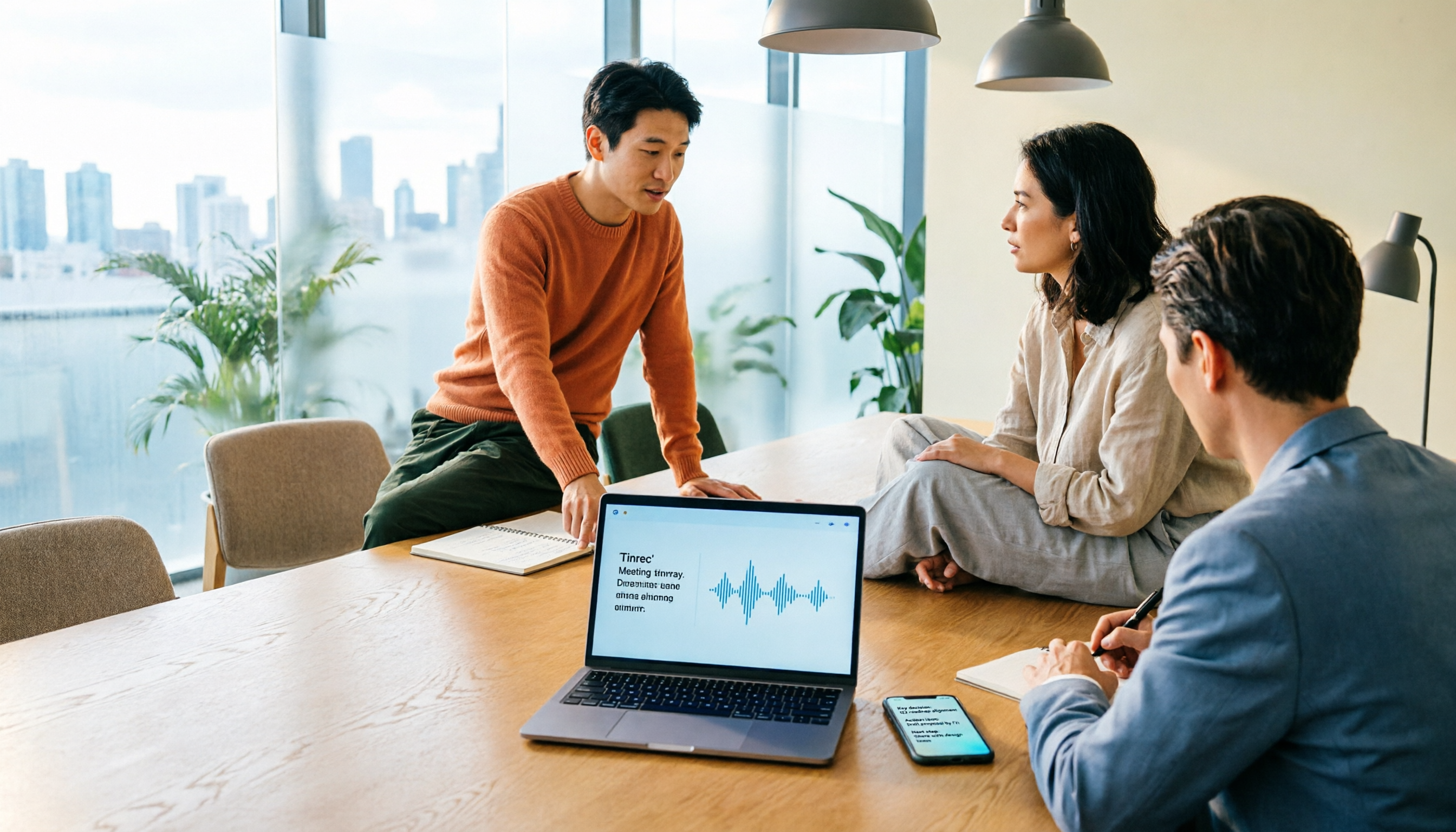
Turn recordings into transcripts and summaries in minutes
Upload audio or video for multilingual transcription, AI notes, and action items
What you need to do is not 'bet on whether it will turn on,' but decide how to join the meeting
Let me ask you: for tomorrow's 9 AM weekly meeting, how do you plan to enter the meeting room?
Join from your laptop's preview screen, tap a link on your phone app, or simply use On-the-Go mode to listen while walking? These three choices determine whether my camera will turn on within three seconds of the start, and whether I'll appear on screen still eating breakfast.
Many people search 'Does Google Meet automatically turn on the camera?' but what they really want to ask is: Should I prepare in advance?
Bottom line: Google Meet's camera is not a requirement to join a meeting. You can enter without turning on the camera, hear others, speak via microphone, view shared screens, and use chat and captions. So what you really need to confirm is 'how am I joining this time, and what is the default camera state for that method,' not 'will it secretly turn on.'
The second consideration: After the camera is off, how will the meeting content be captured? This is the real pain point for managers. Turning off the camera is for appearance, but meeting conclusions won't automatically appear in your notes just because you turned off the camera.
Here's the answer: In these 4 situations, the camera 'feels like it turns on by itself'
1. The camera is not a joining requirement, but the device remembers your last choice
Google Meet's camera is just one video input source. Whether it's on when you join depends on your device, browser, and account settings, not a universal switch. That's why some people in the Google Meet community complain 'every time I join, my camera and microphone are automatically turned on,' while a colleague next door says 'mine is always off when I enter'—because your devices and joining methods are different.
2. Joining from the preview screen vs. clicking a link directly
On a computer, you usually see a preview screen before joining, allowing you to check camera and microphone status before entering the meeting room. In practice, this is the most reliable time to turn off the camera: turn it off on the preview screen, not after entering the meeting room. If you're used to clicking a link directly and rushing in without the preview, you'll feel like 'it turned on by itself.'
The interface location may change with versions, but the logic remains: confirm before joining is more relaxed than fixing after joining.
3. On mobile with On-the-Go mode, the camera is off by default
If you're walking, in a car, or on the subway, Google Meet's On-the-Go mode is a pure audio experience with larger buttons and fewer distractions, and it turns off your camera and disables video sending/receiving. Official documentation also states that when you exit On-the-Go mode, the camera is off by default. For those pulled into a meeting last minute and not wanting to show their moving surroundings, this is the easiest approach.
4. No one can 'automatically turn on all cameras for you'
Many people misunderstand this. Google Meet currently does not offer a feature to 'automatically turn on all participants' cameras.' In other words, the host cannot command ten people's cameras to turn on at once; conversely, you don't need to fight the system in a meeting—camera status is controlled by each participant's own device.
Quick checklist (30 seconds before joining):
- Check camera and microphone status on the preview screen before clicking join.
- When moving on mobile, switch to On-the-Go mode; camera is off by default.
- If it's always automatically turned on, test with a different browser or device to determine if it's device memory or account settings.
- Before important meetings, open a test meeting room for 10 seconds—better than panicking during the meeting.
Before choosing a meeting notes tool, understand these 4 key points
Turning off the camera takes a second; post-meeting documentation is where the real time goes. When evaluating such tools, I look at only four things.
1. Is the input source broad enough? Your meetings don't only happen on Google Meet. Today it's Meet, tomorrow Zoom, the day after Teams, plus impromptu face-to-face meetings in conference rooms. If a tool only handles a single platform, your data will be scattered across three places.
2. Will an extra 'bot' join? A meeting bot joins as a participant, adding a name to the screen. Some teams don't mind; some clients immediately ask 'who is that?' This difference is especially noticeable in external meetings.
3. Can you use the output directly after transcription? A transcript alone means the organizing work is handed right back to you. You want summaries, chapters, action items, and answers to questions like 'who mentioned the budget in this meeting?' that you can ask directly.
4. Are audio files retained, and can the team share them? Personal use is one thing; when you have a 10-person team, and members leave, take extended leave, or change projects, who owns the meeting data, who can see it, who can edit it—these are governance issues, not feature issues.
Tinrec — the one our team kept after testing
One-sentence positioning: Tinrec is an AI meeting notes and collaboration tool for individuals and teams, turning meetings into searchable, collaborative, actionable team data.
My initial need was simple: The camera is off, but the record can't be off too.
Scenario 1: No need to invite a bot. Tinrec's desktop version directly captures system audio from your computer, handling meetings played on the computer like Zoom, Google Meet, Microsoft Teams, and Webex, without an extra bot joining as a participant. For teams like ours that frequently meet with external clients, the screen stays clean, and there's no need to explain 'who that account is.' Note that it requires the user to actively start recording, not automatically join all calendar meetings.
Scenario 2: No more spending an hour organizing after the meeting. When the meeting ends, the transcript is already there, along with AI summaries, chapters, key points, and action items. Who's responsible for what, what's due next week—visible at a glance. My biggest past fear—the boss asking 'what was the conclusion of last meeting?'—is now just a matter of opening the meeting data and asking.
Stop organizing recordings by hand
Upload audio or video and automatically get a transcript, summary, and action items
Scenario 3: Ask questions directly about the meeting. This is where it differs most from ordinary transcription tools. After recording, you can continue asking questions about the meeting, such as 'What were the client's concerns about the quote?' It gives answers based on the content, not a string of keywords for you to search yourself. The same question can be asked across multiple meetings.
Scenario 4: Team knowledge retention. This is why I ultimately chose the team version. The team version is a separate team space, not multiple people sharing a personal account: you can create and switch between multiple teams, invite members via link, set owners/admins/regular members, and distinguish roles (who can manage the team and audit) from seats (who can record, upload, edit, export).
One easily misunderstood detail worth clarifying: active members without a seat can still view, play, and read team data, but cannot upload, edit, import, or export. Also, team data is shared at the team level, not with granular file-level permissions. When a member leaves or is removed, their team resources need to be handed over to other active members—data doesn't follow the person.
Pricing, in plain terms: The personal version has a free tier, weekly pass, Pro monthly, and Pro annual, choose by usage frequency; if you only occasionally organize a recording, the free tier is enough to test the waters. The team version is currently USD 29.80 per paid seat per month, or USD 199 per paid seat per year (about USD 16.58/month), with each paid seat providing 2,000 minutes of team shared import quota per month; first-time eligible users get a 7-day trial, 1 free seat, and 300 minutes of shared import quota. Under an active team plan and seats, live recording currently does not deduct minutes; file and web imports use the team shared quota and do not deduct from members' personal quotas. Actual prices and benefits are subject to the official purchase page.
Pros: No-bot recording, post-meeting summaries and action items ready to use, ability to ask questions about meeting content, support for exporting to Notion, Google Docs, OneNote, Dropbox and other common tools for further processing, plus team space, seat management, usage analytics, audit logs, and a 30-day audio recycle bin.
Limitations: The free version has basic quotas; daily meeting users will want to upgrade. AI transcription and summarization, however strong, can still make errors in noisy environments, with multiple people talking over each other, heavy accents, or lots of technical jargon. Our approach is to use team hotwords to reinforce proper nouns and double-check important numbers against the transcript timestamps. For highly regulated scenarios like healthcare, legal, and finance, I wouldn't treat it as the only solution.
Who it's for: Those who need Chinese and mixed Chinese-English meeting notes, don't want a bot joining the meeting, and want post-meeting data to stay with the team for reuse.
Besides Tinrec, what other options are there?
Otter.ai: A mature choice for English business meetings. Basic free plan offers 300 minutes per month; Pro annual billing is about USD 8.49/user/month, including 1,200 minutes of in-app recording and 10 file imports per month. If 90% of your meetings are in English, it's a good deal; but it lacks Tinrec's experience optimized for Chinese meetings, and team data retention and post-export processing are not its focus.
Granola: Also takes the no-bot approach, using desktop system audio plus microphone for real-time transcription, and combines with your own handwritten notes to generate content. Basic is free, Business is USD 14/user/month. The difference is it doesn't support uploading pre-recorded audio files and doesn't save meeting audio—while Tinrec retains recordings, allowing you to go back and verify the original audio, which is crucial when assigning responsibility.
Notta: Good multilingual transcription. Free plan offers 120 minutes per month (max 3 minutes per session); Pro annual billing is about USD 8.17/month, 1,800 minutes per month. It overlaps heavily with Tinrec, but if you care about 'no bot joining the meeting' plus 'asking questions directly about meeting content and generating report documents,' Tinrec's completeness is still higher.
Pitfall guide: 4 most common mistakes when turning off camera and taking meeting notes
Pitfall 1: Thinking turning off the camera means no record. Turning off the camera only affects the video, not the value of the meeting content. The real loss is relying on memory after the meeting. The right approach is to decide before joining whether to keep a record of this meeting, not regret it afterward.
Pitfall 2: Ignoring recording consent and awareness. Recording involves local regulations and company policies, especially for external meetings. In practice, I've developed the habit of saying at the start: 'I'll record this meeting for notes to help with post-meeting organization.' Five extra seconds saves a lot of trouble.
Pitfall 3: Only looking at free quotas, not whether data can be exported. Free minutes are tempting, but you should ask: Can the transcript be exported? Can it go into Notion or Google Docs? Can data be taken when switching tools? This is more important than an extra 200 minutes per month.
Pitfall 4: Treating 'having a transcript' as the end goal. A transcript is raw material, not a finished product. If a tool only gives you text, you've just swapped typing work for searching work. What really saves time is summaries, action items, and the ability to ask questions directly.
Pitfall 5 (especially common in teams): Treating 'members can see' as 'members can edit.' These two are separate in the team version: roles govern management, seats govern usage eligibility. Before purchasing, think clearly about who needs seats, otherwise you'll face the dilemma of 'everyone can see, but no one can upload.'
Conclusion: What you really need to do is make three decisions
Decision 1: How will I join this meeting? On a computer, check the camera on the preview screen before entering; on the move, switch to On-the-Go with camera off by default; if unsure, open an empty meeting room 10 seconds early to test.
Decision 2: Should the content of this meeting be kept? If yes, don't rely on memory. Here are routing suggestions:
- Many online meetings, don't want a bot to join → Tinrec (desktop captures system audio)
- Need Chinese/mixed Chinese-English transcripts and post-meeting Q&A → Tinrec
- Meeting data should stay with the team, members may change → Tinrec team version (seats, usage, audit, recycle bin)
- 90% of meetings are in English, budget-sensitive → Otter.ai's free 300 minutes can hold you over
- Large long audio files, batch subtitle transcription → tools like TurboScribe are more suitable
Decision 3: Pay first or try first? My advice is always try before you pay. Tinrec has a free version to run a meeting or two and see if it handles your accent, your meeting room noise, and your technical jargon. Upgrade if it works for you; the team version also has a 7-day trial to validate collaboration workflows.
Whether the camera turns on automatically only bothers you for three seconds. What really bothers you for half a year is that no one remembers the meeting conclusions. Handle these two things separately, and you'll be much more relaxed.
References
- Google Meet Community discussion: cases of camera and microphone automatically turned on when joining meetings
- Google Meet Help Center: On-the-Go mode audio experience and default camera behavior
- Tinrec official product and pricing information (personal/team benefits, seats, and quota definitions)
- Otter.ai, Granola, Notta, TurboScribe official pricing pages (public information at the time of writing; actual fees subject to official websites)
References
- Everytime I join a google meet call, it automatically turns my camera on and unmutes me. - Google Meet Community
- Does Google Meet Automatically Turn On Your Camera? Camera Off Order Before and After Joining and Post-Meeting Follow-Up - Official Tinrec Blog
- Use On-the-Go for meetings - Google Meet Help
- Google Meet Auto Recording: How It Works
- Activate All Cameras in Google Meet Guide | Meeting Reminders
Turn every recording into actionable outcomes
Get 60 free transcription minutes when you sign in. No credit card required.
Related Reading
You might also like

What You Need for Google Meet in 2026: Account, Devices, and Meeting Notes
What do you actually need to prepare for a Google Meet call? This guide starts with accounts, organizational permissions, devices, and microphones, then tackles the part where most people get stuck: how to capture meeting notes after the call ends. Using Tinrec as an example, it shows how to record online meetings without a bot and automatically generate transcripts, summaries, and action items.

3 Google Meet Noise Cancellation Methods Tested in 2026: Is the Built-in Feature Enough?
Google Meet does have noise cancellation, but it comes in two layers: cloud-based and on-device. Whether you can enable it, and whether it's on or off by default, depends on your Google account plan, device, and admin settings. This article breaks down three noise cancellation approaches, compares their use cases, and explains how to capture, find, and use meeting notes after noise cancellation.
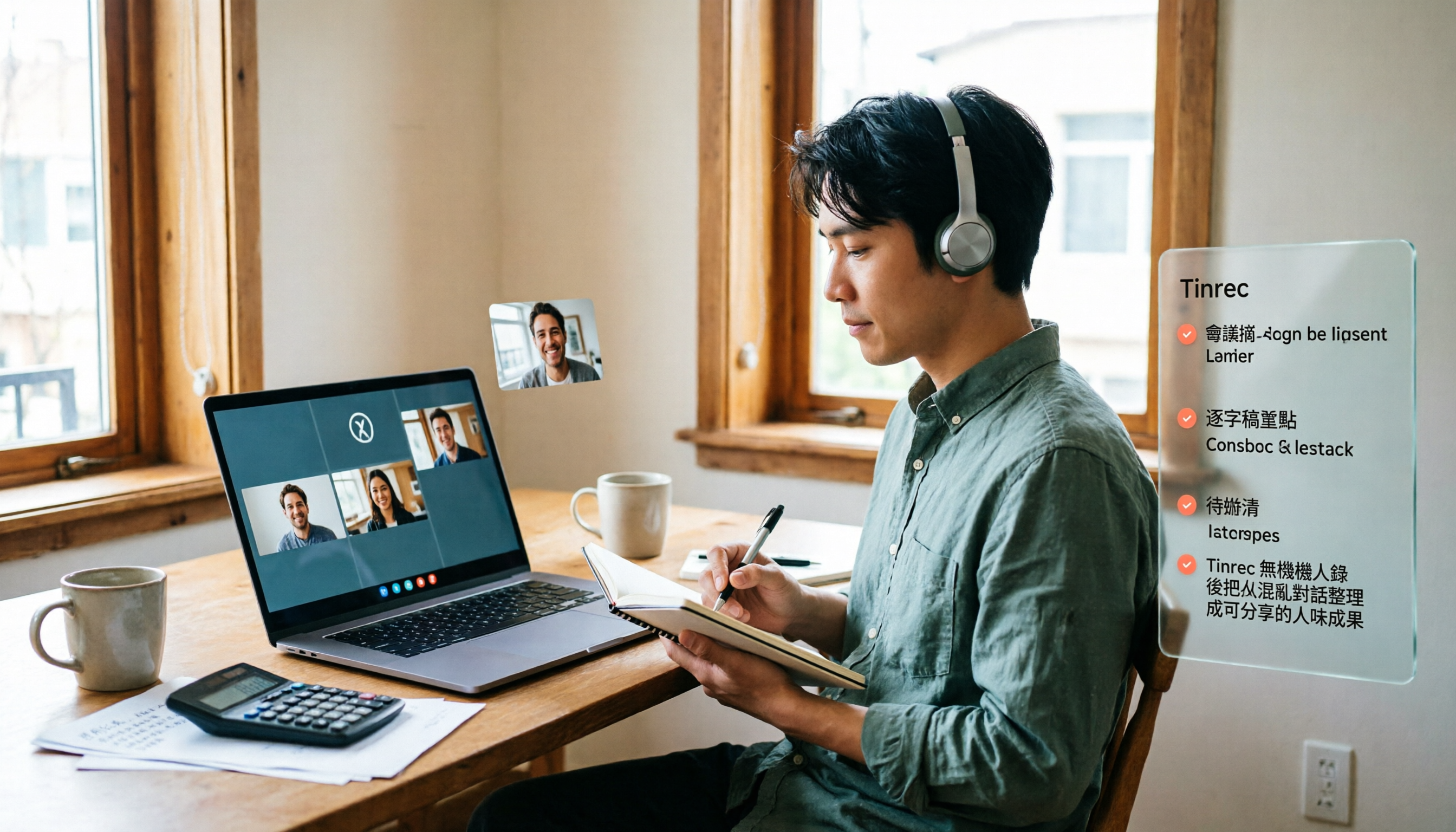
Google Meet Pricing in 2026: Is the Free Version Enough? 3 Things to Know Before You Pay
Google Meet's free version caps meetings at 100 participants, while paid plans start at about US$7 per user per month. However, recordings, transcripts, and AI summaries are not included in the free version. This article first gives the pricing conclusion, then demonstrates how to use Tinrec to record online meetings without a bot, automatically generate summaries and action items.
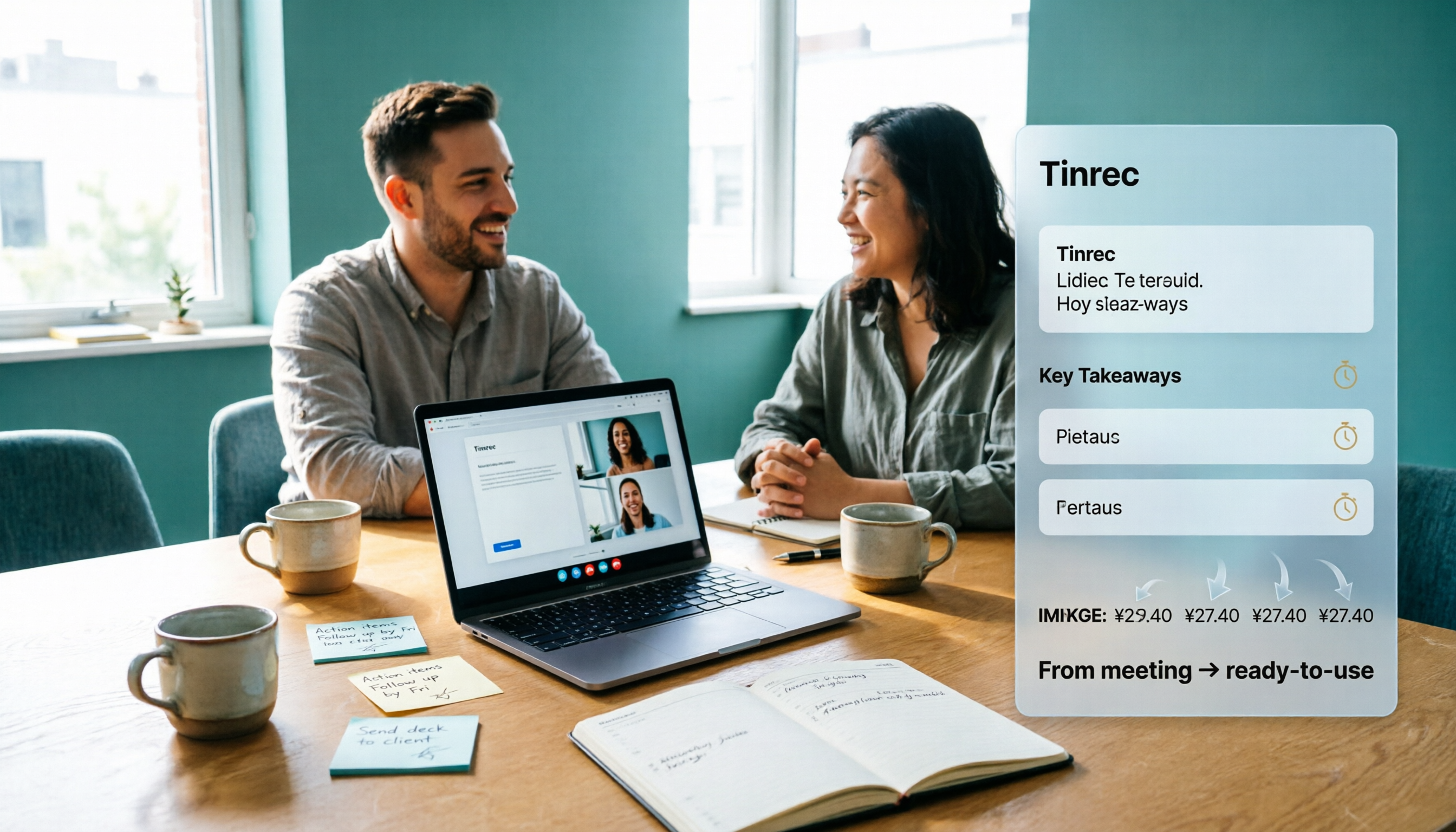
How Much Does Google Meet Cost in 2026? 5 Steps to See the Real Cost and a Time-Saving Alternative
Google Meet isn't sold separately—it's a meeting feature bundled inside Google Workspace, so the monthly fee on your bill is actually for a full suite of office tools. This article uses 5 steps to calculate the true cost of video meetings, including the post-meeting cleanup time that never appears on your bill, and explains how Tinrec can automatically generate transcripts, summaries, and action items—turning meetings from 'finished' into 'usable.'
Google Meet Mute Permissions & 3 Meeting Tools Tested: Who Makes Post-Meeting Notes Easiest?
Many assume meeting hosts can always mute everyone, but Google Meet mute permissions depend on your account plan, host management settings, and your role in the meeting. This article clarifies the mute scope and limits for hosts and co-hosts, then compares Google Meet built-in transcription, Otter.ai, Notta, and Tinrec for post-meeting notes—helping you handle both 'keeping the meeting quiet' and 'finding the information afterward.'

The Complete Guide to Recording Google Meet in 2026: Free Account Limits and Bot-Free Recording Solutions
Google Meet allows recording, but free accounts, host permissions, and plan restrictions often gray out the record button. This guide covers native recording requirements, file locations, and explains how to use Tinrec desktop for bot-free recording, real-time transcription, AI summaries, and team knowledge retention.

The Complete Guide to Google Meet Recording in 2026: Limitations, Alternatives, and Post-Meeting Organization
Google Meet does support recording, but most people get stuck on admin settings, paid plans, and device limitations. This article addresses three common misconceptions, clarifies the real requirements for built-in recording in Google Meet, explains how to handle meeting notes after recording, and shows how Tinrec fills the post-meeting organization gap with bot-free recording, transcripts, AI summaries, and team spaces.

The Complete Guide to Buying a Google Meet Subscription in 2026: Plan Selection and Meeting Notes Workflow
People searching for 'buy google meet subscription' really need to decide which plan to buy and how to handle post-meeting organization. This article breaks down the choice between Google One and Google Workspace from a mid-level manager's perspective, and explains why meeting notes and action items should be handled by Tinrec.

Google Meet Screen Sharing: The Complete 2026 Guide — From Presenting to Capturing What Matters
Google Meet lets you share your screen, but sharing well and keeping a record of the meeting are two different things. Starting from real meeting scenarios, this guide explains Google Meet's three sharing modes, audio sharing, and common limitations, then shows how Tinrec's desktop app records meeting audio without a bot, filling the gap after sharing ends with transcripts, summaries, action items, and AI Q&A. It also covers team plan seats and pricing.