
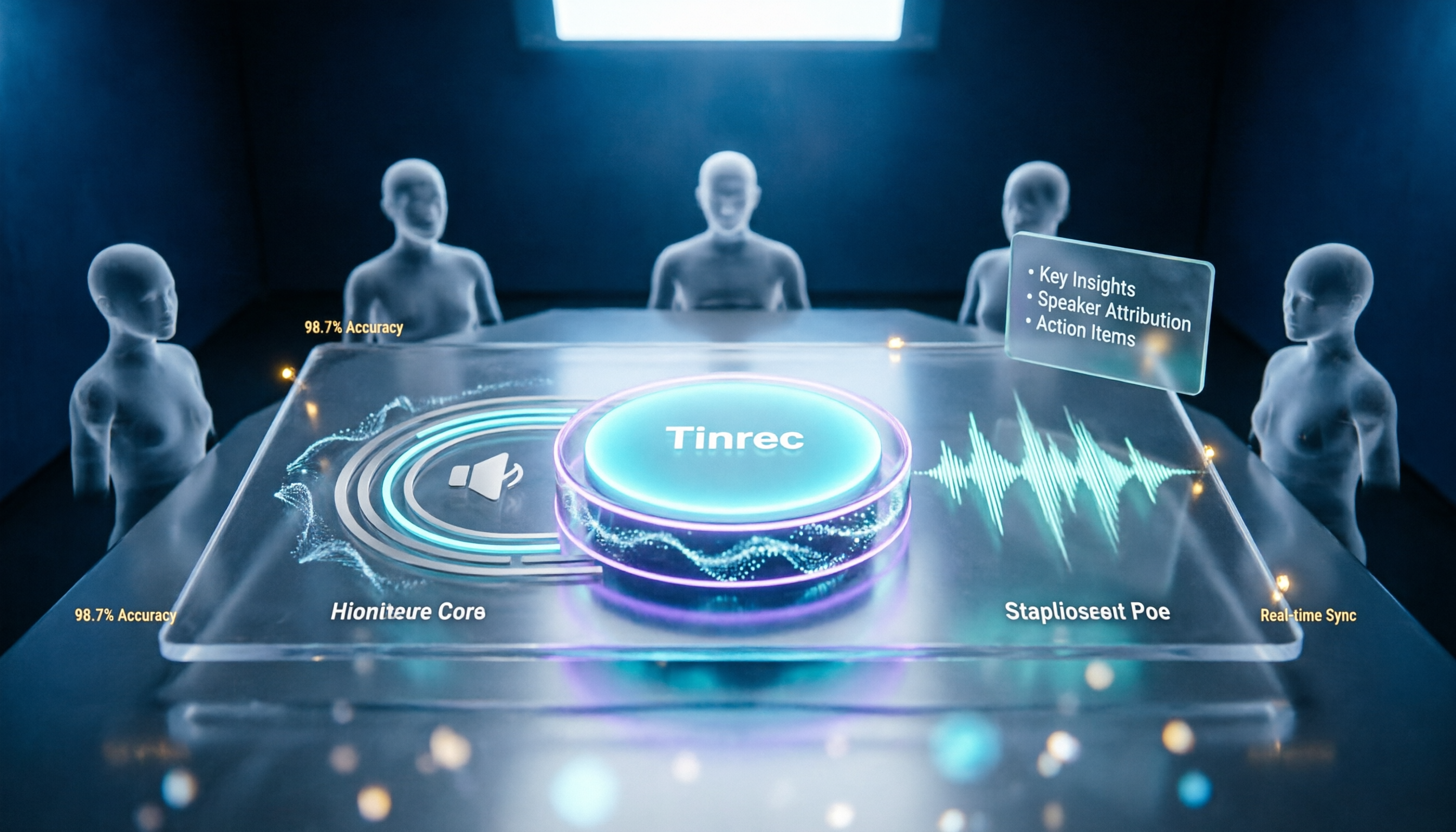
Turn recordings into transcripts and summaries in minutes
Upload audio or video for multilingual transcription, AI notes, and action items
Many people think that if they initiated the meeting, they can mute anyone at any time.
Actually, that's not the case. Google Meet's mute permission isn't an on/off switch—it's the result of three things combined: your account plan, your role in the meeting, and whether Host Management is enabled for the meeting.
Get these three wrong, and you'll encounter situations like 'I'm the host, but the mute button is grayed out.'
This article first clarifies mute permissions, then moves on to a more often overlooked issue: after the meeting is muted and over, did you keep the content?
'Can hosts always mute everyone?'—This is the most common misconception
Google's official documentation states directly: when Host Management is on, only the main host and co-hosts can mute other participants.
When Host Management is off, the situation reverses—regular participants can also mute and pin on their own. Permissions are determined by meeting settings, not by your title.
If the meeting is created with a personal account, the rule is simpler: only the meeting's moderator can mute others.
Another common misunderstanding is 'Mute all.' This button is only available to hosts and co-hosts; regular participants don't even see it.
There's also a detail many don't know: after a host mutes someone, they cannot unmute them. The person must click the microphone icon themselves to restore audio. Google leaves that control to the individual.
Muted participants receive a notification, so they won't just mysteriously lose audio. Additionally, participants joining via Pexip devices are not affected by 'Mute all.'
Before understanding permissions, confirm these 4 things
First, what type of account you have. Personal Google accounts and Google Workspace accounts don't have identical host features. Advanced controls like Host Management mainly appear in Workspace contexts.
Second, whether Host Management is enabled for this meeting. This is the most impactful factor. If off, everyone can act; if on, permissions are concentrated with the host.
Third, your role in this meeting. Host, co-host, regular participant—what you can do varies greatly. Participants can only mute themselves.
Fourth, whether you're dealing with a single person or the whole room. For a single troublemaker, the fastest way is to click their microphone icon in the participants list; only for whole-room noise do you need 'Mute all.'
Once you've confirmed these four things, mute permission issues are largely resolved. But there's still the second half.
The meeting was quiet, but no one took notes. When you want to look back and check 'who said they'd revise the quote last time,' you find only your own memory remains.
Tinrec—our top pick after actual use
In one sentence: Tinrec is an AI meeting notes and collaboration tool for individuals and teams, supporting real-time recording to text, online meeting transcription, audio/video file import, and real-time translation, with automatic generation of summaries, chapters, and action items.
What it solves isn't 'how to mute people,' but what remains of the meeting after it's muted and over.
The first scenario is online meetings like Google Meet. Tinrec's desktop version directly captures computer system audio, without inviting an extra meeting bot into the room. For external client meetings, this is practical—you don't want an unfamiliar account name suddenly appearing on screen.
The second scenario is post-meeting organization. When the meeting ends, the transcript is already there, along with generated summaries, chapters, and action items. Who's responsible for what and when it's due are extracted directly from the discussion, so you don't have to re-listen to an hour of recording.
The third scenario is finding answers later. After recording, you can ask it directly: 'What were the client's concerns about the quote last time?' It gives semantic-based answers, not a pile of keyword search results for you to sift through. Most competitors at the same price point haven't incorporated this yet.
Stop organizing recordings by hand
Upload audio or video and automatically get a transcript, summary, and action items
The fourth scenario is team sharing. The team version centralizes meeting recordings, transcripts, summaries, and action items in a shared team space; data belongs to the team, not the individual uploader. Members can view, play, and read team data even without a seat; recording, uploading, editing, or exporting requires a corresponding seat. Admins can view usage trends, export audit logs, maintain team hotwords, and recover accidentally deleted audio from the recycle bin.
In use, I find its three most solid advantages: stable recognition for Chinese and mixed Chinese-English meetings; meeting audio is retained so important numbers can be verified; and export integration is smooth, carrying over to existing workflows like Notion and Google Docs.
Note that it cannot control Google Meet's microphone permissions—these are separate matters. Transcription accuracy is affected by recording quality, ambient noise, accents, and multiple people talking over each other; performance drops with strong background noise (e.g., construction, loud music), and the official documentation does not recommend promising fixed accuracy figures externally.
Also, the free version has usage limits, suitable for trying out; if you have meetings to organize every week, consider upgrading.
If you have several Meet calls every week, want to avoid re-listening to recordings, and need meeting data kept with the team rather than a personal account—Tinrec is currently the most suitable choice.
Besides Tinrec, what other options are there?
Google Meet built-in transcription: If your company already has a corresponding Workspace plan, you can enable text recording during the meeting—zero installation, zero switching, which is convenient. However, it mainly produces transcripts; summaries, action items, and follow-up queries are relatively limited, and you still need to organize afterward. Tinrec can take over more in this part.
Otter.ai: A mature choice for English business meetings. Basic free version offers 300 minutes per month; Pro annual billing is about USD 8.49/user/month. Great for English meetings. But Chinese and mixed Chinese-English meetings are not its strong suit, and it currently lacks Tinrec's Agent post-processing that can turn meeting content into reports or tables with one click.
Notta: A multilingual transcription tool. Free plan offers 120 minutes per month, max 3 minutes per item; Pro annual billing is about USD 8.17/month, suitable for light file transcription and subtitle needs. It also has team plans, but capabilities like bot-free desktop recording, team seat governance, and auditing are more complete in Tinrec's team version.
Pitfall guide: 4 most common mistakes when choosing such tools
Pitfall 1: Assuming hosts can always control microphones. As mentioned, meetings created with personal accounts only allow the host to mute; when Host Management is off, regular participants can also act on their own. Check settings before the meeting rather than scrambling after.
Pitfall 2: Using a personal account to host meetings with dozens of people. Permission concentration, records not retained, and no one to hand off to afterward—these problems surface only after the meeting ends.
Pitfall 3: Thinking muting equals meeting management. Muting only solves 'it's noisy now,' not 'no records afterward.' Prepare for these two separately.
Pitfall 4: Keeping only transcripts. No one reads a 30-minute transcript from start to finish. If a tool only outputs text, you're using only a third of its capability. What really saves time is summaries, action items, and Q&A you can query directly.
Conclusion: Which one should you choose?
Bottom line: mute permissions are solved by Google Meet's own settings; post-meeting records are supplemented by tools like Tinrec. Handling these two separately is most efficient.
- Just want to confirm who can mute whom → Check the Host Management toggle and your role in the meeting; no need to switch tools
- Chinese or mixed Chinese-English meetings, need transcript + summary + action items → Tinrec
- Want to ask directly after recording 'What was the budget consensus?' → Tinrec (AI Q&A)
- Need to continue on phone, computer, and web → Tinrec (multi-platform + desktop bot-free recording)
- Team needs to share meeting data, manage seats and usage → Tinrec Team version
- Pure English meetings, zero budget → Otter.ai free version (the only exception in this article)
I recommend starting with Tinrec's free version, running through a real Meet meeting to see if the transcript and summary meet your needs. If it works for you, consider upgrading—no need to pay from the start.
References
- Pin or mute Google Meet participants - Computer - Google Meet Help
- Can Google Meet Hosts Mute Participants? Host Controls and Post-Meeting Handoff Order - Official Tinrec Blog
- How to Mute in Google Meet (Self Others Shortcut 2026 Guide)
- Google Workspace Updates: Ability to mute all Google Meet participants at once rolling out to mobile platforms
- How to mute participants in Google Meet? - The Tech Edvocate
Turn every recording into actionable outcomes
Get 60 free transcription minutes when you sign in. No credit card required.
Related Reading
You might also like

What You Need for Google Meet in 2026: Account, Devices, and Meeting Notes
What do you actually need to prepare for a Google Meet call? This guide starts with accounts, organizational permissions, devices, and microphones, then tackles the part where most people get stuck: how to capture meeting notes after the call ends. Using Tinrec as an example, it shows how to record online meetings without a bot and automatically generate transcripts, summaries, and action items.

3 Google Meet Noise Cancellation Methods Tested in 2026: Is the Built-in Feature Enough?
Google Meet does have noise cancellation, but it comes in two layers: cloud-based and on-device. Whether you can enable it, and whether it's on or off by default, depends on your Google account plan, device, and admin settings. This article breaks down three noise cancellation approaches, compares their use cases, and explains how to capture, find, and use meeting notes after noise cancellation.

Google Meet Camera Auto-On in 2026: 3 Meeting Notes Tools Tested
Does Google Meet turn your camera on when you join? This article explains the logic behind it—device, browser, account settings, and how you join (preview screen, mobile app, or On-the-Go mode). Then, focusing on how to capture meeting content after turning off the camera, it compares Tinrec, Otter.ai, Granola, and Notta on input methods, post-meeting output, audio retention, and team collaboration, plus 4 common pitfalls and selection advice.
Google Meet Pricing in 2026: Is the Free Version Enough? 3 Things to Know Before You Pay
Google Meet's free version caps meetings at 100 participants, while paid plans start at about US$7 per user per month. However, recordings, transcripts, and AI summaries are not included in the free version. This article first gives the pricing conclusion, then demonstrates how to use Tinrec to record online meetings without a bot, automatically generate summaries and action items.
How Much Does Google Meet Cost in 2026? 5 Steps to See the Real Cost and a Time-Saving Alternative
Google Meet isn't sold separately—it's a meeting feature bundled inside Google Workspace, so the monthly fee on your bill is actually for a full suite of office tools. This article uses 5 steps to calculate the true cost of video meetings, including the post-meeting cleanup time that never appears on your bill, and explains how Tinrec can automatically generate transcripts, summaries, and action items—turning meetings from 'finished' into 'usable.'

The Complete Guide to Recording Google Meet in 2026: Free Account Limits and Bot-Free Recording Solutions
Google Meet allows recording, but free accounts, host permissions, and plan restrictions often gray out the record button. This guide covers native recording requirements, file locations, and explains how to use Tinrec desktop for bot-free recording, real-time transcription, AI summaries, and team knowledge retention.

The Complete Guide to Google Meet Recording in 2026: Limitations, Alternatives, and Post-Meeting Organization
Google Meet does support recording, but most people get stuck on admin settings, paid plans, and device limitations. This article addresses three common misconceptions, clarifies the real requirements for built-in recording in Google Meet, explains how to handle meeting notes after recording, and shows how Tinrec fills the post-meeting organization gap with bot-free recording, transcripts, AI summaries, and team spaces.

The Complete Guide to Buying a Google Meet Subscription in 2026: Plan Selection and Meeting Notes Workflow
People searching for 'buy google meet subscription' really need to decide which plan to buy and how to handle post-meeting organization. This article breaks down the choice between Google One and Google Workspace from a mid-level manager's perspective, and explains why meeting notes and action items should be handled by Tinrec.

Google Meet Screen Sharing: The Complete 2026 Guide — From Presenting to Capturing What Matters
Google Meet lets you share your screen, but sharing well and keeping a record of the meeting are two different things. Starting from real meeting scenarios, this guide explains Google Meet's three sharing modes, audio sharing, and common limitations, then shows how Tinrec's desktop app records meeting audio without a bot, filling the gap after sharing ends with transcripts, summaries, action items, and AI Q&A. It also covers team plan seats and pricing.