

Turn recordings into transcripts and summaries in minutes
Upload audio or video for multilingual transcription, AI notes, and action items
The Complete Guide to Google Meet Recording in 2026: Limitations, Alternatives, and Post-Meeting Organization
I've seen too many teams make the same mistake: the meeting ends, and only then do they realize nothing was recorded.
It's not that they don't know how to press the record button. They fall into three common misconceptions.
Misconception #1: Assuming that having a Google Meet account means you can record.
Misconception #2: Assuming that pressing record automatically gives you meeting notes.
Misconception #3: Assuming that someone will naturally organize the recording afterward.
This article explores why most people end up without a recording, and even if they do record, why the file stays in cloud storage and no one ever opens it.
Can Google Meet Record? Three Requirements to Understand First
The short answer: yes, but most people can't get past the first requirement.
Google's official documentation clearly states that to record a video meeting in Google Meet, several conditions must be met simultaneously:
- Your Google Workspace administrator must enable recording for your account.
- You must use a computer or Android device; other devices do not support recording.
- You must be the meeting host or a member of the host's organization, and the host must have recording permissions.
In other words, recording is the result of a series of organizational settings, not just pressing a button.
Free Google accounts generally cannot pass this hurdle.
There are also a few easily overlooked details:
- If you're only joining a meeting to present or share your screen, you cannot record.
- With Education Fundamentals or Education Standard accounts, teachers, staff, and students cannot record meetings they host.
- The maximum length for a single recording is 8 hours.
- Recordings are saved to the meeting host's Google Drive in a folder called "Meet Recordings," and you'll receive an email notification when processing is complete.
- The recording includes the active speaker and any shared screens.
So the real answer to "Can Google Meet record?" is: yes, but it depends on your plan, your administrator, your device, and your role in the meeting.
If any one of these four variables is off, the record button will be grayed out.
Misconception #2: Recording the Screen Is Not the Same as Having Meeting Notes
Suppose you successfully record your Google Meet session.
You get a video file.
Then what?
A two-hour meeting takes two hours to watch. To find a specific sentence, you have to drag the timeline and search slowly. To turn it into action items, you have to type while watching.
This is the second misconception: mistaking "having a recording" for "having notes."
Recording solves "missing something," but it doesn't solve "accessing it."
Real meeting notes need to be searchable, summarizable, queryable, and usable as input for the next meeting.
And this is exactly where most people get stuck.
How I Do It Now: Separating "Recording" and "Using" into Two Stages
My approach is simple: recording is recording, but what you record must enter a state where it can be processed.
That's why I switched to Tinrec. It fills the gap in the post-recording workflow that no one handles after a Google Meet session.
Tinrec is an AI meeting notes and collaboration tool for individuals and teams. Its positioning is to turn meetings into searchable, summarizable, queryable, exportable, and further processable data—not just a voice recorder.
Here are a few capabilities I actually use.
Bot-Free Recording for Online Meetings
Tinrec's desktop app captures your computer's system audio, so it can handle meeting audio from platforms like Zoom, Google Meet, Microsoft Teams, and Webex.
The key point: no need to invite an extra meeting bot.
I care about this a lot. With solutions that require a bot to join, there's an extra anonymous account in the meeting room, and clients ask "Who's that?" and I have to explain. Now I just open the desktop app and record—no extra person appears in the meeting.
To be clear: it provides a bot-free recording method, not automatic joining of all meetings on your calendar. You still need to actively open Tinrec to start recording.
Transcription While Recording, Real-Time Transcript Generation
Text appears as you record. It works for in-person meetings, interviews, and on-site discussions too.
The most direct benefit for me: during the meeting, I can confirm whether what was just said was captured correctly, rather than guessing from the recording afterward.
AI Summaries, Chapters, and Action Items
After the meeting, Tinrec generates summaries, chapter structures, and action items.
It separates "what was discussed, what was decided, and who needs to do what"—not just condensing the transcript into a paragraph.
This is where I see the biggest difference. The value of a summary lies in its structure, not in being short.
Ask Questions Directly About Meeting Content
Once the transcript is ready, you can ask it questions directly.
"Who mentioned the budget in this meeting?" "What were the client's concerns about the delivery date?"
It answers based on semantic understanding, not by telling you to go to minute 37.
Now when I need to find a decision from a past meeting, I almost always ask this way.
Real-Time Translation and Bilingual View
For cross-language meetings, you can view the original text, translation, or bilingual side-by-side.
For those who need to meet with overseas teams or clients, this feature saves the time of "translating again after the meeting."
Export to Your Existing Workflow
Organized content can be exported to tools like Notion, Google Docs, OneNote, and Dropbox, and can further generate reports, tables, and meeting minutes documents.
My own habit: meeting notes don't stay in the meeting tool; they go back to the project documents. Exporting eliminates manual copy-pasting.
Team Spaces: Turning Meetings into Team Assets
For personal use, this data belongs to your account.
Stop organizing recordings by hand
Upload audio or video and automatically get a transcript, summary, and action items
But in a team, the problem becomes another level: when a colleague leaves, are the client meetings they recorded still there? When a new colleague wants to see a decision discussion from three months ago, where do they find it?
Tinrec's team version provides independent team spaces where meeting data belongs to the team and doesn't lose ownership when individuals leave. The team version includes member and seat management, shared recording and import quotas, usage analytics, audit logs, team hotwords, and an audio recycle bin (currently retained for 30 days, recoverable before permanent deletion).
Here's a commonly misunderstood point worth clarifying: the team version separates "roles" and "seats."
- Roles determine who can manage the team, members, and audits.
- Seats determine whether members can record, upload, edit, import, and export.
Active members without a seat can still view, play, and read team data, but cannot perform resource-consuming actions like uploading or editing.
Also, the current team version focuses on team-level sharing, not fine-grained file-level permission control. If your need is "only these three people can see this file," you'll need to evaluate separately—don't assume it can do that.
Pricing and entitlements are determined by the official purchase page: the first eligible team trial is 7 days, 1 free seat, and 300 minutes of team shared import quota.
Four Real-World Scenarios: How This Workflow Operates
Scenario 1: Sending Meeting Notes the Same Day After a Client Meeting
In the past, after a meeting, I'd spend more time re-listening, organizing, and writing emails.
Now when the meeting ends, the transcript, summary, and action items are already there. I just review, add my own judgment, and turn it into an external email.
The real difference is whether I can send it the same day, not how many minutes I save.
Scenario 2: Cross-Department Decision Meetings with Traceable Records
The trickiest part of decision meetings is "who exactly said it was okay at the time."
With transcripts and timestamps, this goes from "I remember" to "I can look it up."
For managers, there's an extra layer of value: team spaces show historical meetings, so decision context doesn't break when people leave.
Scenario 3: User Interviews and Research
Interviews are where I feel transcripts are most needed.
A one-hour interview, if typed manually, takes almost a full workday. And halfway through, you start wondering whether you're recording or reminiscing.
With Tinrec, import existing audio or video files, get the transcript first, then use AI Q&A to ask "What are the three pain points this interviewee mentioned?" Research should focus on analysis, not typing.
Scenario 4: Courses, Lectures, and Internal Training
Course recordings often just sit there after being recorded.
But if they can be turned into transcripts with chapters, they become searchable teaching materials. When a new colleague asks "How was that process explained last time?" giving them a link is much faster than explaining again.
5 Things to Consider When Choosing a Meeting Recording Tool
When I evaluate tools for my team, I usually don't look at feature lists but at these five things.
1. Is your real hurdle "can you record" or "how do you use the recording"?
If your problem is simply that free accounts can't record, then you need to solve the access method. Tinrec's desktop bot-free recording addresses this layer.
2. Will a stranger appear in the meeting?
Solutions that require a bot to join can create perception issues in external meetings. Tinrec uses system audio capture, so no extra participant joins the meeting. But note: it doesn't automatically join your calendar meetings; you still need to initiate it.
3. Where does the data go after recording?
Meeting notes stored only on a personal hard drive disappear when the person leaves. Tinrec's team version puts data in team spaces and provides member, seat, usage, and audit management.
4. Can it handle Chinese and mixed Chinese-English meetings smoothly?
This is where many international tools are relatively weak. Tinrec has corresponding designs for Chinese, Traditional Chinese, and multilingual meetings, and supports team hotwords for maintaining technical terminology. Actual performance is still affected by recording quality, noise, accents, overlapping speakers, and technical terms. For important content, it's recommended to cross-check with transcript timestamps and recording playback.
5. Can exports connect back to your existing workflow?
If organized content can't get out, it ultimately becomes another silo. Tinrec supports multi-format export to tools like Notion, Google Docs, OneNote, and Dropbox, and can further generate reports and documents.
Frequently Asked Questions
Q1: Can I record with Google Meet's free version?
No. Google Meet's built-in recording requires a Google Workspace plan, and the administrator must enable recording permissions for the account. Free personal Google accounts cannot use this feature.
Q2: Where are Google Meet recordings stored?
They are stored in the meeting host's Google Drive in a folder called "Meet Recordings." You'll receive an email with a link when processing is complete, which typically takes a few minutes to an hour depending on the meeting length.
Q3: Can I record Google Meet on my phone?
Android devices can, but Google Meet's built-in recording is currently not supported on iPhone.
Q4: What's the difference between Tinrec and Google Meet's built-in recording?
Google Meet's built-in recording produces a video file; Tinrec produces transcripts, summaries, chapters, and action items, and allows you to ask questions about the content, translate, export, and put it into team spaces. The former solves "capturing the screen," while the latter solves "capturing usable data." Also, Tinrec's desktop version doesn't require a meeting bot to join.
Q5: Do I need consent to record when using Tinrec?
Yes. Recording and transcription involve local regulations. In practice, I recommend clearly informing participants at the start of the meeting that it is being recorded and obtaining consent when necessary. This is not just a compliance issue but also a trust issue.
Q6: What is Tinrec's transcription accuracy rate?
I don't recommend answering with a fixed number. Actual performance is affected by recording quality, ambient noise, accents, overlapping speakers, and technical terms. A more practical approach: try it with your own meeting recording and see how it performs in your scenario. For important decisions, it's still recommended to cross-check with the transcript and recording playback.
Conclusion
Back to the original question: Can Google Meet record?
Yes. But you first need to pass four gates: administrator, plan, device, and role.
And even if you do record, what you get is a video file. Finding a sentence, organizing action items, and helping a colleague three months later understand the decision—that's still separate work.
My advice is to look at these two things separately: recording is acquiring raw material, and organizing is where value is created.
If your current pain point is "free accounts can't record" or "no one organizes after recording," you can try Tinrec. The free version has a basic quota, enough to run one or two meetings and see what transcripts, summaries, and action items look like. For team use, the first eligible trial includes 7 days and 1 free seat, and you can invite a few colleagues to see how data accumulates.
Start with the one meeting you least want to re-listen to.
Test step by step, and you'll gradually master this method.
References
Turn every recording into actionable outcomes
Get 60 free transcription minutes when you sign in. No credit card required.
Related Reading
You might also like

What You Need for Google Meet in 2026: Account, Devices, and Meeting Notes
What do you actually need to prepare for a Google Meet call? This guide starts with accounts, organizational permissions, devices, and microphones, then tackles the part where most people get stuck: how to capture meeting notes after the call ends. Using Tinrec as an example, it shows how to record online meetings without a bot and automatically generate transcripts, summaries, and action items.

3 Google Meet Noise Cancellation Methods Tested in 2026: Is the Built-in Feature Enough?
Google Meet does have noise cancellation, but it comes in two layers: cloud-based and on-device. Whether you can enable it, and whether it's on or off by default, depends on your Google account plan, device, and admin settings. This article breaks down three noise cancellation approaches, compares their use cases, and explains how to capture, find, and use meeting notes after noise cancellation.
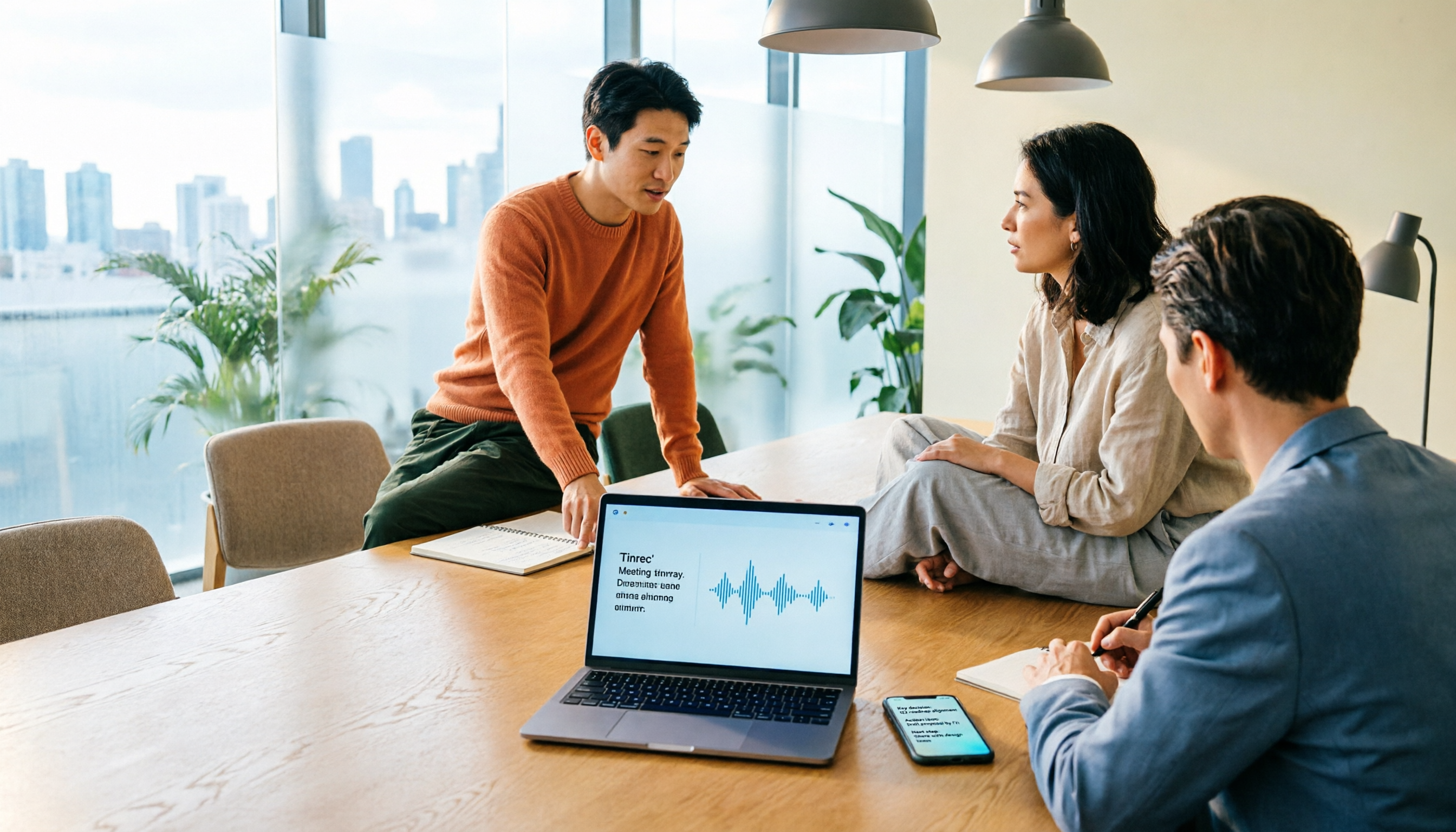
Google Meet Camera Auto-On in 2026: 3 Meeting Notes Tools Tested
Does Google Meet turn your camera on when you join? This article explains the logic behind it—device, browser, account settings, and how you join (preview screen, mobile app, or On-the-Go mode). Then, focusing on how to capture meeting content after turning off the camera, it compares Tinrec, Otter.ai, Granola, and Notta on input methods, post-meeting output, audio retention, and team collaboration, plus 4 common pitfalls and selection advice.
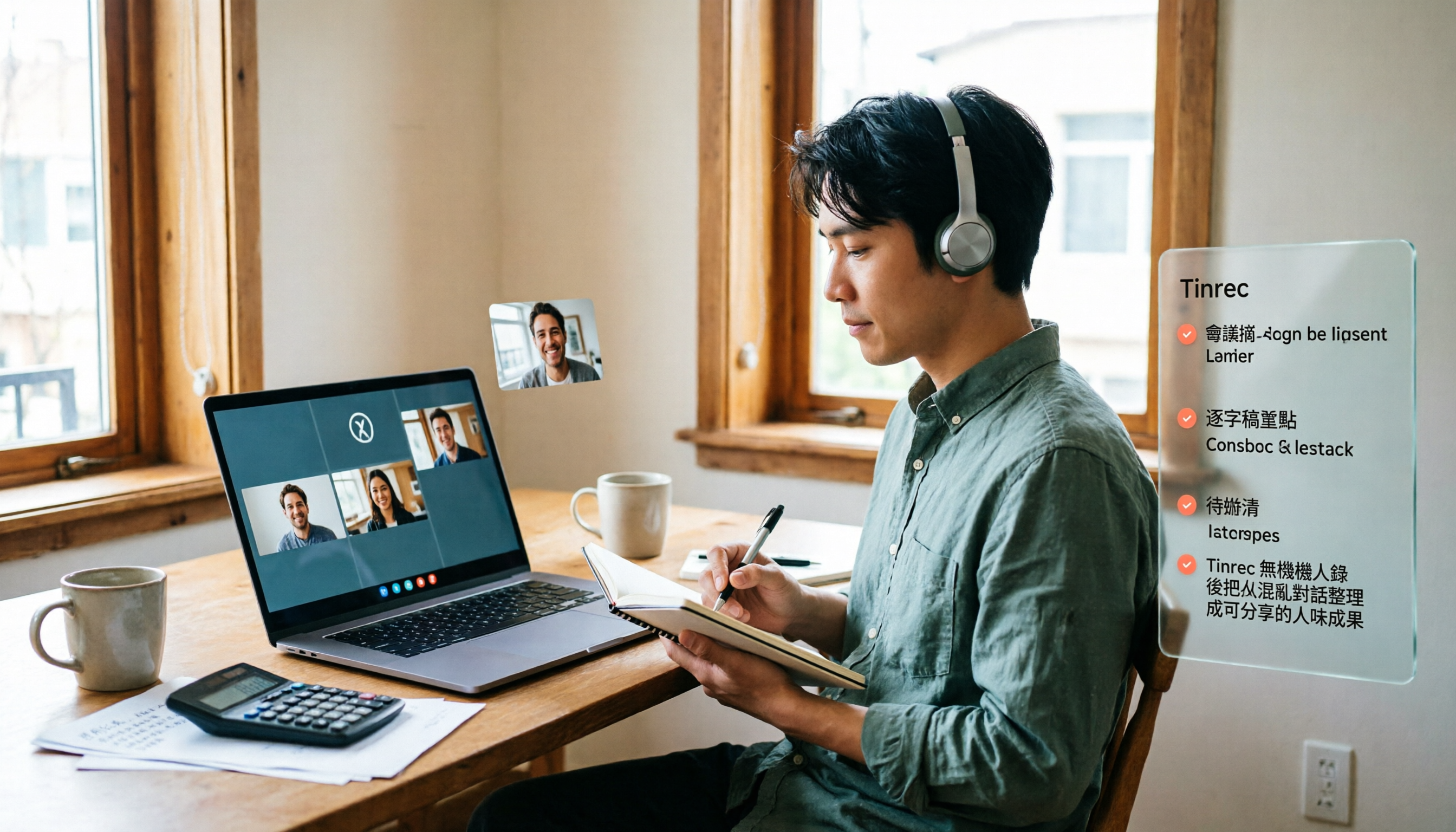
Google Meet Pricing in 2026: Is the Free Version Enough? 3 Things to Know Before You Pay
Google Meet's free version caps meetings at 100 participants, while paid plans start at about US$7 per user per month. However, recordings, transcripts, and AI summaries are not included in the free version. This article first gives the pricing conclusion, then demonstrates how to use Tinrec to record online meetings without a bot, automatically generate summaries and action items.
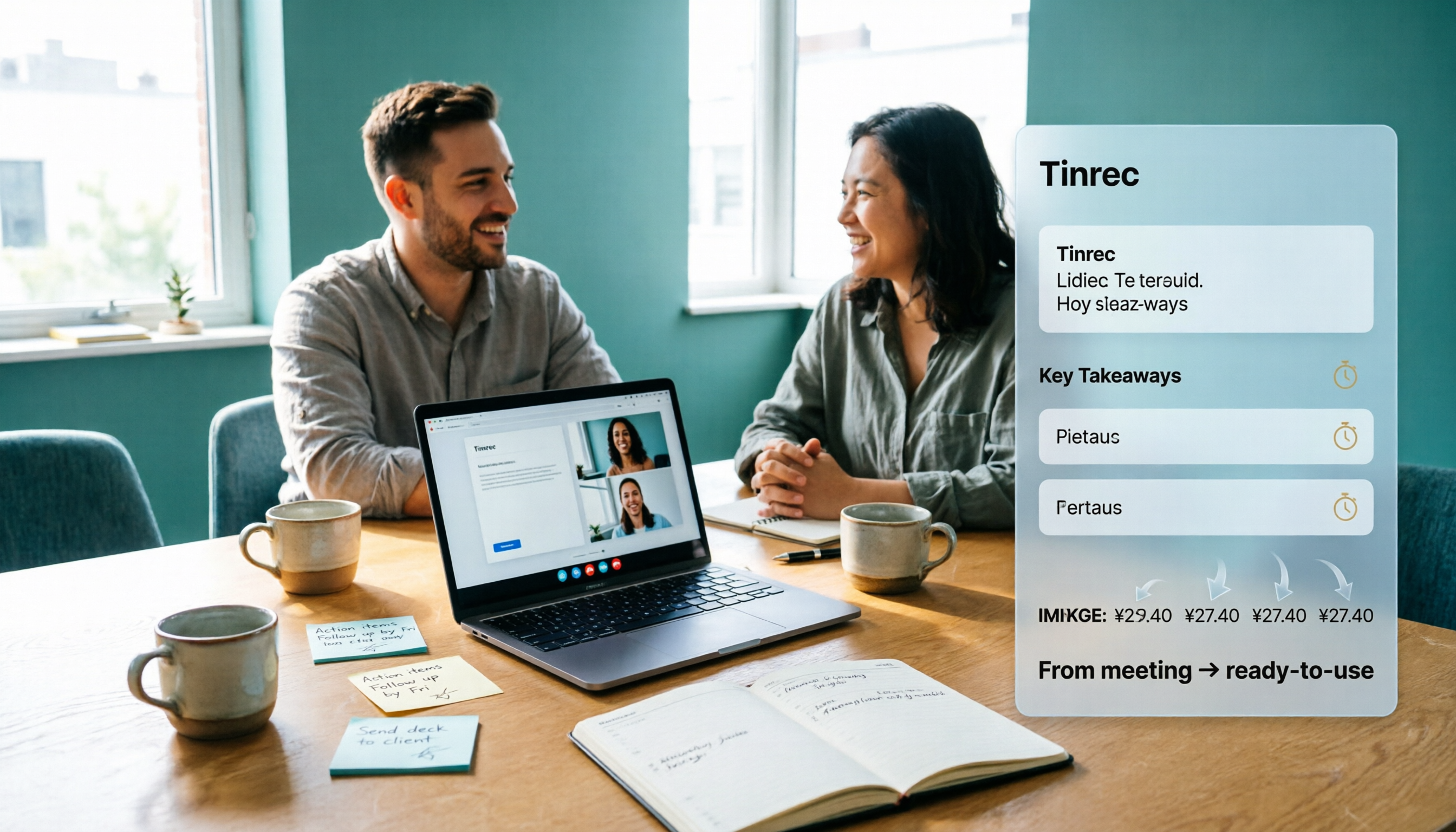
How Much Does Google Meet Cost in 2026? 5 Steps to See the Real Cost and a Time-Saving Alternative
Google Meet isn't sold separately—it's a meeting feature bundled inside Google Workspace, so the monthly fee on your bill is actually for a full suite of office tools. This article uses 5 steps to calculate the true cost of video meetings, including the post-meeting cleanup time that never appears on your bill, and explains how Tinrec can automatically generate transcripts, summaries, and action items—turning meetings from 'finished' into 'usable.'
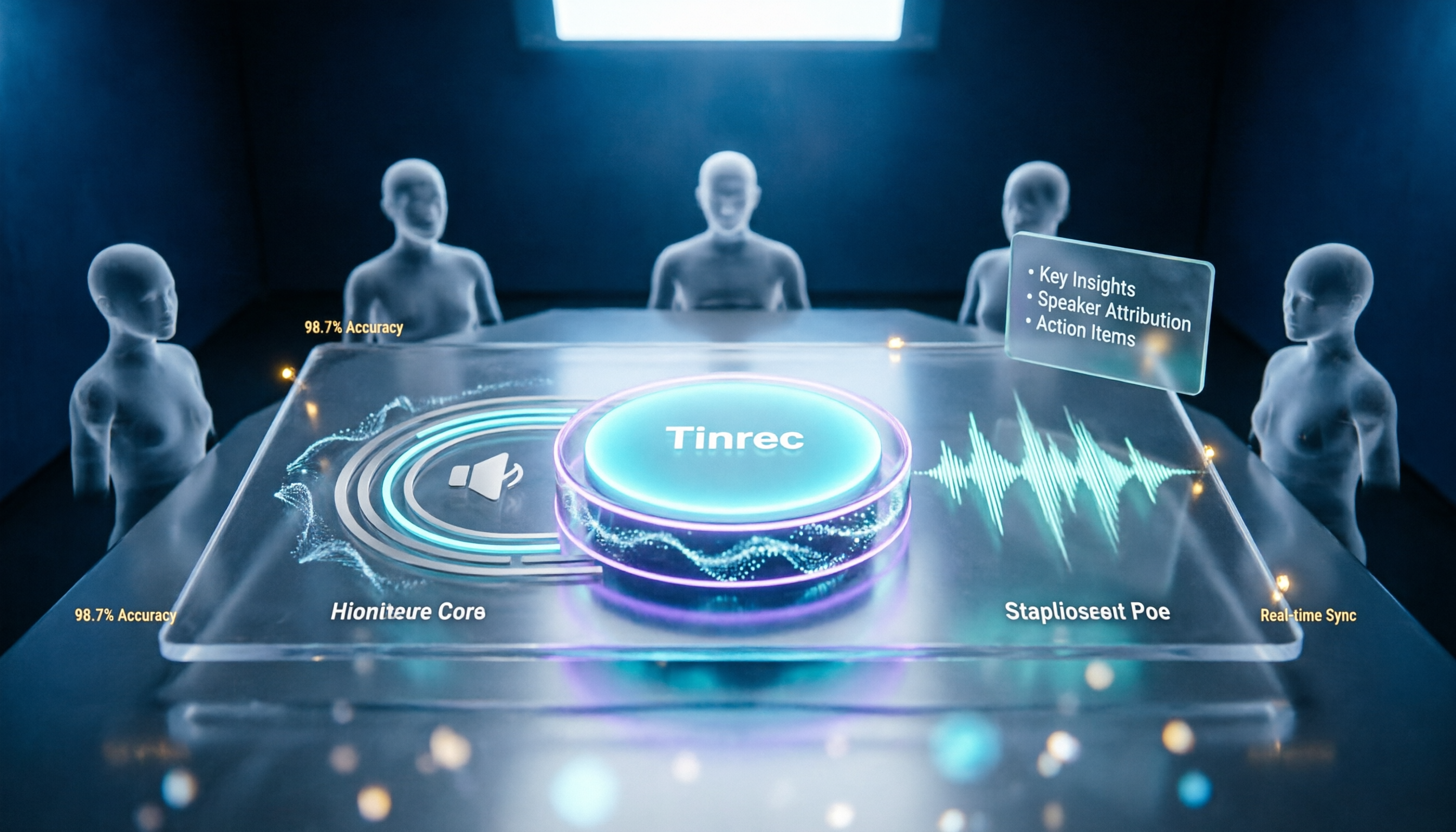
Google Meet Mute Permissions & 3 Meeting Tools Tested: Who Makes Post-Meeting Notes Easiest?
Many assume meeting hosts can always mute everyone, but Google Meet mute permissions depend on your account plan, host management settings, and your role in the meeting. This article clarifies the mute scope and limits for hosts and co-hosts, then compares Google Meet built-in transcription, Otter.ai, Notta, and Tinrec for post-meeting notes—helping you handle both 'keeping the meeting quiet' and 'finding the information afterward.'

The Complete Guide to Recording Google Meet in 2026: Free Account Limits and Bot-Free Recording Solutions
Google Meet allows recording, but free accounts, host permissions, and plan restrictions often gray out the record button. This guide covers native recording requirements, file locations, and explains how to use Tinrec desktop for bot-free recording, real-time transcription, AI summaries, and team knowledge retention.

The Complete Guide to Buying a Google Meet Subscription in 2026: Plan Selection and Meeting Notes Workflow
People searching for 'buy google meet subscription' really need to decide which plan to buy and how to handle post-meeting organization. This article breaks down the choice between Google One and Google Workspace from a mid-level manager's perspective, and explains why meeting notes and action items should be handled by Tinrec.

Google Meet Screen Sharing: The Complete 2026 Guide — From Presenting to Capturing What Matters
Google Meet lets you share your screen, but sharing well and keeping a record of the meeting are two different things. Starting from real meeting scenarios, this guide explains Google Meet's three sharing modes, audio sharing, and common limitations, then shows how Tinrec's desktop app records meeting audio without a bot, filling the gap after sharing ends with transcripts, summaries, action items, and AI Q&A. It also covers team plan seats and pricing.