

Turn recordings into transcripts and summaries in minutes
Upload audio or video for multilingual transcription, AI notes, and action items
The Complete Guide to Recording Google Meet in 2026: Free Account Limits and Bot-Free Recording Solutions
You've probably encountered this: halfway through a meeting, you want to hit record, but the button is grayed out.
Or you recorded it, but the file isn't in your Google Drive.
So the real question isn't "Can Google Meet record?" but "Under what conditions can I record, who owns the recording, and can I actually use it afterward?"
Can Google Meet Record? Understand the 3 Key Restrictions First
Yes, but not everyone and not every device can press that button.
- Plan: Free personal Gmail accounts cannot record natively; you typically need an eligible paid Google Workspace edition, and some Google One plans may also qualify—check official announcements.
- Permissions and device: Recording is only available on computer or Android; participants need host permission, and when Host Management is on, usually only the host or co-host can start recording.
- File and notifications: Recordings are saved to the meeting organizer's Google Drive in the "Meet Recordings" folder; the link is emailed to the organizer and the person who started recording, and added to the Google Calendar event; participants are notified.
These three restrictions explain why most people "see the button but can't record."
What Can Meeting Recording Do for You?
The value of recording isn't just saving a video file—it's making the meeting content reusable.
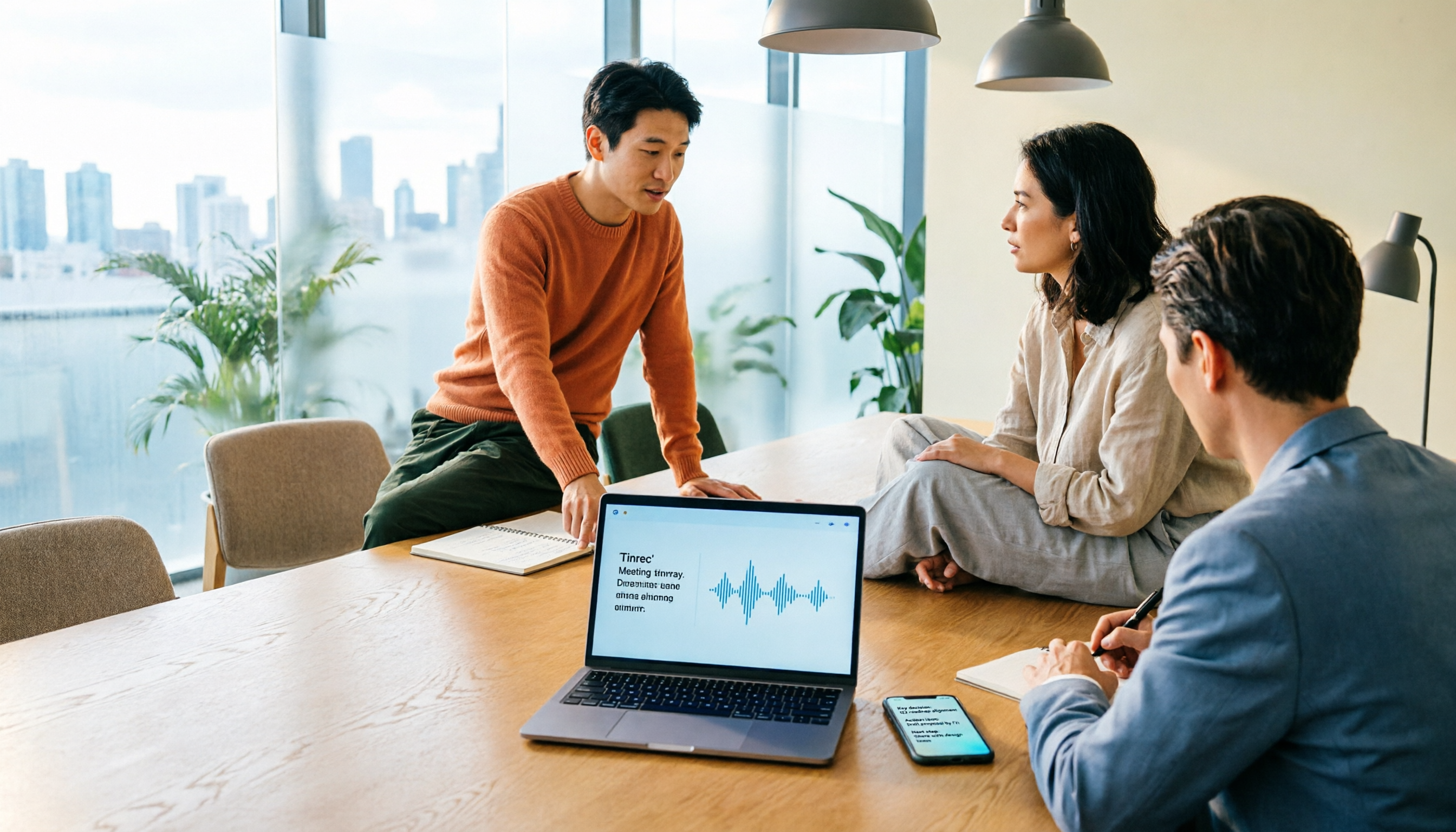
Scenario 1: Get transcript and summary 5 minutes after the meeting Previously, after a two-hour meeting, you'd spend another hour organizing. With Tinrec, for example, it transcribes while recording, and after the meeting automatically generates summaries, chapters, and action items—who's responsible for what and what's next is immediately clear.
Scenario 2: Preserve exact words and commitments from client interviews What the client said, what they care about, what they agreed to—relying on memory is risky. Tinrec turns interview recordings into searchable transcripts, so after the meeting you can directly ask "What budget constraints did the client mention?" or "What commitments were made for next steps?"
Scenario 3: Capture decisions from weekly team meetings Meetings happen every week, but decisions are scattered across different people's notes. Tinrec's team workspace centralizes meeting recordings, transcripts, summaries, and action items, so new members can review past meetings without asking for links.
Scenario 4: Organize key points from courses and lectures After attending a lecture, you want to find a specific case or statement. Tinrec can upload audio or video, generate transcripts, chapters, and highlights, then export to documents for further organization.
Core Capabilities of Meeting Recording: Tinrec as an Example
A truly useful meeting recording tool isn't just about "recording"—it turns audio into actionable data.
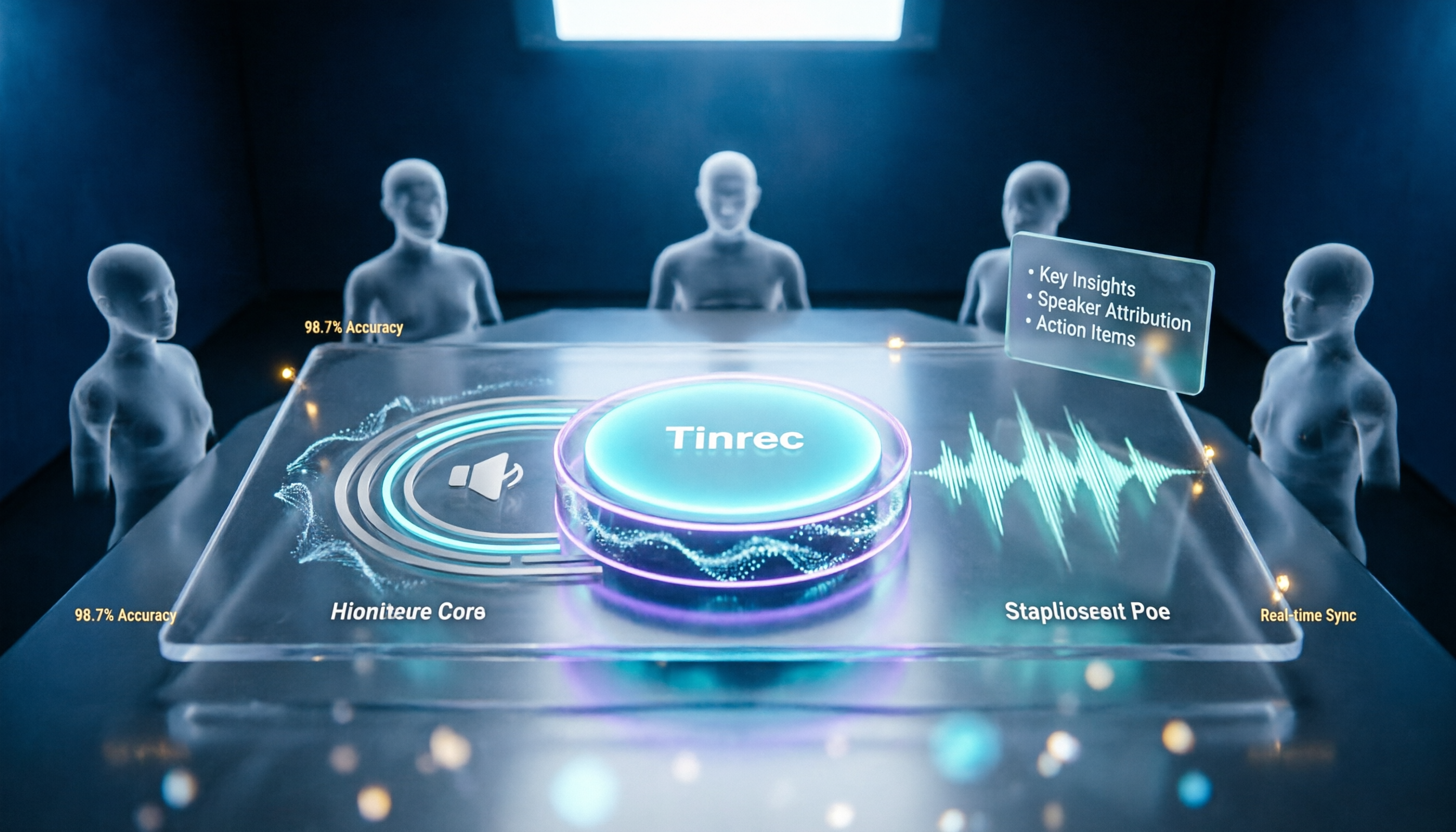
Bot-free recording of online meetings: Tinrec desktop captures system audio directly, working with Google Meet, Zoom, Microsoft Teams, Webex, and other online meetings without inviting a bot. Participants won't see an extra attendee, and you won't have to explain "this is a recording bot."
Real-time transcription and translation: Tinrec transcribes as it records, so you can confirm key points during the meeting; for cross-language meetings, you can view original text, translation, or bilingual content.
AI summaries, chapters, and action items: Tinrec doesn't just provide a long transcript—it organizes meeting topics, discussion conclusions, and action items separately. Long meetings are automatically divided into chapters, so you don't have to watch from the beginning.
AI Q&A: After transcription, you can directly ask Tinrec "Who mentioned the budget?" "What was the client feedback?" "How does last week's decision differ from this week's?" It answers based on meeting content, not just keyword search.
Export and post-processing: Tinrec supports multiple export formats and can bring results to Notion, Google Docs, OneNote, Dropbox, and other tools; Agent post-processing can generate reports, tables, and documents based on meeting content.
Stop organizing recordings by hand
Upload audio or video and automatically get a transcript, summary, and action items
Team workspace and governance: Tinrec's team edition offers independent team workspaces, member invitations, role and seat management, usage analytics, audit logs, and an audio recycle bin. Roles determine who can manage the team; seats determine who can record, upload, edit, and export; members without seats can still view, play, and read team materials.
Practical Use Cases: Turning Recordings into Usable Meeting Data
Weekly project meetings: The host records Google Meet with Tinrec desktop, then pastes the summary and action items into the project document. Instead of re-listening to an hour-long recording, spend five minutes reviewing chapters and action items.
Client needs interviews: Sales teams use Tinrec to record interviews, then use AI Q&A to identify client pain points, objections, and commitments, and export as meeting minutes. Recordings stay in the team workspace, so whoever takes over can quickly get up to speed.
Cross-department decision meetings: Tinrec team workspace centralizes every meeting, so managers can review past decisions and action item progress; when members change, team data remains with the team and doesn't disappear with individual accounts.
Personal learning and research: Import course, lecture, or interview audio into Tinrec, generate transcripts and chapters, then use Q&A to find cases, statements, or citation material.
5 Things to Consider When Choosing a Meeting Recording Tool
First confirm recording permissions and notifications: Google Meet native recording has plan and host restrictions; Tinrec lets you initiate recording yourself. Either way, inform participants according to team policies and local regulations.
Does it require a bot to join? Some tools join as an attendee, which can create pressure with external clients. Tinrec desktop records system audio without adding a bot attendee, making it suitable for client interviews and external meetings.
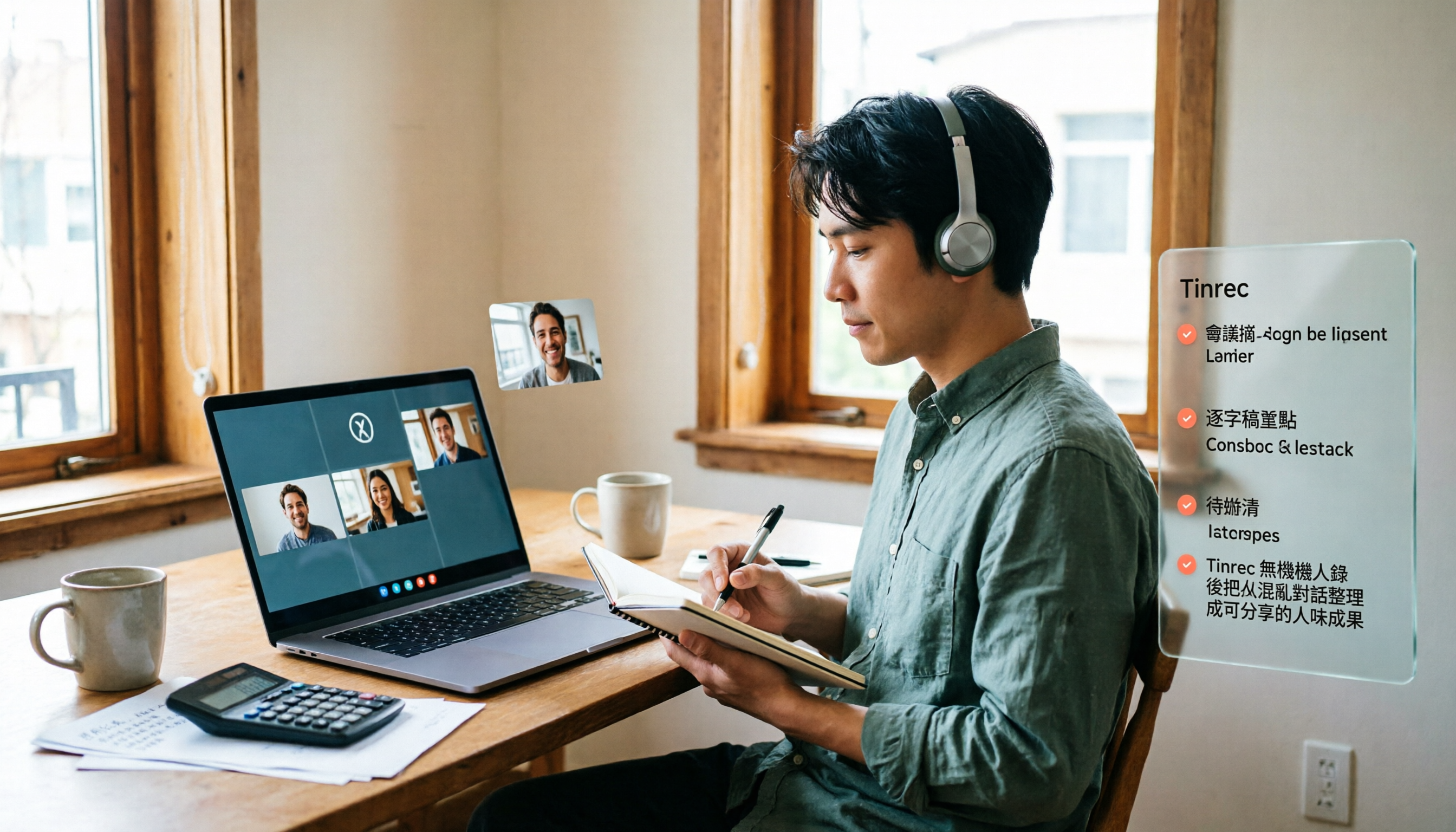
Chinese and multilingual performance: If your meetings mix Chinese and English, or you need Traditional Chinese transcripts, test the tool's Chinese sentence segmentation and terminology recognition. Tinrec supports Chinese, Traditional Chinese, and multilingual scenarios, and allows maintaining professional terminology via team hotwords.
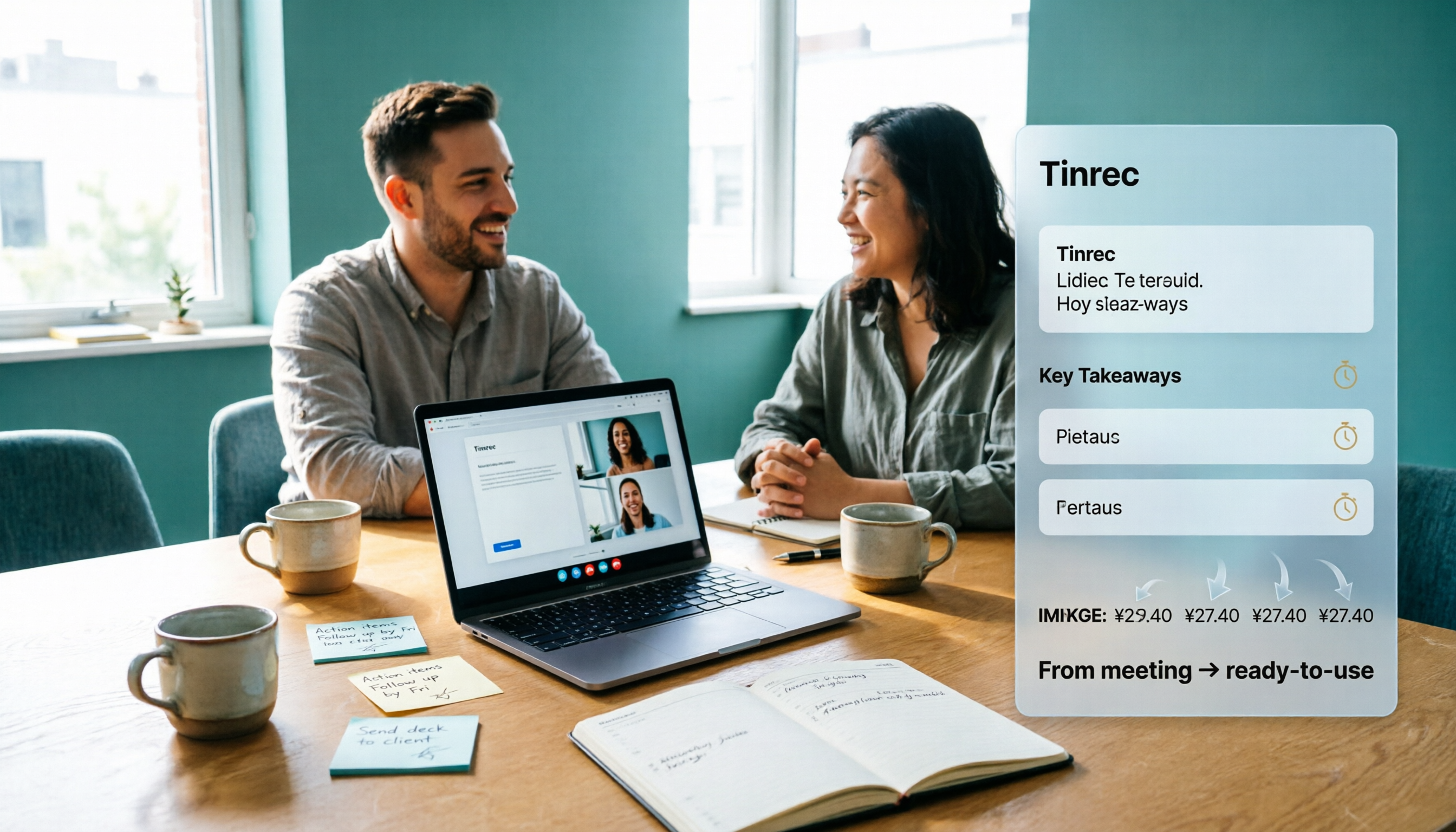
Post-meeting organization capabilities: Tools that only provide transcripts still require you to read them afterward. Tinrec directly generates summaries, chapters, action items, and Q&A, and can export results to existing workflows—that's what truly saves time.
Team data ownership and governance: Personal tools suit individual use, but teams need shared spaces, roles, seats, usage, and auditing. Tinrec team edition gives the team ownership of meeting data, allows resource handover when members leave, and the audio recycle bin currently retains files for 30 days.
Frequently Asked Questions
Can Google Meet record? Yes, but you need an eligible paid plan, operate on a computer or Android, and have recording permission granted by the host. Free personal accounts typically cannot record natively.
Why is my record button grayed out? Common reasons: your plan doesn't support it, you're not the host or co-host, or the admin has disabled recording. If you don't want plan restrictions, you can use Tinrec desktop to record proactively.
Where are Google Meet recordings stored? Native recordings are saved in the meeting organizer's Google Drive "Meet Recordings" folder; Tinrec saves them in your personal or team workspace and can export as needed.
Does Tinrec join meetings as a bot? No. Tinrec desktop captures system audio without adding a bot attendee; you need to start recording manually before the meeting begins.
Who is Tinrec team edition for? For teams that need to share meeting data and manage members and seats. The team edition offers team workspaces, roles, seats, usage, auditing, and a recycle bin; first-time eligible users get a 7-day trial, 1 free seat, and 300 minutes of shared import quota, then paid seats apply.
How accurate is the transcription? Quality is stable with clear audio and common scenarios, but can be affected by noise, accents, overlapping speakers, and specialized terminology. For important content, cross-check with the transcript and recording.
Conclusion
Google Meet can record, but "can you record" and "can you use the recording" are two different things.
If you only need to occasionally save a video, native recording is sufficient; if you need Chinese transcripts, post-meeting summaries, action items, AI Q&A, and team knowledge retention, Tinrec is a more complete choice.
You can start by testing with one meeting: open Tinrec desktop, select system audio, start recording, and use AI Q&A to find key points afterward.
Test step by step, and you can gradually turn every meeting into your own knowledge base.
References
Turn every recording into actionable outcomes
Get 60 free transcription minutes when you sign in. No credit card required.
Related Reading
You might also like

What You Need for Google Meet in 2026: Account, Devices, and Meeting Notes
What do you actually need to prepare for a Google Meet call? This guide starts with accounts, organizational permissions, devices, and microphones, then tackles the part where most people get stuck: how to capture meeting notes after the call ends. Using Tinrec as an example, it shows how to record online meetings without a bot and automatically generate transcripts, summaries, and action items.

3 Google Meet Noise Cancellation Methods Tested in 2026: Is the Built-in Feature Enough?
Google Meet does have noise cancellation, but it comes in two layers: cloud-based and on-device. Whether you can enable it, and whether it's on or off by default, depends on your Google account plan, device, and admin settings. This article breaks down three noise cancellation approaches, compares their use cases, and explains how to capture, find, and use meeting notes after noise cancellation.
Google Meet Camera Auto-On in 2026: 3 Meeting Notes Tools Tested
Does Google Meet turn your camera on when you join? This article explains the logic behind it—device, browser, account settings, and how you join (preview screen, mobile app, or On-the-Go mode). Then, focusing on how to capture meeting content after turning off the camera, it compares Tinrec, Otter.ai, Granola, and Notta on input methods, post-meeting output, audio retention, and team collaboration, plus 4 common pitfalls and selection advice.
Google Meet Pricing in 2026: Is the Free Version Enough? 3 Things to Know Before You Pay
Google Meet's free version caps meetings at 100 participants, while paid plans start at about US$7 per user per month. However, recordings, transcripts, and AI summaries are not included in the free version. This article first gives the pricing conclusion, then demonstrates how to use Tinrec to record online meetings without a bot, automatically generate summaries and action items.
How Much Does Google Meet Cost in 2026? 5 Steps to See the Real Cost and a Time-Saving Alternative
Google Meet isn't sold separately—it's a meeting feature bundled inside Google Workspace, so the monthly fee on your bill is actually for a full suite of office tools. This article uses 5 steps to calculate the true cost of video meetings, including the post-meeting cleanup time that never appears on your bill, and explains how Tinrec can automatically generate transcripts, summaries, and action items—turning meetings from 'finished' into 'usable.'
Google Meet Mute Permissions & 3 Meeting Tools Tested: Who Makes Post-Meeting Notes Easiest?
Many assume meeting hosts can always mute everyone, but Google Meet mute permissions depend on your account plan, host management settings, and your role in the meeting. This article clarifies the mute scope and limits for hosts and co-hosts, then compares Google Meet built-in transcription, Otter.ai, Notta, and Tinrec for post-meeting notes—helping you handle both 'keeping the meeting quiet' and 'finding the information afterward.'

The Complete Guide to Google Meet Recording in 2026: Limitations, Alternatives, and Post-Meeting Organization
Google Meet does support recording, but most people get stuck on admin settings, paid plans, and device limitations. This article addresses three common misconceptions, clarifies the real requirements for built-in recording in Google Meet, explains how to handle meeting notes after recording, and shows how Tinrec fills the post-meeting organization gap with bot-free recording, transcripts, AI summaries, and team spaces.

The Complete Guide to Buying a Google Meet Subscription in 2026: Plan Selection and Meeting Notes Workflow
People searching for 'buy google meet subscription' really need to decide which plan to buy and how to handle post-meeting organization. This article breaks down the choice between Google One and Google Workspace from a mid-level manager's perspective, and explains why meeting notes and action items should be handled by Tinrec.

Google Meet Screen Sharing: The Complete 2026 Guide — From Presenting to Capturing What Matters
Google Meet lets you share your screen, but sharing well and keeping a record of the meeting are two different things. Starting from real meeting scenarios, this guide explains Google Meet's three sharing modes, audio sharing, and common limitations, then shows how Tinrec's desktop app records meeting audio without a bot, filling the gap after sharing ends with transcripts, summaries, action items, and AI Q&A. It also covers team plan seats and pricing.