
Turn recordings into transcripts and summaries in minutes
Upload audio or video for multilingual transcription, AI notes, and action items
How Much Does Google Meet Cost in 2026? 5 Steps to See the Real Cost and a Time-Saving Alternative
At the end of the month, IT forwards you the bill, and you realize it doesn't say "Google Meet"—it says "Google Workspace."
This is how many office workers in Hong Kong and Taiwan react the first time they seriously look at video meeting costs: they thought they were buying a meeting app, but actually bought a whole suite of office tools, with meetings just thrown in.
The problem is, most people stop calculating costs at this point. The really expensive part never appears on the bill.
Where Does Google Meet's Money Actually Go? Three Key Points
First, it's not sold separately. Google Meet cannot be purchased without Google Workspace; the fee you pay also includes email, cloud storage, and document collaboration. So comparing it one-to-one with pure video tools on unit price is actually difficult; some reviews point out directly that Meet's pricing logic is a "productivity suite," not "video software."
Second, the line between free and paid versions is "meeting length, participant count, and recording." The free version lets guests without a Google account join directly from a browser—enough for ad-hoc meetings and discussions with friends; but when you need recording, longer meeting times, management, and audit capabilities, you have to upgrade.
Third, the billing method affects the unit price. Annual plans are a one-year commitment billed monthly; flexible monthly plans have no contract and let you add or remove users anytime, but the per-person unit price is about 20% higher. Actual numbers vary by plan, region, and currency, and often change with official adjustments—always refer to the official page before ordering.
In other words: you're paying for the "whole office suite," and meetings are just incidental. This structure is a good deal for teams that already need email and cloud documents, but if your real headache is "that hour after the meeting ends," paying more doesn't solve it.
5 Steps to Calculate Your True Meeting Cost
Most people only calculate meeting costs up to step one. Here are 5 steps to calculate it completely.
Step 1: Calculate total meeting hours. Add up your weekly regular meetings, client meetings, and cross-department meetings. A mid-level manager having 12 hours of meetings per week is normal—that's nearly 50 hours per month.
Step 2: Add post-meeting cleanup time. This is the column that never appears on the bill. For a two-hour meeting, manually organizing notes, extracting key points, and writing action items usually takes another 45 to 60 minutes.
Step 3: Convert to labor cost. Multiply the hours from Step 2 by your hourly rate or your team's average labor cost. You'll find that "post-meeting cleanup" often costs several times more than the monthly fee for video software.
Step 4: Check whether your plan covers "after the meeting." Video plans sell "getting the meeting done"; recording and transcription are just add-ons. They won't help you organize who's responsible for what or when the deadline is. This part is still empty.
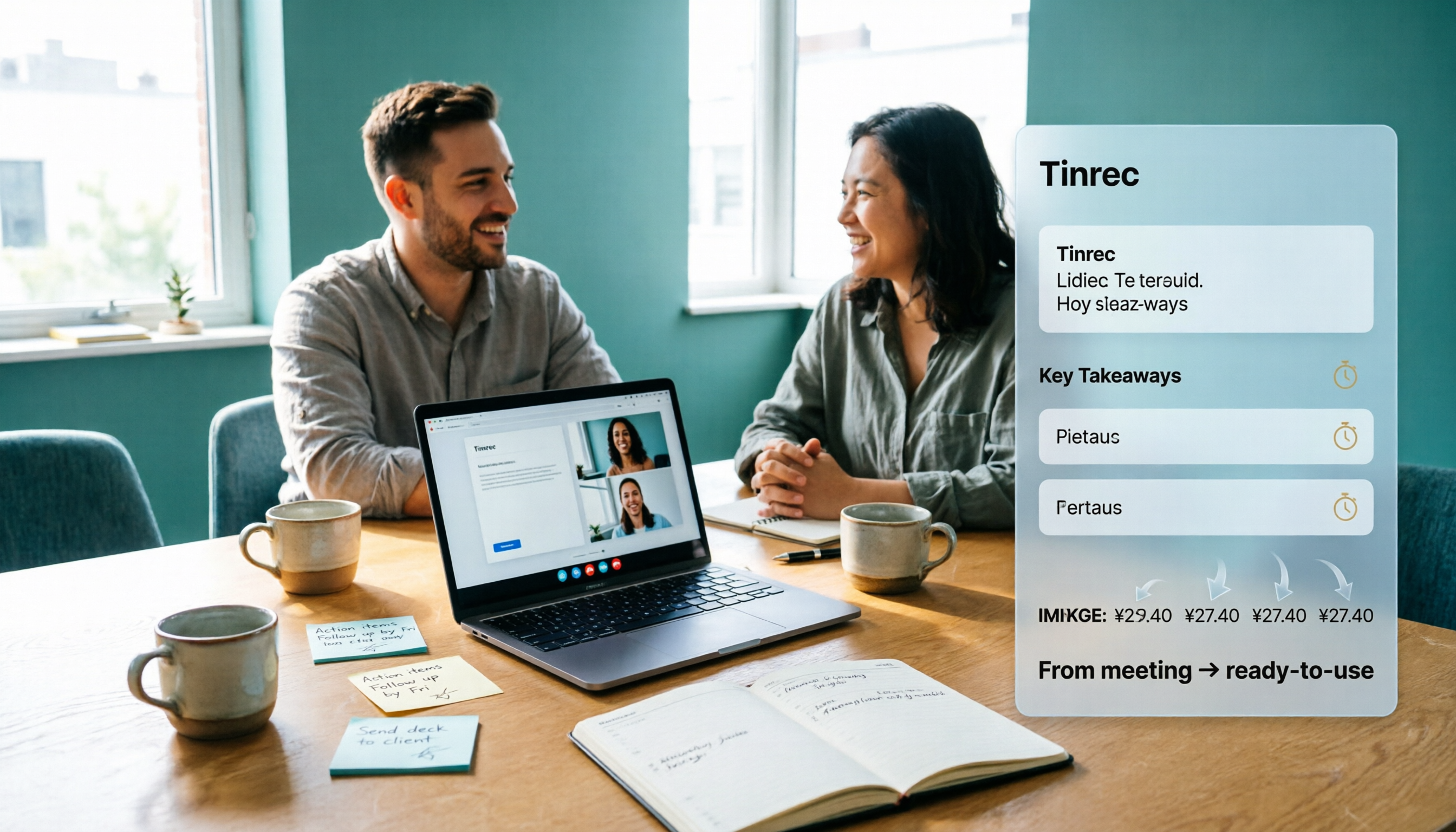
Step 5: Hand repetitive cleanup work to tools. Take Tinrec, for example: when the meeting ends, the transcript, summary, chapters, and action items are already generated. What you need to do is verify, not start typing from scratch.
After these 5 steps, most people reach the same conclusion: saving a few dozen dollars on video software doesn't mean much; saving 20 hours of post-meeting cleanup per month is what really matters.
What Can Tinrec Do for You? Three Scenarios That Directly Save Time
Scenario 1: After the meeting, the notes are already there. Previously, a two-hour meeting required another hour of organizing; now, as soon as the meeting ends, Tinrec has already listed the transcript, summary, chapters, and action items—who's responsible for what and when it's due, all at a glance.
Scenario 2: No need to pull a bot into the meeting room. Tinrec's desktop version directly captures computer system audio, processing meeting audio played on platforms like Google Meet, Zoom, Microsoft Teams, and Webex. No extra "participant" needs to join, and there's no awkward recording bot during external meetings.
Scenario 3: Want to follow up after the meeting? Just ask. The transcript is no longer a long document lying there. You can directly ask Tinrec: "What was the budget cap the client mentioned?" "Who was assigned to handle it in the last decision?" It answers based on semantics, so you don't have to Ctrl+F through it yourself.
What Are Tinrec's Core Capabilities?
Bot-free online meeting recording. The desktop version captures system audio; the user initiates recording, and no extra participant joins. Note that this is not the same as automatically joining all meetings on your calendar—rather, you open it and start recording when needed.
Real-time transcription and live translation. Transcribes while recording, so you can check text synchronously during the meeting to confirm no key points are missed; for cross-language meetings, you can switch between original text, translation, or bilingual view. Actual performance is affected by recording quality, noise, accents, and overlapping speakers—not recommended to summarize with a single accuracy number.
Summary, chapter, and action item extraction. This is the part most directly convertible to work hours. A two-hour meeting is broken into a browsable structure, with key points and action items listed separately—no need to fish them out of the transcript yourself.
Stop organizing recordings by hand
Upload audio or video and automatically get a transcript, summary, and action items
AI Q&A and Agent post-processing. After transcription, you can ask follow-up questions about a single meeting or across meetings, and further generate meeting minutes, reports, tables, and documents—pushing "notes" directly to "deliverables."
Export and team knowledge retention. Results can be exported to Notion, Google Docs, OneNote, Dropbox, and other tools, connecting back to your existing workflow; the team version centrally stores meeting materials in a team space, where members can search, ask questions, and reuse.
Practical Application Scenarios
Weekly and project meetings. For regular weekly progress meetings, the biggest hassle is "what was said last time." After recording with Tinrec, decisions and action items are automatically organized; before the next meeting, just flip through the previous summary—no need to ask "who said they'd follow up on this last time?"
Client interviews and requirements communication. Clients speak fast and information is scattered; manual note-taking will definitely miss things. Tinrec keeps the full transcript, and afterward you can directly ask "what does the client care about" or "which competitors were mentioned," turning requirements interviews into searchable data rather than a recording no one re-listens to.
Courses, lectures, and content organization. After recording an online course or lecture, transcribe it first and then generate a summary—effectively automatically producing a note skeleton, so you only look at chapters and key points when reviewing.
Cross-language meetings. Meetings mixing Chinese and English are the norm. Tinrec supports multilingual transcription and real-time translation; when meeting with foreign colleagues, you can view bilingual comparisons, reducing the chance of guessing again after the meeting.
5 Things to Watch When Choosing a Meeting Notes Tool
1. Whether to put a bot into the meeting. For external meetings, interviews, and client interviews, an extra bot often affects the atmosphere. Tinrec captures system audio on the desktop, requiring no extra participant—this makes a big difference in practice.
2. Handling Chinese and mixed Chinese-English. There are many tools for pure English meetings, but Chinese meetings are the threshold. Tinrec focuses on Chinese and multilingual meetings and supports team hotwords, making recognition of internal terminology and product codes more stable.
3. Can it organize after transcription? A tool that only gives you a transcript is essentially returning the work to you unchanged. Tinrec directly produces summaries, chapters, action items, and Q&A after transcription—that's where the time savings are.
4. Data ownership and team collaboration. With personal tools, meeting data follows the account, and when the person leaves, the data scatters. Tinrec's team version provides an independent team space where data belongs to the team; when a member leaves or loses their seat, their resources can be handed over to other active members. Note that currently it's mainly team-level sharing, not file-level granular permissions—it uses role management for governance and seat management for usage eligibility.
5. Pricing method and quotas. Don't just look at the monthly fee number; look at "what happens when the quota runs out." Under an active plan and active seats, Tinrec's team version currently does not deduct real-time recording by the minute; files and web imports use the team shared quota and won't eat into members' personal quotas—this design is more practical for teams that meet heavily.
Frequently Asked Questions
Q1: Is Google Meet's free version enough? It depends on meeting length and participant count. For short ad-hoc meetings and small discussions, the free version is quite sufficient, and guests can join from a browser without a Google account. But when you need recording, longer meeting times, or management features, you usually have to upgrade to a paid plan; actual limits are subject to official announcements.
Q2: Can Google Meet be purchased separately? No. It's a feature bundled in Google Workspace; when you pay, you're buying the whole office suite. That's also why it looks more expensive than pure video tools when simply comparing "video meeting unit price."
Q3: Can Tinrec record Google Meet meetings? Yes. Tinrec's desktop version records meetings by capturing computer system audio, supporting audio played on computers from platforms like Google Meet, Zoom, Microsoft Teams, and Webex, without a meeting bot joining. This is user-initiated recording, not automatically joining all calendar meetings; before recording, you should also obtain participants' consent in accordance with local regulations.
Q4: How much quota does Tinrec's free version have? The free version provides a basic usage quota, allowing you to experience recording, importing, summaries, and transcription. If you only occasionally organize a recording, the free version is enough; for short-term intensive meetings, consider a weekly card; for steady weekly use, Pro is suitable; if you need long-term retention of recording data, the annual card is more cost-effective.
Q5: How is the team version priced? Currently, monthly payment is USD 29.80 per paid seat per month; annual payment is USD 199 per paid seat per year, equivalent to about USD 16.58 per month; each paid seat provides 2,000 minutes of team shared import quota per month. Teams eligible for the first time get a 7-day trial, 1 free seat, and 300 minutes of shared quota. Prices, currencies, and benefits are subject to the official purchase page.
Q6: Can members without seats see team data? Yes. Active members without seats can still view, play, and read team data, but cannot upload, edit, or import/export. Seats control "usage eligibility," not "whether you can see it."
Conclusion
The answer to the Google Meet cost question is actually short: it's not sold separately; you're paying for the whole Workspace, and the plan unit price varies with billing method, region, and official adjustments. If you really want to compare prices, checking the official page is fastest.
But if your problem is "meetings every day, meeting notes every week," then what you should calculate is never the few dozen dollars for video software, but the hours you and your team spend organizing. That money doesn't appear on the bill, but it's deducted every month.
We suggest first using Tinrec's free version for a meeting you'd actually hold—no need to change your process or install a bot—and see if that half hour after the meeting can really be saved. If it can, then talk about upgrading.
References
Turn every recording into actionable outcomes
Get 60 free transcription minutes when you sign in. No credit card required.
Related Reading
You might also like

What You Need for Google Meet in 2026: Account, Devices, and Meeting Notes
What do you actually need to prepare for a Google Meet call? This guide starts with accounts, organizational permissions, devices, and microphones, then tackles the part where most people get stuck: how to capture meeting notes after the call ends. Using Tinrec as an example, it shows how to record online meetings without a bot and automatically generate transcripts, summaries, and action items.

3 Google Meet Noise Cancellation Methods Tested in 2026: Is the Built-in Feature Enough?
Google Meet does have noise cancellation, but it comes in two layers: cloud-based and on-device. Whether you can enable it, and whether it's on or off by default, depends on your Google account plan, device, and admin settings. This article breaks down three noise cancellation approaches, compares their use cases, and explains how to capture, find, and use meeting notes after noise cancellation.
Google Meet Camera Auto-On in 2026: 3 Meeting Notes Tools Tested
Does Google Meet turn your camera on when you join? This article explains the logic behind it—device, browser, account settings, and how you join (preview screen, mobile app, or On-the-Go mode). Then, focusing on how to capture meeting content after turning off the camera, it compares Tinrec, Otter.ai, Granola, and Notta on input methods, post-meeting output, audio retention, and team collaboration, plus 4 common pitfalls and selection advice.
Google Meet Pricing in 2026: Is the Free Version Enough? 3 Things to Know Before You Pay
Google Meet's free version caps meetings at 100 participants, while paid plans start at about US$7 per user per month. However, recordings, transcripts, and AI summaries are not included in the free version. This article first gives the pricing conclusion, then demonstrates how to use Tinrec to record online meetings without a bot, automatically generate summaries and action items.
Google Meet Mute Permissions & 3 Meeting Tools Tested: Who Makes Post-Meeting Notes Easiest?
Many assume meeting hosts can always mute everyone, but Google Meet mute permissions depend on your account plan, host management settings, and your role in the meeting. This article clarifies the mute scope and limits for hosts and co-hosts, then compares Google Meet built-in transcription, Otter.ai, Notta, and Tinrec for post-meeting notes—helping you handle both 'keeping the meeting quiet' and 'finding the information afterward.'

The Complete Guide to Recording Google Meet in 2026: Free Account Limits and Bot-Free Recording Solutions
Google Meet allows recording, but free accounts, host permissions, and plan restrictions often gray out the record button. This guide covers native recording requirements, file locations, and explains how to use Tinrec desktop for bot-free recording, real-time transcription, AI summaries, and team knowledge retention.

The Complete Guide to Google Meet Recording in 2026: Limitations, Alternatives, and Post-Meeting Organization
Google Meet does support recording, but most people get stuck on admin settings, paid plans, and device limitations. This article addresses three common misconceptions, clarifies the real requirements for built-in recording in Google Meet, explains how to handle meeting notes after recording, and shows how Tinrec fills the post-meeting organization gap with bot-free recording, transcripts, AI summaries, and team spaces.

The Complete Guide to Buying a Google Meet Subscription in 2026: Plan Selection and Meeting Notes Workflow
People searching for 'buy google meet subscription' really need to decide which plan to buy and how to handle post-meeting organization. This article breaks down the choice between Google One and Google Workspace from a mid-level manager's perspective, and explains why meeting notes and action items should be handled by Tinrec.

Google Meet Screen Sharing: The Complete 2026 Guide — From Presenting to Capturing What Matters
Google Meet lets you share your screen, but sharing well and keeping a record of the meeting are two different things. Starting from real meeting scenarios, this guide explains Google Meet's three sharing modes, audio sharing, and common limitations, then shows how Tinrec's desktop app records meeting audio without a bot, filling the gap after sharing ends with transcripts, summaries, action items, and AI Q&A. It also covers team plan seats and pricing.