
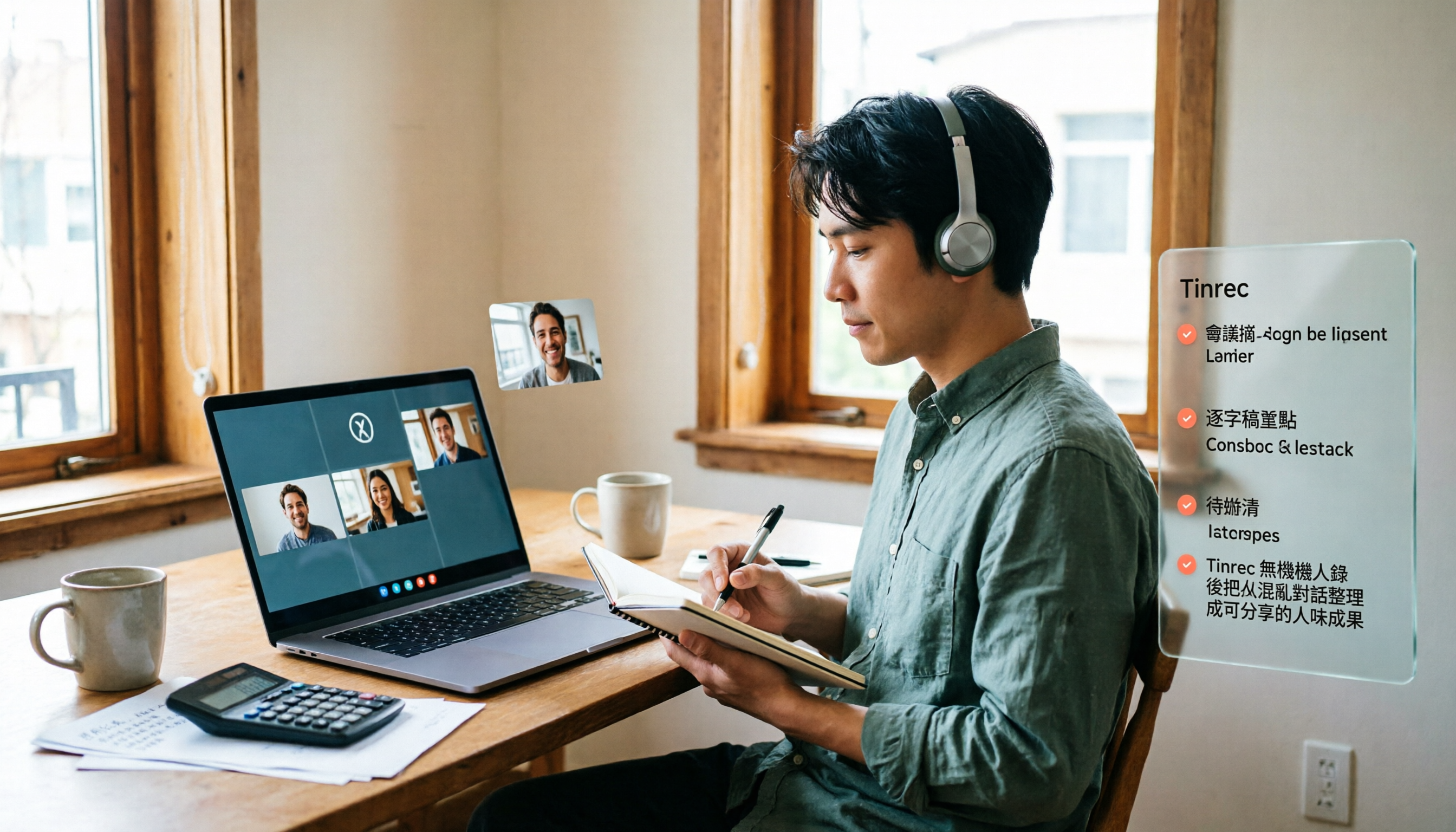
Turn recordings into transcripts and summaries in minutes
Upload audio or video for multilingual transcription, AI notes, and action items
Google Meet Pricing in 2026: Is the Free Version Enough? 3 Things to Know Before You Pay
Five minutes before a meeting, a colleague asks in the group chat: "Does this Google Meet link cost money?" You can't answer right away because the line between free and paid has been shifting for years.
I rechecked this question. First, here's the bottom line on Google Meet pricing, then I'll explain what I do now: I use Tinrec specifically for "keeping a record of the meeting content," so I don't have to buy a whole office suite for one meeting.
Does Google Meet cost money? Here's the bottom line
It's free, but only the basics.
Anyone with a Google account can start a meeting. The free plan supports up to 100 participants, and attendees don't need a Google account—they can join from a browser. For one-on-one interviews or quick discussions with a few people, the free version is actually enough.
Note that the free version does not give you meeting recordings, transcripts, or AI summaries—the kind of "usable after the meeting" data. Once the meeting ends, the content only lives in the participants' memories.
How much do Google Meet paid plans cost?
Paid versions are tied to a Google Workspace subscription; you don't buy a standalone Meet license.
Public data shows that the entry-level Business Starter is about US$7 per user per month, Business Standard is about US$14 per user per month (annual billing), and Enterprise is quoted separately, with a participant limit of up to 1,000.
Numbers vary slightly across sources (some articles say US$6.30, others US$7). Actual amounts depend on region, currency, and monthly vs. annual billing. Please refer to the official pricing page. Moreover, most of that money buys the whole suite of Gmail, cloud storage, and document collaboration tools—Meet is just one item. If your real need is only "recording the meeting," that budget may not be spent precisely.
So I changed my approach: let Tinrec handle the meeting
Tinrec is an AI meeting notes and collaboration tool for individuals and teams.
It doesn't just convert audio to text; it organizes a meeting into searchable, summarizable, queryable, exportable, and further processable data, ultimately becoming a shared team meeting asset.
For example, I hold client interviews on Google Meet. Before the meeting ends, the transcript is already running, and afterward I use the summary and action items to reply to the client—no need to spend another hour re-listening to the recording.
What can Tinrec do for you?
Scenario 1: Transcript and summary right after the meeting Previously, a two-hour meeting required another hour of organizing afterward. Now, as the meeting ends, Tinrec has already generated the summary, chapters, and action items. Who is responsible for what and when it's due—all at a glance.
Scenario 2: No bot needed for online meetings Tinrec's desktop version directly captures the computer's system audio, so you can process Google Meet, Zoom, Microsoft Teams, and Webex without adding an extra bot to the participant list. This is especially important for external meetings: clients won't see a stranger's account sitting in the meeting room.
Scenario 3: View cross-language meetings as they happen While recording, you can view the original text, translation, or bilingual content. For international meetings, you don't have to wait until afterward to guess what the other party said.
Scenario 4: Past meetings become a searchable database Last year's project meetings are still findable. Transcripts are searchable, and you can ask AI directly: "Who proposed the budget at that time?" "What did the client think about the specs?"
What are Tinrec's core capabilities?
Real-time audio-to-text: Transcribes while recording, capturing text synchronously during the meeting. Suitable for offline meetings, interviews, and on-site notes.
Bot-free online meeting recording: The desktop version captures system audio without a meeting bot as a participant. Note that this is not "automatically joining all calendar meetings"; you actively open Tinrec to start recording.
Post-transcription organization: AI summaries, chapters, key points, and action item extraction break long meetings into a quickly scannable structure. This step is the key to saving time.
Stop organizing recordings by hand
Upload audio or video and automatically get a transcript, summary, and action items
AI Q&A and post-processing: Ask follow-up questions about details from a single meeting or multiple meetings, and further generate meeting minutes, reports, and tables—directly turning them into deliverable work outputs.
Export and team spaces: Supports export to Notion, Google Docs, OneNote, Dropbox, and other tools. The team version centrally stores meeting data and provides management capabilities such as members, roles, seats, usage analytics, audit logs, and an audio recycle bin.
Practical use cases
Client and sales communication: Record requirements interviews and solution discussions with Tinrec. Afterward, organize the client's needs, concerns, and commitments into a list, and quote them directly in your reply—no need to rely on memory.
Cross-department weekly meetings: Regular meetings are the easiest to "forget after they end." Put transcripts and action items in the team space. At the next meeting, first confirm whether the previous action items were completed, and the decision context is also searchable.
Online courses and lectures: After converting content to text, you can extract key points into handouts and ask questions for review.
Content creation and research: After converting interview recordings to transcripts, quoting material and organizing viewpoints are done in one go, significantly shortening writing time.
5 things to consider when choosing a meeting notes tool
1. Does it require a bot to join the meeting?: Some tools require adding a bot to the meeting room. Tinrec uses bot-free desktop recording, which is less awkward for external meetings.
2. Is there organization after the transcript?: Is it just text, or does it help you separate summaries, chapters, and action items? Tinrec's value lies mainly in the latter part.
3. Performance with Chinese and mixed Chinese-English: Most tools are strong in English but average in Chinese. Tinrec can handle Chinese, Traditional Chinese, and multilingual meetings. The team version also maintains hotwords for better recognition of technical terms. Actual performance is still affected by recording quality, accents, noise, and multiple people speaking at once. For important content, cross-check with the recording.
4. Are audio files retained?: Tinrec retains audio files, so if you have questions about the transcript, you can go back to the timestamp and re-listen—much safer than text alone.
5. Team governance capabilities: The team version distinguishes roles and seats. Members without a seat can still view and play team data, but need a seat to record, upload, and edit. When a member leaves, the data stays with the team and is not taken away by the individual.
FAQ
Does it cost money to hold a meeting with Google Meet's free version? No. Anyone with a Google account can start a meeting. The free plan supports up to 100 participants, and attendees can join from a browser without a Google account.
How much do Google Meet paid plans cost? They are tied to a Google Workspace subscription. The entry-level plan is about US$7 per user per month, the standard plan about US$14, and Enterprise is separate. Actual amounts vary by region, currency, and annual or monthly billing. Refer to the official pricing page.
Is the free version enough? It's enough for simple video meetings. But if you need recordings, transcripts, AI summaries, and action items, the free version doesn't have them. Rather than upgrading to a whole office suite, use a specialized tool like Tinrec to fill in the "post-meeting organization" gap.
Does Tinrec need to add a bot to the meeting? No. The desktop version directly captures the computer's system audio. You actively start recording, and it works with Google Meet, Zoom, Teams, and Webex. It is not a bot that automatically joins all meetings.
Does Tinrec have a free version? How is the team version priced? The personal version has a free quota to try recording, importing, summaries, and transcription, plus weekly, Pro monthly, and annual cards. The team version offers a 7-day trial for first-time eligible users, 1 free seat, and 300 minutes of shared import quota; monthly billing is USD 29.80 per paid seat per month, annual billing is USD 199 per paid seat per year (about USD 16.58 per month). Each paid seat provides 2,000 minutes of team shared import quota per month. Real-time recording under an active seat currently does not deduct minutes. Prices and promotions are subject to the official purchase page.
What should I pay attention to before recording? Please comply with local laws and, if necessary, obtain participants' consent before recording.
Conclusion
The answer for Google Meet is actually short: the free version lets you meet, and the paid version buys the whole Workspace suite. The real question is: "After the meeting ends, what have you kept?"
If you have meetings, interviews, or courses to organize every week, try Tinrec's free quota first. Experience it with one or two meetings: what does it feel like to get the summary and action items directly after the meeting without re-listening to the recording?
References
Turn every recording into actionable outcomes
Get 60 free transcription minutes when you sign in. No credit card required.
Related Reading
You might also like

What You Need for Google Meet in 2026: Account, Devices, and Meeting Notes
What do you actually need to prepare for a Google Meet call? This guide starts with accounts, organizational permissions, devices, and microphones, then tackles the part where most people get stuck: how to capture meeting notes after the call ends. Using Tinrec as an example, it shows how to record online meetings without a bot and automatically generate transcripts, summaries, and action items.

3 Google Meet Noise Cancellation Methods Tested in 2026: Is the Built-in Feature Enough?
Google Meet does have noise cancellation, but it comes in two layers: cloud-based and on-device. Whether you can enable it, and whether it's on or off by default, depends on your Google account plan, device, and admin settings. This article breaks down three noise cancellation approaches, compares their use cases, and explains how to capture, find, and use meeting notes after noise cancellation.
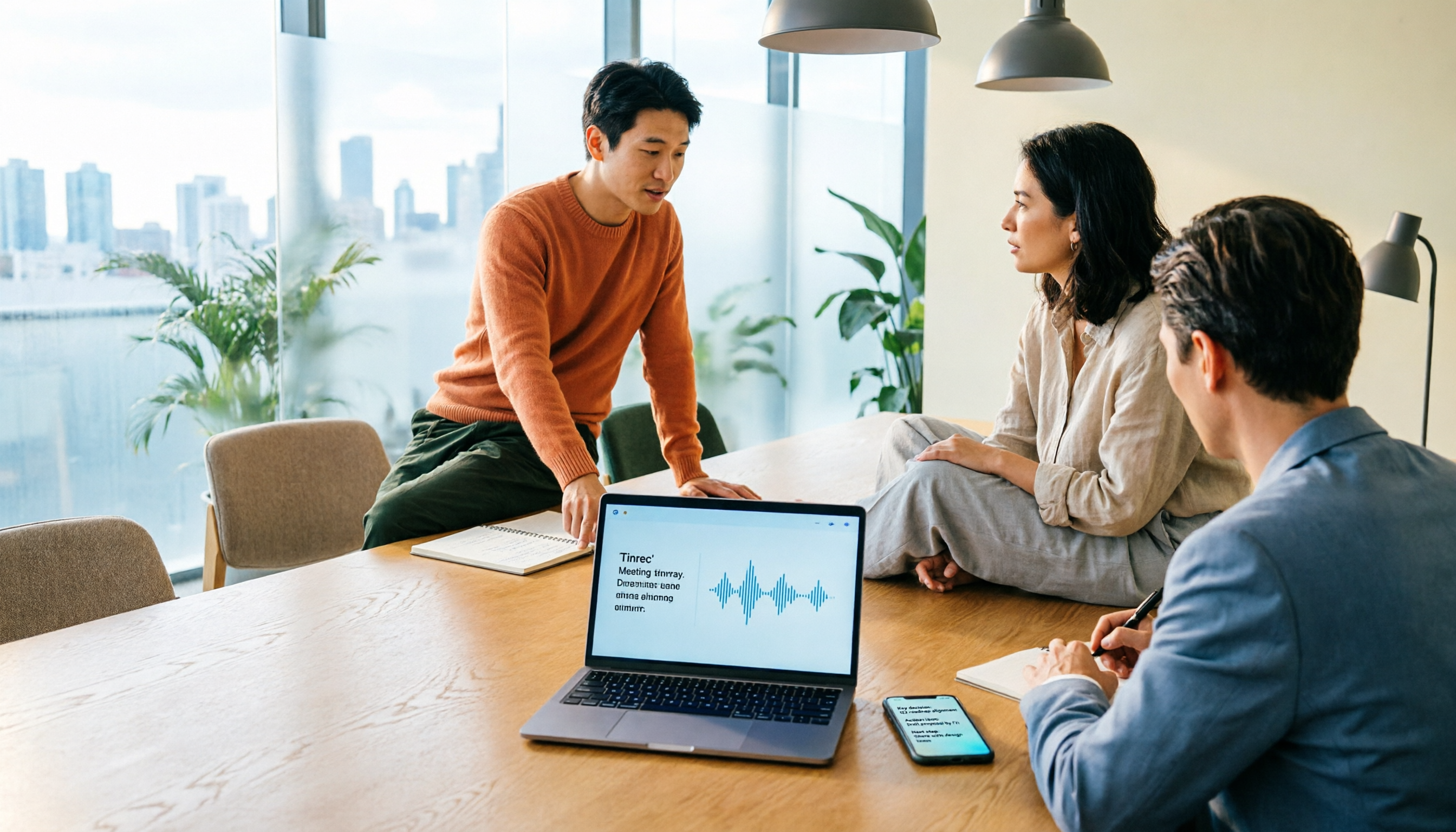
Google Meet Camera Auto-On in 2026: 3 Meeting Notes Tools Tested
Does Google Meet turn your camera on when you join? This article explains the logic behind it—device, browser, account settings, and how you join (preview screen, mobile app, or On-the-Go mode). Then, focusing on how to capture meeting content after turning off the camera, it compares Tinrec, Otter.ai, Granola, and Notta on input methods, post-meeting output, audio retention, and team collaboration, plus 4 common pitfalls and selection advice.
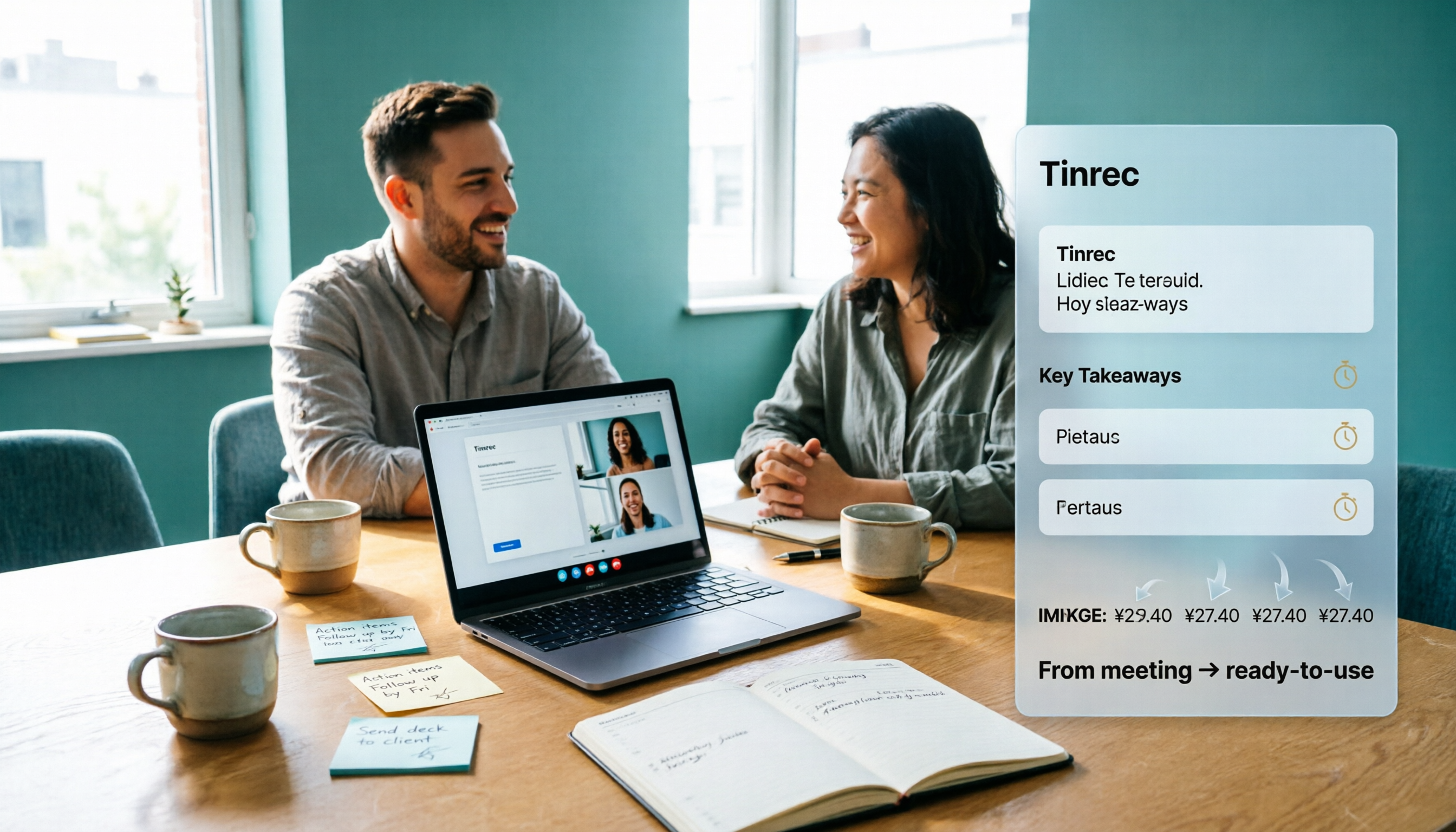
How Much Does Google Meet Cost in 2026? 5 Steps to See the Real Cost and a Time-Saving Alternative
Google Meet isn't sold separately—it's a meeting feature bundled inside Google Workspace, so the monthly fee on your bill is actually for a full suite of office tools. This article uses 5 steps to calculate the true cost of video meetings, including the post-meeting cleanup time that never appears on your bill, and explains how Tinrec can automatically generate transcripts, summaries, and action items—turning meetings from 'finished' into 'usable.'
Google Meet Mute Permissions & 3 Meeting Tools Tested: Who Makes Post-Meeting Notes Easiest?
Many assume meeting hosts can always mute everyone, but Google Meet mute permissions depend on your account plan, host management settings, and your role in the meeting. This article clarifies the mute scope and limits for hosts and co-hosts, then compares Google Meet built-in transcription, Otter.ai, Notta, and Tinrec for post-meeting notes—helping you handle both 'keeping the meeting quiet' and 'finding the information afterward.'

The Complete Guide to Recording Google Meet in 2026: Free Account Limits and Bot-Free Recording Solutions
Google Meet allows recording, but free accounts, host permissions, and plan restrictions often gray out the record button. This guide covers native recording requirements, file locations, and explains how to use Tinrec desktop for bot-free recording, real-time transcription, AI summaries, and team knowledge retention.

The Complete Guide to Google Meet Recording in 2026: Limitations, Alternatives, and Post-Meeting Organization
Google Meet does support recording, but most people get stuck on admin settings, paid plans, and device limitations. This article addresses three common misconceptions, clarifies the real requirements for built-in recording in Google Meet, explains how to handle meeting notes after recording, and shows how Tinrec fills the post-meeting organization gap with bot-free recording, transcripts, AI summaries, and team spaces.

The Complete Guide to Buying a Google Meet Subscription in 2026: Plan Selection and Meeting Notes Workflow
People searching for 'buy google meet subscription' really need to decide which plan to buy and how to handle post-meeting organization. This article breaks down the choice between Google One and Google Workspace from a mid-level manager's perspective, and explains why meeting notes and action items should be handled by Tinrec.

Google Meet Screen Sharing: The Complete 2026 Guide — From Presenting to Capturing What Matters
Google Meet lets you share your screen, but sharing well and keeping a record of the meeting are two different things. Starting from real meeting scenarios, this guide explains Google Meet's three sharing modes, audio sharing, and common limitations, then shows how Tinrec's desktop app records meeting audio without a bot, filling the gap after sharing ends with transcripts, summaries, action items, and AI Q&A. It also covers team plan seats and pricing.