

Turn recordings into transcripts and summaries in minutes
Upload audio or video for multilingual transcription, AI notes, and action items
The Complete 2026 Guide to Google Meet Speech-to-Text: Transcripts, Summaries, and Action Items in One Go
Three Pitfalls I've Fallen Into: Built-in Transcription Isn't a Cure-All
During my senior year, I took a fully remote capstone project course, and we had weekly Google Meet discussions with my group. Before the first meeting, I was super proud—Google Meet already has speech-to-text! Just open the meeting tool, click "Transcripts," then "Start transcription," and the transcript is generated automatically. This semester's meeting notes are saved.
But that semester I fell into three pitfalls. Let me tell you about them so you can avoid the detours.
Pitfall 1: Having a transcript doesn't mean having meeting notes. Speech-to-text turns everyone's speech into text, but that's just a transcript. After a two-hour discussion, you get two hours' worth of text. Who proposed what, what the final conclusion was, who needs to do what next time—you have to read through it all yourself. That time, I finished reading at 1:30 AM and skipped my 8 AM class the next day.
Pitfall 2: Transcription can't be paused. According to Google's official documentation, once transcription starts, it can't be paused—only stopped and restarted, and each restart creates a separate transcript file. Our group often took breaks or switched to other topics, resulting in four or five fragmented files per meeting. Reviewing them afterward was a nightmare.
Pitfall 3: Files are stored in the cloud and then sink. The transcript sits in Google Drive with no search or organization. Over time, you forget where it is.
Later, I changed my mindset: instead of expecting the platform's built-in features to do everything, it's better to separate "recording" from "organizing into usable data." I switched to using Tinrec (秒聽錄音) desktop version to handle Google Meet meetings, and I've been using it ever since. Below, I'll explain how I've used it this past year and how it differs from my previous approach.
What Can Tinrec Do for Google Meet Speech-to-Text?
Scenario 1: Online Group Discussions—Get Conclusions Right After the Meeting
Tinrec desktop captures your computer's system audio directly. While you're in a Google Meet, I press start, and it records and transcribes simultaneously—no need to invite any meeting bot into the room. Our group really disliked having an unknown account hanging around in meetings, so this method was much more comfortable for us. And because it captures system audio, it also works with Zoom, Microsoft Teams, and Webex.
After the meeting, Tinrec generates a transcript, AI summary, chapters, and action items all at once. I usually screenshot the action items section and send it to the group chat—who's responsible for what and when it's due is clear at a glance, no need for anyone to write separate meeting notes.
Scenario 2: Cross-Language Courses and International Group Members
One semester, our project had an international exchange student, so meetings often mixed Chinese and English. Tinrec supports mixed Chinese-English content organization and offers real-time translation. During recording, you can switch between original text, translation, or bilingual view. This was a huge help for our situation—where we could understand but missed details—and reviewing the transcript afterward didn't get stuck.
Scenario 3: Internship Interviews and Interview Practice
In my junior year spring, I started practicing for internship interviews by opening a Google Meet and talking to the camera, then using Tinrec to transcribe it. This could be done with built-in transcription too, but the difference is Tinrec organizes it into summaries and key points, so I can quickly see which parts were too wordy or which answers lacked logic. When I actually went to interviews, I almost used the practice transcripts as review reports.
What Are the Core Capabilities of a Speech-to-Text Tool?
1. Bot-Free Online Meeting Recording
Traditional meeting bots join meetings with an account name, and everyone in the room sees an extra participant. Tinrec desktop takes a different path—it directly captures your computer's system audio, so no unfamiliar account appears in the meeting. For scenarios like group discussions or interview practice where you don't want to be disturbed, this is more important than anything.
2. Real-Time Transcription
Tinrec transcribes as it records, not after. During a meeting, you can watch the text run and if you miss something, you can ask the person to repeat it right away. This is very practical for two-hour project discussions—previously, I'd only realize I missed key points after the meeting, when everyone had already left.
3. AI Summary, Chapters, and Action Items
This is the biggest difference from pure transcription tools. Tinrec doesn't just condense the transcript into a big block of text; it breaks it into meeting topics, discussion points, conclusions, and action items separately. Long meetings are automatically divided into chapters, so when I need to find a specific discussion, I can jump to the chapter instead of scrolling through the entire transcript.
4. AI Q&A
After transcription, you can ask Tinrec questions directly. For example, "Who mentioned changing the topic in last week's discussion?" or "What was the professor's suggestion for Chapter 3?" It answers based on the content, so you don't have to Ctrl+F for keywords. When preparing for final oral exams, I used this to quickly review the entire semester's discussion records.
5. Multi-Format Export and Further Processing
Tinrec can export results to Notion, Google Docs, OneNote, Dropbox—tools I already use. My approach: keep meeting summaries in Tinrec, export transcripts to Notion alongside project notes. It can also generate reports, tables, and documents based on meeting content. For midterm and final meeting notes, I almost always edit from here.
Stop organizing recordings by hand
Upload audio or video and automatically get a transcript, summary, and action items
Practical Use Cases: Four Situations Students Encounter Most
Online Courses and Remote Lectures
The most common issue with remote classes is "understanding in the moment but forgetting later." Use Tinrec to transcribe while attending class, and you'll have a transcript and summary immediately after. When reviewing, just look at chapters to grasp key points without rewatching the entire video. For sections where the professor speaks particularly fast, I use AI Q&A to ask for details.
Project Group Discussions
This is our most frequent use case. Weekly two-hour discussions used to take an hour to organize notes afterward; now summaries and action items are ready as the meeting ends. If the project group wants to share this data, Tinrec also has a team version—you can use team spaces to centrally store meeting records, members can join via a link, and admins can manage members, seats, and usage. But honestly, the team version is USD 29.80 per paid seat per month (annual payment USD 199, about USD 16.58 per month), which isn't cheap for a student group. We ended up sharing one personal version among four people and using export features to share, which fit our budget better.
Internship Interviews and Course Interviews
Whether it's mock interviews or course interviews, transcripts are essential. Tinrec's transcripts retain complete speech content, support search and review, saving me a lot of work when looking for quotes—no need to listen to the recording from the beginning.
Extracurricular Content and Study Notes
I listen to some foreign online courses and podcasts, some without Chinese subtitles. Tinrec supports real-time translation and bilingual viewing, essentially turning content into understandable notes that I can also archive in Notion.
5 Things to Consider When Choosing a Speech-to-Text Tool
1. Is It a Meeting Bot or Does It Capture System Audio?
This is the most overlooked point. Meeting bots add an extra participant to the meeting, which isn't suitable for some occasions (e.g., interviews, client meetings). Tinrec desktop directly captures computer system audio, so no account appears in the meeting—this is what I care about most.
2. What Else Can It Do After Transcription?
If it only gives you a transcript, you've only completed half the job. Check if the tool can generate summaries, chapters, action items, and answer questions about the content. Tinrec is a complete pipeline: transcription, summary, action items, Q&A, export—all in one go.
3. Performance with Chinese and Mixed Chinese-English
Many tools are strong in English but average in Chinese. Our meetings often mix Chinese and English and include many technical terms. Tinrec supports Chinese and multilingual meetings, and the team version has a hotword feature to maintain common terminology. Actual accuracy is still affected by recording quality, accents, and multiple people speaking simultaneously. It's best to test with your own recording.
4. Can It Export to Your Existing Workflow?
No matter how powerful a tool is, if data can't get out, it's useless. Tinrec supports export to Notion, Google Docs, OneNote, Dropbox, so I can keep transcripts with project notes.
5. Free Quota and Pricing—Students Need to Calculate Clearly
Tinrec personal version has a free version to experience basic recording, import, summary, and transcription, plus weekly cards and Pro monthly/yearly cards. My advice is to look at your usage frequency: if you only record a few interviews per semester, the free quota is enough; if you have weekly meetings and want to record every class, consider a weekly card or Pro. I won't say which is definitely cost-effective because everyone's schedule is different, but at least it doesn't shut students out—start with the free version for a semester, and pay if it's not enough. That's the least regrettable order.
Frequently Asked Questions
Q1: Is Google Meet's built-in speech-to-text enough? It depends on whether you need a transcript or meeting notes. If you just want a text backup, built-in features suffice; but if you want to know conclusions and action items right after the meeting, built-in transcription only gives you raw text, and you still have to organize it yourself. Tinrec's difference is in the latter part—it directly produces summaries, chapters, and action items.
Q2: Do I need to let a bot join the meeting to record Google Meet with Tinrec? No. Tinrec desktop directly captures computer system audio, so no participant is added to the meeting, and no account needs to be invited.
Q3: Is the free version enough for students? The free version provides basic quota to experience recording, import, summary, and transcription. If you only occasionally record an interview or a key class, it's usually enough; if you have weekly meetings and want to record every class, consider a weekly card or Pro. My approach was to use the free version for a semester, then decide based on actual usage.
Q4: Can it handle mixed Chinese-English meetings? Yes. Tinrec covers Chinese, Traditional Chinese, and multilingual meeting scenarios, and supports real-time translation and bilingual viewing. However, technical terms, accents, and overlapping speech can still affect results. It's best to test with your usual meeting recording.
Q5: Can accuracy be guaranteed? Don't trust any "guaranteed numbers." Actual accuracy is affected by recording quality, ambient noise, accents, simultaneous speech, and technical terms. A practical approach: for important content, cross-check with the transcript timestamps and recording playback afterward.
Q6: Do I need to inform others before recording? Yes. Recording and transcription involve personal data and local regulations. Informing participants and getting consent before a meeting is basic courtesy and self-protection. This applies regardless of the tool.
Conclusion: If You're a Student, Here's How I'd Start
Google Meet's speech-to-text is convenient, but it gives you raw material, not a finished product. If, like me, your goal for meetings is "knowing what to do next," then you need more than a transcription tool—you need one that turns transcripts into summaries, action items, and searchable data. This past year, I used Tinrec desktop for online and offline meetings. The biggest change wasn't saving typing time, but that at the moment the meeting ends, I already know the conclusions and next steps.
My suggested order is simple: use the free version for a semester to gauge your actual meeting volume; if not enough, consider a weekly card or Pro. If you're a regular project group or lab, you can also evaluate the team version to put meeting data in one space, so members leaving won't take data with them.
References
- Use transcripts with Google Meet - Google Meet Help
- AI Transcription - Convert Speech to Text - Chrome Web Store
- 5 Steps to Real-Time Translation of Google Meet Meetings | AI Real-Time Subtitles
- Speech-to-Text: AI Speech Input and Transcription | Google Cloud
- Google Real-Time Transcription and Summary - Chrome Web Store
Turn every recording into actionable outcomes
Get 60 free transcription minutes when you sign in. No credit card required.
Related Reading
You might also like
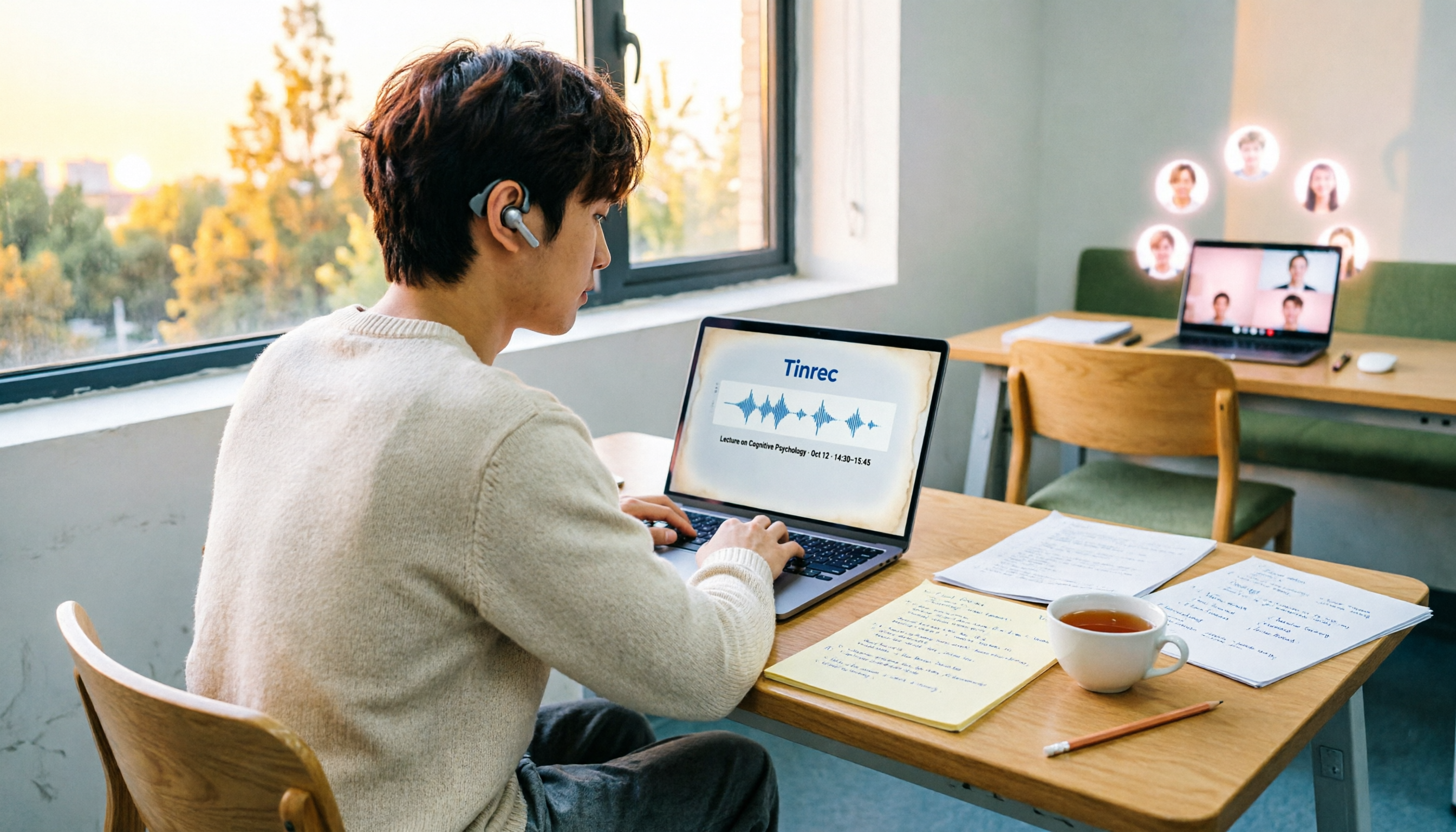
4 Speech-to-Text Tools Tested on PC in 2026: Is Google Docs Voice Typing Really Enough for Transcribing?
In 2026, I tested 4 methods for speech-to-text on a computer: Google Docs voice typing, Google Cloud Speech-to-Text API, the VoiceIn extension, and Tinrec, which I ended up keeping. Using student class recordings and small-group online meetings, I explain what each method can and cannot do, and whether free tiers are enough for students.

2026 Best Speech-to-Text Tools Compared: Which One Handles Cantonese Most Accurately?
We tested 4 speech-to-text tools in real Hong Kong workplaces in 2026. First, we explain 5 key factors for choosing a tool, then take a deep dive into Tinrec's bot-free recording, AI Q&A, and team spaces. We also briefly review Otter.ai, Granola, and Notta, and finish with a pitfalls guide and scenario-based recommendations.

Tinrec vs Notta 2026: 5-Dimension Comparison for Chinese Speech-to-Text
How to choose a Chinese speech-to-text tool? This article compares Tinrec and Notta across five dimensions: Chinese recognition, meeting capture methods, post-meeting output, audio retention, and team collaboration. It also includes options like Google Docs voice typing and Otter.ai, plus four common pitfalls to help you find the right transcription and meeting organization solution for Chinese meetings.

2026 Voice-to-Text AI Comparison: Which Free Tier Works Best for Students?
A 100-minute class, over a dozen sessions per semester—it's impossible to re-listen to everything before finals. This is my year-long, real-world test of voice-to-text AI as a student: how to evaluate free tiers, differences in recognizing Chinese and mixed Chinese-English, and hands-on experience with Tinrec, Notta, Otter.ai, and PLAUD, plus the four most common pitfalls students fall into.

5 AI Speech-to-Text Tools Compared in 2026: How to Choose from Free to Team Collaboration
How do you choose among AI speech-to-text tools often recommended on Dcard? This article first takes a quick look at the positioning of Tinrec, MyEdit, PowerDirector, cSubtitle, and Yating Transcription, then compares Tinrec and MyEdit dimension by dimension across Chinese recognition, pricing, online meeting recording, post-meeting output, and team collaboration, helping you decide whether to use a free tool or a meeting workflow.

2026 Comparison of 4 Google Speech-to-Text Methods: Which One Can Actually Save Recordings as Text Files?
Turning speech into text with Google isn't hard; the hard part is turning it into a truly usable text file. This article compares four methods: Google Docs voice typing, Google Cloud Speech-to-Text, Google Live Transcribe app, and Tinrec. From real-time recording, processing old audio files, post-meeting summaries, to team sharing, we help you find the easiest path.

4 iOS Speech-to-Text Apps Tested in 2026: Which Free Version Is Enough?
We tested 4 iOS speech-to-text apps, comparing input sources, AI post-processing, Chinese language support, and team collaboration to find which free version is most useful. We also explain why Tinrec is our top pick for meeting notes.
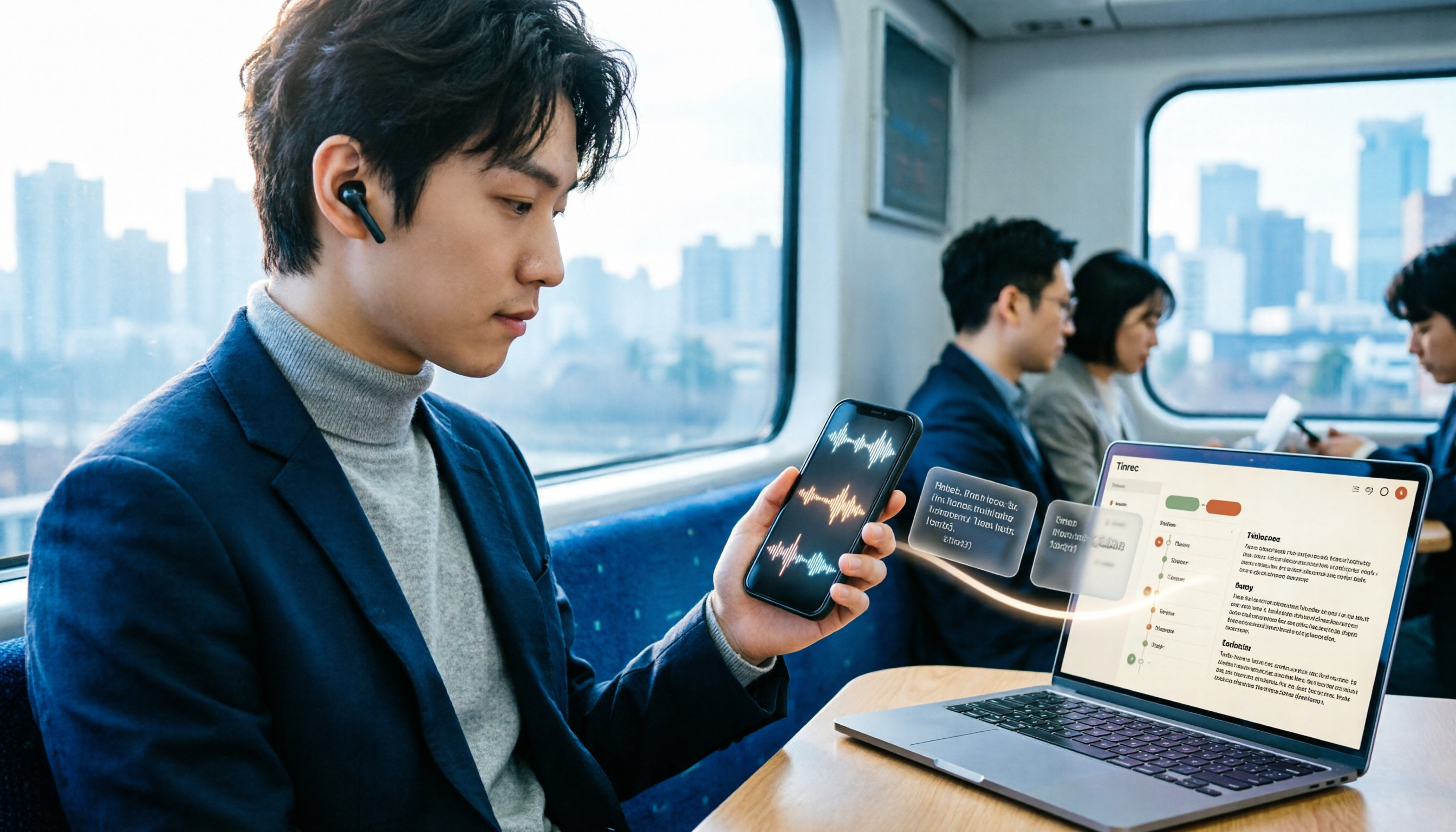
3 LINE Voice-to-Text Methods Tested in 2026: Which One Produces a Usable Transcript File?
LINE voice messages can't be played during meetings or commutes, and there are several ways to convert them to text. This article compares LINE's built-in transcript, iPhone Shortcuts, and AI transcription tools to explain which one truly leaves you with a searchable, organized transcript file.

2026 Comparison of 5 Speech-to-Text Tools: Which Is Best for Chinese Recognition and AI Summarization?
There are many speech-to-text tools available, but Chinese recognition and post-meeting organization are the deciding factors. This article tests 5 tools from four angles: Chinese recognition, AI summarization, cross-platform support, and team collaboration. It also tests Tinrec's bot-free online meeting recording, AI conversational query, and team spaces to help you determine which one best fits your meeting scenarios.