
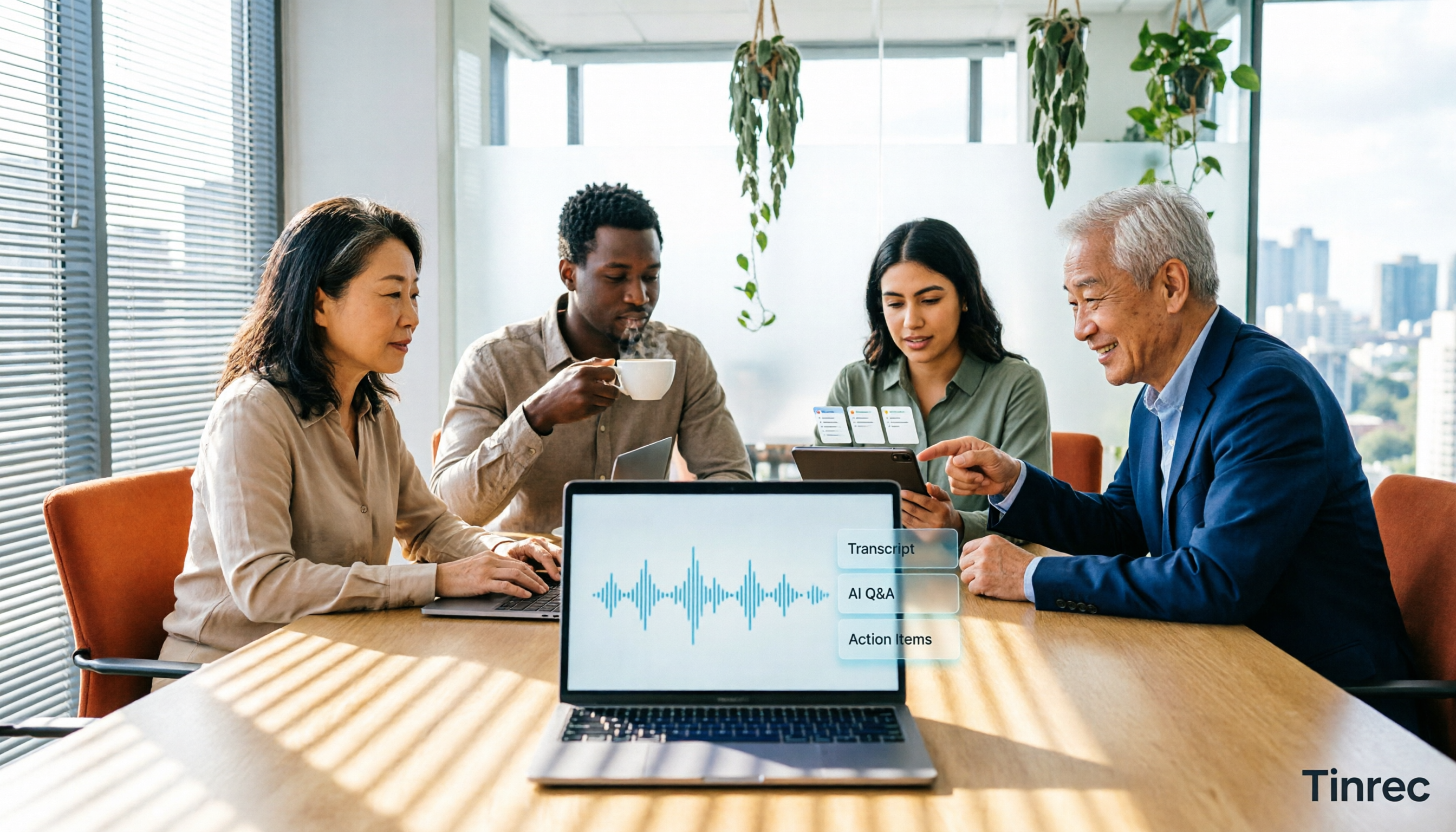
Turn recordings into transcripts and summaries in minutes
Upload audio or video for multilingual transcription, AI notes, and action items
2026 Teams Meeting Transcription Comparison: 4 Methods Tested — Is Avoiding a Meeting Bot Really Easier?
Discovering After Recording a Teams Meeting That It's More Trouble? The Problem Is Usually Not the Tool, But the Approach
Many people's first misconception about transcribing Teams meeting recordings is: "Press record, and Teams will generate meeting notes by itself."
In reality, Teams transcription depends on the policy settings of each organizer and each user. If the organizer hasn't enabled it and you haven't enabled it yourself, there will be no transcript for that meeting. Although live captions are visible during the meeting, Teams does not save them—once captions are turned off, they're gone.
Another common inefficient approach: after the meeting, the recording sits quietly in OneDrive or SharePoint. You know the content is in there, but you can't be bothered to open and rewatch 90 minutes.
A more sensible approach is to find a solution that preserves audio, generates a transcript on the spot, and can be searched and queried after the meeting. This article is a summary of my actual experience with several approaches.
Before Choosing a Teams Meeting Transcription Solution, Understand These 4 Key Points
1. Is it "platform built-in" or "record and transcribe it yourself"
Teams built-in transcription is the most convenient, but it only serves Teams, and the resulting text records are stored along with the recording in OneDrive and SharePoint. If you also use Zoom and Google Meet, you'll have to learn a separate system for each platform.
2. Do you need to add a "meeting bot" to the meeting
Some tools rely on a bot joining the meeting as a participant to record. In most companies, this requires additional approval and often makes participants feel uncomfortable. Using a desktop app to directly capture the computer's system audio eliminates the need for an extra participant.
3. Can you use it after transcription
A transcript alone is not enough. A 30-minute meeting transcript can be tens of thousands of words. What really saves time is summaries, chapters, action items, and a Q&A feature that lets you "ask it directly."
4. Will the audio be retained
Some meeting note tools only keep notes, not audio files. If you miss a key number, you can't replay it later and just have to accept it. Whether the original audio is retained is something I always check.
Tinrec — My Most Recommended Approach After Testing
Tinrec is an AI meeting notes and collaboration tool for individuals and teams, supporting web, desktop, and mobile.
Its most critical point: the desktop version directly captures the computer's system audio, without inviting any meeting bot. You have your meeting in Teams as usual, open the Tinrec desktop app to start recording, and by the time the meeting ends, the transcript is already there. This is especially noticeable for people who are frequently pulled into client meetings.
Beyond the transcript, it automatically generates summaries, chapters, and action items—who is responsible for what and what the next steps are—so you don't have to re-listen after the meeting. Even better is the AI Q&A: you can directly ask, "What was the budget cap the client mentioned in the last meeting?" It doesn't dump a bunch of keyword search results on you; it gives you an answer based on semantics. This is where I feel the gap with ordinary transcription tools is most obvious.
It also handles mixed Chinese-English meetings and supports real-time translation, allowing you to switch between original text, translation, or bilingual view. This feature is very practical for cross-language meetings.
After transcription, content can be exported to Notion, Google Docs, OneNote, Dropbox, and other tools for further processing, and you can also ask it to generate reports, tables, or meeting minutes. For team use, Tinrec has a separate team space where meeting data belongs to the team, and you can manage member roles, seats, shared quotas, usage analytics, and audit logs; when a member leaves or is removed from a seat, the data is transferred to other active members and won't be taken away. Team hotwords allow you to maintain company-specific terminology to improve recognition of technical terms.
Stop organizing recordings by hand
Upload audio or video and automatically get a transcript, summary, and action items
Plans and Pricing
The personal version has a free plan to try first, a weekly pass for short-term high-frequency use, and Pro monthly and annual plans for steady use. For the team version, first-time eligible users can try 7 days, 1 free seat, and 300 minutes of team shared import quota; team monthly is USD 29.80 per paid seat per month, annual is USD 199 per paid seat per year (about USD 16.58 per month), and each paid seat provides 2,000 minutes of team shared import quota per month. Under an active team plan, real-time recording currently does not deduct minutes; document and web imports use the team shared quota. Actual prices and benefits are subject to the official purchase page.
Limitations to Note
The free version has usage limits, and heavy users need to pay; transcription accuracy can be affected by recording quality, ambient noise, accents, and multiple people talking over each other. For important content, it's recommended to cross-check with transcript timestamps and audio playback. Also, the Tinrec desktop app requires you to actively start recording; it is not a bot that automatically joins all meetings on your calendar.
Besides Tinrec, What Other Options Are There?
Microsoft Teams Built-in Transcription
If everyone in the company uses Teams, this is the easiest starting point—no extra tools needed, and text records are stored with the recording in OneDrive and SharePoint. Note that it requires both organizer and user policies to be enabled, and live captions are not saved. The limitation is that it only serves Teams and lacks cross-meeting AI Q&A and team data accumulation.
Otter.ai
A mature choice for English meetings. The Basic free plan offers 300 minutes per month, and Pro annual is about USD 8.49 per user per month (1,200 minutes per month). If your meetings are almost entirely in English, it's more than enough; but Chinese meetings and bot-free desktop recording are not its strong suit—Tinrec is closer to the needs of Chinese users in this regard.
Notta
A multilingual transcription tool. The free plan offers 120 minutes per month with a maximum of 3 minutes per single item; Pro annual is about USD 8.17 per month. Its positioning overlaps with Tinrec, but Tinrec adds AI conversational Q&A and a layer of team space, roles, and seat governance.
Pitfalls Guide: The 3 Most Common Pitfalls in Organizing Teams Meeting Notes
Pitfall 1: Assuming live captions equal a transcript. Teams captions are only displayed during the meeting and are not saved. If you want to find that sentence after the meeting, you can only re-listen. To keep text, you must enable "transcription," and both the organizer's and your own settings must be on.
Pitfall 2: Assuming that if the recording is saved, it can be found. The file is indeed in OneDrive or SharePoint, but a 90-minute video without a summary or chapter structure is effectively nonexistent. When choosing a tool, first check whether it can break a long meeting into sections and extract action items.
Pitfall 3: Ignoring recording consent and permission settings. Recording and transcription involve personal data and local regulations. Before the meeting, it's best to inform participants and obtain consent; the Teams admin side also has clear policies such as recording consent that can be configured. This is not a technical issue, but if not handled well, it can become trouble.
Conclusion: Which One Should You Choose?
- Only meet in Teams, only need basic transcripts, don't want to install extra tools → Teams built-in transcription (the only exception)
- Often hold Chinese meetings in Teams, don't want to add a meeting bot → Tinrec
- Need summaries, action items, and want to ask questions directly about the meeting → Tinrec
- Use Teams, Zoom, and Google Meet simultaneously, want unified organization → Tinrec
- Team wants to turn meetings into searchable assets and manage seats and usage → Tinrec team version
- Meetings are almost entirely in English, budget is tight → Otter.ai
Overall, Teams built-in transcription solves "whether there is text," while Tinrec solves "whether that text can immediately become something you can use."
I suggest first trying the Tinrec free version on one of your regular meetings to experience the speed of not having to re-listen after the meeting, then decide whether to upgrade.
References
- Admin - Manage Teams meeting transcription and captions - Microsoft Teams | Microsoft Learn
- Overview - Recording and transcription for Teams meetings, events, and calls - Microsoft Teams | Microsoft Learn
- Teams meeting transcription and recording tutorial: Easily create meeting notes with AI | AI Transcription Service — Mr. Transcription
- How to translate and transcribe Microsoft Teams meetings to text
- Configure call recording, transcription, and captions in Teams - Microsoft Teams | Microsoft Learn
Turn every recording into actionable outcomes
Get 60 free transcription minutes when you sign in. No credit card required.
Related Reading
You might also like
4 AI Meeting Note Tools Tested in 2026: Which One Saves the Most Time on Auto-Organizing Transcripts?
The pain of meeting notes isn't slow typing—it's time-consuming organization. This article addresses common misconceptions, tests 4 AI meeting note tools, breaks down key buying factors, Tinrec's bot-free recording and AI Q&A workflow, team plan seats and data ownership, plus a pitfalls guide and selection advice.

4 Video-to-Transcript Tools Tested and Compared in 2026: 3 Pitfalls to Understand Before Importing Video
Importing a video to generate a transcript looks simple, but the real bottlenecks are usually format support, time codes, and how usage limits are calculated. This article starts with common misconceptions, outlines 4 key points for choosing a tool, then shares a hands-on test of Tinrec from video import to AI summaries, action items, and team knowledge retention, and compares TurboScribe, Notta, and Granola for use cases and pitfalls to avoid.

How to Transcribe Classroom Recordings in 2026: A Complete 5-Step Guide
When it comes to transcribing classroom recordings, most people only ask which tool is the most accurate. But what really determines whether you'll be overwhelmed all semester is the audio source, the classroom language, and the total number of hours. This article uses university and graduate school classroom scenarios to compare Tinrec and Otter.ai across 5 dimensions, and provides a 5-step process you can follow directly, along with purchasing advice.

How to Transcribe Zoom Meeting Recordings in 2026: No-Bot Recording + Automatic Meeting Minutes
Done with a Zoom meeting but still need to organize the transcript and minutes yourself? This guide covers the complete process for transcribing Zoom meeting recordings, including no-bot recording, real-time transcription, AI summaries and action items, AI Q&A, and 5 key points to consider when choosing a tool. It also demonstrates the workflow using Tinrec.

2026 AI Meeting Recorder Comparison: 4 Tools Tested for Chinese Meetings
Two-hour meetings followed by two hours of note organization is a daily reality for most office workers. This hands-on test of 4 AI recording and note-taking tools covers bot-free recording, Chinese transcription, AI Q&A, team knowledge retention, pricing, and limitations to help you decide which one is worth keeping.

5 Speaker Summary Tools Tested for 2026: Why Tinrec Is Less Work for Chinese Meetings
Starting from the question 'What exactly do you need a tool to do for you?', this hands-on comparison of common speaker summary tools explains how Tinrec performs in Chinese meeting transcription, bot-free online meeting recording, AI summaries and action items, AI chat queries, multi-format export, and team spaces. It also covers five key points to consider when choosing a tool and answers common questions.

2026 AI Meeting Notes: Automatic Speaker Identification + AI Q&A Summaries
Why do you still have to manually organize meeting transcripts even when speakers are automatically labeled? This article starts with common misconceptions about automatic speaker identification, breaks down 4 key dimensions for choosing a meeting notes tool, tests Tinrec's bot-free online meeting recording, AI summaries and Q&A, team spaces, and other features, compares it with Otter.ai, PLAUD Note, and Notta, and includes a pitfalls guide and buying advice.
4 Best AI Meeting Note Takers in 2026: Which One Actually Captures Action Items?
The hardest part of a meeting isn't recording it—it's turning two hours of discussion into an action list with names and deadlines. This article compares Tinrec, Otter.ai, Notta, and Granola across four key criteria: action item accuracy, AI Q&A, post-meeting workflow, and team data ownership. We explain who each tool is best for and highlight key buying considerations to help you choose the right tool and stop wasting time on manual transcripts.

Tinrec vs Otter.ai 2026: Cantonese Meeting Transcription with Real-Time Chinese-English Translation
Meetings held in Cantonese but delivered in English are a common pain point for many teams. This article compares Tinrec and Otter.ai across 5 dimensions—Cantonese and mixed Chinese-English recognition, bot-free meeting recording, real-time translation and bilingual review, post-meeting AI Q&A, and team data governance—to help you decide which tool better fits your meeting scenario.