

Turn recordings into transcripts and summaries in minutes
Upload audio or video for multilingual transcription, AI notes, and action items
4 Call Recording Transcription Tools Compared in 2026: Can You Record, and What to Do After?
You Hang Up and Realize You Didn't Catch a Single Key Point
It's 3 PM on a Wednesday. A client rattles off five requirements in one phone call. You're holding the receiver with one hand and scribbling notes with the other. After you hang up, you look down and see only three lines on the page—half of them incomplete sentences.
You thought about hitting the record button, but your finger hovers over the screen—is this legal? Will the other person feel disrespected?
Even if you did record it, a 40-minute call means you still have to listen from start to finish to figure out where the budget was discussed and what you need to send next time.
This article is for anyone who's been in this situation. First, we'll clarify whether you can record. Then we'll talk about what to do with the recording afterward.
Before Recording a Call, Understand These 4 Key Points
1. Legal: You're a Party to the Call, Unlike Secretly Recording Someone Else's Conversation
In Taiwan's legal practice, the crime of妨害秘密 (offense against secrecy) deals with "unlawfully recording another person's non-public conversation." You are a participant in the call, so the conversation is not a secret to either party. Recording your own call with the other party for self-protection or evidence gathering generally does not constitute the crime of妨害秘密.
Practical interpretations of the Communication Security and Surveillance Act are similar: monitoring your own phone calls with the other party is not punishable as long as it's not for an "unlawful purpose."
The key phrase to watch is "unlawful purpose." Using a recording to threaten, extort, or distribute is a completely different matter. Cross-border calls require extra caution—some countries require all parties to consent before recording.
(This is a general summary. For specific situations, please consult a lawyer.)
2. Device and Region: Not Every Phone Can Record
Starting with iOS 18, iPhone supports call recording in some countries and regions, and only in supported languages and regions. The recording can be viewed as a transcript in the Notes app, but the transcript may not appear immediately.
Android has more restrictions. Google's Phone app help page clearly states: only specific devices and carriers support call recording, and the feature hasn't rolled out in all countries/regions.
In other words, whether your phone can record depends on the brand, OS version, carrier, and location—it's not guaranteed just because you bought a flagship phone.
3. Notification: The System Will Notify, and You Should Speak Up If You Record Yourself
Both iPhone and Google's call recording features notify both parties when recording starts; Google even notifies again when recording stops. This is for privacy protection, not a system glitch.
Apple's instructions also remind you to ensure the other party consents to being recorded before starting; Google explicitly states that under some laws, all participants must consent.
If you use a voice recorder or external device, the system won't notify for you. It's best to say something like "I'm recording this for my notes."
4. After Recording: This Step Is Most Easily Overlooked
A recording won't turn itself into a transcript, and a transcript won't turn itself into action items.
Many people get stuck here: a dozen unlistened recordings sit on their phone, and when they actually need them, they still have to play from the beginning. So when choosing a tool, don't just look at "can it record"—look at "what can it become after recording."
Tinrec—The Tool I Use to Organize Content After a Call Recording
Let's be clear: Tinrec is not a call recording app. It won't press the record button during a call, nor does it automatically connect to your phone.
It solves the second half: you already have a recording, now what?
Tinrec is an AI meeting notes and collaboration tool for individuals and teams, available on iOS, Android, and web. Its positioning isn't just converting audio to text—it's turning recordings into searchable, summarizable, queryable, and exportable data.
Drop in an Existing Recording and Get a Transcript
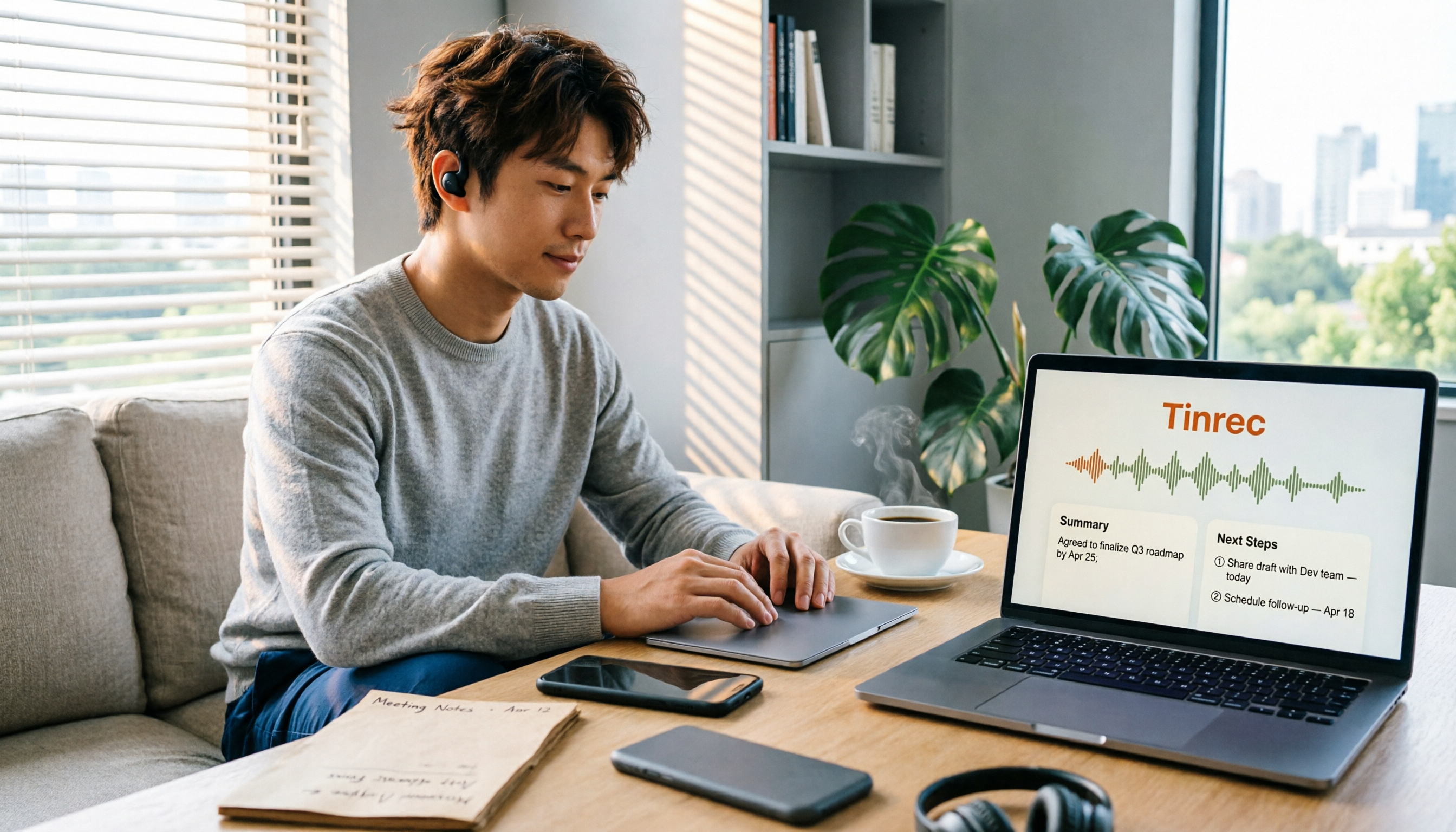
iPhone call recordings, old files from a voice recorder, client interview audio—all can be imported into Tinrec to generate transcripts. It also supports uploading common audio and video files. Transcripts are searchable and reviewable, so you don't have to listen from the start again.
If you're doing in-person interviews or offline meetings, you can also use its live recording feature to get text as you record.
Summaries, Chapters, and Action Items, All Organized at Once
For a 40-minute call, Tinrec automatically generates a summary and chapters, breaking long content into key sections and extracting action items from the conversation—who promised what, what to send next time—listed directly.
For sales, customer service, and project managers, this is more useful than the transcript itself. Because what you really need to deliver isn't a text file—it's "what to do next."
Ask It Questions Directly After Recording
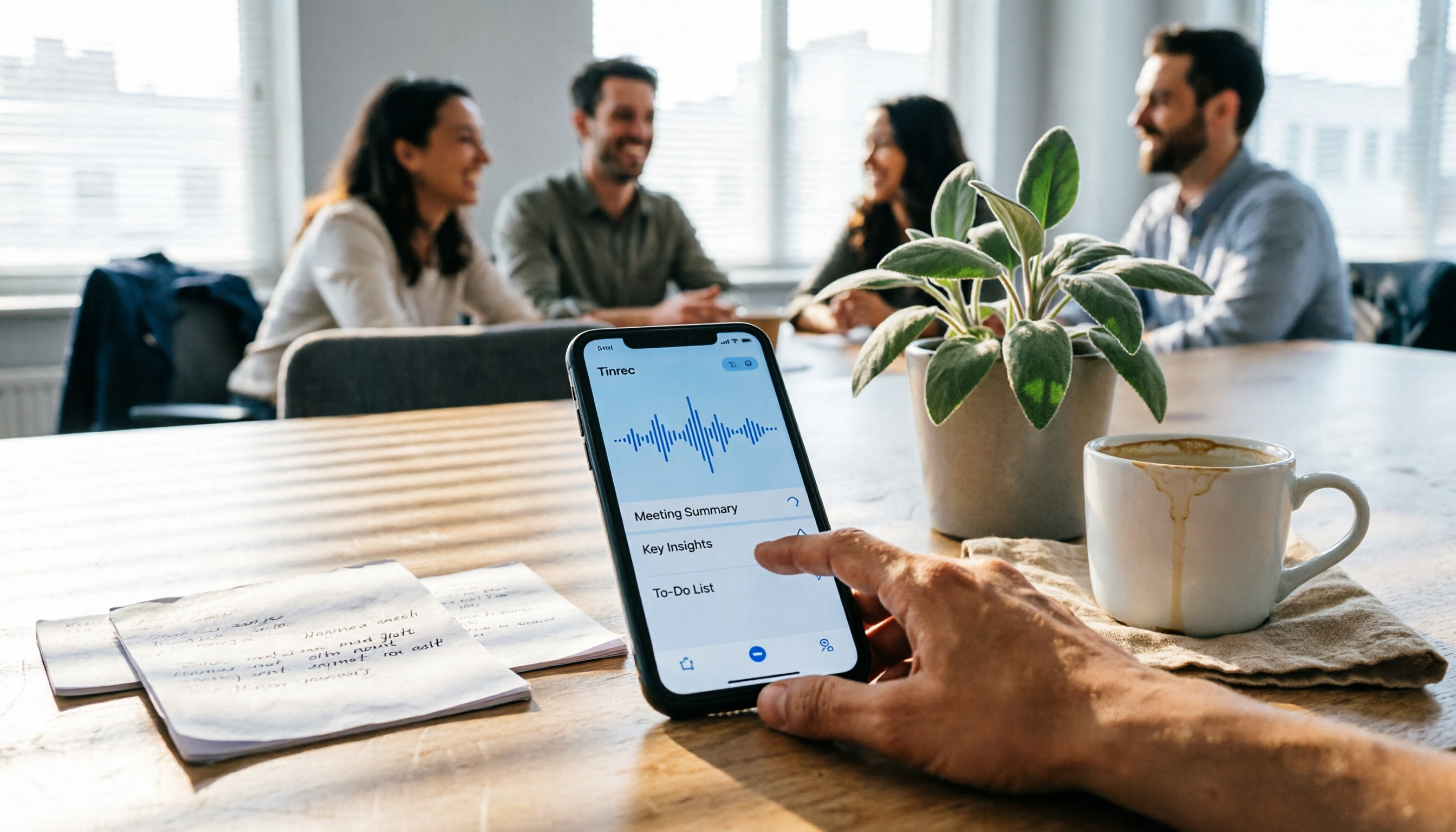
In the past, organizing recordings meant using Ctrl+F to search word by word. Tinrec supports AI Q&A, so you can directly ask: "What budget did the client mention?" "Did they have any concerns about the delivery date?"
It doesn't dump a bunch of keyword search results on you—it answers directly based on content understanding. At this price point, few tools currently offer this feature, and it's the biggest difference from ordinary transcription tools.
Stop organizing recordings by hand
Upload audio or video and automatically get a transcript, summary, and action items
Additionally, it can generate reports, tables, and meeting minutes, and export to Notion, Google Docs, OneNote, Dropbox, and other tools for further processing.
If You're a Team, There's Also a Team Space
The team version centralizes recordings, transcripts, summaries, and action items in a single team space. Data belongs to the team, not the individual uploader. Admins can manage roles, seats, usage, and audits; when a member leaves, is removed, or loses their seat, their team resources are transferred to other active members—they don't disappear with the person.
Here's the distinction between "role" and "seat": roles determine who can manage the team, members, audits, and team settings; seats determine whether a member can record, upload, edit, import, and export. Active members without a seat can still view, play, and read team data.
Current team plan details: first eligible team gets a 7-day trial with 1 free seat and 300 minutes of shared team import quota; monthly billing is USD 29.80 per paid seat per month, annual billing is USD 199 per paid seat per year (about USD 16.58/month), and each paid seat provides 2,000 minutes of shared team import quota per month. Under an active team plan and active seats, live recording currently does not deduct minutes; document and web imports consume the shared team quota.
Prices, currencies, and promotions are subject to the official purchase page.
My Hands-On Experience
I won't give you a fixed accuracy number. Actual results depend on recording quality, ambient noise, accents, overlapping speakers, and technical jargon. I recommend testing with your own most challenging recording—that's more accurate than any promotional number.
Pros:
- No extra hardware needed; works on phone, computer, and web
- Beyond transcripts: summaries, chapters, action items, AI Q&A, and multi-format export
- Team version can accumulate meeting data and handle member, role, and seat governance
Limitations:
- It doesn't record phone calls; you need to use built-in system features or an external recording device to get the audio file
- Free version has only basic quota; long-term heavy use requires payment
Who it's for: People who need to repeatedly look up call or meeting content, want to turn recordings into action items, or teams that want to collectively accumulate meeting data.
Besides Tinrec, What Other Options Are There?
PLAUD Note / NotePin
A representative of AI recording hardware, focused on portable recording and phone call recording—essentially outsourcing the "recording" task to a dedicated device. Current official prices: NotePin at USD 159, Note Pro at USD 189; Starter plan at 300 minutes/month, Pro at USD 99.99/year with 1,200 minutes/month. If you want to record directly during a call, hardware is a more intuitive solution. But the downside is the extra cost for the device, and post-meeting AI Q&A, multi-format export, and team space are areas where Tinrec is more complete.
Notta
Overlaps significantly with Tinrec, covering multi-platform transcription, meeting notes, file import, translation, and team plans. Current free version: 120 minutes/month, max 3 minutes per item; Pro annual billing works out to about USD 8.17/month with 1,800 minutes/month. Its multilingual transcription has a good reputation, but bot-free desktop recording, team space, and post-meeting agent processing are areas where Tinrec focuses more.
Granola
A bot-free AI meeting notes tool that transcribes in real time via desktop system audio and microphone. Basic is free, Business is USD 14/user/month. Its specialty is combining your handwritten notes with AI. But note: Granola supports live transcription but does not support uploading pre-recorded audio files, nor does it retain meeting audio—meaning you can't drop in that call recording you have. This is the biggest difference from Tinrec.
Pitfall Guide: The 4 Most Common Mistakes in Call Recording
Pitfall 1: Assuming "I'm a party to the call, so it's definitely legal"
The key to legality isn't whether the other party consents—it's whether there's an unlawful purpose. And for cross-border calls, the other party's local laws may require all-party consent. Think about the purpose before recording, and think about storage after recording.
Pitfall 2: Assuming every phone can record
iPhone requires iOS 18 or later, and depends on region and language support. Android only supports specific devices and carriers, and hasn't rolled out in all countries/regions. Check your phone settings before recording—don't wait until after you hang up to realize it didn't record at all.
Pitfall 3: Using an external device but forgetting to notify
iPhone and Google's built-in features automatically notify both parties, but if you use a voice recorder or third-party tool, the system won't speak for you. Saying it yourself is much better than the other party finding out later, and it better complies with legal requirements in some regions.
Pitfall 4: Just storing the recording without organizing anything
This is the most common and most regrettable one. A recording sitting on your phone won't turn itself into action items. Rather than hoarding a bunch of unlistened audio files, drop it into a transcription tool the same day and let it become searchable, deliverable data.
Conclusion: Which One Should You Choose?
- Turn call recordings into transcripts, summaries, and action items → Tinrec
- Need to repeatedly look up a recording and ask it questions directly → Tinrec (AI Q&A)
- Need to use across phone, computer, and web → Tinrec (iOS + Android + web)
- Team wants to collectively accumulate meeting and call records → Tinrec Team (roles, seats, usage, audit, recycle bin)
- Need to record directly during a call without a phone → PLAUD-type recording hardware
In short, recording is just the first step. What really saves time is organizing after recording.
I suggest starting with Tinrec's free version—drop in your own most challenging call recording and see how the transcript and summary perform. If it works for you, consider upgrading. No need to pay upfront.
References
- Record and transcribe a call on iPhone - Apple Support (Taiwan)
- Do I need the other party's consent to record our in-person or phone conversation? What kind of recording is not for an unlawful purpose? | Legispedia
- Record a call with the Phone app - Phone app Help
- How to enable automatic call recording on Phone | Official Support | ASUS Taiwan
- Call recording, is it legal? Why are more phones removing call recording features?
Turn every recording into actionable outcomes
Get 60 free transcription minutes when you sign in. No credit card required.
Related Reading
You might also like

4 iPhone Recording Methods Compared in 2026: Which One Helps You Organize Key Points After Recording?
Recording on iPhone isn't just about pressing the red button. This article addresses common misconceptions and covers practical methods for using the built-in Voice Memos, call recording, and external microphones. It explains why post-recording organization is crucial and introduces how Tinrec turns iPhone recordings into searchable, queryable, and shareable transcripts and meeting materials.

4 Best Audio Transcription Tools in 2026: Where Samsung Voice Recordings Are Stored and How to Organize Them
Can't find your Samsung voice recordings? It's usually not because the files were deleted, but because you don't know where they're stored. This article first explains where Samsung voice recordings are located, where the files are saved, and call recording limitations. Then it compares 4 audio organization tools side by side, showing how to use AI to organize transcripts, summaries, and action items after recording.
5 Best iPhone Call Recording Solutions in 2026: From Built-in Features to AI Transcription
iPhone finally has built-in call recording starting with iOS 18, but the real challenge is what comes after: transcription, summarization, and organizing your data. This article compares 5 common iPhone call recording and post-call organization solutions, including iPhone's built-in call recording, Tinrec, Notta, TurboScribe, and PLAUD recording hardware. We break down features, pricing, and ideal users, and remind you about the legal and consent issues you must consider before recording.
5 Fast iPhone Recording Methods Compared: One-Tap Start, But Who Can Organize Your Meeting?
iPhone has 5 built-in quick recording methods: Action Button, Lock Screen shortcut, Back Tap, Control Center's Local Capture, and the basic Voice Memos. This hands-on comparison covers startup speed, use cases, and limitations, and explains how to choose a tool for meeting notes and avoid common pitfalls.

How to Record iPhone Calls in 2026: Built-in One-Tap Recording + Automatic Transcription
Starting with iOS 18.1, iPhone has a built-in call recording feature. This guide walks you through checking your system version, region and language support, the notification both parties hear, and legal considerations, then shows you step by step how to record a call, find the recording file, and access the transcript. It also covers the real limitations of the built-in feature and what you can add for post-call organization, cross-platform use, and team collaboration.

2026 Android Recording Showdown: AI App vs. Dedicated Hardware — Which Should You Choose?
Recording on Android phones seems simple, but since Android 10, call recording has been removed from most devices. This article first covers three Android recording scenarios and their practical methods, then compares Tinrec and PLAUD Note across five dimensions: setup requirements, post-meeting organization, file handling, team collaboration, and pricing. Find out whether you should use your existing phone with an AI tool or invest in a dedicated recording device.

3 Ways to Record iPhone Calls in 2026: Built-in Feature Is Free but Limited, Meeting Organization Needs This
After iOS 18.1, iPhone finally has built-in call recording and transcription, but region restrictions, two-party notification, and no support for LINE and other apps deter many users. This article covers the actual usage and 5 limitations of built-in call recording, common misunderstandings and pitfalls to avoid, and compares alternatives like Tinrec, Otter.ai, Notta, and PLAUD in terms of use cases and pricing to help you decide which approach saves the most time.

5 Android Call Recording Apps Tested in 2026: Cube ACR vs Tinrec — Which Makes Recordings Truly Usable?
People searching for "call recording app Android" often get stuck on the same question: after you record the call, then what? This article compares Android built-in call recording, Cube ACR, Call Recorder, and other recording methods, plus how Tinrec turns call and meeting audio into searchable, summarizable, queryable data. It also covers buying tips and FAQs.

Best AI Meeting Recorder for Notes in 2026: Tinrec vs Granola Compared
Many people think recording-to-meeting-notes just means uploading audio and waiting for AI to spit out a summary, but they end up with notes that can't be searched, traced, or shared with the team. This article compares two bot-free meeting tools, Tinrec and Granola, across five dimensions: meeting capture, audio retention, Chinese-language experience, post-meeting outputs, and team governance, to help you decide which one fits your needs.