

Turn recordings into transcripts and summaries in minutes
Upload audio or video for multilingual transcription, AI notes, and action items
3 Ways to Record iPhone Calls in 2026: Built-in Feature Is Free but Limited, Meeting Organization Needs This
"Does iPhone have call recording or not?" This question got a new answer after iOS 18.1, but information online is still messy.
Some say it's built-in, some say you must install a third-party app, and some think you can record secretly without the other party knowing.
Here's the bottom line: iPhone does have built-in call recording now, but its limitations are more than you'd expect, and the real time-consuming part comes after recording.
Three Common Misunderstandings That Make You Think "iPhone Can't Record Calls"
Misunderstanding 1: iPhone has no call recording at all. That was the situation before iOS 18.1. After iOS 18.1, Apple added call recording and transcription to the Phone app, allowing users to start recording directly during a call without third-party apps or external recording devices.
Misunderstanding 2: You can record quietly without the other party knowing. In reality, after you tap record, the system counts down 3 seconds, then both parties hear a brief notification saying "This call will be recorded." This is not a bug; it's a design choice by Apple based on privacy and legal considerations.
Misunderstanding 3: LINE, Messenger, WhatsApp calls can also be recorded. Currently, iPhone's built-in call recording only supports calls in the Phone app. Voice calls in third-party messaging apps are not supported.
If you often use LINE for business, this directly affects whether you can use the built-in feature.
Before You Start Recording, Understand These 4 Key Points
1. System version and region. Built-in call recording requires iOS 18.1 or later. Apple's support page also clearly lists regions where it's unavailable, including the EU, Russia, Turkey, Saudi Arabia, the United Arab Emirates, South Africa, Pakistan, and others. Taiwan is not on the restricted list, but if you travel abroad or use an account from another region, it's best to check the official support page first.
2. The other party will definitely know. This is both a privacy design and a legal reminder. Under Taiwan's laws and practical interpretations, it's recommended to get the other party's consent before recording; secret recording without consent may involve criminal offenses related to privacy violations. The best way to keep a call record is to inform the other party in advance.
3. Supported call types are very limited. Only calls in the iPhone Phone app can be recorded. LINE, Messenger, WhatsApp are not supported; online meetings like Zoom, Google Meet, Microsoft Teams are also outside the scope of the built-in feature.
4. What to do after recording. The built-in feature gives you an audio file and a transcript; if Apple Intelligence is enabled, you can also get a call summary. But if your need is to turn recordings into searchable, queryable, shareable data, the built-in feature is only a starting point.
Simply put, the built-in feature solves "recording it," but not necessarily "using it."
How to Use iPhone Built-in Call Recording: Tested Steps and 5 Limitations
The steps are actually simple:
- Use the Phone app to make or receive a call.
- During the call, tap the "Call Recording" button in the top-left corner of the screen.
- The system counts down 3 seconds and plays a notification saying "This call will be recorded," audible to both parties.
- After the call ends, you can play back the recording and view the transcript.
Note that the notification does not play as soon as the call connects, but only after recording starts, so it usually occurs mid-call.
In actual use, the built-in feature has several clear limitations:
- Region restrictions: Unavailable in some countries and regions.
- Language and device requirements: Transcription requires supported languages and a device meeting minimum requirements; if you don't see a transcript, usually one of these is not met.
- No third-party call support: LINE, Messenger, WhatsApp are all unsupported.
- Linked deletion: Deleting the recording also deletes the transcript; if you want to keep the text, don't rush to clear the recording.
- Cannot disable notification: Currently iOS does not offer a silent recording option.
Additionally, built-in recording is tied to a single iPhone. If you change phones, want to organize on a computer, or share with colleagues, you have to figure out how to transfer files yourself.
This is why many people, after recording, still turn to dedicated organization tools.
Tinrec — The Top Choice for Post-Recording Organization
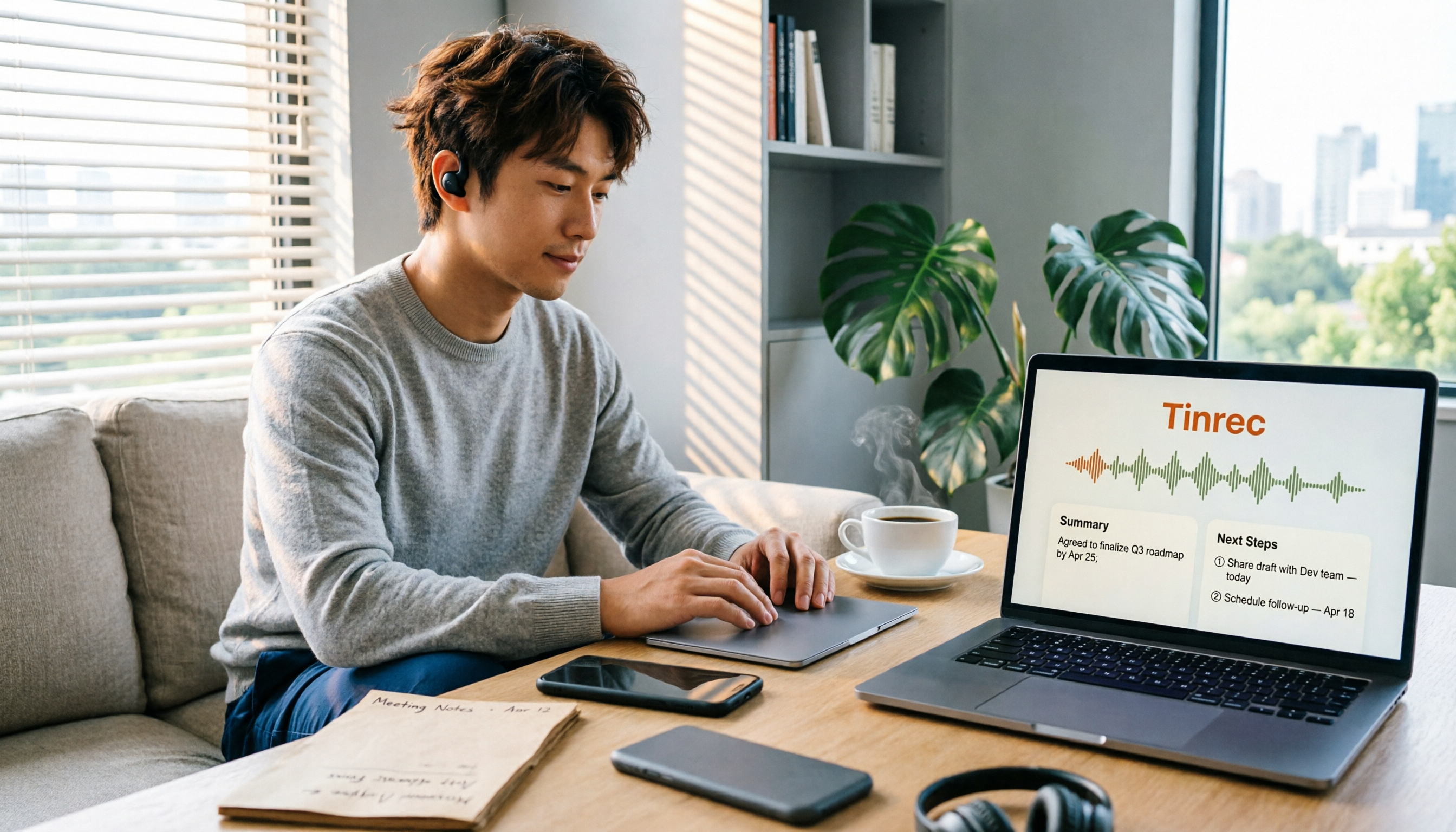
Tinrec is an AI meeting notes and collaboration tool for individuals and teams, available on web, desktop, and mobile. It mainly handles transcription, organization, and reuse of meetings, interviews, courses, and various audio files, not phone calls.
Let's be clear: Tinrec is not a tool for recording phone calls. A more reasonable workflow is: record the phone call using iPhone's built-in feature first, then import the audio into Tinrec for subsequent summarization, to-dos, and Q&A. Built-in recording is responsible for "keeping a record," while Tinrec is responsible for "turning it into usable data."
Here's what it can actually do.
Stop organizing recordings by hand
Upload audio or video and automatically get a transcript, summary, and action items
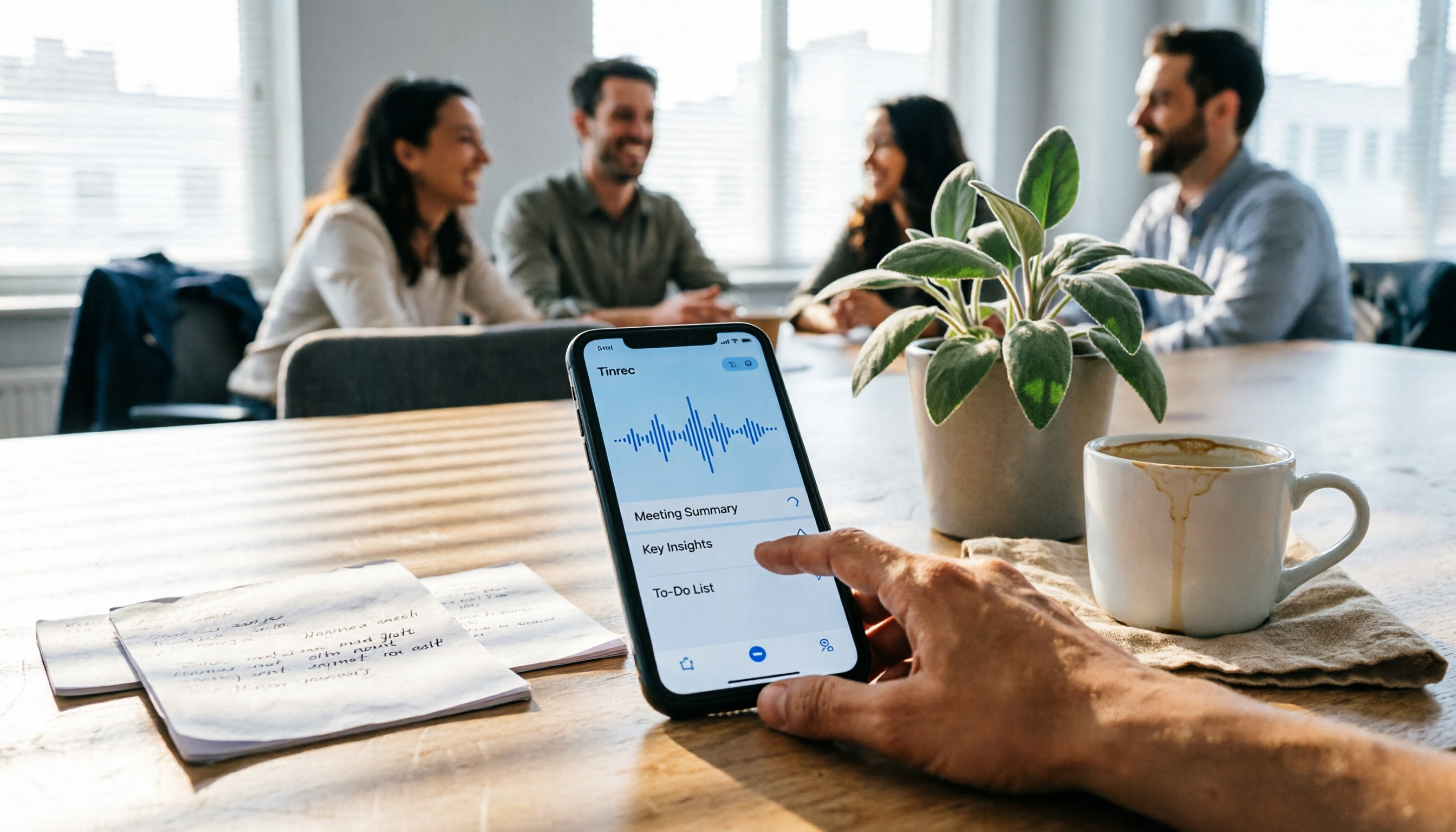
1. Turn audio files into queryable content. After importing a call or meeting recording, Tinrec generates a transcript and automatically organizes summaries, chapters, and to-dos. More useful is AI Q&A: you can directly ask it "What was the budget limit the client mentioned?" or "Who was assigned what in this meeting?" It answers based on semantics, not just throwing keyword search results at you. Most transcription tools at the same price point don't yet have this conversational query capability.
2. No need to invite a bot for online meetings. Tinrec desktop version directly captures the computer's system audio, so for online meetings on Zoom, Google Meet, Microsoft Teams, Webex, etc., no extra meeting bot needs to join as a participant. For offline meetings, you can use real-time recording to get a transcript as you record. For frequent meeting-goers, this saves not only time but also the awkwardness of "a strange bot in the meeting."
3. Handling Chinese meetings and mixed Chinese-English. Tinrec supports Chinese, Traditional Chinese, and multilingual meeting scenarios, and offers real-time translation and original/translated/bilingual views. Teams can also use "team hotwords" to maintain common professional terms, making recognition of product names, project codes, etc. more stable. Actual performance is still affected by recording quality, accents, ambient noise, and overlapping speakers; I won't gloss over that.
4. Output and collaboration. Organized results can be exported to Notion, Google Docs, OneNote, Dropbox, etc. for further use, and Agent post-processing can generate reports, tables, and meeting minutes. The team version provides independent team spaces, meeting data owned by the team, and role and seat management, usage analytics, audit logs, and audio recycle bin.
Plans and pricing. The personal version has a free version (basic quota), weekly pass, Pro monthly, and Pro annual, suitable for different levels of recording organization needs. The team version's first eligible trial is 7 days, 1 free seat, 300 minutes of team shared import quota; monthly is USD 29.80 per paid seat per month, annual is USD 199 per paid seat per year (about USD 16.58 per month), each paid seat provides 2,000 minutes of team shared import quota per month; under an active team plan and active seats, real-time recording currently does not deduct minutes. Pricing and benefits are subject to the official purchase page.
Limitations upfront. The free version has a quota limit; heavy users need to pay. It also does not handle raw recording of phone calls; that still relies on iPhone's built-in feature or other methods. For important content, it's recommended to cross-check with transcript timestamps and recording playback; don't trust AI summaries alone.
Who is it for? If your meetings are mainly in Chinese, often mixed Chinese-English, you want to ask AI directly for key points after recording, or you need to turn meeting data into team assets, Tinrec is a very suitable choice.
Besides Built-in, What Other Options Are There?
Otter.ai: A mature English AI meeting assistant, Basic free version has 300 minutes per month, Pro annual is about USD 8.49 per user per month, and it also offers desktop capabilities. It's strong for English business meetings, but Chinese meeting experience is not its focus. If you mainly record English meetings, its free quota is quite generous; if you need Chinese transcripts, AI Q&A, and team data accumulation, Tinrec has more emphasis.
Notta: A multilingual transcription and meeting notes tool, free version has 120 minutes per month, max 3 minutes per single content, Pro annual is about USD 8.17 per month. It overlaps significantly with Tinrec, but AI Q&A after transcription, Agent post-processing, and team governance capabilities like roles, seats, usage, and auditing are more complete in Tinrec.
PLAUD Note/NotePin: A representative of AI recording hardware, NotePin starts at USD 159, Starter plan has 300 minutes per month. Its value is portability and independent recording, but you need to carry an extra device and charge it. If your main scenarios are online meetings and organizing historical audio files, Tinrec requires no extra hardware and can be handled via web, desktop, or mobile.
Pitfall Guide: 4 Most Common Mistakes in iPhone Call Recording
Pitfall 1: Trying to find a way to disable the notification and record secretly. Currently iOS does not offer an option to turn off recording notifications, and such needs carry legal risks. A more practical approach is to state at the beginning, "I will record this call," and most people won't object.
Pitfall 2: Thinking all calls can be recorded. The built-in feature only supports the Phone app. If 80% of your calls are on LINE, the built-in feature is of limited help; you'll need to use speakerphone with other recording methods, or choose a tool like Tinrec that can handle audio files and meetings to supplement post-call organization.
Pitfall 3: Thinking a transcript means you don't need to listen to the recording. Transcripts can have errors due to language support, ambient noise, accents, and multiple people talking over each other. When it involves amounts, dates, or commitments, always go back to the recording to verify.
Pitfall 4: Using the tool only as a "recorder." Not organizing after recording is as good as not recording. The built-in feature gives you a transcript, but no cross-device access, no team sharing, no AI Q&A. If you have to manually scan a 30-minute transcript to find one sentence every time, the time saved is eaten up again.
Conclusion: Which One Should You Use?
- Just want to record regular phone calls on iPhone, located in Taiwan, system updated to iOS 18.1 → Use built-in feature, free, fastest.
- Want summaries, chapters, to-dos after recording, and can ask AI directly for key points → Tinrec.
- Need to record Zoom, Meet, Teams online meetings without a bot joining → Tinrec desktop version.
- Need to keep meeting data in the team, manage member seats and usage → Tinrec team version.
- Mainly record English meetings, zero budget → Otter.ai free version is a viable option.
- Often on the go, need independent hardware for portable recording → Devices like PLAUD have their place.
Built-in call recording solves the old question of "can iPhone record calls," but doesn't solve "what to do after recording."
It's recommended to start with Tinrec's free version, use one or two meetings to confirm transcription and summary quality, and consider upgrading if it works for you; no need to pay from the start.
References
- Record and transcribe a call on iPhone - Apple Support (Taiwan)
- How to record iPhone calls? 5 iPhone call recording methods revealed!
- iPhone call recording tutorial: Step-by-step learn phone call recording
- How to use iPhone call recording? Full analysis of built-in iOS call recording and transcription - Mr. Mad
- [Mobile Knowledge] 2026 iPhone built-in "Call Recording" feature tutorial! iOS enable phone recording/key points to note | Jyes Communication ~ Challenge the lowest price in the phone market
Turn every recording into actionable outcomes
Get 60 free transcription minutes when you sign in. No credit card required.
Related Reading
You might also like

4 iPhone Recording Methods Compared in 2026: Which One Helps You Organize Key Points After Recording?
Recording on iPhone isn't just about pressing the red button. This article addresses common misconceptions and covers practical methods for using the built-in Voice Memos, call recording, and external microphones. It explains why post-recording organization is crucial and introduces how Tinrec turns iPhone recordings into searchable, queryable, and shareable transcripts and meeting materials.

4 Best Audio Transcription Tools in 2026: Where Samsung Voice Recordings Are Stored and How to Organize Them
Can't find your Samsung voice recordings? It's usually not because the files were deleted, but because you don't know where they're stored. This article first explains where Samsung voice recordings are located, where the files are saved, and call recording limitations. Then it compares 4 audio organization tools side by side, showing how to use AI to organize transcripts, summaries, and action items after recording.
5 Best iPhone Call Recording Solutions in 2026: From Built-in Features to AI Transcription
iPhone finally has built-in call recording starting with iOS 18, but the real challenge is what comes after: transcription, summarization, and organizing your data. This article compares 5 common iPhone call recording and post-call organization solutions, including iPhone's built-in call recording, Tinrec, Notta, TurboScribe, and PLAUD recording hardware. We break down features, pricing, and ideal users, and remind you about the legal and consent issues you must consider before recording.
5 Fast iPhone Recording Methods Compared: One-Tap Start, But Who Can Organize Your Meeting?
iPhone has 5 built-in quick recording methods: Action Button, Lock Screen shortcut, Back Tap, Control Center's Local Capture, and the basic Voice Memos. This hands-on comparison covers startup speed, use cases, and limitations, and explains how to choose a tool for meeting notes and avoid common pitfalls.

How to Record iPhone Calls in 2026: Built-in One-Tap Recording + Automatic Transcription
Starting with iOS 18.1, iPhone has a built-in call recording feature. This guide walks you through checking your system version, region and language support, the notification both parties hear, and legal considerations, then shows you step by step how to record a call, find the recording file, and access the transcript. It also covers the real limitations of the built-in feature and what you can add for post-call organization, cross-platform use, and team collaboration.

4 Call Recording Transcription Tools Compared in 2026: Can You Record, and What to Do After?
Can you legally record a phone call? This article covers Taiwan legal practice, iPhone and Android support limitations, and compares four tools—Tinrec, PLAUD, Notta, and Granola—to show how to turn call recordings into searchable transcripts, summaries, and action items.

2026 Android Recording Showdown: AI App vs. Dedicated Hardware — Which Should You Choose?
Recording on Android phones seems simple, but since Android 10, call recording has been removed from most devices. This article first covers three Android recording scenarios and their practical methods, then compares Tinrec and PLAUD Note across five dimensions: setup requirements, post-meeting organization, file handling, team collaboration, and pricing. Find out whether you should use your existing phone with an AI tool or invest in a dedicated recording device.

5 Android Call Recording Apps Tested in 2026: Cube ACR vs Tinrec — Which Makes Recordings Truly Usable?
People searching for "call recording app Android" often get stuck on the same question: after you record the call, then what? This article compares Android built-in call recording, Cube ACR, Call Recorder, and other recording methods, plus how Tinrec turns call and meeting audio into searchable, summarizable, queryable data. It also covers buying tips and FAQs.

Best AI Meeting Recorder for Notes in 2026: Tinrec vs Granola Compared
Many people think recording-to-meeting-notes just means uploading audio and waiting for AI to spit out a summary, but they end up with notes that can't be searched, traced, or shared with the team. This article compares two bot-free meeting tools, Tinrec and Granola, across five dimensions: meeting capture, audio retention, Chinese-language experience, post-meeting outputs, and team governance, to help you decide which one fits your needs.