
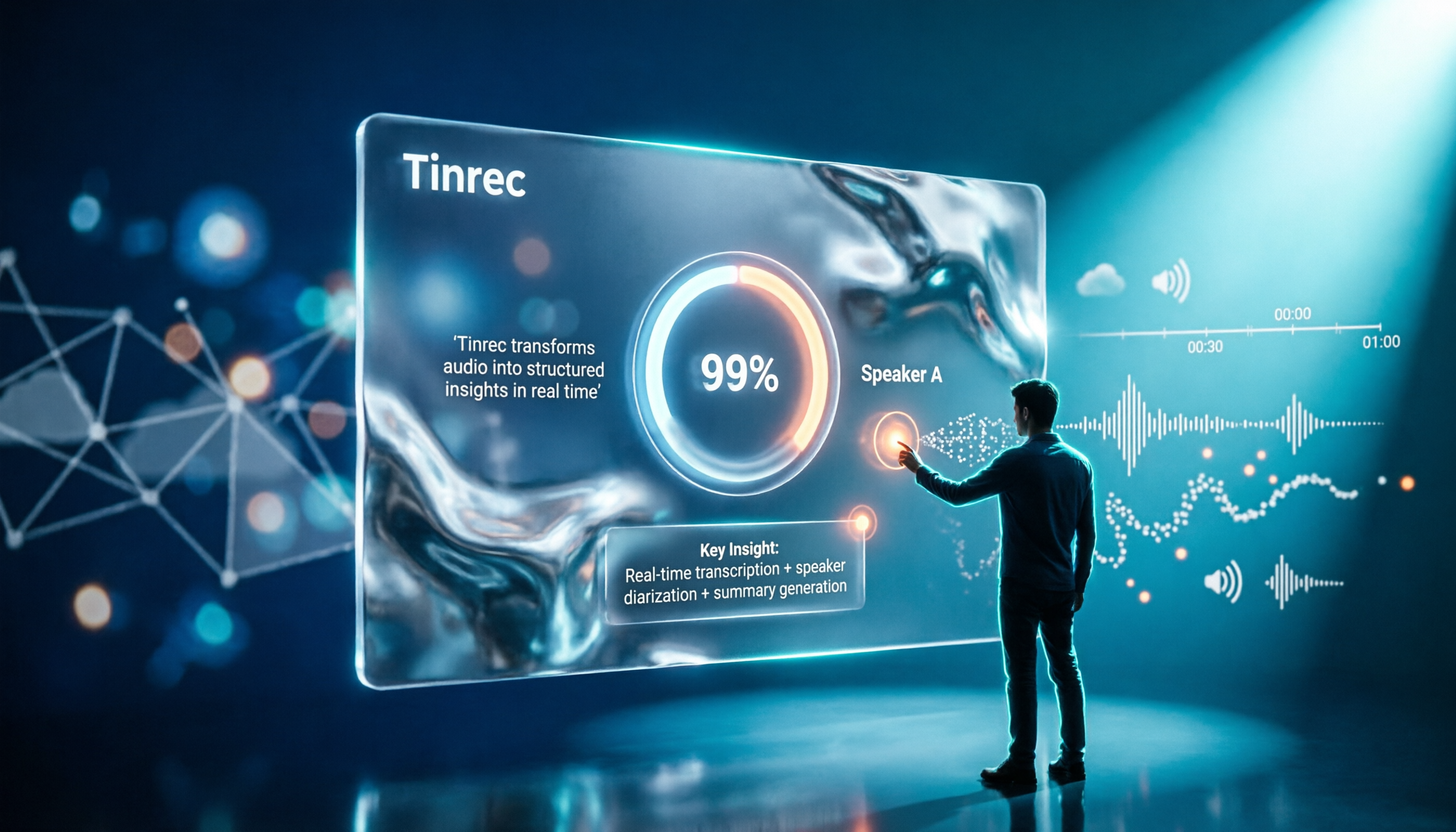
Turn recordings into transcripts and summaries in minutes
Upload audio or video for multilingual transcription, AI notes, and action items
2026 Comparison of 4 Transcription Tools: How Long Does Yating Take? Speed and Cost at a Glance
How Long Does Transcription Take? Most People Misunderstand "Upload and Done"
Many people imagine transcription tools like this: upload the recording, press start, and in a few minutes, text neatly appears.
In reality, transcription is just one part. The system first performs speech recognition, then determines who said what, adds punctuation, breaks into paragraphs, and some even generate summaries.
So when you ask "how long," the answer isn't a fixed number.
A more common misunderstanding is the progress bar. For example, Yating has explained that when the progress bar stays at 99%, it's not frozen; the text recognition is complete, and the system is performing speaker segmentation and key summarization, which takes some time.
In other words, you're not waiting for "typing," but for the entire series of post-processing tasks.
Before Choosing a Transcription Tool, Understand These 4 Key Points
1. Have you factored in "waiting"?
Most people only compare "who transcribes faster," but overlook post-processing time. Pure transcription is fast, but without segmentation and summarization, you still have to organize it yourself. The real question is: how long from upload to ready-to-deliver.
2. Is the free quota for "trial" or "sufficient"?
Free quotas usually have two limits: total hours, and per-file length or daily次数. Occasionally recording a memo is fine, but for those who have regular weekly meetings, you'll quickly hit the limit.
3. What do you get after transcription?
Just the transcript, or also summaries, chapters, to-dos, translations? This determines how much time you'll spend on post-processing. My own criterion is simple: it should be ready to use directly, not something to edit.
4. Where is the data stored and who can see it?
Audio files often contain client names, prices, internal decisions. For personal use, check the privacy policy; for team use, check if there's clear member and permission management.
How Long Does Yating Take? First Look at How It Works
Yating is an AI speech-to-text service developed by a Taiwanese team, specializing in Taiwanese accents, Taiwanese Hokkien, and mixed Chinese-English "Chinglish" recognition. It supports both real-time recording and audio file upload, and offers an online editor with timeline comparison.
As for "how long," the official site doesn't specify a fixed transcription time. According to current public information, after starting transcription, it's "wait a few minutes"; note that the progress bar staying at 99% is normal—that's the system doing speaker segmentation and summarization.
Factors that actually affect waiting time include: audio length, number of speakers, background noise, whether speaker segmentation is enabled, and current queue status. A 30-minute meeting recording with two speakers versus five people talking over each other will have different processing times.
Regarding cost, Yating charges by audio length: NT$100 per hour, with a 3-hour plan for NT$270; for longer hours, contact them. After purchase, there's a certain validity period; actual discounts and deadlines are subject to the official website. Free quota information varies across sources; it's best to check the current plan on the official site and not rely on outdated online info.
Also note: one account cannot be used on multiple devices simultaneously. Export supports WORD, TXT, PDF, SRT, etc., which is convenient for those needing subtitle files.
Overall, Yating's strength is "turning Chinese audio into text." If you only occasionally need a transcript, using the free quota or buying hours per use is sufficient.
Tinrec (Instant Recording) — The Real Value is After Transcription
If you want more than just a transcript—if you want data that's "ready to use right after the meeting"—then Tinrec is the smoother choice in my testing.
Tinrec is an AI meeting notes and collaboration tool for individuals and teams, available on web, desktop, and mobile. Its first difference is "how it records": the desktop version directly captures computer system audio, handling Zoom, Google Meet, Microsoft Teams, Webex, etc., without inviting a meeting bot. During meetings, you don't need to think; just open Tinrec and it transcribes while recording.
Stop organizing recordings by hand
Upload audio or video and automatically get a transcript, summary, and action items
The second difference is "after recording." When the meeting ends, Tinrec automatically generates summaries, chapters, and to-dos—who's responsible for what, what's next, listed directly. You can also ask questions about the meeting content, e.g., "What concerns did the client mention last time?" It answers based on semantics, not just keyword search results. For those who often review meeting notes, this saves more time than transcription itself.
The third difference is "output." Besides transcripts, summaries, and to-dos, it can generate reports, tables, and documents, and export to Notion, Google Docs, OneNote, Dropbox, etc. For cross-language meetings, it supports real-time translation during recording, viewable in original, translated, or bilingual mode.
For team use, Tinrec for Teams provides a separate team space where meeting data belongs to the team, with member role and seat management, usage tracking, operation logs, and an audio recycle bin. When members leave, data doesn't leave with their personal accounts. Note: the team version distinguishes "roles" and "seats": members without a seat can view and play data, but need a seat to record, upload, and edit.
Pricing: team version is USD 29.80 per paid seat per month, or USD 199 per paid seat per year (about USD 16.58/month). Eligible new teams can try 7 days with 1 free seat and 300 minutes of shared team import quota; paid seats provide 2,000 minutes of shared team import quota per month. For personal use, there's a free version and plans with different cycles; you can start with the free version. Actual prices and benefits are subject to the official purchase page.
Limitations: Tinrec doesn't focus on batch transcription of many files at once. If you need to upload dozens of long audio files daily, it may not be the most economical choice. Also, transcription quality is affected by recording environment, accents, and overlapping speech; for important content, verify with audio playback.
Besides Tinrec, What Other Options Are There?
Notta
Also a multi-platform transcription tool, supporting meeting notes, file import, and translation. Free version: 120 minutes per month, max 3 minutes per item; Pro annual is about USD 8.17/month. It overlaps significantly with Tinrec, but Tinrec focuses on bot-free desktop recording plus team data accumulation, while Notta is more about pure transcription and translation.
Otter.ai
A mature choice for English meetings. Free version: 300 minutes per month, quite cost-effective for English content users. If your meetings are almost all in English, Otter will fit your habits better than Tinrec; but if meetings are in Chinese or mixed Chinese-English, and you need to handle audio from Teams, etc., Tinrec's bot-free recording, real-time translation, and team database will be more suitable.
Yating
A local Taiwanese service; its strength is Chinese accent and Taiwanese Hokkien recognition. Pay-per-use hours are friendly for low-frequency users. If your need is simply "turn a Chinese recording into a transcript," it's sufficient; if you also want to-dos, Q&A, and team sharing, you'll need additional tools.
Pitfall Guide: 4 Most Common Mistakes When Choosing a Transcription Tool
Pitfall 1: Only looking at the official recognition rate.
Under what conditions was the recognition rate tested? A quiet studio and a real meeting room are very different. Test with your own recordings using the free quota, don't just look at specs.
Pitfall 2: Treating "fast transcription" as the only metric.
Fast but without segmentation and summarization, you still spend time organizing. The real measure is "total time from recording to deliverable."
Pitfall 3: Assuming one account can be shared by multiple people.
Some services restrict simultaneous login on multiple devices. Sharing one account in a team can cause conflicts and make it impossible to track usage. For multi-person collaboration, choose a plan with member and seat management.
Pitfall 4: Ignoring data ownership.
Meetings recorded with a personal account disappear when the person leaves. For teams to accumulate knowledge, use a team space from the start.
Conclusion: Which One Should You Choose?
In short: if you just want a Chinese transcript, Yating is a reasonable choice; if you want data "ready to use right after the meeting," Tinrec is smoother.
- Occasional Chinese transcript, limited budget → Yating, use free quota or buy hours per use
- Online meetings without adding a bot → Tinrec desktop version
- Want to ask "what's the conclusion" right after recording → Tinrec's AI Q&A
- Record on phone, organize on computer → Tinrec
- Team needs to share meeting data, manage members and usage → Tinrec for Teams
- Meetings almost all in English → Otter.ai
It's recommended to start with a free plan, test with your own recording, see if the waiting time and output match your workflow, then decide whether to pay.
References
Turn every recording into actionable outcomes
Get 60 free transcription minutes when you sign in. No credit card required.
Related Reading
You might also like

5 iPhone Notes Font Alternatives Tested and Compared in 2026: How to Choose Between Built-in Limits and AI Organization Tools
iPhone Notes cannot truly change fonts; you can only adjust headings, bold, italic, and highlights. iOS 18 adds text color and background color. This article reviews 5 options: Tinrec, iPhone built-in Notes, Notion, Evernote, and Notta, and helps you choose based on your needs.
Tinrec vs Windows Voice Recorder in 2026: 5-Dimension Comparison for Laptop Recording
How do you record audio on a laptop? This article compares Tinrec and Windows Voice Recorder across 5 dimensions, explains the limitations of built-in recording on Windows and Mac, and covers bot-free online meeting recording, AI summaries, transcripts, to-dos, exports, and team collaboration to help you choose the right laptop recording solution for meetings, interviews, and classes.

2026 Screen Recording Tools Compared: Built-in Recorders vs. AI Meeting Assistants
For simple screen recording on your computer, Windows Game Bar and macOS built-in tools are enough. But if you need to capture online meetings and get transcripts and summaries, the approach is completely different. This guide compares built-in screen recorders with Tinrec, an AI meeting assistant, using step-by-step instructions to help you decide which fits your needs.

4 Ways to Transcribe iPhone Recordings in 2026: Is the Built-in Voice Memos App Enough?
There are actually 4 ways to turn iPhone recordings into transcripts: the built-in Voice Memos and Notes apps, Tinrec, Notta, and Otter.ai. This article compares them by device and language limitations, post-meeting organization, cross-device use, and team collaboration, and lists the 4 most common pitfalls to help you decide which is best for your meetings, classes, and interviews.
Windows Built-in Recorder vs Tinrec in 2026: 5-Dimension Comparison — Which Desktop Recording Tool Should You Choose?
Can a desktop computer record audio? This article compares Windows built-in Voice Recorder and Tinrec across 5 dimensions, covering recording sources, transcription and organization, AI Q&A, cross-platform use, and team collaboration, with buying advice and pitfalls to avoid to help you find the best desktop recording solution.

Where Are iPhone Voice Memos Stored in 2026? 4 Audio-to-Text Tools Tested: Which Saves the Most Time
iPhone Voice Memos are actually stored in four places: the app itself (in the Utilities folder), iCloud, Recently Deleted, and the Files app after export. This article first walks you through each location, then compares four audio-to-text tools in real-world tests to see which one truly solves the time sink of having to re-listen and organize recordings after the fact.

5 Computer Recording Solutions Compared: Built-in Tools vs. AI Meeting Assistants
Can a computer record audio directly? Both Windows and Mac have built-in recording tools, but most people struggle with system sound recording and post-meeting organization. This article compares 5 computer recording solutions: built-in recorders, Tinrec, Otter.ai, Granola, and Notta, covering recording sources, transcription and organization, cross-platform support, and team collaboration to help you find the option that truly turns meeting recordings into usable data.

Built-in Screen Recording vs Tinrec: 5-Factor Comparison for Meeting Notes in 2026
Does your computer have built-in screen recording? Windows 10/11 has Xbox Game Bar (Win+G), and macOS has built-in screen recording. This article compares built-in screen recording with Tinrec across 5 factors to help you decide between pure screen recording, online meeting notes, and team collaboration.

3 iPhone Recording Methods Compared for 2026: Notes, Voice Memos, or AI Tools?
Recording on an iPhone is easy; the hard part is organizing what you've recorded. This comparison examines the built-in Notes app, the built-in Voice Memos app, and the AI meeting notes tool Tinrec. We break down transcript usability, online meeting recording, team data management, and practical limitations to help you choose the most time-saving recording method.