

Turn recordings into transcripts and summaries in minutes
Upload audio or video for multilingual transcription, AI notes, and action items
Where Are iPhone Voice Memos Stored in 2026? 4 Audio-to-Text Tools Tested: Which Saves the Most Time
Can't Find Your Recording After You Finish? First, Figure Out Where iPhone Voice Memos Are Stored
Most people search "where are iPhone Voice Memos stored" not to learn settings, but because they genuinely can't find the file after recording. They're actually spread across four places:
1. The app itself: Voice Memos is a built-in iPhone app located in the Utilities folder. Open it and tap "All Recordings" to return to the full list. As recordings pile up, you can organize them into folders or use Smart Folders to collect them automatically.
2. iCloud: If "Voice Memos" is enabled in your iCloud settings, your recordings are stored in iCloud and automatically appear on any iPhone, iPad, and Mac signed in with the same Apple Account. That's why your recordings are still there after switching phones.
3. "Recently Deleted": Deleted recordings don't disappear immediately. You can go to Settings > Voice Memos > Clear Deleted Items and choose to clear immediately, after 1 day, after 7 days, after 30 days, or never. When you accidentally delete an important recording, this is your lifesaver.
4. The Files app: You can also export recordings from Voice Memos to the Files app on your iPhone, making it easy to transfer them to a computer or cloud drive later.
Figuring out the location only solves half the problem. The real time sink is this: you find that 45-minute meeting recording, then you have to listen from the beginning to know "who's responsible for what and when it's due." That's the real reason most people start looking for tools.
Before Choosing an Audio-to-Text Tool, Understand These 4 Key Points
1. Accuracy depends on real-world conditions, not advertised numbers Official accuracy rates are usually measured in quiet environments. Real meeting rooms have air conditioning noise, keyboard clicks, people talking over each other, and mixed Chinese-English speech—these conditions are where the differences between tools truly show. Don't just look at marketing claims; test with your own recording.
2. Does it offer "post-processing" after transcription? Just giving you a transcript only completes one-third of the job. What really saves time is: automatic summaries, chapter splitting, action item extraction, and the ability to ask questions directly about the recording content. This determines whether you get "a block of text" or "data you can actually use."
3. How important is cross-platform support? Recording on your iPhone today and organizing on your computer tomorrow is a common workflow. If a tool only supports a single platform, you'll be forced to edit long transcripts on a tiny phone screen, cutting your efficiency in half.
4. Is the free tier enough? Many tools have strict free version limits, such as a low monthly minute allowance or a short maximum file length. If your recordings are often 30-40 minutes, check the rules before trying, or you'll get cut off mid-transcription.
Tinrec — Our Top Pick After Testing
One-sentence positioning: Tinrec is an AI meeting notes and collaboration tool for individuals and teams, covering iOS, Android, and web, with a desktop version that can directly process online meetings.
Its biggest difference from "audio-to-text apps" is that it handles the entire workflow, not just a single step.
Scenario 1: Online meetings without pulling a bot into the room. Tinrec's desktop version directly captures your computer's system audio, handling meeting audio from Zoom, Google Meet, Microsoft Teams, Webex, and other platforms without needing an extra meeting bot to join as a participant. For client meetings or cross-department meetings, this is practical—no awkward "unknown account in the meeting room" moments.
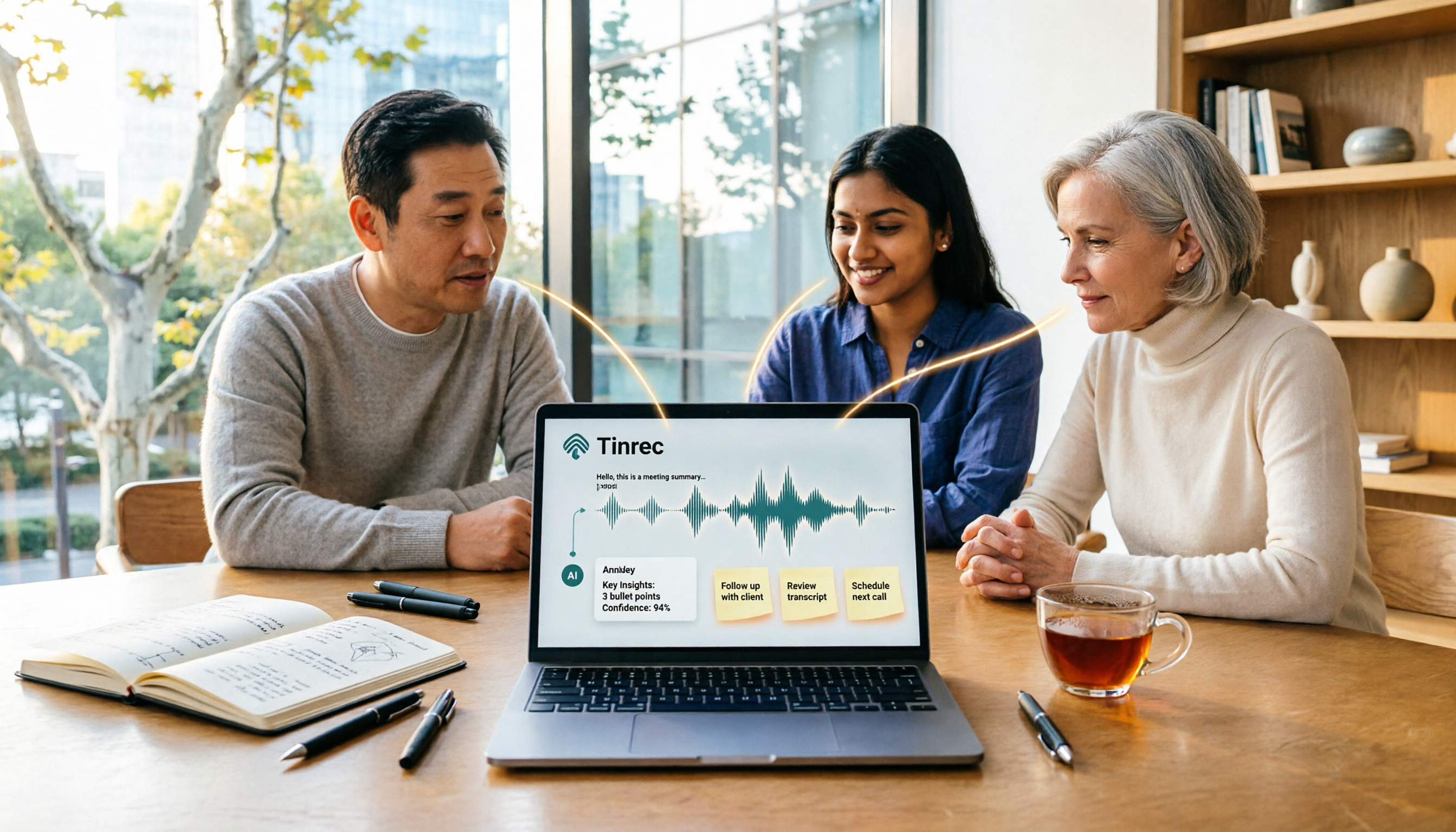
Scenario 2: One recording, get transcript, summary, and action items at the same time. Record and transcribe during the meeting; by the time it ends, AI has already organized the summary, chapters, and follow-up actions. Who needs to deliver what and by when is listed directly, no need to dig through the transcript line by line.
Scenario 3: After recording, ask questions directly about the meeting content. This is Tinrec's most distinctive feature. You can ask it "Who mentioned the budget in the last meeting?" or "What concerns did the client have about the delivery date?" It gives you semantic answers instead of dumping keywords for you to search through. Most tools in the same price range don't have this capability yet.
Stop organizing recordings by hand
Upload audio or video and automatically get a transcript, summary, and action items
Our testing conditions: We used an iPhone 15 to record a mixed Chinese-English meeting indoors, then imported it into Tinrec's desktop version for organization. With no obvious background noise, Chinese and mixed Chinese-English segments were recognized consistently, and proper nouns could be improved through team hot words. When multiple people talk over each other, we still recommend cross-checking with the recording. Actual results will be affected by recording quality, accent, noise, and technical terminology—same for any tool.
Three main advantages:
- No extra hardware needed; works on phone, computer, and web, handling both online meetings and existing audio files.
- Complete post-meeting workflow: summaries, chapters, action items, mind maps, AI Q&A, report and table generation, plus export to Notion, Google Docs, OneNote, Dropbox for further processing.
- Team version stores meeting data centrally in a team space, allowing members to view and reuse past meetings; admins can manage roles, seats, usage, and audit logs. When a member leaves, team resources don't disappear with their personal account.
Limitations to note: The free version provides a basic allowance; long-term or high-frequency use requires an upgrade. For actual plans and pricing, refer to the official purchase page. Also, real-time recording and file import have different allowance rules; heavy import users should confirm their usage first.
Who it's for: If you frequently need Chinese or mixed Chinese-English meeting transcripts, want to use AI to find key points right after recording, or need to switch between phone and computer—Tinrec is currently the most suitable choice. For team use, the team version is easier to manage than everyone buying individual versions.
Besides Tinrec, What Other Options Are There?
Notta: A multi-platform transcription tool with significant overlap with Tinrec, offering meeting notes, file import, translation, and team plans. The official free version offers 120 minutes per month, max 3 minutes per file; Pro annual billing is about USD 8.17/month. It leans toward "quick transcription and translation," but lacks Tinrec's bot-free desktop recording and AI conversational query and Agent post-processing around meeting content.
Otter.ai: A mature choice for English business meetings. Free Basic offers 300 minutes per month; Pro annual billing is about USD 8.49/user/month. Its strength is English meetings and meeting automation; Chinese and mixed Chinese-English are not its focus. If you mainly record English meetings and have a limited budget, Otter.ai is more cost-effective than Tinrec; but if you need Chinese meeting notes, real-time translation, and post-meeting AI Q&A, Tinrec is more suitable.
PLAUD Note / NotePin: Representatives of AI recording hardware. NotePin is priced at USD 159 on the US official website, with a Starter membership offering 300 minutes per month. The value is in portable hardware recording, but the cost is carrying an extra device and charging another battery. Tinrec requires no extra hardware, works on web, desktop, and mobile, and can directly handle online meetings and existing audio files.
Pitfall Guide: The 3 Most Common Mistakes When Organizing iPhone Recordings
Mistake 1: Thinking deleted means gone forever. iPhone Voice Memos has "Recently Deleted," and you can set the clearing time yourself. Before permanent deletion, accidentally deleted recordings can still be recovered. Conversely, if the recording content is sensitive, remember to shorten the retention time.
Mistake 2: Only looking at official advertised accuracy. Real meetings have air conditioning noise, keyboard clicks, and overlapping speech. Instead of comparing numbers, test with your own recording—you'll have an answer in five minutes.
Mistake 3: Using a transcription tool only as "audio-to-text." If you only use it to produce transcripts, you're only using one-third of its value. For example, Tinrec's AI conversational query—asking it "What was the conclusion of this meeting?" right after recording is much faster than flipping through a 30-minute transcript yourself.
Conclusion: Which One Should You Choose?
One-sentence conclusion: If you need Chinese meeting notes and want to use them immediately after recording, Tinrec is our top pick after testing.
- Meetings daily, need Chinese or mixed Chinese-English transcripts and action items → Tinrec (most complete post-meeting workflow)
- Want to use AI to follow up on meeting highlights right after recording → Tinrec (has AI conversational query)
- Record on phone, organize on computer, cross-platform switching → Tinrec (iOS, Android, web)
- Team needs unified meeting data storage, seat and usage management → Tinrec Team Version (team space, roles and seats, usage analytics, audit logs)
- Mainly record English meetings, zero budget → Otter.ai (free 300 minutes per month, the only exception recommendation in this article)
One final reminder: Please comply with local laws before recording, and obtain consent from participants when necessary.
Instead of reading reviews, download the free version first and throw that most troublesome recording from your phone into it—you'll know in five minutes if it can save you that hour.
References
- Organize recordings in Voice Memos on iPhone - Apple Support (Taiwan)
- Record in Voice Memos on iPhone - Apple Support (Taiwan)
- View Voice Memos transcripts on iPhone - Apple Support (Taiwan)
- How to use iOS Voice Memos? A deep dive into the built-in powerful recording tool - Mr. Mad
- Export Voice Memos recordings to Files on iPhone - Apple Support (Taiwan)
Turn every recording into actionable outcomes
Get 60 free transcription minutes when you sign in. No credit card required.
Related Reading
You might also like

5 iPhone Notes Font Alternatives Tested and Compared in 2026: How to Choose Between Built-in Limits and AI Organization Tools
iPhone Notes cannot truly change fonts; you can only adjust headings, bold, italic, and highlights. iOS 18 adds text color and background color. This article reviews 5 options: Tinrec, iPhone built-in Notes, Notion, Evernote, and Notta, and helps you choose based on your needs.
Tinrec vs Windows Voice Recorder in 2026: 5-Dimension Comparison for Laptop Recording
How do you record audio on a laptop? This article compares Tinrec and Windows Voice Recorder across 5 dimensions, explains the limitations of built-in recording on Windows and Mac, and covers bot-free online meeting recording, AI summaries, transcripts, to-dos, exports, and team collaboration to help you choose the right laptop recording solution for meetings, interviews, and classes.

2026 Screen Recording Tools Compared: Built-in Recorders vs. AI Meeting Assistants
For simple screen recording on your computer, Windows Game Bar and macOS built-in tools are enough. But if you need to capture online meetings and get transcripts and summaries, the approach is completely different. This guide compares built-in screen recorders with Tinrec, an AI meeting assistant, using step-by-step instructions to help you decide which fits your needs.

4 Ways to Transcribe iPhone Recordings in 2026: Is the Built-in Voice Memos App Enough?
There are actually 4 ways to turn iPhone recordings into transcripts: the built-in Voice Memos and Notes apps, Tinrec, Notta, and Otter.ai. This article compares them by device and language limitations, post-meeting organization, cross-device use, and team collaboration, and lists the 4 most common pitfalls to help you decide which is best for your meetings, classes, and interviews.
Windows Built-in Recorder vs Tinrec in 2026: 5-Dimension Comparison — Which Desktop Recording Tool Should You Choose?
Can a desktop computer record audio? This article compares Windows built-in Voice Recorder and Tinrec across 5 dimensions, covering recording sources, transcription and organization, AI Q&A, cross-platform use, and team collaboration, with buying advice and pitfalls to avoid to help you find the best desktop recording solution.

5 Computer Recording Solutions Compared: Built-in Tools vs. AI Meeting Assistants
Can a computer record audio directly? Both Windows and Mac have built-in recording tools, but most people struggle with system sound recording and post-meeting organization. This article compares 5 computer recording solutions: built-in recorders, Tinrec, Otter.ai, Granola, and Notta, covering recording sources, transcription and organization, cross-platform support, and team collaboration to help you find the option that truly turns meeting recordings into usable data.

Built-in Screen Recording vs Tinrec: 5-Factor Comparison for Meeting Notes in 2026
Does your computer have built-in screen recording? Windows 10/11 has Xbox Game Bar (Win+G), and macOS has built-in screen recording. This article compares built-in screen recording with Tinrec across 5 factors to help you decide between pure screen recording, online meeting notes, and team collaboration.

3 iPhone Recording Methods Compared for 2026: Notes, Voice Memos, or AI Tools?
Recording on an iPhone is easy; the hard part is organizing what you've recorded. This comparison examines the built-in Notes app, the built-in Voice Memos app, and the AI meeting notes tool Tinrec. We break down transcript usability, online meeting recording, team data management, and practical limitations to help you choose the most time-saving recording method.

2026 Comparison of 4 Transcription Tools: How Long Does Yating Take? Speed and Cost at a Glance
How long does Yating take? The official site doesn't specify a fixed time; the progress bar stuck at 99% is actually the system performing speaker segmentation and summarization. This article compares the wait times, costs, and output of four Chinese transcription tools: Yating, Tinrec, Notta, and Otter.ai, and summarizes key purchasing factors and common misconceptions to help you decide which one truly saves time.