

Turn recordings into transcripts and summaries in minutes
Upload audio or video for multilingual transcription, AI notes, and action items
Misconception: Most people don't struggle to find the record button—they struggle with what comes after
"How do you record in Notes?" I've probably been asked this many times. Honestly, the button isn't hard to find—both the built-in Notes and Voice Memos apps on iPhone can record, and it's just a few steps.
The real problem comes later.
After a two-hour meeting, when you want to find "what was the client's budget limit," you have to fast-forward through the whole thing. If you want a colleague to organize the recording, you first have to listen to it all, pick out key points, and type them up.
Online meetings are even trickier. Many people hold their phone up to the computer speakers to record, resulting in muddy audio filled with air conditioning and keyboard noise.
This article isn't about "where the button is"—it's about "which recording method will save you the most time on post-meeting organization."
Before choosing an iPhone recording method, understand these 4 key points
1. After recording, how quickly can you find that one sentence?
The real value of a recording isn't that it captured something—it's that you can find it. A 60-minute audio file without a searchable transcript is just a space-consuming file. Before choosing a tool, ask yourself: do I want a backup for evidence, or content I can retrieve anytime?
2. Is the transcript "available" or "usable"?
Many tools can generate transcripts now, but the difference is in the follow-through. Can you search by keyword? Can you ask questions directly about the content, like "What was the conclusion of this meeting?" Or do you have to search word by word? As meetings pile up, this gap becomes very obvious.
3. Can it record online meetings?
For online meetings on Zoom, Google Meet, Microsoft Teams, or Webex, using your phone's microphone to pick up computer speakers usually doesn't work well. A better approach is to capture the computer's system audio directly, without needing an extra "meeting bot" to join as a participant.
4. Whose account ultimately holds the data?
For personal use, it's not a big issue, but for teams, it matters. If everyone's meeting recordings sit on their own phones, when someone leaves, the data goes with them. Teams typically need a shared space, plus a way to manage members, seats, and usage.
After answering these four questions, you'll have a good idea whether you need "simple recording" or a "meeting notes tool."
Tinrec—Our top pick after actual use
Tinrec is an AI meeting notes and collaboration tool for individuals and teams, supporting iOS, Android, web, and desktop. It's not positioned as a "recording app," but as a way to turn meetings into searchable, collaborative, actionable data.
Record online meetings without a bot
The Tinrec desktop version directly captures your computer's system audio, handling Zoom, Google Meet, Microsoft Teams, Webex, and other online meetings without adding an extra meeting bot to the room. For those who frequently host external meetings, this is very practical—clients won't see an unfamiliar account on the participant list. Note that this is "user-initiated recording," not automatically joining all calendar meetings.
Ask questions directly about meeting content after recording
This is the biggest difference from ordinary transcription tools. After recording, the transcript, AI summary, chapters, and action items are generated together. You can directly ask it "Who mentioned the budget in the last meeting?" or "What were the three concerns the client raised?" It gives you understood answers, not a keyword list. Tools in the same price range mostly don't have this layer.
From transcript to ready-to-share materials
Beyond the transcript, it can produce summaries, chapters, key points, action items, mind maps, and even generate reports, tables, and documents. The organized content can be exported in common formats and taken to Notion, Google Docs, OneNote, Dropbox, and other tools for further processing. It also supports real-time translation during recording, with options to switch between original text, translation, or bilingual view.
Its strengths, in plain terms
Stop organizing recordings by hand
Upload audio or video and automatically get a transcript, summary, and action items
First, the experience with Chinese and mixed Chinese-English meetings is a focus, and it supports multilingual meetings and team hotwords, so you can maintain your own terminology. Second, the post-meeting workflow is relatively complete—most tools stop at the transcript, but it connects summaries, action items, Q&A, and export into one line. Third, the team version provides an independent team space where meeting data belongs to the team; when a member leaves, resources must be handed over to other active members, so they don't disappear with the individual account.
Limitations to note
The free version is a basic quota for trial purposes, suitable for testing the waters, not for daily long recordings. The team version is priced per seat: currently USD 29.80 per paid seat per month, or USD 199 per paid seat per year (about USD 16.58 per month). Each paid seat provides 2,000 minutes of team shared import quota per month; eligible teams get a 7-day first trial with 1 free seat and 300 minutes of shared import quota. Also, under an active team plan and active seat, real-time recording currently does not deduct minutes, but file and web link imports consume the team shared quota. Prices and benefits are subject to the official purchase page.
One more honest note: AI organization can make mistakes. For important amounts, dates, and commitments, it's best to verify against the transcript timestamps and recording playback.
Who it's for
If you have online or offline meetings every week, need Chinese transcripts, want to use AI to capture key points after meetings, and want recordings to stay in a team space for ongoing use, Tinrec is a very suitable choice right now.
Besides Tinrec, what other options are there?
iPhone built-in Notes app
Free, integrated with the system, you can add recordings in Notes, and on eligible models and languages, it automatically generates transcripts that are searchable and can be added to the note. Suitable for occasional notes or when you just need a text memo. But transcription has model and language requirements, not every iPhone has it; and there's no AI Q&A, no online meeting recording, and no team space—these are exactly what Tinrec fills in.
iPhone built-in Voice Memos
The simplest recording tool, you can pause and resume, supports iCloud backup, and can choose stereo or spatial audio, using multiple microphones for left-right channel recording. Recording quality is stable, fine for evidence or material collection. But after recording, it's just an audio file—no summary, no action items, and you can't ask questions directly about the content.
Notta
Multilingual transcription and team plans are well-developed; free version offers 120 minutes per month, max 3 minutes per single item. Suitable for those who need bulk file transcription, subtitles, and translation. In contrast, Tinrec focuses more on "recording online meetings without a bot" and "a complete post-meeting workflow with AI follow-up questions and action item extraction." The use cases don't completely overlap.
Pitfall guide: The 3 most common mistakes when recording with Notes
Pitfall 1: Thinking a transcript means it's organized.
A transcript is just raw material. The real time-consuming part is "turning it into something others can understand"—what was decided, who does what, and when it's due. If your tool only gives text, you still have to read through ten thousand words yourself. When choosing a tool, first check if it has summaries, chapters, and action items.
Pitfall 2: Recording important meetings on a personal account.
This is especially fatal in teams. When a colleague leaves, a phone is sent for repair, or an account is deactivated, the data can disappear with it. If meeting content is for team use, it should be in a team space, with roles and seats managing who can view and who can edit.
Pitfall 3: Forgetting to get consent first.
Recording involves local laws and personal privacy. Before recording, it's best to inform participants and get consent. Tools are just aids; this step cannot be skipped.
Conclusion: Which one should you actually use?
Just occasional quick notes, want a memo → iPhone built-in Notes or Voice Memos are enough, no need to install anything extra.
Need Chinese transcripts, want to ask questions directly about meeting content → Tinrec, this is its most obvious strength.
Need to record Zoom, Meet, Teams, Webex, and don't want an extra bot in the meeting → Tinrec desktop version, using system audio capture.
Team needs to share meeting data, manage members, seats, and usage → Tinrec team version, data belongs to the team, can be handed over when members change.
Need a physical recorder, long outdoor recording → AI recording hardware on the market can be considered, but that's another equipment budget.
Overall, if you just occasionally record a memo, the built-in features really don't need replacing; but once you start experiencing "recording then spending an hour organizing," it's worth switching to a tool that can continue working after the meeting.
We suggest starting with the Tinrec free version, record a few real meetings, see if the transcript and summary help you, and consider upgrading if it works for you—no need to pay from the start.
References
- How to use iOS Voice Memos? A deep dive into the built-in powerful recording tool - Mr. Mad
- Record in Voice Memos on iPhone - Apple Support (Taiwan)
- Record and transcribe audio in Notes on iPhone - Apple Support (Taiwan)
- iPhone recording is not troublesome! One-click quick self-protection at critical moments
- iOS 15 recording, Notes, voice input 3 major features tutorial: recording settings, voice input, Notes cursor magnifier #iPhone (172753) - Cool3c
Turn every recording into actionable outcomes
Get 60 free transcription minutes when you sign in. No credit card required.
Related Reading
You might also like

5 iPhone Notes Font Alternatives Tested and Compared in 2026: How to Choose Between Built-in Limits and AI Organization Tools
iPhone Notes cannot truly change fonts; you can only adjust headings, bold, italic, and highlights. iOS 18 adds text color and background color. This article reviews 5 options: Tinrec, iPhone built-in Notes, Notion, Evernote, and Notta, and helps you choose based on your needs.
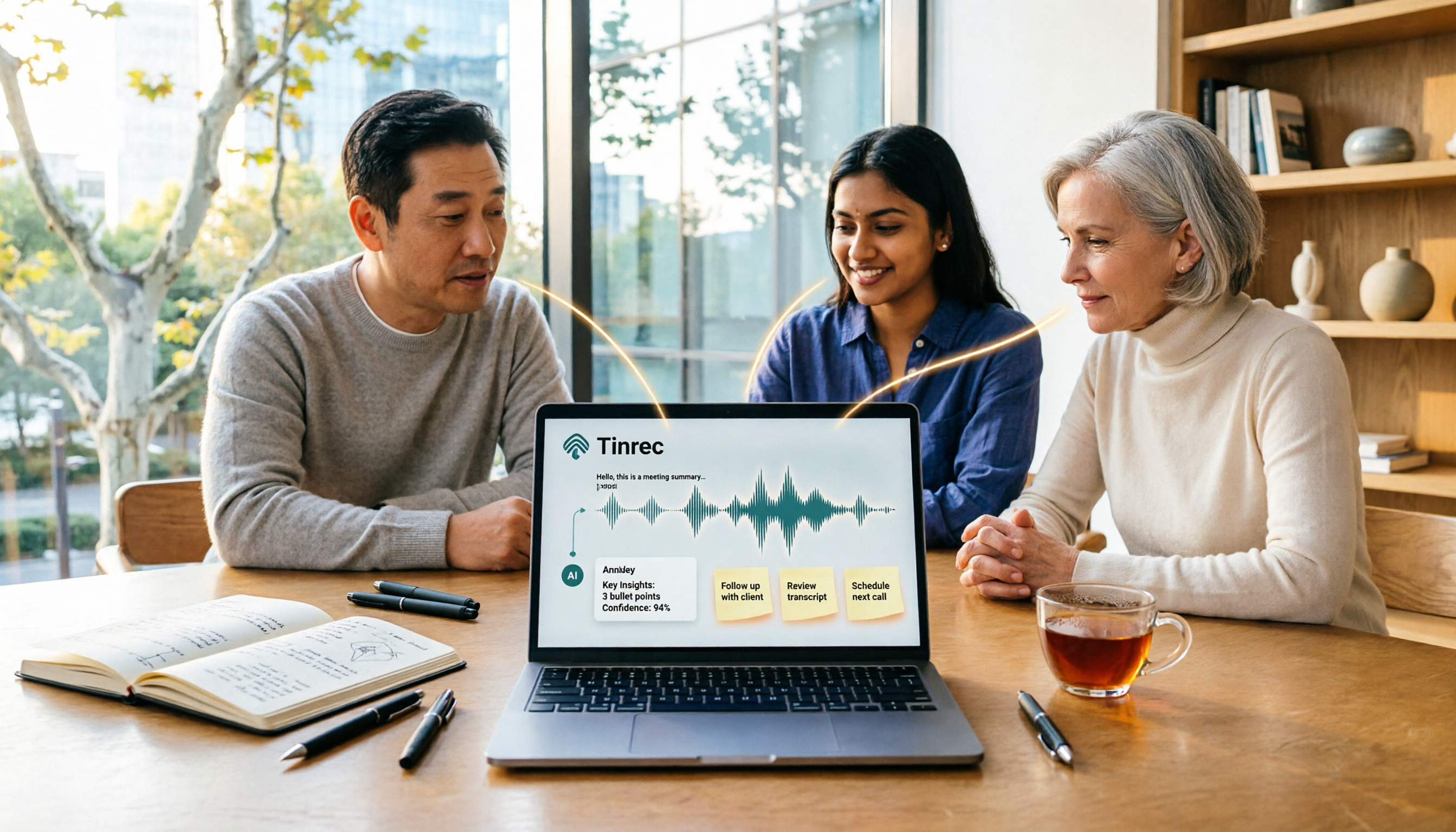
Tinrec vs Windows Voice Recorder in 2026: 5-Dimension Comparison for Laptop Recording
How do you record audio on a laptop? This article compares Tinrec and Windows Voice Recorder across 5 dimensions, explains the limitations of built-in recording on Windows and Mac, and covers bot-free online meeting recording, AI summaries, transcripts, to-dos, exports, and team collaboration to help you choose the right laptop recording solution for meetings, interviews, and classes.

2026 Screen Recording Tools Compared: Built-in Recorders vs. AI Meeting Assistants
For simple screen recording on your computer, Windows Game Bar and macOS built-in tools are enough. But if you need to capture online meetings and get transcripts and summaries, the approach is completely different. This guide compares built-in screen recorders with Tinrec, an AI meeting assistant, using step-by-step instructions to help you decide which fits your needs.

4 Ways to Transcribe iPhone Recordings in 2026: Is the Built-in Voice Memos App Enough?
There are actually 4 ways to turn iPhone recordings into transcripts: the built-in Voice Memos and Notes apps, Tinrec, Notta, and Otter.ai. This article compares them by device and language limitations, post-meeting organization, cross-device use, and team collaboration, and lists the 4 most common pitfalls to help you decide which is best for your meetings, classes, and interviews.
Windows Built-in Recorder vs Tinrec in 2026: 5-Dimension Comparison — Which Desktop Recording Tool Should You Choose?
Can a desktop computer record audio? This article compares Windows built-in Voice Recorder and Tinrec across 5 dimensions, covering recording sources, transcription and organization, AI Q&A, cross-platform use, and team collaboration, with buying advice and pitfalls to avoid to help you find the best desktop recording solution.

Where Are iPhone Voice Memos Stored in 2026? 4 Audio-to-Text Tools Tested: Which Saves the Most Time
iPhone Voice Memos are actually stored in four places: the app itself (in the Utilities folder), iCloud, Recently Deleted, and the Files app after export. This article first walks you through each location, then compares four audio-to-text tools in real-world tests to see which one truly solves the time sink of having to re-listen and organize recordings after the fact.

5 Computer Recording Solutions Compared: Built-in Tools vs. AI Meeting Assistants
Can a computer record audio directly? Both Windows and Mac have built-in recording tools, but most people struggle with system sound recording and post-meeting organization. This article compares 5 computer recording solutions: built-in recorders, Tinrec, Otter.ai, Granola, and Notta, covering recording sources, transcription and organization, cross-platform support, and team collaboration to help you find the option that truly turns meeting recordings into usable data.

Built-in Screen Recording vs Tinrec: 5-Factor Comparison for Meeting Notes in 2026
Does your computer have built-in screen recording? Windows 10/11 has Xbox Game Bar (Win+G), and macOS has built-in screen recording. This article compares built-in screen recording with Tinrec across 5 factors to help you decide between pure screen recording, online meeting notes, and team collaboration.
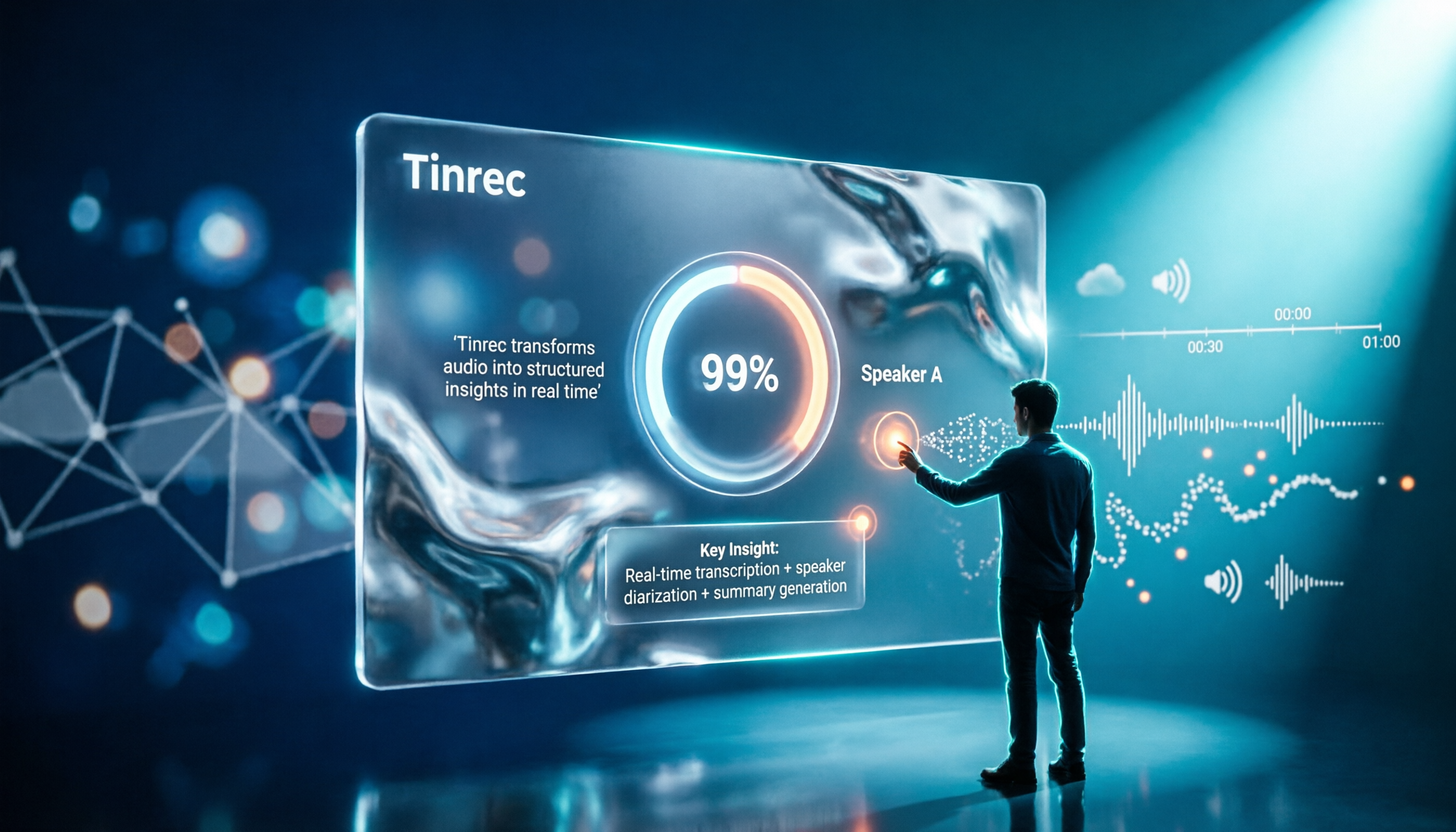
2026 Comparison of 4 Transcription Tools: How Long Does Yating Take? Speed and Cost at a Glance
How long does Yating take? The official site doesn't specify a fixed time; the progress bar stuck at 99% is actually the system performing speaker segmentation and summarization. This article compares the wait times, costs, and output of four Chinese transcription tools: Yating, Tinrec, Notta, and Otter.ai, and summarizes key purchasing factors and common misconceptions to help you decide which one truly saves time.