

Turn recordings into transcripts and summaries in minutes
Upload audio or video for multilingual transcription, AI notes, and action items
2026 Guide: Document Audio Transcription Without Meeting Bots + Auto-Generated Summaries and Action Items
Many people choose a document audio transcription tool by looking at the price first, only to find after purchase that the online meetings they need to transcribe can't be recorded at all, or the transcript comes out without paragraphs or punctuation, making it take longer to organize than listening to the recording again. In fact, before paying, just ask yourself three questions: Where does your recording come from? Who is responsible for organizing the text after transcription? Are these meeting materials ultimately for yourself or for the whole team? These three answers determine whether you need a simple transcription tool or a meeting collaboration tool like Tinrec that handles transcripts, summaries, action items, and team knowledge base all in one.
What Can Document Audio Transcription Do for You?
Scenario 1: Meeting notes ready 5 minutes after the meeting Previously, after a two-hour meeting, you'd spend another hour listening to the recording and filling in the transcript. Now you can transcribe while the meeting is happening—with Tinrec, for example, the desktop version can directly capture your computer's system audio and transcribe Zoom, Google Meet, Microsoft Teams, and Webex meetings in real time. After the meeting, it automatically generates summaries, chapters, and action items, so who is responsible for what and when it's due is clear at a glance.
Scenario 2: Turn audio files piled up on your hard drive into usable data Historical meeting recordings, customer interviews, course videos—they used to just sit there. Tinrec supports uploading audio and video files for transcription. After transcription, you can generate summaries and chapters, so you don't have to listen to long meetings from the beginning—just jump to the key sections.
Scenario 3: Cross-language meetings no longer rely on human translation When meeting with clients or colleagues who speak different languages, Tinrec supports real-time translation. During recording, you can switch between original text, translation, or bilingual view. After the meeting, you can also use the bilingual transcript to verify key numbers and commitments.
Scenario 4: Let meeting data settle into team assets Have you had the same issue discussed in three meetings, each time having to search for the notes again? Tinrec's team version centralizes meeting recordings, transcripts, summaries, and action items in a team space. New members can view historical data without relying on word-of-mouth from colleagues.
What Are the Core Capabilities of Document Audio Transcription?
Real-time transcription Transcribe while recording, not after. Text appears synchronously during the meeting, so you can listen and use the transcript to confirm you haven't missed key points. After the meeting, you don't need to spend time re-listening to the entire recording.
Bot-free online meeting recording Tinrec's desktop version directly captures the device's system audio, without pulling an extra meeting bot into the meeting room. This is especially practical for external client meetings—the screen stays clean, and you don't have to explain why a stranger's account joined. Note that recording requires the user to actively initiate it in Tinrec; it does not automatically join all calendar meetings.
AI summaries, chapters, and action item extraction Transcription is just the first step. Tinrec organizes long meetings into structured content: meeting topic, discussion highlights, conclusions, action items, and responsible parties listed separately. It can also generate mind maps to help understand the relationships between topics.
AI Q&A and post-meeting follow-up After transcription, you can directly ask questions about the meeting content, such as "Who mentioned the budget in this meeting?" or "What were the two concerns the client raised?" Tinrec answers based on semantic understanding, ideal for those with dozens of historical meetings on hand.
Multi-format export and Agent post-processing Meeting results can be exported to Notion, Google Docs, OneNote, Dropbox, and other tools for further processing. You can also use the Agent feature to generate reports, tables, and documents, turning them directly into deliverables.
Practical Application Scenarios
Meeting notes Weekly meetings, cross-department reviews, client communications—use Tinrec to transcribe while recording, and after the meeting, directly use summaries and action items for task tracking. The team version allows separate storage for meetings of different projects, and usage and member activity can be viewed in the backend.
Stop organizing recordings by hand
Upload audio or video and automatically get a transcript, summary, and action items
Classes and lectures For a two-hour class, handwritten notes often only cover half. Use Tinrec to record and transcribe; the transcript is searchable, so when reviewing, you can directly find keywords without re-listening to the entire session.
Interviews and research User interviews and expert interviews—the biggest fear is missing exact quotes. Tinrec preserves the transcript and timestamps, so when you need to cite, you can go back to the corresponding position to verify. You can also use AI Q&A to quickly summarize common viewpoints.
Content creation Turn interview recordings into transcripts, then let Tinrec organize them into key points and paragraphs. Writing, headline creation, and video script drafting can all extend from the same material, saving time spent repeatedly listening and typing recordings.
5 Things to Note When Choosing a Document Audio Transcription Tool
1. Recognition performance for Chinese and mixed Chinese-English Don't just look at promotional numbers—test with your own recordings. Tinrec covers Chinese, Traditional Chinese, and multilingual meeting scenarios, and has a team hotword feature to maintain professional terminology. Actual performance is affected by recording quality, noise, accents, and overlapping speech; for important content, it's still recommended to verify against the original audio.
2. How to record online meetings If you often have Zoom, Meet, or Teams meetings, confirm whether the tool "sends a bot into the meeting" or "captures computer audio." Tinrec takes the bot-free route; the desktop version directly captures system audio, doesn't take up a meeting seat, and doesn't require inviting an external account.
3. Can you organize directly after transcription A tool that only provides a transcript is essentially throwing the organizing work back at you. When choosing, look for summaries, chapters, action item extraction, and AI Q&A. Tinrec has these built-in, so you don't need to connect additional tools.
4. Are audio files retained and can they be exported Some tools only keep text and not audio, so you can't verify a sentence later. Tinrec retains audio files and supports multi-format export, allowing results to be brought into your existing workflow.
5. Team governance capabilities If meeting data is to be used by the entire department, look at management features like members, roles, seats, usage, and auditing. Tinrec's team version manages "roles" and "seats" separately: roles determine who can manage the team and view audits, seats determine whether members can record, upload, and edit; active members without a seat can still view, play, and read team data. Deleted audio files can be restored from the recycle bin, currently with a 30-day retention period.
Frequently Asked Questions
What can Tinrec's free version do? The free version provides a basic quota, allowing you to experience recording, importing, summarizing, and transcription workflows. It's suitable for first confirming recognition performance and whether the workflow fits. Consider weekly cards, Pro monthly, or annual plans when usage increases.
Which online meetings does Tinrec support? The desktop version captures system audio, so it can handle meeting audio played on computers from Zoom, Google Meet, Microsoft Teams, Webex, etc., without needing a meeting bot to join or platform official authorization.
Do I have to add a bot to meetings? No. Tinrec's desktop version is initiated by the user, and does not join the meeting participant list. This also means it won't automatically join all meetings on your calendar—you need to press start yourself.
What's the difference between the team version and the personal version? In the personal version, data belongs to the individual account; the team version is an independent team space where data belongs to the team, and includes member invitations, role and seat management, sharing rights, usage analytics, audit logs, and audio recycle bin. The first eligible team trial is 7 days, with 1 free seat and 300 minutes of team shared import quota; paid seats are USD 29.80 per month, or USD 199 per year (about USD 16.58/month), with each paid seat providing 2,000 minutes of team shared import quota per month. Actual prices and benefits are subject to the official purchase page.
Is transcription accuracy guaranteed? It's not advisable to summarize with a single number. Accuracy varies with recording quality, background noise, accents, professional terminology, and simultaneous speech. In clear audio and common meeting scenarios, Tinrec can significantly reduce manual typing time, but for important content, it's still recommended to verify with transcript timestamps and audio playback.
Conclusion
Document audio transcription is no longer just about "turning sound into text." The real value lies in whether you can use it directly after transcription: summaries, chapters, action items, Q&A, export, and whether the team can retain each meeting as searchable data. If your meeting volume is so high that you're using personal time to catch up on notes, start with Tinrec's free version, validate its Chinese recognition and post-meeting organization workflow with a real meeting, and then decide whether to move to the team version.
References
- Online AI voice, video, audio file auto-transcription - Free trial - cSubtitle
- Luvvoice: Free online text-to-speech, no word limit
- Transcribe your recordings - Microsoft Support
- Voice real-time conversion to text APP recommendation 1. iPhone/iPad "Notes" APP - Supports real-time conversion to text - Cost: Free - Supports Chinese, English
- Free AI realistic voice text-to-speech | Speechify
Turn every recording into actionable outcomes
Get 60 free transcription minutes when you sign in. No credit card required.
Related Reading
You might also like

2026 Comparison of 4 Meeting Transcription Tools: Tinrec's Bot-Free Recording and AI Q&A Stand Out
Meeting transcription isn't just about typing every word—it's about turning chaotic conversations into trackable action items. This article tests 4 popular meeting transcription tools, comparing bot-free recording, Chinese recognition, AI summaries, and team collaboration, plus buying tips and pitfalls to help you find the best meeting notes solution for your team.
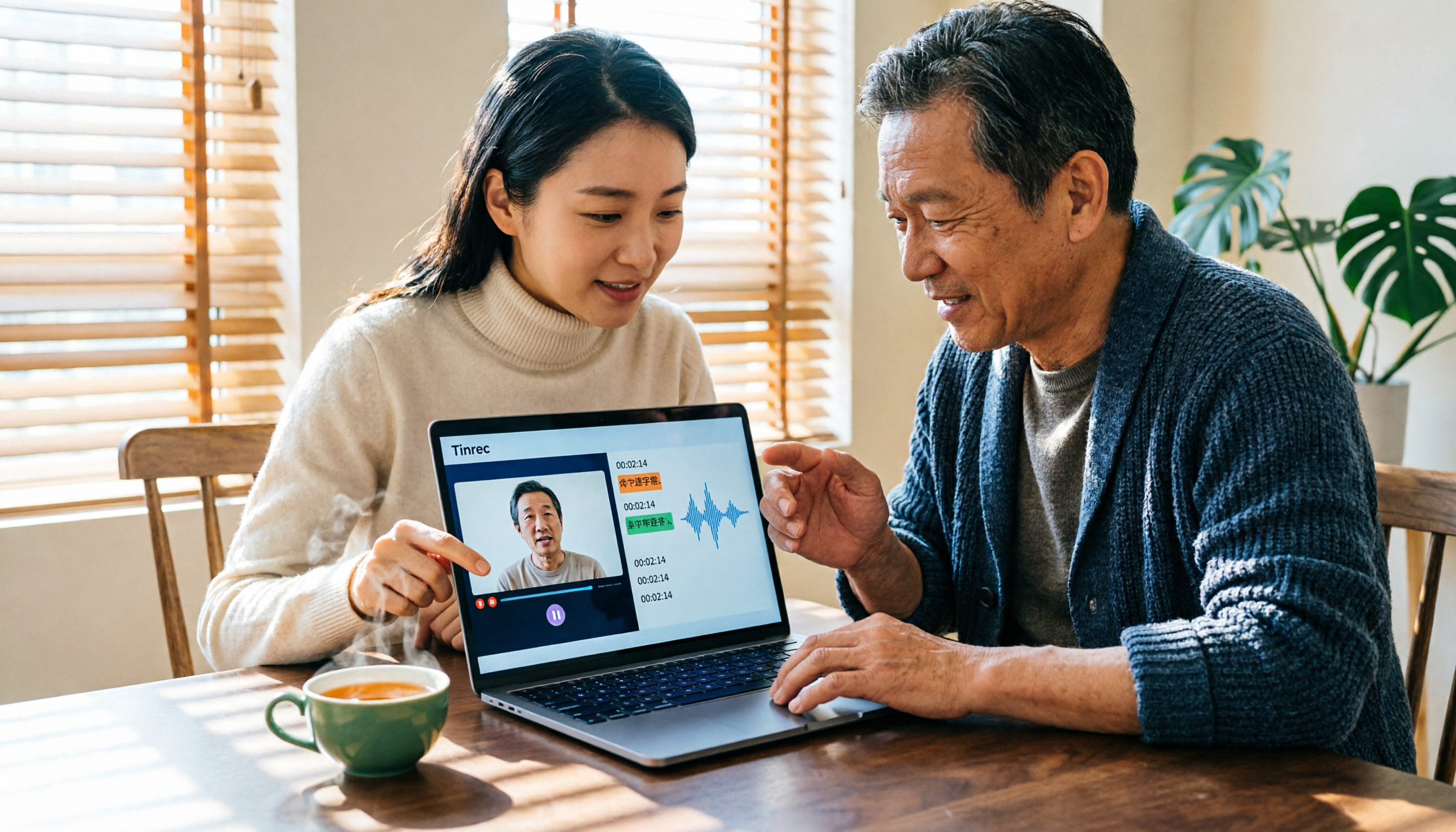
Tinrec vs Notta 2026: 5-Dimension Comparison — Which Is Better for Chinese Video-to-Text?
Video-to-text isn't just about finishing a transcript. This article starts with common pitfalls and reviews 6 tools for converting video to text, comparing Tinrec, Notta, Otter.ai, TurboScribe, VEED, and PLAUD in terms of positioning, pricing, and best-fit scenarios, helping you find a way to turn video content into truly usable data.

2026 M4A to Text Free Options: 3 Tools Compared
A 2026 guide to free M4A-to-text options, covering common pitfalls, core features, and what to look for when choosing a tool. Using Tinrec as an example, it shows how to turn M4A audio into transcripts, summaries, and to-dos, and compares personal and team plans.

4 Best PDF Image to Text Tools in 2026: How to Make Scanned PDFs Searchable
This article compares four online PDF image-to-text tools in 2026: iLovePDF, Adobe Acrobat, PDFCandy, and Smallpdf. Learn about OCR language settings, output formats, free limitations, and privacy pitfalls, plus the difference between meeting transcription and PDF OCR.
2026 OPPO Recording & Note-Taking: 5 Solutions Tested – Is the Built-in Recorder Enough?
Is OPPO's built-in recorder and notes app really enough? Starting from the three most common mistakes OPPO users make, this article outlines 4 key factors for choosing a recording and note-taking tool, then hands-on compares Tinrec, OPPO's built-in tools, Notta, and Otter.ai. It also includes compliance reminders and pitfalls to avoid for call recording, helping you find the best OPPO recording and note-taking workflow.
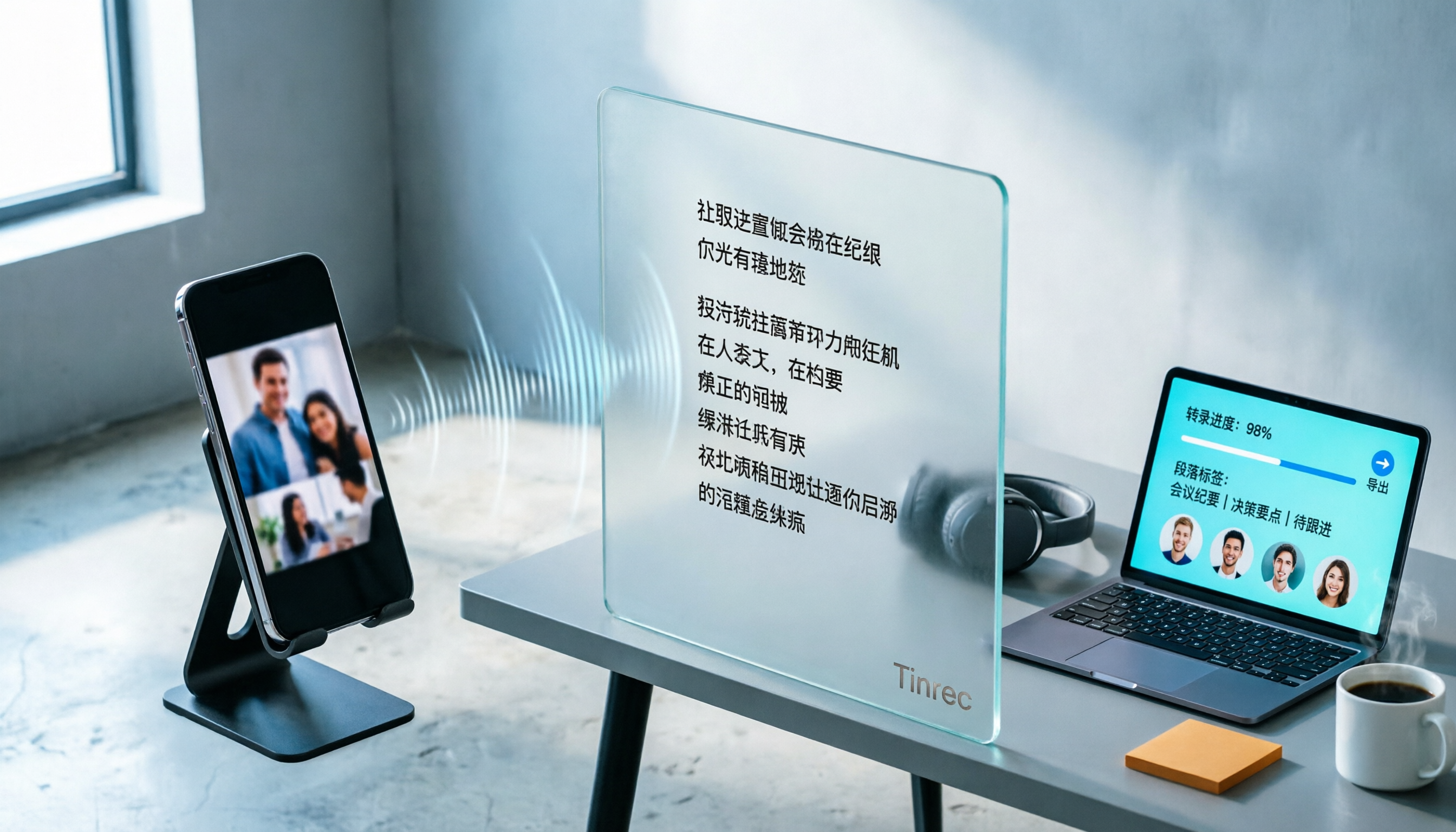
How to Convert TikTok Audio to Text in 2026: A Complete 5-Step Guide
Can you see a TikTok video but can't extract the text? This guide breaks down the complete process of converting TikTok audio to text in 5 steps, comparing CapCut's built-in features with the cross-platform Tinrec across five dimensions: import methods, transcript saving, post-conversion organization, cross-platform export, and team collaboration—so you can decide which approach fits your actual workload.

Xiaomi Voice to Text in 2026: Built-in Recorder vs Tinrec — Which Is Better for Meeting Transcripts?
Xiaomi (including Redmi and POCO) phones have a built-in recorder that can turn recordings into text. But once you have a large transcript, what then? This article compares Xiaomi's built-in recorder with Tinrec across five dimensions: Chinese recognition, post-meeting organization, recording sources, file management, and pricing. It also includes FAQs to help you decide whether to stick with your phone or switch to a dedicated tool based on your meeting volume.

4 Meeting Recording Apps Tested for 2026: Which AI Meeting Notes Actually Save Time After Transcription?
Recording a meeting is easy; the hard part is transcribing and organizing it afterward. This article tests 4 meeting recording apps in real meeting scenarios, comparing transcription, AI meeting notes, cross-platform sync, and team data retention, and summarizes key buying factors and common pitfalls to help you find the tool that truly saves post-meeting time.

2026 Smart Meeting Assistant Comparison: After Dcard GNTC, Which One Should You Choose for Chinese Meetings?
Dcard's GNTC is an enterprise AI Agent platform, not a meeting transcription tool. This article first clarifies the positioning of GNTC, EntryDesk, and VibeHost, then compares four smart meeting assistants—Tinrec, Otter.ai, Granola, and PLAUD—using five key evaluation criteria. It also covers four common purchasing pitfalls and offers selection advice for different meeting types to help you decide which meeting tool to buy.