
Turn recordings into transcripts and summaries in minutes
Upload audio or video for multilingual transcription, AI notes, and action items
When watching foreign language videos or precious old footage without subtitles, do you want to extract the "hard subtitles" from the video but don't know where to start? Manual typing is time-consuming and often results in Chinese recognition errors or language barriers.
This article will provide a hands-on review of the most popular open-source hard subtitle extraction tools (VSE, VideOCR), along with a practical comparison table, step-by-step guides with screenshots, and a common FAQ. We'll also introduce Tinrec, an alternative that doesn't require software installation and can directly parse video URLs to generate transcripts and AI summaries.
Quick Navigation: For completely free local hard subtitle extraction from video files, choose VSE or VideOCR; for directly pasting URLs or importing audio files to quickly get transcripts, with a focus on later content queries and action items, prioritize Tinrec.
1. How to Choose a Video Subtitle Extraction Tool? Comparison of 3 Main Options
When selecting a video subtitle extraction tool, evaluate based on your device performance, video source, and intended use. Below is a comparison table of the three main tools:
| Dimension | VSE (Video Subtitle Extractor) | VideOCR | Tinrec (MiaoTing Recorder) |
|---|---|---|---|
| Processing Method | Local OCR hard subtitle region recognition | Local OCR (PaddleOCR engine) | Cloud-based AI speech-to-text / URL parsing |
| Language Support | Supports 87 languages including Chinese, English, Japanese, Korean | Supports multilingual and simultaneous bilingual recognition | Automatic recognition of 10 languages including Chinese, English, Japanese, Korean, Taiwanese, Cantonese |
| Summary & Action Items | None, exports only plain text subtitles | None, exports only plain text subtitles | Generates AI meeting minutes, conclusions, and action items |
| AI Query Capability | Only traditional Ctrl+F search | Only traditional Ctrl+F search | Supports semantic AI chat-based queries |
| Export & Integration | Exports txt/srt files | Exports txt/srt files | Multi-format file export, supports cross-platform sync (iOS, Android, Web) |
| Pricing & Free Tier | Completely free and open-source | Completely free and open-source | Free plan (up to 100 minutes/month), with Basic/Pro subscriptions |
2. Option 1: VSE (Video Subtitle Extractor) Hard Subtitle Tutorial
VSE is a powerful open-source software that is completely free and requires no installation. It is very useful for old videos without subtitle files.
2.1 Download & Preliminary Setup
- Go to the VSE GitHub official page, find Releases, and click Latest.
- Choose the CPU or GPU version based on your graphics card (NVIDIA users are strongly advised to use the GPU version for faster processing).
- After downloading and extracting, make sure to place the folder in a directory that does not contain Chinese characters or spaces (e.g., the root of D drive), otherwise errors may occur.
2.2 Step-by-Step Subtitle Extraction
- Double-click to run
vse.exe. The first launch will open a command window to adapt to the local environment. - Click "Open" to select the video for extraction (batch extraction supported; video path and name must not contain Chinese or spaces).
- Click "Settings", set the interface to English (or Chinese if preferred), and set the "Subtitle Language" to the language you want to extract.
- Use the slider below the video to move the "green box" to exactly frame the subtitle area. If subtitles are too short, drag the progress bar to find a long subtitle area for alignment.
- Recognition mode can be set to "Fast" or "Precise". Fast mode is usually sufficient; switch to Precise if there are many errors. Click "Run", and the subtitle file will be automatically saved in the same folder as the video.
3. Option 2: VideOCR - Precise Bilingual Recognition Tool
If you use Windows or Linux, you can also choose VideOCR, which is based on the more advanced PaddleOCR engine and is also completely free and open-source.
Stop organizing recordings by hand
Upload audio or video and automatically get a transcript, summary, and action items
3.1 Download & Installation Tips
- Open the VideOCR homepage on GitHub, click Latest.
- There is a portable version and an installer version. If you are a heavy user, it is recommended to choose the installer version, which is easy to uninstall and leaves no residual files.
- Again, NVIDIA users are recommended to download the GPU version for faster recognition.
3.2 Bilingual Subtitle Extraction Steps
- Open the VideOCR interface, select the video file, and set the subtitle output location.
- To extract bilingual subtitles, set the recognition language to
Chinese & English. - Find a frame with a longer subtitle, and use the mouse to fully frame the Chinese and English subtitle areas.
- Click "Run". After completion, open the output file with Notepad to get accurate subtitle content.
4. Alternative: Tinrec (MiaoTing Recorder) - Direct Extraction from URLs & Audio Files with AI Summary
If your videos are from YouTube, online meetings (Teams/Meet), podcasts, or you don't want to download software that consumes computer resources, Tinrec (MiaoTing Recorder) is a multi-platform AI alternative. It not only converts audio and video into transcripts but also focuses on the complete workflow of "Recording → Understanding → Action".
The following are the steps for using Tinrec for video-to-text and subsequent applications:
4.1 Video Link to Text (Supports Online Videos & Podcasts)
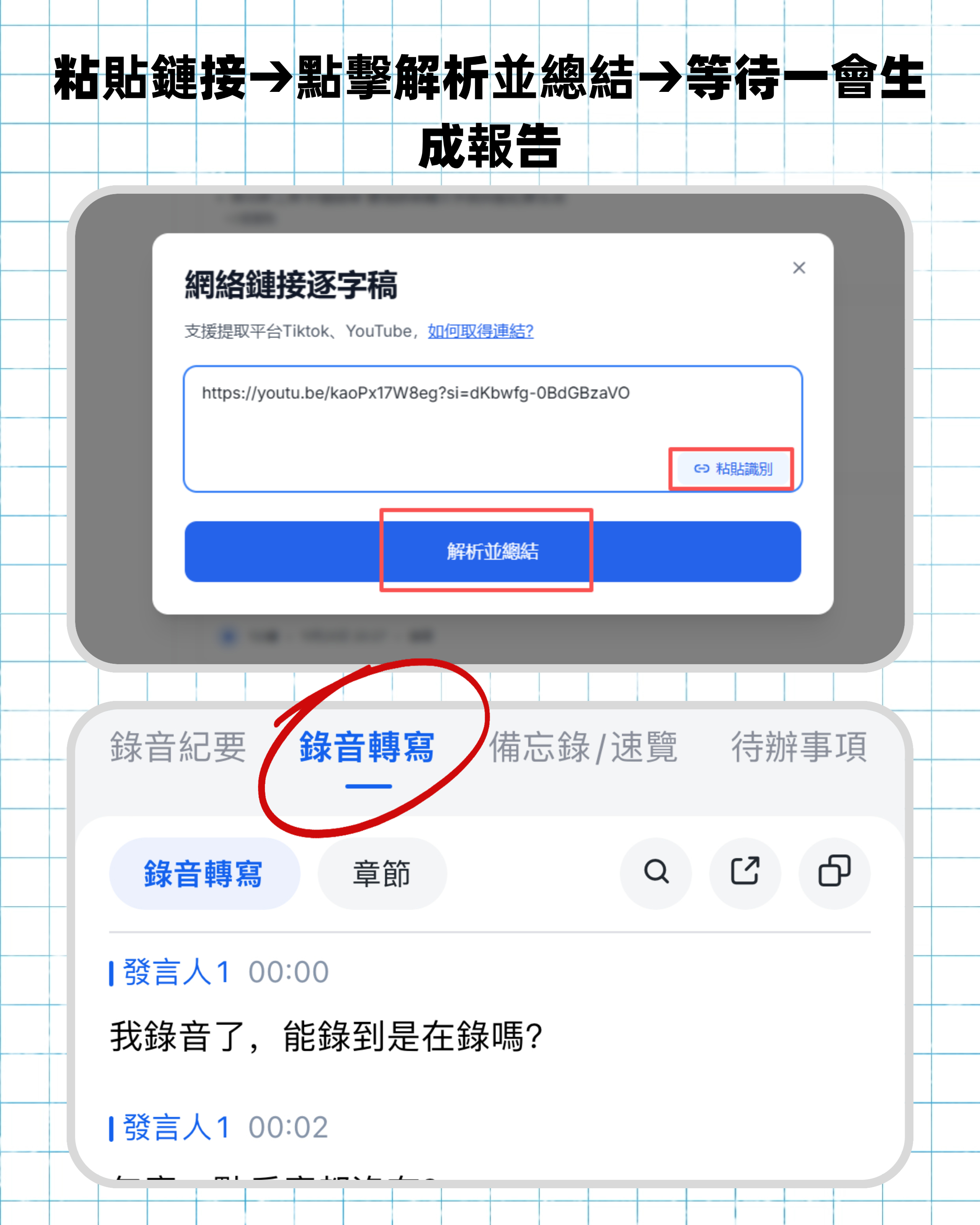
If you want to extract content from online videos, you don't need to download the video file. Go to the Podcast/Online Video to Text feature, enter the URL of supported platforms such as YouTube, and the system will automatically parse and convert it to text while generating an AI summary.
4.2 Audio File to Text (Supports Multiple Formats)
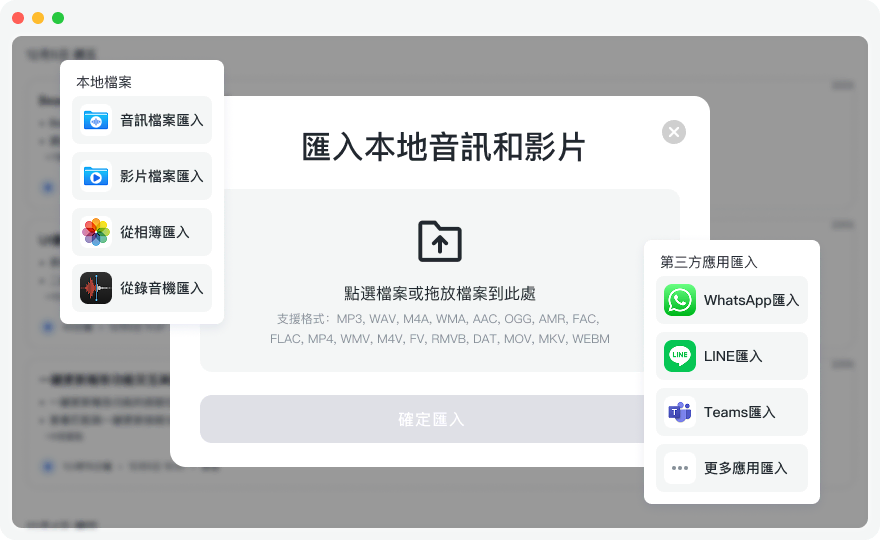
If you already have audio files from videos or meeting recordings, go to the Audio File to Text section and upload the file. Tinrec has automatic language recognition for 10 languages (including Taiwanese, Cantonese, etc.). It not only produces a transcript but also automatically generates meeting minutes and action items.
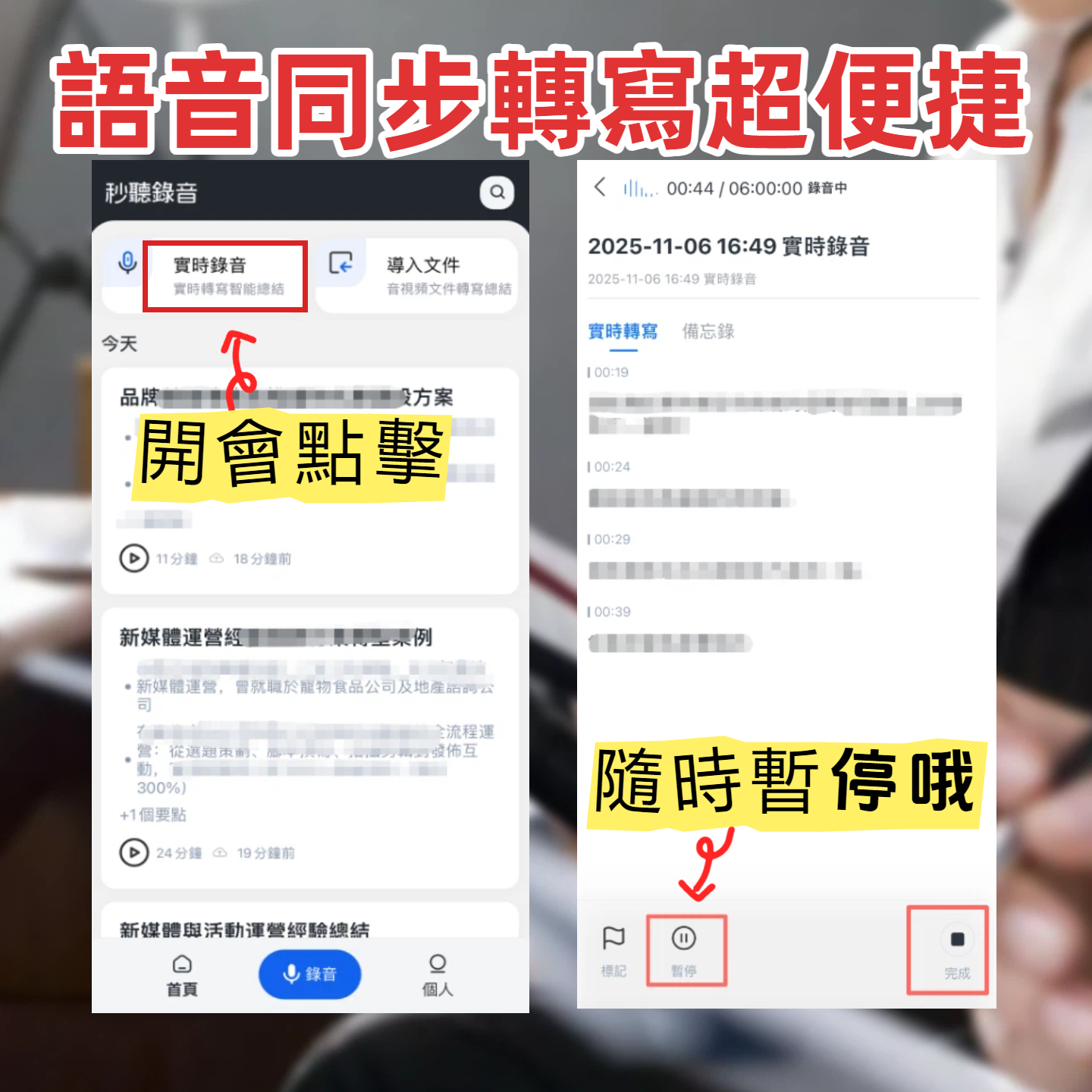
4.3 Real-Time Recording to Text (Suitable for Lectures & Meetings)
If you are attending a live lecture or meeting without subtitles, you can start Real-Time Recording to Text via your phone (iOS/Android) or web browser. The audio is converted to text in real time, helping you focus on the conversation.

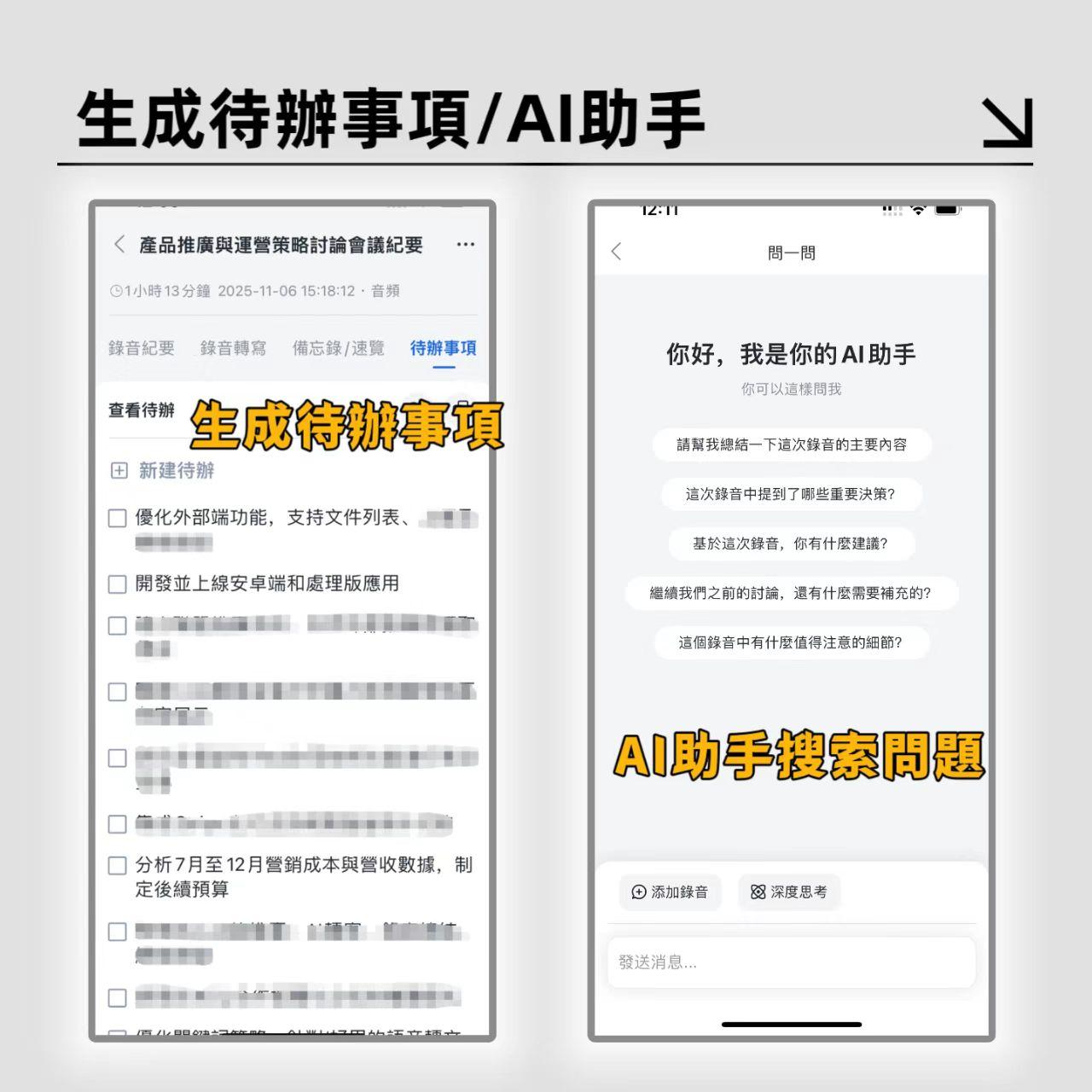
4.4 AI Chat Query (Say Goodbye to Traditional Transcript Search)
Traditional transcripts only allow Ctrl+F keyword search. Tinrec offers an AI Chat Query feature. You can directly ask questions about the converted content, such as "What are the three solutions mentioned in the video?", and the AI will quickly retrieve and answer based on semantics.
5. Advanced Tip: How to Free Translate Extracted Subtitles?
When you have extracted foreign hard subtitles using VSE or VideOCR and want to translate them into Chinese, you can use browser extensions like "Immersive Translate":
- Open the "Document Translation" feature of Immersive Translate.
- Drag and drop the extracted subtitle file (e.g., English only) directly into it.
- Choose your preferred translation model and set the target language to "Simplified/Traditional Chinese".
- Click "Export Translation" to get a new translated subtitle file that can be used seamlessly with the original video.
6. FAQ
Q1: Can I extract video subtitles on an iPhone or mobile device? A: VSE and VideOCR are primarily designed for Windows/Mac/Linux computers. For mobile processing, it is recommended to use cloud tools like Tinrec that support iOS and Android cross-platform sync, by directly pasting the video URL or uploading an audio file to generate transcripts.
Q2: What is the difference between extracting "hard subtitles" and "soft subtitles"? A: Soft subtitles (embedded subtitles) are usually separate files (e.g., srt, vtt) that can be downloaded or toggled on/off. Hard subtitles are text burned into the video frames. VSE and VideOCR use OCR (Optical Character Recognition) technology to "read" the hard subtitles and convert them into text files.
Q3: How to extract transcripts directly from Meet or Teams meeting videos? A: For video conference recordings, hard subtitles are often not present. It is recommended to upload the meeting video file (or converted mp3 audio) to a speech recognition tool. In such cases, cloud-based AI tools can not only recognize speech content but also automatically organize meeting minutes and to-do lists, saving significant administrative time.
Q4: Are subtitle extraction tools completely free? A: Yes, VSE and VideOCR are completely free and open-source. Other cloud AI services (like Tinrec) typically offer a basic free tier (e.g., 100 minutes per month). Upgraded plans are only needed for high-frequency or heavy usage.
Q5: What should I do if a foreign language video has no subtitles at all? A: If the video has no hard subtitles, OCR extraction tools cannot be used. In this case, you must rely on speech-to-text technology. Upload the audio to an AI tool with multilingual recognition, first get the original transcript, and then use translation tools.
Q6: Why do extracted hard subtitles contain many errors or garbled text? A: This is usually related to video quality, subtitle font, or background complexity. When using VSE, try switching to "Precise" recognition mode, or use VideOCR with the PaddleOCR engine. Also, ensure the video path does not contain Chinese characters to avoid software errors.
Turn every recording into actionable outcomes
Get 60 free transcription minutes when you sign in. No credit card required.
Related Reading
You might also like

Free Audio Transcription Options in 2026: 4 Plans Compared
The key to a good audio transcription app isn't just accuracy—it's how much time it saves you on organizing afterward. This article walks through the complete workflow using Tinrec, breaking down four plans from free version to weekly pass to Pro monthly and annual, and covers five key factors to consider when choosing, plus FAQs.

6 Best Speech-to-Text Tools in 2026: How to Get the Most Out of Free Tiers
The key to free transcription isn't which tool is free, but how long your recordings are and how often you use them. This article compares the free rules and limits of 6 tools—Tinrec, Notta, MyEdit, cSubtitle, TurboScribe, and Monica—offers selection advice based on use cases, and lists paid plan prices.

6 AI Meeting Notes Tools Tested and Compared in 2026: How to Use and Choose
From pre-meeting to in-meeting to post-meeting workflows, we compare the free tiers, paid pricing, and best use cases of six AI meeting notes tools—Tinrec, Otter, Notta, Fireflies, Granola, and TurboScribe—to help you pick the one that fits your meeting style.

2026 Comparison of 4 Audio-to-Text Tools: How Free Tiers Work and Which Really Saves Time After Meetings
Are audio-to-text tools actually useful? Many find them hard to use, but the problem often lies in testing methods and mismatched expectations. This article addresses three common misconceptions, outlines 4 key criteria for choosing a tool, and then compares Tinrec, Notta, TurboScribe, and PLAUD in terms of positioning, quota calculations, and post-meeting organization capabilities. It helps you decide which tool suits meeting notes, interview transcripts, or team knowledge retention.

2026 Comparison of 5 Audio-to-Text Tools: Which One Actually Saves You Time on Transcripts?
Recording meetings, interviews, and classes is easy—the real pain is organizing them. This article breaks down 4 key factors for choosing an audio-to-text tool from real-world scenarios, compares Tinrec, Notta, Otter.ai, and TurboScribe, and highlights the 3 most common buying mistakes to help you find a free option that works or a paid one that's worth it.

2026 Comparison of 2 Audio-to-Text Tools: 4 Key Differences Between Tinrec and Notta
Starting from common pitfalls, this comparison examines Tinrec and Notta across free quotas, recording input, post-meeting organization, and team collaboration to help you choose the right audio-to-text workflow for Chinese-language meetings.

2026 Comparison of 4 Audio-to-Text Tools: What Is Audio Transcription and How to Choose
What does audio-to-text mean? Simply put, it's automatically converting spoken words in audio files into written transcripts. This article first explains the definition and three common approaches in plain language, then tests and compares Tinrec, Notta, Otter.ai, and Granola on Chinese recognition, post-meeting organization, and team collaboration. It also lists 4 key points to check before buying and 3 common mistakes to help you decide whether to use a free or paid plan.

3 AI Meeting Notes Methods Tested in 2026: Transcripts Aren't Minutes—Which One Actually Produces Action Items?
Most people think AI meeting notes just means recording and transcribing. But the real time sink is post-meeting decisions, action items, and follow-up. This article starts from common misconceptions, compares three approaches, and pits Tinrec against PLAUD Note dimension by dimension, offering a pre-meeting, in-meeting, and post-meeting workflow you can follow.

5 Meeting Transcription Tools Tested: Which AI Meeting Notes Actually Save Time?
The meeting ends, but the real work begins. This article starts from real meeting scenarios, breaks down 4 key factors for choosing a meeting transcription tool, and compares Tinrec, Notta, Otter.ai, and TurboScribe on recording methods, post-meeting output, Chinese language performance, and team management capabilities to help you pick the one that truly saves time.