

Turn recordings into transcripts and summaries in minutes
Upload audio or video for multilingual transcription, AI notes, and action items
2026 Comparison of 4 Online Video Conferencing Tools: Which Handles Chinese Transcripts and AI Meeting Summaries Best?
Last semester in my project course, the professor asked us to hold a group meeting online every week. During the meetings everyone talked enthusiastically, but once the meeting ended, the next day in the group chat someone asked "Who said they'd handle the literature review last time?" and the four of us had three different answers. Even more frustrating was the night before a remote presentation—the professor asked "What was the biggest pain point the interviewee mentioned?" and I scrubbed through a two-hour meeting recording from start to finish but still couldn't find that part.
If you're like this too: you have more meetings than anyone, but after the meeting nothing is left behind, this article is for you. The following is not about whose video quality is clearer (Zoom, Google Meet, and Microsoft Teams are actually pretty similar in that regard), but about "after the meeting ends, is the content preserved, can you find it, and can you use it?" I spent an entire semester rotating 4 tools related to online meeting records through group meetings, online classes, and internship interview simulations. Here are my own usage notes.
Before Choosing an Online Meeting Record Tool, Understand These 4 Key Points
1. Where your meeting takes place and how you want to record The most common platforms in university are Zoom, Google Meet, Microsoft Teams, and occasionally Webex. The first question when choosing a tool isn't how many features it has, but whether it can directly handle the audio coming from these platforms. There are two common approaches: one is to send a "meeting bot" to join the meeting as a participant, and the other is to capture system audio directly on your computer. The advantage of the latter is that no strange name appears on the participant list, and no extra authorization from the host is needed.
2. Chinese and mixed Chinese-English recognition matters more than English demos Many online meeting tool demo videos are all-English meetings and look super smooth. But our group meetings are mainly in Chinese, mixed with words like deadline, report, meeting, and interviewees jump around when they speak. Rather than watching official promotions, it's better to run your own meeting recording through it once and see whether the transcript is readable.
3. What else can be done after the transcript A tool that only gives you a transcript is basically throwing the organizing work right back at you. What really saves time is the part after that: automatic summaries, chapters, turning "who will do what and when it's due" into action items, being able to ask questions about the meeting content, and exporting to Notion, Google Docs, OneNote, or Dropbox for continued use.
4. How free quotas are calculated—don't just look at minutes per month Students have limited budgets, so free quotas are of course important. But pay attention to two things: first, the maximum length per single item (some tools' free versions only allow a few minutes per item, so a 50-minute online class can't be recorded at all), and second, whether you can import files you've already recorded. Also, if your project group or club needs to share data, check whether it has team spaces instead of asking everyone to pass around account passwords.
Tinrec—The One I Kept After a Semester
Tinrec is an AI meeting recording and collaboration tool for individuals and teams, supporting iOS, Android, desktop, and web. Its core is turning meeting recordings into searchable, queryable, exportable data, rather than just giving you a transcript.
Online group meetings: no need to invite a bot, record system audio directly Our project group met regularly on Google Meet, and occasionally used Teams to connect with our internship organization. The Tinrec desktop version directly captures the computer's system audio, so there's no need to pull an extra bot into the meeting list. It can handle meeting audio played from Zoom, Google Meet, Microsoft Teams, and Webex. During the meeting I kept it open, and the transcript grew as we talked, so after the meeting I didn't need to listen again.
No need to re-listen after the meeting: summaries, chapters, and action items appear directly As soon as the meeting ends, AI automatically produces a summary and chapters, and organizes "who is responsible for what and when it's due" into action items. For a project group this is a lifesaver—previously we spent half an hour after meetings organizing tasks, but now we just copy and paste into the group chat. Even better is AI Q&A: I can directly ask "Who mentioned making the questionnaire in the last meeting?" and it gives me an answer based on the meeting content, instead of throwing a string of keywords at me to search myself. For a two-hour meeting, the re-listening time I save is about an afternoon.
Existing files and workflow: import, translate, export, regenerate If someone else recorded the meeting, or if you need to organize interview audio or video files, you can also upload them directly for transcription. For cross-language meetings, you can view the original text, translation, or bilingual text during recording. The organized results can be exported to Notion, Google Docs, OneNote, and Dropbox, places I already use daily. When you need to submit a written report, you can further generate reports, tables, and documents, which is extremely useful for final project written materials.
Stop organizing recordings by hand
Upload audio or video and automatically get a transcript, summary, and action items
If it's for team use: team spaces and personal versions are two different things Our project group later switched to the team version because data belongs to the team, not to someone's individual account. The team version lets you create multiple team spaces, invite members via links, and roles (determining who can manage the team) and seats (determining who can record, upload, edit, import/export) are separate; members without seats can still view, play, and read team data. The admin side can see usage trends, member rankings, and usage details, and also has audit logs, team hotwords, and a 30-day audio recycle bin. On pricing, the team monthly plan is USD 29.80 per paid seat per month, and the annual plan is USD 199 per paid seat per year (about USD 16.58 per month). The first eligible team trial is 7 days, 1 free seat, and 300 minutes of team shared import quota; paid seats provide 2,000 minutes of team shared import quota per month, and real-time recording under an active team plan and seat is currently not deducted by minutes. Actual prices and benefits are subject to the official purchase page.
The three points I think are most worthwhile First, no need to invite a bot, so recording online meetings has no psychological burden, especially noticeable during interview simulations or meetings with internship supervisors. Second, meeting data is truly "reusable"—summaries, action items, AI Q&A, and export turn meetings into a source library for writing reports later. Third, Chinese and mixed Chinese-English content reads smoothly, and the transcript can be read directly as notes.
Limitations to note The free version provides a basic quota. If, like me, you have regular weekly meetings and also need to record online classes, you'll quickly want to upgrade. It also has a weekly card, Pro monthly card, and Pro annual card, so short-term intensive use and long-term use can be chosen separately. In addition, transcription quality is affected by recording quality, background noise, accents, and multiple people talking over each other. The official site does not promise a fixed accuracy rate, so for important content it's recommended to check against transcript timestamps and recording playback.
Who it's for If you often meet on Zoom, Meet, or Teams, record Chinese or mixed Chinese-English content, want to ask AI directly for key points after the meeting, and use both phone and computer—Tinrec is the smoothest choice I've used all year.
Besides Tinrec, What Other Options Are There?
Otter.ai: A mature English AI meeting assistant. The free version offers 300 minutes per month, and the Pro annual plan works out to about USD 8.49 per user per month. Its strength is English meetings and automated workflows, so if your meetings are almost entirely in English it's worth trying first. But our group meetings are Chinese mixed with English words, and Tinrec's Chinese meeting organization experience is closer; moreover, Tinrec can generate reports and table documents after the meeting, which is convenient when submitting written materials.
Granola: An AI meeting note tool that also takes the bot-free route. The free version can be used first, and Business is USD 14 per user per month. It emphasizes handwritten notes plus AI enhancement. But it does not support uploading pre-recorded audio files, nor does it save meeting audio. If you want to keep recordings, organize already-recorded interview files, or need team spaces to manage members and usage, Tinrec can do these while it currently cannot.
Notta: A veteran multilingual transcription tool. The free version offers 120 minutes per month with a maximum of 3 minutes per item. The Pro annual plan works out to about USD 8.17 per month with 1,800 minutes per month, so it's good value for file transcription. However, it leans more toward transcription, subtitles, and translation. If you want real-time recording of online meetings, don't want to invite a bot, and also need post-meeting AI Q&A and action items, Tinrec's meeting workflow is more complete. Prices are subject to the official page.
Pitfall Guide: The 4 Most Common Mistakes When Choosing an Online Meeting Record Tool
Pitfall 1: Deciding based only on English demo videos. Many tool demos are quiet English meetings, while real scenarios with Chinese, mixed Chinese-English, and people talking over each other are completely different. The right approach is to test with a segment of your own meeting recording, and use the free quota first—don't rush to pay.
Pitfall 2: Looking only at "minutes per month" and ignoring "maximum length per item." Some free versions have a decent number of minutes on paper, but each item can only be a few minutes, so a 50-minute online class can't be recorded completely. When choosing a tool, first look at how long your single meeting is.
Pitfall 3: Assuming a meeting bot is necessarily more convenient. A bot appears in the meeting list as a participant, and in some cases the host must authorize recording. During interview simulations, interviews, or meetings with external organizations, having an unknown account on the list is actually quite awkward. Switching to the desktop version that directly captures system audio keeps the meeting screen much cleaner and doesn't interrupt the flow.
Pitfall 4: Using it only as "audio-to-text." If you only take the transcript, you're using only one-third of the value of this type of tool. Summaries, chapters, action items, AI Q&A, and export to Notion or Google Docs are where the real time savings are. For example, before a report we directly ask the tool "What tasks were decided in the last meeting?" which is much faster than manually flipping through a 30-minute transcript.
One final reminder: before recording and transcribing, remember to inform participants and obtain consent. For interviews or meetings with internship organizations, ask first to avoid legal issues or misunderstandings.
Conclusion: Which One Should You Actually Choose?
To sum up my conclusion this semester in one sentence: if what you want is "after the online meeting ends, the content can still be used," Tinrec is my first choice.
Here's a breakdown by scenario for reference:
- You want to record meetings on Zoom, Google Meet, Teams, or Webex, and don't want to invite a bot → Tinrec (desktop version captures system audio)
- Meetings are mainly in Chinese or mixed Chinese-English → Tinrec
- After the meeting you want to ask AI directly "who is responsible for what," and need summaries and action items → Tinrec
- Project groups, clubs, or internship teams need to share meeting data and manage members and usage → Tinrec team version (roles and seats managed separately, data belongs to the team, plus audit logs and audio recycle bin)
- Meetings are almost all in English and your budget starts at $0 → Otter.ai free version (300 minutes per month) is worth trying first
- You just need to convert a batch of existing files into text or subtitles and don't care about post-meeting organization → a transcription tool like Notta is a better fit
My own approach is to start with the free version and run a real group meeting through it to see whether the transcript matches the way you speak. The free quota is enough for people who record once in a while. If, like us, you have regular weekly meetings, then consider the weekly card or Pro. For project groups or internship teams with fixed members and data that needs to be kept, it's worth going straight to the team version, so every meeting becomes data you can look up later when writing reports or handing off work.
References
- How to Choose Online Meeting Software? 5 Software Features, Prices, and Use Cases at a Glance! - 棋崚ALEN
- Video Conferencing Tools and Software | Microsoft Teams
- Free Video Conferencing and Online Meetings | Cisco Webex
- Google Meet: Online Voice and Video Conferencing Calls | Google Workspace
- Online and Virtual Meeting Software | Microsoft Teams
Turn every recording into actionable outcomes
Get 60 free transcription minutes when you sign in. No credit card required.
Related Reading
You might also like

2026 Top 4 Online Meeting Systems Compared: From Free to Paid, Which Saves the Most Time After the Meeting?
Online meeting systems aren't just about smooth video—they also need to capture what happens after the meeting. This article compares Tinrec, Google Meet, Microsoft Teams, and Zoom across four key areas: meeting recording methods, transcript post-processing, Chinese language performance, and team governance. It also covers common purchasing pitfalls and selection advice.

2026 Speech-to-Text Tools: Record Meetings Without Bots + AI To-Do Lists
Just finished a meeting and realized you missed half the key points? This hands-on review of speech-to-text tools covers four critical factors: recording methods, audio file retention, post-meeting organization, and mixed-language recognition. We take a deep dive into Tinrec's bot-free recording, AI Q&A, and team spaces, plus brief reviews of Notta, Otter.ai, and Granola. Includes a pitfalls guide and selection advice.

2026 Comparison of 3 Google Audio-to-Text Tools: Hidden Limits of Free Options
Want to use Google to turn audio files into text, but find that files won't upload, transcription stops after a certain length, or you still have to retype everything? This article breaks down the real limitations of three free Google methods—Google AI Studio, Google Docs voice typing, and Google Cloud Speech-to-Text—and compares how Tinrec handles Chinese meetings, summaries, action items, and team knowledge retention. Includes 4 common pitfalls to avoid and scenario-based recommendations.
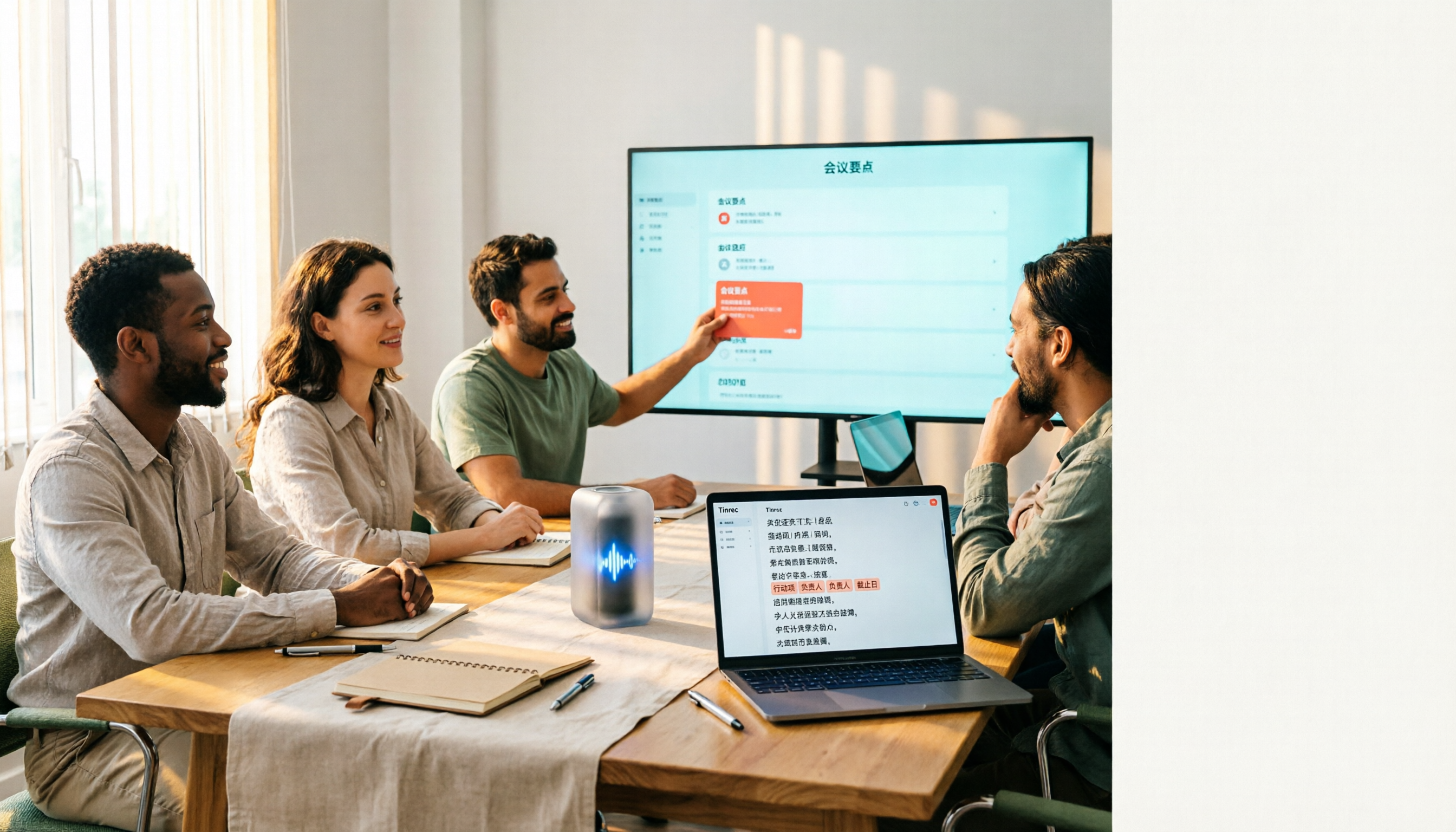
4 Free Audio-to-Text Tools Tested: Which Free Tier Actually Works?
There are plenty of free audio-to-text tools, but the real pitfalls often lie in quota rules and Chinese recognition. This article tests 4 tools, comparing free quota calculations, punctuation and paragraphing, post-meeting organization, and team collaboration, and highlights 4 common purchasing mistakes to help you find one that's free and sufficient.

How to Choose Free Online Meeting Software in 2026: 5 Steps to Find the Best Meeting Notes Solution
Free online meeting software helps you host meetings, but organizing notes afterward is the real pain point. This article compares Zoom's free version with Tinrec, analyzing five dimensions—meeting notes, AI summaries, cross-platform support, Chinese language support, and team collaboration—to help you find the best free online meeting notes solution.

2026 Comparison of 2 Online Meeting Transcription Solutions: Tinrec vs Cisco Webex
Cisco Webex is where many online meetings start, but after the meeting ends, transcripts, notes, and action items often end up scattered across different platforms. This article compares Tinrec and Cisco Webex across 5 dimensions—cross-platform recording, Chinese transcription and real-time translation, post-meeting output, team data retention, and pricing thresholds—to help you decide which online meeting transcription approach suits you best.

2026 Comparison of 3 Webex Online Check-In Methods: Chat, Recording Proof, and Team Knowledge Retention
Is a simple Webex chat check-in enough, or do you need more complete attendance proof? This article compares three online check-in approaches, outlines the chat check-in steps for desktop and mobile, and tests Tinrec desktop's bot-free recording of Webex meetings. From attendance retention to speaking proof and team knowledge retention, get the full picture at once.
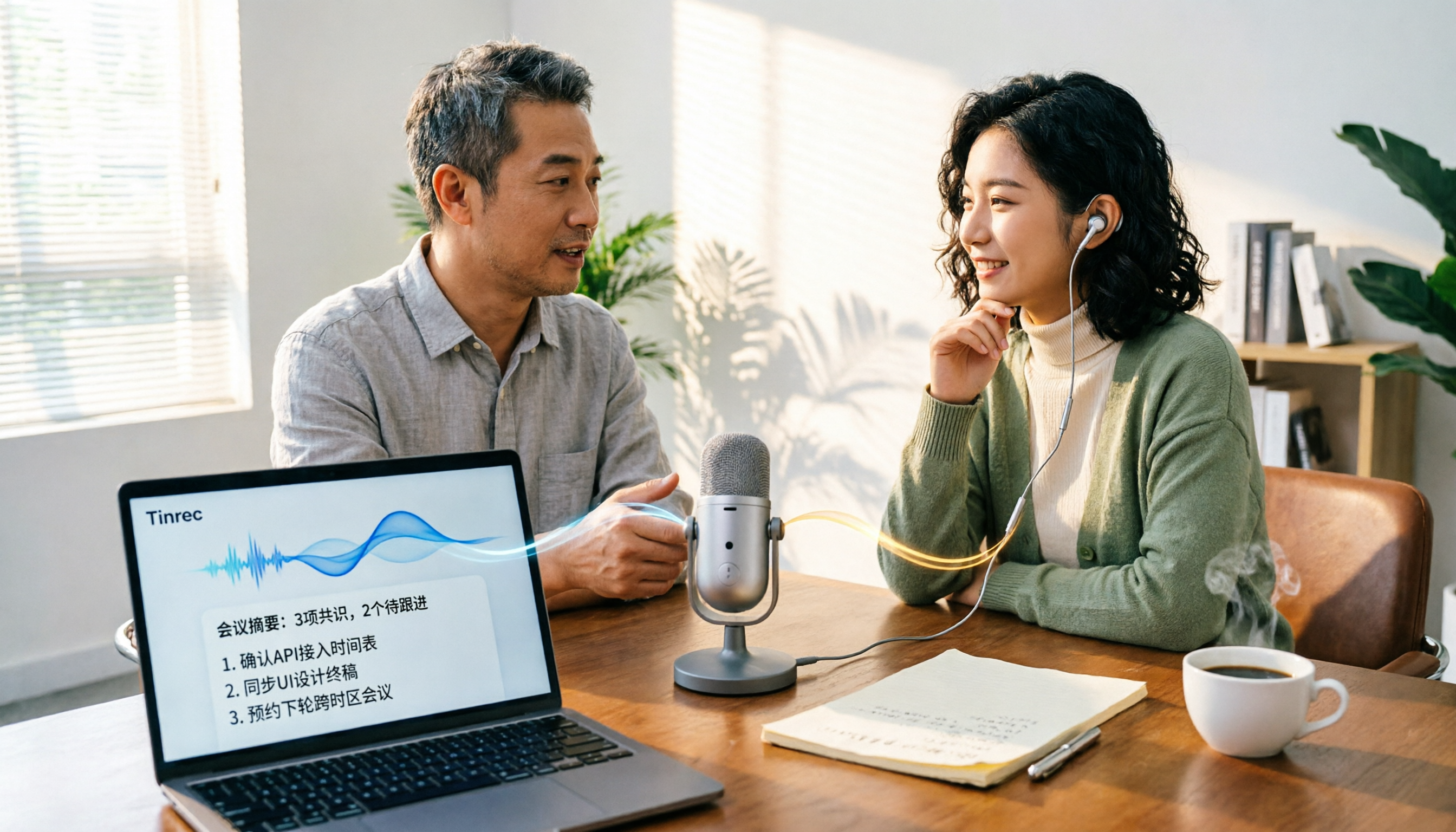
Tinrec vs PLAUD Note in 2026: A 5-Dimension Comparison — Which Is More Complete Beyond an Online Meeting Microphone?
Bought an online meeting microphone but still missing meeting notes? This article compares Tinrec and PLAUD Note across 5 dimensions: meeting capture, recording storage, Chinese language experience, post-meeting AI organization, and team collaboration, to help you decide which combination fits your work style.
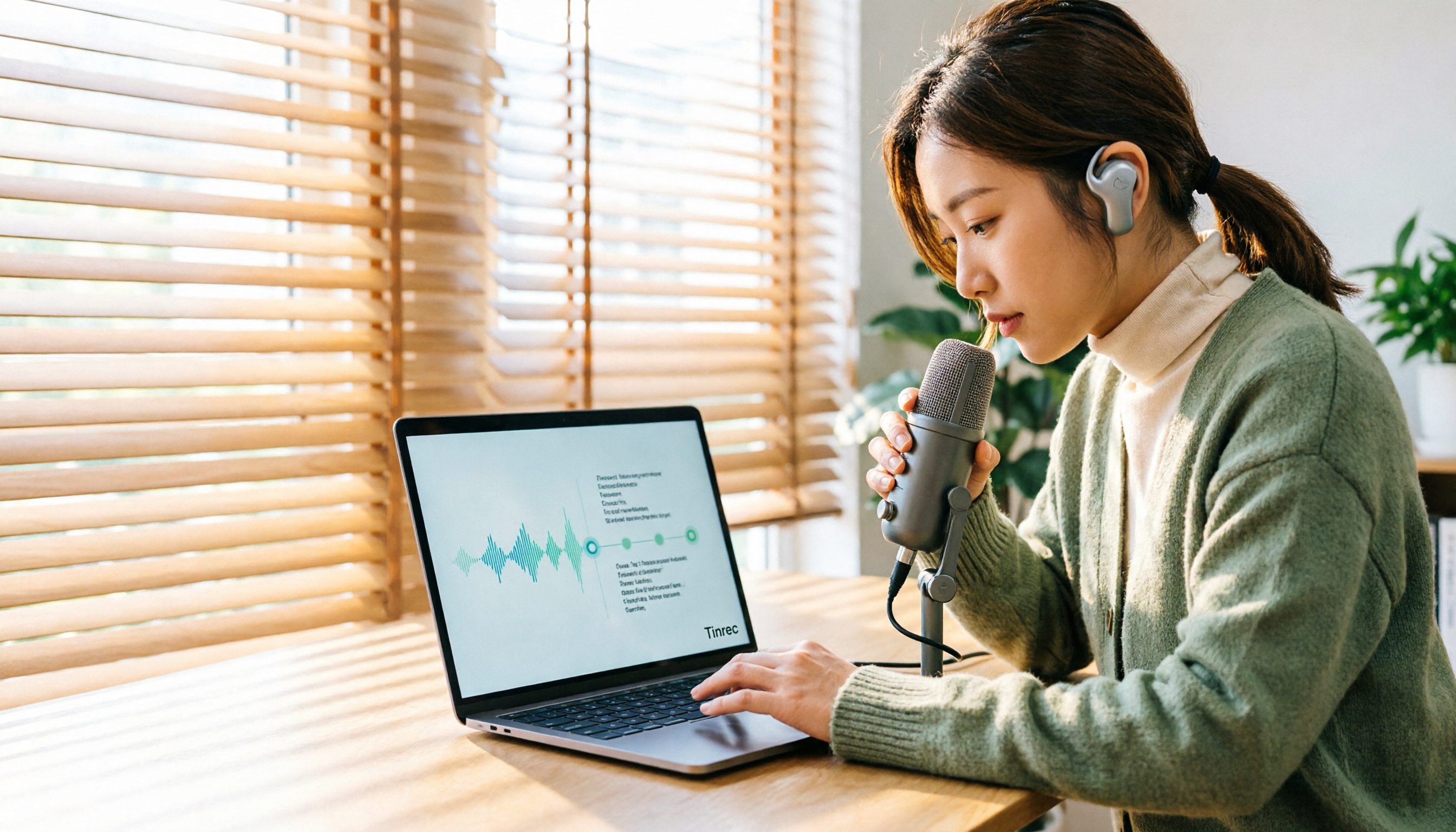
How to Transcribe Audio Files with Google in 2026: A Complete 5-Step Guide
Google's free tools can convert audio files to text, but there are several pitfalls to watch out for. This guide starts with common misconceptions, walks you through a 5-step process to transcribe audio, and compares Google AI Studio, Google Docs voice typing, and Tinrec to help you choose the right tool.