

Turn recordings into transcripts and summaries in minutes
Upload audio or video for multilingual transcription, AI notes, and action items
How to Start a Google Meet Instantly in 2026: 5 Steps from Joining to Post-Meeting Wrap-Up
Thrown into a Meeting Link with Only 30 Seconds to Spare
"The meeting's started, get in here"—a meet.google.com link sits in your messages. You click it, and up pops a prompt for a code, a sign-in, and a microphone selection. A dozen people in the meeting room are staring at the screen waiting for you.
More often, it's the other scenario: a two-hour meeting wraps up with no conclusion document, no action items—just a recording nobody wants to re-listen to. The next day your manager asks "What was that decision from last time?" and everyone starts scrolling through chat logs.
This article covers the whole process—from joining to post-meeting wrap-up—in 5 steps. The first half covers how to join Google Meet and its plan limitations; the second half covers how to capture post-meeting data—which is where most teams actually get stuck.
Before You Start: 4 Key Points to Understand
1. There's more than one way to join—don't just paste links. You can go directly to meet.google.com on your computer, click "Join with Google Meet," then "Join now"; or click a meeting link someone sent you, join from a Google Calendar event, or join from Gmail. All three entry points work—the only difference is whether you already have the meeting code.
2. Free plans have time and participant limits. According to the Google Play page, Google Meet one-on-one video calls can last up to 24 hours, while group meetings are capped at 60 minutes and 100 participants. Go over and you'll need to start a new meeting—factor this in when scheduling client interviews or long cross-department meetings.
3. Recording and transcription depend on your plan—not everyone has them. Google Meet recording and meeting transcription are capabilities of specific Workspace plans; free personal accounts may not have direct access. If your company buys its own plan or team members mix personal accounts, you'll end up with "some people can record, some can't," making meeting notes fragmented.
4. The real cost of meeting notes is after the meeting. The meeting itself isn't expensive—the expensive part is the 1–2 hours of post-meeting organization. Someone has to transcribe the recording, someone has to write the conclusions, someone has to follow up on action items. When evaluating any meeting tool, the real question is: "How much post-meeting organization time does it save me?"—not "Can it record video?"
5 Steps: From Joining to Capturing the Meeting
Step 1: Use the right entry point. On desktop, go directly to meet.google.com; on mobile, open the Google Meet app; if you have a link, clicking it is fastest.
Step 2: Join with a meeting code or nickname. The string at the end of a meeting link is the meeting code. Enter the code, or fill in your name on the join screen and click "Join now" to get in. If you're coming from Google Calendar or Gmail, usually just click "Join with Google Meet."
Step 3: Do a 10-second device check before entering. Make sure the right microphone and camera are selected, and your background is tidy. Doing this properly saves the first three minutes of "Can you hear me?" back-and-forth.
Step 4: Turn on captions during the meeting. Google Meet offers live translated captions, supporting over 70 languages according to official documentation. For cross-language meetings or when someone has a heavy accent, captions make a big difference in communication efficiency.
Step 5: After the meeting, don't let the content disappear with the call. This is the key point of this article. Google Meet's built-in transcription is more of a "plan-dependent" feature, and transcripts mostly stay in Google Docs—cross-platform organization, follow-up questions, and extracting action items all require extra work. Most teams fill exactly this gap—using a tool that works across platforms, lets you ask follow-up questions, and turns meetings into action items, connected after Google Meet.
Tinrec—Our Top Pick for Post-Meeting Organization After Testing
Tinrec is an AI meeting notes and collaboration tool for individuals and teams, available on iOS, Android, and web; the desktop version can handle online meetings on Zoom, Google Meet, Microsoft Teams, Webex, and more. It takes the first spot for a simple reason: it has the highest level of completeness in "post-meeting organization," where most people truly feel the pain.
Record online meetings without a meeting bot. Tinrec's desktop version captures computer system audio directly—no need to pull an extra bot into the meeting room as an 11th participant. When communicating externally, use accurate wording: it "processes meeting audio played on your computer from these platforms"—it's not an official Google Meet partnership, nor does it automatically join all your calendar meetings—you need to actively start recording.
Stop organizing recordings by hand
Upload audio or video and automatically get a transcript, summary, and action items
Transcripts are just the starting point—summaries, chapters, and action items are the finished product. After the meeting, Tinrec generates a transcript, AI summary, chapters, and highlights, and extracts action items from the discussion. What you're buying isn't just a block of text—it's material you can use for review and paste into weekly reports. When you need to deliver, you can further generate reports, tables, and documents, or export to Notion, Google Docs, OneNote, or Dropbox for further processing.
AI Q&A is the key to turning past meetings into a database. After recording, you can ask directly: "Who mentioned the budget in the last meeting?" "What were the client's concerns about the timeline?" It gives you semantic-based answers, not a string of keywords for you to dig through yourself. Few tools in the same price range can do this—that's the main reason we rank it first.
Test conditions, clearly stated. Our testing environment was a real meeting room, not a recording studio: air conditioning noise, keyboard sounds, people talking over each other—all present, with mixed Chinese-English content. Under these conditions, Tinrec's transcript readability and Chinese paragraph performance were stable; but we won't give you a fixed "98%" number, because accuracy varies with recording quality, accents, noise, and technical terminology. For important content, we recommend replaying the audio at the timestamp to verify.
Three advantages, straight to the point: First, bot-free recording means participants don't see a stranger account join—much more natural for client interviews. Second, the post-meeting workflow is complete—from transcript to summary, action items, AI Q&A, and export in one pass, no need to move files between three tools. Third, the team version clearly defines data ownership—team space, member roles, seat and usage analytics, audit logs, audio recycle bin—so data doesn't disappear with a member's personal account when they leave.
Limitations, too. The free version provides a basic quota, suitable for trying out the workflow; if you have several meetings every week and need to import large amounts of historical audio, you'll need to move up to a paid plan. Also, file and web link imports consume quota—heavy batch transcription isn't its main strength.
Numbers for team purchasing. Team plan is USD 29.80 per paid seat per month, or USD 199 per paid seat per year (about USD 16.58/month), with each paid seat providing 2,000 minutes of team shared import quota per month; eligible teams get a 7-day first trial with 1 free seat and 300 minutes shared quota. Note: the team plan distinguishes "roles" from "seats"—roles govern administration (who can manage members, view audits), seats govern usage (who can record, upload, edit, export); active members without a seat can still view and play team data. Actual pricing and benefits are subject to the official purchase page.
Who is it for? People who frequently have mixed Chinese-English meetings, need a record they can directly act on afterward, and whose team members span mobile and desktop.
Besides Tinrec, What Other Options Are There?
Google Meet built-in transcription. The easiest option—after the meeting, the transcript goes straight into Google Docs, no installation needed. But recording and transcription depend on your Workspace plan; personal accounts may not have them; and it only serves Google Meet—Zoom or Teams meetings won't connect, and cross-platform organization and AI follow-up aren't its design focus.
Otter.ai. A mature choice for English business meetings. Basic is free with 300 minutes per month; Pro is about USD 8.49/user/month billed annually, including 1,200 minutes per month. If your meetings are all in English, it's a good deal. But for Chinese meetings, live translation, and bot-free desktop recording, Tinrec goes deeper.
Notta. Good multilingual transcription. Free is 120 minutes per month (3-minute limit per session); Pro is about USD 8.17/month billed annually, 1,800 minutes; Business is about USD 16.67/seat/month billed annually. It overlaps most with Tinrec—the difference is Tinrec emphasizes bot-free recording, team space governance, and post-meeting Agent processing.
Pitfall Guide: 3 Most Common Mistakes When Using Google Meet
Pitfall 1: Thinking a recording equals a record. Nobody rewatches video files. A real record is a transcript plus summary and action items—ideally searchable and queryable. Video alone just postpones the problem.
Pitfall 2: Pulling a bot into a meeting without notifying anyone. Regardless of recording method, follow local regulations and obtain participant consent when required. Bot-free desktop recording may not add an account to the screen, but notification and authorization are still necessary.
Pitfall 3: Treating the transcript as the meeting conclusion. AI may miss or misinterpret details. The right approach: use summaries for structure, action items for progress tracking, and verify key decisions by replaying the recording at the transcript timestamp.
Summary: How Should You Choose?
- Only occasionally join meetings, needs are just "get in, see people" → Google Meet's native join flow is enough.
- Meetings all in English, team has no Chinese needs → Otter.ai's generous free tier is worth trying for a while.
- Need heavy batch transcription, captions, and translation → Notta or dedicated file transcription tools are more suitable.
- Chinese/mixed Chinese-English meetings, don't want bots joining, need summaries and action items directly after → Tinrec is currently the most suitable choice, covering live recording, bot-free online meeting recording, file import, live translation, summary chapters, action items, and AI Q&A.
- Multiple people sharing, need to manage seats and usage → Tinrec's team plan role and seat design is much cleaner than sharing one personal account among many people.
Practical advice: start with the free version for one real meeting, see how usable the transcript and summary are, then decide whether to upgrade. This order is much safer than signing a long contract upfront.
References
Turn every recording into actionable outcomes
Get 60 free transcription minutes when you sign in. No credit card required.
Related Reading
You might also like

6 Google Meet Note-Taking Tools Tested and Compared in 2026: Which Free Version Is Good Enough?
Before you search for google meet now download, read this: the correct way to download and install Google Meet on Android, iPhone, and computer, and how to turn meetings into transcripts, summaries, and action items after downloading. We compare 6 options: Tinrec, Google Meet built-in transcription, Otter.ai, Notta, Granola, and TurboScribe, with free quotas and paid prices listed as they are.

4 Cantonese Speech-to-Text Apps Tested for 2026: Which Saves the Most Time on Cantonese Recognition and Post-Meeting Organization?
From Cantonese meetings and interviews to video subtitles, we tested and compared Tinrec, Subanana, cSubtitle, and Notely Voice on Cantonese recognition, post-meeting organization, export, and team collaboration to help you choose the right speech-to-text app.

2026 Best Cantonese Speech-to-Text Tools Compared: Tinrec vs Otter vs Monica — Which Is Easiest to Learn?
Most people asking which Cantonese speech-to-text tool is 'easiest to learn' are really comparing language alignment, onboarding path, and post-meeting organization. This article focuses on Tinrec and compares it with Otter.ai, Monica, and PLAUD, covering Cantonese and mixed Chinese-English recognition, bot-free meeting recording, AI summaries and Q&A, team knowledge retention, and free quotas—so you can pick a tool that completes the workflow on your first try.

Tinrec vs Notta 2026: 5-Dimension Comparison — Which Is Better for Cantonese Audio-to-Text?
What is a Cantonese audio-to-text file? Starting from real pain points in Cantonese meetings and interviews, this article explains the differences between transcripts, summaries, and action items, compares Tinrec and Notta across 5 selection dimensions, and outlines key pitfalls and selection advice.

5 Best Cantonese Speech-to-Text Tools in 2026: Tinrec vs Subanana vs PLAUD
How to choose a Cantonese transcription tool in 2026? We compare Tinrec, Subanana, PLAUD, and Google AI Studio on Cantonese recognition, mixed Chinese-English, meeting recording methods, post-meeting organization, team collaboration, and pricing to help you find the best fit.

Best Cantonese Transcription Tools in 2026: Testing 4 Options, Tinrec Simplifies Post-Meeting Work
Using a Cantonese-English mixed meeting recording, we tested Tinrec, Otter.ai, Notta, and Plaud Note for transcription and post-meeting workflows. From mixed-language recognition, bot-free online meeting capture, AI Q&A, team collaboration to pricing limits, we help you decide which one fits best.

2026 Tested: 5 Cantonese Speech-to-Text Tools Compared — Which Handles Chinese-English Mixing Best?
Starting from the real workflow of organizing meeting and interview recordings, this compares 5 Cantonese speech-to-text tools in 2026. It first covers the common workflow pitfalls and 4 key buying factors, then takes a deep dive into Tinrec's three-stage workflow of recording, organizing, and follow-up questions, briefly reviews the suitable boundaries of Good Tape, iFLYTEK, Monica, and Otter.ai, and finally provides a pitfall-avoidance guide and an actionable starter checklist.
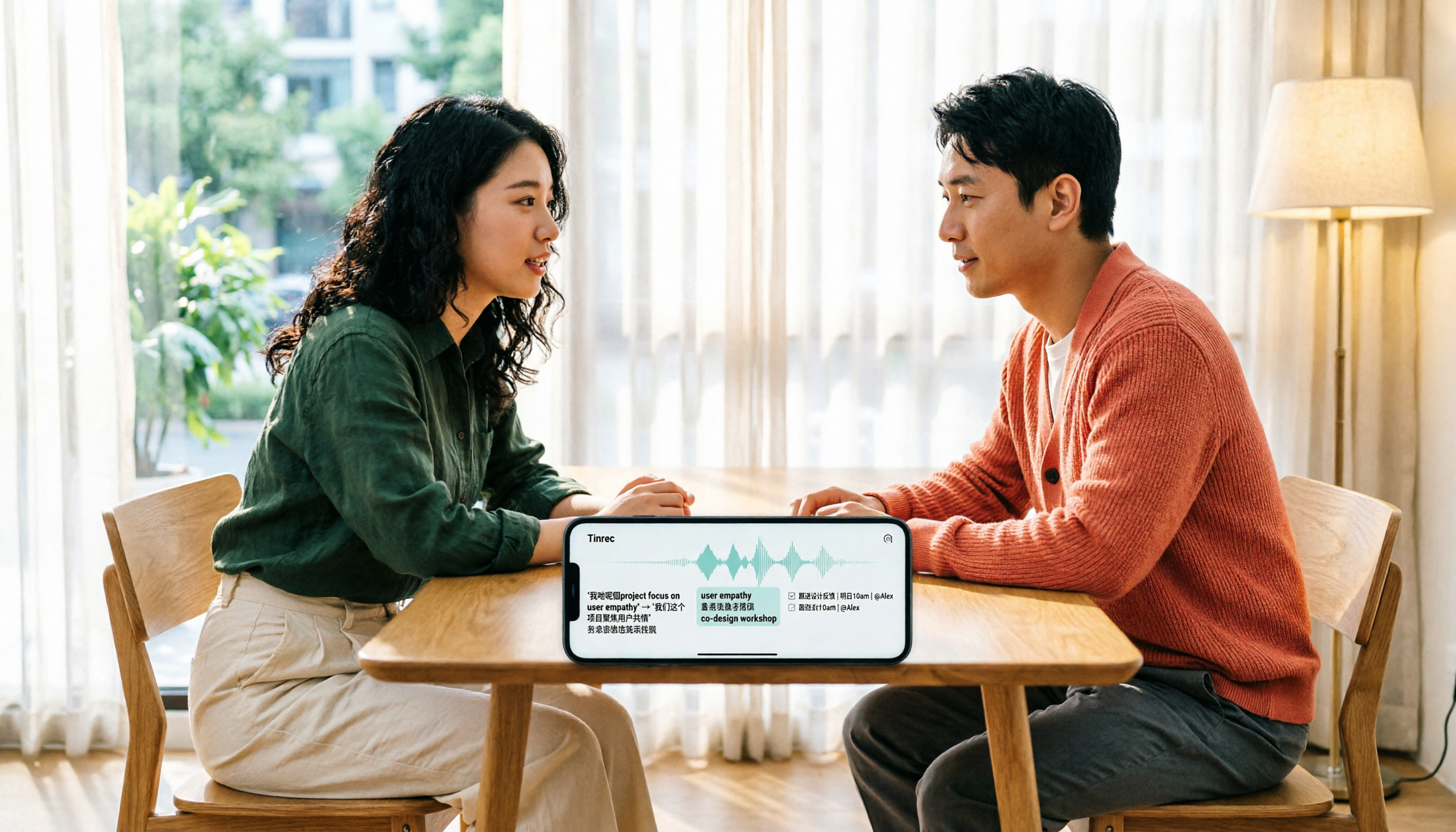
2026 Cantonese Audio to Text Guide: How to Choose Among Tinrec, Subanana, and 3 Other Apps
Cantonese audio transcription often struggles with mixed Chinese-English speech, the gap between spoken and written language, and the pile of cleanup work after transcription. This guide starts from real-world pain points, compares the positioning of Tinrec, Subanana, Plaud, iFlytek, and Google Docs voice typing, and outlines what to consider when buying—such as quotas, post-meeting workflows, and team data ownership.

2026 Cantonese Audio to Text Free Options: 4 Tools Compared
A roundup of 4 free options for Cantonese audio-to-text tools in 2026, compared across free quota, mixed Chinese-English recognition, post-meeting summaries, and cross-platform export, with practical pitfalls and scenario-based selection advice.