

Turn recordings into transcripts and summaries in minutes
Upload audio or video for multilingual transcription, AI notes, and action items
4 Google Meet Meeting Notes Tools Tested in 2026: Which One Can Actually Retrieve Your Recent Meetings?
Looking for notes after the meeting is usually too late
Many people assume that after a Google Meet call, the transcript and recording will stay in their account, ready to open whenever they need them.
That's the biggest misunderstanding.
For Google Meet meeting records, regular users actually don't have a dedicated 'recent meetings' entry to browse. According to Google Workspace's official help community, only domain administrators can query past meeting records, and only in the admin console for Business or Education plans; regular accounts can't see this record.
What about finding it through Google Calendar? You can, but you'll only see that 'this meeting existed'—the time, attendees, and meeting link. What was said in the meeting isn't kept in the calendar.
What's more troublesome is impromptu meetings. The kind that aren't scheduled in the calendar—afterward, almost nothing can be recovered.
Google Meet has indeed been updating recently, such as device interoperability with Microsoft Teams and adjustments to the automatic 'take notes for me' setting, but these are all features during the meeting itself. They still don't answer the most frequently asked question: after the meeting is over, where do you find the content?
So the more reasonable approach isn't to 'look back afterward,' but to 'capture usable data during the meeting.'
To retrieve recent meeting notes, first understand these 3 key points
First, was this meeting added to Google Calendar?
If it's in the calendar, at least you can find the meeting event itself; an impromptu call not in the calendar leaves no trace at all. That's why I usually first confirm: do I want the 'event record' or the 'meeting content'? These two things are separate in Google Meet.
Second, do you want a transcript, or data you can use directly?
A pure transcript only solves the 'transcription' part. But when most people look back at a meeting, what they really want to know is often 'what was the conclusion,' 'who agreed to what,' 'when is the next deadline.' That requires summaries, sections, and action items, not a 30-minute stream of speech.
Third, do you want to keep the audio file?
Some tools only give you text and don't keep the audio. When there's a misheard part in the transcript, you have no original recording to check against—this is especially noticeable in meetings with multiple people talking over each other and lots of technical terms.
Tinrec (Miao Ting Lu Yin) — the approach I personally use
Tinrec is an AI meeting notes and collaboration tool for individuals and teams, available on web, desktop, and mobile.
It handles Google Meet differently from meeting bots. The desktop version directly captures the computer's system audio, so you don't need to pull an extra bot into the meeting room, and no unfamiliar account appears in the attendee list. This is especially practical in client-facing meetings—you don't have to explain 'who is that AI that joined the meeting.'
When you open Tinrec during a meeting, it transcribes as it records. When the meeting ends, the summary, sections, and action items are already organized: who's responsible for what, when each item is due—no need to re-listen to the recording.
I think the most practical feature is the post-meeting AI Q&A. You can directly ask 'What was the budget cap we discussed with the client last time?' and it will give you the answer from the meeting content, rather than dumping a bunch of keywords for you to search yourself. Tools at the same price point mostly still stop at 'here's a transcript + Ctrl+F.'
Other useful features include: real-time translation and bilingual view during recording, mixed Chinese-English content organization, export to Notion, Google Docs, OneNote, Dropbox, and other common tools, plus generating reports, tables, and documents from meeting content.
Limitations that need to be stated honestly:
Stop organizing recordings by hand
Upload audio or video and automatically get a transcript, summary, and action items
Tinrec doesn't automatically join every meeting on your calendar; you have to start recording yourself. It's also not an official Google Meet partner feature—it processes 'meeting audio played on your computer.' Additionally, transcription quality is affected by audio quality, accents, overlapping speakers, and technical terminology; for important content, it's recommended to cross-check with recording playback.
For team use:
The team version is a separate team space, not multiple people sharing one personal account. Currently offers a 7-day trial, 1 free seat, and 300 minutes of team shared import quota; monthly USD 29.80 per paid seat, annual USD 199 per paid seat (about USD 16.58/month), with each paid seat getting 2,000 minutes of team shared import quota per month. Under an active team plan and active seats, real-time recording currently doesn't deduct minutes; only file and web imports use the shared quota.
Note that roles and seats are two different things: members without a seat can view, play, and read team data, but to record, upload, edit, and export, they need a seat.
Who it's for: People who frequently use Google Meet, need Chinese and mixed Chinese-English meeting notes, want to use AI to find key points directly after meetings, and prefer meeting data to stay with the team rather than in personal accounts.
Besides Tinrec, what other options are there?
Otter.ai: A mature English meeting assistant. Basic is free with 300 minutes per month; Pro annual billing is about USD 8.49/user/month, including 1,200 minutes per month. If your meetings are entirely in English and your workflow is in an English environment, it's quite sufficient; but Chinese and mixed Chinese-English organization isn't its strong suit, and the flexibility of post-meeting output isn't as complete as Tinrec's.
Granola: Also takes the bot-free route, transcribing in real time through desktop system audio. Basic is free, Business is USD 14/user/month. Its feature is enhancing with your handwritten notes. However, it has two clear limitations: it doesn't support uploading existing pre-recorded audio files, and it doesn't save meeting audio files. If you need to replay for verification afterward, this is a big difference.
Notta: A multi-platform transcription tool. Free version has 120 minutes per month with a 3-minute limit per item; Pro annual billing is about USD 8.17/month, with 1,800 minutes per month. Suitable for pure document transcription and translation needs; but for post-meeting team space, seat management, and post-meeting output, Tinrec is more complete.
Pitfall guide: The 3 most common mistakes when checking Google Meet recent meetings
Pitfall 1: Thinking there's a 'recent meetings' list in Google Meet.
There isn't. Unless you're a domain administrator, regular accounts can't find this record. Rather than spending time digging through settings, it's better to keep data in a place you control from the start.
Pitfall 2: Relying only on Google Calendar to find meetings.
The calendar can tell you 'there was a meeting last Wednesday,' but it won't tell you 'what was decided in the meeting.' You can use it as an index, but you'll be disappointed if you treat it as a record.
Pitfall 3: Realizing you didn't record only after the meeting.
This is the most common and most painful one. Recording must be decided before the meeting starts, and remember to inform attendees in advance according to local regulations and company policies. If you want to remedy it last minute, you'll usually have to rely on your own memory.
Pitfall 4: Only using the tool as a transcript.
If you only use it to 'record audio to text,' you're only using one-third of its capabilities. For example, Tinrec's AI Q&A—directly asking 'What was the conclusion of this meeting?' is much faster than manually flipping through a 30-minute transcript.
Conclusion: Which approach should you actually use?
To sum up in one sentence: Google Meet has no obligation to keep meeting content for you—you have to arrange that yourself.
- Just occasionally want to confirm the time and attendees of a meeting → Check Google Calendar, no need to install a tool.
- Need transcripts, summaries, and action items for Chinese meetings → Tinrec, desktop bot-free recording is the easiest.
- Want to ask AI directly after the meeting 'where did we leave off last time' → Tinrec, this is where it differs most from most tools at the same price.
- Need to use it seamlessly on phone, computer, and web → Tinrec, available on all three platforms.
- Meetings entirely in English, team workflow also in English → Otter.ai is a reasonable exception.
I suggest first trying the free version with the kind of meeting you usually have most often—the kind with background noise, people talking over each other, and technical terms. The results tested under these conditions are more honest than any official numbers.
References
Turn every recording into actionable outcomes
Get 60 free transcription minutes when you sign in. No credit card required.
Related Reading
You might also like

Which Google Meet Note-Taking Tool Is Best? 2026 Hands-On Test of 4 Options—This One Saves the Most Time for Chinese Meetings
People searching "google me" are either looking for their own online records or misspelled Google Meet. Starting from "how to capture meeting content," this article hands-on tests and compares four meeting note-taking tools—Tinrec, Otter.ai, Notta, and Granola—and outlines 4 key buying criteria and 3 common pitfalls to help you choose the right one.

How to Buy Google Meet India Plan in 2026? 4 Steps to Understand Workspace Subscription and Billing
Google Meet isn't sold separately—it's bundled in Google Workspace subscriptions, and India has its own pricing page and tax rules. This guide breaks down seats, participant limits, annual vs. monthly billing, and the actual 18% GST calculation in 4 steps, plus meeting notes tools to use after the call.

Google Meet Call History in 2026: 3 Methods Tested & How Tinrec Handles Post-Meeting Work
Where exactly is Google Meet's "Recent Calls"? This article tests 3 methods (Meet settings call history, Workspace calling page, Calendar and admin audit logs) and explains the limitations: call history only gives timestamps, not conclusions or action items. From a mid-level manager's perspective, it then shows how to use Tinrec desktop to record Google Meet without a bot, adding transcripts, summaries, action items, AI Q&A, and team knowledge retention, plus buying considerations and FAQs.

4 Recommended Benchmark Datasets Compared in 2026: Why Tenrec's Scale and True Negative Feedback Design Stand Out
Tenrec is a real user behavior dataset from two of Tencent's feed recommendation apps, covering four recommendation scenarios, about 5 million users, and 140 million interactions, and it includes both positive and true negative feedback. This article compares Tenrec with common benchmark datasets like MovieLens, Amazon Reviews, and MIND, examining scale, negative samples, cross-scenario overlap, feedback types, and feature fields to help you decide which one suits your research topic.

Google Meet Pricing Guide 2026: 5 Plans Tested and Recommendations
Google Meet has 5 tiers from Free to Enterprise, with paid plans starting at US$7 per user per month. Prices rose by US$1–4 in January 2026 due to Gemini being bundled into plans. This guide uses three variables—meeting size, session length, and post-meeting needs—to help you decide whether to upgrade and which tier to choose, and calculates the actual annual cost difference for an 8-person team.

Google Meet India Pricing in 2026: 4 Workspace Plans Compared and How to Choose a Meeting Notes Tool
Google Meet isn't sold separately in India; pricing is tied to Google Workspace plans, with the entry-level plan at about ₹99/user/month plus 18% GST. This article first explains the differences and limitations of the four plans, then discusses why most people still lack meeting notes even after buying a video plan, and how Tinrec fills the post-meeting organization gap.
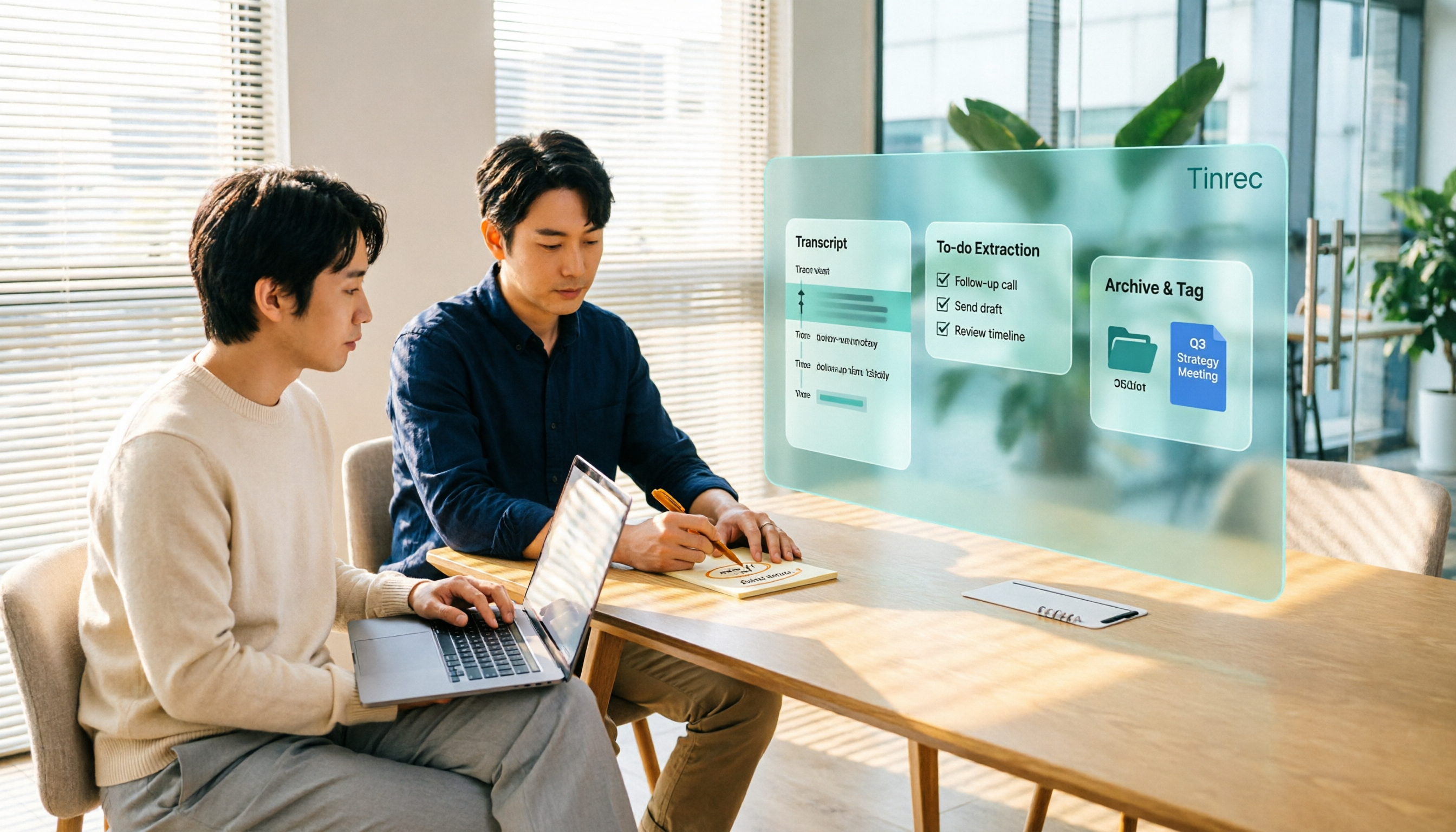
2026 Google Meet Recording Options Compared: Tinrec's No-Bot Recording and Post-Meeting Workflow
We break down Google Meet purchase plans and free version limits, and compare three recording approaches: Google Meet built-in recording, Workspace Gemini notes, and Tinrec. If you need Chinese transcripts, AI Q&A, action item extraction, and team knowledge retention, Tinrec is a more focused choice for post-meeting workflows.
Google Meet vs Zoom in 2026: 3 Mistakes That Lead to the Wrong Choice
Google Meet or Zoom? This article breaks down three common mistakes from a procurement perspective, comparing Google Workspace integration, free plan limits, post-meeting organization, and actual pricing. It also explains how to use Tinrec to turn meeting recordings into searchable team data.

Google Meet Recording in 2026: 4 Meeting Notes Solutions Compared Before You Subscribe
Google Meet doesn't have a standalone subscription; paid versions are bundled with Google Workspace or Google One. Starting from the actual search intent of "google meet purchase," this article first clarifies the purchase structure and free version limitations, then compares Google Meet built-in, Tinrec, Otter.ai, and Notta across 4 key points regarding meeting notes and post-meeting organization, and finally provides scenario-based selection advice and 4 common pitfalls to avoid.