

Turn recordings into transcripts and summaries in minutes
Upload audio or video for multilingual transcription, AI notes, and action items
How to Generate Video Subtitles in 2026: AI Auto-Captioning + Transcripts Made Easy
First, Make a Decision: Do You Need a "Subtitle File" or "Reusable Content"?
The same phrase "video subtitle generation" actually covers two completely different needs.
First type: You have a video for YouTube or Instagram Reels and need an SRT or VTT subtitle file, ideally with dynamic subtitle styling. Second type: You have a two-hour interview, course recording, or online meeting, and you need a transcript, key points, action items, and the ability to look back three months later and ask, "What exactly did the client care about?"
Most people start out thinking they only need subtitles, but by their third video they realize the real time sink is the post-subtitle cleanup—fixing typos, extracting key points, writing summaries, and handing off to others.
So the judgment criteria for this article are simple: first determine whether you're missing a "subtitle file" or "reusable content," then look at tools. Get this layer wrong, and you'll end up doing the same work three times on the same video.
Before Choosing a Video Subtitle Generation Tool, Understand These 4 Key Points
1. Output format determines whether you can use it later. SRT and VTT can be fed directly into editing software and YouTube; plain text transcripts are good for archiving and searching; summaries and action items determine whether you can hand things off to colleagues. Think about the end goal before buying a tool—don't wait until export to discover the format is wrong.
2. "Supports 100 languages" doesn't mean accurate Chinese. Multilingual lists are marketing language. What you really need to test is your scenario: mixed Chinese-English, proper nouns, multiple people talking over each other, background air-conditioning noise. These conditions are where tools truly reveal their differences. For this reason, any claim of a fixed 98% or 99% accuracy rate is only a reference; actual performance depends on recording quality, accents, noise, and overlapping speech.
3. The workflow after subtitles is more expensive than the subtitles themselves. Generating subtitles takes only a few minutes, but if the tool only gives you a big block of text, you still have to manually read through the entire meeting to write a summary. The real time-saver is whether it can automatically segment, extract chapters, list action items, and answer questions about the content.
4. Quotas, file limits, and team collaboration. Free versions usually have limits on per-file duration, file size, or watermarks. For team use, also consider data ownership—when a member leaves, will those transcripts disappear with their personal account?
Tinrec — The Top Choice for Turning Video and Meeting Content into Usable Data
Tinrec is an AI meeting notes and collaboration tool for individuals and teams, available on iOS, Android, and web/desktop. It doesn't just convert audio to text; it organizes audio and video into searchable, summarizable, queryable, and exportable data.
Scenario 1: Convert existing videos and recordings into transcripts. Upload course recordings, client interviews, or livestream replays to get transcripts that preserve the original speech and support search and review. This is the closest use case to "video subtitle generation," except it gives you content you can continue to process rather than line-by-line timecoded subtitles.
Scenario 2: Transcribe online meetings as they happen. The desktop version captures system audio directly, handling meeting audio from Zoom, Google Meet, Microsoft Teams, Webex, and other platforms playing on your computer—no need to invite a bot to join the meeting. Note that this doesn't mean it automatically joins all calendar meetings—you need to actively start recording in Tinrec.
Scenario 3: Automatic organization after subtitles. Once transcription is complete, the system generates AI summaries, chapters, and key points, and extracts action items from the discussion. Long meetings are broken into browsable structures, so you don't have to watch from start to finish.
Scenario 4: Ask questions directly about the content. This is the most obvious difference between Tinrec and most subtitle tools. After recording, you can ask things like "Who mentioned the budget in the last meeting?" or "How many objections did the client raise in this interview?" It answers based on semantics rather than dumping a list of keyword search results. The same data can also generate meeting minutes, reports, tables, and documents, or export to Notion, Google Docs, OneNote, Dropbox, and other workflows.
Scenario 5: Cross-language content. During recording, you can view the original text, translation, or bilingual comparison—especially useful for Chinese, Traditional Chinese, and multilingual meetings. Teams can also maintain custom vocabulary to improve recognition of technical terms.
Stop organizing recordings by hand
Upload audio or video and automatically get a transcript, summary, and action items
We tested with a meeting recording containing background noise and mixed Chinese-English. The transcript was readable enough to edit directly. But to be honest, results vary with recording quality, accents, and overlapping speech. For important information, we recommend replaying with timestamps to verify.
Pros: 1. Bot-free recording—no need to add another account to the meeting. 2. Output includes summaries, chapters, action items, and Q&A, not just transcripts. 3. Cross-device and team spaces—record on mobile, organize on desktop, and share the same data with your team.
Limitations: The free version offers a basic quota; heavy users need to pay. Also, SRT/VTT pure subtitle files are not its main output. If you only need line-by-line timecoded subtitles for YouTube, a dedicated subtitle tool is more direct.
Team use: Content or marketing teams often have multiple people working on the same video. Tinrec's team version is a separate team space where meeting data belongs to the team, and member roles and seats can be managed. The first eligible team trial is 7 days, 1 free seat, and 300 minutes of shared team import quota; monthly billing is USD 29.80 per paid seat per month, annual billing is USD 199 per paid seat per year (about USD 16.58 per month). Each paid seat provides 2,000 minutes of shared team import quota per month. Under an active plan, real-time recording currently does not deduct minutes. Note that roles and seats are two different things: members without a seat can view, play, and read team data but cannot upload, edit, or export. Actual pricing and benefits are subject to the official purchase page.
Who it's for: People who frequently handle Chinese interviews, courses, and meeting content, want to capture key points right after recording, use AI to ask follow-up questions, or need to turn transcripts into team knowledge.
Besides Tinrec, What Other Options Are There?
Wayin.ai: A free online AI subtitle generator. Paste a video link or upload a file to generate dynamic subtitles, supports translation into 100+ languages, and lets you download SRT or TXT—no installation, just use your browser. Suitable for social short videos that simply need dynamic subtitles. But it focuses on subtitle output and lacks Tinrec's content-oriented AI Q&A and action item extraction.
CapCut: Free and easy to learn. Go to "Text" → "Auto Captions" to generate subtitles synced with playback. It offers many font styles and animations, and you can rewrite or translate subtitles. Suitable for people who edit their own videos and care about visual effects. The downside is it focuses on the editing side; summaries, chapters, and team knowledge retention after the transcript require separate solutions.
cSubtitle: Upload video or audio to convert to text and subtitles, output SRT, VTT, and auto-punctuated transcript TXT/Word. Maximum file size 4GB, duration up to 180 minutes, and optimized for Taiwanese Mandarin (Traditional Chinese), Standard Mandarin, and Hong Kong Cantonese. Suitable for content creators who need large volumes of transcripts and subtitle files. It doesn't focus on post-meeting organization; for querying across a batch of recordings, extracting action items, and team sharing, Tinrec remains stronger.
Pitfall Guide: The 4 Most Common Mistakes in Subtitle Generation
Pitfall 1: Only looking at claimed accuracy. Scores measured in a quiet studio drop significantly in a conference room with echo and keyboard noise. The simple approach: test with your own 5-minute real recording, don't just look at advertising numbers.
Pitfall 2: Treating "multilingual" as "good at Chinese." Having 100 languages on the list and accurately transcribing your mixed Chinese-English interview are two different things. Prioritize testing your actual language combination.
Pitfall 3: Only making subtitles, not organizing. Subtitles are for viewers; transcripts are for you. If you have to rewatch a two-hour recording from scratch every time to write key points, you're only using a third of the tool's capability—like Tinrec's AI Q&A, where asking "What was the conclusion of this meeting?" saves the time of searching back and forth.
Pitfall 4: Ignoring data ownership. Accumulating a year's worth of team video transcripts on a personal account means they're gone when a colleague leaves. Team content should be stored in a team space, and roles, seats, and handover rules should be confirmed in advance.
Conclusion: Which One Should You Choose?
Go back to the decision at the beginning—the answer is actually clear:
- If you just need an SRT subtitle file to upload to YouTube or social media → Wayin.ai or cSubtitle, shortest workflow.
- If you edit your own videos and want good-looking subtitle styles → CapCut is handy.
- If you want video and meeting content turned into transcripts + summaries + action items, with follow-up questions later → Tinrec, this is its biggest difference from subtitle tools.
- If you need cross-device use (record on mobile, organize on desktop) → Tinrec, iOS, Android, and web/desktop are interoperable.
- If a team needs to share the same batch of meeting and video data, with seat and usage management → Tinrec team version.
If you have videos like interviews, courses, or meetings that will be "reused," we suggest first running one or two of your own materials through Tinrec's free basic quota to see if the transcript and summary are directly usable, then consider upgrading. If you just need a short video with subtitles, a dedicated subtitle tool will get you done faster.
One final reminder: when handling meeting or interview recordings, remember to comply with local regulations and obtain participant consent when necessary.
References
- AI Subtitle Generator – 99% Accurate, Free Online Use
- AI Subtitle Generator - Online Auto Subtitle Generation | FlexClip
- Online AI Audio/Video Auto Transcription and Chinese Subtitles - Free Trial - cSubtitle
- CapCut Auto Caption Generator | Free Online Auto Subtitles
- Online Auto Subtitle Generator — Clideo
Turn every recording into actionable outcomes
Get 60 free transcription minutes when you sign in. No credit card required.
Related Reading
You might also like

Google Meet Transcription in 2026: 4 Methods Tested — Free Accounts Can Get Transcripts Too
Free Google Meet accounts don't include built-in transcription, so after a meeting you're on your own to produce a transcript. This article starts from the decision point of whether to upgrade Workspace for this purpose, and compares four approaches: Tinrec, Google Meet's built-in transcript, Otter.ai, and Notta. It covers pricing, usage limits, and four common pitfalls.
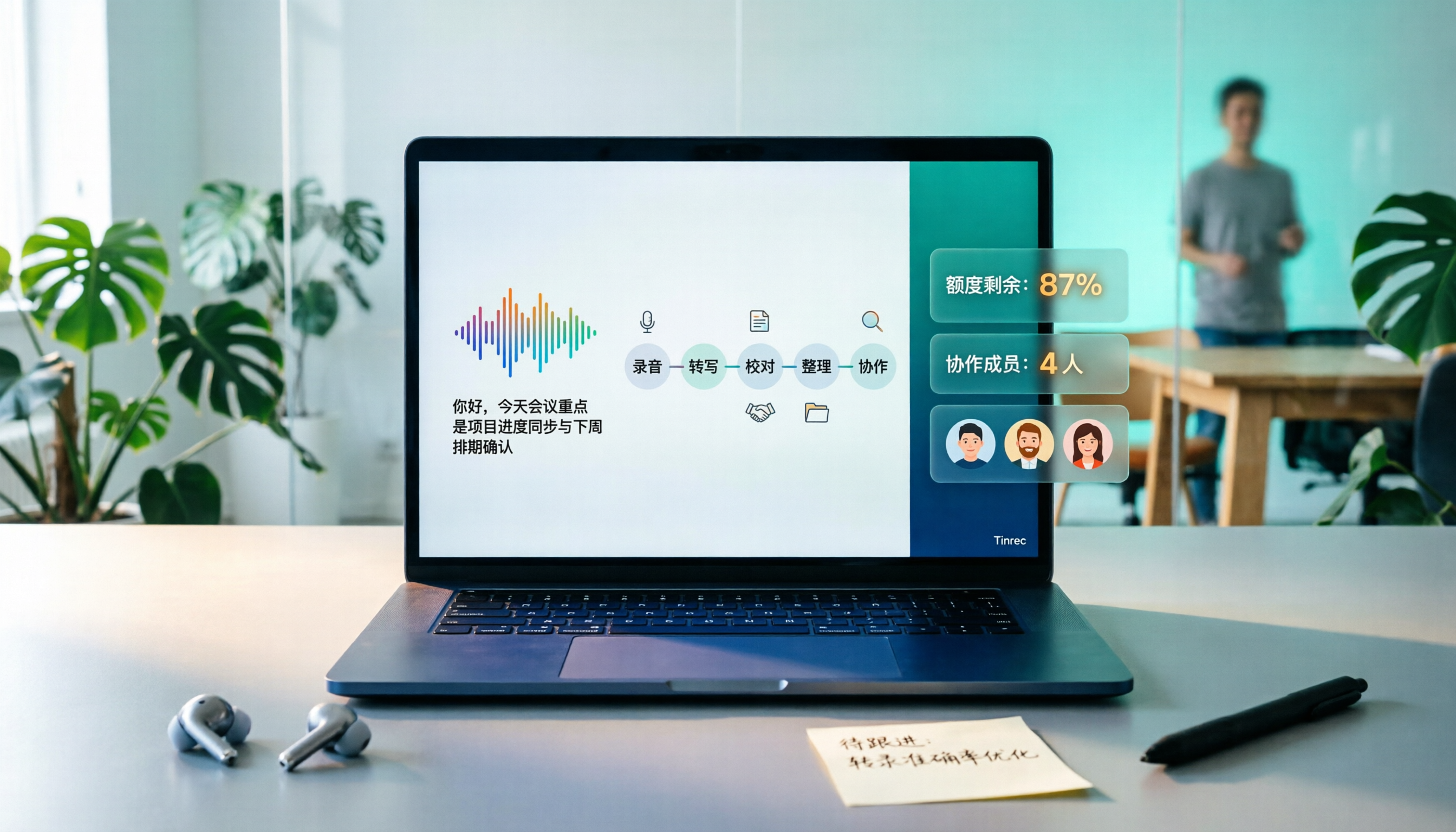
How to Transcribe Windows Recordings in 2026: A 5-Step Guide
How do you transcribe recordings on Windows? This article breaks down the process from recording to transcript in 5 steps, and compares Tinrec and Microsoft 365 Word transcription side by side across dimensions like Chinese support, online meeting audio capture, quota and billing, and team collaboration to help you choose the right solution.

2026 Comparison of 4 YouTube-to-Text Tools: Which One Actually Turns Videos into Usable Data?
From a mid-level manager's practical perspective, we tested and compared Wayin.ai, TurboScribe, Vizard, and Tinrec for YouTube transcription, and explain how to choose based on whether you just need a transcript or want post-processing and team collaboration.

2026 Video-to-Text Tools Compared: Which Free Tier and Chinese Transcription Actually Works?
Free quotas, timestamps, AI follow-up questions, and team collaboration are what really set video-to-text tools apart. This guide cuts through common misconceptions, compares Tinrec, VEED.IO, Vidnoz, and TurboScribe, and shares 4 key buying factors plus pitfalls to avoid.

Free Video-to-Text Tools in 2026: 6 Options + Free Tier Comparison
A roundup of 6 free video-to-text tools, comparing free quotas, file size limits, Chinese recognition, output formats, and team collaboration. Also explains where Tinrec fits in meeting and video organization workflows.

2026 Comparison of 4 Google Meet Recording Extensions and Alternatives: Don't Install the Wrong One for Free Accounts
Starting from the common misconception that free Gmail accounts lack built-in recording, this comparison of Google Meet recording extensions, built-in recording, and desktop recording solutions helps you choose a tool that can record, transcribe, and support team collaboration.

2026 Video-to-Text App Comparison: Which One Turns Meeting Recordings into Notes You Can Query?
An hour-long meeting recording takes two hours to transcribe? We tested four video-to-text apps, comparing input sources, post-meeting output, Chinese recognition, team collaboration, and quota calculations, plus three common purchasing mistakes to help you choose a tool that delivers ready-to-use results.
How to Convert TikTok to Text in 2026: A 3-Step Guide
TikTok videos are full of useful information, but manually typing it out takes time. This guide walks you through 3 steps to choose the right tool, paste a link, and convert to text. We also compare Tinrec, BibiGPT, Dictationer, and Zeemo to help you find the best TikTok-to-text solution.

2026 Comparison of 4 Meeting Video-to-Text Tools: Which Saves the Most Time for Transcripts, Summaries, and Team Retention?
Meeting video-to-text shouldn't stop at transcripts. Based on real meeting scenarios, this article compares Tinrec, Notta, TurboScribe, and Granola on recording methods, post-meeting organization, AI Q&A, export, and team collaboration, and honestly lists free quotas and paid prices to help you decide which one truly saves time.