

Turn recordings into transcripts and summaries in minutes
Upload audio or video for multilingual transcription, AI notes, and action items
2026 Comparison of 4 Google Meet Recording Extensions and Alternatives: Don't Install the Wrong One for Free Accounts
The Biggest Pitfall with Google Meet Recording Extensions Isn't 'Which One to Install'
Many people open the Chrome Web Store, search for Google Meet recording extensions, see 'one-click recording' and 'AI transcription,' and install them. But the real pitfall usually isn't the extension's name—it's that you never first confirmed: free Gmail accounts simply don't show a recording button in the Google Meet interface. This isn't a bug; it's by design. Google Meet's built-in recording requires an eligible paid Google Workspace plan, admin-enabled permissions, and is primarily desktop-based. The second pitfall is 'having video doesn't mean having audio.' If screen recording isn't set up properly, you might only capture system audio or only the microphone, and only after the meeting discover the other participants' voices are missing. The third pitfall is 'ending up with just one big file after recording'—no transcript, summary, action items, or searchable record, so organizing takes even longer. Rather than installing randomly, choose a solution based on four angles: recording source, audio completeness, post-meeting output, and team collaboration.
Before Choosing a Google Meet Recording Solution, Understand These 4 Key Points
First, check account permissions. Free Gmail has no built-in Google Meet recording. If your company doesn't have a paid Workspace plan and admin authorization, instead of looking for a button, choose an alternative that doesn't require meeting recording permissions. Second, check how it captures audio. You need to confirm whether it can capture both system audio and microphone; otherwise, you'll only record half of an online meeting. Third, check post-meeting usability. Getting only a video file versus getting a transcript, summary, chapters, action items, and AI Q&A are completely different levels of work efficiency. Fourth, check team accessibility. If meeting data is scattered across personal computers and chat rooms, it's hard to hand over when members leave; only solutions with team spaces, roles, seats, and usage management are suitable for departmental procurement. Note: Before recording and transcribing, obtain consent from participants in accordance with local regulations.
Tinrec (Miao Ting Recording) — Our Top Choice After Testing
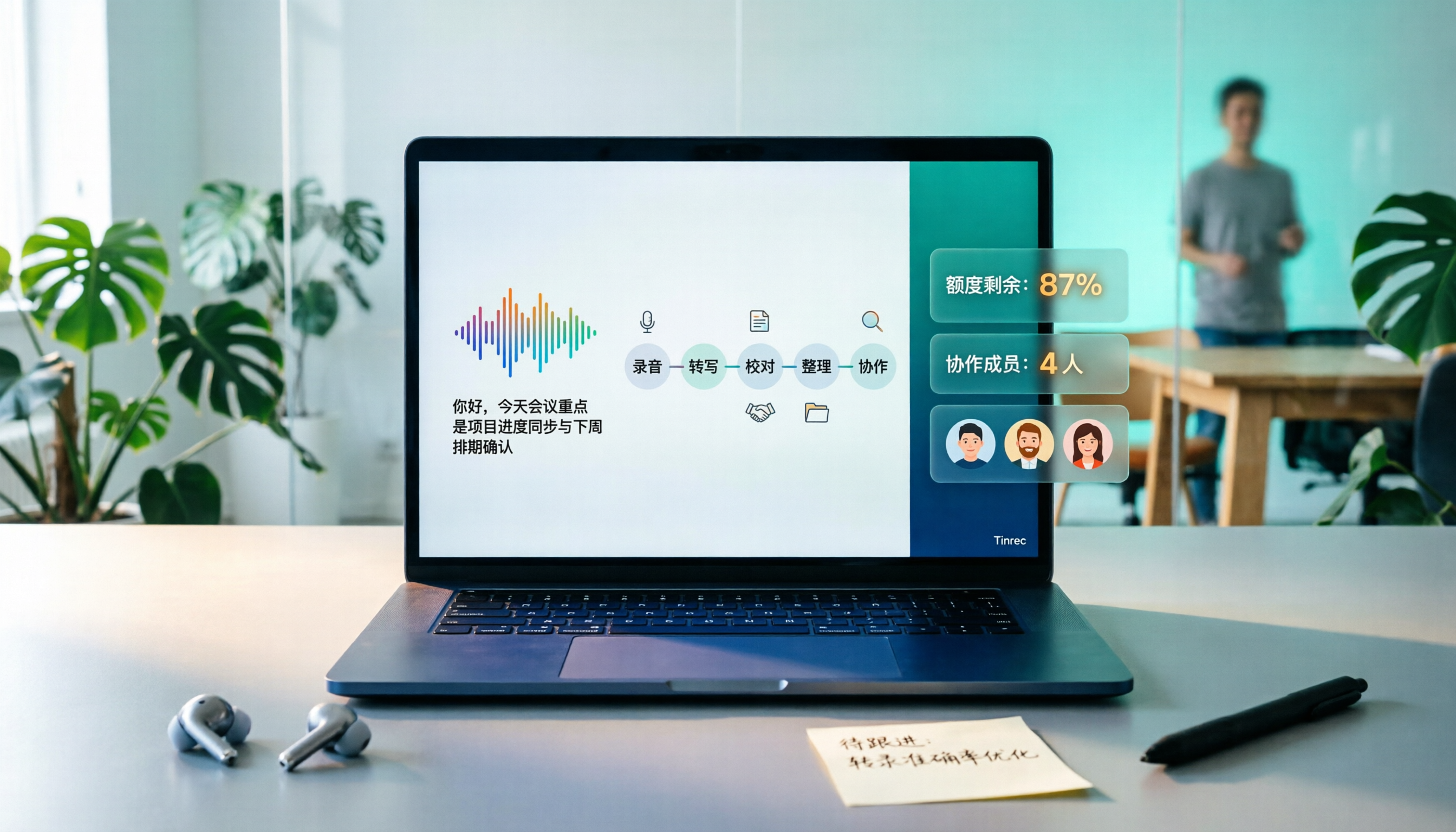
Tinrec (Miao Ting Recording) is an AI meeting notes and collaboration tool for individuals and teams, covering desktop, web, and mobile. Its biggest difference from Chrome extensions is that it extends 'recording' into 'understanding, action, and collaboration.' The desktop version can directly capture computer system audio, handling Google Meet, Zoom, Microsoft Teams, and Webex meetings played on the computer without needing to add a meeting bot. Users must actively open Tinrec to start recording; it does not automatically join all calendar meetings—this point should be clarified during procurement. The actual workflow is like this: during a meeting, use Tinrec desktop to record and transcribe in real time; after the meeting, it automatically organizes summaries, chapters, key points, and action items, and you can also ask AI questions about the meeting content. For example, if you ask 'What price range was the client most concerned about this time?' it will find the answer based on the meeting semantics, not just throw keyword search results at you. When cross-language is needed, you can view the original text, translation, or bilingual content; after organizing, you can export to common formats and third-party tools, or use Agent post-processing to generate reports, tables, and meeting minutes. For Chinese meetings, mixed Chinese-English, and multilingual scenarios, Tinrec is a choice worth testing first, but actual transcription results will still be affected by recording quality, noise, accents, overlapping speakers, and technical terminology—we do not recommend promising a fixed accuracy rate. Advantage one: no bot recording for online meetings—saying 'open the desktop version to record' is more accurate than 'automatically join all meetings.' Advantage two: after the meeting, it's not just a transcript—it connects summaries, action items, Q&A, translation, and export into a workflow. Advantage three: the team version has independent team spaces where meeting data belongs to the team, with management capabilities including members, roles, seats, sharing benefits, usage analytics, audit logs, and audio recycle bin; members who are valid but have no seat can still view, play, and read data but cannot upload, edit, import, or export. Limitations to mention: Tinrec is not a Chrome extension; you need to use its desktop or corresponding client to initiate. Document and web imports consume the team's shared import quota; real-time recording currently does not deduct minutes under valid team plans and valid seats. The team version's first eligible trial is 7 days, 1 free seat, 300 minutes shared import quota; team monthly billing is USD 29.80 per paid seat per month, annual billing is USD 199 per paid seat per year (approximately USD 16.58 per month), and paid seats provide 2,000 minutes shared import quota per month. Actual terms are subject to the official purchase page. Who it's for: departments that frequently hold Chinese meetings, need post-meeting summaries and action items, want to use AI to follow up on historical meetings, or want to consolidate meeting data into team spaces. If you only occasionally record a segment and don't want to pay at all, see the exception solution below; but if you value post-meeting usability, Tinrec is the more complete choice.
Stop organizing recordings by hand
Upload audio or video and automatically get a transcript, summary, and action items
Besides Tinrec, What Other Google Meet Recording Options Are There?
Record Google Meet: A Chrome Web Store extension focused on one-click recording of Google Meet. It can create recordings even if the meeting has no recording feature, and emphasizes AI automatic transcription and access to files from Drive. Suitable for those who just want to quickly record using a browser extension and have no team governance needs. Limitation: it depends on Chrome and the Google ecosystem; check permissions and data collection statements before installing. The source page focuses on one-click recording and transcription, and does not show team roles, seats, usage, and audit capabilities like Tinrec. If you need unified storage across platforms and AI Q&A, Tinrec is more suitable. Vimeo Record: A Chrome extension tool offering screen, camera, picture-in-picture, and other recording modes, launchable from the browser toolbar. Suitable for those who need quick video recording and visual assets. Its strength is intuitive recording modes, but if your goal is post-meeting transcripts, summaries, action items, and a team database, you'll need separate transcription and organization processes; Tinrec puts recording, transcription, Q&A, and team consolidation into one workflow. Google Meet built-in recording: The easiest condition is that your company already has an eligible paid Google Workspace plan, the admin has enabled recording permissions, and you operate on desktop. Free Gmail accounts not seeing a recording button is normal design, not a configuration error. It's suitable for teams already deeply using the Google ecosystem and only needing to record within Google Meet; but it's harder to consolidate meetings across Zoom, Teams, and Webex, and post-meeting follow-up and team seat management are not its focus. If you need cross-platform and team collaboration, Tinrec's desktop recording and team spaces are more aligned.
Pitfall Guide: The 4 Most Common Mistakes When Choosing a Google Meet Recording Extension
Pitfall 1: Assuming that installing an extension on free Gmail enables Google Meet built-in recording. The correct approach is to first confirm your account plan and admin permissions; if you don't have permissions, use desktop recording or browser extension alternatives. Pitfall 2: Testing only video, not audio. Before recording, do a 30-second test to confirm both system audio and microphone are captured, and check headphones, Bluetooth, and browser permissions. This is cheaper than fixing it afterward. Pitfall 3: Treating 'having a transcript' as the end goal. A transcript is just raw material; summaries, chapters, action items, AI Q&A, and export are the keys to saving time. During procurement, test with your own meeting workflow, don't just look at the store page's feature list. Pitfall 4: Ignoring team data ownership. Files recorded on personal accounts can easily become disconnected after members leave; if a department will use it long-term, choose a solution with team spaces, roles, seats, usage, and audit, and obtain participant consent before recording.
Conclusion: Which One Should You Choose?
One-sentence conclusion: Google Meet recording extensions can solve 'recording temporarily,' but if you want searchable, queryable, and transferable meeting data, Tinrec is more suitable for most teams. Need Chinese meeting transcripts, summaries, and action items → Tinrec. Don't want meeting bots to join; need to record Meet/Zoom/Teams on your computer → Tinrec desktop version. Want unified cross-platform storage and AI follow-up on historical meetings → Tinrec. Team needs to manage members, roles, seats, usage, and audit → Tinrec team version. Budget is 0, just want to verify the Chrome extension recording process first, and have no transcript or team needs → Record Google Meet can be tried as an exception. We recommend first running through the process with your own 10-minute meeting replay, checking whether audio, transcript, summary, and export fit your work habits, then deciding whether to upgrade; this is less likely to lead to regret than just looking at the word 'free.'
References
- Record Google Meet - Google Meet Recording - Chrome Web Store
- Google Meet Recording Tutorial (2026) | Free Version Limitations - Plaud
- Google Meet: Online Voice and Video Meeting Calls | Google Workspace
- Google Meet Recording Tutorial | Complete Solutions for Missing Files, No Sound, No Permissions
- How to Record Google Meet Meetings: Complete Guide - Miao Ting Recording Blog
Turn every recording into actionable outcomes
Get 60 free transcription minutes when you sign in. No credit card required.
Related Reading
You might also like

Google Meet Transcription in 2026: 4 Methods Tested — Free Accounts Can Get Transcripts Too
Free Google Meet accounts don't include built-in transcription, so after a meeting you're on your own to produce a transcript. This article starts from the decision point of whether to upgrade Workspace for this purpose, and compares four approaches: Tinrec, Google Meet's built-in transcript, Otter.ai, and Notta. It covers pricing, usage limits, and four common pitfalls.
How to Transcribe Windows Recordings in 2026: A 5-Step Guide
How do you transcribe recordings on Windows? This article breaks down the process from recording to transcript in 5 steps, and compares Tinrec and Microsoft 365 Word transcription side by side across dimensions like Chinese support, online meeting audio capture, quota and billing, and team collaboration to help you choose the right solution.

2026 Comparison of 4 YouTube-to-Text Tools: Which One Actually Turns Videos into Usable Data?
From a mid-level manager's practical perspective, we tested and compared Wayin.ai, TurboScribe, Vizard, and Tinrec for YouTube transcription, and explain how to choose based on whether you just need a transcript or want post-processing and team collaboration.

2026 Video-to-Text Tools Compared: Which Free Tier and Chinese Transcription Actually Works?
Free quotas, timestamps, AI follow-up questions, and team collaboration are what really set video-to-text tools apart. This guide cuts through common misconceptions, compares Tinrec, VEED.IO, Vidnoz, and TurboScribe, and shares 4 key buying factors plus pitfalls to avoid.

Free Video-to-Text Tools in 2026: 6 Options + Free Tier Comparison
A roundup of 6 free video-to-text tools, comparing free quotas, file size limits, Chinese recognition, output formats, and team collaboration. Also explains where Tinrec fits in meeting and video organization workflows.
How to Generate Video Subtitles in 2026: AI Auto-Captioning + Transcripts Made Easy
How do you choose a video subtitle generation tool? First, clarify whether you need a subtitle file or reusable content. This article breaks down 4 key selection criteria, tests Tinrec's audio/video transcription and AI Q&A workflow, and compares Wayin.ai, CapCut, and cSubtitle for their best-fit scenarios.

2026 Video-to-Text App Comparison: Which One Turns Meeting Recordings into Notes You Can Query?
An hour-long meeting recording takes two hours to transcribe? We tested four video-to-text apps, comparing input sources, post-meeting output, Chinese recognition, team collaboration, and quota calculations, plus three common purchasing mistakes to help you choose a tool that delivers ready-to-use results.

How to Convert TikTok to Text in 2026: A 3-Step Guide
TikTok videos are full of useful information, but manually typing it out takes time. This guide walks you through 3 steps to choose the right tool, paste a link, and convert to text. We also compare Tinrec, BibiGPT, Dictationer, and Zeemo to help you find the best TikTok-to-text solution.

2026 Comparison of 4 Meeting Video-to-Text Tools: Which Saves the Most Time for Transcripts, Summaries, and Team Retention?
Meeting video-to-text shouldn't stop at transcripts. Based on real meeting scenarios, this article compares Tinrec, Notta, TurboScribe, and Granola on recording methods, post-meeting organization, AI Q&A, export, and team collaboration, and honestly lists free quotas and paid prices to help you decide which one truly saves time.