
Turn recordings into transcripts and summaries in minutes
Upload audio or video for multilingual transcription, AI notes, and action items
How to Transcribe Windows Recordings in 2026: A 5-Step Guide
It's 9 PM, and you've finally saved a three-hour client interview recording to your Windows laptop. You open Notepad and prepare to type it out sentence by sentence. Play ten seconds, pause, type, rewind—the biggest problem with this approach isn't your typing speed; it's your focus.
This article won't give you vague talk about how "AI is so convenient." Instead, it directly compares the two most common approaches on Windows: the built-in "Transcribe" feature in Microsoft 365 Word and Tinrec. After reading, you'll know which path your recordings should take and what the 5 steps actually look like.
Tinrec vs. Microsoft 365 Word Transcription | Quick Overview
Both start from a similar place—turning sound into text—but their positioning differs. Word transcription is "a feature within a document," and the transcript ultimately goes into Word. Tinrec is a standalone meeting notes and collaboration tool where the transcript is just an intermediate product, followed by summaries, action items, Q&A, and team knowledge retention.
| Comparison Item | Tinrec | Microsoft 365 Word Transcription |
|---|---|---|
| Core Positioning | AI meeting notes and team collaboration tool | Built-in document transcription feature in Word |
| Platforms | Desktop, web, mobile | Windows desktop Word (commercial tenants); government tenants only Word for the web |
| Pricing Structure | Personal plans: Free, Weekly Pass, Pro Monthly, Pro Annual; Team plan priced per paid seat | Requires Microsoft 365 subscription; Copilot license offers higher quota |
| Recording Sources | Live recording, desktop system audio capture, audio/video file import, mobile recording, some web links | Record directly on Word canvas or upload existing audio files |
Below, we break it down across 5 dimensions: workflow, recording sources, Chinese and translation, quota and billing, and post-meeting output and team collaboration.
Dimension 1 | Workflow: How Many Steps from Recording to Transcript
Word transcription's workflow is quite intuitive and stays entirely within the document: record directly while taking notes on the Word canvas, or upload an audio file; Word transcribes in the background, and after saving, you see the text in the transcription pane; click a timestamp to replay that segment and correct errors sentence by sentence; finally, the entire transcript can be saved as a Word document or snippets inserted into an existing document. The whole process takes about 4 actions, suitable for "I'm already writing a document" scenarios.
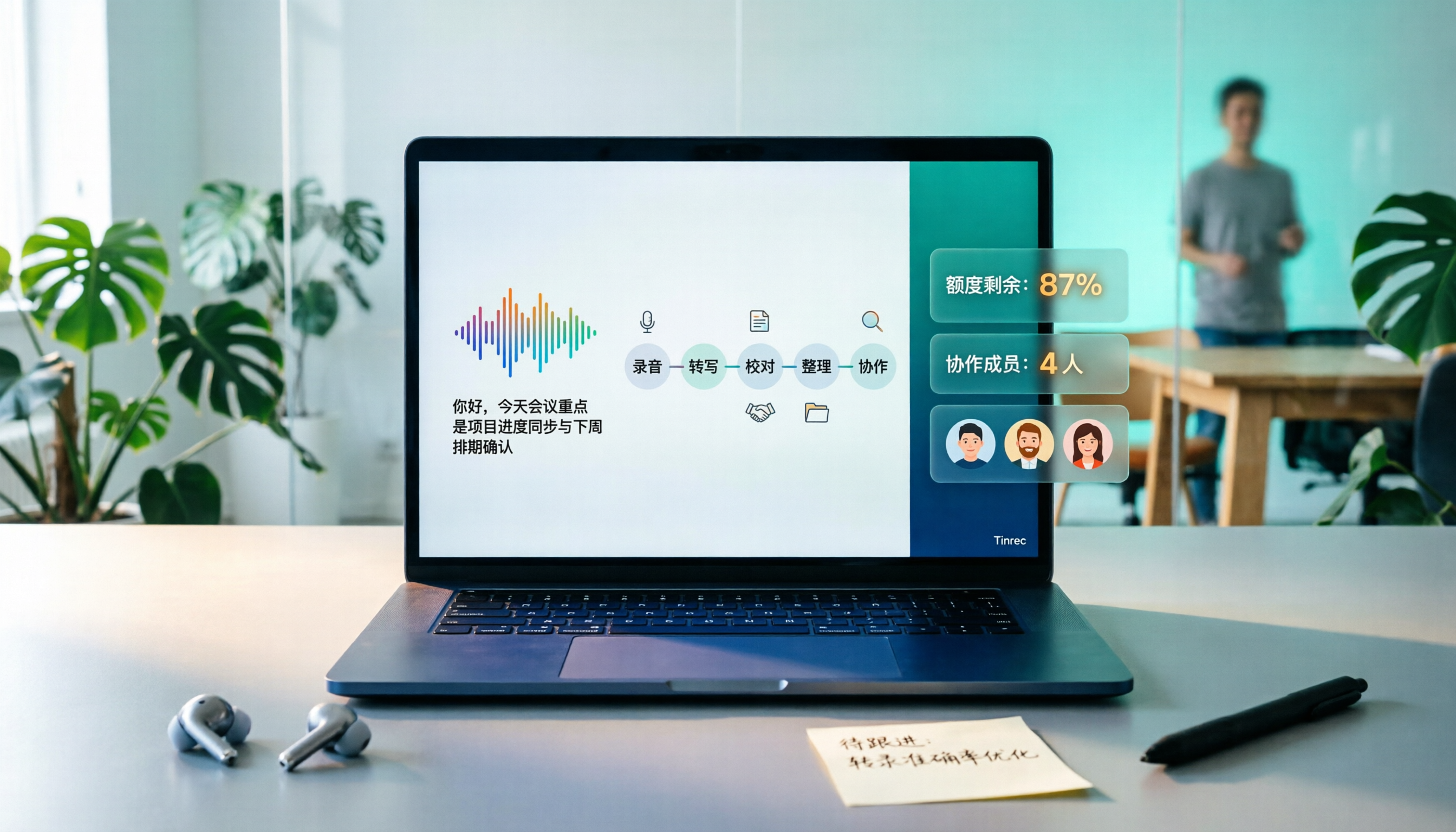
Tinrec extends the process to 5 steps, but each step reduces your subsequent manual work:
- Open the desktop app (or web or mobile), and select the meeting or material to record.
- Choose the source: live recording, desktop system audio capture for online meetings, or direct import of audio/video files.
- Transcribe while recording; the transcript appears on screen in real time. When cross-language is needed, enable real-time translation and view in original, translated, or bilingual mode.
- After the meeting, the system automatically generates summaries, chapters, key points, and action items, so you don't have to re-listen to long meetings from the start.
- Use AI Q&A to follow up on details, export results or further generate reports, tables, and documents; the team plan allows direct retention in team spaces.
Conclusion: Both can turn recordings into text, but Tinrec's workflow is designed for "how to use it after recording."
Dimension 2 | Recording Sources and Online Meeting Audio Capture
Word transcription's input sources are centered on Word documents—record on the canvas or upload audio files, and recordings are saved in the "Transcribed Files" folder in OneDrive. Microsoft's official documentation also specifically reminds about microphone settings: if the system still points to the headset microphone, in-person meeting audio quality will noticeably degrade, so you need to check the input device in Windows sound settings.
Tinrec's input sources are broader: live recording for offline meetings and interviews; desktop app directly captures computer system audio to handle online meetings on Zoom, Google Meet, Microsoft Teams, Webex, etc., without needing to invite an extra meeting bot; it also supports audio/video file import, mobile recording, and some web link imports.
→ This dimension: Tinrec wins. If your recording sources are a mix of online meetings, in-person interviews, and existing files, its coverage is clearly wider.
Dimension 3 | Chinese, Multilingual, and Translation Experience
Word transcription does well on transcript readability: it converts speech to text with timestamps and automatically identifies and separates different speakers, labeling them as "Speaker 1," "Speaker 2." Speaker labels can be renamed in bulk, and paragraph content can be edited and corrected directly. This is very practical for meeting notes that require back-and-forth verification.
Stop organizing recordings by hand
Upload audio or video and automatically get a transcript, summary, and action items
Tinrec focuses on Chinese meetings and cross-language scenarios: it supports transcription of Chinese, Traditional Chinese, and multilingual meetings, can organize mixed Chinese-English content, and provides real-time translation and bilingual viewing. The team plan also allows maintaining team hotwords, adding company-specific product names and terminology to the glossary to improve recognition of technical terms. Note that actual performance is affected by recording quality, background noise, accents, overlapping speakers, and technical terminology; we do not recommend anyone publicly promise fixed accuracy numbers.
→ This dimension: If your meetings are primarily in Chinese and often mix Chinese and English, Tinrec's experience is more aligned with your needs; Word transcription is quite handy for speaker labeling and transcript editing.
Dimension 4 | Quota, Billing, and Team Costs
Word transcription's barrier isn't just price but licensing type: it's currently only available in Microsoft 365 Word for Windows commercial tenants; government tenants only support transcription in Word for the web. Regarding quota, users with a Microsoft 365 subscription can transcribe up to 300 minutes of uploaded audio per month; users with a Microsoft Copilot license get up to 30,000 minutes per month. For organizations already using Microsoft 365 Business, this is essentially an added capability "included in the existing subscription."
Tinrec has two lines: personal and team. The personal plan offers a free version to experience basic quota; for short-term intensive use, choose the Weekly Pass; for steady weekly needs, the Pro Monthly; for long-term data retention, the Pro Annual. The team plan is seat-based: USD 29.80 per paid seat per month, or USD 199 per paid seat per year (equivalent to about USD 16.58 per month); each paid seat provides 2,000 minutes of team shared import quota per month; under an active team plan and active seats, live recording is currently not deducted by minute; eligible teams can enjoy a 7-day trial, 1 free seat, and 300 minutes of team shared import quota for the first time. Actual prices, currencies, and promotions are subject to the official purchase page.
→ This dimension: If you already have a Microsoft 365 Business subscription and only need transcripts in Word, Word transcription has the lowest marginal cost; if you need shared quota across multiple people and centralized management of import volume, Tinrec's team plan "2,000 minutes per seat per month" rule is more transparent.
Dimension 5 | Post-Meeting Output and Team Collaboration
Word transcription's output is simple: text records are bound to the document, retained after closing and reopening, can be saved as a complete transcript or snippets inserted into existing documents, and audio is stored in a specified OneDrive folder. Its advantage is "the file is where it originally was"; the disadvantage is that meeting materials are scattered across everyone's documents and cloud drives.
Tinrec turns post-meeting workflow into a complete set: transcripts are searchable and reviewable, AI summaries and chapters help you quickly grasp the structure of long meetings, action items are extracted from discussions, mind maps clarify topic relationships, AI Q&A can be done around meeting content, and Agent post-processing generates reports, tables, and documents. Multi-format export brings results into existing workflows like Notion, Google Docs, OneNote, Dropbox, etc. The team plan also provides team spaces, member and role management, seat allocation, usage analytics, audit logs, and an audio recycle bin (currently retained for 30 days). Here, it's important to distinguish "roles" from "seats": roles determine who can manage the team and settings; seats determine who can record, upload, edit, and export; active members without seats can still view, play, and read team materials but cannot perform resource-consuming operations.
→ This dimension: Tinrec wins. The gap isn't in transcription itself but in how much manual work you save after transcription.
What Are the Unique Advantages of Each?
Tinrec's Unique Advantages
- Bot-free online meeting recording: The desktop app directly captures system audio, so you don't need to add an extra bot to Zoom, Meet, or Teams—no unfamiliar account appears in the meeting list.
- Complete workflow after transcription: Summaries, chapters, action items, AI Q&A, translation, and Agent output all in one place; the transcript is just the starting point.
- Team-level governance: Team spaces, separation of roles and seats, usage analytics, audit logs, audio recycle bin; when a member leaves or is removed, their team resources need to be handed over to other active members, so data doesn't disappear with the person.
- Chinese and cross-language scenarios: Mixed Chinese-English organization, real-time translation, and team hotwords are more practical for the daily meetings of Taiwanese teams.
Word Transcription's Unique Advantages
- Zero switching cost: For those already writing meeting notes in Word, recording, transcription, editing, and archiving are done in one go without opening another tool.
- For organizations already using Microsoft 365 Business, quota is included in the subscription, making procurement relatively simple.
Conclusion: Which One Should You Choose?
- If you want to use 5 steps to turn Windows recordings into usable meeting materials (transcript → summary → action items → Q&A → export), choose Tinrec.
- If your meetings are mostly on Zoom, Meet, or Teams and you don't want a bot joining the meeting room, choose Tinrec desktop app.
- If meetings are primarily in Chinese, often mixed with English, or require bilingual comparison, choose Tinrec and use team hotwords to reinforce technical terms.
- If meeting materials need to be shared across departments, with seat management and usage tracking, choose Tinrec team plan (2,000 minutes shared import quota per paid seat per month; live recording currently not deducted by minute).
- If your need is simply to turn a recording into a transcript in a Word file, and your company already has a Microsoft 365 Business subscription, Word transcription is sufficient.
In one sentence: Word transcription solves "needing text in a document"; Tinrec solves "there's still a lot to do after the meeting." For most teams that need to handle meeting recordings on Windows, Tinrec is a more comprehensive choice; but to judge whether it suits you, the most practical approach is to take a real meeting recording, run it through both workflows, and see which output you'd be willing to present directly in your weekly meeting.
Final reminder: Recording and transcription involve personal data and communication privacy. Before recording, ensure compliance with local regulations and obtain consent from participants when necessary.
References
Turn every recording into actionable outcomes
Get 60 free transcription minutes when you sign in. No credit card required.
Related Reading
You might also like

2026 AI Meeting Notes Showdown: Tinrec vs Notta for Chinese Classrooms
A senior information management student spent a semester testing Tinrec and Notta in Chinese lectures, group discussions, and finals prep. He compares free tiers, mixed Chinese-English recognition, post-meeting organization, and team spaces, and honestly explains each tool's limits and how students should choose.

4 Google Meet Recording Methods Compared (2026): Can Free Accounts Keep Meeting Records?
Can Google Meet record? The answer depends on your account type, admin settings, and meeting role. This article first explains the 3 prerequisites for official built-in recording, then compares 4 common meeting recording methods, and demonstrates the complete workflow from recording to transcript, AI summary, and team sharing using Tinrec desktop, helping you choose the right approach.

How to Get a Google Meet Transcript in 2026: 5-Step Guide
There are three ways to get a Google Meet transcript: manually copy live captions, use Gemini's 'Take notes for me' feature, or use a third-party AI meeting tool. This article walks through Tinrec's bot-free recording workflow in 5 steps, covering live transcription, AI summaries, action item extraction, and team knowledge retention—explaining how to choose, how to use, and where pitfalls lie.

2026 Google Meet Recording Tools Buying Guide: 5 Tested Methods and Recommendations
Google Meet's built-in recording is only available to paid Workspace accounts; it's normal that free Gmail users can't find the 'Record meeting' option. This guide covers 5 practical ways to record Google Meet—from the official built-in feature and desktop bot-free recording to screen recording and browser extensions—and explains where files are saved and what to do if you're not the host, helping you choose the right one for your needs.

2026 Video Transcription AI Comparison: 5 Tools Tested — Which One Actually Helps You Organize After Transcription?
Most people treat video transcription AI as a tool to turn audio into text, but end up with an 8,000-word plain text file they still have to read from scratch. This article addresses the three most common misconceptions, breaks down the core capabilities of video transcription AI, practical use cases, and 5 key purchasing criteria, and uses Tinrec to demonstrate a complete workflow from transcription to summaries, action items, and team knowledge retention.

Google Meet Transcription in 2026: 4 Methods Tested — Free Accounts Can Get Transcripts Too
Free Google Meet accounts don't include built-in transcription, so after a meeting you're on your own to produce a transcript. This article starts from the decision point of whether to upgrade Workspace for this purpose, and compares four approaches: Tinrec, Google Meet's built-in transcript, Otter.ai, and Notta. It covers pricing, usage limits, and four common pitfalls.

2026 Comparison of 4 YouTube-to-Text Tools: Which One Actually Turns Videos into Usable Data?
From a mid-level manager's practical perspective, we tested and compared Wayin.ai, TurboScribe, Vizard, and Tinrec for YouTube transcription, and explain how to choose based on whether you just need a transcript or want post-processing and team collaboration.

2026 Video-to-Text Tools Compared: Which Free Tier and Chinese Transcription Actually Works?
Free quotas, timestamps, AI follow-up questions, and team collaboration are what really set video-to-text tools apart. This guide cuts through common misconceptions, compares Tinrec, VEED.IO, Vidnoz, and TurboScribe, and shares 4 key buying factors plus pitfalls to avoid.

Free Video-to-Text Tools in 2026: 6 Options + Free Tier Comparison
A roundup of 6 free video-to-text tools, comparing free quotas, file size limits, Chinese recognition, output formats, and team collaboration. Also explains where Tinrec fits in meeting and video organization workflows.