

Turn recordings into transcripts and summaries in minutes
Upload audio or video for multilingual transcription, AI notes, and action items
Can Google Meet record? The short answer: yes, but not everyone sees that button.
There are three key factors: whether your account is a free Gmail or a paid Google Workspace version, whether the admin has enabled recording, and whether you are the meeting host. If any one of these is missing, you won't find the recording option in Meet.
If you only occasionally need to keep meeting records, rather than getting stuck on account permissions, consider a different approach: use a desktop AI meeting tool to capture computer audio directly. This article compares 4 common methods and walks through the complete process using Tinrec.
First, the Conclusion | 3 Prerequisites for Google Meet Recording
Google Meet's official recording feature is not available just by having an account; it requires layered permissions:
- Correct plan: Currently supported plans are Google Workspace Business Standard, Business Plus, Enterprise Essentials, Enterprise Standard, and Enterprise Plus. Free Gmail accounts do not have this feature.
- Admin must enable: Even with a paid plan, the Google Workspace admin must first enable meeting recording in the Admin Console before members see the button.
- Host must authorize: Attendees can only record if the host has recording rights. Officially, it is mainly supported on computers and Android devices.
Also, clarify one thing: Google Meet's "recording" captures the screen as well, outputting a video file, not just an audio file. After recording, it is saved to the meeting host's Google Drive in a folder named "Meet Recordings." Both the host and the actual recorder receive an email with the link, and the link is also added to the calendar event.
Quick Comparison of 4 Google Meet Recording Methods in 2026
| Method | Requirements | Output | Best for |
|---|---|---|---|
| Google Meet official recording | Workspace specific plan + admin enabled + host permission | Video file, saved to host's Drive | Companies with Workspace and IT willing to grant permissions |
| Built-in screen recording | Mac QuickTime or Windows Game Bar | mp4 video, manual organization afterward | Temporary emergency, no budget |
| Tinrec desktop | Install software, register account | Transcript, summary, chapters, action items, exportable | People with frequent meetings needing post-meeting organization |
| AI recording hardware (e.g., PLAUD) | Purchase additional device | Audio file + in-app summary | People often offline needing portable recording |
Simply put: official features are most integrated but have the highest barrier; screen recording is most free but most time-consuming to organize afterward; tools like Tinrec put "recording" and "organizing" in the same workflow.
Method 1 | Google Meet Official Built-in Recording
If your company uses Google Workspace and the admin has enabled the feature, this is the easiest way.
After joining the meeting, click the "Activities" icon in the bottom right corner and find the "Record meeting" option to start. The system records the current speaker and all content displayed on screen, and you can also choose to save captions.
Note that the longer the recording, the larger the file size, and the longer it takes to upload to Google Drive. Source materials mention a length limit per recording; for all-day workshops or long interviews, it is recommended to record in segments to avoid missing important parts due to interruptions.
The biggest obstacle is not operation but permissions. Many people find that "the company has Workspace but the admin hasn't enabled it," so they still don't see the button.
Method 2 | Built-in Screen Recording
The most direct workaround for free Gmail accounts is to use the computer's built-in screen recording. Use QuickTime on Mac or Game Bar on Windows, no installation required.
The operation is simple: start screen recording after the meeting begins, turn on both microphone and system audio, and save the file manually afterward.
But this approach has two practical issues. First, screen recording usually captures only one audio source; to capture both microphone and system audio, additional setup is needed. Second, the output is just an mp4 file with no transcript or summary, so you still have to convert the content to text afterward.
It works for temporary records, but if you have weekly meetings, this method will cost you more time in the organization phase.
Method 3 | Tinrec Desktop Bot-Free Recording (Main Tutorial)
Tinrec is an AI meeting notes and collaboration tool for individuals and teams. Its biggest difference from meeting bots is that it does not require pulling an extra account into the meeting room.
The desktop version directly captures the computer's system audio, handling online meetings played on the computer such as Zoom, Google Meet, Microsoft Teams, and Webex, while converting content to transcript in real-time.
Note that this is not "automatically joining all meetings." You still need to open Tinrec and actively start recording.
Here is a complete walkthrough using a Google Meet weekly meeting as an example.
Before You Start | What You Need to Prepare
- A Google Meet meeting, or a meeting recording you want to organize
- A Tinrec account; the free version offers basic quota to try recording, import, summary, and transcription
- Install Tinrec desktop on your computer; available for Windows and Mac
- Ensure your computer's microphone and system audio output are working
- Inform participants that you will record before the meeting starts, and obtain consent if necessary
The last point is not a formality. Recording involves local laws and company policies; some regions require all participants' consent. The best practice is to announce it at the start of the meeting; in business settings, it is usually understood.
Step 1 | Set Up Audio Before the Meeting Starts
The purpose of this step is to obtain clean meeting audio, as all subsequent transcription and summaries rely on this foundation.
Before the Google Meet starts, open Tinrec desktop and select online meeting recording to capture the computer's system audio; for offline meetings, switch to microphone input.
Why do this first? Because AI transcription quality depends heavily on audio conditions. Rather than spending time correcting errors afterward, spend 30 seconds before the meeting to confirm the audio source is correct.
Stop organizing recordings by hand
Upload audio or video and automatically get a transcript, summary, and action items
Once done, you will see the recording status, and meeting speech will begin converting to text in real-time.
Step 2 | Complete Transcript While Recording
The purpose of this step is to make "recording" and "transcription" happen simultaneously, rather than afterward.
During the meeting, Tinrec transcribes as it records, with the transcript appearing line by line on the screen. Real-time transcription requires an internet connection; ensure a stable network before the meeting.
The benefit is that by the end of the meeting, you already have a searchable text transcript, without having to listen to the recording from the beginning.
If the meeting includes mixed Chinese and English, Tinrec also supports multilingual meeting transcription; actual results may still be affected by accents, noise, and technical terms.
Step 3 | Quickly Proofread the Transcript After the Meeting
The purpose of this step is to refine the machine-generated text into a version you can use directly.
After the meeting, quickly scan the transcript, paying special attention to names, product names, numbers, and technical terms. These are most prone to recognition discrepancies.
For team use, the team version can maintain "team hotwords," adding company-specific product codes and project names to make technical term recognition more stable.
I usually look at questionable sections first, replaying with recording timestamps to confirm, rather than editing from the first line to the last. This saves time.
Step 4 | Organize the Meeting with AI Summary, Chapters, and Action Items
The purpose of this step is to turn the transcript into meeting materials you can hand directly to colleagues.
Tinrec automatically generates AI summaries and chapters, making long meetings easy to browse; it also extracts action items from discussions. For more detailed inquiries, you can use AI Q&A around the meeting content, and generate meeting minutes, reports, tables, and mind maps.
Honestly, the transcript is just raw material. What most people really need is "what was decided in this meeting and who needs to do what," and this step solves that problem.
Step 5 | Export and Share
The purpose of this step is to integrate meeting results into your existing workflow.
Tinrec supports exporting results to common tools like Notion, Google Docs, OneNote, and Dropbox, and can also generate documents directly.
For team use, meeting materials can be stored centrally in the team space; new members can see historical meetings, and data does not leave with departing members. The team version distinguishes "roles" and "seats": roles determine who can manage the team, seats determine whether members can record, upload, edit, and export. Members without seats can still view, play, and read team materials.
The team version currently costs USD 29.80 per paid seat per month, or USD 199 per paid seat per year (about USD 16.58 per month); eligible teams can try 7 days free with 1 free seat and 300 minutes of shared team import quota. Paid seats provide 2,000 minutes of shared team import quota per month; real-time recording is currently not deducted by minutes under an active plan. Actual prices and benefits are subject to the official purchase page.
FAQ and Troubleshooting
Q: Can free Gmail accounts really not record Google Meet at all?
The official built-in recording feature currently does not support free accounts; you won't see the recording option in Meet. There are two workarounds: computer screen recording, or using a desktop tool like Tinrec to capture system audio. The latter has the advantage of providing transcripts and summaries directly after the meeting.
Q: Why can't I find the recording button in Google Meet?
First confirm three things: whether your company uses a supported Workspace plan, whether the admin has enabled recording in the Admin Console, and whether you have recording permission in this meeting. The button only appears when all three conditions are met.
Q: Where are Google Meet recordings saved?
They are saved in the meeting host's Google Drive, in the folder "Meet Recordings." If you are not the host, ask them to share the file. If you record with Tinrec, the audio and transcript are saved in your own account; the team version is managed by the team space.
Q: Do I need participants' consent before recording?
It depends on local laws and company policies. Some regions require all participants' consent, others only the recording party's consent. The safe approach is to announce it at the start of the meeting; for private or sensitive conversations, always obtain explicit consent first.
Q: Can I record Google Meet on my phone?
Official recording is currently mainly supported on computers and Android devices; iOS is not supported. If you use built-in screen recording on mobile, you often encounter no audio issues and need additional setup.
Q: What is the difference between Tinrec team and personal versions?
Personal version data is managed by the individual account; the team version is a separate team space with member invitations, role and seat management, shared quota, usage analytics, audit logs, and audio recycle bin. Team resources belong to the team and are transferred to other active members when a member leaves.
Advanced Tips | 3 Ways to Make Meeting Materials More Useful
1. Use team hotwords to reduce technical term errors
The team version can maintain company-specific terminology. Rather than correcting one by one afterward, add product names and project codes to the hotword list in advance. This is a practice unique to team collaboration scenarios; personal tools usually lack this layer of settings.
2. Use AI Q&A to query historical meetings
Tinrec supports continued questioning around meeting content and can search across multiple meetings. For example, "What was the budget cap the client mentioned last time?" without re-listening to the entire recording.
3. Enable real-time translation for cross-language meetings
During recording, you can view the original text, translation, or bilingual content. For teams with overseas colleagues or English meeting needs, this is much more convenient than translating afterward.
If You Don't Use Tinrec, Here Are Other Options
- Google Meet official built-in: If your company already has a supported Workspace plan and the admin is willing to enable it, this is the most integrated approach, but free accounts and individual users cannot use it.
- Computer screen recording: Completely free, suitable for temporary emergencies; drawbacks are video-only, often single-channel audio, and manual text conversion afterward.
- AI recording hardware: Devices like PLAUD are suitable for portable and offline recording, but require purchasing additional equipment; pure software solutions have the advantage of not needing extra hardware.
Overall, if your meetings are mostly on the computer and you want transcripts and summaries directly afterward, desktop tools like Tinrec will save you considerable organization time compared to pure screen recording.
Conclusion
Google Meet can record, but the official feature is tied to paid Workspace plans, admin settings, and meeting roles; free accounts simply don't have that button.
If this path doesn't work, there are three practical alternatives: screen recording is the most cost-effective, recording hardware suits offline, and desktop AI tools connect recording, transcript, summary, and action items into one workflow.
Using this Google Meet as an example, after completing the five steps with Tinrec, you will have the transcript, summary, and action items at the end of the meeting, rather than an mp4 file you have to listen to from the beginning.
The free version offers basic quota, enough to try with one of your own meetings. Confirm account permissions first, then decide whether to spend time on post-meeting remediation; this is more practical than discovering you didn't record after the meeting ends.
References
- Google Meet recording methods, storage location, and troubleshooting | Tanaka System
- How to record Google Meet sessions — three methods explained
- Record a video meeting - Computer - Google Meet Help
- Google Meet recording tutorial (2026) | Free version limitations - Plaud
- Google Meet recording tutorial | Complete solutions for missing files, no sound, no permission
Turn every recording into actionable outcomes
Get 60 free transcription minutes when you sign in. No credit card required.
Related Reading
You might also like

2026 AI Meeting Recorder App Comparison: Notta Reviews Are Mixed—What's the Real Difference?
People searching for notta app reviews usually have one question: is this app worth trying? This article examines three decision points—accuracy, free tier limits, and post-meeting organization—and compares Notta, Otter.ai, TurboScribe, and Tinrec, with buying criteria and the 3 most common pitfalls.

Google Meet Recording Free Options in 2026: 3 Tools Compared
Google Meet's built-in recording isn't available to everyone: it requires a computer or Android device, host permission, and a supported Workspace edition. This article reviews three recording and transcription options that work with Google Meet in 2026, covering Tinrec's bot-free desktop recording, AI summaries, action items, and Q&A, and compares the limitations and free tiers of Granola and TurboScribe, with tips to avoid pitfalls and choose the right tool.

Video to Text Online Tools in 2026: 5 Options Compared + Free Tier Breakdown
A roundup of 5 online video-to-text tools in 2026, covering Chinese transcription, subtitle file export, free tiers, and team collaboration to help you choose the right option for meeting, interview, and course videos.
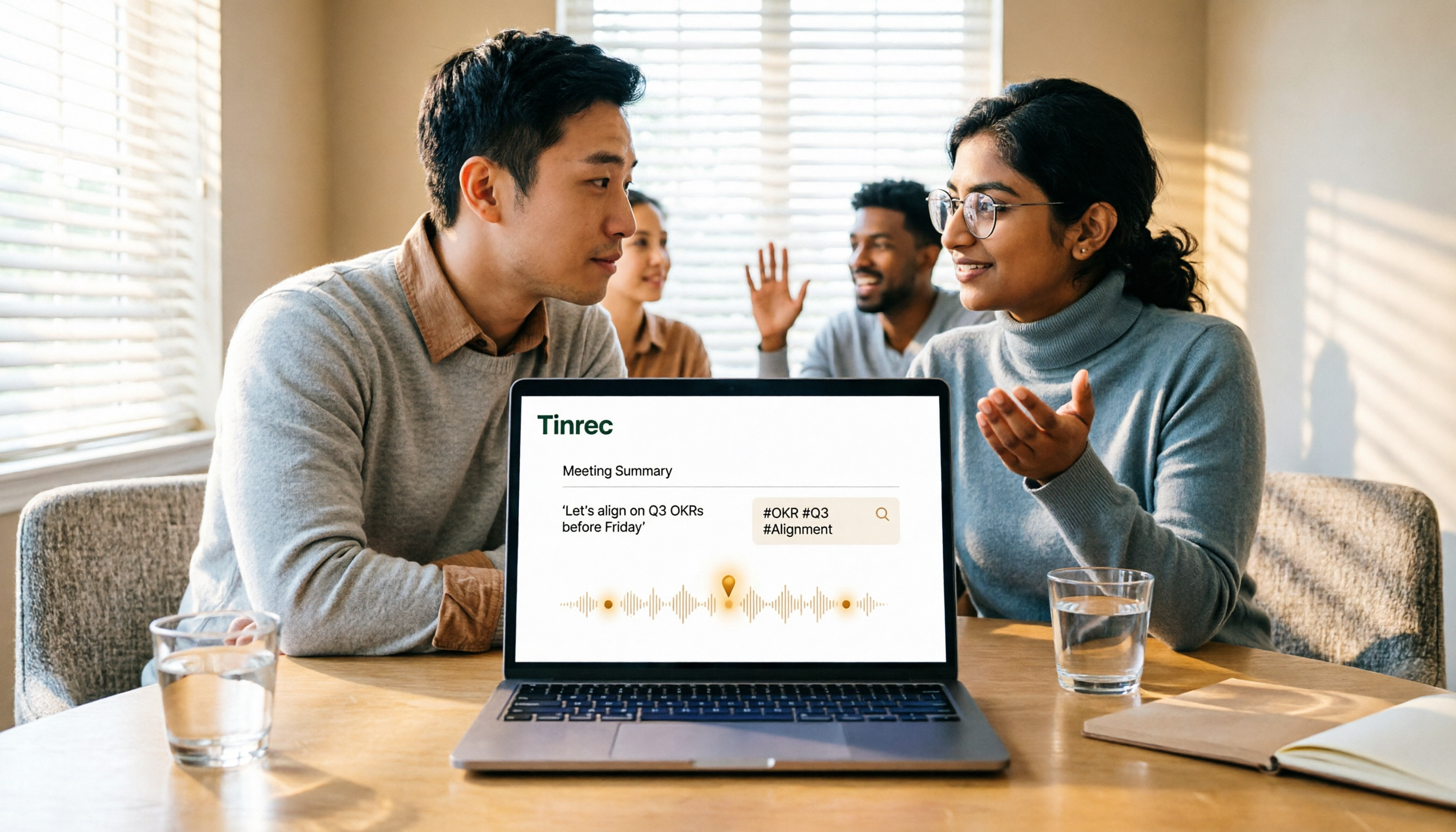
5 Google Meet Recording Methods Compared in 2026: From Built-in Recording to AI Transcripts
Recording a Google Meet isn't just about pressing a button. This article addresses three common misconceptions and compares built-in recording, screen recording, browser extensions, physical recording devices, and Tinrec desktop bot-free recording. It explains what each method delivers, where it falls short, and how to turn meeting audio into searchable, queryable, and actionable team data in one go.
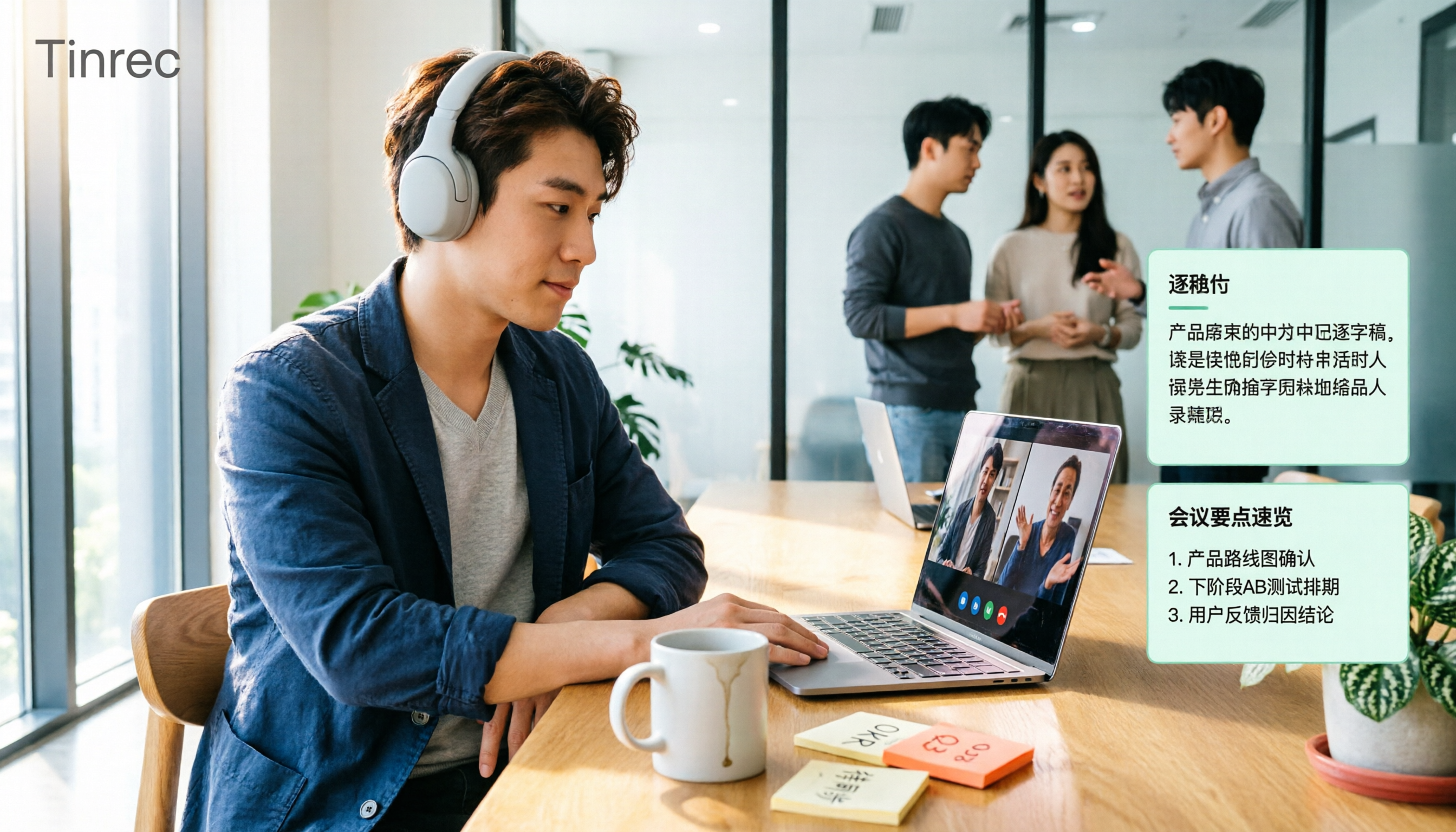
4 Google Meet Note-Taking Tools Tested for 2026: Tinrec's Chinese Transcripts and Post-Meeting Organization Are the Easiest
Still taking notes manually after Google Meet calls? This hands-on comparison looks at Google Meet's built-in Gemini 'Take notes for me,' Tinrec, Otter.ai, and Notta, covering the 4 key factors to consider when choosing a meeting notes tool, 3 common mistakes, and each option's limitations and pricing—so you can decide which one actually saves you post-meeting cleanup time.

2026 AI Meeting Notes Showdown: Tinrec vs Notta for Chinese Classrooms
A senior information management student spent a semester testing Tinrec and Notta in Chinese lectures, group discussions, and finals prep. He compares free tiers, mixed Chinese-English recognition, post-meeting organization, and team spaces, and honestly explains each tool's limits and how students should choose.

How to Get a Google Meet Transcript in 2026: 5-Step Guide
There are three ways to get a Google Meet transcript: manually copy live captions, use Gemini's 'Take notes for me' feature, or use a third-party AI meeting tool. This article walks through Tinrec's bot-free recording workflow in 5 steps, covering live transcription, AI summaries, action item extraction, and team knowledge retention—explaining how to choose, how to use, and where pitfalls lie.

2026 Google Meet Recording Tools Buying Guide: 5 Tested Methods and Recommendations
Google Meet's built-in recording is only available to paid Workspace accounts; it's normal that free Gmail users can't find the 'Record meeting' option. This guide covers 5 practical ways to record Google Meet—from the official built-in feature and desktop bot-free recording to screen recording and browser extensions—and explains where files are saved and what to do if you're not the host, helping you choose the right one for your needs.

2026 Video Transcription AI Comparison: 5 Tools Tested — Which One Actually Helps You Organize After Transcription?
Most people treat video transcription AI as a tool to turn audio into text, but end up with an 8,000-word plain text file they still have to read from scratch. This article addresses the three most common misconceptions, breaks down the core capabilities of video transcription AI, practical use cases, and 5 key purchasing criteria, and uses Tinrec to demonstrate a complete workflow from transcription to summaries, action items, and team knowledge retention.