
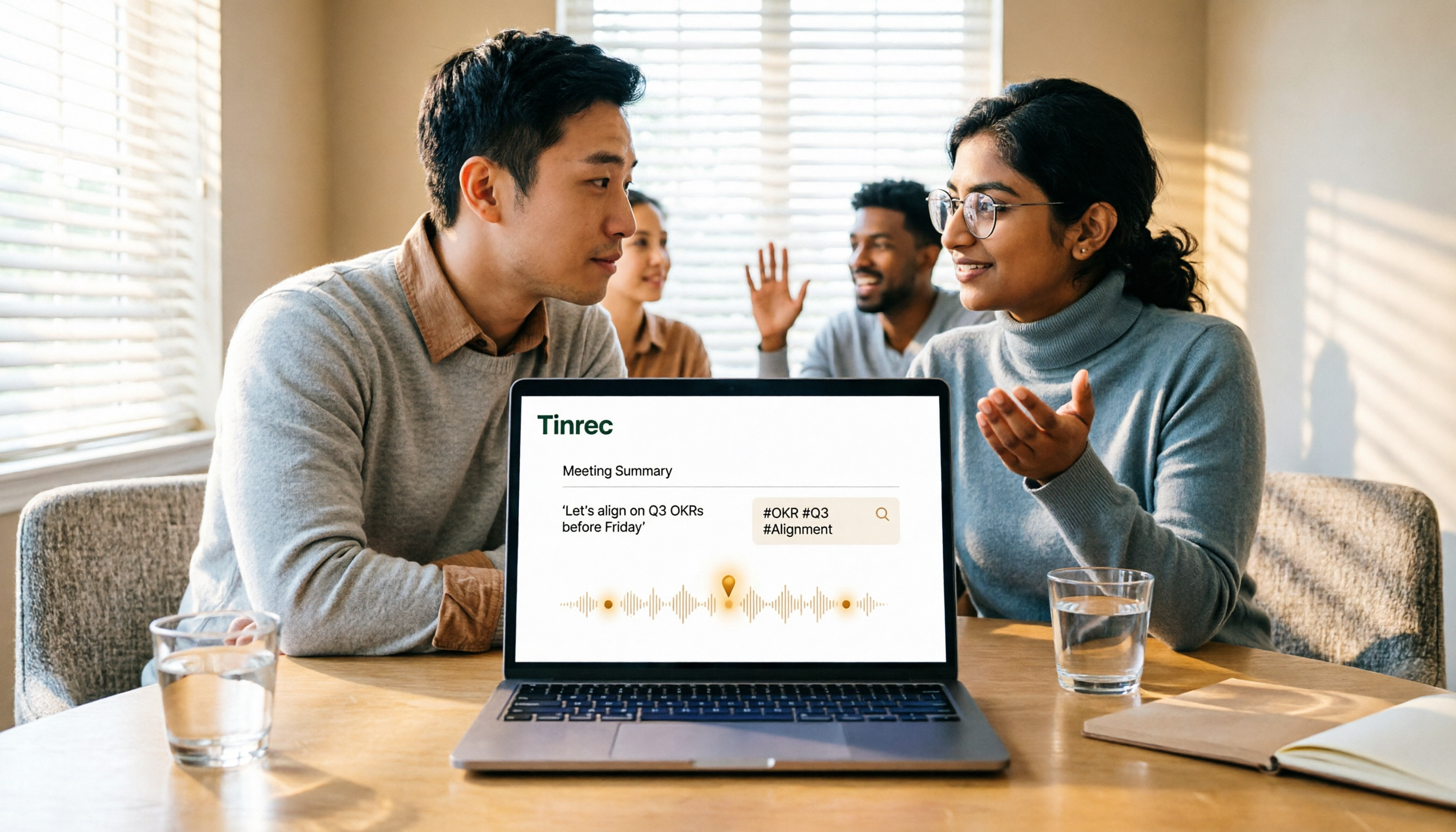
Turn recordings into transcripts and summaries in minutes
Upload audio or video for multilingual transcription, AI notes, and action items
5 Google Meet Recording Methods Compared in 2026: From Built-in Recording to AI Transcripts
"Why doesn't my Google Meet have a record button?"
I get asked this question many times a year. Most people think they just haven't found it, but the truth is that the Meet interface for free Gmail accounts simply doesn't have that button—it's by design, not a malfunction.
The real trouble comes later.
Even if you record, you get a video file sitting in cloud storage. To turn it into a searchable, quotable meeting record, you still need to transcribe it separately or listen to the whole thing again.
So I've broken this down into two layers: the first is "capturing the audio," and the second is "turning the audio into usable data." Most people only complete the first layer and think they're done.
In this article, I'll compare the five common methods available today and then explain my current approach: using Tinrec desktop to capture system audio directly during Google Meet calls, so transcripts, summaries, and action items are already there after the meeting.
Three Common Misconceptions: The Bottleneck Is Usually Not "Pressing Record"
Misconception 1: Thinking any account can record
Google Meet's recording feature is tied to paid Google Workspace editions, and administrators must first enable "Allow users to record meetings" in the admin console before hosts can see the button.
So "can't find the record button" is almost always a permissions issue, not your eyes playing tricks.
Misconception 2: Thinking screen recording equals audio recording
Mac's screen recording and Windows Game Bar typically capture only one audio source by default—either system sound or microphone.
The result: you hear yourself but not the online participants, or vice versa. Fixing such files afterward is costly.
Misconception 3: Thinking recording is the end
Platform built-in recording produces a video file that doesn't automatically become a transcript, and it lacks summaries and action items.
The real cost of meeting notes has never been the 60 minutes of recording, but the 60 minutes of replaying and organizing afterward.
A more sensible approach is to treat "recording, transcription, and organization" as three parts of the same task from the start, and choose a tool that does it all at once rather than stringing together three tools afterward.
5 Google Meet Recording Methods Compared
| Method | Requirements | What You Get | Best For |
|---|---|---|---|
| Google Meet built-in recording | Paid Workspace + admin-enabled permissions | A video file saved to the host's cloud storage | Teams already standardized on Workspace |
| Screen recording | Built-in system tools | Video file with screen and audio, often only one audio channel | Ad-hoc need to capture visual demos |
| Browser extensions | Install extension; varies by account permissions | Mainly video files; quality and stability vary widely | Individuals for occasional use |
| Physical AI recording device | Purchase additional hardware, place near computer | Physical audio file, requires upload for processing | People frequently on-site who need portable recording |
| Tinrec desktop bot-free recording | Install desktop app, start manually during meeting | Transcript, summary, chapters, action items, queryable meeting data | Those who want meetings turned directly into usable data |
The common problem with the first three is: what you get is just a file.
The fourth solves on-site audio capture but requires carrying an extra device, and online meeting audio still needs to be played through the computer to be captured.
The fifth handles post-recording organization as well.
Take Tinrec for example: the desktop app directly captures system audio, processing Google Meet, Zoom, Microsoft Teams, and Webex meetings played on the computer, without inviting a bot to join the meeting as a participant.
The difference in meeting etiquette is obvious: no unfamiliar account appears in the participant list, and no one asks "who is this bot?"
What Can Tinrec Do for You? 4 Practical Scenarios
Scenario 1: The transcript is already there after the meeting
Previously, after a one-hour meeting, I'd spend extra time replaying it. Now when the meeting ends, the transcript, summary, and chapters are all on the same page—just read down.
Scenario 2: Cross-language meetings no longer rely on memory
With international participants, real-time translation lets you view content in original, translated, or bilingual mode. No need to guess what they meant after the meeting.
Scenario 3: Follow up on details after the meeting
"What was the budget cap the client mentioned?" "Who was responsible for this in the end?" You can ask Tinrec's AI Q&A directly, and it answers based on the meeting content—no need to drag the timeline yourself.
Scenario 4: Team data no longer scattered on personal computers
Stop organizing recordings by hand
Upload audio or video and automatically get a transcript, summary, and action items
Meeting recordings, transcripts, and action items are centralized in team spaces, and new members can browse past meetings. This is the biggest difference between personal and team editions.
Core Capabilities of Tinrec for Google Meet Recording
Bot-free recording: The desktop app captures system audio and microphone; online meetings don't require an extra account to join.
Real-time transcription and translation: Text is generated while the meeting happens; cross-language meetings can switch to bilingual view.
AI summaries and chapters: Not just condensing the transcript into a paragraph, but breaking long meetings into structured sections for quick scanning.
Action item extraction: Picks out action items from discussions—who does what and when—with better grounding when cross-referencing the transcript.
AI Q&A and post-processing: Ask follow-up questions about single or multiple meetings, and further generate reports, tables, and documents.
Multi-format export: Results can be exported to Notion, Google Docs, OneNote, Dropbox, and other tools for continued use.
Team governance: Team spaces, member roles, seat management, usage analytics, audit logs, and audio recycle bin.
It's important to distinguish "roles" from "seats": roles determine who can manage the team, while seats determine who can record, upload, edit, and export. Active members without a seat can still view, play, and read team data.
Practical Application Scenarios: Three Types of Meetings, One Workflow
Weekly stand-up: Start Tinrec during the meeting, then review summaries and action items afterward. Comparing last week's unfinished items with this week's decisions is much faster than scrolling through chat logs.
Client interviews: Client needs, concerns, and commitments are all in the transcript. Use AI Q&A to confirm details afterward, then export the organized results as a visit report.
Courses and lectures: Online classes often exceed an hour; transcripts let me search keywords to find a specific segment without rewatching the whole thing.
5 Things to Consider When Choosing a Google Meet Recording Tool
1. Can it capture both sides of the audio? This is the most common pitfall. Tinrec desktop captures both system audio and microphone, so both online and in-person participants are captured.
2. Does it give you a file or data after recording? Tools that only provide mp4 leave you with extra work. Tinrec directly produces transcripts, summaries, chapters, and action items.
3. Does it require an extra participant to join the meeting? Meeting bots leave a record in the participant list, which can be inconvenient for some external meetings. Tinrec uses a bot-free approach where you start recording manually.
4. Performance with Chinese and mixed Chinese-English. Tools primarily for English meetings may not handle Chinese scenarios well. Tinrec covers Chinese, Traditional Chinese, and multilingual scenarios, and supports team hotwords for maintaining professional terminology.
5. Data ownership and team management. Data in personal accounts follows the individual. In Tinrec's team edition, meeting data belongs to the team, and members must hand over their responsible resources to other active members before leaving.
FAQ
Q: Where is Google Meet's built-in recording?
It appears in the host's meeting toolbar only after the paid Workspace edition is enabled by an admin. Free Gmail accounts don't have this option. A single recording has an 8-hour limit; press again if exceeded.
Q: Will participants know when recording?
Yes, Google Meet displays a recording notice. It's recommended to inform and obtain consent at the start of the meeting. Recording others' conversations without consent may be subject to legal liability in some regions. The same principle and company policies apply when using Tinrec.
Q: Does Tinrec require a bot to join the meeting?
No. The desktop app captures computer system audio, and the user manually starts recording—it's not a bot mode that automatically joins all calendar meetings.
Q: What's the difference between the free and team editions?
The personal edition is suitable for individual meeting organization and recording; the team edition is a separate collaboration space with additional members, roles, seats, sharing benefits, usage analytics, audit logs, and audio recycle bin. The team edition currently offers a 7-day trial for first-time eligible users, 1 free seat, and 300 minutes of shared import quota.
Q: Is transcription accuracy guaranteed?
It's not recommended to expect that. Actual performance is affected by recording quality, ambient noise, accents, overlapping speech, and technical terminology. A practical approach is to verify important content against transcript timestamps and audio playback.
Conclusion: Turn Meetings into Data You Can Keep Working With
The real value of Google Meet recording isn't the button—it's what you can take away after recording.
If you only need occasional archiving, built-in or screen recording is enough. But if you have weekly meetings, need to write minutes, and track action items, it's worth switching to a workflow that completes the organization as well.
My approach: confirm recording notice and consent before the meeting, start Tinrec during the meeting, read summaries and action items directly afterward, and use AI Q&A to look up details when needed.
Quick Start Checklist
- Confirm the nature of the meeting and clearly inform participants at the start if needed.
- Install Tinrec desktop and test whether system audio is captured correctly.
- Start recording when the meeting begins and let it generate the transcript simultaneously.
- After the meeting, review the summary and chapters first, then use AI Q&A for any questions.
- Export action items to your existing workflow—don't leave them in the tool.
- For team use, set up a team space and confirm who needs a seat.
Tools may change, but the workflow is the same: capture audio, turn it into text, organize it into action. Test step by step, and you'll gradually master this method.
References
- How to Record Google Meet Sessions — Three Methods Explained
- Record Google Meet - Google Meet Recording - Chrome Web Store
- Google Meet Recording Methods, Storage Location, and Troubleshooting | Tanaka System
- 2026 Latest 3 Google Meet Audio-to-Text Solutions: Solving Meeting Transcript and Summary Pain Points - Tinrec Blog
- Google Meet Recording Complete Guide (2026)
Turn every recording into actionable outcomes
Get 60 free transcription minutes when you sign in. No credit card required.
Related Reading
You might also like
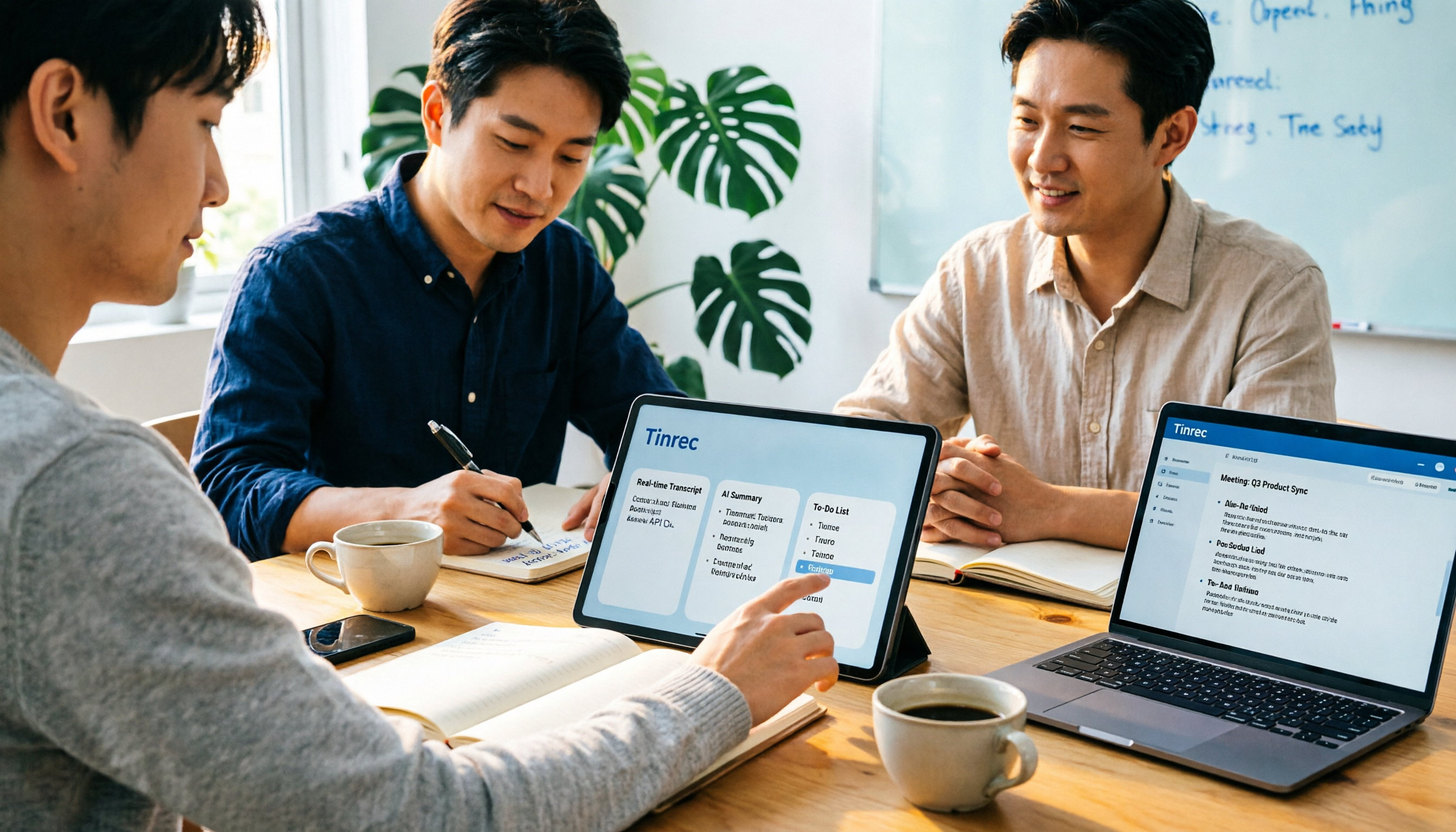
2026 Notta AI Complete Guide: Features, Limitations, and a Better Meeting Notes Alternative for Chinese-Speaking Teams
People searching for "app notta ai" usually have an unprocessed meeting recording sitting on their hands. This article doesn't cover spec sheets; instead, it breaks down the three missing steps between "turning voice into text" and "turning meetings into actionable data," and uses Tinrec to demonstrate a complete workflow—bot-free recording, real-time transcription, AI summaries and action items, meeting Q&A, and team knowledge retention—to help you decide which tool truly fits your work.

5 Legal Alternatives to Notta Mod APK: Free Audio Transcription Options for 2026
People searching for Notta Mod APK usually just want a free way to turn meeting recordings into text. This article covers 5 legal, actually usable alternatives, including free quotas, paid pricing, and best-use scenarios, and explains why installing APKs from unknown sources is not recommended.

The Complete 2026 Guide to AI Meeting Notes: From Transcripts to Team Knowledge
Meetings end, but notes and action items don't materialize? This guide, from a mid-level manager's practical perspective, breaks down the core capabilities, use cases, and 5 key purchasing considerations for AI meeting note tools, and demonstrates with Tinrec a complete workflow from recording to transcript, summary, and team knowledge retention.

Notta Country of Origin 2026: Headquarters, Language Support, and Chinese Meeting Tool Guide
Notta is developed by NOTTA PTE. LTD., a Singapore-based company with R&D in Shenzhen and a separate entity in Japan. This guide clarifies its registration and localization, then offers practical advice on Chinese transcription, meeting recording methods, and post-meeting organization for teams, using Tinrec as an example with bot-free recording, AI summaries, and team spaces.
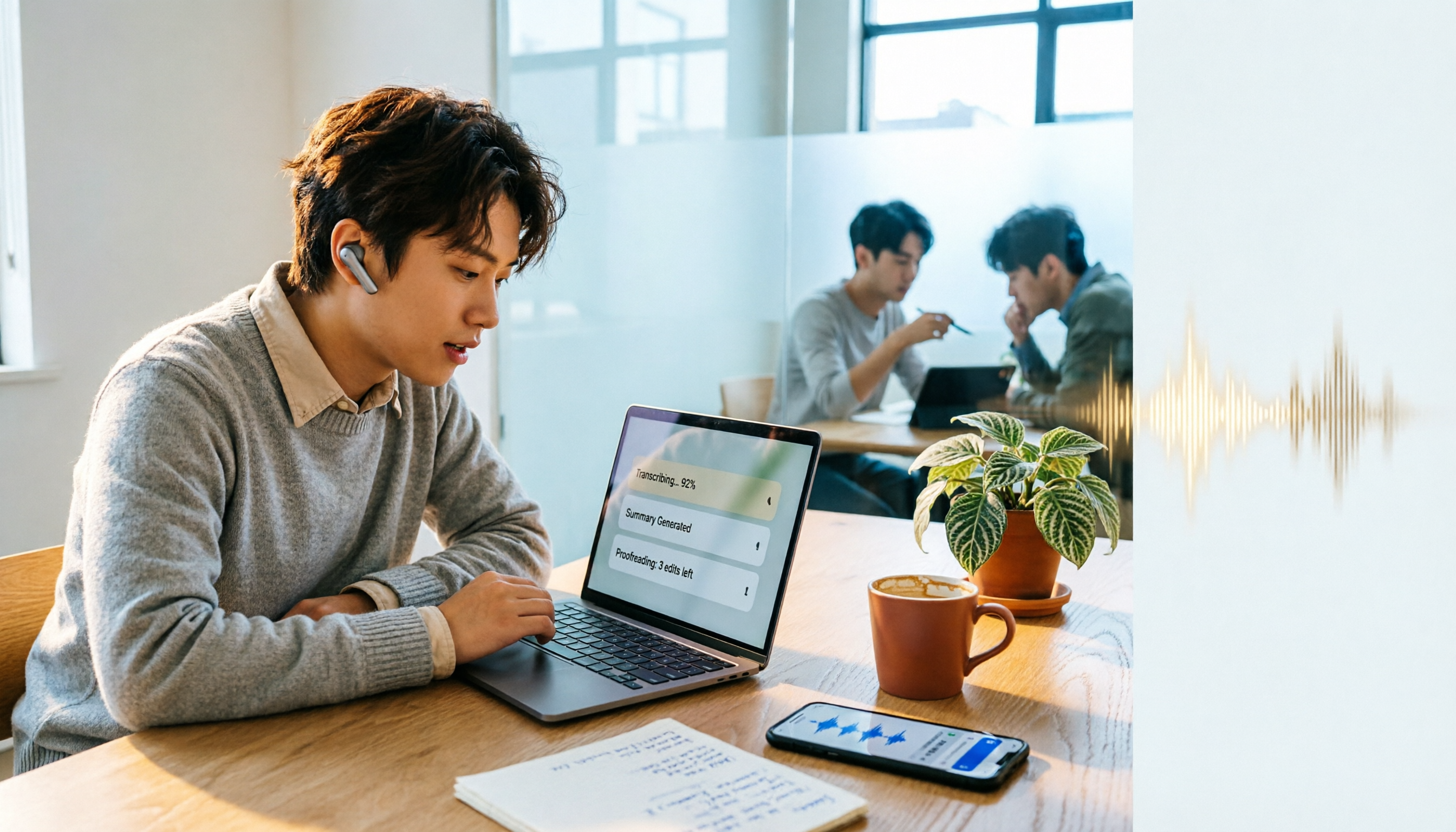
How to Use Notta in 2026: 5-Step Guide to Transcribe Audio to Text
Notta is a cross-platform AI audio transcription tool that supports real-time transcription, AI summaries, translation, and multi-device sync. This guide walks you through 5 steps—from recording and transcribing to proofreading and exporting—and honestly breaks down the differences between the free and paid plans to help you decide if the free version is enough.

2026 AI Meeting Recorder App Comparison: Notta Reviews Are Mixed—What's the Real Difference?
People searching for notta app reviews usually have one question: is this app worth trying? This article examines three decision points—accuracy, free tier limits, and post-meeting organization—and compares Notta, Otter.ai, TurboScribe, and Tinrec, with buying criteria and the 3 most common pitfalls.
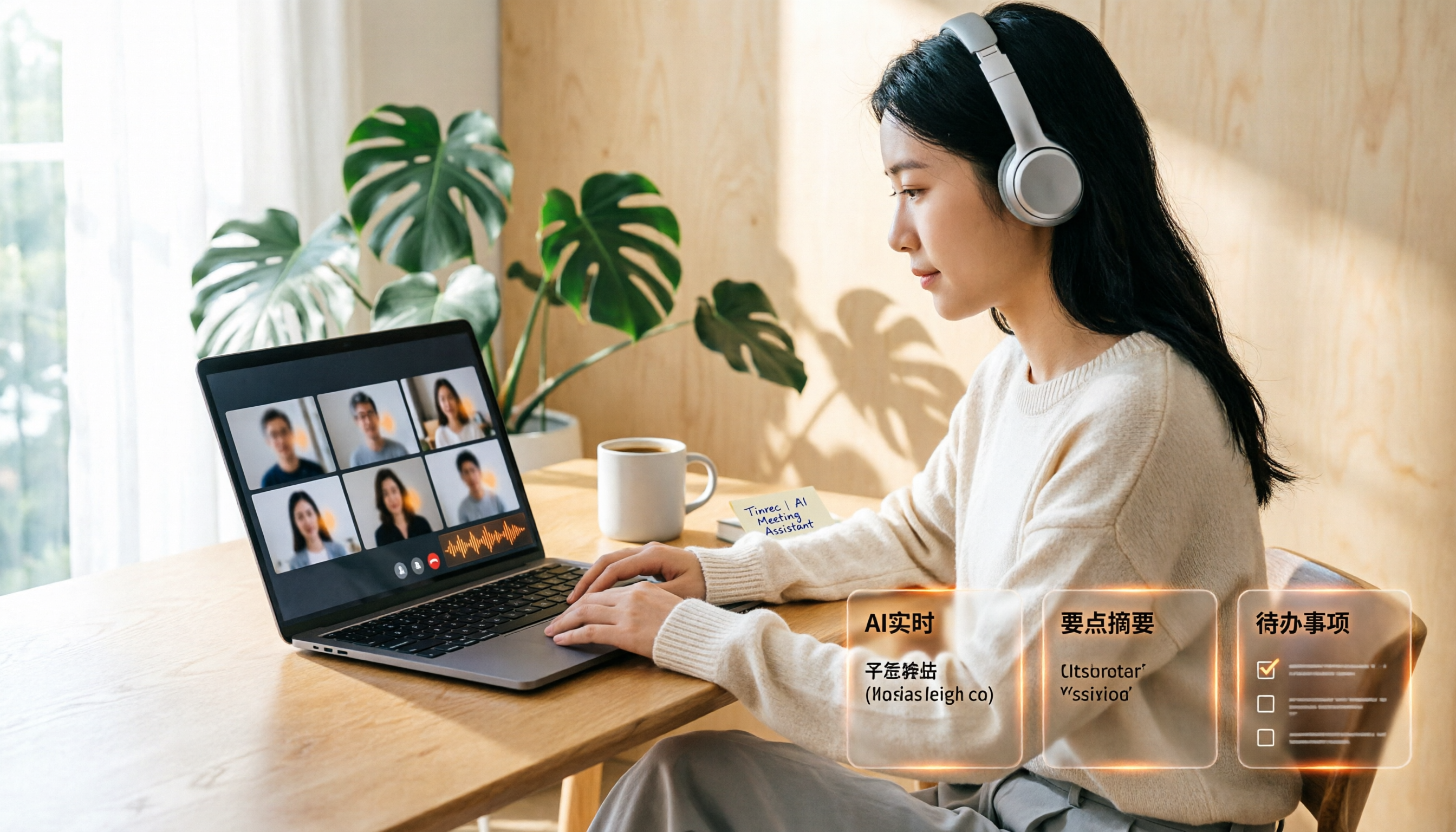
Google Meet Recording Free Options in 2026: 3 Tools Compared
Google Meet's built-in recording isn't available to everyone: it requires a computer or Android device, host permission, and a supported Workspace edition. This article reviews three recording and transcription options that work with Google Meet in 2026, covering Tinrec's bot-free desktop recording, AI summaries, action items, and Q&A, and compares the limitations and free tiers of Granola and TurboScribe, with tips to avoid pitfalls and choose the right tool.

Video to Text Online Tools in 2026: 5 Options Compared + Free Tier Breakdown
A roundup of 5 online video-to-text tools in 2026, covering Chinese transcription, subtitle file export, free tiers, and team collaboration to help you choose the right option for meeting, interview, and course videos.
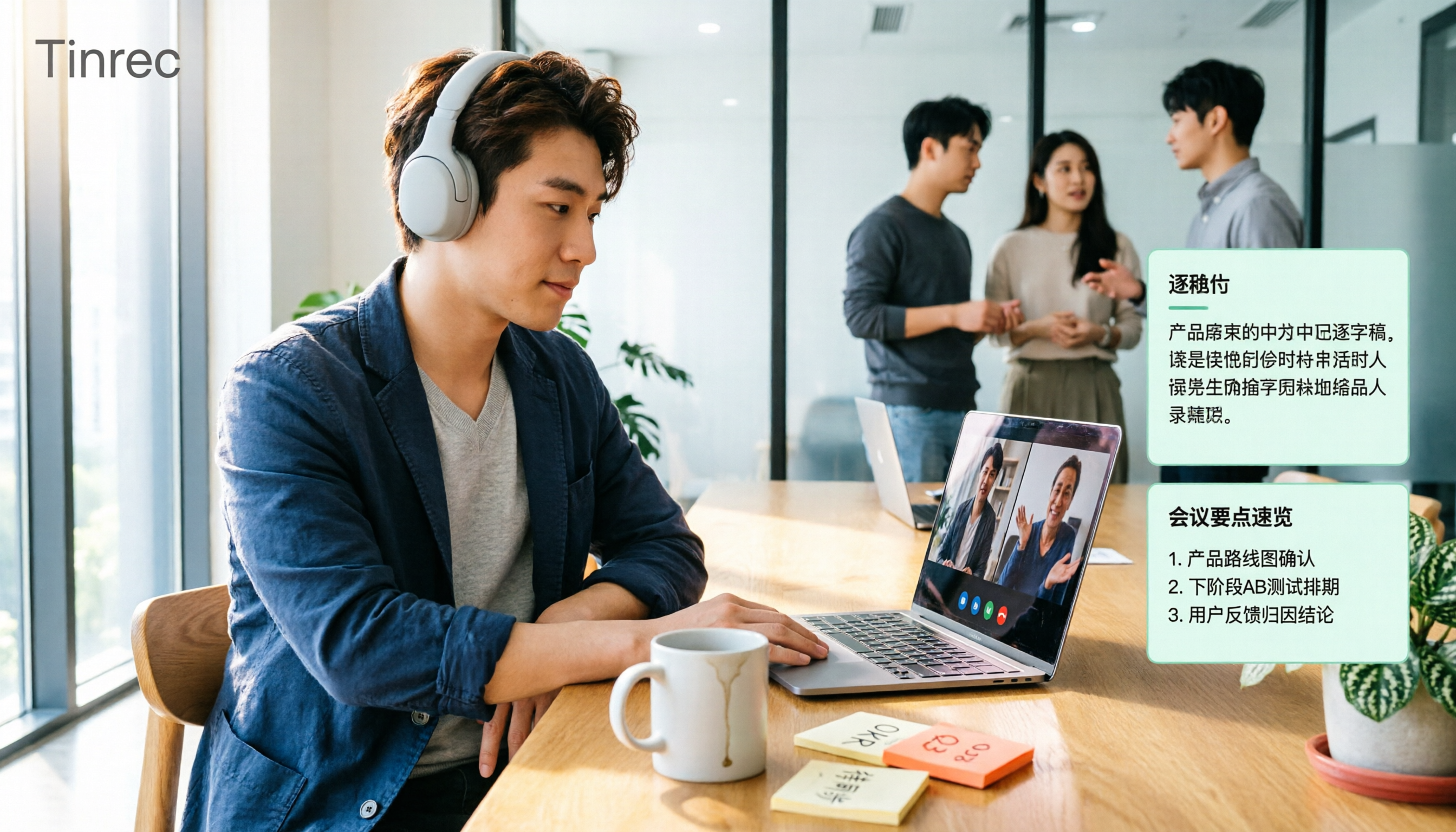
4 Google Meet Note-Taking Tools Tested for 2026: Tinrec's Chinese Transcripts and Post-Meeting Organization Are the Easiest
Still taking notes manually after Google Meet calls? This hands-on comparison looks at Google Meet's built-in Gemini 'Take notes for me,' Tinrec, Otter.ai, and Notta, covering the 4 key factors to consider when choosing a meeting notes tool, 3 common mistakes, and each option's limitations and pricing—so you can decide which one actually saves you post-meeting cleanup time.