

Turn recordings into transcripts and summaries in minutes
Upload audio or video for multilingual transcription, AI notes, and action items
2026 Comparison of 4 YouTube-to-Text Tools: Which One Actually Turns Videos into Usable Data?
Do you need a one-click way to turn YouTube videos into transcripts, or do you need to turn the transcribed content into data that can be searched, queried, and shared with your team? These two needs seem similar, but choosing the wrong tool will cost you a lot of time later.
I watch a lot of competitive analysis, product tutorials, and interview videos every week. My old approach was very primitive: pause while watching, take notes by hand, and a 20-minute video would take almost an hour. Later I switched to YouTube-to-text tools, which were faster, but new problems emerged—transcripts are long, and you still have to find the key points yourself; and many tools only grab existing captions, returning blank results for videos without captions.
This article shares my team's experience after testing 4 tools. Here's the conclusion upfront: if you just need a free transcript, Wayin.ai is sufficient; if you need to batch process long videos, TurboScribe has its place; but if, like me, you want to ask questions, organize action items, and add to your team's knowledge base after transcription, Tinrec is currently the smoothest choice.
Before Choosing a YouTube-to-Text Tool, Understand These 4 Key Points
1. Does it rely solely on existing video captions? Many tools claim "one-click transcription," but actually just fetch YouTube captions. If the video has captions, fine; but if captions are off or the creator didn't provide them, the result is blank. You need to confirm whether it uses AI to directly analyze the audio or just extracts captions.
2. Does the output format match your workflow? If you need to add subtitles, you need SRT or VTT; if you want to import into Word or Notion, TXT, DOC, DOCX are more practical. Tools that only provide plain text aren't unusable, but you may need to manually process further.
3. After transcription, can you continue using it? This is the most easily overlooked point. A transcript is just raw material; the real time-consuming part is "finding the key points within it." Tools with summaries, chapters, action items, and AI Q&A will save you more time than tools that just spit out a large block of text.
4. Should data be stored in a personal account or a team space? If you're just viewing it yourself, a personal version is enough. But if your department needs to share interview records, competitive analysis, or training videos, you need to check whether the tool supports team spaces, member roles, and seat management. This makes a big difference in multi-person collaboration.
Tinrec (秒聽錄音) — After Testing, Our Most Used Tool for Turning Video Content into Queryable Data
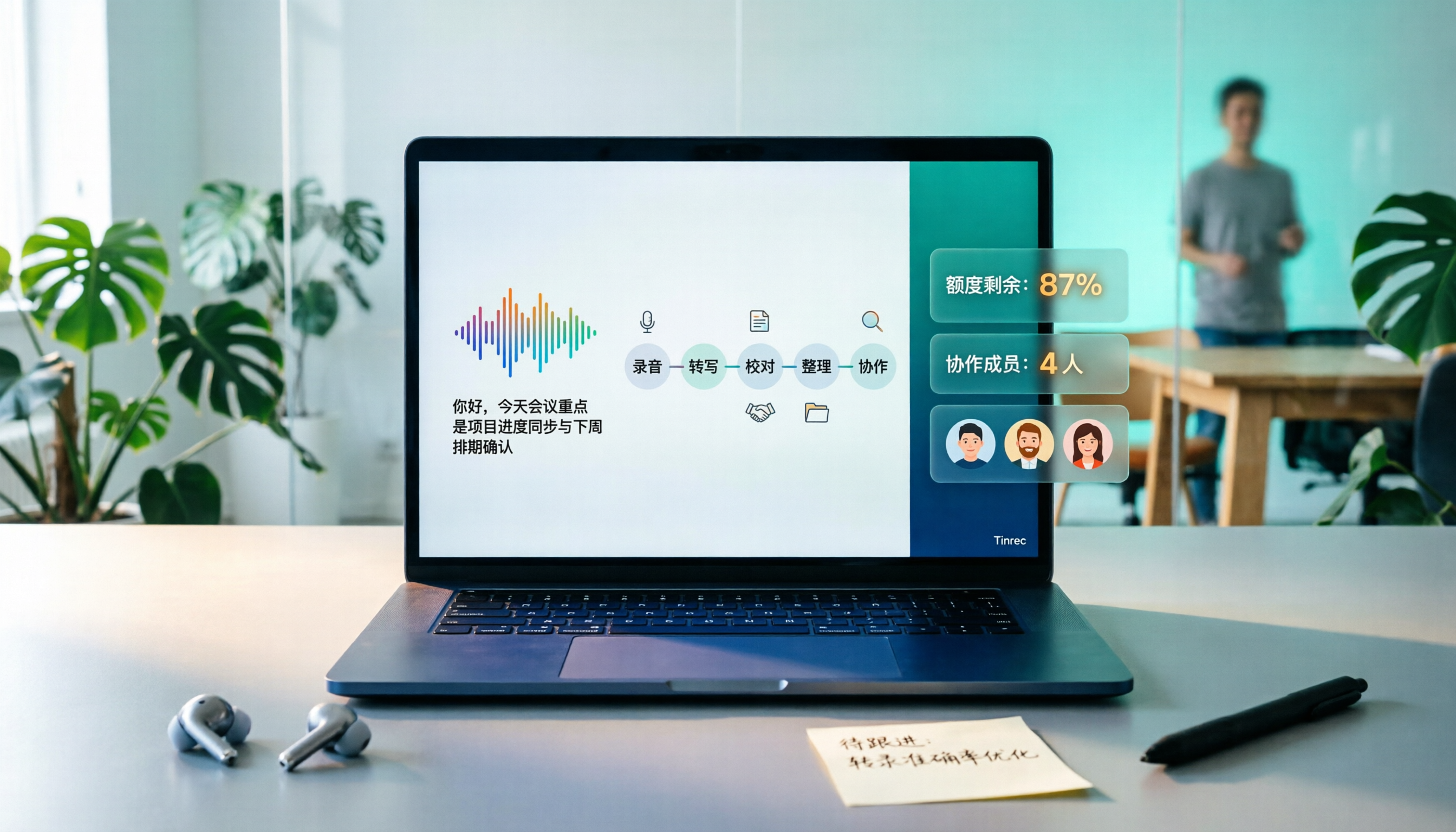
Tinrec (秒聽錄音) is an AI meeting notes and collaboration tool for individuals and teams. It supports real-time recording, desktop bot-free recording of online meetings, audio/video file transcription, real-time translation, and automatically generates summaries, chapters, action items, and mind maps. It covers iOS, Android, and web versions. Its core positioning is not a "YouTube downloader," but rather organizing audio and video content into searchable, summarizable, queryable, and exportable data.
For the YouTube-to-text need, Tinrec's web link import can serve as a supplementary capability to process some public video content. In our tests, after importing a public video link, we obtained a transcript and could directly ask questions about the content, such as "What are the three key points in this video?" or "What implementation steps did the speaker mention?" It doesn't just return keyword search results; it answers based on semantic understanding. This is my most used feature: rather than re-watching a 20-minute video, just ask it.
Post-transcription processing is also a strength of Tinrec. It can generate summaries, chapters, action items, support multi-format export, and use Agent post-processing to generate reports, tables, and documents. For managers, this means you no longer need to manually copy and paste from a long transcript; instead, you turn video content into data you can bring to weekly meetings and hand to colleagues.
Stop organizing recordings by hand
Upload audio or video and automatically get a transcript, summary, and action items
In our team's actual use, the team version was most impressive. The team version provides an independent team space where meeting data belongs to the team. It supports inviting members via link, setting owners and admins, assigning seats, and viewing usage trends, member rankings, operation audits, and audio recycle bin. Even without a seat, members can view, play, and read team data; but a seat is required to record, upload, edit, and export. This is very practical for departments sharing interview videos or training materials—people leave, but data doesn't leave with them.
Pros:
- After transcription, you can directly ask AI questions, so you don't need to re-watch the video to find key points.
- Summaries, chapters, action items, and export all in one place, suitable for post-meeting or post-video organization.
- The team version has spaces, roles, seats, usage, and audits, suitable for departmental knowledge retention.
Limitations to be clear about: Tinrec's web link import is a supplementary capability, not a dedicated YouTube batch download tool, and it does not guarantee that all video links can be processed. If you need to transcribe a large number of YouTube videos at once, or need to directly export SRT or VTT subtitle files, it is not the most specialized choice. Also, the free version has a basic quota, which is enough for light use, but for people like us who watch videos and have meetings every day, we eventually use a paid plan.
Who it's for: People who need to turn video or meeting content into data that can be queried, organized, and shared with a team, and who value Chinese meeting experience and post-meeting workflows.
Besides Tinrec, What Other Options Are There?
Wayin.ai: A free YouTube transcript generator that requires no login, uses AI to directly analyze audio, can generate transcripts even for videos without captions, and supports downloading SRT, VTT, TXT, DOC. It's great for the scenario "I just need a transcript now." But its focus is transcription and download; it lacks Tinrec's AI Q&A around content and team space and seat management.
TurboScribe: Paste a link to transcribe, free, no account required, can download DOCX, PDF, TXT, SRT, VTT. The paid version is more friendly for long documents and batch uploads. If you need to process multi-hour long videos or large numbers of files, it's more suitable than Tinrec. However, it is essentially a transcription tool; after transcription, it's just a text file, without meeting summaries, action item extraction, and team governance capabilities.
Vizard: Paste a YouTube link into Vizard Agent to generate a transcript, and in the same conversation, you can clip the video into subtitled segments, translate the video, or write accompanying social media posts. It's very convenient for content creators. But if you need team knowledge retention, member seats, and cross-meeting Q&A, Tinrec's team version is more complete.
Pitfall Guide: The 3 Most Common Mistakes When Choosing a YouTube-to-Text Tool
Pitfall 1: Only looking at "free" without confirming it can handle videos without captions. Many tools actually just grab captions and give you blank results if the video has no captions. Rather than looking at ads, try it with a video that has no captions.
Pitfall 2: Thinking a transcript is enough. Transcripts are long; if you still have to manually find key points, you've only saved half the time. Whether you can summarize and ask questions after transcription is where the real difference lies.
Pitfall 3: Ignoring team data ownership. Using a personal account to transcribe a bunch of department data means that when personnel changes or leave, the data scatters. If the content is for team use, choose a tool with team spaces and member management from the start.
Also note that recording and transcription involve local laws and authorization. When processing meeting or interview content, remember to obtain participant consent when required.
Conclusion: Which One Should You Choose?
To sum up in one sentence: If you only want a free transcript, choose Wayin.ai; for batch long videos, look at TurboScribe; but if you want data that is "usable after transcription," Tinrec is our top choice after testing.
Scenario-based recommendations:
- Just want free, no login, quick transcript or subtitle file → Wayin.ai.
- After transcription, want to directly ask AI "What are the key points?" "Who said what?" → Tinrec.
- Need summaries, chapters, action items, and meeting minutes → Tinrec.
- Department needs to share videos and meeting data, manage members and seats → Tinrec team version.
- Need to use on phone, computer, and web → Tinrec.
Our approach is to start with Tinrec's free version, using the basic quota to try a few videos and meetings. If, like us, you have a lot of video and meeting content to organize every week, then consider upgrading to a paid plan; if you only occasionally transcribe a video, using free tools is also reasonable. Tools are not absolutely good or bad; the difference is whether you need to continue working after transcription.
References
- YouTube Transcript Generator | Free One-Click Transcription, No Login Required
- YouTube to Text Converter | Video Transcription Tool
- Transcribe YouTube Videos to Text | TurboScribe
- YouTube Video to Text Tool: AI Free Transcription
- YouTube Transcript Generator: Free YouTube Video to Text Converter Online - EaseMate AI
Turn every recording into actionable outcomes
Get 60 free transcription minutes when you sign in. No credit card required.
Related Reading
You might also like

2026 AI Meeting Notes Showdown: Tinrec vs Notta for Chinese Classrooms
A senior information management student spent a semester testing Tinrec and Notta in Chinese lectures, group discussions, and finals prep. He compares free tiers, mixed Chinese-English recognition, post-meeting organization, and team spaces, and honestly explains each tool's limits and how students should choose.

4 Google Meet Recording Methods Compared (2026): Can Free Accounts Keep Meeting Records?
Can Google Meet record? The answer depends on your account type, admin settings, and meeting role. This article first explains the 3 prerequisites for official built-in recording, then compares 4 common meeting recording methods, and demonstrates the complete workflow from recording to transcript, AI summary, and team sharing using Tinrec desktop, helping you choose the right approach.

How to Get a Google Meet Transcript in 2026: 5-Step Guide
There are three ways to get a Google Meet transcript: manually copy live captions, use Gemini's 'Take notes for me' feature, or use a third-party AI meeting tool. This article walks through Tinrec's bot-free recording workflow in 5 steps, covering live transcription, AI summaries, action item extraction, and team knowledge retention—explaining how to choose, how to use, and where pitfalls lie.

2026 Google Meet Recording Tools Buying Guide: 5 Tested Methods and Recommendations
Google Meet's built-in recording is only available to paid Workspace accounts; it's normal that free Gmail users can't find the 'Record meeting' option. This guide covers 5 practical ways to record Google Meet—from the official built-in feature and desktop bot-free recording to screen recording and browser extensions—and explains where files are saved and what to do if you're not the host, helping you choose the right one for your needs.

2026 Video Transcription AI Comparison: 5 Tools Tested — Which One Actually Helps You Organize After Transcription?
Most people treat video transcription AI as a tool to turn audio into text, but end up with an 8,000-word plain text file they still have to read from scratch. This article addresses the three most common misconceptions, breaks down the core capabilities of video transcription AI, practical use cases, and 5 key purchasing criteria, and uses Tinrec to demonstrate a complete workflow from transcription to summaries, action items, and team knowledge retention.

Google Meet Transcription in 2026: 4 Methods Tested — Free Accounts Can Get Transcripts Too
Free Google Meet accounts don't include built-in transcription, so after a meeting you're on your own to produce a transcript. This article starts from the decision point of whether to upgrade Workspace for this purpose, and compares four approaches: Tinrec, Google Meet's built-in transcript, Otter.ai, and Notta. It covers pricing, usage limits, and four common pitfalls.
How to Transcribe Windows Recordings in 2026: A 5-Step Guide
How do you transcribe recordings on Windows? This article breaks down the process from recording to transcript in 5 steps, and compares Tinrec and Microsoft 365 Word transcription side by side across dimensions like Chinese support, online meeting audio capture, quota and billing, and team collaboration to help you choose the right solution.
2026 Video-to-Text Tools Compared: Which Free Tier and Chinese Transcription Actually Works?
Free quotas, timestamps, AI follow-up questions, and team collaboration are what really set video-to-text tools apart. This guide cuts through common misconceptions, compares Tinrec, VEED.IO, Vidnoz, and TurboScribe, and shares 4 key buying factors plus pitfalls to avoid.

Free Video-to-Text Tools in 2026: 6 Options + Free Tier Comparison
A roundup of 6 free video-to-text tools, comparing free quotas, file size limits, Chinese recognition, output formats, and team collaboration. Also explains where Tinrec fits in meeting and video organization workflows.