

Turn recordings into transcripts and summaries in minutes
Upload audio or video for multilingual transcription, AI notes, and action items
2026 Video-to-Text App Comparison: Which One Turns Meeting Recordings into Notes You Can Query?
Friday evening, the meeting just ended. Your manager drops an hour-long meeting recording into the group chat with a note: "Please transcribe this." You open the player, listen for two sentences, pause, type, rewind to confirm, and before you know it, it's 8 PM.
The hassle was never the typing—it's that you've already had the meeting, yet you have to spend twice as long listening to the same meeting again.
Recently, I took the same Chinese meeting recording and an interview video and ran them through several common services. This article isn't about stacking specs; it's about one thing: after transcription, can you actually use that text directly?
The Need for Video-to-Text Isn't Just "Having Subtitles"—You Need a Process That Gets It Done in One Go
The first scenario is meetings. Online meetings have recordings, but recordings don't turn themselves into action items. Decisions are scattered across 40 minutes of conversation. Next time you need to check "who said they'd revise the draft," you have to rewatch.
The second scenario is interviews and courses. Videos often run an hour or more. Manual transcription is so costly that most people give up, and the material sits unused on a hard drive.
The third scenario is cross-language. Videos mix Chinese and English, or need to be shared with colleagues who speak different languages. A transcript alone isn't enough—you need side-by-side comparison.
What these three scenarios have in common: you don't want just a text file; you want material that can be searched, queried, and further processed. Choosing the right tool makes all the difference.
Before Buying a Video-to-Text App, Understand These 5 Key Points
1. How broad are the input sources? Some tools only accept uploaded files, some can take links, and some can directly record meetings playing on your computer. First confirm what kind of material you have—otherwise you might buy a tool only to find it can't handle online meetings, which is frustrating.
2. What do you get after transcription? Getting only a transcript versus getting a summary, chapters, and action items are completely different workloads. The former requires a second round of work; the latter is close to ready to deliver.
3. Performance with Chinese and mixed Chinese-English. Official accuracy rates are usually measured in quiet environments. Real meetings have air conditioning noise, keyboard sounds, and people talking over each other—performance drops. Test with your own recordings, don't just look at advertised numbers.
4. Are recordings retained? Transcripts always have errors. Being able to go back and compare with the original audio determines how efficiently you can correct them. Some tools don't retain meeting audio files—confirm this first.
5. How are quotas calculated? Real-time recording and file import often use different calculation methods. Frequent meeting-goers care about recording quotas; those who often process old videos care about import quotas. Don't compare these two needs together.
Tinrec (Miao Ting Lu Yin)—My Top Recommendation After Testing
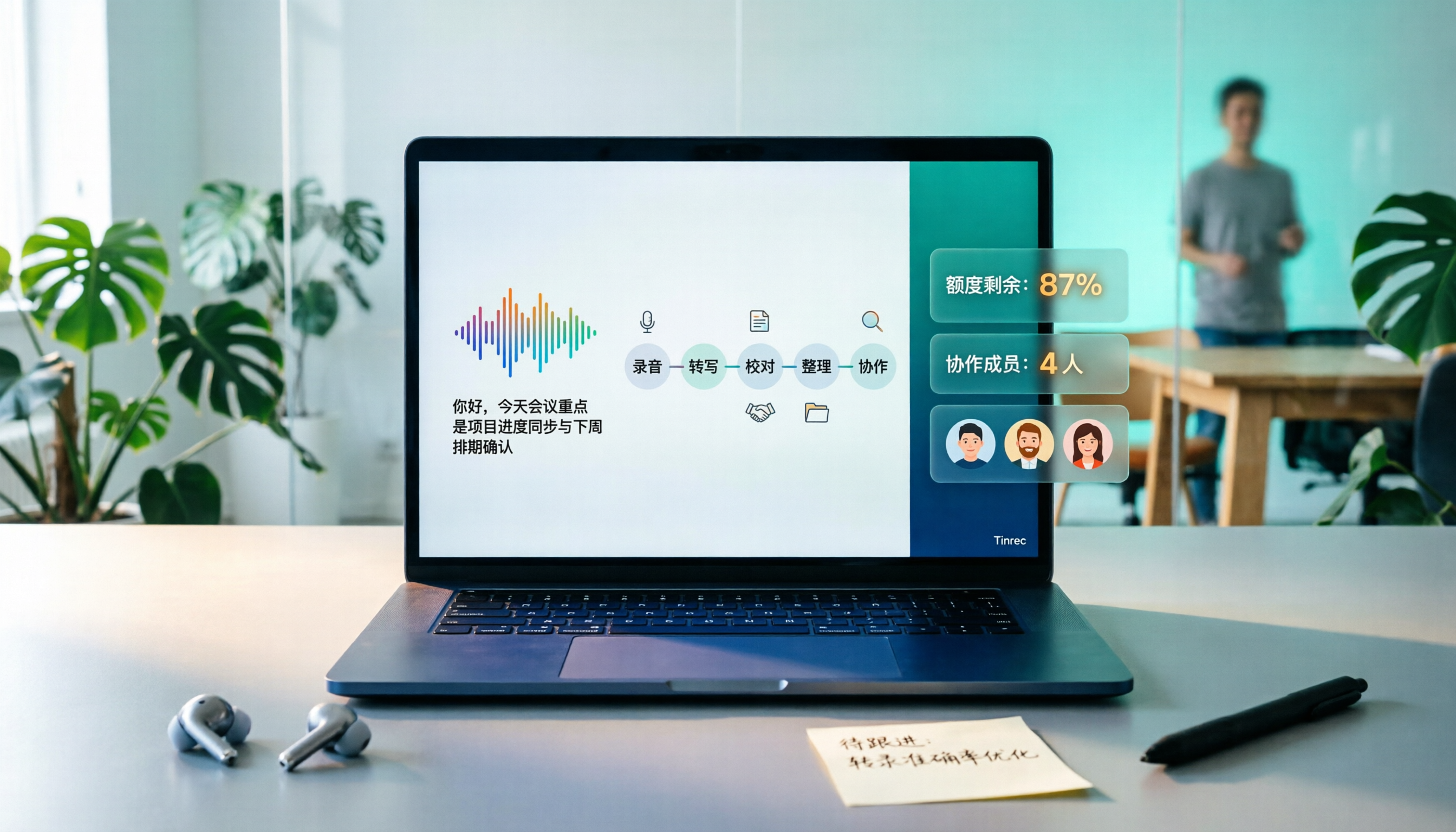
Tinrec is an AI meeting notes and collaboration tool for individuals and teams, available on desktop, web, and mobile. It doesn't just convert audio to text; it organizes meetings into searchable, queryable, exportable data.
Usable during the meeting. The desktop version directly captures your computer's system audio. For online meetings like Zoom, Google Meet, Microsoft Teams, and Webex, you don't need to invite a bot into the meeting room. No stranger appears on the participant list—especially noticeable in client meetings. For offline meetings or impromptu interviews, the mobile app can record and transcribe in real time.
No second round of work after the meeting. When the meeting ends, summaries, chapters, and action items are already organized—who's responsible for what and when it's due, all visible. This is where I save the most time; previously I had to re-listen before daring to write minutes.
Ask questions about the meeting content. This is the biggest difference from ordinary transcription tools. You can directly ask, "What was the budget cap the client mentioned?" and it will find the corresponding statement from the meeting content, rather than giving you a bunch of keyword search results. As historical meetings accumulate, this query method is much faster than manual Ctrl+F.
Handles existing videos too. Interview files and course recordings on hand can be uploaded for transcription; importing public video links is a supplementary capability, suitable for scattered material, but I wouldn't use it as the main entry point.
Stop organizing recordings by hand
Upload audio or video and automatically get a transcript, summary, and action items
Output is portable. Beyond transcripts and summaries, you can export to Notion, Google Docs, OneNote, Dropbox, and other tools for further editing. You can also use Agent post-processing to generate reports, tables, and documents. For cross-language meetings, enable real-time translation and view in original, translated, or bilingual mode.
Note the difference between roles and seats for team use. The team version is a separate collaboration space where you can create multiple teams, invite members via link, set owners and admins, assign or revoke seats, and view usage trends and activity logs. One common misunderstanding: roles determine who can manage the team, seats determine who can record, upload, edit, and export. Active members without seats can still view, play, and read team data, but cannot upload or edit.
Limitations should be clear. The team version currently focuses on team-level sharing, not file-level or member-level granular permissions. Deleted audio files go to the recycle bin and can be restored within 30 days; TODOs are not covered by the recycle bin. Also, it doesn't automatically join all meetings on your calendar—you need to open Tinrec yourself to start recording.
Pricing. The personal version has a free tier, weekly card, Pro monthly, and Pro annual—choose based on usage frequency. Actual prices and quotas are subject to the official purchase page. The team version is currently USD 29.80 per paid seat per month, or USD 199 per paid seat per year (about USD 16.58/month) for annual billing. Each paid seat provides 2,000 minutes of team shared import quota per month. Eligible teams can try 7 days free with 1 free seat and 300 minutes of shared import quota. Under an active team plan, real-time recording currently does not deduct minutes; file and link imports consume team shared quota.
Who it's for. People who frequently hold Chinese meetings, need to produce minutes and action items afterward, need to retain recordings for later verification, or want meeting data to stay in a team space rather than personal accounts.
Besides Tinrec, What Are the Alternatives?
TurboScribe
Clear positioning: a cost-effective file transcription tool focused on long files and batch processing. Free version: 3 files per day, 30 minutes per file. Unlimited annual plan: USD 120 (about USD 10/month), up to 10 hours or 5 GB per file, 50 files per upload. If you have dozens of pre-recorded videos and only need text files, it's a great deal. But it's more file-processing oriented, lacking team spaces and post-meeting query workflows, and doesn't handle real-time meeting recording.
Notta
A combination of multi-platform transcription plus meeting notes, file import, and translation—overlaps significantly with Tinrec. Free version: 120 minutes per month, up to 3 minutes per item. Pro annual: about USD 8.17/month, 1,800 minutes per month. Business annual: about USD 16.67 per seat per month. It has deeper experience in multilingual transcription including Chinese, English, and Japanese. For meeting scenarios, it still requires a bot or upload processing. In comparison, Tinrec's desktop version can directly capture system audio and further generate reports, tables, and other post-meeting outputs.
Granola
Also bot-free, using desktop system audio for real-time transcription, combined with user-written notes to generate content closer to their thinking. Basic is free; Business is USD 14 per user per month; Enterprise is USD 35 per user per month. Note that it doesn't support uploading pre-recorded audio/video files and doesn't save meeting audio—past content can only be reviewed via transcripts. If your material includes existing videos, you need to retain recordings, or you need Chinese real-time translation and team data management, Tinrec is more suitable.
Pitfall Guide: The 3 Most Common Mistakes When Choosing a Video-to-Text App
Pitfall 1: Treating the official claimed accuracy as your own accuracy. Advertised 98%, 99% are usually measured with clean audio. Real meetings have echo, interruptions, and jargon—the gap is obvious. The right approach is to test with a recording of your own meeting, under the same venue conditions.
Pitfall 2: Treating the tool as just "transcription." If you still have to listen through to write summaries and extract action items, you're only using a third of its capability. When choosing a tool, first ask: Will it help me organize structure? Can I find key points through Q&A?
Pitfall 3: Sharing one account among multiple people. This barely works for teams under three, but as the team grows, you'll face chaotic data ownership, data taken away by departing employees, and unclear usage calculations. What to look for in a team version is actually the design of roles and seats: roles govern management, seats govern usage eligibility—separating the two makes it manageable.
Also note: recording and transcription involve personal data and privacy. For external meetings, obtain participants' consent first and pay attention to local regulations.
Conclusion: Which One Should You Choose?
If you want "meeting recordings turned into queryable, handover-ready data," I'd recommend Tinrec first. Its value isn't in transcription itself, but in what comes after: summaries, chapters, action items, AI Q&A, export, plus team spaces that keep data in the company rather than on personal devices.
- Meeting recordings to become searchable, queryable data → Tinrec
- Mixed Chinese-English, need bilingual comparison → Tinrec (real-time translation and bilingual view)
- Record on mobile, organize on computer, cross-device continuity → Tinrec (desktop, web, mobile)
- Team needs to share meeting data, manage seats and usage → Tinrec Team Version
- Need to process dozens of long videos at once, only need plain text files → Batch transcription tools like TurboScribe are more cost-effective
Not sure which type you are? Start with the free version, run through one or two real meetings, then decide whether to upgrade. The standard for paying is: you can get used to it, and the output is something you dare to hand directly to your manager.
References
- Convert Video to Text | Transcribe App & Online Editor
- Free Video-to-Text Tool | AI Automatic Transcription with High Accuracy Subtitles
- Online AI Speech, Video, Audio Auto Transcription - Free Trial - cSubtitle
- Transcribe Video to Text - Real-time, 99.9% Accurate - VEED.IO
- Transcribe YouTube Videos to Text | TurboScribe
Turn every recording into actionable outcomes
Get 60 free transcription minutes when you sign in. No credit card required.
Related Reading
You might also like

Google Meet Transcription in 2026: 4 Methods Tested — Free Accounts Can Get Transcripts Too
Free Google Meet accounts don't include built-in transcription, so after a meeting you're on your own to produce a transcript. This article starts from the decision point of whether to upgrade Workspace for this purpose, and compares four approaches: Tinrec, Google Meet's built-in transcript, Otter.ai, and Notta. It covers pricing, usage limits, and four common pitfalls.
How to Transcribe Windows Recordings in 2026: A 5-Step Guide
How do you transcribe recordings on Windows? This article breaks down the process from recording to transcript in 5 steps, and compares Tinrec and Microsoft 365 Word transcription side by side across dimensions like Chinese support, online meeting audio capture, quota and billing, and team collaboration to help you choose the right solution.

2026 Comparison of 4 YouTube-to-Text Tools: Which One Actually Turns Videos into Usable Data?
From a mid-level manager's practical perspective, we tested and compared Wayin.ai, TurboScribe, Vizard, and Tinrec for YouTube transcription, and explain how to choose based on whether you just need a transcript or want post-processing and team collaboration.

2026 Video-to-Text Tools Compared: Which Free Tier and Chinese Transcription Actually Works?
Free quotas, timestamps, AI follow-up questions, and team collaboration are what really set video-to-text tools apart. This guide cuts through common misconceptions, compares Tinrec, VEED.IO, Vidnoz, and TurboScribe, and shares 4 key buying factors plus pitfalls to avoid.

Free Video-to-Text Tools in 2026: 6 Options + Free Tier Comparison
A roundup of 6 free video-to-text tools, comparing free quotas, file size limits, Chinese recognition, output formats, and team collaboration. Also explains where Tinrec fits in meeting and video organization workflows.

How to Generate Video Subtitles in 2026: AI Auto-Captioning + Transcripts Made Easy
How do you choose a video subtitle generation tool? First, clarify whether you need a subtitle file or reusable content. This article breaks down 4 key selection criteria, tests Tinrec's audio/video transcription and AI Q&A workflow, and compares Wayin.ai, CapCut, and cSubtitle for their best-fit scenarios.

2026 Comparison of 4 Google Meet Recording Extensions and Alternatives: Don't Install the Wrong One for Free Accounts
Starting from the common misconception that free Gmail accounts lack built-in recording, this comparison of Google Meet recording extensions, built-in recording, and desktop recording solutions helps you choose a tool that can record, transcribe, and support team collaboration.

How to Convert TikTok to Text in 2026: A 3-Step Guide
TikTok videos are full of useful information, but manually typing it out takes time. This guide walks you through 3 steps to choose the right tool, paste a link, and convert to text. We also compare Tinrec, BibiGPT, Dictationer, and Zeemo to help you find the best TikTok-to-text solution.

2026 Comparison of 4 Meeting Video-to-Text Tools: Which Saves the Most Time for Transcripts, Summaries, and Team Retention?
Meeting video-to-text shouldn't stop at transcripts. Based on real meeting scenarios, this article compares Tinrec, Notta, TurboScribe, and Granola on recording methods, post-meeting organization, AI Q&A, export, and team collaboration, and honestly lists free quotas and paid prices to help you decide which one truly saves time.