
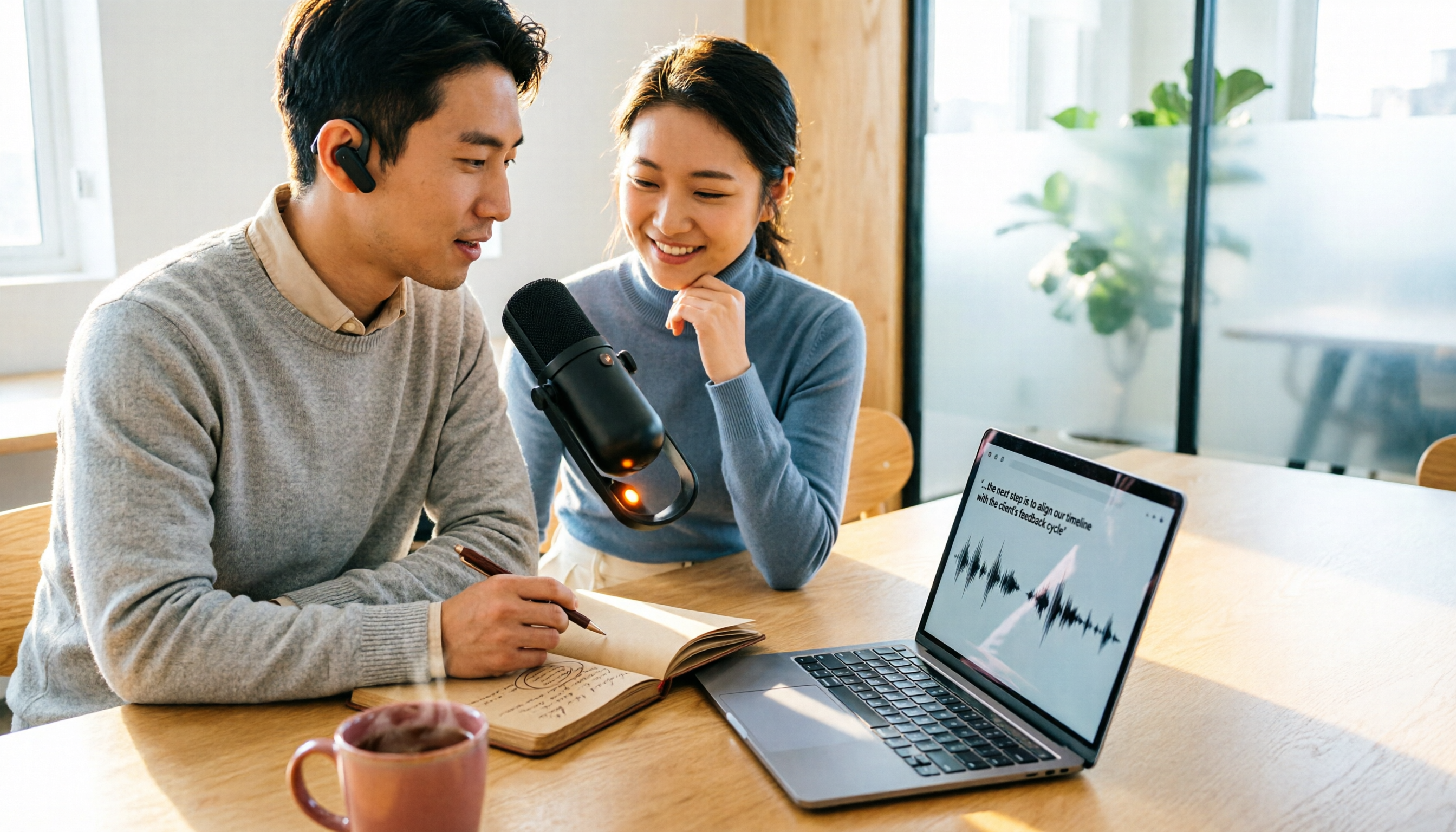
Turn recordings into transcripts and summaries in minutes
Upload audio or video for multilingual transcription, AI notes, and action items
How to Use Good Tape in 2026: 5 Steps to Transcribe Audio to Text
To determine whether a transcription tool is worth adding to your workflow, I usually look at four things: language support, whether the output format is directly usable, whether the free tier's limits and speed are acceptable, and how recordings are stored.
Good Tape addresses these four points clearly. It uses OpenAI's Whisper technology and supports over 40 languages, including English, Chinese, Japanese, Korean, German, and French. After uploading a recording, it generates a text file with timestamps and can also download .srt subtitle files. The tool was built by Danish news organization Zetland for journalists' needs, with encrypted transmission and data kept within the EU (protected by GDPR). Without registration, files are stored for only 3 days.
Note the gap between free and paid versions. The free version transcribes slowly, and Chinese content may not automatically include punctuation. Upgrading to paid is more suitable for heavy use.
Below is the complete 5-step process. The last section explains how to choose if you need more than just a transcript—such as summaries, action items, and team data after meetings.
Before You Start: What You Need
- A Good Tape account. You can sign in directly with a Google account or register with email and password.
- A recording you want to transcribe. Meetings, interviews, lectures, video audio—save it as an audio file (e.g., MP3).
- Confirm the recording's language. This may seem minor but directly affects recognition results.
- A stable internet connection. Transcription happens in the cloud, starting after upload completes.
If you just want to try it temporarily, you can upload without registering, but remember unregistered files are kept for only 3 days; also, the "custom time interval" feature requires login.
Step 1: Ensure Good Recording Quality
The goal here is to get audio that "AI can hear clearly."
During recording, keep the microphone close to the speaker. For one-on-one interviews, place it between the two people; for group meetings, place it in the center of the table. Background noise, echo, and multiple people talking simultaneously are the three most common sources of recognition errors.
Why emphasize this? Because even the best transcription engine can only guess with unclear audio. Rather than spending twice the time proofreading later, spend 30 extra seconds confirming placement during recording.
If your file is a video, convert it to MP3 first before uploading for smoother processing.
Step 2: Sign Up and Log In to Good Tape
The purpose of this step is to unlock full features, especially the time interval settings used later.
Go to the Good Tape website and sign in with Google for the fastest option; if you prefer not to link Google, you can create an account with email and password. The interface after login is similar to when not logged in—the difference is whether settings options are available.
Step 3: Upload File and Select the Correct Language
This step determines the recognition baseline.
Upload your prepared audio file, then select the recording's language from the language menu—choose Chinese for Chinese, or the primary language for mixed Chinese-English meetings. Good Tape supports over 40 languages, including English, Chinese, Japanese, Korean, German, French, and Danish.
What happens if you choose the wrong language? The system will use the wrong language model to guess content, making the output hard to proofread, and you'll usually need to rerun it. So it's worth double-checking the language field before uploading.
After completion, Good Tape automatically segments and adds timestamps, turning long meetings into more readable blocks.
Step 4: Adjust Transcript Time Intervals
This is a setting many overlook but greatly affects subsequent use.
On the results page, bottom right, you can select the transcript time interval, from 0 seconds minimum to 20 seconds maximum. 0 seconds means no extra timestamps, suitable for pure reading; for subtitles, shorten the interval so each sentence has a corresponding timestamp.
This feature is only available after logging in; unregistered temporary transcriptions won't show this option.
Step 5: Download .txt or .srt and Proofread
The final step is to bring the results back into your workflow.
On the results page, you can download plain text .txt or subtitle .srt. For meeting notes or interview transcripts, usually take the .txt into Word or Google Docs for editing; for video subtitles, import the .srt directly into editing software.
Stop organizing recordings by hand
Upload audio or video and automatically get a transcript, summary, and action items
Honestly, Chinese transcripts still require manual proofreading. Some reviews note that Good Tape may not automatically add punctuation for Chinese and cannot edit text directly before export. So my approach: let it run first, treat the transcript as an "outline," then proofread section by section against the recording. This still saves considerable time compared to typing from scratch.
FAQs and Troubleshooting
Q: Is the free version enough? Depends on how urgent it is. The free version can complete transcription but is slow; some reviews indicate a 1-minute recording may take about 1 hour to transcribe. If you're just occasionally organizing an interview, you can wait; if you need to submit the next day, consider upgrading.
Q: What if the Chinese transcript has no punctuation? This is a common experience. In practice, add punctuation after downloading using an editor or AI tool, or add it while proofreading.
Q: How long are files stored? Without registration, files are kept for only 3 days. Storage rules after registration depend on your plan; for important recordings, download and back up after transcription.
Q: Can it distinguish different speakers? According to third-party reviews, the upgraded version offers speaker identification, making multi-person conversations clearer; the free version does not guarantee this capability.
Q: Do I need a computer? Good Tape is an online tool operated via browser. Before uploading large files, check your internet upload speed to save hassle.
Q: There are many typos in the transcript—what went wrong? Most likely the recording environment. Noise, distance, heavy accents, and people talking over each other all reduce recognition accuracy. This is not unique to Good Tape; all speech-to-text tools have the same issue.
Advanced Tips: Make Transcripts More Useful
- Run the same file with two time intervals. Long intervals for reading, short intervals for subtitles.
- Transcribe first, then proofread—don't type while listening. Treat the transcript as a draft and focus only on fixing typos and adding punctuation during proofreading.
- Upload important interviews in segments. Split long recordings into 20–30 minute chunks so you don't have to rerun the whole file if something goes wrong.
When Might Good Tape Not Be Enough?
If you need more than "turning audio into text"—if you need "a trackable record after a meeting"—then considerations differ: summaries, chapters, action items, ability to ask follow-up questions, and team visibility.
For such needs, consider Tinrec. It is an AI meeting notes and collaboration tool for individuals and teams. Beyond transcripts, it automatically generates summaries, chapters, key points, and action items, and supports AI Q&A around meeting content, mind maps, and post-processing outputs like reports, tables, and documents. It can also export to Notion, Google Docs, and other tools for continued use.
For meeting sources, Tinrec's desktop version directly captures computer system audio, so when handling online meetings on Zoom, Google Meet, Microsoft Teams, Webex, etc., no additional meeting bot is needed to join. It also offers real-time translation and bilingual viewing, which is friendlier for mixed Chinese-English meetings.
For team use, Tinrec's team version is a separate team space where meeting data belongs to the team, and provides role and seat management, usage analytics, audit logs, audio recycle bin, and team hotwords. Currently, team monthly payment is USD 29.80 per paid seat per month, annual payment is USD 199 per paid seat per year (about USD 16.58 per month). Paid seats include 2,000 minutes of team shared import quota per month; eligible teams can try 7 days, 1 free seat, and 300 minutes shared import for the first time. Actual prices and benefits are subject to the official purchase page.
Note that Tinrec's strength is real-time meetings and post-meeting organization, not batch transcription of large numbers of files at once. If you have dozens of long files to process at once, tools like TurboScribe are more suitable. Notta offers many options for simple multilingual transcription and subtitles. Tools have no absolute good or bad; it depends on which part of your workflow you need to solve.
Conclusion
After learning these 5 steps, you can use Good Tape to turn a recording into a timestamped transcript and .srt subtitle file, and you know how to adjust time intervals and proofread Chinese transcripts.
Next, I suggest: try a 10-minute recording first to see if its speed and recognition results are acceptable, then decide whether to upgrade. If your workflow is actually stuck at "organizing summaries and action items after meetings," compare free versions of meeting notes tools like Tinrec using the same recording—the answer will be clear.
References
- Good Tape Tutorial|Audio-to-Transcript Tool, Supports Chinese and 40+ Languages | Manager Today
- Good Tape Audio-to-Transcript Automation Tool, Supports Chinese and Multiple Languages
- Good Tape Features, Pros and Cons, Pricing, and Tutorial at a Glance! [2024 Update]
- Good Tape: Audio-to-Transcript Software Recommendation! The Tool That Best Understands Journalists' Needs|Comprehensive AI Tool Introduction - Future Commerce
- Good Tape Speech-to-Text Software: Meetings, Interviews, Video Subtitles Quickly and Easily, Better Than Whisper? | by Kevin Malamute | 凱文-馬拉穆 | Medium
Turn every recording into actionable outcomes
Get 60 free transcription minutes when you sign in. No credit card required.
Related Reading
You might also like

Otter.ai Chinese Review 2026: Traditional Chinese Limitations & Alternative Tools
Is Otter.ai Chinese version actually usable? This article examines three common misconceptions, explains that Otter officially lists only Simplified Chinese and that Otter Chat translation is not the same as transcription, and outlines four key factors for choosing a Chinese meeting tool, testing advice, pitfalls to avoid, and actual pricing. It also compares Tinrec, Otter.ai, Notta, and Granola for different use cases.

4 Meeting Transcription Tools Tested for 2026: Otter Means an Animal, But Which Tool Handles Chinese Meetings?
Otter means a water-loving mammal, but most people searching for it actually want Otter.ai, the meeting transcription tool. This article first clarifies the meaning and pronunciation of 'otter,' then compares Tinrec, Otter.ai, Notta, and TurboScribe for Chinese and Cantonese meetings—covering capture methods, post-meeting organization, and team collaboration—and highlights common pitfalls when choosing a tool.
How to Use Good Tape in 2025: 5-Step Guide to Transcribe Audio to Text
Good Tape is an AI transcription tool built by Danish news organization Zetland. It supports over 40 languages and can output timecoded transcripts and .srt subtitle files. This guide walks you through the 5 steps from uploading audio to exporting the final transcript, while also covering pricing, data retention policies, and limitations. It compares Tinrec, Notta, and TurboScribe to help you decide which tool fits your workflow.

2026 Comparison of 2 Meeting Transcription Tools: Otter Chinese Version vs. Tinrec — Which Is Better for Chinese Meetings?
Many people search for "Otter Chinese version," but what they really want to know is whether it can produce Chinese transcripts and whether the interface can be localized into Chinese. This article compares Otter.ai and Tinrec side by side across Chinese transcription, meeting recording methods, real-time translation, post-meeting organization, team collaboration, and pricing quotas to help you determine which one better fits the Chinese meeting needs of teams in Taiwan.

4 Otter Chinese Tools Tested for 2026: How to Download and Which Handles Traditional Chinese Best
People searching for "how to download Otter Chinese" often fall into three traps: assuming there's a separate Chinese app, downloading APKs from third-party sites, and thinking Chinese works perfectly once installed. This article clarifies Otter.ai's official download channels and Simplified Chinese limitations, then compares Tinrec, Otter.ai, Notta, and TurboScribe across four buying criteria to help you find a solution that truly handles Traditional Chinese meeting notes.
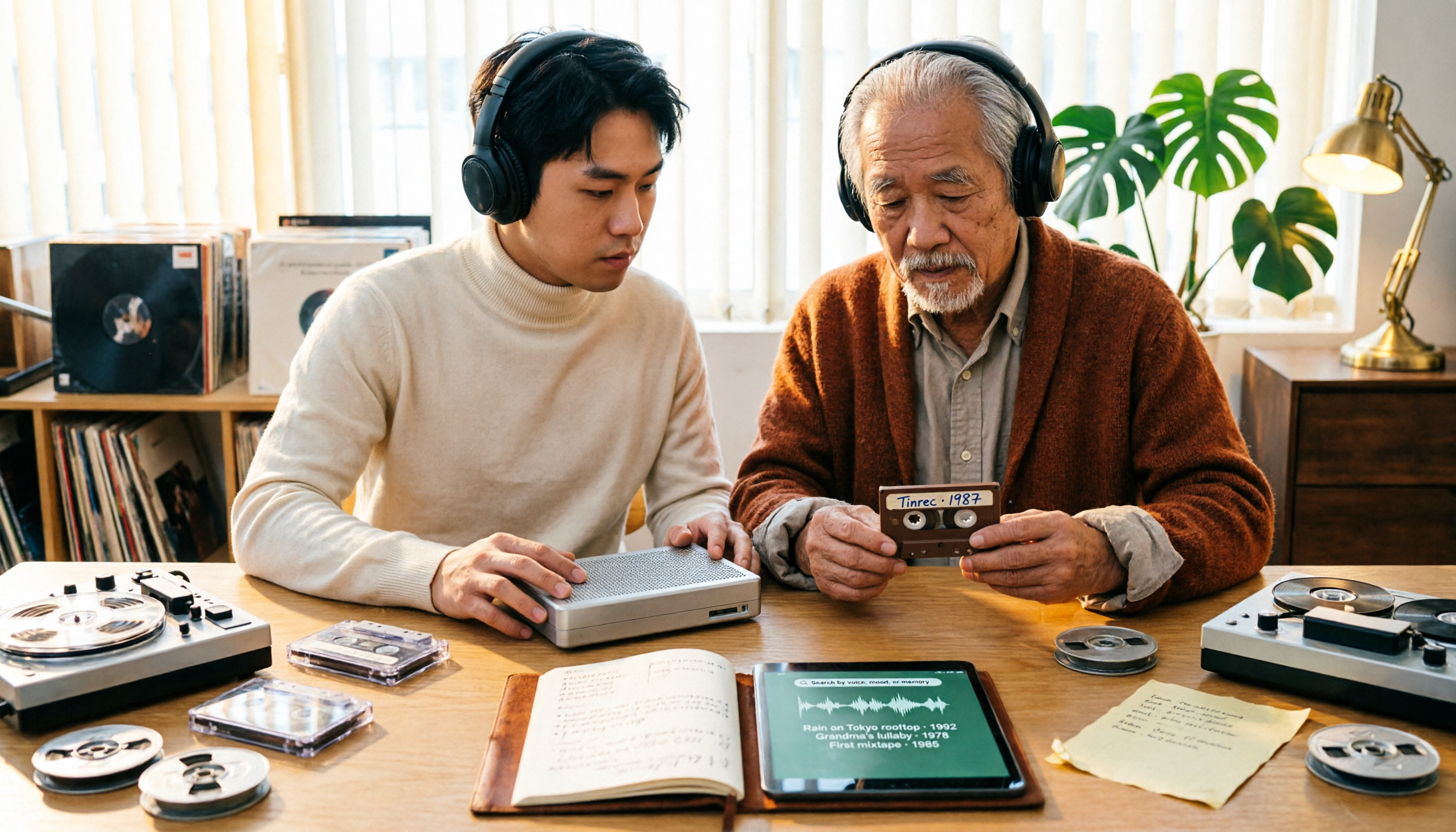
2026 Tapes Buying Guide: Reel-to-Reel, Cassette, and Live Recordings Compared
People searching for '2026 good tapes' fall into three groups: audiophiles looking for reel-to-reel tapes, music fans seeking cassette releases, and collectors hunting for live bootleg recordings. This guide breaks down the buying criteria for each type, then covers the most overlooked step—how to turn recordings into searchable, queryable data—and compares Tinrec, Granola, TurboScribe, and Otter.ai.

3 Meeting Transcription Tools Tested: How to Use Otter in Chinese and Which Understands Chinese Meetings Best?
People searching for 'otter Chinese' have two different needs: the literal meaning of the animal, and whether Otter.ai can handle Chinese meetings. This article clarifies common misconceptions and compares Otter.ai, Notta, TurboScribe, and Tinrec across four dimensions: Chinese recognition, meeting capture methods, post-meeting outputs, and team governance, to help you decide which tool truly suits Chinese meetings.
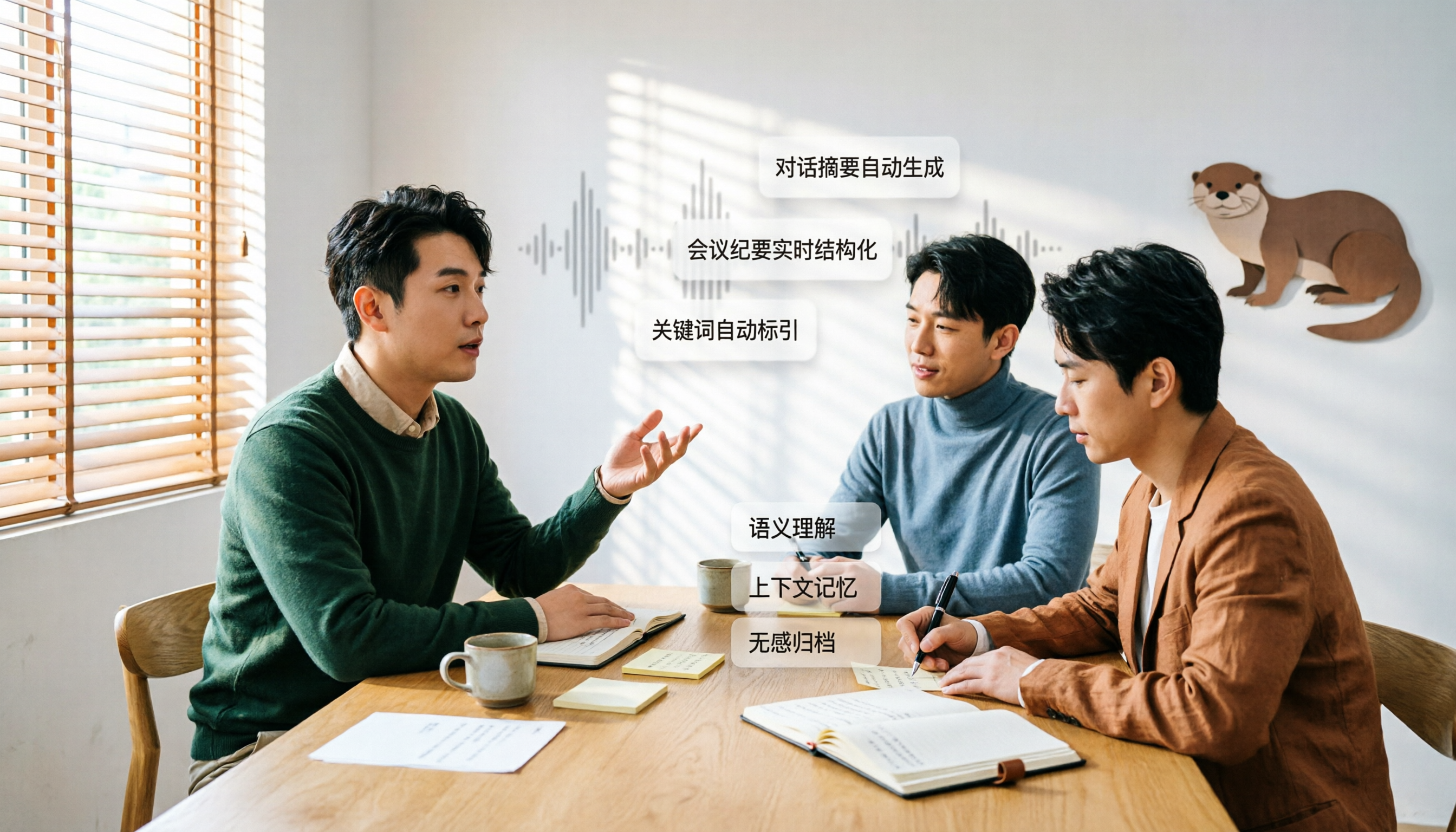
Otter in Chinese: Translation Guide, Meanings & 3 Practical Use Cases (2026)
Searching for 'otter in Chinese' returns multiple meanings: otter (水獺), sea otter (海獺), otter fur (水獺皮), and even the brand name Otter.ai. This guide clarifies the translations first, then explains what Chinese-speaking users should know if they're looking for the meeting tool Otter, and how Tinrec performs for Chinese meetings, bot-free recording, and team knowledge retention.

3 Meeting Transcription Apps Tested in 2026: Otter's Chinese Support and Download Options Explained
People searching for 'Otter Chinese how to download' often hit the same wall: the app downloads fine, but it can't produce usable Chinese meeting transcripts. This article first clarifies Otter.ai's download channels and official language support, then compares Tinrec, Otter.ai, Notta, and Granola using 4 key buying criteria, and finally gives clear recommendations based on different scenarios.