

Turn recordings into transcripts and summaries in minutes
Upload audio or video for multilingual transcription, AI notes, and action items
Before You Start: Answer One Question
Before you hit the record button, think about one thing: how much time do you plan to spend organizing this conversation afterward?
If your answer is "just record it and deal with it later," then a portable recorder like Plaud is indeed convenient. If your answer is "I want a transcript, key points, and action items right after recording," then what matters isn't just how to record, but the workflow that follows.
This article will first walk through the actual operation of Plaud recording in full, then compare it with another approach across 5 dimensions so you can figure out which type you are.
How to Use Plaud Recording: Understand the 3 Ways to Start
Plaud has more than one way to start recording. Knowing the difference will keep you from fumbling at the meeting room door.
First: Press the device directly. This is the most intuitive way to use Plaud. The device has a one-touch recording design, perfect for face-to-face meetings, interviews, or classes where "your hands are busy but the conversation has already started."
Second: Trigger from the Plaud App. The official instructions are clear: recording via the Plaud App means triggering a connected Plaud device to start recording from within the app, without reaching for the button on the device. This is handy when your phone is on the table but the device is in your bag or coat pocket.
Third: Call recording mode. Card-style devices like Plaud Note feature both ambient and call recording modes. With a magnetic design that attaches to the back of your phone, handling phone calls is a primary use case.
Note that all three methods require the device to be connected to the app first. Before your first use, get the connection sorted out—everything else will be much smoother.
3 Prep Steps Before Recording
1. Check Battery and Firmware Version
Plaud officially recommends keeping firmware up to date for a more stable experience. Before updating, three conditions must be met: the device is charging (use a charger, not a computer), and the device is not in recording mode.
I find this very practical. Many people only realize they need an update right before a meeting and get stuck at the charging step. Make it a habit to check during your nightly charging routine.
2. Connect the Device to the Plaud App
The device handles recording itself, but transcripts, summaries, and key point organization are done in the app. So the connection between device and app is your entry point to the entire workflow.
3. Inform the Other Party and Get Consent
The official guidance is straightforward: before starting recording, proactively inform the other party and obtain explicit consent. Laws vary by location; if in doubt, check the relevant regulations.
If you're not sure how to bring it up, you can use the official suggested phrasing: "I'd like to use an AI note-taking tool to help me take notes so I don't miss any details or follow-ups. Would that be okay? I can share the notes with you afterward."
Honestly, this phrasing is much easier to understand than what I used to come up with myself. Swapping "recording" for "taking notes for you" usually makes the other person more receptive.
Actual Operation: The Complete Plaud Recording Workflow
Step 1: Check device status. Glance at the battery before recording, especially for long meetings.
Step 2: Choose recording mode. Use ambient mode for face-to-face conversations, and switch to call recording mode for phone calls. The magnetic design of Plaud Note lets you attach it to the back of your phone, so you don't need to hold a separate device during calls.
Step 3: Start recording. Press the record button on the device, or tap to trigger from the connected Plaud App. Either works—use whichever is more convenient at the moment.
Step 4: Keep the device stable during recording. Placing it in the center of the table or attaching it to the back of your phone is better than leaving it in your pocket. Audio quality directly affects the transcription results later.
Step 5: Stop recording. Press the device button again to stop.
Step 6: Sync and process via the app. Once the audio file reaches the app, it enters the transcription, transcript, summary, and key point organization stage. The official description of the whole process is "one-touch recording → transcript generation → key point organization."
After Recording: Transcripts, Summaries, and Free Quota
Plaud is equipped with AI models that can produce timestamped transcripts with speaker labels and automatic segmentation. It also supports multiple summary modes to condense long conversations into key points.
Regarding cost, note that Plaud offers 300 minutes of free usage per month. The official documentation also states that various membership plans are available for professionals who use AI frequently every day. Based on prices published on the US official website, Starter is 300 minutes per month, Pro is USD 99.99/year with 1,200 minutes per month, and Unlimited is USD 239.99/year.
Keep in mind that plan details and prices are subject to change; actual benefits are subject to the official purchase page.
Battery Life, Storage, and Reset: A Few Practical Specs
Battery life. The official user guide lists 500mAh enhanced mode with up to 30 hours of continuous recording and 60 days standby; long-lasting mode with up to 50 hours of continuous recording and 60 days standby. Some 400mAh models offer up to 30 hours of continuous recording and 60 days standby.
Storage. Plaud Note has 64 GB, capable of recording up to nearly 480 hours of audio.
Reset. While the device is connected to power (using the original charging cable), press and hold the record button for 15 seconds. When the indicator light goes out, the reset is complete. This is very useful when Bluetooth won't connect or the app can't find the device.
Plaud vs Tinrec | Quick Overview
One is the hardware approach: buy a device and carry it with you to record. The other is the software approach: no device, just use your computer and phone to handle meetings.
| Item | Plaud | Tinrec |
|---|---|---|
| Core positioning | AI recording hardware | AI meeting notes and team collaboration tool |
| Requires extra device | Yes, NotePin / Note Pro, etc. | No |
| Primary input | Device recording | Live recording, online meetings, audio/video files, mobile |
| Post-meeting output | Transcript, summary, summary modes | Summary, chapters, action items, mind map, AI Q&A, document reports |
| Team capabilities | Team membership and device management | Team space, roles, seats, usage, audit, recycle bin |
| Price range | Device from USD 159/189, membership extra | Personal free tier, team from USD 29.80/paid seat/month |
Stop organizing recordings by hand
Upload audio or video and automatically get a transcript, summary, and action items
Next, I'll explain the differences between the two across 5 practical dimensions.
Dimension 1 | Do You Need to Carry an Extra Device?
A big part of Plaud's value is the device itself. Credit-card-sized, magnetically attaches to your phone, no need to set up a phone or open a laptop during meetings—just press and record.
Tinrec takes a different path: no hardware, works on web, desktop, and mobile. The microphone is your own device's microphone.
There's no absolute answer here. If you're on the go every day, interviewing people face-to-face, and can't easily place your phone on the table, an extra device is worth it. If 80% of your meetings happen at your computer, an extra device is just one more thing to charge.
→ For this dimension: choose Plaud if you prefer portable hardware; Tinrec is more convenient for computer-based meetings.
Dimension 2 | How to Record Online Meetings
Plaud's approach to online meetings is essentially "using the device to record ambient sound," which means capturing the sound coming out of the speakers again. In a quiet meeting room this is fine, but in an open office or café, audio quality suffers.
Tinrec's desktop version directly captures computer system audio, handling Zoom, Google Meet, Microsoft Teams, Webex, and similar meetings without requiring a meeting bot to join as an extra participant.
Note that this doesn't mean Tinrec automatically joins all meetings on your calendar. More accurately: the user actively opens the desktop app to start recording.
→ For this dimension: for purely online meetings, Tinrec's capture method is more direct.
Dimension 3 | After Recording, Can It Become Usable Data?
Plaud has added a lot to post-meeting processing: timestamped transcripts, speaker labels, automatic segmentation, multiple summary modes, and support for 112 languages with custom vocabulary. For "I want a transcript and key points," it's sufficient.
Tinrec focuses on what comes after the transcript: automatically generating summaries, chapters, key points, and action items, enabling AI Q&A around meeting content, and further generating reports, tables, and meeting minutes, then exporting to Notion, Google Docs, OneNote, and other tools for further processing.
The difference is between "getting a well-organized document" and "getting data you can continue to query and rewrite." The former already saves a lot of time; the latter suits people who need to reuse the same meeting content repeatedly.
→ For this dimension: basic organization is a tie; Tinrec is more complete for deep post-processing and querying.
Dimension 4 | Team Data Ownership
Plaud has team membership and device management, but fundamentally it's still "one device per person, each records their own."
Tinrec's team version is an independent team space where meeting data belongs to the team, not the individual uploader. Management distinguishes roles and seats: roles determine who can manage the team, members, and audits; seats determine whether members can record, upload, edit, import, and export. Active members without seats can still view, play, and read team data.
Additionally, when a member leaves or is removed, their team resources need to be handed over to other active members—data doesn't follow the person. Team audio in the recycle bin is currently retained for 30 days.
To be clear: this is currently team-level sharing, not fine-grained file-level permission control. Don't misunderstand this point.
→ For this dimension: when multiple people need to share meeting assets, Tinrec's team governance is much more complete.
Dimension 5 | How to Calculate Cost Structure
Plaud is a combination of "device fee + membership fee." The US official website currently shows NotePin at USD 159, Note Pro at USD 189, and memberships ranging from Starter at 300 minutes per month to Pro at USD 99.99/year and Unlimited at USD 239.99/year.
Tinrec offers a free personal tier to try, plus weekly, Pro monthly, and annual cards depending on usage frequency. The team version is currently USD 29.80/paid seat/month, or USD 199/paid seat/year (about USD 16.58/month) with annual payment. Each paid seat provides 2,000 minutes of team shared import quota per month; eligible teams get a 7-day trial, 1 free seat, and 300 minutes of team shared import quota for the first time. Under an active team plan and active seat, live recording is currently not deducted by the minute.
The pricing logic differs: Plaud requires an upfront hardware fee, then monthly or annual AI minutes; Tinrec puts money into seats and usage quota.
→ For this dimension: Plaud has a higher entry barrier for individual use; Tinrec's per-person cost is easier to estimate for teams.
What Are the Unique Advantages of Each?
Plaud's advantages:
- Standalone hardware, magnetically attaches to phone—high mobility for face-to-face interviews and phone calls.
- Impressive battery specs: 30 hours in enhanced mode, 50 hours in long-lasting mode, 60 days standby—no need to bring a charging cable for a 2-3 day business trip.
- 64 GB storage, up to nearly 480 hours of audio—no worries about space for long classes or full-day workshops.
Tinrec's advantages:
- No device purchase needed; works on web, desktop, and mobile—low entry cost.
- Desktop version records online meetings via system audio without inviting a meeting bot; Chinese and multilingual meeting scenarios are a focus.
- Beyond summaries, post-meeting features include chapters, action items, AI Q&A, mind maps, and Agent post-processing, directly producing reports and tables.
- Team version turns meeting data into team assets, including members, roles, seats, usage analytics, audit logs, and audio recycle bin.
Conclusion: Which One Should You Choose?
- If you're often on the go, interviewing people face-to-face, and need phone call recording → Plaud's hardware form makes sense.
- If your meetings are mostly at your computer, primarily Zoom, Meet, Teams → Tinrec's desktop capture is more direct.
- If you just want a transcript and key points after recording → Plaud's summary modes are sufficient.
- If you need to continue querying, generate reports, and export to existing workflows after recording → Tinrec's post-processing chain is longer.
- If you're sharing meeting data as a team and need to manage members and usage → Tinrec's team version has more complete role and seat design.
In one sentence: Plaud solves "how to record conveniently," Tinrec solves "how to use what you recorded." They don't conflict—they can even coexist.
If your pain point is actually post-meeting organization, try running your own meeting recording through Tinrec's free version first to see if the summaries and action items match your work habits, then decide whether to buy hardware.
FAQ
Q1: Does Plaud recording require my phone to be on?
Recording with the device button doesn't require the app to be open first, but the audio file needs to be synced via the Plaud App to enter the transcription and summary process. If you want to trigger recording from the app, you must first complete the device-app connection.
Q2: Is 300 free minutes per month enough?
It depends on your meeting density. One one-hour meeting per day is about 20 hours a month, clearly exceeding 300 minutes, so you'd need to consider a paid plan. For occasional interview organization, 300 minutes is usually enough.
Q3: Do I have to get consent before recording?
The official recommendation is to proactively inform and obtain explicit consent, and to note that laws vary by location. This protects you and respects the other party, especially with sensitive content like clients, medical, or legal matters.
Q4: What if there are typos in the transcript?
Any AI transcription is affected by audio quality, background noise, accents, overlapping speakers, and technical terminology. Place the device closer to the speaker, reduce ambient noise, and use the custom vocabulary feature. For important content, still verify by replaying with timestamps.
Q5: How do I reset if the device won't connect or seems off?
While connected to power (using the original charging cable), press and hold the record button for 15 seconds. When the indicator light goes out, the reset is complete. If only the transcription results are poor, first check whether the firmware is up to date.
Q6: Can Plaud and Tinrec be used together?
Yes. In practice, many people record with hardware when out and organize with software at their computer. The key is to unify where files are stored; otherwise meeting data will still be scattered.
References
- Plaud Taiwan | Official Website | Leading AI Recording Device Brand
- Plaud User Guide | Complete Tutorial and Operation Guide
- Recording via Plaud App – Help Center
- PLAUD NOTE | AI Smart Recording Card | Includes 300 Free Transcription Minutes per Month - Sentra
- Plaud Note | The Smartest AI Recording Card Ever
Turn every recording into actionable outcomes
Get 60 free transcription minutes when you sign in. No credit card required.
Related Reading
You might also like

2026 AI Recorder Comparison: How to Use Plaud & Tinrec's Hardware-Free Approach
Starting from the practical question 'How do you use a Plaud recorder?', this article first breaks down PLAUD's device pairing, dual-mode recording, and app transcription workflow, then compares PLAUD and Tinrec across 5 dimensions: ease of use, meeting scenarios, post-meeting organization, team collaboration, and cost. It ends with a selection checklist to help you decide whether to buy a portable recording device or use a hardware-free AI meeting notes tool.

How to Use Plaud for AI Voice Notes in 2026: A Complete 5-Step Tutorial
Got a Plaud device but only know how to record, not organize? This practical guide breaks down the 5 steps from recording to transcription to generating notes, and compares dedicated hardware recorders with bot-free meeting tools for online meetings and team collaboration, helping you choose the right approach.

6 AI Recording Tools Tested for 2026: Is the Plaud Recorder Worth It and How to Choose?
People searching "Is the Plaud recorder worth it?" are really deciding between buying a dedicated recording device or using software to handle the entire meeting notes workflow. This article covers 6 practical options, from the hardware experience of Plaud Note Pro and NotePin to software approaches like Tinrec, Notta, Otter, Granola, and TurboScribe, with real pricing and usage limits to help you find the right fit.

2026 AI Voice Recorder Comparison: What Is Plaud? Hardware vs. App
What is Plaud? This article explains the positioning, pricing, and limitations of Plaud Note and NotePin, and compares Tinrec, Notta, and Granola in meeting notes, transcription, AI summaries, and team collaboration to help you decide between hardware and software.
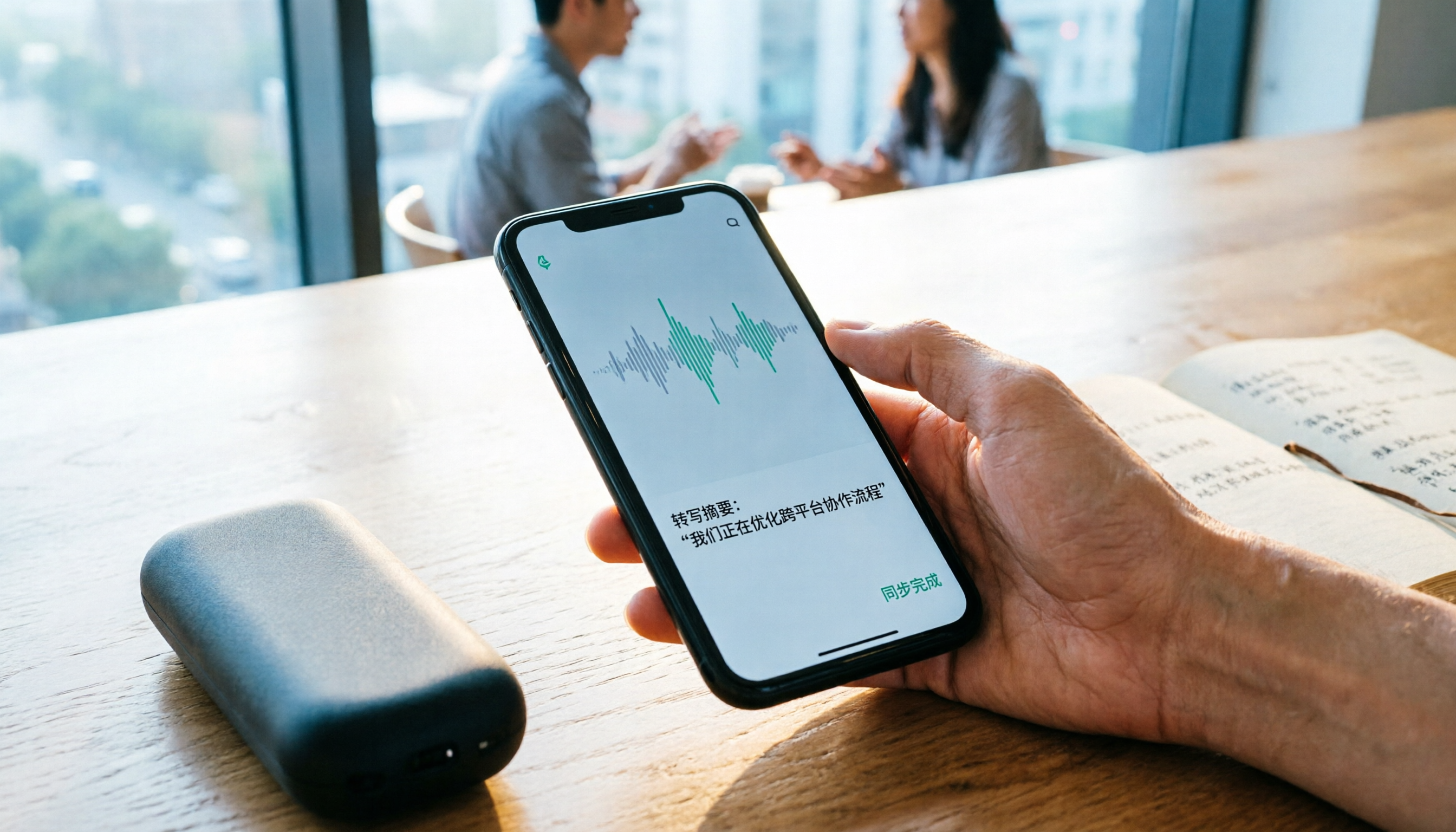
2026 Comparison of 4 Recording Sync Solutions: How to Transfer Plaud Recordings to Your Phone and Which Cross-Device Workflow Is Easiest?
Recording is just the beginning. Starting from the real pain point of 'how to sync Plaud recordings to your phone,' this article breaks down the Bluetooth/Wi-Fi transfer process and bottlenecks of hardware recording, compares four cross-device approaches—Tinrec, PLAUD, Notta, and Granola—and finally offers selection advice based on use cases plus 3 common pitfalls to avoid.
How to Use the Plaud Voice Recorder in 2026? 3 Methods Tested and Compared: Tinrec Is Easier with No Hardware
A clear guide to operating the Plaud voice recorder and setting up call recording, plus a hands-on comparison of hardware and software approaches across five dimensions: hardware threshold, online meeting recording, post-transcription organization, input sources, and team collaboration—helping you decide whether to buy a device or choose a hardware-free AI meeting notes tool like Tinrec.
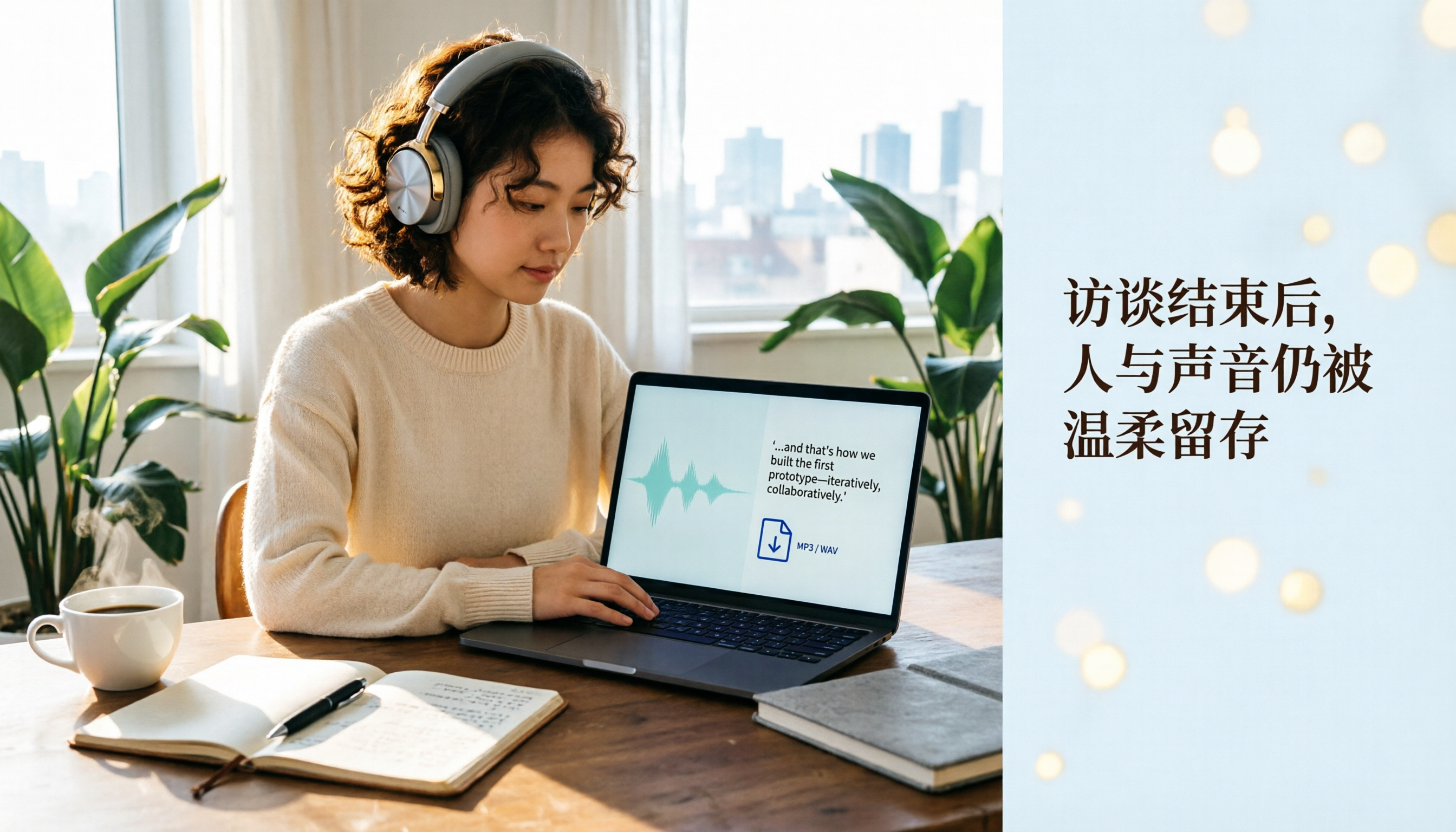
Plaud Recording Files in 2026: How to View Transcripts & Export MP3/WAV
Where are Plaud recording files stored and how do you export them? This guide walks through the app after recording ends, showing you how to view transcripts, tap captions to jump, and export MP3 or WAV. It also covers a hardware-free alternative and 3 common mistakes.

5 Best Ways to Transcribe PLAUD Recordings in 2026: Free vs Paid Comparison
What are PLAUD recordings? They are audio files captured by AI recording devices like PLAUD Note, NotePin, and Note Pro, typically stored on the device or in the PLAUD App. This article explains the sources and limitations of PLAUD recordings, then compares 5 solutions to convert them into transcripts, summaries, and action items—from the free tier of the official app to team collaboration tools—with actual pricing and ideal use cases to help you decide which one to use.

Yating Transcript vs. Others in 2026: 5 Steps to Choose the Right Tool
Yating Transcript has a strong reputation for Taiwanese Hokkien and mixed Chinese-English recognition, but comparing transcription tools requires more than just accuracy. This article takes a procurement evaluation approach, breaks down 4 key comparison dimensions, tests Tinrec against Yating Transcript, Notta, and Otter.ai, and outlines 3 common pitfalls plus a 5-step selection process to help you choose the right tool within your budget.