

Turn recordings into transcripts and summaries in minutes
Upload audio or video for multilingual transcription, AI notes, and action items
4 AI Meeting Transcription Tools Tested in 2026: How to Use Vocol? Why Tinrec Saves More Time
It's Not That People Can't Operate It—They Get the Direction Wrong from the Start
Many people's first misconception is treating "having a recording" as "having meeting notes."
The file sits on your phone, the transcript is generated, but no one looks at it a second time. Next meeting, you rely on memory again. You bought the tool, but efficiency hasn't changed.
The second misconception is only looking at the free quota without calculating the underlying pricing model. Some tools give minutes, others give credits—the conversion logic is completely different, and how long you can actually use them varies greatly.
The third misconception is treating the transcript as the end goal. The transcript is just raw material; what really saves time is the subsequent summary, action items, and follow-up questions.
If you're searching for "how to use Vocol," it usually means you're stuck at one of these steps. Below I'll break down the process and also include Tinrec, which I now open more often, for comparison.
Before Choosing a Tool, Understand These 4 Key Points
1. Are the input sources sufficient? In-person meetings, online meetings, and existing recording files are three completely different scenarios. Someone who only meets at their computer and someone who visits clients daily won't need the same tool. First list the scenarios you encounter in a week, then check if the tool has corresponding entry points.
2. How is the quota calculated? This is where Taiwanese users most often get the short end of the stick. Tools priced by "minutes" are easier to estimate; for those priced by "credits," you need to calculate the conversion ratio clearly first, otherwise you'll only discover it's insufficient after the trial period ends.
3. What comes after the transcript? A tool that only provides a transcript is essentially handing the organization work right back to you. What you should compare is: is there one-click summarization, are there chapters and action items, can you ask questions about the meeting content, and can you export to your existing workflow?
4. How will the team manage it? Personal use and team use are two different things. Teams need member management, usage viewing, and data ownership—not "multiple people sharing one set of credentials." If you don't think this through, it's the most likely source of problems after adoption.
How to Use Vocol? 5 Steps from Registration to Getting the Transcript
Step 1: Register and First Understand How V-points Are Deducted
Newly registered accounts receive 200 V-points. According to official instructions, generating a transcript deducts 1 point per minute, and key summaries deduct 1 point per 10 minutes.
Converted, 200 points roughly equal 200 minutes of transcript or 2,000 minutes of key summaries. For testing features, this amount is quite generous.
Step 2: Choose an Input Method
Vocol's official website states it directly: as long as you provide an audio or video file, it can produce a transcript, summary, and topics of the conversation. In practice, there are three paths.
- Upload existing files: Suitable for organizing historical meetings, podcasts, and online courses.
- Record directly: Suitable for in-person meetings and interviews. When the browser pops up a confirmation window, remember to click "Allow" to access the microphone, and be careful not to let the tab be frozen by the browser.
- Online meetings: When using Google Meet or Microsoft Teams, you can add Vocol to the meeting to let it record automatically.
Step 3: Wait for the Transcript to Generate
Vocol supports transcription in Chinese, English, and Japanese, and can handle mixed Chinese-English content, which is practical for multinational teams. The official site also emphasizes noise reduction capabilities, allowing transcription even in offices, open spaces, or cafes.
It also automatically identifies speakers, and once set, it applies throughout—very convenient in multi-person meetings.
Step 4: View Summaries, Grab Topics, and Annotate
In addition to the transcript, Vocol generates summaries and topics so you don't have to re-listen to the entire meeting. On the transcript page, you can translate, highlight key points, leave comments, and organize action items from discussions into to-dos.
Step 5: Download or Share
To use elsewhere, click the download button to save the transcript as a plain text file (.txt) or subtitle file (.srt).
The whole process isn't complicated, and the dashboard interface is fairly intuitive. Note: Vocol's public information mainly revolves around the "transcription—summary—annotation—export" line; if you want to directly ask questions about meeting content after recording, or need team-level management of seats and usage, it's best to confirm with the official source first.
Tinrec (Instant Recording)—The One I Open More Often After Testing
Tinrec (Instant Recording) is an AI meeting notes and collaboration tool for individuals and teams, supporting web, desktop, and mobile, covering Chinese, Traditional Chinese, and multilingual meeting scenarios.
Record online meetings without a meeting bot
This is what hit me the most. Tinrec's desktop version directly captures the computer's system audio, handling meetings on platforms like Zoom, Google Meet, Microsoft Teams, and Webex without inviting a bot to join as a participant.
When meeting externally, no unfamiliar bot appears on the screen—this resonates especially with sales and customer success teams. Note: this doesn't mean it automatically joins every meeting on your calendar; recording requires you to actively open the desktop version to initiate.
Stop organizing recordings by hand
Upload audio or video and automatically get a transcript, summary, and action items
The transcript is just the starting point—the focus is what comes after
The transcript grows while recording. After the meeting, summaries, chapters, key points, and action items are automatically organized—who should do what, what to follow up on next time—visible as soon as you open it, no need to go back through thirty minutes of raw text.
For cross-language meetings, you can instantly switch between original text, translation, or bilingual view, saving teams with overseas clients a lot of back-and-forth confirmation.
You can ask questions about the meeting content
This is what I find most practical and also most easily overlooked. No need to re-listen to historical meetings—just ask "What was the budget range the client mentioned last time?" or "Who made the final decision on this?" It answers based on the meeting content, rather than throwing a string of keyword search results at you.
Export and post-meeting processing
Transcripts and organized results can be exported to Notion, Google Docs, OneNote, Dropbox, and other tools for continued use. When formal delivery is needed, you can also use Agent post-processing to generate reports, tables, and documents, truly completing the "organization" work.
Team version keeps data within the team
The team version isn't "multiple people sharing a personal account" but an independent team space. Meeting data belongs to the team, members can be invited via join links, and roles are distinguished as owner, admin, and regular member.
Roles determine who can manage the team, members, and audits; seats determine who can record, upload, edit, import, and export. Members who are active but have no seat can still view, play, and read team data. The admin side can also view usage trends and member rankings, export audit logs, and use the audio recycle bin to handle accidental deletions.
Pricing and quotas, listed honestly
The personal version is divided into free, weekly card, Pro monthly, and Pro annual—choose based on usage frequency; actual prices are subject to the official website. For occasional recording organization, the free version is enough; if you have steady needs every week, consider Pro.
The team version's first eligible trial is 7 days, 1 free seat, and 300 minutes of team shared import quota. After that, monthly is USD 29.80 per paid seat per month, annual is USD 199 per paid seat per year, roughly USD 16.58 per month.
Each paid seat provides 2,000 minutes of team shared import quota per month. Under an active team plan and active seat, real-time recording currently does not deduct by minutes; file and web imports consume the team shared quota.
Things to note
First, it's not a calendar-based automatic meeting bot; you need to actively initiate recording. Second, the team version currently focuses on team-level sharing, not file-level granular permission design. Third, transcription quality is still affected by recording environment, accents, multiple people talking over each other, and technical terminology—for important content, it's recommended to cross-check with the transcript timestamps and recording.
Who it suits
Those who frequently hold Chinese or mixed Chinese-English meetings, don't want a bot to join, want to ask questions directly after recording and produce documents, or need to turn meetings into team assets will find it smoother to use.
Besides Vocol, There Are These Two Options
Otter.ai
A veteran choice for English meetings. The free version offers 300 minutes per month; Pro annual billing is about USD 8.49 per user per month with 1,200 minutes per month. If your meetings are almost entirely in English and you don't mind a bot joining, it's very mature. But Chinese and mixed Chinese-English are not its strong suit, whereas Tinrec offers real-time translation and bilingual view in this regard.
Granola
Also takes the no-bot route, using desktop system audio combined with user handwritten notes to generate meeting content. Business is USD 14 per user per month. Its feature is "notes plus AI enhancement." However, it doesn't support uploading pre-recorded audio files and doesn't save meeting audio; Tinrec retains recordings and supports file import, so you can re-listen or reorganize afterward.
Pitfall Guide: The 4 Most Common Mistakes When Using These Tools
Pitfall 1: Treating a credit system as all-you-can-eat The characteristic of credit-based tools is "deduct as you use," which sounds fair, but without calculating the ratio first, you can easily run out mid-month. Before the trial, convert to "how many minutes I roughly use per month" and then decide whether to pay.
Pitfall 2: Ignoring the recording environment The same tool can perform very differently in a quiet meeting room versus a cafe. Rather than looking at the officially claimed accuracy rate, record a segment of your own real meeting to test.
Pitfall 3: Treating the transcript as the final product Treating the tool only as "audio-to-text" means using only one-third of its capability. What really saves time is summaries, action items, and questions—after recording, directly ask "What was the conclusion of this meeting?" It's much faster than manually flipping through thirty minutes of transcript.
Pitfall 4: Only looking at the number of accounts for team adoption The team version requires looking at "roles" and "seats" separately. Roles govern permissions; seats govern access to resources. If you only purchase based on headcount, you'll often end up with some people able to view but not edit, and some with no seat at all.
Conclusion: Should You Choose Vocol or Tinrec?
Simply put, both can turn your meetings into text; the difference lies in the depth of the workflow and how the team handles it.
- Want to quickly convert existing audio files into transcripts, need Chinese-Japanese or Chinese-English transcription → Vocol can satisfy this; remember to calculate V-point consumption first.
- Want transcripts while meeting, without a bot joining → Tinrec desktop directly captures system audio—this is its most practical advantage.
- Want to ask questions directly about meeting content after recording → Tinrec's AI Q&A is a currently rare differentiator.
- Need to deliver reports, tables, or documents after meetings → Tinrec's Agent post-processing can handle this part.
- Team needs to manage members, seats, usage, and audits → Tinrec team version puts these in one space.
- Meetings are almost all in English, limited budget → Otter.ai's free 300 minutes is still a good deal.
Finally, a practical suggestion: first run your own real meeting with the free quota, don't use official sample files. During testing, include air conditioning noise, keyboard sounds, and multiple people talking over each other—that's what you encounter daily. After one round, you'll know which one truly saves you time.
References
- Home | Vocol.ai Voice Collaboration Platform
- Vocol Tutorial Video Series: Must-Know Features to Increase Work Efficiency with Transcripts
- The Comprehensive Guide to Vocol.ai
- Vocol AI | Home
- Finish Half-Hour Meeting Notes in 3 Minutes! Vocol Voice Collaboration Platform Helps You Record and Discuss More Efficiently!
Turn every recording into actionable outcomes
Get 60 free transcription minutes when you sign in. No credit card required.
Related Reading
You might also like

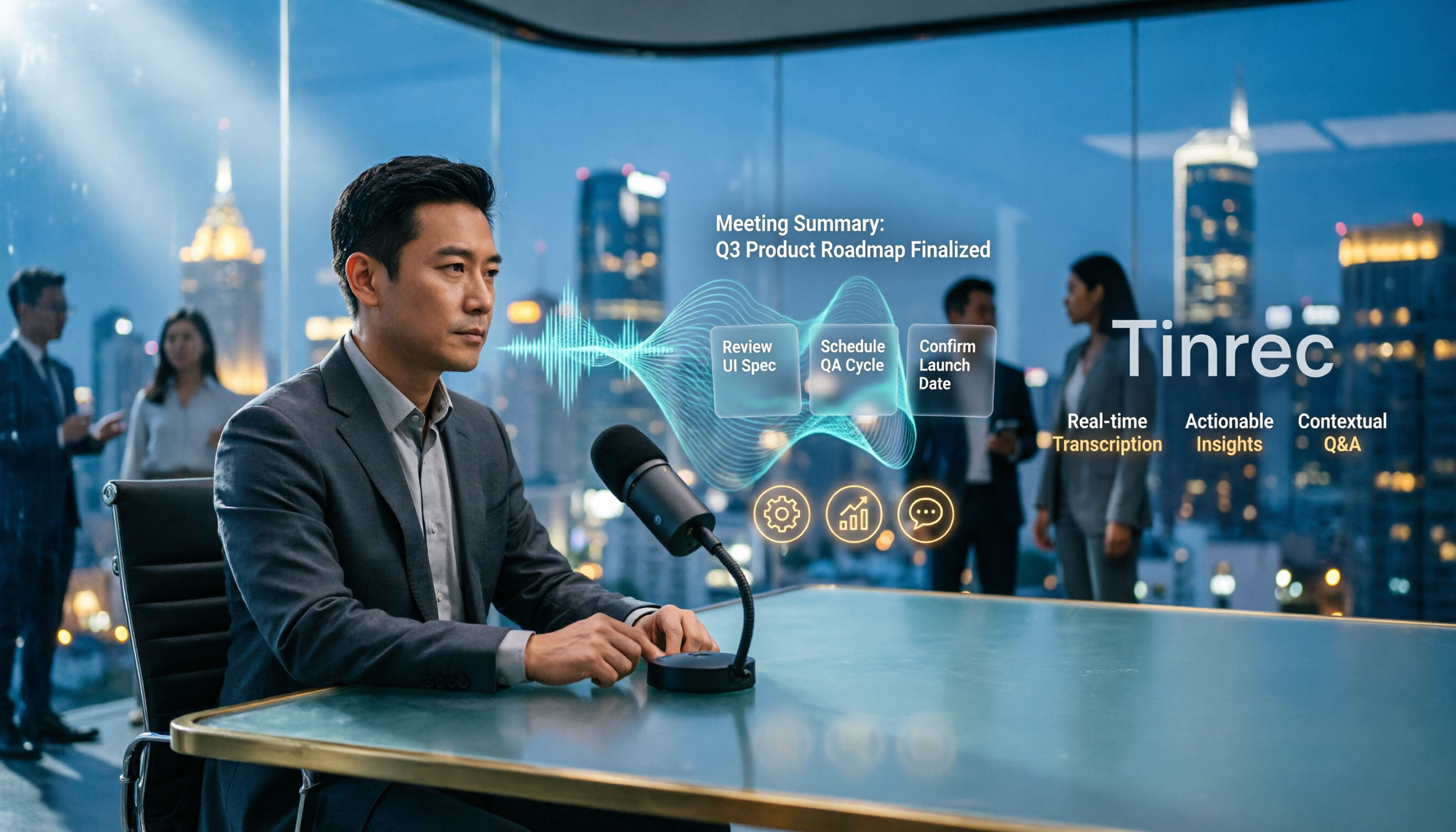
2026 AI Meeting Notes Showdown: Tinrec vs Vocol — Which Is Better for Chinese-Speaking Teams?
Vocol.ai and Tinrec both do speech-to-text, but their actual use cases differ significantly. This article compares the two tools across five dimensions—meeting recording methods, Chinese and multilingual transcription, post-meeting outputs, team governance, and pricing—to help you determine which one fits your workflow.
4 Vocal Aid Tools Tested in 2026: How to Turn Meeting Recordings into Usable Data
Most people searching for 'vocal aid' actually want to turn meeting, interview, and lecture audio into organized, queryable data. This article addresses common misconceptions, explains how to choose a vocal aid tool, and uses Tinrec as an example to break down the complete workflow of real-time transcription, bot-free recording, AI summaries, action item extraction, and team knowledge retention.

5 VOCOlinc App Download Sources Tested in 2026: Official Stores vs. APK Mirrors
Where should you download the VOCOlinc App? This guide covers five working download sources—App Store, Google Play, APKPure, Aptoide, and Softonic—comparing version gaps, who each is best for, and what to check before installing, so you can avoid wrong sources, version mismatches, and repeated pairing hassles.

2026 Comparison of 3 Free Speech-to-Text Tools: How to Get the Most Out of Vocol's 200-Minute Trial
Starting with the Vocol free trial, this article breaks down Vocol's roughly 200-minute trial quota, V-points consumption, and promotional bonus rules, and compares Tinrec, Notta, and Otter.ai using the same purchasing criteria. It honestly discloses free plan limitations, team plan seats, and pricing to help you decide whether to try Vocol first or go straight to Tinrec for meeting notes and team collaboration workflows.

Vocal AI Review 2026: Is It Worth It for Chinese Transcription & Action Items?
Searching for 'vocal AI' yields two distinct needs: AI singing and meeting transcription. This guide breaks down 4 key selection factors, tests Tinrec's bot-free meeting recording, AI summaries, action items, and cross-meeting Q&A, and reviews Notta, Otter.ai, and TurboScribe for different use cases, ending with clear recommendations and pitfalls to avoid.
2026 Complete Guide to Vocal Air Plugins: Principles, Tools, and Practical Tuning
When vocals sound dull, the instinct is to boost high frequencies, but sibilance spikes first. This complete guide starts with the principles of vocal air, outlines 4 key points for choosing a vocal air plugin, demonstrates how to use the Mid Air and High Air controls on Slate Digital Fresh Air, compares alternatives like AIR Vocal FX Collection and Pultec-style EQ, and finishes with 4 common pitfalls and scenario-based selection advice.

4 Free AI Vocal Tools Tested and Compared in 2026: Which One Is Actually Free and Good Enough?
People searching for "vocal ai free" actually have three different needs: separating vocals, generating singing, and turning speech into usable text. This article compares four tools that you can start using for free—Tinrec, Vocali.se, ElevenLabs, and VocalGPT—based on real-world use cases. It explains each tool's free limitations, who it's for, and the most common pitfalls when choosing this type of tool, so you can find the right direction in one go.
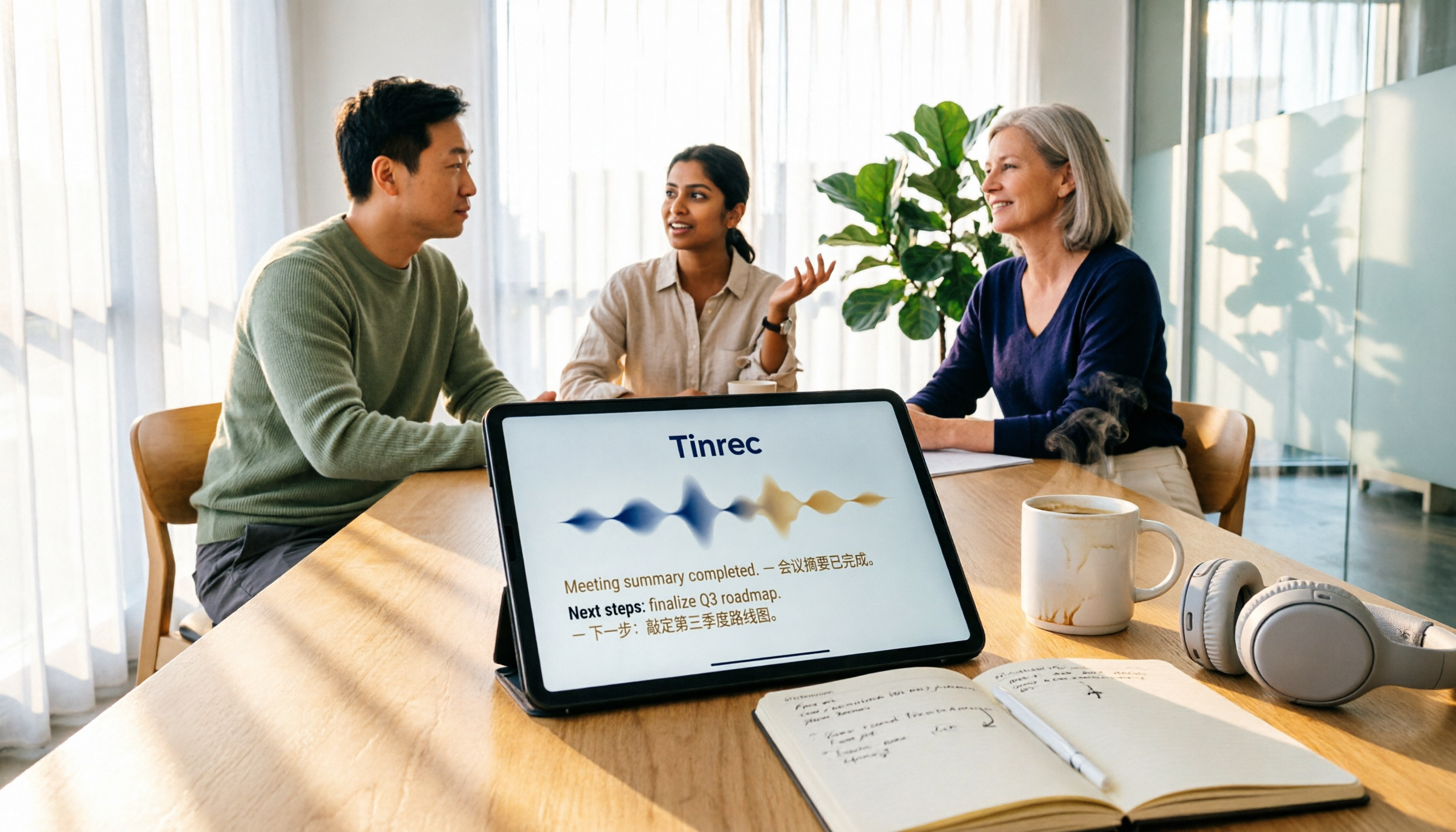
Vocol vs Tinrec (2026): 5 Things to Know Before Downloading Vocol Software
Before downloading Vocol software, know the key differences. This comparison of Vocol.ai and Tinrec covers five dimensions: how to get the software, online meeting recording, multilingual transcription, post-meeting organization, and team management. It also includes free quotas, team plan seat pricing, and FAQs to help you decide which tool better fits your meeting needs.

2026 Comparison of 4 Vocol Online Alternatives: Which Meeting Notes Tool Saves the Most Time?
People searching for "Vocol online" usually fall into two groups: those looking for TV shows and those looking for an online tool that turns meeting recordings into transcripts and key points. This article targets the latter, using "how quickly you get usable notes after a meeting" as the standard to compare Tinrec, Otter.ai, Granola, and Notta on recording methods, post-meeting output, Chinese performance, team management, and pricing limits, and summarizes 4 common purchasing pitfalls.