
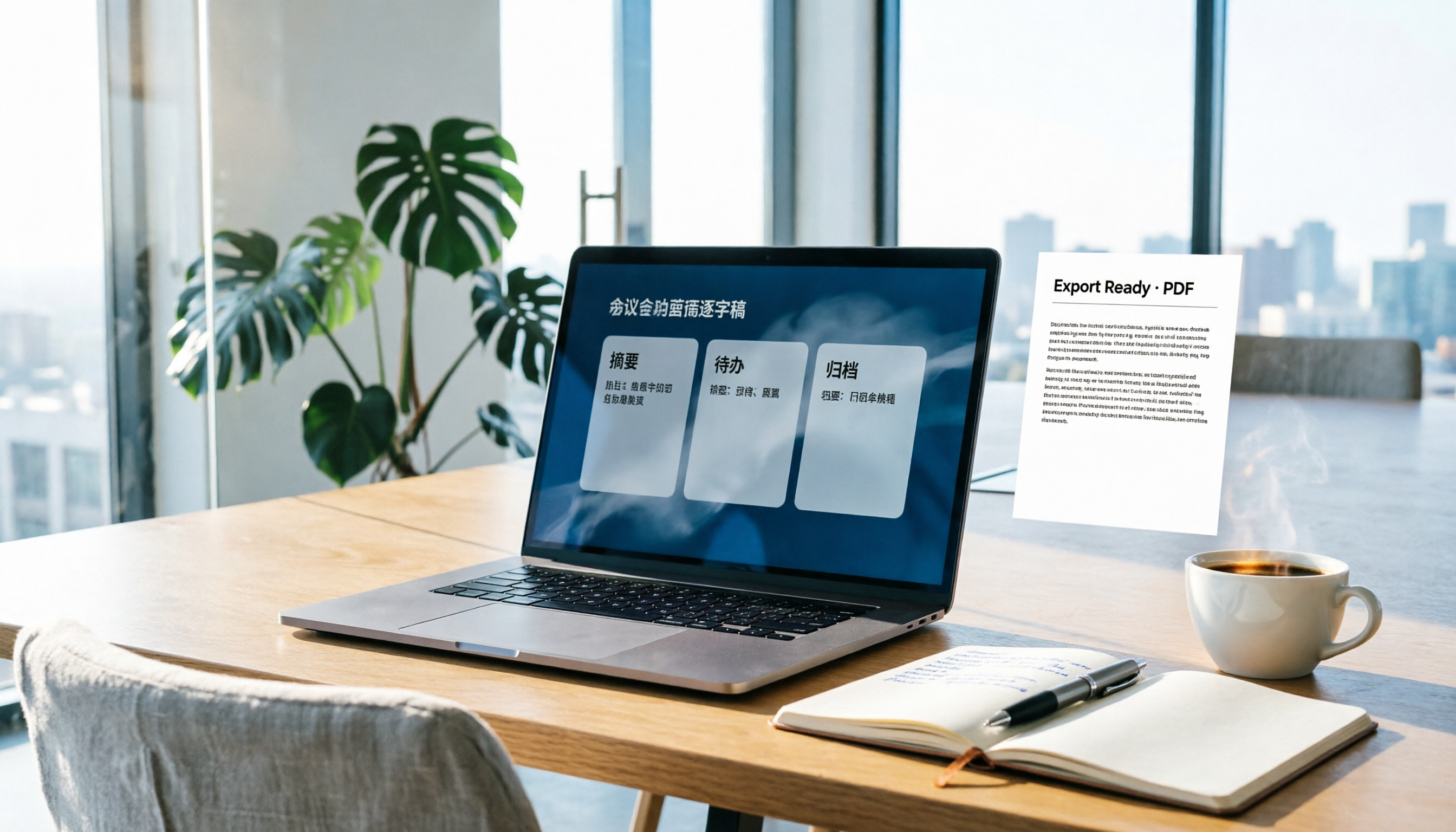
Turn recordings into transcripts and summaries in minutes
Upload audio or video for multilingual transcription, AI notes, and action items
How to Write Meeting Minutes in Word (2026 Workflow): 3-Section Structure + AI-Generated Transcripts
The meeting ends, people disperse, the lights are still on, and you open a blank Word document.
The cursor blinks.
Two hours of discussion, and now only a few fragments remain—who said they'd revise the quote, who promised to send the list next week, which version was finally approved. You remember less than you've forgotten.
I used to be like that. Back then I thought the problem was typing too slowly, but later I realized that wasn't it.
The problem isn't Word.
Word is a great container—formatting, signing, archiving all rely on it. But it won't help you think of content. The real bottleneck is the step of "where does the content come from."
So this article won't cover Word shortcuts. I'm going to talk about a workflow: let Word handle only the last mile, and delegate the time-consuming work upfront to tools.
What Can Word Meeting Minutes Do for You? Three Real Scenarios
Scenario 1: Deliver minutes within ten minutes after the meeting
The old process was: meet → recall from memory → type for two hours → revise for another hour. Now it should be: meet → open transcript and summary → verify → paste into Word for formatting. Same task, the difference is whether there's a place that captures what was said.
Scenario 2: Get the whole company using the same format
Many teams have inconsistent meeting minutes not because there's no template, but because everyone rewrites the template. Instead of banning it, fix the Word template and let the tool's output map directly to fields—format naturally becomes consistent.
Scenario 3: Look up "why we decided this" three months later
This is the real value of meeting minutes. The basis for decisions, who raised objections, how it was finally settled—if these exist only in someone's head, they vanish when people leave.
Usable Word Meeting Minutes Actually Have Only Three Sections
I've coached many teams, and the most common mistake isn't writing too little—it's writing too much.
Recording every word everyone says isn't meeting minutes; that's a transcript. Real meeting minutes need only three sections:
Section 1: Basic Information
Date, time, location, chair, note-taker, attendees and absentees. This section lets your future self know "which meeting was this" six months later.
Section 2: Decisions
Write only "what was decided," not "what was discussed."
"Everyone discussed pricing strategy, some thought it should be adjusted"—that's not a decision.
"Decision: Option B takes effect from March; existing customers keep the original price for three months"—that's a decision.
Section 3: Action Items
Each item must have an owner and a deadline. An action item without an owner is as good as no action item.
I often say: write down "Maria will send the proposal by Friday," and she'll actually send it.
Make these three sections into a table in Word, save as a template, and just copy it each time. This part takes ten minutes and requires no tools.
But here's the key.
Decisions and action items won't appear in Word by themselves. You first have to extract them from the meeting. This is the most time-consuming and error-prone part.
How Does Tinrec Generate the "Content"? Five Core Capabilities
This is where I've changed the most in recent years. I used to teach people "how to take notes during meetings"; now I teach them "how to let the meeting record itself."
Take Tinrec as an example—its positioning isn't a voice recorder, but a tool that turns meeting content into material you can keep working with.
Capability 1: Generate transcripts while the meeting is happening
It's not transcribing after recording—text appears as people speak. During the meeting you can glance to confirm no key sentences are missed, and after the meeting you don't have to wait for conversion.
(In practice, I usually capture this screen: after starting recording on the desktop version, the transcript scrolls continuously on the right side to confirm audio is being captured properly.)
Capability 2: No meeting bot invitation required
This is the biggest difference from most meeting assistants. Tinrec's desktop version directly captures the computer's system audio, so for online meetings on Zoom, Google Meet, Microsoft Teams, or Webex, no extra bot account needs to join the meeting.
This is especially useful for client meetings. You don't want a strange account hanging in the participant list in front of a client.
Capability 3: AI summaries and chapters
An hour-long meeting becomes a wall of text that nobody wants to read. Tinrec breaks long meetings into chapters and extracts key points—you look at the structure first, then decide which sections to read in detail.
Capability 4: Action item extraction
It picks out action items from the discussion. But I want to emphasize one thing: AI-extracted action items must be manually verified.
AI may miss a casually mentioned commitment, or mistake small talk for a task. This step can't be skipped, but what you save is the two hours of "recalling from scratch."
Capability 5: Export and finish the last mile in Word
After the transcript, summary, and action items are organized, export them as a document and bring them into your existing Word template for formatting. I deliberately keep this part manual:
Because meeting minutes are a document for people to read—tone, trade-offs, which original quotes to keep—human judgment is still most accurate.
In other words, Tinrec prepares the "raw materials," and Word serves them "at the table."
By the way, if the meeting includes foreign languages, it supports real-time translation and bilingual viewing; team-specific terminology can also be maintained through hot words to make recognition results closer to your way of speaking.
Stop organizing recordings by hand
Upload audio or video and automatically get a transcript, summary, and action items
Real-World Scenarios: Different Meetings, Different Word Documents
Project weekly meetings
The focus is on action items and progress gaps. I record the entire meeting with Tinrec, then after the meeting only look at the summary and action item sections, adding "last week's commitments vs. this week's results" into the Word table—done in five minutes.
Client interviews
The focus is on the client's exact words. In these situations I don't just look at the summary—I go back to the transcript to find that key piece of feedback and quote it directly into the Word requirements document. The benefit of recording is that when someone later asks "did the client really say that," you can pull up the timestamp.
Cross-language meetings
I used to avoid taking minutes for these meetings entirely. Now I can view bilingual content while confirming meaning, then organize it into a Chinese Word version afterward.
Team historical database
This only applies to the team version. Tinrec's team version stores meeting data in an independent team space—data belongs to the team, not the uploader. When members leave, are removed, or lose their seat, resources are transferred to other members and don't leave with the person.
For management, it distinguishes between "roles" and "seats": roles determine who can manage the team and view audit logs; seats determine who can record, upload, and edit. Members without seats can still view, play, and read team data, but cannot perform resource-usage operations.
Also to be clear: currently it's primarily team-level sharing, not file-level granular permissions. This is often misunderstood during procurement, so it's better to state it upfront.
5 Steps to Produce Word Meeting Minutes with Tinrec
This is the process I consistently follow.
Step 1: Prepare the Word skeleton before the meeting
Build the three-section structure first: basic information, decisions, action items. Save as a template with fixed fields.
Step 2: Start the meeting, press record on the desktop version
For online meetings, let it capture system audio; for in-person meetings, use live recording. This step requires just one action—make it a habit.
Step 3: After the meeting, look at the summary and chapters first, not the full text
Grasp the structure first, then decide which details to fill in. If you reverse this order, you'll drown in the transcript.
Step 4: Verify action items, add owners and deadlines
Go through the AI's candidate list item by item. This is the most critical section of the entire document—don't outsource it.
Step 5: Export, format in Word, archive
Paste into the template, adjust the tone, add your own observations. Finally, save it to the team space or shared folder so it becomes a searchable asset.
5 Things to Consider When Choosing a Meeting Minutes Tool
1. Can it avoid inviting a bot?
If an extra account needs to join the meeting, it will be a problem with external clients or executive meetings. Tinrec takes the approach of capturing system audio on the desktop—this is also my first reason for recommending it.
2. Does it organize after transcription?
A tool that only gives you a wall of transcript is really just pushing the typing work downstream. Check whether it has post-processing capabilities like summaries, chapters, and action items.
3. Can the output go into Word?
Your team ultimately needs to deliver a document that can be signed off. Whether it can export to common document formats and map to your template fields is more important than whether the interface looks good.
4. Performance with Chinese and technical terminology
Chinese meetings and mixed Chinese-English are common in Taiwanese workplaces. Test with your own recordings, and see if there are adjustment mechanisms like hot words.
5. Team data ownership
No matter how many personal accounts you have, it won't solve the problem of "data scattering when people leave." Ask clearly: who owns the data, how is it handed over when members leave, and are there usage and operation logs available?
Frequently Asked Questions
Q: Does Word have built-in meeting minutes templates?
Yes, Microsoft's template library offers various customizable formats. But templates only solve "appearance," not "content." My advice: use existing templates and modify them; generate content with tools.
Q: 會議記錄 or 會議紀錄—which is correct?
Both mean the same thing; it's just a difference in word usage habits. Formal documents and most companies use "會議記錄." The key is to be consistent within the same document—don't mix them.
Q: Can AI-generated meeting minutes be handed off directly?
Not recommended. AI may miss or misunderstand details. A safer approach: look at the summary and action items first, go back to verify important conclusions against the transcript and recording, then write the formal version. This step doesn't take much time but avoids disputes.
Q: Is the free version enough?
The free version provides a basic quota—enough to run one or two meetings and confirm whether the process works smoothly. If you have meetings every week, choose a weekly pass or Pro based on usage frequency; only consider the team version if you need team sharing and member management.
Q: What's the difference between the team version and the personal version?
Personal version data belongs to the individual account. The team version is an independent team space with additional capabilities like member invitations, role and seat management, usage analytics, audit logs, and an audio recycle bin. Pricing is currently USD 29.80 per paid seat per month, or USD 199 per paid seat per year; eligible teams get a 7-day trial, 1 free seat, and 300 minutes of shared onboarding quota for the first time. Paid seats provide 2,000 minutes of team shared onboarding quota per month. Actual plans and amounts are subject to the official purchase page.
Conclusion: Let Word Do What It's Meant to Do
Word isn't the problem—it's just been assigned tasks it's not good at.
What really needs adjusting is the order: first let the meeting content be fully captured, then bring it into Word for organization and formatting. Change this order, and you'll find meeting minutes go from "the second shift after work" to a small task done ten minutes after the meeting ends.
If you're still starting from a blank page every time you write meeting minutes, try this workflow this week:
- Save the three-section structure (basic information / decisions / action items) as a Word template
- Press record when the meeting starts—don't wait until midway
- After the meeting, look at the summary and chapters first, not the full text
- Verify action items one by one, add owners and deadlines
- Export, paste into the template, adjust the tone, then archive
- Save the file where the team can find it, not on your own desktop
Run one real meeting with the free version's basic quota first and see the difference. Adjust gradually, and you'll find the approach that works for your team.
Recording and transcription involve personal data. Before use, follow local regulations and company policies, and obtain participant consent when necessary.
References
- Free Meeting Minutes Templates (Word, Google Docs, PDF) | HiNoter Blog
- Meeting Minutes Format Template [Ready to Copy] 4 Key Points + Writing Examples
- [Meeting Minutes Template Download 2026] 6 Recommended Meeting Minutes Apps | Format Guide and Writing Examples
- Meeting Minutes Example
- Meeting Minutes Template | Microsoft Create
Turn every recording into actionable outcomes
Get 60 free transcription minutes when you sign in. No credit card required.
Related Reading
You might also like

2026 Online Simultaneous Interpretation Guide: Tinrec Real-Time Translation + Bilingual Transcripts as an Alternative to Traditional Translation Apps
Online simultaneous interpretation is not just about real-time translation—it also depends on whether post-meeting materials are usable. This article addresses common misconceptions and explains how Tinrec uses desktop bot-free recording, real-time transcription, and bilingual translation, combined with summaries, action items, AI Q&A, and team spaces, to turn cross-language meetings into searchable, collaborative records.

How to Use Real-Time Voice Translation in 2026: 5 Steps from Recording to Bilingual Transcript
In cross-language meetings, front-desk reception, and international calls, real-time voice translation needs to solve more than just "understanding in the moment"—it also needs to leave you with usable records afterward. This article breaks down real-time voice translation tools using 5 key selection criteria, compares Tinrec, Transync AI, Vurbo.ai, and JotMe in hands-on testing, and summarizes 4 common pitfalls to help you choose the one that truly works for you.

How to Generate Transcripts with Tinrec in 2026: Bot-Free Recording + AI Summaries and Action Items
Transcript generation isn't just about feeding an audio file into a tool. This guide tackles four common pitfalls and compares Tinrec with Yating Transcription across meeting capture, Chinese recognition, post-meeting organization, AI Q&A, export, and team governance to help you decide which workflow truly saves time.

2026 Comparison of 3 Transcription Tools: Which One Actually Turns Meeting Recordings into Usable Data?
The real difference between transcription tools isn't speed—it's whether the output is ready to use. Starting from the question 'Do you want text or results?', this article outlines 4 key buying criteria, compares Tinrec, Notta, Otter.ai, and Granola on meeting recording, transcript organization, AI Q&A, export, and team collaboration, and includes a pitfalls guide and scenario-based recommendations.

How to Transcribe Audio to Text in 2026: Record Meetings Without Bots + AI Q&A to Find Key Points
How to choose an audio transcription tool? This guide breaks down 5 key factors: meeting capture methods, post-meeting outputs, audio retention, Chinese language experience, and team governance. It also tests and compares Tinrec, Granola, Notta, and TurboScribe to help you decide which fits your meetings and budget.

2026 Comparison of 3 Simultaneous Interpretation Apps: Latency, Bilingual Transcripts, Post-Meeting Organization—Which One Is Really Enough?
The value of a simultaneous interpretation app goes beyond the instant translation in your earphones. Starting from real pain points in cross-language meetings, this article breaks down four key aspects: real-time transcription, bilingual comparison, summary and action items, and team knowledge retention. It also shares five details to consider when choosing an app, based on hands-on experience with Tinrec.

4 Real-Time Translation Apps Compared for 2026: From Travel Conversations to Meeting Notes
Real-time translation apps aren't just about how many languages they support. This article compares Tinrec, Google Translate, Microsoft Translator, and VoiceTra across four angles—travel conversations, multilingual meetings, post-meeting organization, and team collaboration—to help you find the right fit.

2026 Voice Translation App Comparison: Tinrec vs Google Translate — Which One Turns Meetings into Usable Data?
Most people download voice translation apps thinking 'speak a sentence, get a translation,' but the real time sink is reviewing meetings and interviews afterward. This comparison of Tinrec and Google Translate evaluates five dimensions—transcripts, online meeting recording, post-meeting organization, bilingual comparison, and team collaboration—to help you decide which fits your actual workflow.

5 Real-World Online Translation Scenarios Compared in 2026: Which Needs Bilingual Subtitles Most—Meetings, Classes, or Videos?
Online real-time translation isn't just pasting text into a translation box. This article breaks down five scenarios—international meetings, online courses, foreign-language videos, client interviews, and team collaboration—and uses Tinrec to compare original text, translated text, and bilingual views. It also covers six buying checkpoints and FAQs to help you choose the right tool, not just the cheapest one.