

Turn recordings into transcripts and summaries in minutes
Upload audio or video for multilingual transcription, AI notes, and action items
Bottom line: It's usually not the 60-minute limit that's blocking you—it's these three misconceptions
Many people search for "Google Meet no time limit" thinking about endless meetings. But the real problem often isn't time—it's understanding.
Misconception 1: Assuming the free version always has a 60-minute limit. In reality, the 60-minute limit only applies to group meetings with 3 or more participants.
Misconception 2: Thinking the whole meeting disappears when time is up. When time is up, "this meeting ends," not "the link becomes invalid"—according to Google, the meeting link itself does not expire.
Misconception 3, and the biggest time-waster: scrambling to restart the link when time is almost up, resulting in interrupted recording, missing transcript segments, and attendees having to rejoin. Instead of repeatedly restarting, it's better to understand the rules first and then decide whether to take a different approach.
The real rules of Google Meet time limits: 4 key points
1. The trigger is "number of participants," not "meeting length"
For free accounts hosting group meetings, there's a 60-minute cap for 3 or more people. If it's just you and one other person, 1-on-1 calls are not subject to the 60-minute limit; mobile calls are also exempt. In other words, two-person interviews or one-on-one client conversations never hit this wall.
2. Reminder at 50 minutes, end at 60 minutes
Google will remind everyone as the limit approaches, and the meeting ends when time is up. Many people only discover this rule when they get their first reminder.
3. Links don't expire; restarting starts a new round
The meeting link itself doesn't become invalid. After time is up, the same group can immediately rejoin and start a new 60-minute session. So 60 minutes is more like a "break point" than a "ceiling."
4. Only paid plans offer true 24-hour meetings
Paid Google Workspace versions (Business Starter, Standard, Plus, Enterprise) extend group meetings to 24 hours and up to 500 participants. Additionally, all Google meetings have a 24-hour hard limit—so "no time limit" strictly means "the limit becomes 24 hours."
One often-overlooked point: Google One Premium subscribers with 2TB or more also get longer group meetings as a benefit, but the exact duration isn't published and eligibility varies by country. If you're considering this route, check your billing country and plan eligibility first.
So to get "no time limit," there are three paths
Path 1: Upgrade to Google Workspace
The most direct. 24 hours, 500 participants, plus more management and storage capabilities. The downside is upgrading the entire Workspace for one meeting—not cost-effective for individual users.
Path 2: Leverage the rules themselves
If you only occasionally run over, 1-on-1 calls, mobile calls, and restarting the link are enough. The cost is meeting interruption, and you'll need to reconnect recording and notes yourself.
Path 3: Separate "note-taking" from meeting time
This is the approach I recommend for most office workers. What you're really afraid of isn't the meeting disconnecting—it's not capturing everything after disconnection and having to re-listen afterward.
Tinrec: Capture Google Meet meetings without a bot
Tinrec is an AI meeting notes and collaboration tool for individuals and teams, available on web, desktop, and mobile. It doesn't just convert audio to text—it organizes meetings into searchable, summarizable, queryable, and exportable data.
Its capture method is the biggest difference from meeting bots. Tinrec's desktop version directly captures your computer's system audio, handling online meetings on Zoom, Google Meet, Microsoft Teams, Webex, and more—no extra bot joining as a participant. This is especially useful for Meet users: no need to change the participant list, and no worry about external bots being blocked by the host. Note that this doesn't mean "automatically joining all calendar meetings"—you need to actively open Tinrec to start recording.
During the meeting, the transcript grows in sync. It transcribes while recording, so you can check what was just said halfway through. For cross-language meetings, it supports real-time translation with options to switch between original, translated, or bilingual views—very practical for multinational team Meet calls.
After the meeting is where it shines. It automatically generates summaries, chapters, and key points, and extracts action items from discussions. You can also ask questions directly about the meeting content, such as "Who mentioned the budget in the last meeting?"—it answers based on semantics, not a list of keyword search results. Outputs can be exported to Notion, Google Docs, OneNote, or Dropbox for further processing, and you can use Agent post-processing to generate reports, tables, and meeting minutes.
Stop organizing recordings by hand
Upload audio or video and automatically get a transcript, summary, and action items
For team use, the Team plan keeps data within the team. The Team plan is a separate collaboration space where members can share and view historical meeting data. Admins can manage roles, seats, sharing permissions, and view usage analytics, audit logs, audio recycle bin, and team hotwords. Pricing: Team monthly is USD 29.80 per paid seat per month, annual is USD 199 per paid seat per year (about USD 16.58 per month). First-time eligible users get a 7-day trial, 1 free seat, and 300 minutes of team shared import quota. Paid seats provide 2,000 minutes of shared import quota per seat per month. Under an active team plan and active seats, real-time recording currently does not deduct minutes; file and web imports use the team shared quota. Prices and benefits are subject to the official purchase page.
Let's be honest about limitations. The Personal plan includes a free version, weekly pass, Pro monthly, and Pro annual. The free version offers basic quota to experience recording, import, summaries, and transcription; heavy usage requires a paid plan. Transcription accuracy is affected by recording quality, noise, accents, overlapping speech, and technical terms—the official does not promise a fixed accuracy rate. For important content, cross-check with transcript timestamps and audio playback. Also, the Team plan currently offers team-level sharing with role/seat governance, not file-level granular permissions.
Who is it for? People who frequently meet on Google Meet, Zoom, or Teams, need Chinese transcripts and post-meeting organization, and don't want to add another bot to the meeting.
What are the alternatives to Tinrec?
Otter.ai: A mature AI meeting assistant. Basic is free with 300 minutes per month; Pro annual is about USD 8.49 per user per month. It's strong for English business meetings—if your meetings are all in English, it's a great value. But it's not focused on Chinese meeting experience and lacks Tinrec's team hotwords and Agent post-processing workflow.
Granola: Another bot-free AI meeting notes tool. Basic is free; Business is USD 14 per user per month. It emphasizes "your handwritten notes + AI enhancement," but it doesn't save meeting audio and doesn't support uploading pre-recorded audio files—both of which Tinrec can do. If you need to keep recordings for archiving, pay attention to this.
Notta: A common choice for multilingual transcription and translation. Free version offers 120 minutes per month with a maximum of 3 minutes per session; Pro annual is about USD 8.17 per month. The free quota is enough for short meetings, but the 3-minute per-session limit is unrealistic for a 50-minute Meet call; Tinrec's desktop bot-free recording is more direct for online meetings.
By the way, Microsoft Teams free version also has a 60-minute limit for group meetings—this isn't unique to Meet.
Pitfall guide: 4 most common mistakes
Pitfall 1: Assuming restarting the link seamlessly continues the meeting. You can rejoin immediately, but recording will break, the transcript will split into two parts, and attendees need to click the link again. If you need records, this is the real cost.
Pitfall 2: Choosing tools based only on "minutes." Minutes are just the surface. The real questions are: Which platform do your meetings use? Do you need Chinese? Do you need summaries and action items afterward? Comparing only minutes can easily lead to choosing a tool with impressive specs but a workflow that doesn't connect.
Pitfall 3: Assuming you must use a meeting bot. Bots appear in the participant list; some hosts mind, and external organizations may block them outright. Desktop system audio capture avoids this, but you must actively start recording.
Pitfall 4: Treating AI summaries as the entire meeting record. AI may miss or misinterpret details. A safer approach: use summaries for the big picture, transcripts for details, and replay the 30-second audio for important decisions.
Conclusion: Which option fits your situation?
- Only occasional overruns, mostly two-person communication → Use 1-on-1 calls directly; there's no 60-minute issue.
- Team regularly holds long meetings with 60+ people → Upgrade to Google Workspace; 24 hours and 500 participants is the official solution.
- Meeting interruption is okay, but content must not be missed → Tinrec: desktop bot-free recording plus post-meeting summaries, action items, and AI Q&A.
- All-English meetings, limited budget → Otter.ai's free 300 minutes/month can last a while.
- Need to keep recordings for archiving and Chinese transcripts → Tinrec; Granola can't do this.
Instead of counting how many minutes are left, think clearly: Are you trying to solve "the meeting won't end," or "the meeting ended but the data didn't stick"? These two problems have completely different solutions.
FAQ
Q1: How long can Google Meet free version actually run?
Group meetings with 3 or more people are limited to 60 minutes, with a reminder as the limit approaches, and end when time is up. 1-on-1 calls and mobile calls are not subject to the 60-minute limit.
Q2: Does the paid plan mean "completely no time limit"?
No. Paid Google Workspace versions extend group meetings to 24 hours and up to 500 participants, but all Google meetings still have a 24-hour hard limit.
Q3: What happens when time is up? Does the meeting link become invalid?
The meeting ends, but according to Google, the link itself does not expire. The same group can immediately rejoin and start over. That's why it's described as an "interruption, not a ceiling."
Q4: Does restarting the link affect recording?
Yes. Recording and transcript are usually split into two parts and need to be merged manually. If you need formal records, it's better to use an independent tool for recording and transcription from the start.
Q5: Can Tinrec record Google Meet? Does it need a bot to join?
Yes. It records Meet meetings by capturing computer system audio via the desktop version—no extra bot joining as a participant, and no need to modify the participant list.
Q6: Do I need to inform participants when using such tools?
It's recommended. Recording and transcription involve local regulations and participant consent. For formal meetings, it's best to inform at the beginning and handle meeting data according to organizational policies.
References
Turn every recording into actionable outcomes
Get 60 free transcription minutes when you sign in. No credit card required.
Related Reading
You might also like

How to Record Google Meet in 2026: 5-Step Tutorial and a No-Bot Solution
Many people can't find the record button in Google Meet—it's actually a plan eligibility issue; free accounts don't have native recording, and even paid plans require manual organization after recording. This guide demonstrates how to record Google Meet without a bot using Tinrec desktop in 5 steps, automatically generating transcripts, summaries, and action items, and covers native limitations, purchasing considerations, and FAQs.

Google Meet Recording in 2026: 3 Methods Compared — Why Tinrec Is Better for Post-Meeting Organization
How does Google Meet work? The free version supports up to 100 participants and 60-minute meetings, but transcription and Gemini notes are only available on select plans. This article breaks down Google Meet's operating logic and practical limitations, and compares Tinrec's differences in bot-free recording, post-meeting organization, cross-platform unification, and team knowledge retention.

2026 Comparison of 3 Google Meet Meeting Notes Tools: Which One Saves You Post-Meeting Cleanup Time?
Starting from actual Google Meet use cases, this compares three meeting note approaches: Google Meet built-in recording, Otter.ai, and Tinrec. It explains differences in bot-free recording, transcripts, summaries and action items, and team data retention, helping you decide which fits your work style.
2026 Complete Guide to Google Meet Links: 6 Ways to Create and Post-Meeting Organization
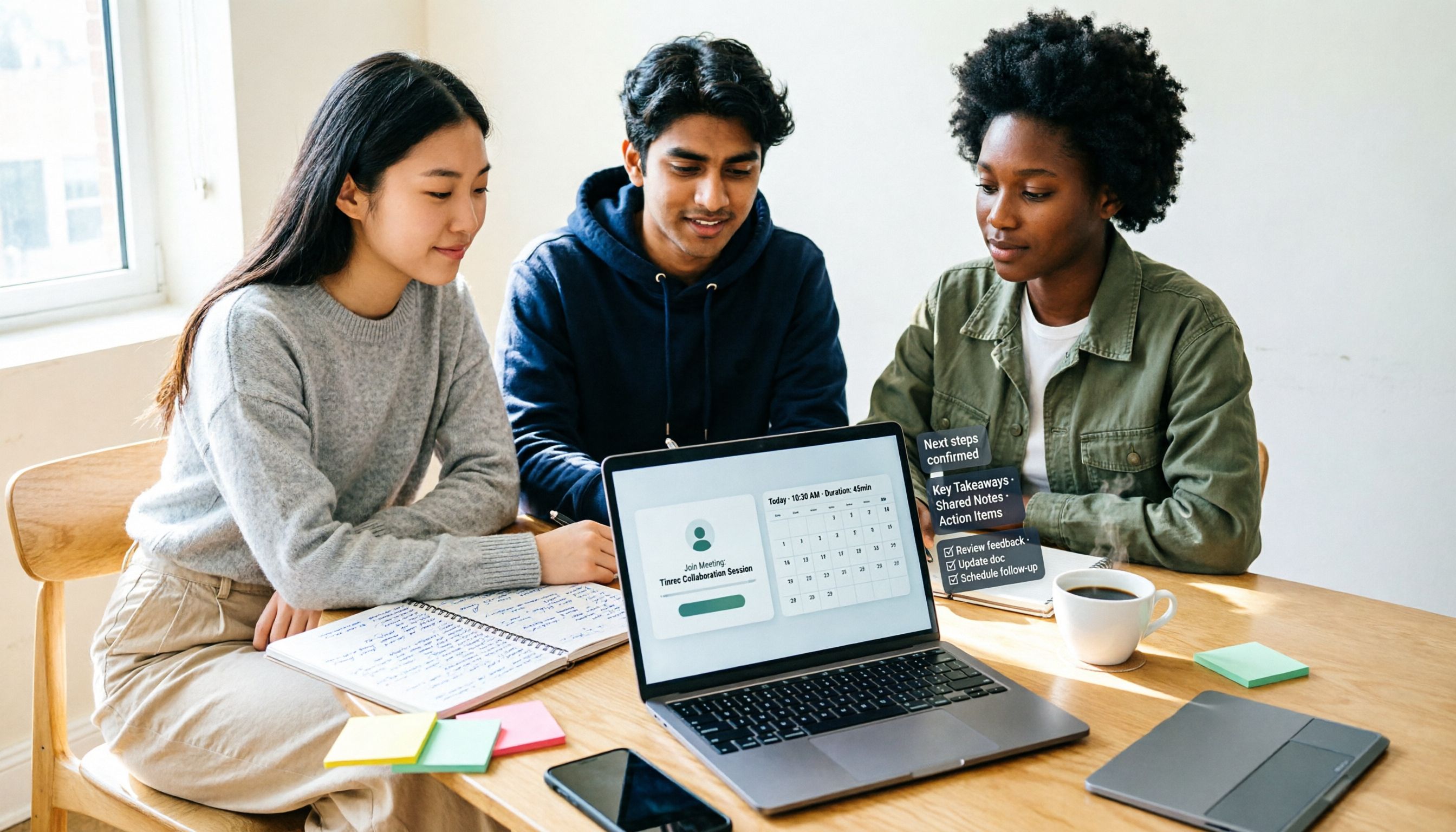
Starting from a real campus group project scenario, this guide thoroughly covers 6 methods to create Google Meet links, including desktop, mobile, Calendar, and Gmail entry points, and explains the difference between instant meeting links and scheduled meeting links. At the end, it explains how to use Tinrec after a meeting to turn transcripts, summaries, and action items into deliverable materials.

Google Meet Screen Sharing in 2026: Tab vs. Window vs. Entire Screen Compared
Sharing your screen in Google Meet may seem like a one-click task, but the three modes—tab, window, and entire screen—differ completely in audio, privacy risks, and ideal use cases. This side-by-side comparison breaks down the steps, sound settings, mobile differences, and common pitfalls for each sharing method, plus practical tips on how to capture and turn meeting content into searchable team knowledge after sharing.

Google Meet Recording in 2026: 3 Methods Tested and Compared — Which One Actually Preserves Your Meeting Record?
Google Meet's native recording isn't hard to find because the button is hidden — it's gated by three barriers: plan eligibility, admin controls, and file ownership. This article starts from where readers get stuck most often, explains the full prerequisites for built-in recording, and compares three alternative approaches — Tinrec, Otter.ai, and Granola — to help you decide which method fits which scenario.

3 Google Meet Note-Taking Tools Tested for 2026: Which Saves the Most Time in Video-Off Meetings?
You can join, see, hear, and speak in Google Meet without turning on your camera, but the real challenge is remembering what happened afterward. This article first covers 4 key settings before turning off video (join requirements, hiding tiles without video, profile picture, post-meeting notes), then tests and compares Tinrec, Otter.ai, Granola, and Notta in video-off Google Meet meetings, with 4 pitfalls to avoid and scenario-based recommendations.

How to Start a Google Meet Without a Host in 2026: 5-Step Guide
Can you start or join a Google Meet without the host present? This guide breaks down two common misconceptions, explains that join permissions are determined by the meeting creation settings—not by the host's presence—and compares Google Meet's built-in capabilities with Tinrec's bot-free meeting notes workflow across 5 dimensions. Includes 5 practical steps plus team plan seats, usage, and audit details.

6 Google Meet Note-Taking Tools Tested for 2026: Can You Get Transcripts Without a Meeting Bot?
After a Google Meet call, transcripts, action items, and decisions often go unorganized. This article reviews 6 note-taking tools that work directly with Google Meet, including Google Meet's built-in Gemini, Tinrec, Otter.ai, Fireflies.ai, Notta, and Granola, and lists free quotas and paid pricing honestly to help you decide which one best fits your workflow.