

Turn recordings into transcripts and summaries in minutes
Upload audio or video for multilingual transcription, AI notes, and action items
Before Recording Google Meet, Decide: Do You Want a Video File or a Usable Record?
Most people searching for how to record Google Meet aren't really wondering where the button is. What they're actually thinking is: once this meeting ends, how do I keep a record of the discussion?
But what typically trips you up isn't the steps — it's three judgment calls:
- Does my Google account plan even allow recording?
- After I hit record, whose cloud storage does the file go to?
- After recording, what am I going to do with this content?
Google Meet's built-in recording isn't complicated in itself. What's complicated is the whole set of prerequisites. When those prerequisites aren't met, what you need isn't a tutorial — it's a fallback plan.
This article covers both paths clearly: how to use native recording, what to do when you're stuck, and how to turn the recording into searchable, queryable meeting data afterward.
Before Choosing a Google Meet Recording Method, Understand These 4 Key Points
1. Plan Eligibility: Free Accounts Can't Record
According to Google's official documentation and various summaries, Google Meet's native recording requires an eligible paid plan, such as Google Workspace Business Standard or higher, Enterprise editions, or a Google One subscription of 2TB or more.
Free personal Google accounts cannot use native recording. This is where most people get stuck, and it's also the most easily overlooked point.
2. Admin Toggle: The Button May Not Even Exist
Even if your company's plan qualifies, a Google Workspace administrator still needs to enable recording in the Admin console. The path is roughly: Admin console > Apps > Google Workspace > Google Meet > Meet video settings > Recording.
If it's not enabled, you simply won't find that button in the meeting. And you won't know whether it's a permissions issue or an interface update — usually you'll have to ask IT.
3. Who Has Permission to Hit Record
When Host Management is on, only the meeting organizer or someone promoted to co-host can start recording. When it's off, participants in the same organization can also record.
External guests, regardless of the setting, must first be promoted to co-host. In other words, if the meeting is hosted by a client and you're outside their organization, you can't initiate recording yourself.
4. The Cost of Organizing After Recording
Native recording gives you an MP4 video file stored in the meeting organizer's Google Drive, usually under the "Google Meet" folder with a subfolder per meeting. The system sends an email with a link to the organizer and whoever pressed record.
Captions can be saved along with it, but sometimes they take a while to appear. If you want summaries, action items, or a searchable transcript, you'll need to process it separately.
In other words: whose hands the file is in, whether you can access it, and how much time it takes to organize afterward — these three things are what really determine which recording method you should use.
Tinrec — Record Google Meet Without Plan Eligibility and Turn It Into Usable Data Directly
Tinrec is an AI meeting notes and collaboration tool for individuals and teams, available on iOS, Android, desktop, and web.
It doesn't use a meeting bot. The desktop version directly captures your computer's system audio, so it can handle meeting audio from Google Meet, Zoom, Microsoft Teams, and Webex playing on your computer — no extra bot needs to join the meeting.
No Waiting for Admin Permissions
This is what I find most practically valuable. You don't need to invite an extra participant into the meeting, and you don't need to wait for IT to flip the recording switch in Google Meet.
Open the desktop app, confirm the audio source, start recording, and the meeting proceeds as usual while the transcript generates in real time. Even if you're an external attendee without co-host permissions, you're recording the audio you hear on your own computer — the process won't get blocked.
Note: you should inform participants and obtain consent before recording, and comply with local regulations and company policies. This has nothing to do with which tool you use — it's basic courtesy and responsibility.
After Recording, You Don't Get a Video — You Get Queryable Data
After the meeting ends, Tinrec automatically generates summaries, chapters, and action items. Who's responsible for what and what the next steps are get organized into a list.
Even better is the AI Q&A. You can directly ask it "What was the budget cap the client mentioned?" or "Which option did we decide on in the last meeting?" It answers based on semantics rather than dumping a bunch of keywords for you to dig through the transcript yourself.
The difference from native recording is clear: native recording gives you content; Tinrec gives you organized content that you can keep querying.
Stop organizing recordings by hand
Upload audio or video and automatically get a transcript, summary, and action items
It also supports real-time translation — for cross-language meetings you can view the original, translation, or bilingual side-by-side. Recordings can be exported to Notion, Google Docs, OneNote, Dropbox, and other tools, and can further generate reports, tables, and meeting minutes documents.
Team Edition: Turn Meetings From Personal Files Into Team Assets
If you're a team that shares meeting records, the Team Edition handles this more completely.
Meeting data is centrally stored in the team space, and new members can view historical data. When a member leaves or is removed, resources are transferred to other active members rather than disappearing with the personal account.
Admins can manage roles and seats, view team usage trends and member details, and query and export audit logs. Accidentally deleted audio files can be recovered from a 30-day recycle bin.
Here's a commonly confused point: roles determine who can manage the team, while seats determine who can record, upload, edit, and import/export. Active members without a seat can still view, play, and read team data — they just can't perform resource-consuming operations.
The Team Edition currently offers a 7-day trial, 1 free seat, and 300 minutes of shared team import quota. Monthly billing is USD 29.80 per paid seat per month; annual billing is USD 199 per paid seat per year, equivalent to about USD 16.58 per month, with each paid seat providing 2,000 minutes of shared team import quota per month. Under an active plan and active seat, real-time recording is currently not deducted by the minute. Actual pricing and benefits are subject to the official purchase page.
Limitations We Should Honestly State
First, Tinrec doesn't automatically join every meeting on your calendar — you need to open it and start recording each time, and it's not an official Google Meet extension.
Second, the personal edition has a free quota for you to try, but heavy use requires payment. You can choose a weekly card, Pro monthly card, or Pro annual card depending on your needs.
Third, transcription quality is affected by recording conditions. In a quiet environment with a single microphone, performance is stable. When multiple people talk over each other, air conditioning noise is noticeable, or technical jargon is dense, it's still advisable to cross-check important content against the recording.
Overall, if you mainly hold meetings in Chinese, need post-meeting organization, and don't want to be constrained by plan eligibility, Tinrec is currently the smoothest path.
Besides Tinrec, What Other Ways Are There to Record Google Meet?
Google Meet Built-in Recording
The most native and direct method: in a desktop meeting, click "Tools" → "Recording" → "Start recording." The file is saved as MP4 to the organizer's Google Drive, and a link is sent to their email. Prerequisites: your plan qualifies, the admin has enabled it, and you have recording permission. Free personal accounts don't work, and Education accounts (Education Fundamentals/Standard) have stricter restrictions — teachers, staff, and students cannot record meetings in their own organization. And it only gives you video and captions; summaries and action items need to be done separately — which is exactly where Tinrec steps in.
Otter.ai
A mature choice for English meetings. Basic is free with 300 minutes per month; Pro annual billing works out to about USD 8.49 per user per month, including 1,200 minutes per month. The experience for English business meetings is indeed solid. However, Chinese meetings aren't its strong suit, and it doesn't have a design for turning meeting data into transferable team assets — that part is closer to what Tinrec's team space does.
Granola
A bot-free AI meeting notes tool that uses desktop system audio for real-time transcription. Basic is free; Business is USD 14 per user per month. Its strength is combining your handwritten notes with AI. But it doesn't support uploading pre-recorded audio files, nor does it save meeting audio files. If you need to keep recordings, listen back later, or catch missed segments, that's a difference you need to accept upfront — whereas Tinrec retains audio files and supports playback.
Pitfall Guide: The 4 Most Common Mistakes When Recording Google Meet
Pitfall 1: Assuming the button is there when your plan doesn't qualify. When the recording button disappears, first confirm two things: your company's plan level and whether the admin has enabled recording. Many people waste time looking for the button when the issue is actually permissions.
Pitfall 2: Not confirming whose Drive the file is stored in. Recordings are stored in the organizer's cloud. If the organizer is a client or a colleague from another department, you won't always have access. Agreeing on how files will be shared before recording is far easier than chasing down a link afterward.
Pitfall 3: Recording and then leaving it. A 60-minute video can take longer to organize into minutes than the meeting itself. If the purpose of recording is to "produce content," choose your post-meeting workflow before recording, not after.
Pitfall 4: Forgetting to inform participants. Recording involves personal data and company policies. A simple "I'll be recording this meeting for notes — is that okay?" before you start can save a lot of trouble later.
Conclusion: Which Method Should You Actually Use?
To sum it up in one line: native recording solves "capturing it"; Tinrec solves "what to do with it after recording."
By scenario:
- Company plan qualifies and you just need a replayable video → Google Meet built-in recording
- Free personal account, or admin won't enable permissions → Tinrec desktop bot-free recording
- Mainly Chinese meetings, need summaries, action items, and queryable content afterward → Tinrec
- Team needs to accumulate historical meetings and manage seats and usage → Tinrec Team Edition
- English-only meetings, zero budget → Otter.ai is a reasonable choice
My usual advice: don't rush to pay. Use the free quota to record a meeting you're hosting, see the transcript quality and summary accuracy, then decide whether to upgrade. Whether a tool works well — one recording will tell you.
References
Turn every recording into actionable outcomes
Get 60 free transcription minutes when you sign in. No credit card required.
Related Reading
You might also like

How to Record Google Meet in 2026: 5-Step Tutorial and a No-Bot Solution
Many people can't find the record button in Google Meet—it's actually a plan eligibility issue; free accounts don't have native recording, and even paid plans require manual organization after recording. This guide demonstrates how to record Google Meet without a bot using Tinrec desktop in 5 steps, automatically generating transcripts, summaries, and action items, and covers native limitations, purchasing considerations, and FAQs.

Google Meet Recording in 2026: 3 Methods Compared — Why Tinrec Is Better for Post-Meeting Organization
How does Google Meet work? The free version supports up to 100 participants and 60-minute meetings, but transcription and Gemini notes are only available on select plans. This article breaks down Google Meet's operating logic and practical limitations, and compares Tinrec's differences in bot-free recording, post-meeting organization, cross-platform unification, and team knowledge retention.

2026 Comparison of 3 Google Meet Meeting Notes Tools: Which One Saves You Post-Meeting Cleanup Time?
Starting from actual Google Meet use cases, this compares three meeting note approaches: Google Meet built-in recording, Otter.ai, and Tinrec. It explains differences in bot-free recording, transcripts, summaries and action items, and team data retention, helping you decide which fits your work style.
2026 Complete Guide to Google Meet Links: 6 Ways to Create and Post-Meeting Organization
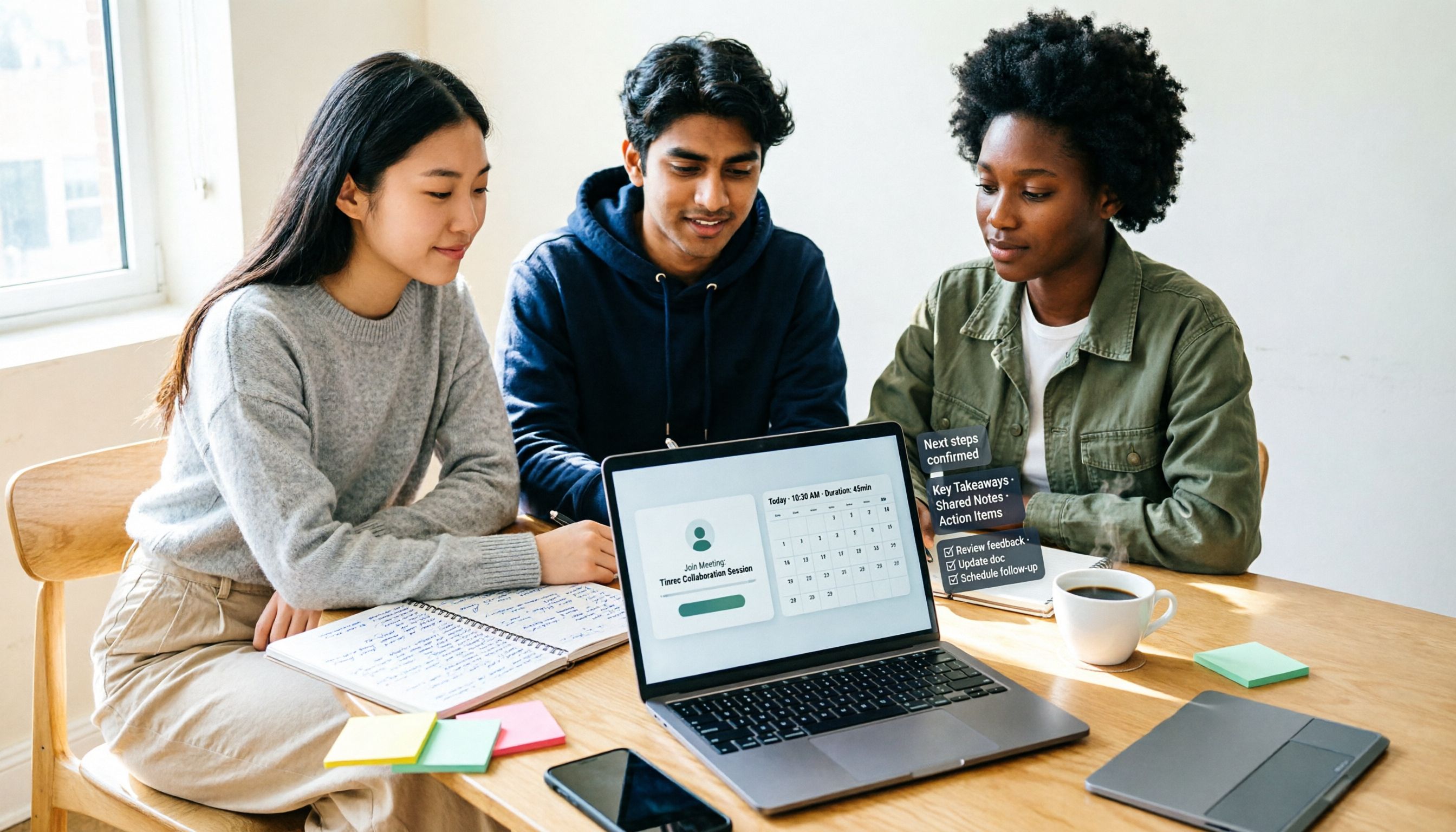
Starting from a real campus group project scenario, this guide thoroughly covers 6 methods to create Google Meet links, including desktop, mobile, Calendar, and Gmail entry points, and explains the difference between instant meeting links and scheduled meeting links. At the end, it explains how to use Tinrec after a meeting to turn transcripts, summaries, and action items into deliverable materials.

Google Meet Screen Sharing in 2026: Tab vs. Window vs. Entire Screen Compared
Sharing your screen in Google Meet may seem like a one-click task, but the three modes—tab, window, and entire screen—differ completely in audio, privacy risks, and ideal use cases. This side-by-side comparison breaks down the steps, sound settings, mobile differences, and common pitfalls for each sharing method, plus practical tips on how to capture and turn meeting content into searchable team knowledge after sharing.

3 Google Meet Note-Taking Tools Tested for 2026: Which Saves the Most Time in Video-Off Meetings?
You can join, see, hear, and speak in Google Meet without turning on your camera, but the real challenge is remembering what happened afterward. This article first covers 4 key settings before turning off video (join requirements, hiding tiles without video, profile picture, post-meeting notes), then tests and compares Tinrec, Otter.ai, Granola, and Notta in video-off Google Meet meetings, with 4 pitfalls to avoid and scenario-based recommendations.

Google Meet Time Limit in 2026: Free Extension Tips & Meeting Notes Workflow
Google Meet's free version isn't always limited to 60 minutes. This guide breaks down the real rules behind the time limit, three ways to extend meetings, and four common pitfalls. It also tests a bot-free recording and post-meeting organization workflow to help you decide whether to upgrade, restart the link, or switch to a different note-taking method.

How to Start a Google Meet Without a Host in 2026: 5-Step Guide
Can you start or join a Google Meet without the host present? This guide breaks down two common misconceptions, explains that join permissions are determined by the meeting creation settings—not by the host's presence—and compares Google Meet's built-in capabilities with Tinrec's bot-free meeting notes workflow across 5 dimensions. Includes 5 practical steps plus team plan seats, usage, and audit details.

6 Google Meet Note-Taking Tools Tested for 2026: Can You Get Transcripts Without a Meeting Bot?
After a Google Meet call, transcripts, action items, and decisions often go unorganized. This article reviews 6 note-taking tools that work directly with Google Meet, including Google Meet's built-in Gemini, Tinrec, Otter.ai, Fireflies.ai, Notta, and Granola, and lists free quotas and paid pricing honestly to help you decide which one best fits your workflow.