

Turn recordings into transcripts and summaries in minutes
Upload audio or video for multilingual transcription, AI notes, and action items
4 iPhone Meeting Transcription Tools Tested: How to Organize Notes After Joining Google Meet Without an App
Why most people still have outdated answers about "Can iPhone use Google Meet?"
"Can iPhone join Google Meet?" The answer in 2026 is different from two years ago.
There are three common misconceptions.
The first is "you must download the app first." That used to be true—iPhone users had to install Meet or Gmail to enter a meeting room. But starting June 2026, Google lets iPhone users join Meet meetings directly through Safari (and other iOS browsers) without downloading any app.
The second is "you must have a Google account." Now people without a Google account can enter their name on the join page, tap "Ask to join," and wait for the host to admit them.
The third is "browser-based meetings must have crippled features." Honestly, the web version may lack some features, but for people who are occasionally pulled into a meeting, this option is good enough.
One detail to note: if your iPhone already has Meet or Gmail installed, the system may still prioritize guiding you to join via the app. To see the browser join option, you usually need to have neither app installed.
So the more sensible approach is this: don't install a bunch of apps for a meeting that happens once every few months—just join via browser. What really deserves your time is what happens after the meeting ends.
Key judgment points: Instead of agonizing over how to join, look at these 3 things first
Getting into the meeting is just the starting point. Here are three things I think iPhone users should prioritize after actually trying a round of tools.
First, do you need to keep the meeting content? If you're just listening in and don't plan to look back, joining via browser and closing when done is perfectly fine. But if you're responsible for taking notes and delivering minutes, you'll need another approach.
Second, how much time does post-meeting organization take? A 60-minute meeting can produce tens of thousands of words in a transcript. Having a tool that automatically generates summaries, chapters, and action items is a different world from typing everything by hand.
Third, does the team need to share? If data lives in personal accounts, it scatters when people leave. Only products with a team workspace concept can turn meetings into company assets.
These three points are also exactly where the tools below differ the most.
Tinrec — Turning "meeting ended" into "actionable data"
Tinrec is an AI meeting notes and collaboration tool for individuals and teams, supporting iOS, Android, and web. Its core is organizing meeting content into searchable, summarizable, and queryable data—not just handing you a transcript.
Let's start with its actual use in iPhone scenarios.
For online meetings, it relies on the desktop version. Tinrec's desktop version directly captures your computer's system audio to handle Zoom, Google Meet, Microsoft Teams, Webex, and similar meetings without sending a meeting bot to join as a participant. This is practical for hosts: you don't need an extra account, and you don't have to explain why there's an extra person on screen. Note that this feature runs on a computer, not iPhone—the iPhone's role is mobile recording, suitable for in-person meetings, client visits, and impromptu interviews.
Post-meeting organization is where it pulls ahead of pure transcription tools. After recording, it automatically generates summaries, chapters, key points, and action items—who's responsible for what and when it's due, listed directly. Even better is AI Q&A: you can ask "What was the conclusion about the budget in the last meeting?" and it answers based on semantic content, not just keyword search results. At this price point, competing products generally haven't built this out yet.
Output formats are comprehensive. It can generate transcripts, summaries, mind maps, reports, and tables, and export to Notion, Google Docs, OneNote, and Dropbox for further editing. For people turning meeting content into weekly reports or proposals, the time saved isn't just typing.
Three advantages I'll highlight:
One, bot-free recording—no extra participant in online meetings.
Two, relatively smooth handling of Chinese and mixed Chinese-English meetings, plus real-time translation and bilingual viewing during recording.
Three, an end-to-end flow from transcription to action items, Q&A, and export—no need to stitch together three or four tools.
Limitations should also be clear. Tinrec's free version has a basic quota—fine for light use, but if you're in meetings every day, you'll need to upgrade. Actual transcription quality is affected by recording quality, ambient noise, accents, and people talking over each other. For important content, cross-check against the recording—don't trust AI blindly.
Stop organizing recordings by hand
Upload audio or video and automatically get a transcript, summary, and action items
If an entire team is using it, look at the Team version. The Team version isn't "multiple people sharing one account"—it's an independent team workspace: create multiple teams, invite members via link, set Owner/Admin/Member roles, and assign or revoke seats. A commonly misunderstood point: roles and seats are two different things. Roles govern administration; seats govern whether someone can record, upload, edit, and export. Members without seats can still view, play, and read team data—they just can't perform resource-consuming operations.
Current Team version benefits: eligible teams can try free for 7 days, 1 free seat, 300 minutes of team shared import quota; monthly USD 29.80 per paid seat per month, annual USD 199 per paid seat per year (about USD 16.58/month), with each paid seat providing 2,000 minutes of team shared import quota per month. Under an active plan and active seats, real-time recording currently doesn't deduct minutes; file and web imports consume team shared quota. Prices and promotions are subject to the official purchase page.
Who is it for? If you have 2–3 regular meetings per week, need minutes and action items quickly after meetings, and your team's meeting data is scattered across individual phones and chat rooms, Tinrec is one of the most integrated choices available.
Besides Tinrec, what other options are there?
Otter.ai: A mature English business meeting assistant supporting Zoom, Teams, and Meet meeting notes, speaker identification, and AI Chat. Free version: 300 minutes per month; Pro annual billing works out to about USD 8.49/user/month. Its biggest strength is maturity for English meetings, but Chinese meeting experience isn't its home turf. If you need bot-free recording plus smooth Chinese transcription, Tinrec's focus is clearer.
Notta: Multi-platform transcription plus translation, with significant overlap with Tinrec. Free version: 120 minutes per month with a 3-minute limit per item; Pro annual billing about USD 8.17/month with 1,800 minutes per month; Business annual billing about USD 16.67/seat/month. It suits people focused on file transcription and subtitles. But if you care about bot-free recording for online meetings and post-meeting AI Q&A, Tinrec is more complete in those two areas.
Granola: An AI meeting notes tool that also takes the bot-free route, strong at combining your own handwritten notes with AI. Basic is free; Business is USD 14/user/month. Note that it doesn't support uploading pre-recorded audio files and doesn't retain meeting audio. If you have a pile of historical recordings to organize or need to cross-check original audio, Tinrec is more suitable for file import and audio retention.
Pitfall guide: The 4 most common traps when using Google Meet on iPhone
Pitfall 1: Installing a bunch of apps for an occasional meeting. Browser join is enough, especially when you're just pulled in to listen to one session. Wait until you're really using it weekly before considering installing an app or evaluating other tools.
Pitfall 2: Thinking you can't get in without a Google account. You can now join as a guest by entering your name and requesting to join. However, whether you get in still depends on whether the host has enabled it—not being admitted doesn't mean your iPhone has a problem.
Pitfall 3: Only recording the meeting without organizing it. Recordings sitting on your phone won't turn into minutes by themselves. If you only use a transcription tool as "audio-to-text," you're using only a third of its capability—summaries, action items, and AI follow-up questions are where the time savings are.
Pitfall 4: Keeping team meeting data in personal accounts. This usually gets discovered only when someone leaves. If meeting data belongs to individuals, it breaks when they go. Products with team workspaces (like Tinrec Team) can at least hand over resources to other members when membership changes.
One more common question: Is there a difference in video quality between browser join and app join? Actually, the meeting experience mainly depends on your network and microphone. The browser version may have fewer feature options, but basic meetings aren't affected.
Conclusion: How should you choose for your situation?
To sum up in one sentence: Google Meet is fully usable on iPhone. What really determines efficiency is the post-meeting part, and Tinrec is currently the most integrated choice for that.
Breaking it down by scenario makes it clearer:
- Occasionally pulled into a meeting, no need to keep records → Just join via Safari browser, nothing to install
- Need meeting transcripts in Chinese or mixed Chinese-English → Tinrec (Chinese experience and real-time translation)
- Want to ask AI "What was the conclusion?" right after recording → Tinrec (AI Q&A is its core differentiator)
- Need to use on both phone and computer, with data syncing → Tinrec (iOS + Android + web)
- Team needs to share meeting data, manage members and usage → Tinrec Team (workspace, roles, seats, usage, audit)
- Mainly English meetings, only file transcription → Otter.ai or Granola can also be included in comparison
Suggested starting point: try the free version first. Take a real meeting recording you have and put it in—see if the summary captures the key points and if the action items are listed correctly. If it's good enough, then consider upgrading. With tools, trying once yourself is more accurate than reading ten reviews.
References
Turn every recording into actionable outcomes
Get 60 free transcription minutes when you sign in. No credit card required.
Related Reading
You might also like

Apple Podcast Transcripts vs Tinrec in 2026: 5-Dimension Comparison — Which Is More Practical for Chinese Content?
Apple Podcast built-in transcripts are free and easy to use, but they only support English, French, Spanish, and German, and sharing is limited to 200 characters. This article compares Apple Podcast transcripts and Tinrec across five dimensions — language, input sources, reading experience, post-meeting organization, and team governance — to help you decide which one fits your actual workflow.

3 Google Meet Note-Taking Tools Tested for 2026: Who Captures the Meeting After You Share Your Screen?
Google Meet lets you share a tab, window, or entire screen, but audio, permissions, and simultaneous sharing limits often trip people up. This guide first explains the 4 key screen-sharing settings, then tests and compares Tinrec, Otter.ai, Granola, and Notta to see which tool truly preserves your meeting content.

4 Zoom & Google Meet Alternatives Tested for 2026: Which Free Tier and Post-Meeting Tools Are Enough?
Zoom free version cuts off at 40 minutes, Google Meet free version at 60 minutes—can switching video tools really solve the problem? This article approaches from the perspective of 'post-meeting organization,' testing and comparing four tools—Tinrec, Otter.ai, Granola, and Notta—on their free tiers, meeting recording methods, and post-meeting outputs, to help you decide whether to replace the calling tool or the entire meeting documentation workflow.

Google Meet Free Version 60-Minute Limit: 3 Meeting Notes Tools Tested for 2026
Google Meet calls are free, but group meetings with three or more people are capped at 60 minutes, and the free version lacks recording and transcription. This article helps you decide whether to upgrade to Workspace, then tests and compares three post-meeting tools, showing how Tinrec's desktop app records Meet without a bot and captures transcripts, summaries, and action items in one place.
Google Meet Recording in 2026: Tinrec vs. Built-in Transcription — Which Is Enough?
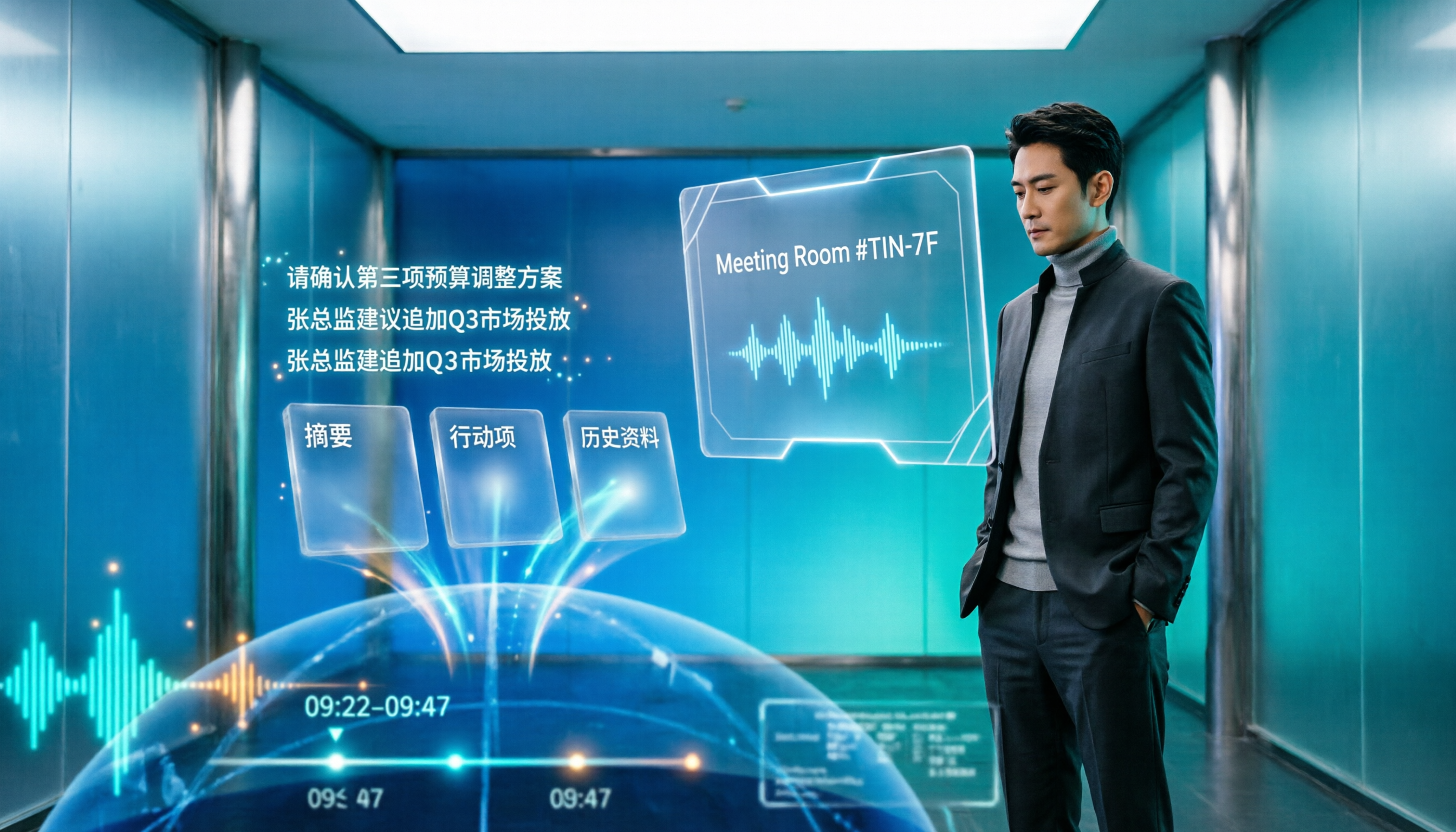
A Google Meet link is a meeting room URL starting with meet.google.com and ending with a random code — clicking it gets you into the room, but it doesn't mean the meeting content is saved. This article addresses three common misconceptions and compares Google Meet's built-in recording and transcription with Tinrec's recording app in terms of recording, post-meeting organization, Chinese-language experience, historical data, and team knowledge retention, helping you decide which one to use.

2026 Comparison of 4 Interview Transcription Software: How to Choose Based on Chinese Recognition, Post-Meeting Organization, and Team Knowledge Retention
Does a one-hour interview recording take three hours to organize? This article compares four interview transcription software—Tinrec, Yating Transcription, Otter.ai, and Notta—based on real-world usage scenarios. It breaks down three key differences: Chinese accent recognition, post-meeting summaries and AI Q&A, and team data retention. It also lists four commonly overlooked pitfalls before choosing, helping you determine which tool truly fits your workflow.

Zoom vs Google Meet vs Tinrec (2026): Which Meeting Notes Solution Saves the Most Time?
We've compared Zoom and Google Meet before, but what really slows you down isn't the meeting hour—it's the post-meeting cleanup. This article tackles common misconceptions and puts three meeting notes approaches to the test: Zoom, Google Meet, and Tinrec. We break down the real differences in bot-free recording, transcripts, AI summaries, action item extraction, cross-platform organization, and team knowledge retention to help you decide which combination saves the most time.

Does Google Meet Have a Time Limit in 2026? 5 Steps to Understand Free vs. Paid Differences
Google Meet does have time limits, but they vary by account type and number of participants: free accounts have a 60-minute limit for meetings with 3 or more people, while 1-on-1 and mobile calls are not restricted; paid Workspace plans allow longer meetings. This article uses 5 steps to help you determine if your meeting will be interrupted, how to recover if it is, and how to keep transcripts and action items.
Google Meet Microphone Not Working in 2026? 8-Step Troubleshooting Guide
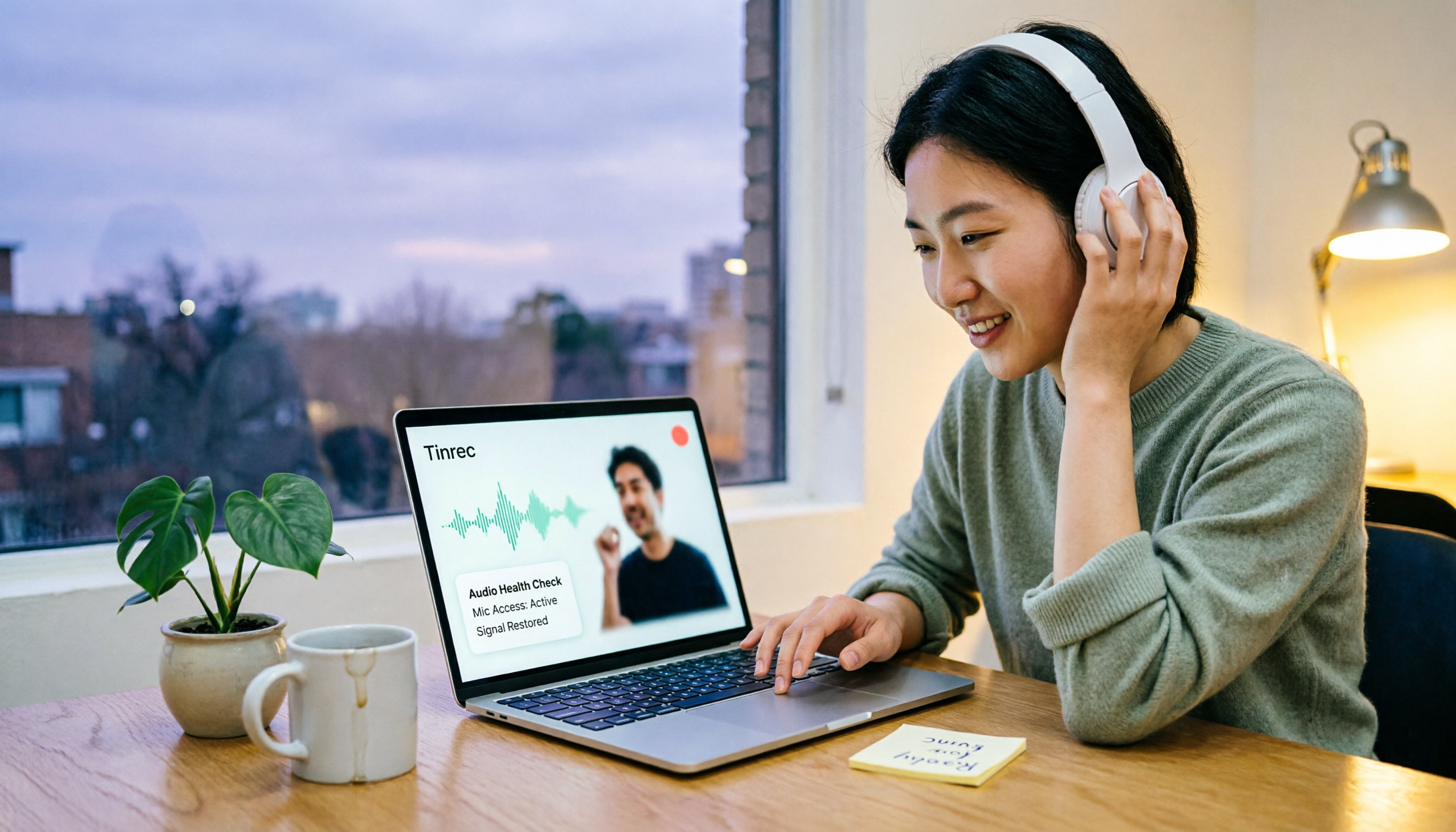
When your Google Meet microphone isn't working, it's usually not a broken mic—it's often permissions, device selection, or a background app causing the issue. This guide walks you through 8 steps, from checking if you're muted in the meeting to verifying hardware connections, with a logical order and common mistakes to help you get your audio back within three minutes before your meeting starts.