

Turn recordings into transcripts and summaries in minutes
Upload audio or video for multilingual transcription, AI notes, and action items
How to Auto-Record Google Meet in 2026: Default Settings & Guaranteed Recording
Last Wednesday I was stuck in two meetings at once. I rushed to save the cross-department one, then came back to open the recording and catch up. I searched Google Drive for five minutes and found nothing. I asked the host, and he said, "I thought it would record itself."
That's probably one of the most common misunderstandings in the 2026 workplace. Let me give you the bottom line first, then walk you through the setup step by step.
Bottom line first
- Google Meet does not record automatically by default. In the default state, the host or a participant with permission must manually press record.
- The record button requires two conditions: the organization uses a supported Google Workspace edition, and the admin has enabled recording.
- Exception: If the admin turns on "auto-record," recording starts automatically when the meeting begins—no button press needed.
- Free personal Google accounts usually don't even see the record button.
- Recording can only be started from a desktop browser, not from mobile or tablet.
In other words, "discovering after the meeting that it wasn't recorded" isn't an accident—it's the default state. Here are the 5 steps my team now follows consistently.
Before You Start | What You Need to Prepare
- Check your account edition: Sign in to Google Meet with a work or school account to have a chance at seeing recording features. If you're on a free personal account, skip straight to Step 5.
- Ask IT or your admin: Whether recording is enabled for the organization, whether auto-record is on, and whether Google Drive is available (recordings are saved to Drive; if Drive is disabled, recording is affected too).
- Confirm you're the host: Only the meeting organizer or a participant with recording permission can start recording.
- A computer + stable internet: Recording must be started from a desktop or laptop browser.
- A backup plan: My personal habit is to also open the Tinrec desktop app on my computer. It captures system audio directly—no bot needs to join the meeting, and it's not limited by Workspace edition.
(Illustration: At a morning desk, a laptop shows a Google Meet meeting while a phone records audio nearby, suggesting dual-track backup)
Step 1 | First, Check If You Have a "Record" Button
The only purpose of this step is to know before the meeting starts whether you can record—not to find out afterward.
After joining a Google Meet meeting, look at the toolbar at the bottom of the screen for a record icon. If you don't see it, it doesn't mean you did something wrong. It usually means one of three things: your edition doesn't support it, your admin hasn't enabled it, or you're not someone with permission.
Why check in advance? Because there's no native automation shortcut for recording—Google Meet recording can only be operated through the interface, and there's no way to start it behind the scenes via scheduling or API. Thirty seconds of checking beforehand beats three hours of regret afterward.
Once done, you'll know clearly: will this meeting rely on Meet's built-in recording, or on a backup tool?
(Illustration: Five minutes before the meeting starts, the speaker checks the button location on the toolbar, looking focused)
Step 2 | Ask Your Admin to Enable "Auto-Record" So It Records as Soon as the Meeting Starts
If your organization is the type that needs a record of every meeting (e.g., decision meetings, client calls), this step is the most worthwhile.
The approach is to ask your Workspace admin to enable recording permissions in the admin console and set it to auto-record. Once enabled, recording starts automatically when the meeting begins—no one needs to remember to press a button. It's especially suitable for scheduled recurring meetings—the kind that get straight to business and no one has time to deal with settings.
Note that this setting is at the organizational level and regular users can't turn it on themselves. If you don't see the option, ask your admin first—don't doubt that your computer is broken.
Result: Recording starts as soon as the meeting begins, and participants receive a notification.
(Illustration: Everyone gradually enters the online meeting room, and a red recording indicator appears in the corner of the screen)
Step 3 | When There's No Auto-Record, Press Record Manually at the Start of the Meeting
Most organizations don't actually enable auto-record, so this step is the daily routine.
After the meeting starts and people have joined, the host or someone with permission presses record. Once pressed, all participants receive an immediate notification—this is important. In practice, please also verbally announce at the beginning, "This meeting will be recorded," and remind participants that recording audio and video must comply with local regulations and obtain consent.
There are two ways recording ends: manually stopped, or automatically ended when all participants leave the meeting.
My own bonus approach: leave video recording to Google Meet, and let the Tinrec desktop app run the transcript simultaneously. That way, even if the video file takes hours to process, I already have searchable text to refer to right away.
(Illustration: During the meeting, the laptop shows both the meeting screen and a live transcript panel on the right)
Stop organizing recordings by hand
Upload audio or video and automatically get a transcript, summary, and action items
Step 4 | After the Meeting, Find the Recording in Google Drive and Share It
After recording ends, the file is automatically saved to the meeting host's Google Drive in a folder called Meet Recordings, and a sharing link is emailed to the host and the person who pressed record.
Recordings are usually available within a few hours; captions may take longer to generate. If the organization has disabled Drive, recording is affected as well—this is why many people "recorded but can't find it."
When sharing, be aware of two practical limitations: external participants usually don't have recording permission and often can't download the recording either. If the meeting needs to be shown to external people, have someone inside the organization provide it afterward.
When done, you'll get a link, but it's just a single file—no summary, no action items, no chapters. That's why I added an organizing workflow in Step 5.
(Illustration: A manager opens the recording file in a Drive folder, with a to-do list written in a notepad nearby)
Step 5 | Use the Tinrec Desktop App to Ensure "It Always Records + It Always Gets Organized"
If your edition doesn't support it, your admin won't enable permissions, or you—like me—simply don't want to bet your meeting notes on a single button, this step is the backup plan.
How: Open the Tinrec desktop app before the meeting starts and select record. It directly captures your computer's system audio, handling meeting audio played on Zoom, Google Meet, Microsoft Teams, and Webex—no bot needs to be invited to join the meeting. It transcribes while recording, so by the time the meeting ends, the text is already there.
Why arrange it this way? Because "did it record?" is actually two questions: one is permission, the other is remembering. Starting the recording yourself with the desktop app puts the initiative back in your hands.
When done, you'll have: transcript, AI summary, chapters, key points, and action items. If you need to report, you can export to Google Docs, Notion, OneNote, and other tools, or directly generate meeting minutes and tables.
(Illustration: Right as the meeting ends, the screen already lists a summary, chapters, and three action items)
FAQ and Troubleshooting
Q: Why doesn't my Google Meet have a record button at all?
The most common reasons are a free personal account, an unsupported organizational edition, or an admin who disabled the feature. This isn't a configuration error—it's a permission issue. Desktop tools like Tinrec don't require admin permissions; you just sign in and record. That's the difference.
Q: Can I record Google Meet on my phone?
Google Meet recording can only be started from a desktop browser, not from mobile devices. If you're a mobile participant and need a record, recording audio on your phone and importing it for transcription is much more practical than trying to recall afterward.
Q: Where exactly is the recording saved?
It's saved in the meeting host's Google Drive in the Meet Recordings folder. If the host isn't from your organization, ask them directly—don't search your own Drive in vain.
Q: Can external participants record on their own?
In most cases, no—external participants usually don't have recording permission and can't see the button. When a meeting needs a record, have someone from the host organization handle it.
Q: How long until the recording appears? Why are captions missing?
Recordings are usually available within a few hours; captions take longer to generate. If you need the content the same day, waiting for the file is less efficient than using a live transcript—Tinrec transcribes while recording, so the text is there when the meeting ends, no processing queue to wait for.
Advanced Tips | 3 Practices to Ensure Every Meeting "Always Gets Organized"
1. Run dual tracks—video recording and transcript each do their job
Google Meet handles video evidence; Tinrec handles usable text. That way, even if the video is still processing, you can already search keywords and capture decisions.
2. Use AI Q&A to look back and ask "how exactly did we decide that last time?"
This is something Google Meet recordings can't do: Tinrec supports AI Q&A around meeting content. You can directly ask, "What were the client's concerns about pricing?" without rewatching an hour-long video. For people with a dozen meetings a week, this is where real time savings happen.
3. Turn records into team assets, not files on someone's personal hard drive
Personal edition data belongs to the individual; the team edition has a separate team workspace where data belongs to the team, with member roles and seat management, sharing permissions, usage analytics, audit logs, and an audio recycle bin (retained for 30 days, recoverable). Team monthly billing is USD 29.80 per paid seat per month, annual billing is USD 199 per paid seat per year (about USD 16.58 per month). Each seat includes 2,000 minutes of team-shared import quota per month; under an active plan, live recording currently does not deduct minutes. When a member leaves or loses their seat, resources can be handed over to other members—something Google Drive personal folders can't do.
If You Don't Use Tinrec, Here Are Other Options
- Otter.ai, Fireflies.ai: Mature AI meeting assistants with strong English business meeting capabilities and complete summaries and integrations; before use, check plan quotas and recording methods (most use meeting bots).
- Notta: Good multilingual transcription and translation, and offers team plans; if your needs are focused on file transcription, it's worth comparing.
Both work. The difference is that Tinrec uses desktop-based bot-free system audio capture, a Chinese meeting experience, plus post-meeting Q&A, action items, and team knowledge retention—making it smoother for people who need to report upward and track downward at the same time.
Conclusion
Back to the original question: Google Meet does not record automatically unless your organization uses a supported Workspace edition and your admin has enabled recording and set up auto-record. Until then, recording always requires someone to remember to press the button.
So the practical answer has two layers: one is getting the organizational settings right, the other is keeping a backup for yourself that doesn't depend on settings. My team's current approach is to leave the former to IT and the latter to the Tinrec desktop app—recording starts as soon as the meeting begins, and transcripts, summaries, and action items grow in sync.
You can try the free version with one meeting first to see if the workflow suits you; if you're like me with a dozen meetings a week and accountable to a team, then evaluating Pro or the team edition makes more sense. Before recording audio or video, remember to inform participants and obtain consent.
References
- Google Meet Auto Recording: How It Works
- Does Google Meet Record Automatically? Recording Requirements, File Locations, and What to Do If You Missed It - Official Tinrec Blog
- Does Google Meet Record Automatically? Permissions, File Locations, and How to Hand Off When Nothing Was Recorded - Official Tinrec Blog
- Does Google Meet Record Automatically? Recording Permissions, File Location, and a Handoff Checklist for Missed Recordings - Official Tinrec Blog
- How to record a Google Meet meeting: Manual vs automated | Nylas
Turn every recording into actionable outcomes
Get 60 free transcription minutes when you sign in. No credit card required.
Related Reading
You might also like

4 Best Google Meet Headsets to Try in 2026: Clear Mic and Meeting Notes Made Easy
Hands-on review of 4 recommended Google Meet headsets in 2026, covering microphone clarity, noise cancellation, comfort, and connection stability. Plus, why a headset only solves half the problem—and how Tinrec saves time with meeting notes and follow-ups.
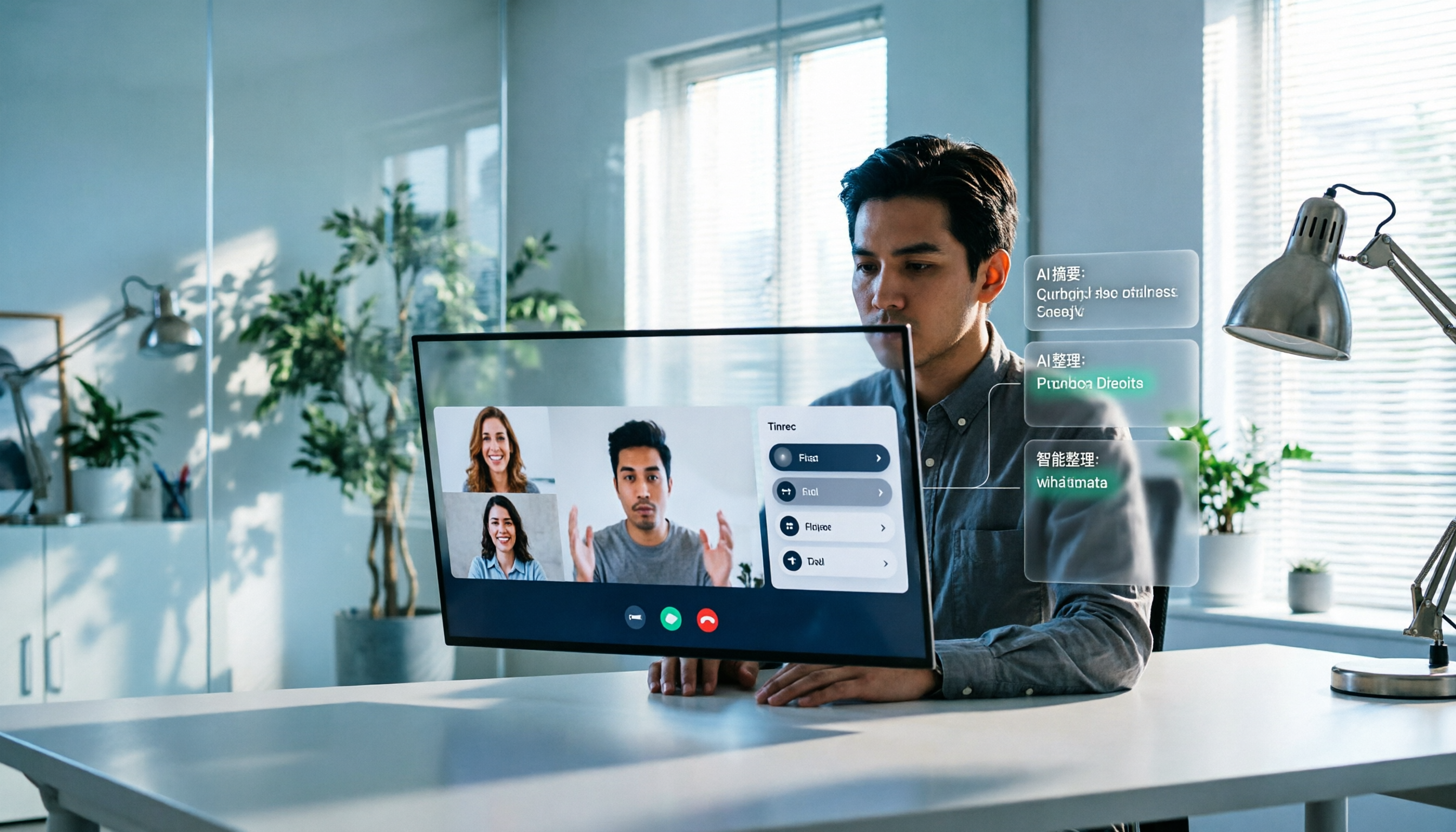
Google Meet Recording in 2026: Complete Guide to Auto-Recording, Permissions, and Organizing Your Files
Google Meet calls do not record automatically. Only eligible paid Workspace users can manually start a recording, and the file is saved to the host's Google Drive. This guide addresses the question "Will I be recorded?" by explaining permissions, file locations, participant notifications, and how, within these limitations, Tinrec desktop's bot-free recording with AI summaries and action items works in practice.

5 Google Meet Alternatives Compared for 2026: How Tinrec Fills the Meeting Notes Gap
Before you replace Google Meet, figure out whether you're trying to fix 'the meeting' or 'the lack of organized notes after the meeting.' This article compares two approaches to Google Meet alternatives from a mid-level manager's practical decision-making perspective, and explains how Tinrec fills the meeting record gap that Meet leaves behind with bot-free desktop recording, transcripts, AI summaries and action items, and team spaces.

2026 Google Meet Recording Tools Buyer's Guide: 6 Tested Picks & Recommendations
A mid-level manager who runs 15 meetings a week shares hands-on testing of 6 Google Meet recording tools in 2026—Google Meet built-in recording, Otter.ai, Fireflies.ai, Notta, Granola, and Tinrec—comparing bot-free recording, Chinese transcription, post-meeting outputs, and team plans, with scenario-based recommendations.

Google Meet Video Calls in 2026: A Complete Guide from Online Meetings to Post-Meeting Records
Google Meet is indeed a video calling service, but the real time sink comes after the call: transcripts, summaries, and action items. This guide starts from the reader's decision point, explaining what Meet can and cannot do, and how Tinrec fills the gap in post-meeting organization and team collaboration with desktop bot-free recording.

4 Google Meet Note-Taking Tools Tested for 2026: Get Transcripts Without a Bot?
Google Meet makes meetings easy, but post-meeting organization is painful. From a mid-level manager's hands-on testing perspective, this article compares Tinrec, Otter.ai, Granola, and Notta in Google Meet scenarios—covering audio capture methods, Chinese transcription, post-meeting outputs, and team knowledge retention—and outlines 3 common purchasing pitfalls to help you decide which tool can truly save you those two hours after each meeting.

3 Meeting Tools in the UAE in 2026: Does Google Meet Work in Dubai?
Public information remains divided on whether Google Meet works in the UAE. This article covers real-world usage scenarios, 4 key factors to consider, backup options like Teams and Zoom, and how to use Tinrec to turn meeting content into transcripts, summaries, and action items.

Google Meet Host Leaves: Does the Meeting End? 3 Note-Taking Methods Tested (2026)
What happens when the host leaves a Google Meet? This article breaks down the difference between 'Leave call' and 'End call,' the hidden rules for recurring meetings, and compares three meeting note-taking methods. It explains why notes often stop when the host leaves and how Tinrec's no-bot recording keeps transcripts, summaries, and action items intact.

4 Meeting Transcription Tools Tested for 2026: Does Google Meet Work in Dubai? How to Keep Meeting Records
Can you use Google Meet in Dubai? Most users report it works, but VoIP regulations can affect connection quality. This article summarizes real-world usage and compares Tinrec, Otter.ai, Granola, and Notta across four aspects: recording method, audio retention, Chinese recognition, and post-meeting output, to help you choose the most reliable record-keeping solution for international meetings.