
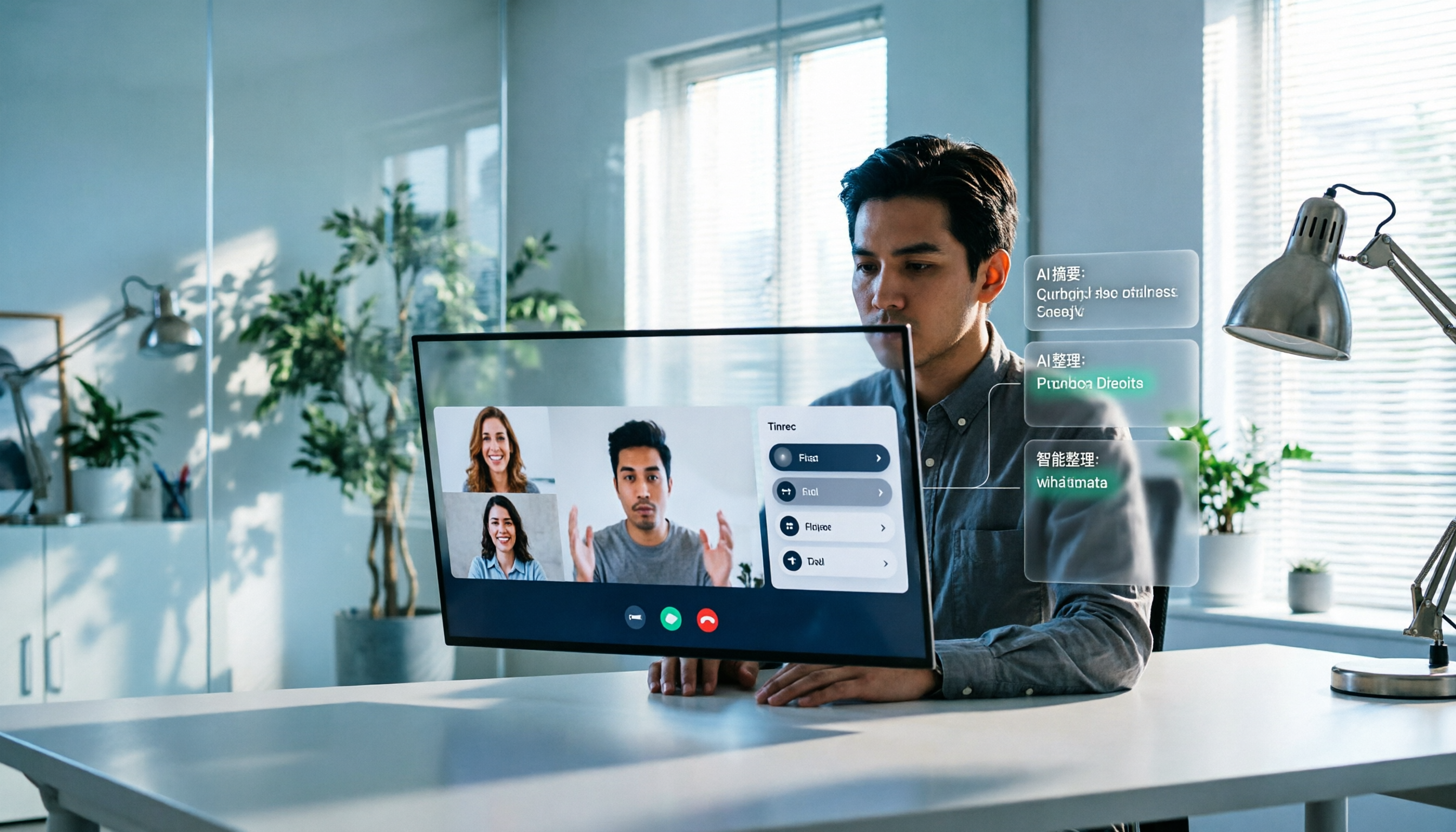
Turn recordings into transcripts and summaries in minutes
Upload audio or video for multilingual transcription, AI notes, and action items
Google Meet Recording in 2026: Complete Guide to Auto-Recording, Permissions, and Organizing Your Files
Last Wednesday afternoon, after my project meeting ended, I closed my laptop and realized something—was that discussion about the budget actually recorded?
It wasn't the first time. My manager asks "What was that conclusion from last time?" and a colleague asks "Did I agree to do something that day?" I end up flipping through notes and chat logs, still searching after three minutes. So I finally looked into Google Meet's recording rules and found a practical approach that actually works.
This article clarifies the question "Will Google Meet calls be recorded?" and then explains what I actually do.
Will Google Meet Calls Be Recorded? Here's the Bottom Line
No, they are not recorded automatically.
Google Meet does not start recording on its own. Unless someone actively presses record during the meeting, the video, audio, and chat content of that meeting will not be saved. Many official documents state this clearly: unless a participant initiates recording, Google does not store the meeting's video, audio, or chat data.
So who can press record? This is where many people get stuck. Let's break it down into three scenarios:
1. Free Gmail account: No record button.
Whether you start the meeting yourself or are invited, you won't see a recording option when logged in with a free account. It's not that you're looking in the wrong place—the plan itself doesn't offer it.
2. Paid Google Workspace plan: The host or authorized person can start manually.
Built-in recording is a feature of paid Workspace plans, and typically only the meeting host or an authorized person can press record. Even if your company has a paid plan, if you're just an invited guest, you may not have that button.
3. Mobile app: Built-in recording is not supported.
You currently cannot record directly in Google Meet on a phone. Built-in recording must be done on a computer.
Where does the file go after recording?
After recording ends, the file is saved to the meeting host's Google Drive in a folder called "Meet Recordings" in MP4 format, and the system sends an email with a link to the host. It doesn't disappear, but it's not in your hands either—this is very real in cross-department collaboration: whoever is the host owns the file.
Will participants know? Yes, and it can't be turned off.
As soon as someone presses record, all participants receive a notification, and this notification cannot be hidden. So I've developed a habit: at the start of the meeting, I say "I'll be recording this for post-meeting notes," which is compliant and avoids questions later.
Also, recording laws vary by location. For important meetings, it's best to get participant consent beforehand—this is much safer than notifying afterward.
The Four Barriers of Built-in Recording Are Exactly Why I Switched to Tinrec
To summarize the rules above, you'll see that built-in recording has very specific pain points for a "mid-level manager with 15 meetings a week":
- Requires a paid plan—free accounts can't use it at all;
- Only works on a computer—not on mobile;
- Permissions are tied to the host—if you're invited to someone else's meeting, it's difficult to keep your own record;
- Only gives you an MP4 file. After recording, you still have to re-listen to a two-hour meeting, organize it yourself, and extract action items yourself.
For someone like me—"the meeting ends, but the work just begins"—the fourth point hurts the most. The file being there doesn't mean the work is done.
So I switched to using Tinrec desktop for online meetings. It doesn't require inviting a bot to join the meeting; instead, it directly captures the computer's system audio, so it can handle Google Meet, Zoom, Microsoft Teams, Webex, and other meetings running on a computer. Meetings proceed as usual, no third-party bot appears in the participant list, and you don't need to ask the host for permissions.
The difference isn't just "can it record" but what the output looks like after recording.
Tinrec's Core Capabilities in Meeting Recording and Organization
Bot-free recording—no need to change meeting habits.
Open Tinrec desktop, start recording, and have your meeting as usual. No need to pull any bot into the meeting or ask the host to press record for you. For those of us who are invitees in more than half of our meetings, this makes a big difference.
Transcribes while recording—transcript appears in sync.
You don't have to wait for transcription after the meeting. Text is generated in real time during the meeting, so you can check for missed key points as you go. If a segment has a heavy accent or unstable network, you'll know right away to ask a follow-up question.
Automatic summaries, chapters, and action items.
This is the part I find saves the most time. For a two-hour meeting, Tinrec organizes the meeting topic, discussion conclusions, action items, and owners. Chapters break up long meetings so you don't have to listen from start to finish to find that one sentence "so what was decided?"
AI Q&A—ask questions directly about the meeting content.
After transcription is complete, you can ask it: "Who mentioned the budget in the meeting?" "What was the client's feedback on the timeline?" It answers based on semantics, so you don't have to Ctrl+F through keywords one by one.
Multilingual and real-time translation.
For cross-department or international meetings, you can view the original, translation, or bilingual content side by side. Chinese and mixed Chinese-English meeting content is a relative strength.
Stop organizing recordings by hand
Upload audio or video and automatically get a transcript, summary, and action items
Outputs you can hand over directly.
Transcripts, summaries, and action items can be exported to Notion, Google Docs, OneNote, Dropbox, and other tools for further processing, and can also be used through Agent post-processing to generate reports, tables, and meeting minutes. For me, this means meetings are no longer just "keeping a file" but directly producing something you can report upward.
Team space—turn meetings into searchable assets.
If you lead a team, Tinrec's team version provides an independent team space: meeting data belongs to the team, new members can browse past meetings, admins can manage members, roles, and seats, and view usage trends, member rankings, and audit logs. Deleted audio can be restored from the recycle bin (retention period 30 days). When a member leaves or loses their seat, their team resources can be handed over to others and won't disappear with them.
To be honest about limitations: Tinrec requires you to actively start recording; it doesn't automatically join all calendar meetings. Transcription quality can be affected by recording environment, noise, accents, multiple people speaking at once, and technical terms. For important numbers, it's recommended to cross-check with the transcript timestamps. The team version currently focuses on team-level sharing, not fine-grained per-file permission control.
Practical Use Cases
Scenario 1: Weekly project status meeting.
After the meeting, I no longer spend an hour organizing. Tinrec has already generated the summary and action items. I just spend five minutes verifying owners and deadlines, then forward it to the team. The hour I save goes to work that truly requires thinking.
Scenario 2: Cross-department coordination meeting.
The tricky part of these meetings isn't the communication itself but the follow-up. In the past, once the verbal discussion ended, it was over. Now I take a screenshot of the action items Tinrec generates and post it in the group—who agreed to do what and when—in black and white.
Scenario 3: Customer interviews and requirements meetings.
What the customer says needs to be quotable later. The transcript lets me accurately capture the customer's exact words and objections without relying on impression-based paraphrasing.
Scenario 4: One-on-one meetings.
After meeting with a team member, I summarize the key points and review them before the next meeting. Previously, these existed only in my memory and became fuzzy after three months.
Scenario 5: New hire taking over an old project.
Past meetings in the team space can be searched and queried directly. New hires don't have to corner former colleagues one by one to ask "why was this decision made back then?"
5 Things to Consider When Choosing a Meeting Recording and Organization Tool
1. First, find out if it records automatically.
Most tools do not record automatically, including Google Meet's built-in feature. When choosing a tool, don't assume "it will automatically save a file for me." Confirm whether it's manually initiated or can fit into your meeting workflow. Tinrec is manually initiated, but you only need to press a button yourself—no need to beg the host for permissions.
2. Platform and device support.
Do you hold meetings on a computer or a phone? Built-in recording currently only works on a computer. Tinrec covers real-time recording, computer meetings, audio/video file uploads, and mobile recording, so offline and online meetings use the same workflow.
3. Can it organize after recording?
This is the most easily overlooked point. A tool that only gives you an MP4 file essentially hands the organization work right back to you. Confirm whether it has post-processing capabilities like summaries, chapters, action items, and Q&A. Tinrec's main selling point is in this area.
4. Chinese and multilingual experience.
Meetings in Taiwan often mix Chinese and English. When choosing a tool, test it with a recording of your own meeting—this is much more accurate than reading official marketing. Tinrec supports Chinese and multilingual meeting content and can maintain common technical terms using team hotwords.
5. Team governance capabilities.
If you plan to roll it out to an entire department, check whether it has management features like members, roles, seats, usage, and auditing. Be careful to distinguish "roles" and "seats": members can still view, play, and read team materials even without a seat, but they need a seat to record, upload, edit, and export.
Frequently Asked Questions
Q: Does Google Meet record calls automatically?
A: No. Unless someone actively initiates recording during the meeting, video, audio, or chat data is not stored.
Q: Can I record Google Meet with a free account?
A: The built-in feature doesn't allow it; free accounts don't see a record button. In this case, you can use a third-party desktop tool, such as Tinrec, which records meeting content by capturing system audio.
Q: Where is the recorded file stored?
A: Built-in recording saves to the meeting host's Google Drive in the "Meet Recordings" folder in MP4 format and sends a link to the host.
Q: Will I be recorded on my phone? Can I record on my phone?
A: You will be recorded if you are a participant, but the built-in feature does not support initiating recording on a phone.
Q: Will I know if someone else records?
A: When using Google Meet's built-in recording, all participants receive a notification, and the notification cannot be hidden.
Q: Does Tinrec require a bot to join the meeting?
A: No. Tinrec desktop directly captures computer system audio, so no bot participant appears, and no official authorization or partnership with Zoom, Meet, or Teams is required.
Conclusion
Back to the original question: Google Meet calls are not recorded by default. Someone with paid Workspace permissions must manually press record for the file to be saved to the host's Drive. The rules themselves aren't complicated; the challenge is whether this workflow fits your pace of work.
If you're like me—a dozen or more meetings a week, where post-meeting organization is the real time sink—I suggest separating "whether to record" from "how to use the recording." Recording is just the entry point; what really saves time is the summaries, action items, Q&A, and searchable team knowledge base afterward.
If you want to try it, start with Tinrec's free version and run two or three meetings with the basic quota to see what it feels like to have AI organize your meeting notes. If it's enough, continue; for someone with my meeting volume, you'll need to move up a tier—after all, the time saved is the real cost you can recover.
References
- How to Record Google Meet Calls in 2026? 4 Methods Compared, Bot-Free Recording Is the Least Disruptive - Official Tinrec Blog
- How to Record a Google Meet: A Complete Guide | Otter.ai
- r/privacy on Reddit: Paranoid about google meet possibly storing my video calls and even my facial data without my knowledge
- How to Record Google Meet in 2026 (Including Free Options)
- How to Record Google Meet Calls on Any Device (4 Steps)
Turn every recording into actionable outcomes
Get 60 free transcription minutes when you sign in. No credit card required.
Related Reading
You might also like

Free Speech-to-Text Software Buying Guide 2026: 6 Tested Picks & Recommendations
How to choose free speech-to-text software? This guide compares Tinrec, Otter, Notta, TurboScribe, PLAUD, and Google Live Transcribe across free quotas, Chinese support, post-meeting summaries, AI Q&A, team collaboration, and pricing to help you decide which fits meetings, interviews, classes, or long audio transcription.
Samsung Voice Transcribe vs Tinrec in 2026: 5-Dimension Comparison — Which Is Better for Chinese Meeting Notes?
Samsung Galaxy AI's voice transcription assistant is a built-in feature on Galaxy devices, while Tinrec turns recordings into searchable, queryable, and collaborative meeting materials. This article compares the two across 5 dimensions — device support, recording sources, post-meeting organization, Chinese multilingual capabilities, and team governance — to help you decide which better fits your meeting notes workflow.

2026 Galaxy AI Audio Transcription Guide: From Transcripts to Meeting Action
What can Galaxy AI's speech-to-text assistant do, and where are its limits? Starting from real meeting scenarios, this guide breaks down four use cases for audio transcription, six core capabilities, and five key considerations for choosing a tool. It also demonstrates how Tinrec turns recordings into searchable, actionable meeting data.

5 Best AI Transcription Tools in 2026: From Verbatim Transcripts to Meeting Minutes
I've actually tried a round of AI transcription tools. This article doesn't pile on specs—it starts directly from the problems you need to solve: do you need verbatim transcripts, meeting minutes, or team sharing? How to choose among 5 tools and where pitfalls lie—all explained clearly.

How to Transcribe LINE Recordings in 2026: Calls and Voice Messages to Text
LINE voice messages and voice calls require completely different handling to turn them into text files. This guide starts by identifying your recording type, then walks you through using Tinrec to convert LINE recordings into transcripts, summaries, and action items, including step-by-step instructions, proofreading tips, and troubleshooting for common issues.

Notion AI vs Tinrec: Which Is Better for Team Meeting Notes in 2026?
A mid-level manager's hands-on comparison of Notion AI and Tinrec for audio transcription, post-meeting summaries, AI Q&A, and team governance. Learn why many teams are moving their meeting notes workflow from note-taking apps to Tinrec, plus team pricing, quotas, and adoption tips.

4 iPhone Audio-to-Text AI Tools Tested for 2026: The Real Work Starts After the Transcript
There are plenty of iPhone audio-to-text tools, but most people get stuck not on transcription but on what comes after—nobody has time to read the full transcript. This article tackles common misconceptions, breaks down 4 key buying factors, and compares iOS built-in Voice Memos, Tinrec, Notta, and PLAUD NotePin to show which one turns transcripts into actionable data.

4 Free Online Speech-to-Text Tools Worth Trying in 2026: Free Tiers and Meeting Summaries Explained
A roundup of 4 free online speech-to-text tools worth trying in 2026, comparing free tiers, Chinese recognition, post-meeting summaries, and team collaboration to help you avoid tools that are free but not useful.
The Complete 2026 Guide to Audio-to-Text AI: Transcripts, Summaries, and Action Items in One Go
Audio-to-text AI is more than just converting sound into words. This guide draws on real meetings, classes, interviews, and team collaboration scenarios to cover the core capabilities, purchasing considerations, and common questions of audio-to-text tools. Using Tinrec as an example, it explains how to turn transcripts into summaries, action items, and searchable team knowledge.