

Turn recordings into transcripts and summaries in minutes
Upload audio or video for multilingual transcription, AI notes, and action items
Answering Your First Question: Does Google Meet Automatically Record Calls?
No. Google Meet does not automatically record audio or video by default. Google's official documentation is clear: unless a participant actively starts a recording, Google does not store the meeting's video, audio, or chat content.
In other words, if you simply join a meeting, turn on your camera, and speak—without anyone pressing record—there will be no playable file saved after the meeting ends.
However, there are two common pitfalls to watch out for:
- When someone starts recording, participants see a notification, but that notification does not equal "getting your consent." If the host enables recording, the screen will indicate that recording is in progress. By staying in the meeting, you generally accept being recorded.
- "Google doesn't store" means Google won't secretly save files without a recording action. Once someone starts recording, the file goes to the host's Google Drive—it doesn't vanish into thin air.
So the more precise answer is: Google Meet calls do not automatically record, but anyone with recording permission can start recording at any time, and the recorded content is saved to cloud storage.
3 Key Factors to Understand Before You Start
Before choosing a method to record Google Meet, confirm the following three things to save yourself a lot of trial and error.
1. Do You Have Recording Permission?
Not everyone can use Google Meet's built-in recording. Generally, only the meeting host, co-hosts from the same organization, or participants authorized by the host can start recording. If you're using a personal Gmail account to join a meeting hosted by someone else, you'll typically need to ask the host to record, or use an alternative tool.
2. What Type of Google Account Do You Have?
Built-in recording is tied to paid Google Workspace plans. Free personal Gmail accounts do not have built-in recording. This is where many people get stuck: you can join the meeting, but the record button simply doesn't appear.
3. Do You Need an "Archive" or "Actionable Meeting Data"?
Built-in recording gives you an MP4 file, but it won't automatically extract key points, list action items, or generate a transcript. If you'll spend two hours re-listening and taking notes after the meeting, the real question isn't "how to record," but "what to do with the recording afterward."
Method 1: Google Meet Built-in Recording—Most Direct, but with Plan Limitations
Best For
Users who already have a paid Google Workspace plan and are the meeting host or co-host.
How to Record
During the meeting, click "Activities" → "Recording" → "Start recording." After the meeting, the system processes the file and saves the MP4 to the host's Google Drive in the "Meet Recordings" folder, while also sending a link to the host.
Pros
- No additional tools needed
- Recording includes the current speaker and presentation screen
- Files go directly to Google Drive, making sharing easy
Limitations
- Not available for free Gmail accounts
- If you're not the host, you need host authorization
- You only get a video file—no transcript, summary, or action items
- Recording notifications are shown, so participants know they're being recorded
Built-in recording is suitable for those who "occasionally need to keep a meeting archive." If you have weekly meetings and need to summarize key points afterward, an MP4 alone will make follow-up work heavy.
Method 2: Third-Party Meeting Bots—Automatically Join, but Noticeably Disruptive
Best For
Teams without built-in recording permissions, or those who want automatic transcription and meeting summaries.
How It Works
These tools typically join Google Meet as a bot account, automatically record audio, transcribe, and provide transcripts and summaries after the meeting.
Things to Watch Out For
- The bot appears as a participant, so attendees can see it
- If the meeting has "require host approval to join" enabled, the bot may not be able to enter
- Some plans limit transcription minutes or storage space
Stop organizing recordings by hand
Upload audio or video and automatically get a transcript, summary, and action items
The advantage of these tools is high automation, but if you don't like having an extra bot avatar in the meeting, or if security policies prevent external accounts from joining, it can be problematic.
Method 3: Bot-Free Recording—No Meeting Join, Directly Captures Device Audio
Best For
Those who don't want bots in their meetings but need transcripts, summaries, action items, and post-meeting organization.
How It Works
These tools capture system audio directly from your desktop—no extra account joins Google Meet. Users start the recording tool before the meeting, and it processes audio locally, transcribing in real time.
Pros
- No extra bot participants in the meeting
- Works with Google Meet, Zoom, Teams, and other online meetings
- Real-time transcription, so no need to re-listen afterward
- Often automatically organizes summaries, chapters, and action items
Limitations
- Requires the user to manually start recording—doesn't automatically join all meetings
- Audio quality can be affected by your computer's audio settings
For example, Tinrec supports Chinese and multilingual meeting content, and allows you to ask follow-up questions after recording, such as "Who mentioned the budget in the last meeting?" The system answers based on the content, not just keyword search results. These tools extend "recording" to "usable output after recording," saving significant time for those who have weekly meetings and need to produce meeting notes.
Method 4: Phone or Computer Side-Recording—Last Resort, Not Recommended as a Habit
Some people use their phone to record the computer speaker, or use the computer's screen recording feature. This can capture content, but has several obvious issues:
- Audio quality is heavily affected by the environment, with lots of background noise on playback
- No transcript is generated, so post-meeting organization is still time-consuming
- If the meeting has screen sharing, phone recording only captures audio, missing the full presentation
- In some regions or under company policies, undisclosed side-recording may pose compliance risks
Side-recording is only for emergencies, not as a regular workflow.
Pitfall Guide: 4 Common Mistakes When Recording Google Meet
Pitfall 1: Assuming You Have Recording Permission, Only to Find You Can't Press Record
Many people don't check their account plan or host status before the meeting, only to discover there's no record button once the meeting starts. Before the meeting, confirm: Are you the host? Are you on a paid Workspace plan? If not, prepare a third-party solution in advance.
Pitfall 2: Only Getting a Video File, Spending More Time on Post-Meeting Work Than the Meeting Itself
Recording isn't the end goal. If you record a two-hour meeting and then have to re-listen, transcribe, and extract key points yourself, the recording's actual value is low. When choosing a tool, first decide whether you need an "archive" or "usable meeting data."
Pitfall 3: Ignoring the Meaning of Recording Notifications
Google Meet's built-in recording notifies participants, but third-party side-recording may not. Regardless of the method, you should inform participants before recording in formal meetings and ensure compliance with company policies and local regulations.
Pitfall 4: Focusing Only on Transcription Minutes, Not Post-Meeting Organization Capabilities
Many tools tout "hundreds of transcription minutes per month," but if you still have to manually organize key points after recording, more minutes just mean more files piling up. What truly saves time are summaries, action items, AI Q&A, and export features—these turn meetings into work output.
Summary: Which Method Should You Choose?
Back to the original question: Does Google Meet automatically record calls? The answer is no, but with the right tool, recording meetings doesn't have to be left to chance.
- If you only need an occasional video archive and already have a paid Workspace plan → Use Google Meet's built-in recording
- If you need automatic transcription and don't mind a bot in the meeting → Use a third-party meeting bot
- If you don't want bots but need transcripts, summaries, action items, and post-meeting organization → Use a bot-free recording tool like Tinrec
- For emergencies with no other options → Side-recording, but not recommended as a habit
If you have weekly online meetings and need to produce notes and action items afterward, start with a bot-free recording solution. It captures Google Meet audio directly without adding extra participants, and turns meeting content into workable data. First, check your account permissions and meeting frequency, then decide whether to upgrade to a more comprehensive plan.
References
- Record Meeting for Google Meet™ - Google Workspace Marketplace
- How to Record Google Meet Calls (for Free)? | Grain
- r/privacy on Reddit: Paranoid about google meet possibly storing my video calls and even my facial data without my knowledge
- How to Record a Google Meet: A Complete Guide | Otter.ai
- Record a video meeting - Computer - Google Meet Help
Turn every recording into actionable outcomes
Get 60 free transcription minutes when you sign in. No credit card required.
Related Reading
You might also like
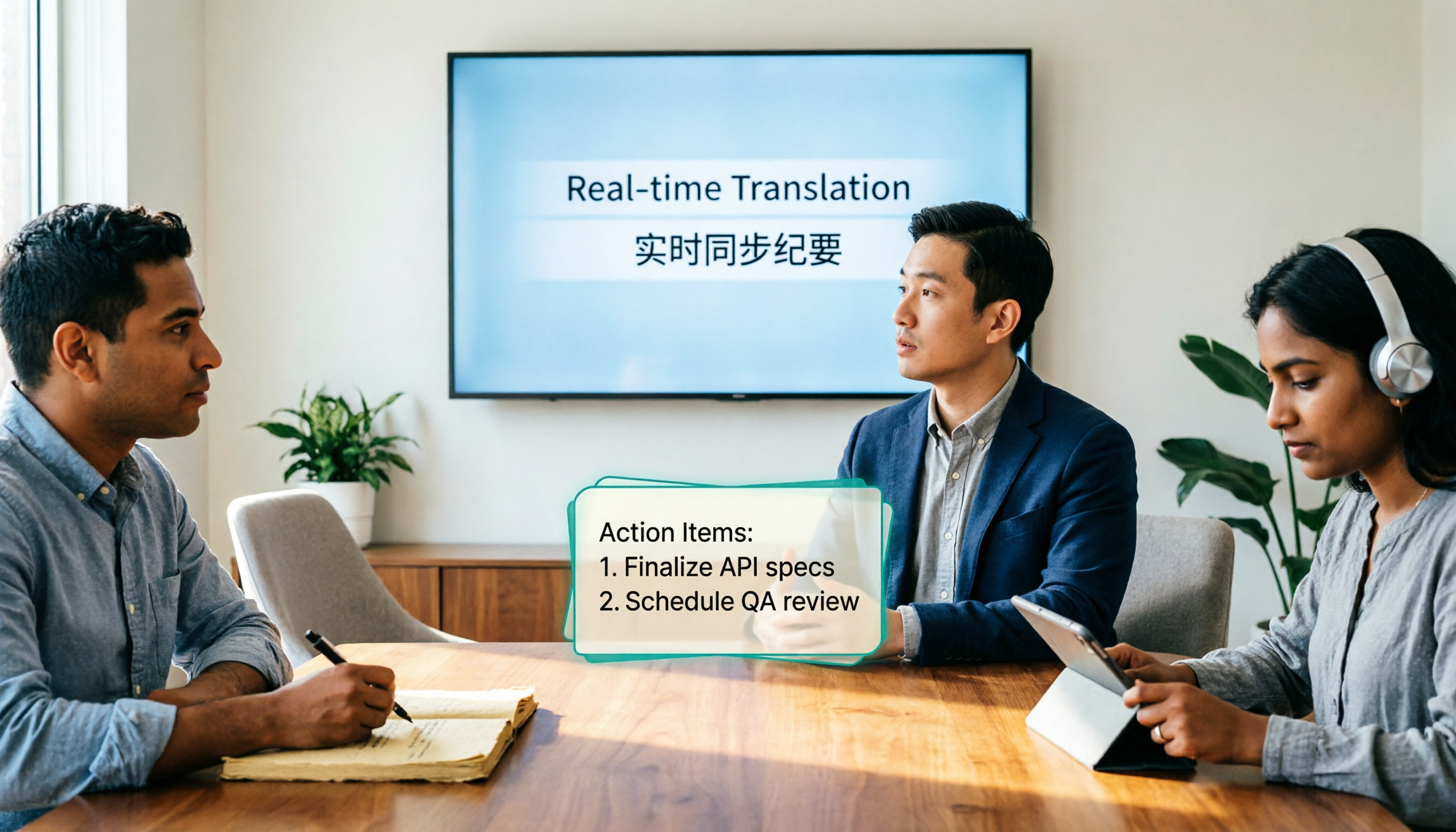
4 Real-Time Translation Tools Tested for 2026: Which One Leaves You With Usable Meeting Notes?
Real-time translation tools solve the problem of understanding in the moment, but the real cost comes after the meeting. This article compares Tinrec, Transync AI, Vurbo.ai, and Notta on real-time translation, bilingual transcripts, post-meeting AI Q&A, and team management, and provides 4 key purchasing criteria, 3 common pitfalls to avoid, and scenario-based recommendations to help you explain clearly why you chose a particular tool.

Best Real-Time Translation Tools in 2026: 4 Tested, Top Free Pick for Meetings
How to choose a free real-time translation tool? This article covers three needs: web reading, ad-hoc interpretation, and cross-language meetings. We tested Tinrec, Google Translate, Immersive Translate, and Transync AI, summarizing free quotas, limitations, and use cases, and explain how Tinrec turns meeting recordings into transcripts, summaries, action items, and team data.

Tinrec vs Notta 2026: Real-Time Translation AI 5-Dimension Comparison, Which Is Better for Chinese Meetings?
Real-time translation AI isn't just about the number of languages—it's also about meeting capture methods, bilingual subtitles, post-meeting organization, AI Q&A, and team data ownership. This article compares Tinrec and Notta across 5 dimensions and explains which Chinese meeting scenarios each suits.

4 Free Simultaneous Interpretation Tools Tested: Which Offers Enough Free Minutes and Post-Meeting Value?
How to choose a free simultaneous interpretation tool? This article reviews four free-trial real-time translation tools—Tinrec, JotMe, Transgull, and Felo Translate—comparing them across five aspects: free quota calculation, translation presentation, recording and transcript retention, post-meeting organization, and team collaboration. It also includes a pitfalls guide and buying advice to help you find the one that truly saves time.

2026 Comparison of 3 Meeting Transcription Tools: Tinrec Turns Transcripts into Action Items
Turning meeting recordings into transcripts isn't hard—the hard part is post-meeting organization. Starting from meeting transcription needs, this article compares Tinrec, Notta, Good Tape, and Yating Transcript, covering transcription, online meeting recording, summary and to-dos, AI Q&A, and team collaboration to help you find the right meeting notes tool.

2026 Online Simultaneous Interpretation Guide: Tinrec Real-Time Translation + Bilingual Transcripts as an Alternative to Traditional Translation Apps
Online simultaneous interpretation is not just about real-time translation—it also depends on whether post-meeting materials are usable. This article addresses common misconceptions and explains how Tinrec uses desktop bot-free recording, real-time transcription, and bilingual translation, combined with summaries, action items, AI Q&A, and team spaces, to turn cross-language meetings into searchable, collaborative records.

How to Use Real-Time Voice Translation in 2026: 5 Steps from Recording to Bilingual Transcript
In cross-language meetings, front-desk reception, and international calls, real-time voice translation needs to solve more than just "understanding in the moment"—it also needs to leave you with usable records afterward. This article breaks down real-time voice translation tools using 5 key selection criteria, compares Tinrec, Transync AI, Vurbo.ai, and JotMe in hands-on testing, and summarizes 4 common pitfalls to help you choose the one that truly works for you.

How to Generate Transcripts with Tinrec in 2026: Bot-Free Recording + AI Summaries and Action Items
Transcript generation isn't just about feeding an audio file into a tool. This guide tackles four common pitfalls and compares Tinrec with Yating Transcription across meeting capture, Chinese recognition, post-meeting organization, AI Q&A, export, and team governance to help you decide which workflow truly saves time.

2026 Comparison of 3 Transcription Tools: Which One Actually Turns Meeting Recordings into Usable Data?
The real difference between transcription tools isn't speed—it's whether the output is ready to use. Starting from the question 'Do you want text or results?', this article outlines 4 key buying criteria, compares Tinrec, Notta, Otter.ai, and Granola on meeting recording, transcript organization, AI Q&A, export, and team collaboration, and includes a pitfalls guide and scenario-based recommendations.