
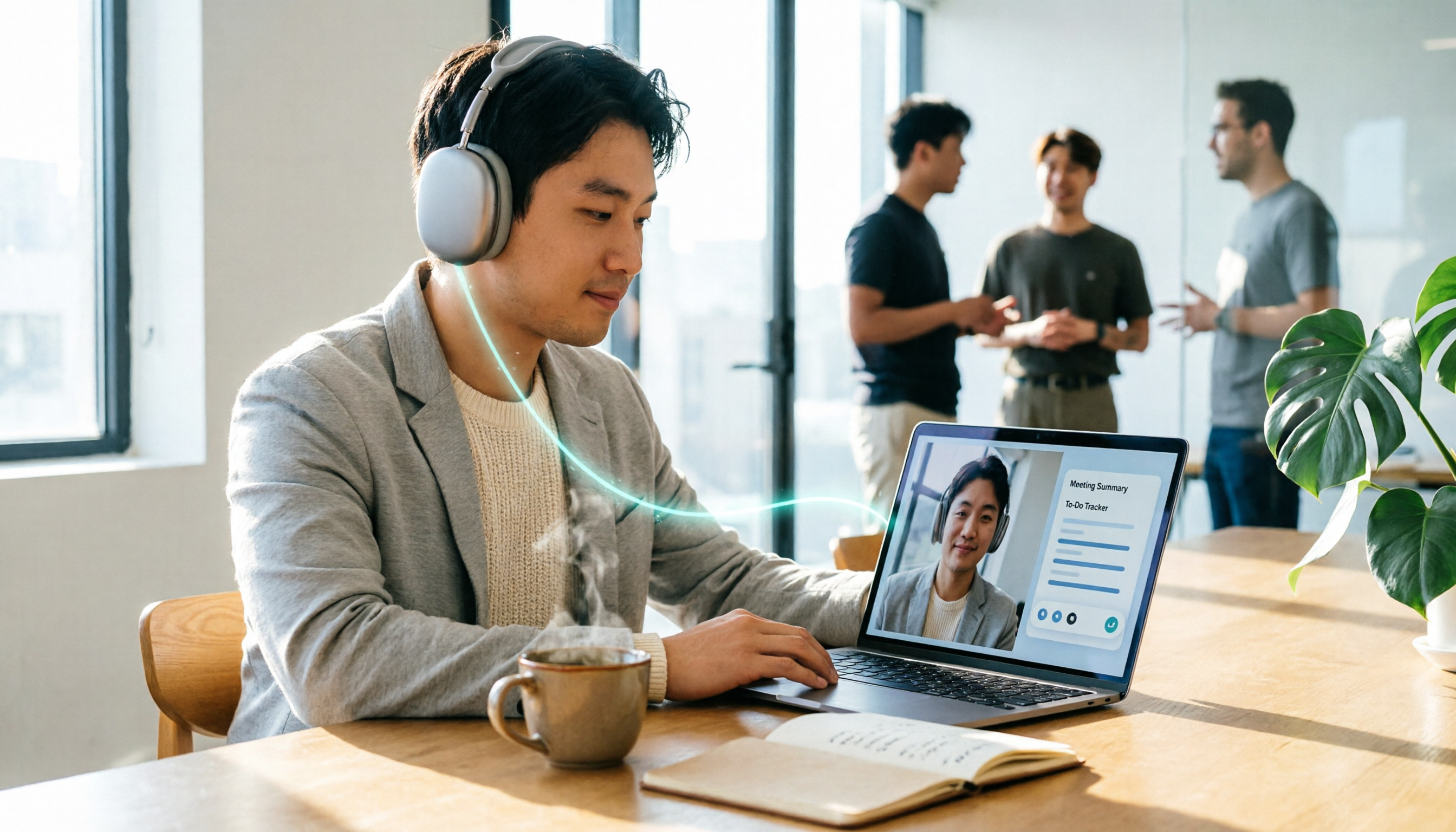
Turn recordings into transcripts and summaries in minutes
Upload audio or video for multilingual transcription, AI notes, and action items
When choosing a headset for Google Meet, you're really making a judgment call: do you want the other person to hear you clearly, or do you want to be comfortable yourself?
Honestly, most people buy for the latter, and the former ends up failing.
I lead a small team of 8 and have a dozen or so online meetings a week. The pitfalls I've hit over the years are consistent: music headphones sound great, but as soon as you join a Meet, the other person says "it's so noisy on your end" or "your voice sounds far away."
This article compiles 4 headsets I've actually used and researched, plus a point few people mention—headsets only solve the "audio in" part. Whether the meeting content is captured is another matter.
A two-hour meeting ruined by one sentence: "It's noisy on your end"
Let me start with the pain.
Last month, I was in a requirements meeting with a client, wearing a bass-heavy Bluetooth headset, thinking the sound quality was great and I was enjoying it. Halfway through, the client suddenly said, "Sorry, is someone talking next to you?"
No. It was the air conditioner and keyboard noise, picked up by the microphone.
Another common scenario is mobile work. You take a meeting in a café, all the ambient noise goes through, and the other person hears the next table's conversation better than you do.
And there's a more frustrating one: the meeting ends, discussion was lively, but no one wrote down who does what. Two weeks later, the project is stuck and everyone is scrolling through chat logs forever.
Of these three problems, the first two are solved by a headset; the third is not the headset's responsibility.
Before choosing a Google Meet headset, understand these 4 key points
1. The microphone is a hundred times more important than sound quality
I need to be blunt here: Google Meet is not for listening to music; it's for talking.
No matter how good the sound quality you hear is, what the other person receives is "your voice + all the noise in your room." So the specs to look at are microphone array, directivity, and whether there's noise reduction processing—not driver size in mm.
2. A boom mic makes a huge difference
This is from real experience.
In a quiet study, a regular headset's built-in mic is barely okay. But as soon as there's noise—office, café, kids at home—whether there's a boom mic extending to your mouth makes a huge difference.
Models with a boom mic or directional microphone pick up "your mouth," not "your room."
3. Google Meet certification is a threshold
The Google Meet team has published a list of certified headsets tested in their lab, including Anker PowerConf H700/H500 and Bose Noise Cancelling Headphones 700 UC.
Certification doesn't mean other headsets can't be used, but it's at least a "tested by the original vendor" reference point, more reliable than just reading unboxing articles.
4. Will it hurt after wearing all day?
This is often overlooked.
Meetings aren't 20 minutes; they're several in a row. Weight, ear cushion material, and clamping force directly determine whether you still want to wear them in the afternoon. For example, the Logitech Zone Vibe 100 is about 185g with memory foam ear cushions, designed for long wear.
Once you've got these four points down, your "audio input" is up to standard.
But the next part is where I think it's more worth spending time.
Tinrec—headsets handle the "audio in," it handles the "results out"
I must be clear: Tinrec is not a headset; it's an AI meeting notes and collaboration tool.
I'm including it here because I've found that many people's problems aren't really about the headset.
The headset lets you speak clearly, but after the meeting, you still face transcripts, summaries, to-dos, and who's responsible for what. The headset can't do any of that.
Tinrec supports iOS, Android, and web. The desktop version can directly capture computer system audio, handling meetings on Zoom, Google Meet, Microsoft Teams, and Webex without inviting a separate meeting bot into the room.
In practice: during the meeting, it records and transcribes simultaneously. When the meeting ends, the AI summary, chapters, and key points are already organized. Who mentioned the budget, which decision got stuck—no need to re-listen to a 40-minute recording.
It also lets you ask questions directly about the meeting content. For example, "Who said they'd handle the redesign in last week's meeting?" It doesn't just give you keywords; it answers directly. This AI Q&A is where I think it differs most from ordinary transcription tools.
Additionally, the transcribed text can be exported to Notion, Google Docs, OneNote, or Dropbox for further use, and can directly generate meeting minutes, reports, and tables. It supports Chinese, mixed Chinese-English, and multilingual meetings, with real-time translation and bilingual side-by-side view.
Stop organizing recordings by hand
Upload audio or video and automatically get a transcript, summary, and action items
Three reasons I think it's worth it:
First, meeting data is no longer scattered. Recordings, transcripts, summaries, and to-dos are all in one place—findable and queryable.
Second, the team version is a separate space, not a shared account. It has roles, seats, usage analytics, audit logs, and an audio recycle bin. When a member leaves, data can be handed over and won't disappear with them. Currently, team monthly is USD 29.80 per paid seat per month, annual is USD 199 per paid seat per year, and each paid seat gets 2,000 minutes of shared team import quota per month. Actual prices are subject to the official purchase page.
Third, there's a free version to try first. Honestly, no one's asking you to pay upfront.
Let me also mention the limitations: the free version has a basic quota, and heavy users need to pay. Also, transcription accuracy is affected by recording quality, noise, accents, and multiple people talking over each other. For important content, I still go back and check against the recording. It's also not a bot that automatically joins all calendar meetings; you have to start it yourself to record.
Who is it for? People who have several regular meetings every week, need to organize notes afterward, or whose teams need to share meeting data.
Beyond the 4 criteria above, these 4 headsets are also worth considering
First, these each have their strengths, but none can produce meeting minutes for you.
Anker PowerConf H700 A model on the official Google Meet certification list, clearly positioned for business meetings, with a boom mic and good directional pickup. Suitable for people who sit in a fixed office and need a proper meeting headset. The downside is the business-oriented look; commuting and music listening aren't its main strength. It won't organize transcripts for you—that's Tinrec's job.
Bose Noise Cancelling Headphones 700 UC Also on the Google Meet certification list, its microphone array is a strong point, balancing noise cancellation and call pickup. The UC version is designed for unified communications scenarios. Suitable for those with the budget who want one headset for both meetings and focused work. But it has no AI summary; post-meeting organization still needs another solution.
Sony WH-1000XM5 Strong overall performance in noise cancellation and call quality, good for both music and meetings. If you only have one headset and use it for meetings by day and music by night, this is well-balanced. Note that it's essentially a consumer headset; microphone stability in multi-person meetings is still not as good as models with a boom mic, and there's no transcript afterward either.
Logitech Zone Vibe 100 About 185g, memory foam ear cushions, designed for "wearing all day." Suitable for those with packed meeting schedules who prioritize comfort. Microphone is average; noisy environments aren't its strength. It lets you sit through meetings comfortably, but to keep meeting conclusions, you still need a tool.
Pitfall guide: 3 most common mistakes when buying a Google Meet headset
Pitfall 1: Using music headphones as meeting headsets.
This is number one. Review sites talk about soundstage, bass, and resolution—that's for music listeners. For Google Meet, you need to look at "what the other person hears." You might think it sounds great, but the other person might find it noisy.
Correct approach: check call quality reviews for the headset, or record a sample in a noisy environment and let a friend listen.
Pitfall 2: Only looking at noise cancellation, not the microphone.
Noise cancellation is "you can't hear others"; microphone noise reduction is "others can't hear your noise." These are two different things, and many people confuse them.
Strong active noise cancellation doesn't mean the other person receives clean audio. Look at them separately.
Pitfall 3: Thinking that buying a headset means meetings are automatically recorded.
This is the most common misunderstanding I see.
The headset only handles audio in and out. What was said in the meeting, who does what, what to follow up on next time—that's another set of tools. My current habit: put on the headset, simultaneously start Tinrec desktop recording, and after the meeting, directly check the summary and to-dos. The time saved is worth far more than the price difference of the headset.
Conclusion: How should you actually pair them?
Back to the initial judgment: clear audio or personal comfort?
My advice is not to choose one over the other, but to think in two layers.
Meetings in noisy environments every day → A model with a boom mic like the Anker PowerConf H700, paired with Tinrec for post-meeting organization.
Packed meetings, comfort first → Logitech Zone Vibe 100, leave meeting notes to Tinrec.
One headset for everything (meetings + music) → Sony WH-1000XM5 or Bose 700 UC, rely on Tinrec for transcripts and summaries.
Team needs to share meeting data → The focus is no longer the headset, but the team space. Tinrec team version has roles, seats, usage, and audit; data belongs to the team, not individuals.
Just want to test the waters → Tinrec has a free version. Use the basic quota to record two or three meetings first, and consider upgrading if it works well. No need to pay upfront.
Buy the wrong headset, and you just swap it. If meeting notes aren't captured, the time spent re-listening to recordings can't be recovered.
That's where you should really focus your effort.
References
- 4 Best Google Meet Headsets Tested in 2026: Which Offers the Best Call Clarity and Noise Cancellation? - Official Tinrec Blog
- Headsets certified for Google Meet - Google Meet hardware Help
- 2026 Google Meet Headset Guide: 5 Wireless Headsets with Clear Mics - Official Tinrec Blog
- Best Headphones for Google Meet – PCTest
- Best Wireless Headsets with Mic for Google Meet in 2026 | Nuroum | Nuroum Official
Turn every recording into actionable outcomes
Get 60 free transcription minutes when you sign in. No credit card required.
Related Reading
You might also like

Google Meet Free Plan in 2026: Limits and 5 Meeting Notes Tools Compared
Google Meet's free version lets you host meetings, but it lacks recording and transcription. This article covers the 2026 free plan's participant and time limits, what you get with paid Google Workspace, and compares 5 meeting notes tools—Tinrec, Otter.ai, Granola, Notta, and TurboScribe—to fill the post-meeting gap.
Google Meet Recording in 2026: Can You Be Recorded, Where Files Go, and How to Organize Them
Will Google Meet record your meeting? The answer depends on your plan eligibility and whether someone presses the record button. This complete guide starts with 'can it be recorded?' and explains the conditions for recording, where files are stored, and how to turn meetings into searchable, queryable, and shareable resources after recording.

5 Best Google Meet Note Takers in 2026: Tested for Bot-Free Meeting Notes
A mid-level manager who attends over a dozen meetings a week tested five Google Meet note-taking tools, comparing audio capture methods, Chinese and mixed-language recognition, post-meeting usability, and how team data is retained. Here's why Tinrec ended up in the workflow, and who Otter.ai, Fireflies.ai, and Notta are best for.
Google Meet Time Limits in 2026: 5 Tools Tested and Recommended
Does Google Meet have a time limit? Free accounts end group meetings after 60 minutes, and even paid Workspace plans cap at 24 hours—there is no truly "unlimited" version. This guide breaks down the time limits for each plan and compares 5 practical solutions, including paid upgrades, free alternatives, and meeting transcription tools, to help you choose the best approach for your needs.

Google Meet on Mac: 2026 Guide to 4 Options Tested and Recommended
There's no native Google Meet desktop app for Mac—should you use a browser, PWA, or third-party tool? This guide covers 4 key points for using Google Meet on Mac and compares Tinrec, Otter.ai, Granola, and Notta on bot-free recording, Chinese transcripts, post-meeting organization, and team collaboration to help you choose the best option.
Google Meet Recording in 2026: Complete Guide to Auto-Recording, Permissions, and Organizing Your Files
Google Meet calls do not record automatically. Only eligible paid Workspace users can manually start a recording, and the file is saved to the host's Google Drive. This guide addresses the question "Will I be recorded?" by explaining permissions, file locations, participant notifications, and how, within these limitations, Tinrec desktop's bot-free recording with AI summaries and action items works in practice.

5 Google Meet Alternatives Compared for 2026: How Tinrec Fills the Meeting Notes Gap
Before you replace Google Meet, figure out whether you're trying to fix 'the meeting' or 'the lack of organized notes after the meeting.' This article compares two approaches to Google Meet alternatives from a mid-level manager's practical decision-making perspective, and explains how Tinrec fills the meeting record gap that Meet leaves behind with bot-free desktop recording, transcripts, AI summaries and action items, and team spaces.

2026 Google Meet Recording Tools Buyer's Guide: 6 Tested Picks & Recommendations
A mid-level manager who runs 15 meetings a week shares hands-on testing of 6 Google Meet recording tools in 2026—Google Meet built-in recording, Otter.ai, Fireflies.ai, Notta, Granola, and Tinrec—comparing bot-free recording, Chinese transcription, post-meeting outputs, and team plans, with scenario-based recommendations.

How to Auto-Record Google Meet in 2026: Default Settings & Guaranteed Recording
Google Meet does not record automatically by default—a fact many discover too late. This guide walks you through 5 steps to check your plan permissions, enable auto-recording, locate files after meetings, and set up a bot-free backup recording workflow that doesn't rely on Workspace settings.