

Turn recordings into transcripts and summaries in minutes
Upload audio or video for multilingual transcription, AI notes, and action items
Google Meet on Mac: 2026 Guide to 4 Options Tested and Recommended
"Where do I download Google Meet for Mac?"—The question itself is a misunderstanding
"I have a Google Meet this afternoon—where do I install the Mac app?"
If you've searched for "Google Meet" in the Mac App Store, you've probably had the same confusion: a few third-party apps with similar names pop up, with mixed reviews; and after installing one, you realize it's not a desktop version for Mac at all. Google Meet is essentially a web service, used on Mac primarily through a browser or PWA (Progressive Web App). Google has not released a native macOS app.
The more common frustration actually happens after the meeting. A two-hour cross-department discussion was lively, but when it's time to write the minutes, only a few keywords remain in your head. You recorded a client interview, but when you want to find "what budget number did they mention?", you have to scrub from start to finish. This article won't talk about magic—it will clearly explain the options for using Google Meet on Mac and how to organize afterward.
Using Google Meet on Mac: 4 Key Points to Understand First
1. Browser or PWA? Google Meet works in Chrome, Firefox, and Safari at meet.google.com. If you want an "app-like" experience with a separate window and Dock icon, you can install Meet as a PWA in Chrome (requires Chrome 73 or later). PWA and web version have the same features; the only difference is how you open it and the window experience—it won't give you any magical extra features.
2. Browser choice affects audio performance This is a detail many overlook. In practice, audio processing in Chrome or Firefox is more stable than in Safari. If you care about recording quality, don't default to Safari for meetings. Also, you can join Meet directly from the Gmail sidebar or Google Calendar events, which is more convenient than manually typing the URL each time.
3. Free version has hidden limits Free Google Meet has time limits for group meetings (commonly 60 minutes). Recording, attendance reports, and more complete meeting management require a paid Google Workspace version. It's enough for a quick short meeting, but workshops, long interviews, or formal meetings that need archiving will hit the limits.
4. Can you "use" the meeting afterward? This is the most overlooked point that affects productivity the most. Recording is only the first step. Whether it can become a searchable transcript, an AI Q&A you can query, and an actionable to-do list determines the value of the meeting. When choosing a post-meeting organization tool, just look at three things: whether it requires inviting a bot to join the meeting, whether it retains the original audio file, and how well it handles Chinese and mixed Chinese-English.
Tinrec—Our Top Choice After Testing
Tinrec is an AI meeting notes and collaboration tool for individuals and teams, available on iOS, Android, desktop, and web. It's not just about turning voice into text—it's about making meetings searchable, queryable, and actionable.
Capture method is the most direct difference. Tinrec desktop captures computer system audio directly, handling online meetings on Zoom, Google Meet, Microsoft Teams, Webex, etc., without pulling a meeting bot into the room. For client meetings or cross-company discussions, this is practical—you don't have to explain "an AI will join in a moment" at the start. Note that this doesn't mean it automatically joins all calendar meetings; users still need to open Tinrec to start recording.
Post-meeting organization is where it truly stands out. It transcribes while recording, and after the meeting automatically generates summaries, chapters, and key points. Action items are extracted from the discussion—who is responsible for what and when it's due, all clear. If you have cross-language meetings, you can use real-time translation to view original, translated, or bilingual side-by-side.
AI Q&A is a rare capability in this price range. After recording, you can directly ask: "Who mentioned the budget cap in the last meeting?" It gives you answers based on semantic understanding, not keyword search results. The more historical meetings accumulate, the better this database works. When you need to submit reports, you can further generate documents, tables, or meeting minutes and export to Notion, Google Docs, OneNote, etc. for further processing.
Stop organizing recordings by hand
Upload audio or video and automatically get a transcript, summary, and action items
Team version elevates to organization level. Meeting data belongs to the team rather than individual accounts; new members can view historical data; admins can assign roles and seats, view usage trends and audit logs, and manage team hotwords. Current internal details: first eligible team trial is 7 days, 1 free seat, 300 minutes shared import quota; team monthly USD 29.80 per paid seat per month, annual USD 199 per paid seat per year (about USD 16.58/month), each paid seat provides 2,000 minutes of team shared import quota per month, and real-time recording under active plans is currently not deducted by minutes. Prices and promotions are subject to the official purchase page.
Limitations must be clear. The free version provides basic quota; heavy users need to pay. Team version is priced per paid seat, so departments with many people need to calculate first. Also, it uses team-level sharing, not file-level permissions—don't expect fine-grained control like "different access ranges for each file."
Who is it for? People who frequently hold online meetings, need Chinese and mixed Chinese-English transcripts, don't want bots joining meetings, and want to directly ask questions about meeting content afterward.
Besides Tinrec, What Other Options Are There?
Otter.ai: A mature English business meeting assistant. Basic version is free, 300 minutes per month; Pro annual billing is about USD 8.49 per user per month, including 1,200 minutes per month. Its interface and workflow are quite smooth in English scenarios. However, Chinese and mixed Chinese-English are not its focus; if your meetings are mainly in Chinese, transcripts will be harder to read. Tinrec is more aligned for Chinese meetings, bilingual comparison, and team hotwords.
Granola: Also a bot-free AI meeting notes tool, Business is USD 14 per user per month, strong at combining user handwritten notes with AI. But it doesn't support uploading pre-recorded audio files, nor does it save meeting audio files—if you need to check original recordings or import old interview files for organization, this is a hard flaw; Tinrec retains audio files and supports audio/video import.
Notta: A veteran in multilingual transcription and translation. Free version is 120 minutes per month, 3 minutes per session; Pro annual billing is about USD 8.17 per month, 1,800 minutes per month. Document transcription and subtitles are its comfort zone. But for bot-free desktop meeting recording, post-meeting AI queries, and team space governance, Tinrec's feature set is more complete.
Pitfall Guide: 3 Most Common Mistakes When Using Google Meet on Mac
Pitfall 1: Thinking you need to download "Google Meet for Mac" from the App Store. There is no such native app on Mac; what you find is mostly mobile versions or third-party wrappers. The correct approach is to open meet.google.com directly in a browser; if you need a separate window, install PWA in Chrome.
Pitfall 2: Using only Safari and then complaining about weird sound. Audio processing does differ between browsers; Chrome or Firefox are usually more stable choices. PWA installation also requires Chrome 73 or later.
Pitfall 3: Treating "recording" as the end goal. Meeting recordings won't turn into minutes by themselves. If you only use it as a recording tool, you're using only one-third of its capability—what really saves time is transcripts plus directly querying content afterward.
Pitfall 4: Ignoring legality and authorization of recording. Before recording a meeting, confirm company policies and local regulations, and obtain participant consent when necessary. This is especially important for international meetings.
Conclusion: Which One Should You Choose?
- Just want to smoothly use Google Meet on Mac → Open meet.google.com in Chrome, then install as PWA. Free, zero installation cost.
- Need Chinese/mixed Chinese-English transcripts + post-meeting queries → Tinrec, the main recommended scenario in this article.
- Don't want bots joining meetings, but need complete recording and file import → Tinrec desktop; Granola is also bot-free but doesn't retain audio or allow uploading old files.
- Team wants to accumulate meeting data, manage seats and usage → Tinrec team version; remember to estimate seat costs based on headcount first.
- Pure English meetings, zero budget → Otter.ai's free 300 minutes/month is quite sufficient.
- Just need to convert many existing files to text → Document transcription tools like Notta or TurboScribe are more suitable.
If you're not sure which one you need, start with free quotas: test with the kind of meetings you actually hold, see if transcripts are readable and summaries capture key points, then decide whether to pay. The cost of buying the wrong tool is always higher than trying one more round.
References
- How to use Google Meet on Mac: Setup, tips, and top apps
- Best Google Meet for Mac in 2026: 3 Tested Methods, Browser Is Most Stable, Tinrec Handles Post-Meeting Notes - Official Tinrec Blog
- Download the Google Meet progressive web app on your computer - Google Meet Help
- Google Meet for Mac — Download & Install via Homebrew (2026)
- Google Meet - App Store - Apple
Turn every recording into actionable outcomes
Get 60 free transcription minutes when you sign in. No credit card required.
Related Reading
You might also like

Google Meet Free Plan in 2026: Limits and 5 Meeting Notes Tools Compared
Google Meet's free version lets you host meetings, but it lacks recording and transcription. This article covers the 2026 free plan's participant and time limits, what you get with paid Google Workspace, and compares 5 meeting notes tools—Tinrec, Otter.ai, Granola, Notta, and TurboScribe—to fill the post-meeting gap.
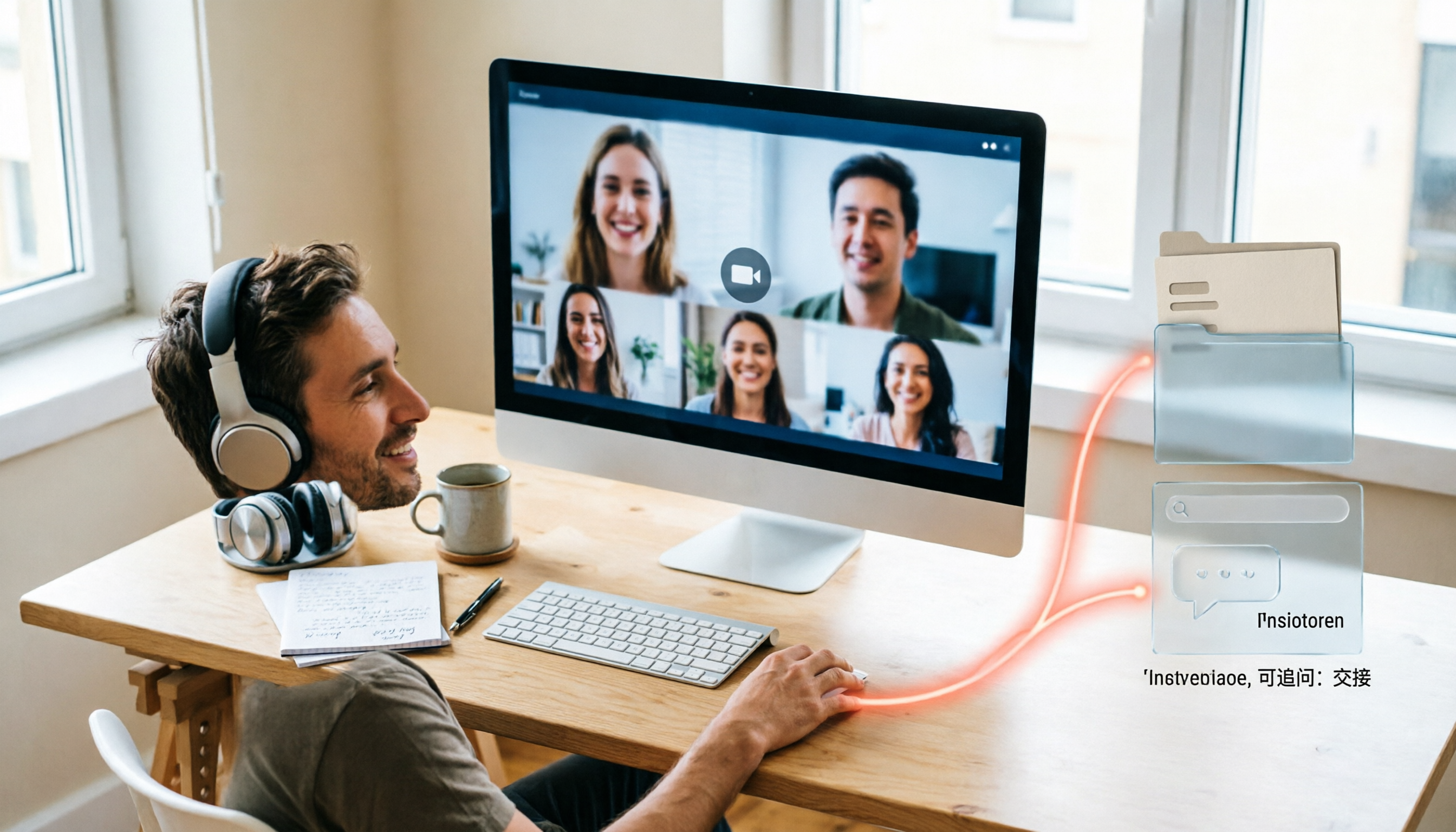
Google Meet Recording in 2026: Can You Be Recorded, Where Files Go, and How to Organize Them
Will Google Meet record your meeting? The answer depends on your plan eligibility and whether someone presses the record button. This complete guide starts with 'can it be recorded?' and explains the conditions for recording, where files are stored, and how to turn meetings into searchable, queryable, and shareable resources after recording.

5 Best Google Meet Note Takers in 2026: Tested for Bot-Free Meeting Notes
A mid-level manager who attends over a dozen meetings a week tested five Google Meet note-taking tools, comparing audio capture methods, Chinese and mixed-language recognition, post-meeting usability, and how team data is retained. Here's why Tinrec ended up in the workflow, and who Otter.ai, Fireflies.ai, and Notta are best for.

Google Meet Time Limits in 2026: 5 Tools Tested and Recommended
Does Google Meet have a time limit? Free accounts end group meetings after 60 minutes, and even paid Workspace plans cap at 24 hours—there is no truly "unlimited" version. This guide breaks down the time limits for each plan and compares 5 practical solutions, including paid upgrades, free alternatives, and meeting transcription tools, to help you choose the best approach for your needs.

4 Best Google Meet Headsets to Try in 2026: Clear Mic and Meeting Notes Made Easy
Hands-on review of 4 recommended Google Meet headsets in 2026, covering microphone clarity, noise cancellation, comfort, and connection stability. Plus, why a headset only solves half the problem—and how Tinrec saves time with meeting notes and follow-ups.
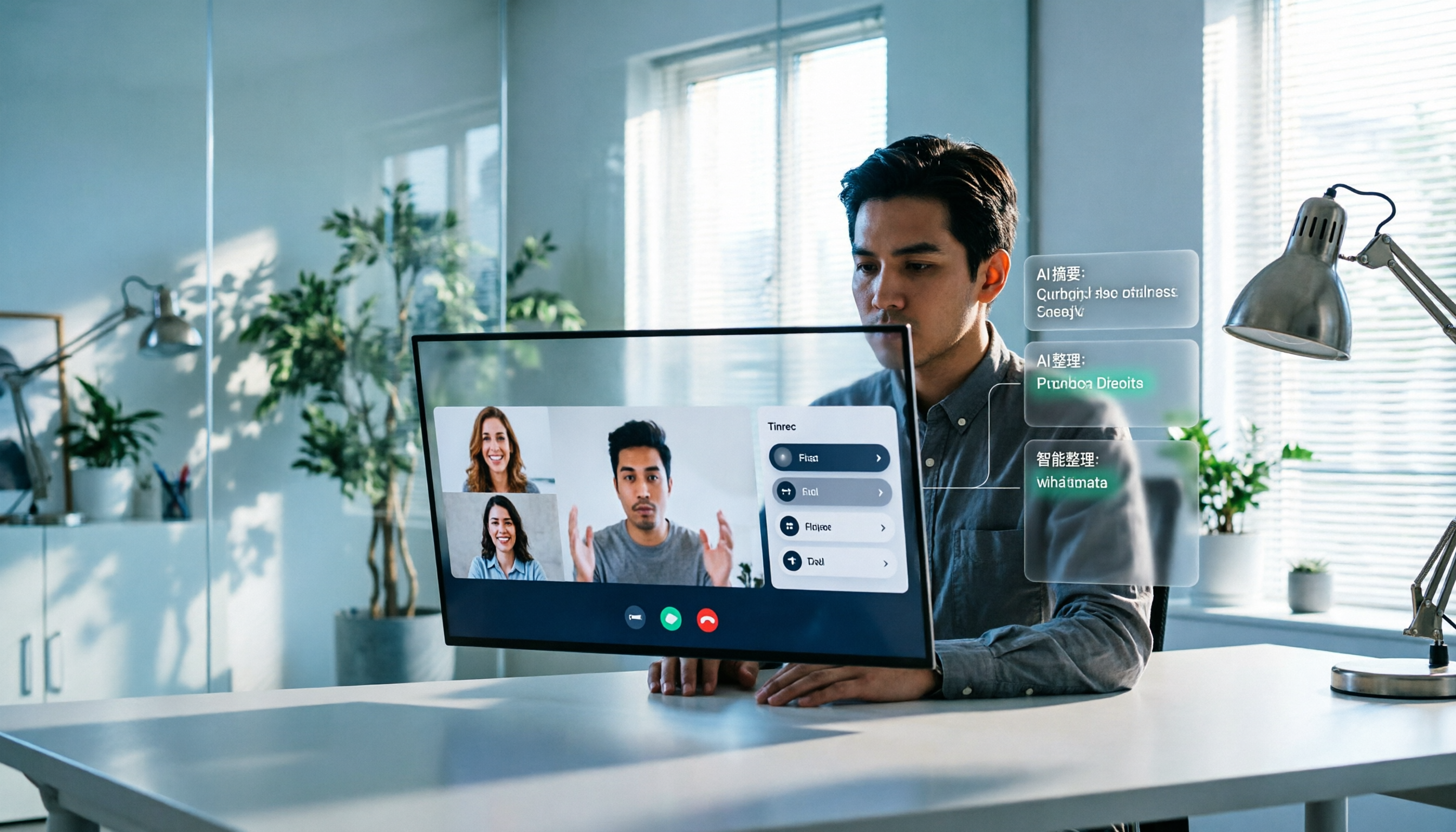
Google Meet Recording in 2026: Complete Guide to Auto-Recording, Permissions, and Organizing Your Files
Google Meet calls do not record automatically. Only eligible paid Workspace users can manually start a recording, and the file is saved to the host's Google Drive. This guide addresses the question "Will I be recorded?" by explaining permissions, file locations, participant notifications, and how, within these limitations, Tinrec desktop's bot-free recording with AI summaries and action items works in practice.

5 Google Meet Alternatives Compared for 2026: How Tinrec Fills the Meeting Notes Gap
Before you replace Google Meet, figure out whether you're trying to fix 'the meeting' or 'the lack of organized notes after the meeting.' This article compares two approaches to Google Meet alternatives from a mid-level manager's practical decision-making perspective, and explains how Tinrec fills the meeting record gap that Meet leaves behind with bot-free desktop recording, transcripts, AI summaries and action items, and team spaces.

2026 Google Meet Recording Tools Buyer's Guide: 6 Tested Picks & Recommendations
A mid-level manager who runs 15 meetings a week shares hands-on testing of 6 Google Meet recording tools in 2026—Google Meet built-in recording, Otter.ai, Fireflies.ai, Notta, Granola, and Tinrec—comparing bot-free recording, Chinese transcription, post-meeting outputs, and team plans, with scenario-based recommendations.

How to Auto-Record Google Meet in 2026: Default Settings & Guaranteed Recording
Google Meet does not record automatically by default—a fact many discover too late. This guide walks you through 5 steps to check your plan permissions, enable auto-recording, locate files after meetings, and set up a bot-free backup recording workflow that doesn't rely on Workspace settings.