
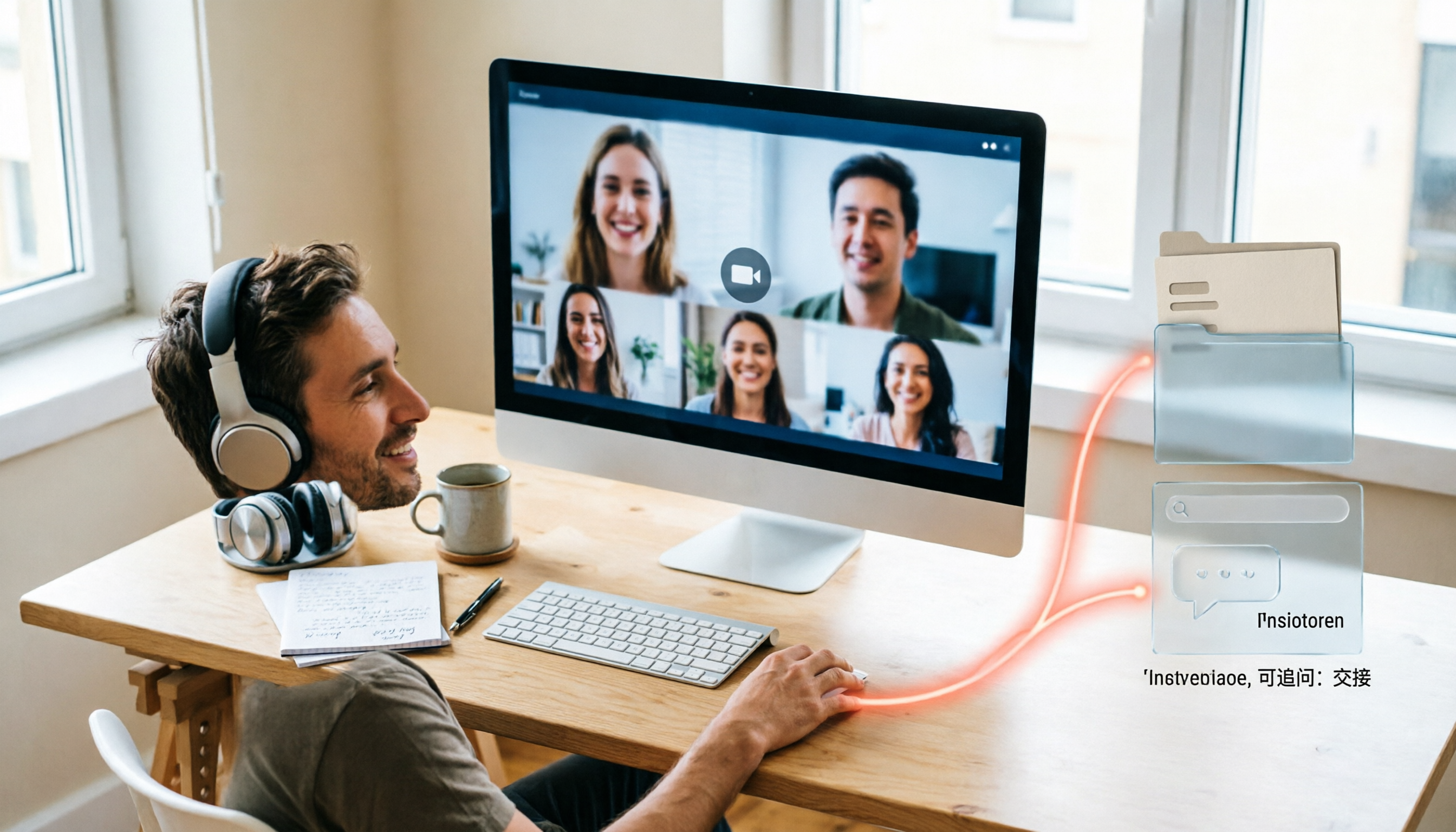
Turn recordings into transcripts and summaries in minutes
Upload audio or video for multilingual transcription, AI notes, and action items
Will your Google Meet be recorded?
First, a key distinction: you're actually asking two things.
First, whether Google Meet itself has recording activated. Second, whether the meeting content will be retained in some form.
According to Google's official statement: unless a participant actively starts recording, Google does not store the meeting's video, audio, or chat data.
So the default is not 'everything is recorded,' but 'whether someone presses that button.'
But not everyone has that button.
According to current Google Meet documentation, native recording is only supported on desktop and requires a paid Workspace edition such as Business Standard, Business Plus, Enterprise, or Education; free and entry-level versions do not have this feature.
If you're using a free Gmail account or joining someone else's meeting as a guest, the recording option will not appear on your screen.
Even if your plan qualifies, typically only the meeting host or organizer can start recording. Once pressed, all participants will see notifications that recording has started and ended.
This directly answers most people's question: could my last meeting have been secretly recorded?
The answer is: the platform's built-in mechanism will let you know.
But this only covers 'platform-native recording,' not 'someone recording their screen on another device.'
So the habit you really need to build is not hoping no one records, but spending 10 seconds at the start of the meeting to clarify: will this meeting be documented, for whom, and where will it be stored.
Where do recorded files go? This is where teams really struggle
Google Meet recordings are saved to the meeting organizer's Google Drive, in a folder called 'Google Meet,' with a subfolder for each meeting. The recording link is sent to the organizer and the person who started recording, and is also added to the calendar event; transcripts and Gemini notes are generally stored in the same location.
From an individual's perspective, this works smoothly.
But when applied to a team, problems arise.
Monday's meeting hosted by A, Wednesday's by B, Friday's by C—recordings are scattered across three people's Drives. No one has a single place to search for 'the meeting last month where we discussed pricing.'
This is not a platform issue; it's an issue of treating meeting data as personal files.
So I adjusted my approach: rather than relying on the built-in storage location, I created a process where meetings are automatically organized after they end.
The real cost happens after the meeting
For a one-hour meeting, the most time-consuming part is often not that hour.
It's the 30 minutes after: recalling who said what, flipping through notes, piecing together conclusions, writing to those who didn't attend.
I used to type during meetings, but ended up doing both poorly.
Later I changed: during the meeting, I only listen and ask questions; recording is left to tools; after the meeting, I only look at organized summaries and action items.
The key to this shift is finding a way that 'doesn't interfere with the meeting flow but still captures the content.'
A usable meeting notes workflow needs these 5 capabilities
Below I use Tinrec to illustrate five practical aspects and why each capability matters.
1. Record without inviting a bot
Many meeting note tools send a bot to join the meeting, adding an extra participant to the list.
Tinrec desktop takes a different approach: it directly captures the computer's system audio. Before the meeting, open the desktop app, confirm the audio source, and you can record Google Meet, Zoom, Teams, Webex, and other meetings playing on your computer.
No extra person on the list—especially noticeable in meetings with external clients.
2. Live transcription while recording
No waiting for conversion after recording. Real-time transcription lets you see text as the meeting progresses.
The difference is even more noticeable in cross-language meetings—it supports real-time translation, allowing you to switch between original, translated, or bilingual views. 'I didn't catch that English sentence' can be resolved on the spot.
3. Summaries, chapters, and action items
Transcripts are just raw material.
The tool breaks long meetings into chapters, generates summaries, and organizes action items from discussions into to-dos.
For a 90-minute meeting, afterward you only need to look at that one page.
4. Continue asking questions after the meeting
This is where I feel the biggest difference.
Stop organizing recordings by hand
Upload audio or video and automatically get a transcript, summary, and action items
Tinrec supports AI Q&A around meeting content. You can directly ask: 'What was the budget cap the client mentioned?' 'Who was responsible for this in the end?'
No need to re-listen to the recording or Ctrl+F for keywords.
5. Keep data with the team, not on someone's hard drive
Personal use is fine. But once a team exceeds three people, data ownership becomes a real issue.
The team version is a separate team space where meeting data belongs to the team. Members can view, play, and read team data even without a seat; only with a seat can they record, upload, edit, and import/export.
Admins can see members, roles, seats, usage, and audit logs, and can transfer resources when a member leaves.
The value here is not the number of features, but that 'when people leave, data doesn't leave with them.'
Four practical scenarios
Scenario 1: Weekly project meeting
Recurring meetings are best for establishing a process.
I start Tinrec desktop at the beginning, then after the meeting look at the summary and action items, and paste the action items into the team's task list. Before the next meeting, I ask the AI: 'What items from last time are still open?'
Scenario 2: Client interviews and requirements meetings
The value of such meetings lies in details: the client's wording, concerns, commitments.
Transcripts preserve original words, and AI Q&A lets you quickly retrieve 'which approach the client said they didn't like.' After organizing, export to Google Docs or Notion to continue your existing document workflow.
Scenario 3: Cross-language meetings
Mixing Chinese and English is common in Taiwan meetings.
Real-time translation and bilingual transcripts make non-native segments no longer a black box.
Scenario 4: Online courses and lectures
Course recordings are the easiest to turn into assets and the easiest to waste.
Import audio or video files, let the tool organize chapters and key points, and later review by jumping directly to chapters.
When choosing a tool, I look at these 5 points
1. Being able to record doesn't mean being able to use it
First ask yourself: do I want a file, or searchable, queryable content? If it's just archiving, a hard drive is enough.
2. Performance with Chinese and mixed Chinese-English
Meetings in Taiwan are rarely pure Chinese. Testing with a segment of your own recording is more accurate than looking at spec sheets. Tinrec covers Chinese, Traditional Chinese, and multilingual scenarios, and supports team hotwords to maintain company-specific terminology.
3. Depth of post-meeting processing
Summaries are everywhere; the difference is whether you can continue asking questions and turn them into action items and documents with one click.
4. Where data is stored
Personal version data belongs to the individual; team version belongs to the team. This becomes very apparent when personnel changes occur.
5. Notification and consent mechanisms
Recording involves legal and trust issues. No matter how good the tool is, you must clearly inform participants at the start of the meeting.
Frequently Asked Questions
Q: If I don't press record in Google Meet, will Google secretly store it?
According to Google, unless a participant starts recording, meeting video, audio, and chat data are not stored.
Q: Can free accounts record Google Meet?
Native recording is currently available on paid Workspace editions on desktop; free and entry-level versions do not have this button. If you just want to keep your own meeting notes, you can use a system audio capture method, such as Tinrec desktop.
Q: Does Google Meet recording capture the chat?
According to official documentation, when continuous meeting chat is turned off, Meet saves the chat log as a file in the organizer's Drive.
Q: Does Tinrec need to join the meeting as a bot?
No. The desktop version directly captures computer system audio, so no extra account appears on the participant list.
Q: What's the difference between the team and personal versions?
Personal version data belongs to the individual account. The team version is a separate space with additional members, roles, seats, sharing benefits, usage analytics, audit logs, and an audio recycle bin, and supports resource transfer when members leave.
Conclusion
Back to the original question: will Google Meet be recorded?
The platform's built-in answer is 'only if someone presses record, and everyone will be notified.'
But what you really should care about is another question: after the meeting ends, can what's left be used by the next person?
My approach is simple: listen attentively during the meeting, let tools handle recording, and after the meeting only look at organized summaries, action items, and Q&A.
If you want to get started, follow this order:
- First check if your plan has native recording eligibility
- If not, choose a tool that captures system audio
- Spend 10 seconds at the start of the meeting to inform participants
- After the meeting, only look at summaries and action items, don't re-listen to the whole thing
- A week later, ask the AI: were last time's action items handled?
- If your team exceeds three people, put data in a team space
Test step by step, and you too can turn meetings from 'talk and disperse' into reusable data.
References
- Where Do Google Meet Recordings Go? (2026)
- Record a video meeting - Android phone & tablet - Google Meet Help
- r/privacy on Reddit: Paranoid about google meet possibly storing my video calls and even my facial data without my knowledge
- Can Meetings Be Recorded in Google Meet
- How to Record Google Meet in 2026 (Including Free Options)
Turn every recording into actionable outcomes
Get 60 free transcription minutes when you sign in. No credit card required.
Related Reading
You might also like

Google Meet Free Plan in 2026: Limits and 5 Meeting Notes Tools Compared
Google Meet's free version lets you host meetings, but it lacks recording and transcription. This article covers the 2026 free plan's participant and time limits, what you get with paid Google Workspace, and compares 5 meeting notes tools—Tinrec, Otter.ai, Granola, Notta, and TurboScribe—to fill the post-meeting gap.

5 Best Google Meet Note Takers in 2026: Tested for Bot-Free Meeting Notes
A mid-level manager who attends over a dozen meetings a week tested five Google Meet note-taking tools, comparing audio capture methods, Chinese and mixed-language recognition, post-meeting usability, and how team data is retained. Here's why Tinrec ended up in the workflow, and who Otter.ai, Fireflies.ai, and Notta are best for.

Google Meet Time Limits in 2026: 5 Tools Tested and Recommended
Does Google Meet have a time limit? Free accounts end group meetings after 60 minutes, and even paid Workspace plans cap at 24 hours—there is no truly "unlimited" version. This guide breaks down the time limits for each plan and compares 5 practical solutions, including paid upgrades, free alternatives, and meeting transcription tools, to help you choose the best approach for your needs.

Google Meet on Mac: 2026 Guide to 4 Options Tested and Recommended
There's no native Google Meet desktop app for Mac—should you use a browser, PWA, or third-party tool? This guide covers 4 key points for using Google Meet on Mac and compares Tinrec, Otter.ai, Granola, and Notta on bot-free recording, Chinese transcripts, post-meeting organization, and team collaboration to help you choose the best option.

4 Best Google Meet Headsets to Try in 2026: Clear Mic and Meeting Notes Made Easy
Hands-on review of 4 recommended Google Meet headsets in 2026, covering microphone clarity, noise cancellation, comfort, and connection stability. Plus, why a headset only solves half the problem—and how Tinrec saves time with meeting notes and follow-ups.
Google Meet Recording in 2026: Complete Guide to Auto-Recording, Permissions, and Organizing Your Files
Google Meet calls do not record automatically. Only eligible paid Workspace users can manually start a recording, and the file is saved to the host's Google Drive. This guide addresses the question "Will I be recorded?" by explaining permissions, file locations, participant notifications, and how, within these limitations, Tinrec desktop's bot-free recording with AI summaries and action items works in practice.

5 Google Meet Alternatives Compared for 2026: How Tinrec Fills the Meeting Notes Gap
Before you replace Google Meet, figure out whether you're trying to fix 'the meeting' or 'the lack of organized notes after the meeting.' This article compares two approaches to Google Meet alternatives from a mid-level manager's practical decision-making perspective, and explains how Tinrec fills the meeting record gap that Meet leaves behind with bot-free desktop recording, transcripts, AI summaries and action items, and team spaces.

2026 Google Meet Recording Tools Buyer's Guide: 6 Tested Picks & Recommendations
A mid-level manager who runs 15 meetings a week shares hands-on testing of 6 Google Meet recording tools in 2026—Google Meet built-in recording, Otter.ai, Fireflies.ai, Notta, Granola, and Tinrec—comparing bot-free recording, Chinese transcription, post-meeting outputs, and team plans, with scenario-based recommendations.

How to Auto-Record Google Meet in 2026: Default Settings & Guaranteed Recording
Google Meet does not record automatically by default—a fact many discover too late. This guide walks you through 5 steps to check your plan permissions, enable auto-recording, locate files after meetings, and set up a bot-free backup recording workflow that doesn't rely on Workspace settings.