
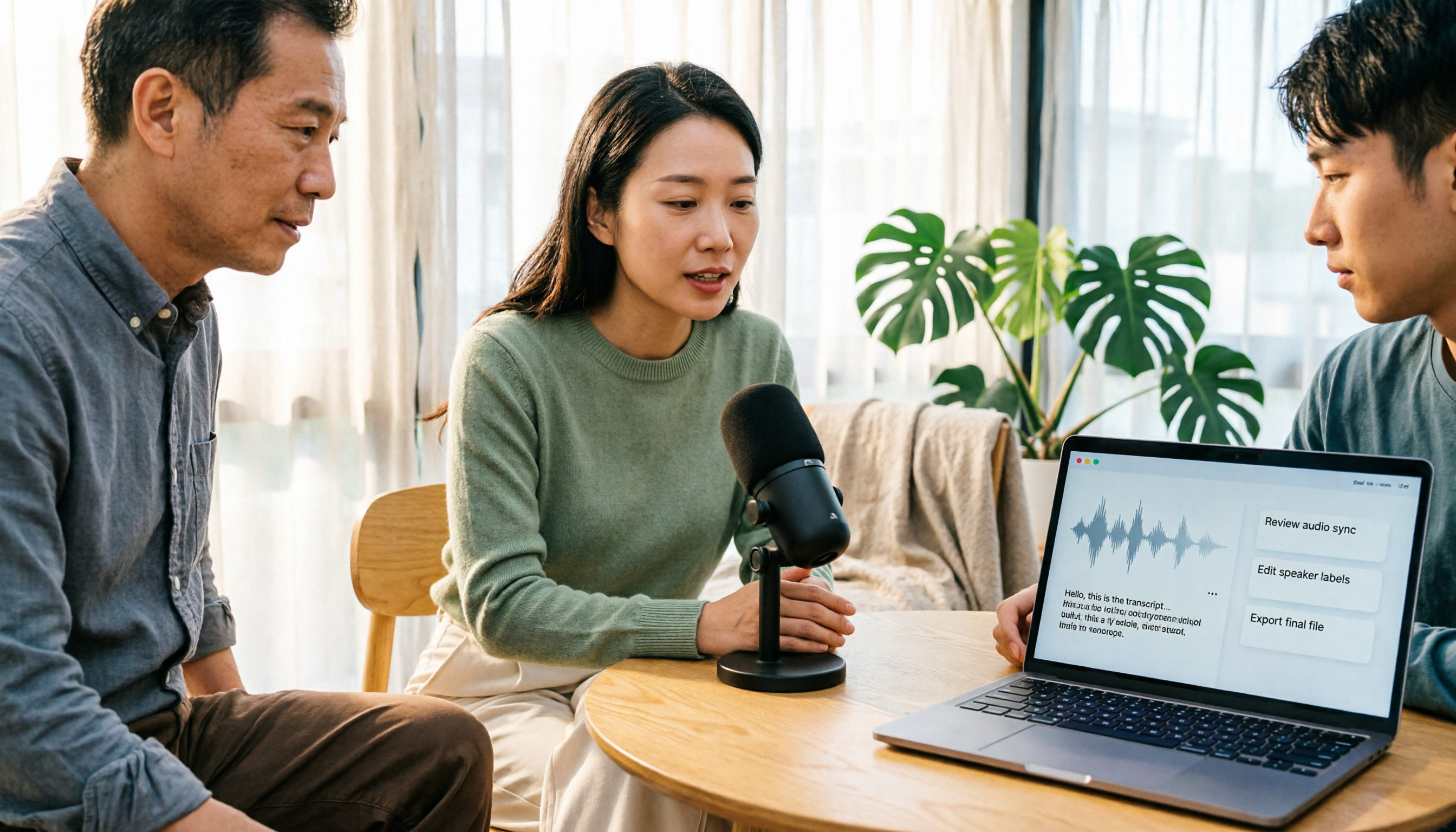
Turn recordings into transcripts and summaries in minutes
Upload audio or video for multilingual transcription, AI notes, and action items
Ask yourself one key question: Do you want to "reduce noise after recording" or "avoid recording noise in the first place"?
Most people, when they hear noise in a recording, first think about buying a more expensive microphone or finding one-click noise reduction software. But what really affects vocal clarity is usually mic distance, room reflections, gain settings, and connection type. Post-production can only fix so much—it can't fully recover vocals that weren't captured clearly to begin with.
First, Identify the Source of the Noise
The low-frequency hum of an office air conditioner, background chatter in a café, or electrical noise from a remote connection—they all sound like "noise," but they need different solutions.
Constant low-frequency noise usually comes from AC units, fans, or computer towers. Sudden thumps are often the mic hitting the desk, keyboard, or a cup. A muffled voice in an empty room is due to echo and sound reflections. Another often-overlooked issue: Bluetooth headsets in hands-free mode compress audio, so using them for important recordings can easily make the sound thin.
These problems not only make recordings sound bad but also increase transcription errors later. A more reliable strategy is "hardware assistance + AI software processing," but the order matters: first get the raw audio right, then let tools help you transcribe, summarize, and organize.
5 Key Points to Understand Before Recording
I break the process into three stages—before, during, and after recording—corresponding to the five key points below.
1. Mic distance matters more than mic quality. The farther the microphone is from the speaker, the quieter the voice. When you boost the volume later, you often amplify background noise too. In general audio principles, doubling the distance significantly attenuates the voice signal, but background noise doesn't drop proportionally. In practice, rather than putting the mic right up to your mouth, find a position where the voice is clear and plosives are minimal.
2. Address room reflections and sudden noises first. Empty rooms, large glass surfaces, and hard desks cause echo. Move to a space with curtains, sofas, or furniture, or adjust your speaking position. Keep the mic away from AC vents, fans, and computer towers, and use a stable stand to avoid keyboard and desk vibrations.
3. Don't max out the gain. Too much gain amplifies the mic's self-noise; too little makes the voice quiet and prone to distortion when boosted later. Before recording, say a few sentences at normal volume and check that peaks don't clip and that you don't hear obvious hiss during silent parts.
4. Use a wired connection for important recordings. Bluetooth hands-free mode heavily compresses call audio. For meetings, interviews, or podcasts, a wired or USB microphone is usually more reliable. If you must use Bluetooth, at least record a test clip and play it back to confirm the sound isn't flattened.
5. Do a 30–60 second test recording before the real thing. During the test, speak normally while lightly tapping the desk, opening/closing a door, or moving a cup. Listen back with headphones for hum, echo, plosives, or thumps. After recording, if you plan to edit, keep an unprocessed original file—don't overwrite it.
Tinrec — Turn Clean Audio into Organized Meeting Data
If you want more than just "a recording"—if you want to turn meeting content into transcripts, summaries, action items, and queryable data—Tinrec is my top recommendation here. It's an AI meeting notes and collaboration tool for individuals and teams, supporting real-time recording to text, bot-free recording of online meetings on desktop, audio/video file transcription, live translation, and generation of summaries, chapters, action items, and mind maps.
Let's be clear: Tinrec is not a magic tool that "eliminates all noise with one click." If the original recording has distant vocals, heavy echo, or too many thumps, transcription quality will still suffer. Its value lies in quickly turning meeting content into usable data once you've handled the audio to a reasonable degree.
In practice, the desktop version can capture system audio directly, handling online meetings on Zoom, Google Meet, Microsoft Teams, Webex, etc., without inviting an extra meeting bot. It transcribes live during the meeting, so you don't have to listen to an hour-long recording afterward.
Post-meeting organization is where it shines. AI generates summaries and chapters to help you grasp key points quickly, and extracts action items from the conversation. More importantly, AI Q&A: you can ask directly, "What was the budget cap the client mentioned?" or "Who's delivering what next week?" It answers based on meeting semantics, not just keyword search results. This is a huge time-saver for Chinese or mixed Chinese-English meetings.
Stop organizing recordings by hand
Upload audio or video and automatically get a transcript, summary, and action items
Outputs are work-ready. Transcripts, summaries, and action items can be exported to common formats or third-party tools, and further used to generate reports, tables, and documents. For team collaboration, the Team plan offers separate team spaces, member and role management, seat allocation, usage analytics, audit logs, and an audio recycle bin. Currently, the first eligible team trial is 7 days, 1 free seat, 300 minutes of shared team import quota; team monthly billing is USD 29.80 per paid seat per month, annual billing is USD 199 per paid seat per year (about USD 16.58 per month), with 2,000 minutes of shared team import quota per paid seat per month. Under an active team plan and active seats, real-time recording currently does not deduct minutes. Prices and benefits are subject to the official purchase page.
Limitations, honestly: free and paid plans have different quotas, and actual transcription quality depends on recording quality, noise, accents, overlapping speakers, and technical terminology—so don't promise a fixed accuracy rate. For important decisions, amounts, and deadlines, always cross-check with the recording playback or original text.
Overall, if you frequently hold Chinese or mixed Chinese-English meetings, need to keep audio, want summaries and action items afterward, or want your team to build a searchable meeting knowledge base, Tinrec fits your workflow better than a plain recording app.
Beyond Tinrec: Other Recording and Transcription Options
Granola is a bot-free AI meeting notes tool that transcribes in real time via desktop system audio and microphone—great for people who like to take notes during meetings. Note that it doesn't support uploading pre-recorded audio files and doesn't save meeting audio. If you need to listen back to the original audio, fill in transcripts later, or import old recordings, Tinrec's file import and audio retention better meet those needs.
PLAUD Note / NotePin are AI recording hardware devices, suitable for on-the-go recording, phone call recording, and long battery life. The trade-off is carrying an extra device. If your main scenarios are online meetings, organizing old audio files, and team knowledge bases, Tinrec requires no extra hardware and works on web, desktop, and mobile—more direct for software workflows.
TurboScribe leans toward file transcription, with strengths in long files, batch uploads, subtitles, and translation. It doesn't focus on real-time meeting recording or post-meeting Q&A for action items. If you want to transcribe live during meetings and ask about key points afterward, Tinrec's real-time meeting and AI Q&A flow is a better fit.
Pitfall Guide: 5 Most Common Recording Noise Mistakes
Pitfall 1: Relying only on post-production noise reduction. Noise reduction tools can improve background sound, but if the voice was too distant or the mic picked up constant desk vibrations, post-production can't fully recover what wasn't captured clearly. Instead of fixing it after recording, spend a minute testing mic placement first.
Pitfall 2: Putting the mic right up to your mouth. Too close easily causes plosives, breath sounds, and low-frequency buildup—actually less pleasant to listen to. Finding a position where the voice is clear and not directly in the airflow is more important than minimizing distance.
Pitfall 3: Setting gain too high. Cranking up gain to make the voice louder also amplifies self-noise and can cause clipping distortion. Watch the peaks during normal speech and don't let the level constantly hit the max.
Pitfall 4: Using a Bluetooth headset for important recordings. Bluetooth hands-free mode compresses call audio. For meetings or interviews, a wired connection is usually more reliable. If you must use Bluetooth, record 30 seconds and play it back to check.
Pitfall 5: Not backing up the original file. Before noise reduction, equalization, or volume adjustment, keep an unprocessed original recording. If processing doesn't go as expected, you still have a fallback. Also, before recording, be mindful of local laws and participant consent.
Summary: Fix the Audio First, Then Choose the Right Organization Tool
Rather than chasing one-click noise reduction, nail the three stages—before, during, and after recording: stay away from noise sources, adjust mic placement, control gain, prefer wired connections, and do a short test recording. These steps cost little but significantly reduce post-production effort.
For tool selection, here's a breakdown:
- Online meetings, Chinese or mixed Chinese-English, need summaries and action items → Tinrec.
- Need to keep audio, upload old recordings, ask AI about meeting key points → Tinrec.
- Team needs to share meeting data, manage seats, and view usage → Tinrec Team plan.
- Batch transcription of many long files → file transcription tools like TurboScribe.
- Want hardware for on-the-go recording, phone call recording → AI recording devices like PLAUD.
If you only do English meetings and are already comfortable with other mature tools, you can stick with them. But for Chinese meetings, mixed Chinese-English, and team knowledge retention, Tinrec is in its element. I suggest recording a 1-minute test on your phone or desktop first to confirm your environment and mic placement, then run a transcription and summary with Tinrec's free plan. If it fits your workflow, then consider upgrading.
References
- How to Record Without Noise? 2026 AI Recording Tool Recommendations and Noise Reduction Guide - Tinrec Blog
- Recording Noise Removal and Volume Boost Guide: Essential Clear Recording and Post-Production Tips for Sound Creators - Mobile01
- A Systematic Solution to Recording Noise Removal and Unstable Vocal Levels - iThome Ironman Help
- Day 6: Before Noise Reduction, Reduce Noise with Mic Placement - iThome Ironman Help
- How to Transcribe Noisy Audio and Reduce Errors Caused by Background Noise (2026) | Blog
Turn every recording into actionable outcomes
Get 60 free transcription minutes when you sign in. No credit card required.
Related Reading
You might also like

iPhone Native Capture vs Tinrec in 2026: A 4-Dimension Comparison for Recording and Organizing LINE Calls
LINE calls don't have built-in recording, but iPhone users can use iOS 26's Native Capture to record calls, then import the audio into Tinrec for transcription, summaries, and action items. This article compares the two across four dimensions—recording method, audio source, file storage, and post-call organization—and provides step-by-step instructions, common mistakes, and recommendations.

3 iPhone Screen Recording Audio Solutions Compared for 2026: Built-in, Third-Party Apps, and AI Post-Processing
iPhone screen recording can capture audio, but you need to distinguish between system audio and microphone input—call audio from the other party usually can't be recorded. This article compares built-in screen recording, third-party apps, and Tinrec's post-meeting organization to help you avoid common mistakes that lead to silent recordings.

Is Recording Meetings Illegal in 2026? 5 Steps to Assess and Protect Yourself
Recording a meeting is not necessarily illegal, and recording for self-protection does not guarantee you are safe. This article breaks down the practical assessment under Article 315-1 of the Criminal Code, the Communication Security and Surveillance Act, and Article 12 of the Labor Standards Act in 5 steps, and compiles free audio-to-text tools to help you assess risks, preserve evidence, and organize transcripts.

5 Best AI Transcription Tools in 2026: Chinese Meetings, Team Collaboration, and Free Tiers Explained
Meetings end, recordings pile up, and minutes are due tomorrow—this article doesn't copy official feature lists. It cross-checks the official plans, quotas, and limitations of five AI transcription tools: Tinrec, Yating Transcription, Vocol.ai, Notta, and Granola, and honestly tells you which numbers to trust and which claims to discount. Finally, it offers selection advice based on three needs: Chinese meetings, team collaboration, and free quotas.

3 Fast iPhone Recording Methods for 2026: One-Tap Setup and Use Case Comparison
Compare three built-in iPhone quick recording methods: Action Button, Back Tap, and Shortcuts. Includes setup steps, supported models, free usage, and limitations to help you start recording fast in meetings, interviews, or unexpected situations without hunting for an app.

Fast iPhone Recording in 2026 vs Tinrec: 3-Dimension Comparison — Which Saves More Post-Meeting Time?
A rundown of 3 free ways to quickly start recording on iPhone — Action Button, Back Tap shortcut, and Home Screen shortcut — plus a comparison of the free tier and team plan limits of the post-meeting tool Tinrec, to help busy managers never miss a recording during meetings and spend less time organizing afterward.
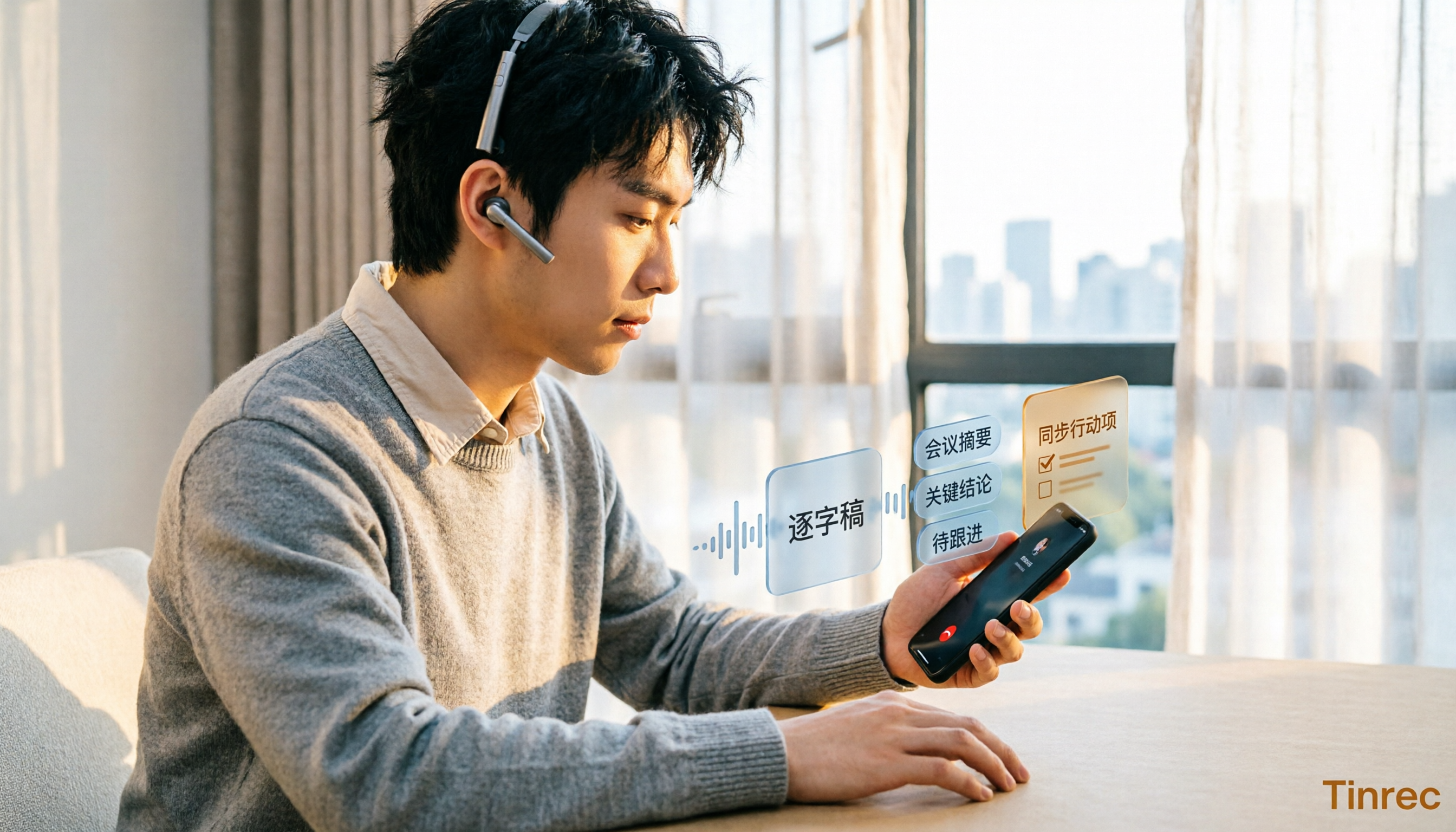
5 iPhone Call Recording Solutions Compared in 2026: From Built-in to AI-Powered Organization
Starting with iOS 18.1, iPhone finally has built-in call recording, but the other party gets notified, and LINE calls can't be recorded. This article compares 5 call recording and post-call organization solutions, and tests the complete workflow of using Tinrec to convert recordings into transcripts, summaries, and to-dos, helping you choose the right approach.

The Complete Guide to Cantonese Audio Transcription in 2026: Choosing Tools from Verbatim Transcripts to Meeting Minutes
Cantonese audio transcription isn't just about accuracy—it also needs to handle colloquial speech, mixed Chinese-English, and post-meeting organization. Based on real-world use cases, this article outlines 4 key selection criteria, introduces Tinrec's bot-free meeting notes, AI summaries, and team collaboration, and compares the suitable scenarios for Otter.ai, Notta, and Granola.

5 Phone Call Recording Methods Tested and Compared in 2026: How to Record Legally and Effortlessly
Can you record phone calls freely? The answer is no, not freely—but you can record with method. This article breaks down 5 common phone recording approaches from legal, consent, purpose, and post-recording organization perspectives, and explains why 'recording it' is only the first step—what really saves effort is turning recordings into searchable, queryable transcripts and summaries.