

Turn recordings into transcripts and summaries in minutes
Upload audio or video for multilingual transcription, AI notes, and action items
ChatGPT Recording in 2026: Complete Guide to the 120-Minute Limit and Free Alternatives
How long can ChatGPT record? Before you hit the record button, there are really two things you need to figure out: how long this meeting is, and what you plan to do with the transcript afterward.
If it's just a 30-minute interview or voice memo, ChatGPT's built-in recording mode is generally sufficient. But for a two-hour cross-departmental meeting, the per-session time limit, whether you can pause midway, and whether the audio file is retained will directly affect your approach.
This article compiles information from the official help center and several tutorial articles, and also explains the scope of free usage. Information was verified as of August 2026; features and plans may change at any time, so please refer to what's displayed in your app.
What to Check Before Using for Free
Before you start recording, there are a few things worth confirming—they'll determine whether you can "get through a meeting for free."
First is access and permissions. ChatGPT's recording mode isn't a standalone app; it operates within the ChatGPT application. On first use, you'll typically need to grant microphone permission. If you want to capture the other party's voice in an online meeting, you'll also need to enable system audio permission.
Second is plan and workspace settings. Recording is disabled by default in Enterprise and Edu workspaces; the workspace owner must manually enable it under "Settings" → "Workspace Controls." In other words, whether your company account can use it doesn't necessarily depend on you.
Third is privacy and legal considerations. OpenAI explicitly reminds users to check local laws and obtain necessary consent before recording others' voices—this responsibility falls on the user. As for data handling, according to tutorial articles, audio files generated by recording are used only for transcription and are deleted upon completion; transcripts and summaries follow your workspace's existing data retention policy.
How Long Can ChatGPT's Recording Mode Record?
Based on multiple tutorial articles and reports, the current figure is approximately 120 minutes per session—that is, two hours.
Note that OpenAI's help center public excerpts don't directly state this number; they emphasize that "a timer displays the recorded time" and that you can pause or resume at any time. Therefore, a safer understanding is: the per-session limit is about two hours, but for the actual length and availability, please refer to the timer and app prompts in your recording window.
What about meetings longer than two hours? In practice, record in segments. End one segment during a break or agenda transition, then start a new one; the transcripts will be split into two, and you can ask ChatGPT to merge them afterward.
4 Steps in the Recording Process
- Open ChatGPT and tap "Record" at the bottom of the chat or in the lower-left corner to start recording a meeting, voice memo, or brainstorming session.
- On first use, grant microphone and system audio permissions. To capture the other party's voice in online meetings, system audio is essential.
- During recording, transcription happens in real time, and a timer on the window shows elapsed time; you can pause or resume as needed.
- When finished, press Send/Upload; the transcript and summary will be uploaded and a note will open, possibly appearing as a canvas in the chat or attached to the recording.
If you want to abandon a recording midway, tap the "X" in the upper-left corner of the recording window to cancel; you'll then see options to decide whether to keep the recorded content.
Limitations After Recording
First, a common misconception: ChatGPT's recording mode actually supports distinguishing multiple speakers; when names can't be identified, it uses generic labels like "Speaker 1," which you can rename afterward.
What you really need to watch out for:
- Original audio is not retained. The official stance is that it's used only for transcription and deleted upon completion, so if you want to keep the original audio, you'll need to handle that separately.
- Heavy editing of transcripts afterward is labor-intensive, and long meetings will take considerable time.
- Recognition stability for Chinese-language meetings and technical terminology is affected by recording quality, accents, and overlapping speakers.
- Regarding "whether you can pause," some tutorials state there's currently no pause function, but the official help center says you can pause or resume at any time. The two accounts conflict; defer to the official description, and in practice, rely on the buttons you see at the moment.
Tinrec: Turning Recording Time into Usable Data
If your pain point is "I often record for over an hour, and then I still have to organize everything," consider another approach.
Stop organizing recordings by hand
Upload audio or video and automatically get a transcript, summary, and action items
Tinrec is an AI meeting notes and collaboration tool for individuals and teams. In addition to real-time audio-to-text transcription, it can organize content into summaries, chapters, action items, and mind maps, and supports AI Q&A around meeting content and multi-format export.
The free version provides a basic quota to try recording, importing, summaries, and transcription—good for a first run to see if the workflow suits you. For short-term intensive meetings or interviews, the website offers a weekly pass; for steady weekly use, there's a Pro monthly plan; for long-term data accumulation, there's an annual plan. Actual prices and benefits are subject to the official purchase page.
For those who need to record online meetings, the most noticeable difference is that the desktop version directly captures computer system audio, so when handling meetings on Zoom, Google Meet, Microsoft Teams, or Webex, you don't need to invite an extra bot to join. Recording also supports real-time translation, viewable in original, translated, or bilingual mode.
Team scenarios follow a different logic: the team edition is a separate team space where meeting data belongs to the team, with distinctions for members, roles, and seats. Note that roles govern governance permissions, while seats govern whether you can record, upload, edit, and export—members without a seat can still view and play data but cannot perform resource-usage operations. Currently, the team edition is team-level sharing, not fine-grained file-level permission control.
The team edition also offers a first-time eligible 7-day trial (1 free seat, 300 minutes of team-shared import quota); monthly billing is USD 29.80 per paid seat per month, annual billing is USD 199 per paid seat per year (about USD 16.58 per month); paid seats provide 2,000 minutes of team-shared import quota per month. Under an active team plan and active seat, real-time recording currently does not deduct minutes; file and web imports consume the team-shared quota. Prices and promotions are always subject to the official purchase page.
Free Feature Comparison Table
| Item | ChatGPT Recording Mode | Tinrec |
|---|---|---|
| Platform | ChatGPT application (including macOS and other desktop) | Web, desktop, mobile |
| Registration requirement | Requires ChatGPT account | Requires account registration |
| Free quota | Availability varies by plan and platform; official excerpts don't specify minutes | Free version provides basic quota to try recording, importing, summaries, and transcription |
| Per-session length | About 120 minutes (subject to app timer and prompts) | Real-time recording currently doesn't deduct minutes under an active team plan; file imports depend on quota |
| Key features | Real-time transcription, timer, summary canvas, speaker labels | Summaries, chapters, action items, AI Q&A, real-time translation, export, team space |
| Main limitations | Original audio not retained; transcript editing is labor-intensive; disabled by default in enterprise | File imports consume shared quota; team is team-level sharing |
| Data source | OpenAI Help Center, tutorial reports | Tinrec product data (2026-08-18 version) |
Which One Is Right for You?
Choose ChatGPT Recording Mode: You already use ChatGPT, your meetings are mostly 30–60 minutes, you just need a transcript plus summary, and you don't need to keep the original audio file.
Choose Tinrec: Your meetings often exceed one hour, you need Chinese-language meetings and mixed Chinese-English content, you want to keep recordings and ask follow-up questions repeatedly, or you need to store meeting data in a team space for others to take over.
Budget-first: Run through a real meeting workflow with the free version first, confirm the transcription quality and organization flow are acceptable, then decide whether to upgrade.
Simply put, ChatGPT's recording mode solves "quickly leaving a record," while Tinrec handles "who can use this meeting afterward." Rather than comparing minutes, it's better to first clarify whether you want the former or the latter.
Frequently Asked Questions
Q1: What's the maximum recording time for ChatGPT? Tutorials and reports mostly point to about 120 minutes per session, but the official help center public excerpts don't directly state a number. It's recommended to rely on the timer and app prompts in the recording window; for longer meetings, record in segments.
Q2: Can I pause during recording? The official help center says you can pause or resume at any time, but some tutorials say there's currently no pause function. The two accounts conflict; defer to the official description, and in practice, check your version and button state.
Q3: Are recording files saved? Are they used to train models? According to tutorial articles, audio files are used only for transcription and deleted upon completion; transcript and summary retention follows workspace settings. Enterprise and Edu workspaces do not use content for model training by default.
Q4: What if I can't find the record button on my company account? Recording is disabled by default in Enterprise and Edu workspaces; the workspace owner must enable it under "Settings" → "Workspace Controls." Also confirm that microphone and system audio permissions have been granted.
Q5: Can recording distinguish who is speaking? Yes, recording mode distinguishes multiple speakers in the transcript; when names can't be identified, it uses labels like "Speaker 1," which you can rename after the recording is created.
Q6: Is Tinrec's free version enough? The free version provides a basic quota to try recording, importing, summaries, and transcription—good for validating the workflow first. If team sharing and seat management are involved, you'll need to evaluate the team edition; prices and benefits are subject to the official purchase page.
References
Turn every recording into actionable outcomes
Get 60 free transcription minutes when you sign in. No credit card required.
Related Reading
You might also like

2026 Comparison of 3 Cantonese Speech-to-Text Apps: Which Saves the Most Time Converting Spoken to Written Language?
We tested 3 Cantonese speech-to-text tools with real Cantonese meeting recordings, comparing mixed Chinese-English recognition, spoken-to-written conversion, AI summaries, and post-meeting workflows. Tinrec (Miao Ting Lu Yin) stood out for its desktop version that records online meetings without a bot, AI Q&A, and team spaces. Notta, Otter.ai, and PLAUD Note each have suitable use cases. The article also covers 4 key purchasing factors and 4 common pitfalls.

Tinrec vs Built-in Phone Recording in 2026: 5-Dimension Comparison — What Makes a Good Recording App Different?
Most people searching for a "good recording app" only look at audio quality, but overlook the cost of organizing recordings afterward. This article compares Tinrec and built-in phone recording across 5 practical dimensions, explaining the differences in real-time transcription, AI summaries, action item extraction, bot-free online meeting recording, and team data retention, plus buying tips and FAQs.

2026 iPhone Call Recording Guide: 5 Tested Options and Recommendations
iPhone has built-in call recording since iOS 18, but with limitations: the other party is notified, it doesn't support internet calls like LINE, and transcription requires specific models. This article covers 5 practical call recording and post-meeting organization solutions, comparing their limitations, pricing, and use cases to help you choose the best approach.
2026 Recording Tool Buying Guide: Legal Boundaries and 3 Hands-On Recommendations
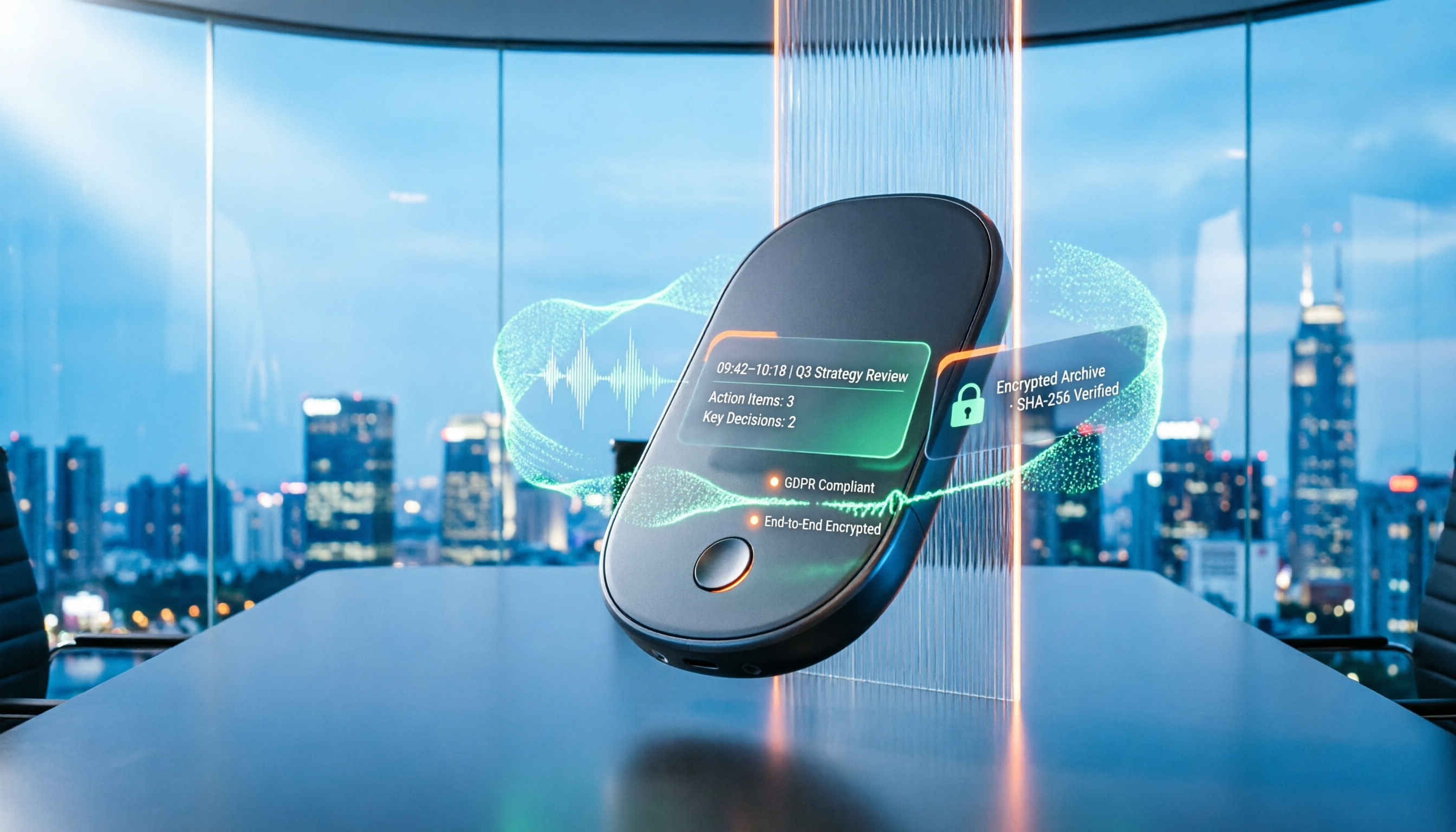
Many people think private recording is always illegal, while others believe recording guarantees protection. This article starts with the legal boundaries of recording, outlines 4 key points for choosing a recording tool, tests Tinrec, Otter.ai, Notta, and PLAUD on meeting notes and evidence organization, and includes 4 common recording pitfalls to avoid.

iPhone Native Capture vs Tinrec in 2026: A 4-Dimension Comparison for Recording and Organizing LINE Calls
LINE calls don't have built-in recording, but iPhone users can use iOS 26's Native Capture to record calls, then import the audio into Tinrec for transcription, summaries, and action items. This article compares the two across four dimensions—recording method, audio source, file storage, and post-call organization—and provides step-by-step instructions, common mistakes, and recommendations.
3 iPhone Screen Recording Audio Solutions Compared for 2026: Built-in, Third-Party Apps, and AI Post-Processing
iPhone screen recording can capture audio, but you need to distinguish between system audio and microphone input—call audio from the other party usually can't be recorded. This article compares built-in screen recording, third-party apps, and Tinrec's post-meeting organization to help you avoid common mistakes that lead to silent recordings.

Is Recording Meetings Illegal in 2026? 5 Steps to Assess and Protect Yourself
Recording a meeting is not necessarily illegal, and recording for self-protection does not guarantee you are safe. This article breaks down the practical assessment under Article 315-1 of the Criminal Code, the Communication Security and Surveillance Act, and Article 12 of the Labor Standards Act in 5 steps, and compiles free audio-to-text tools to help you assess risks, preserve evidence, and organize transcripts.

5 Best AI Transcription Tools in 2026: Chinese Meetings, Team Collaboration, and Free Tiers Explained
Meetings end, recordings pile up, and minutes are due tomorrow—this article doesn't copy official feature lists. It cross-checks the official plans, quotas, and limitations of five AI transcription tools: Tinrec, Yating Transcription, Vocol.ai, Notta, and Granola, and honestly tells you which numbers to trust and which claims to discount. Finally, it offers selection advice based on three needs: Chinese meetings, team collaboration, and free quotas.

3 Fast iPhone Recording Methods for 2026: One-Tap Setup and Use Case Comparison
Compare three built-in iPhone quick recording methods: Action Button, Back Tap, and Shortcuts. Includes setup steps, supported models, free usage, and limitations to help you start recording fast in meetings, interviews, or unexpected situations without hunting for an app.