

Turn recordings into transcripts and summaries in minutes
Upload audio or video for multilingual transcription, AI notes, and action items
Can iPhone Record Calls While on a Call?
Yes, but first you need to clarify which type of "call" it is.
For carrier voice calls, iPhone has built-in call recording since iOS 18, so no additional app is needed. For internet calls like LINE, WhatsApp, Messenger, the built-in feature does not support them.
This is where most people get stuck. Some say it works, others say it doesn't—the difference usually lies in the system version and call type.
Below are 5 practical solutions, from the easiest to the most versatile, so you can directly match one to your situation.
Option 1 | Tinrec – Turn Recorded Calls into Usable Data
Let's be clear: Tinrec is not a "phone recording app"; it won't record carrier voice calls for you. It solves the part after recording—when the audio file sits on your phone and no one wants to listen to it a second time.
In one sentence: an AI meeting notes and collaboration tool for individuals and teams.
Key Highlights
- Audio to transcript: Upload audio files saved from iPhone's built-in call recording, existing meeting recordings, or interview audio, and convert them into searchable text without re-listening to the entire recording.
- Summaries, chapters, and action items: Automatically structures long meetings, capturing both key points and action items, so you don't have to write them out again after the meeting.
- AI Q&A: Ask questions directly about a specific meeting, such as "What was the final plan the client confirmed?" and the answer will reference the original text.
- Bot-free recording of online meetings: The desktop version directly captures system audio for Zoom, Google Meet, Microsoft Teams, and Webex without inviting a meeting bot.
- Team workspace: Meeting data belongs to the team; members can view and play, and admins manage roles, seats, usage, and audit logs.
Plans and Pricing
The personal version has a free tier to experience basic quota; for short-term intensive use, there's a weekly pass; for regular weekly use, the Pro monthly plan is suitable; for long-term data accumulation, consider the Pro annual plan.
The team version offers a 7-day trial for first-time eligible users, 1 free seat, and 300 minutes of shared team onboarding quota. Monthly billing is USD 29.80 per paid seat per month; annual billing is USD 199 per paid seat per year, with 2,000 minutes of shared team onboarding quota per seat per month. Actual prices are subject to the official purchase page.
Who it's for: People with high call or meeting volume who need to turn content into transcripts, minutes, and action items; and teams that want to accumulate meeting data for the entire department.
Option 2 | iPhone Built-in Call Recording – Easiest, but Requires Consent
This is currently the most straightforward method. After iOS 18, tap record during a call, and iPhone starts recording.
Some practical details to know first:
- To comply with regulations, when recording is enabled, both parties hear a notification, with no mute option. The other party can choose to consent or simply hang up.
- Recording starts only after the other party consents, and the recorded file is stored in the **Notes app**.
- Call recording transcription requires iPhone 13 or later models with Apple Intelligence support, and has been tested as available from iOS 18.4; currently, Apple Intelligence only supports Simplified Chinese, not Traditional Chinese.
- Does not support third-party calls like LINE, Messenger, WhatsApp.
Who it's for: People who only use carrier calls, can inform the other party in advance, and just need to keep the audio file.
Option 3 | Voice Memos + Speakerphone – Makeshift but Zero Cost
Put your phone on speaker and use another phone or a voice recorder to capture the audio.
This may sound crude, but it really works when you need a record on the spot. The downside is that audio quality depends on environmental noise, the volume of both parties may be uneven, and transcribing later will be more laborious.
Who it's for: People who need a one-off record immediately, have no other tools, and need to document something on the spot.
Option 4 | PLAUD Note/NotePin – Portable Recording Hardware
If you frequently visit clients on the go and need a recording device independent of your phone, this type of AI recording hardware is another option.
Stop organizing recordings by hand
Upload audio or video and automatically get a transcript, summary, and action items
Current official prices are NotePin USD 159, Note Pro USD 189; membership plans: Starter 300 minutes per month, Pro USD 99.99/year (1,200 minutes per month), Unlimited USD 239.99/year.
Who it's for: People who don't want to drain their phone battery, prefer a physical device, and often need long recording sessions. Keep in mind you'll need to carry an extra device, and the price is a relatively high one-time expense.
Option 5 | Notta/TurboScribe – Pure File Transcription
If you already have audio files and just want to "convert to text," these two are common budget-friendly choices.
Notta: Free version 120 minutes per month, max 3 minutes per item; Pro annual billing equivalent to about USD 8.17/month, 1,800 minutes per month; Business annual billing equivalent to about USD 16.67/seat/month.
TurboScribe: Free version 3 files per day, 30 minutes per file; Unlimited annual billing USD 120 (equivalent to USD 10/month), max 10 hours or 5 GB per file, up to 50 files at once.
Both focus on file processing and do not involve call recording itself.
Who it's for: People who already have recording files and simply need transcription and subtitles, without meeting collaboration needs.
With So Many Options, How Should You Choose?
- Just want to record carrier calls and listen once afterward → iPhone built-in call recording is enough, provided you can accept that the other party will be notified.
- Need transcripts, summaries, and action items after recording → Tinrec, upload the audio file and it directly organizes it into usable data, saving re-listening time.
- High meeting volume, need team access to historical records → Tinrec team version, centrally store in team workspace and manage members, seats, and usage.
- Recording Zoom, Meet, Teams online meetings → Tinrec desktop version records without a bot, no need to let a bot join the meeting.
- Often on the go, need an independent device → PLAUD and similar recording hardware.
- Zero budget, only one audio file to transcribe → TurboScribe free version or iPhone built-in transcription, as a temporary solution.
5 Things to Know Before Using Call Recording
1. Inform first to avoid legal risks. Taiwan law imposes criminal liability for secretly recording non-public conversations without notification and for unlawful purposes. The built-in feature automatically notifies the other party, which is actually a form of protection.
2. Built-in feature cannot record internet calls. LINE, WhatsApp, Messenger are currently not supported. Rather than looking for workarounds, switch to speakerphone with another recording method.
3. Transcripts are not 100% accurate. Audio quality, accents, multiple people speaking at once, and technical terms all affect results. For important content, verify against the original timestamps and recording playback.
4. Recording files take up space and need a place to store them. A single call recording can be tens of MB; for long-term accumulation, centralized management is recommended. Tinrec team version provides an audio recycle bin with a 30-day retention period, allowing recovery before permanent deletion.
5. Team sharing requires clear roles and seats. In the team version, members without seats can still view, play, and read data, but recording, uploading, editing, and importing/exporting require a seat.
Conclusion
Back to the original question: Can iPhone record calls while on a call? The answer is yes, built-in since iOS 18, at the cost of the other party always knowing.
But recording is just the first step. What really takes time is "what to do after recording"—re-listening, organizing, extracting key points, writing records. If you have to spend another round of time after every call or meeting, an approach like Tinrec that combines transcription, summaries, action items, and team workspace will be more efficient than just recording.
Try the free version with your own audio file first to see if the results meet your expectations, then decide whether to proceed.
FAQ
Q1: Will the other party always know if I record an iPhone call? Yes. When enabled, both parties receive a voice notification that recording is in progress, and there is currently no option to disable it. The other party can choose to consent or hang up.
Q2: Where are recorded call files stored? In the Notes app, not in Voice Memos. This is where many people get stuck looking for them the first time.
Q3: Why can't I find the call recording button on my iPhone? First check if the system version is iOS 18 or later. Also, this button only appears during carrier calls; internet calls like LINE will not have it.
Q4: Can I record LINE calls? The built-in iPhone feature does not support it. Currently, you can only use speakerphone with another recording method, or use a third-party app, and be mindful of notification obligations and legal regulations.
Q5: Can call recordings be automatically transcribed? Yes, but it requires iPhone 13 or later models with Apple Intelligence support, and currently Chinese only supports Simplified Chinese. If you need Traditional Chinese or more comprehensive post-meeting organization, uploading the audio file to Tinrec is another approach.
Q6: Is the free plan sufficient? It depends on frequency. For occasional transcription of one or two recordings, the free quota is usually enough; if you have meetings or calls to process every week, a paid plan provides more stable quota.
References
Turn every recording into actionable outcomes
Get 60 free transcription minutes when you sign in. No credit card required.
Related Reading
You might also like

ChatGPT Recording in 2026: Complete Guide to the 120-Minute Limit and Free Alternatives
How long can ChatGPT's recording mode actually record in one session? This guide compiles official help center information and hands-on tutorials to explain the recording time limit, pause and cancel procedures, audio retention policy, and compares free usage scope and alternative tools to help you decide how to record long meetings.

2026 Comparison of 3 Cantonese Speech-to-Text Apps: Which Saves the Most Time Converting Spoken to Written Language?
We tested 3 Cantonese speech-to-text tools with real Cantonese meeting recordings, comparing mixed Chinese-English recognition, spoken-to-written conversion, AI summaries, and post-meeting workflows. Tinrec (Miao Ting Lu Yin) stood out for its desktop version that records online meetings without a bot, AI Q&A, and team spaces. Notta, Otter.ai, and PLAUD Note each have suitable use cases. The article also covers 4 key purchasing factors and 4 common pitfalls.

Tinrec vs Built-in Phone Recording in 2026: 5-Dimension Comparison — What Makes a Good Recording App Different?
Most people searching for a "good recording app" only look at audio quality, but overlook the cost of organizing recordings afterward. This article compares Tinrec and built-in phone recording across 5 practical dimensions, explaining the differences in real-time transcription, AI summaries, action item extraction, bot-free online meeting recording, and team data retention, plus buying tips and FAQs.
2026 Recording Tool Buying Guide: Legal Boundaries and 3 Hands-On Recommendations
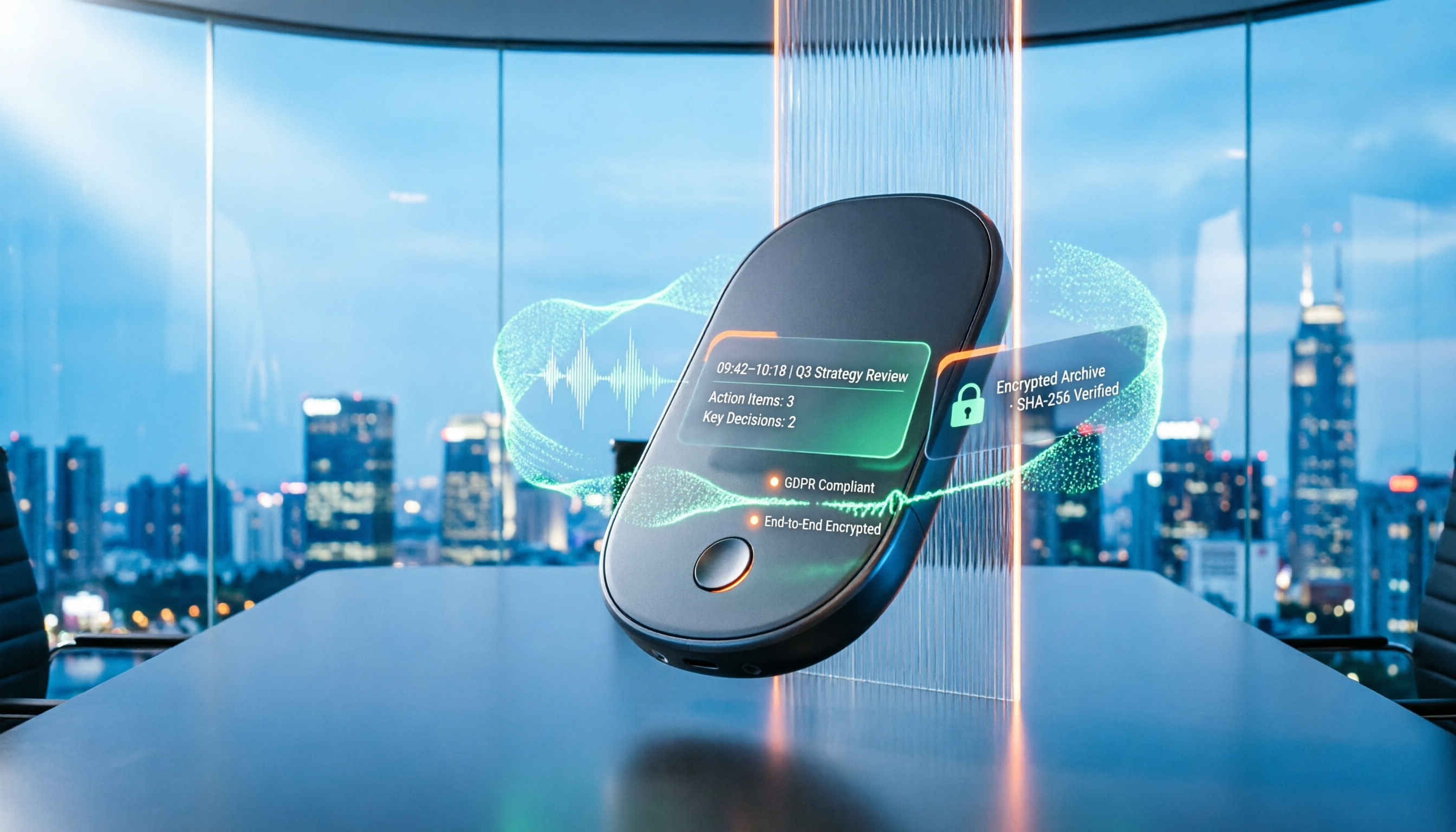
Many people think private recording is always illegal, while others believe recording guarantees protection. This article starts with the legal boundaries of recording, outlines 4 key points for choosing a recording tool, tests Tinrec, Otter.ai, Notta, and PLAUD on meeting notes and evidence organization, and includes 4 common recording pitfalls to avoid.

iPhone Native Capture vs Tinrec in 2026: A 4-Dimension Comparison for Recording and Organizing LINE Calls
LINE calls don't have built-in recording, but iPhone users can use iOS 26's Native Capture to record calls, then import the audio into Tinrec for transcription, summaries, and action items. This article compares the two across four dimensions—recording method, audio source, file storage, and post-call organization—and provides step-by-step instructions, common mistakes, and recommendations.
3 iPhone Screen Recording Audio Solutions Compared for 2026: Built-in, Third-Party Apps, and AI Post-Processing
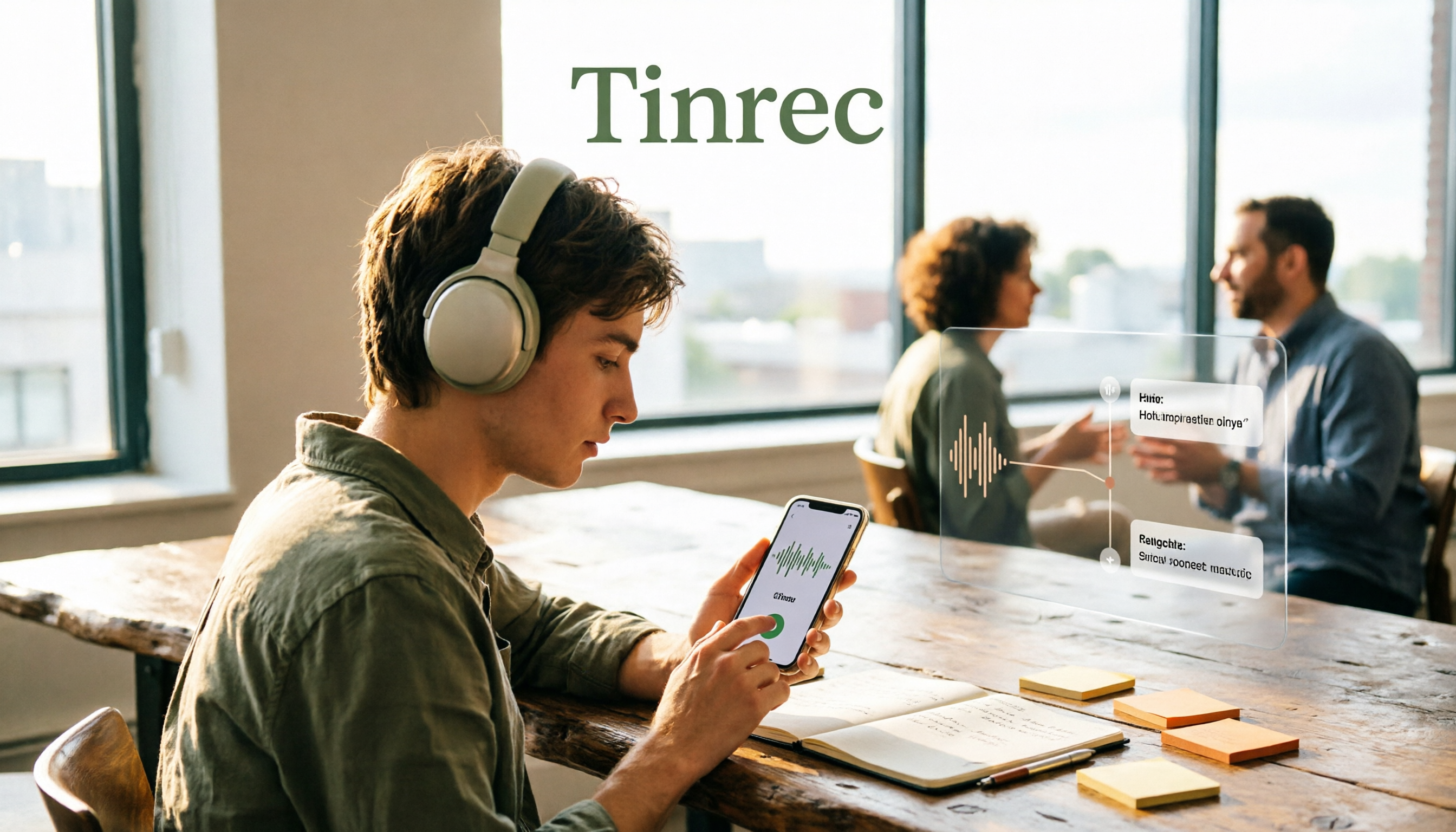
iPhone screen recording can capture audio, but you need to distinguish between system audio and microphone input—call audio from the other party usually can't be recorded. This article compares built-in screen recording, third-party apps, and Tinrec's post-meeting organization to help you avoid common mistakes that lead to silent recordings.

Is Recording Meetings Illegal in 2026? 5 Steps to Assess and Protect Yourself
Recording a meeting is not necessarily illegal, and recording for self-protection does not guarantee you are safe. This article breaks down the practical assessment under Article 315-1 of the Criminal Code, the Communication Security and Surveillance Act, and Article 12 of the Labor Standards Act in 5 steps, and compiles free audio-to-text tools to help you assess risks, preserve evidence, and organize transcripts.

5 Best AI Transcription Tools in 2026: Chinese Meetings, Team Collaboration, and Free Tiers Explained
Meetings end, recordings pile up, and minutes are due tomorrow—this article doesn't copy official feature lists. It cross-checks the official plans, quotas, and limitations of five AI transcription tools: Tinrec, Yating Transcription, Vocol.ai, Notta, and Granola, and honestly tells you which numbers to trust and which claims to discount. Finally, it offers selection advice based on three needs: Chinese meetings, team collaboration, and free quotas.

3 Fast iPhone Recording Methods for 2026: One-Tap Setup and Use Case Comparison
Compare three built-in iPhone quick recording methods: Action Button, Back Tap, and Shortcuts. Includes setup steps, supported models, free usage, and limitations to help you start recording fast in meetings, interviews, or unexpected situations without hunting for an app.