

Turn recordings into transcripts and summaries in minutes
Upload audio or video for multilingual transcription, AI notes, and action items
5 Computer Screen Recording Tools Compared for 2026: From Free Built-ins to AI Meeting Summaries
Before You Record, Think: Do You Want the Visuals or the Content?
Whenever someone asks me "How do I record my computer screen?" I always ask first: What are you going to do with the recording afterward?
That question determines everything.
If you're creating a how-to tutorial or recording a bug reproduction for an engineer, you need the visuals. Built-in tools on Windows and Mac can handle that—no installation required.
But if you're recording an online meeting, an online class, or a client interview, what you really need isn't the visuals—it's content you can search, extract key points from, and turn into action items.
These two needs have completely different solutions.
Many people get stuck because they use a "screen recording" tool for meetings, end up with a multi-gigabyte video file, and never open it again.
So this article doesn't start with tool specs. I'll start with the decision criteria, then explain who each solution is for.
Most People Get Stuck Not on Recording, but on What Comes After
In my experience: recording takes one button press, but organizing takes all night.
After a 90-minute meeting, the video sits in a folder. To write meeting notes, you have to play it from the beginning, pause as you go, and type along. When you reach the 40-minute mark and realize the key point is much later, you drag the slider back and listen again.
Online meetings are even trickier. After a Zoom, Google Meet, or Teams call, files are scattered across everyone's computers. Who recorded, where it's saved, whether there's audio—you have to ask around in the group chat.
Then there's the team version problem. When a colleague leaves, meeting data disappears with their account. New hires who want to understand last quarter's decisions have to ask around.
The common thread: recording is just the starting point; there's no process after it.
So when I evaluate solutions, I don't look at "how many formats it supports"—I look at "what happens after recording."
4 Key Points to Understand Before Choosing a Computer Screen Recording Solution
1. Are You Recording Visuals, or Audio and Text?
Recording operation screens: built-in or screen recording software is enough.
Recording meetings and classes: the focus is transcription, summaries, and whether you can ask follow-up questions. Visuals aren't the core.
Classify first—it saves a lot of trial and error.
2. Distinguish Audio Sources: System Audio vs. Microphone
This is where most people trip up.
"System audio" is sound played by the computer—other participants' voices in a meeting, video sound. "Microphone" is your own voice. For meetings, you usually need both.
Many tools default to microphone only. You finish recording and realize only your voice was captured—everyone else is missing.
Before recording, say a few words and play some audio to test for 10 seconds. Much better than discovering an hour later that there's no sound.
3. How Much Time Will You Spend Organizing After Recording?
This is the real cost.
If you record video or audio without a transcript, you can only listen. A one-hour meeting typically takes another one to two hours to turn into notes.
With a transcript, summary, chapters, and action items, organizing time shrinks to ten-plus minutes. You shift from "typing from scratch" to "proofreading and adding."
That difference matters far more than whether the tool itself is expensive.
4. Where Will the Data Ultimately Live?
If it's on your own computer, only you can find it. If it's in a team space, new members can access historical records too.
Everyone who records meetings faces the same question: Is this data "mine" or "the team's"?
If the answer is the team's, you should choose a solution with team spaces, member and seat management from the start—not wait until data piles up and then figure out how to migrate.
Free Built-in Solutions: Windows Game Bar and Mac Screen Recording
Let's start with the free, no-signup options. I recommend everyone try both at least once.
Windows: Win + G to Open Game Bar
On Windows 10/11, press Windows key + G to open Game Bar, then click the record icon to start. Recorded files are saved in the "Captures" folder.
Know its limitations: you can't pause during recording, and you can't freely switch to other apps or recording may be interrupted; output is mainly MP4. It was originally designed for game footage—recording a single application window is most stable.
So my usage: for a quick short clip or recording a step for a colleague, Game Bar is fastest. For a full meeting, I wouldn't use it.
Mac: Command + Shift + 5
Mac has had a built-in screen recording shortcut since Mojave: press Command + Shift + 5 and a toolbar appears.
There's an easily overlooked "Options" button. Click it to set: where files are saved by default, whether to start after a 5- or 10-second countdown, whether to record the microphone, and whether to show mouse clicks.
By default, narration audio is not recorded—you need to turn on the microphone yourself.
If you're on an older macOS version, you can use QuickTime Player: open it and click "File > New Screen Recording." It works the same way and even allows simple trimming.
Built-in solutions are great, but they solve the "whether you can" problem, not the "how well it works" problem.
Stop organizing recordings by hand
Upload audio or video and automatically get a transcript, summary, and action items
Tinrec (秒聽錄音) — If What You Want to Keep Is Meeting Content, This Is My Current Top Pick
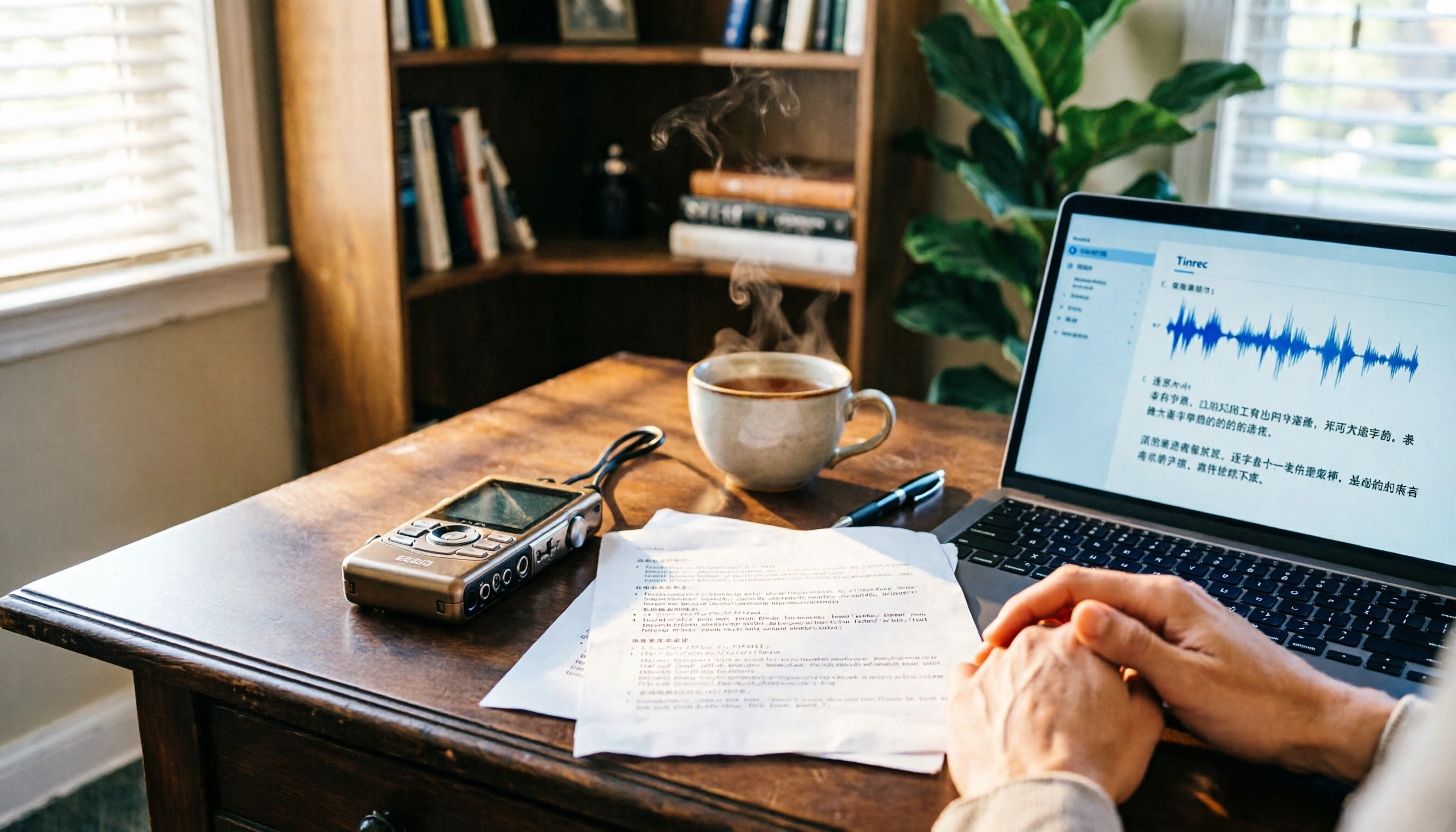
Tinrec (秒聽錄音) is an AI meeting notes and collaboration tool for individuals and teams, available on desktop, web, and mobile. What first impressed me is that it connects "recording" and "organizing" into a single workflow.
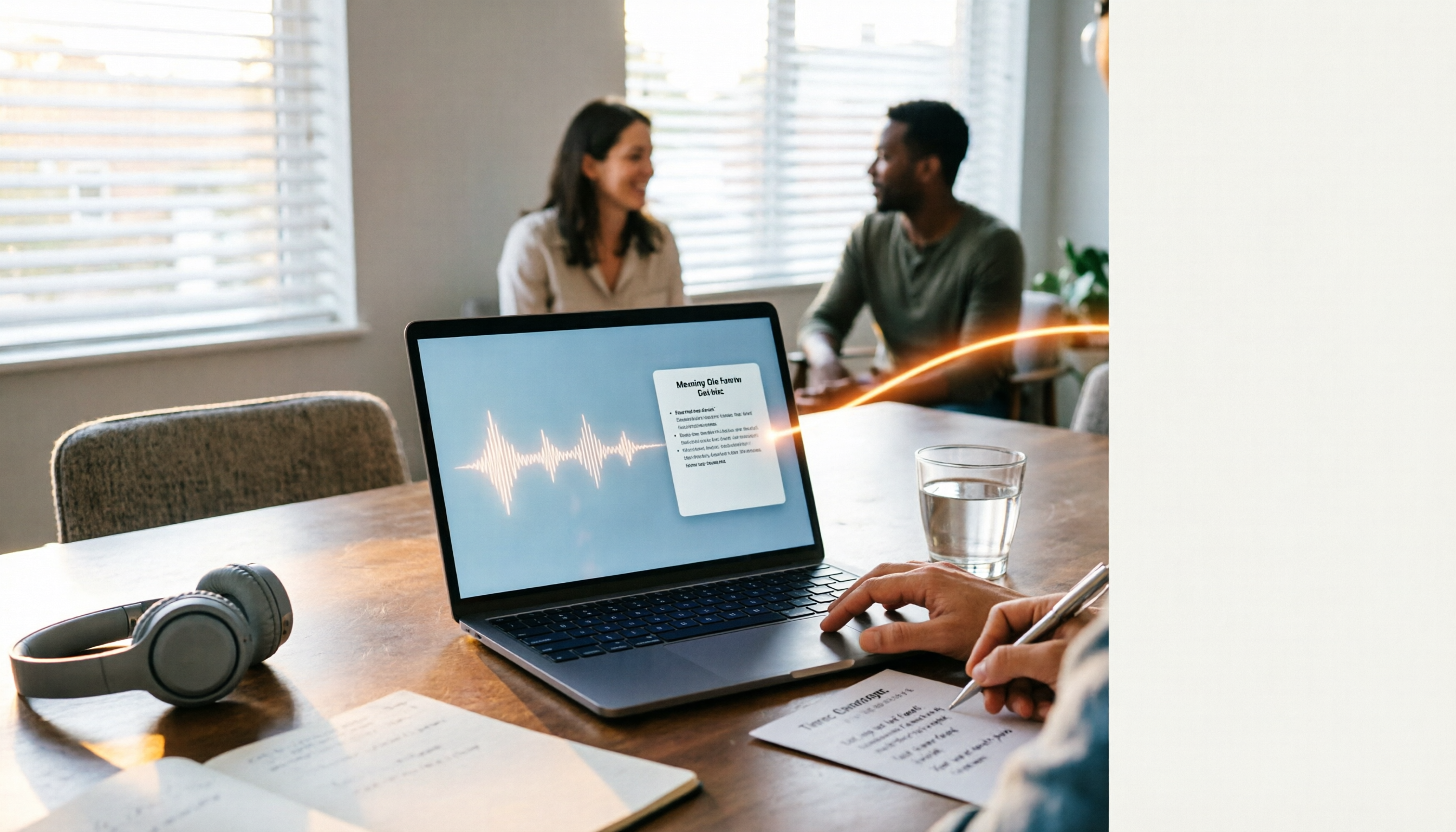
The first scenario is online meetings. When using Zoom, Google Meet, Teams, or Webex, the desktop version directly captures system audio—no need to invite a meeting bot. Participants won't see an extra attendee, which is especially valuable for external client meetings. And transcription starts while recording.
The second scenario is not having to re-listen after the meeting. AI generates summaries, chapters, key points, and action items. To write a weekly report or meeting notes, starting from the summary is much faster than facing a blank document.
The third scenario is where I think it really stands out: AI Q&A. After recording, you can directly ask "Who mentioned the budget in the last meeting?" or "What were the client's concerns about the quote?" It gives answers organized from the content, not a list of keyword search results. The more historical meetings accumulate, the more valuable this feature becomes.
If you're on the team plan, the focus isn't just recording—it's governance. Teams have independent spaces, can invite members, distinguish owners, admins, and regular members, and use seats to determine who can record, upload, edit, and export. Active members without a seat can still view, play, and read team data, but need a seat to perform resource-consuming actions. When a member leaves or is removed, resources must be handed over to other active members—data doesn't disappear with the individual account. There's also usage analytics, audit logs, audio recycle bin, and team hotwords.
Pricing: team monthly is USD 29.80 per paid seat per month, annual is USD 199 per paid seat per year (about USD 16.58/month). Eligible teams can try 7 days free with 1 free seat and 300 minutes of shared team import quota; paid seats include 2,000 minutes of shared team import quota per month. Under an active plan and active seat, live recording currently does not deduct minutes. Actual prices and benefits are subject to the official purchase page.
Limitations, honestly: Tinrec's strength is turning meeting audio into usable data—it's not a tool for recording tutorial video visuals. For operation screens, go back to built-in or screen recording software. Also, transcription quality is affected by recording environment, accents, overlapping speakers, and technical terms—for important content, verify against the transcript and recording.
Who is it for? People with two or more online meetings per week, who need Chinese and mixed Chinese-English notes, want to search and ask questions right after recording, and need data to stay with the team rather than individual accounts.
Besides Tinrec, What Other Options Are There?
Granola is a bot-free AI meeting notes tool that takes a "user handwritten notes plus AI enhancement" approach. Basic is free; Business is USD 14 per person per month. Note that it doesn't support uploading pre-recorded audio files and doesn't save meeting audio. Tinrec, on the other hand, can import existing audio and video files and preserves the recording itself. If you only need real-time notes during the meeting and don't need to listen back to the original audio, Granola's experience is very lightweight.
Notta is a veteran multilingual transcription tool covering multiple platforms and team plans. Free version: 120 minutes per month, max 3 minutes per item; Pro annual billing works out to about USD 8.17/month with 1,800 minutes per month; Business annual billing is about USD 16.67 per seat per month. It overlaps significantly with Tinrec. If you need continuous recording of full meetings plus post-meeting AI follow-up and team knowledge retention, Tinrec's workflow is more complete; if you mainly transcribe short audio files, Notta does that well too.
TurboScribe positions itself as high-value file transcription. Free: 3 files per day, 30 minutes per file; Unlimited annual is USD 120, max 10 hours or 5 GB per file, up to 50 files at once. For batch processing large volumes of audio files, it's a great deal. But its focus is "files in, text out"—live meeting recording and post-meeting team knowledge retention aren't its strong suit.
Pitfall Guide: 4 Most Common Mistakes When Choosing a Screen Recording Solution
Pitfall 1: Only looking for tools based on "how to record." Recording takes 30 seconds; organizing takes 2 hours. Figure out your organizing workflow first, then choose the tool.
Pitfall 2: Starting to record without testing audio. System audio and microphone are two different things. Test for 10 seconds before recording—save an hour of wasted work.
Pitfall 3: Assuming you must invite a bot to the meeting. There are now desktop solutions that directly capture system audio—no extra participant needed. If your meeting includes external clients and you care about a clean interface, this difference is significant.
Pitfall 4: Leaving meeting data in personal accounts. Personal plans are convenient, but data belongs to the individual; only team plans have spaces, seats, and handover mechanisms. This isn't about buying a team plan from day one—it's about knowing you'll face this threshold in the future.
Conclusion: Which One Should You Choose?
In one sentence: First distinguish whether you want visuals or content.
For recording operation screens and tutorial videos: Windows Game Bar or Mac's Command + Shift + 5. Free, no installation, great for short clips.
For recording online meetings, classes, and interviews, and needing Chinese transcripts: Tinrec. Desktop version captures system audio without a bot, produces summaries, chapters, and action items right after the meeting, and lets you ask follow-up questions about the recording.
For cross-device, cross-language, with data staying with the team: Tinrec team plan. Seats, usage, audit, recycle bin, and handover mechanisms are things personal tools don't have.
If you only use iPhone and prefer a minimalist note-taking feel: try Granola.
If you just need to batch convert audio files to text: TurboScribe is cost-effective.
Finally, here's a starter checklist:
- Today, press Win + G or Command + Shift + 5 once to see what built-in tools can do.
- Record a 3-minute online meeting and check whether both system audio and microphone are captured.
- Put that recording into Tinrec's free version and check the transcript and summary quality.
- Try asking it a question: "What are the key points of this content?"
- Imagine: if this were a database accumulated from 20 meetings, what could you ask?
- Then decide whether to move to the team plan.
No matter how many tools you switch, if the workflow doesn't change, the result is the same. Start by changing one meeting, test gradually, and you'll gradually master this method.
References
- Computer Screen Recording Methods Sharing - Mobile01
- How to Record Computer Screen? 2026 Hands-on Test of 5 Free and Paid Tools: A Complete Guide from Recording to AI Summary - 秒聽錄音Blog
- 2025 Edition - Beginner Tutorial: How to Screen Record? (Phone / Computer / Windows / Mac / iOS / Android)
- 4 Computer Recording Tricks Decoded! Easy to Understand, Easily Record Computer Audio [2026 Latest]
- How to Screen Record on Computer? Windows/Mac Built-in Screen Recording Tool Tutorial!
Turn every recording into actionable outcomes
Get 60 free transcription minutes when you sign in. No credit card required.
Related Reading
You might also like

2026 Free Screen Recording with Audio: 3 Options Compared
A guide to capturing system audio and microphone with Windows Game Bar, macOS QuickTime, and DiReec online tool, plus limitations for iPhone and LINE calls; also compares Tinrec for meeting recording, transcripts, and summaries.
2026 Comparison of 6 Computer Recording Solutions: Built-in, Free, and AI Transcription
Can a computer record audio directly? Yes, both Windows and Mac have built-in tools, but system audio and post-meeting organization are key. This article covers 6 computer recording solutions, from free built-in options to Tinrec AI meeting notes, helping you choose based on budget and use case.
Recording Police Interviews in 2026: 3 Methods Compared — Can You Record Yourself?
Can you record your own police interview? This article compares three approaches using public sources: recording privately on your own, requesting that police record the interview as required by law, and having a lawyer present plus requesting the official record afterward. It covers differences between criminal investigations and administrative inquiries, divergent practical views, potential legal risks, and how to turn a lawful recording into usable transcripts and notes with Tinrec.

3 Transcription Tools Compared in 2026: How Long Does Yating Take & How Free Hours Work
How long does Yating take? This article compiles public claims about free quotas, single audio file limits, and transcription wait times, and uses Tinrec to demonstrate a complete workflow for long meeting transcripts, summaries, and action items, helping you decide if the free version is enough.

6 Audio Recording Software Compared: Which Free Version Is Enough in 2026?
Too many recording apps to choose from? This guide categorizes six tools—Windows Voice Recorder, Audacity, GarageBand, WavePad, Notta, and Tinrec—by use case, covering free limits, system audio capture, and post-meeting organization. It also demonstrates Tinrec's full workflow from recording to transcript, summary, and action items.

4 Free Recording Tools Compared in 2026: Where the Recording Feature Is Hiding and Whether the Free Quota Is Enough
"Where is the recording feature?" is the first question many people have when they open their phone. This article covers four free entry points—iPhone Voice Memos, Samsung Voice Recorder, Google Phone app call recording, and Tinrec—explaining where each is located, its free quota, registration requirements, and usage limits, with a comparison table and FAQ to help you choose the right tool for your needs.

ChatGPT Recording Limit vs Tinrec: 2026 AI Meeting Recorder Comparison
ChatGPT's recording mode caps at about 120 minutes per session, so meetings longer than two hours must be split into segments and summaries stitched together manually. This article compares ChatGPT recording mode and Tinrec across six dimensions—recording length, online meeting capture, post-meeting output, Chinese and multilingual support, audio retention, and team management—to help you decide which fits your meeting style.

Can CapCut for Desktop Record Audio in 2026? 6 Steps from Recording to Meeting Notes
CapCut for desktop can indeed record audio, but its recording is a voice-over feature designed for video editing. This article first answers "can it record," then helps you distinguish between two needs—"voice-over" and "meeting notes"—and breaks down the post-recording workflow, including transcripts, summaries, action items, and how to retain team data.

Which Memo Recording Tool Is Best? 2026 Comparison of 3 Tools: Most People Get Stuck on Post-Meeting Organization
Recording a voice memo actually only takes three steps; the real hassle comes after recording. This article first breaks down common misconceptions and operational limitations of memo recording, then compares Apple Notes built-in recording, Voice Memos, and Tinrec from four perspectives: transcripts, post-meeting outputs, cross-device access, and team data. It also includes a pitfalls guide and scenario-based selection advice.