
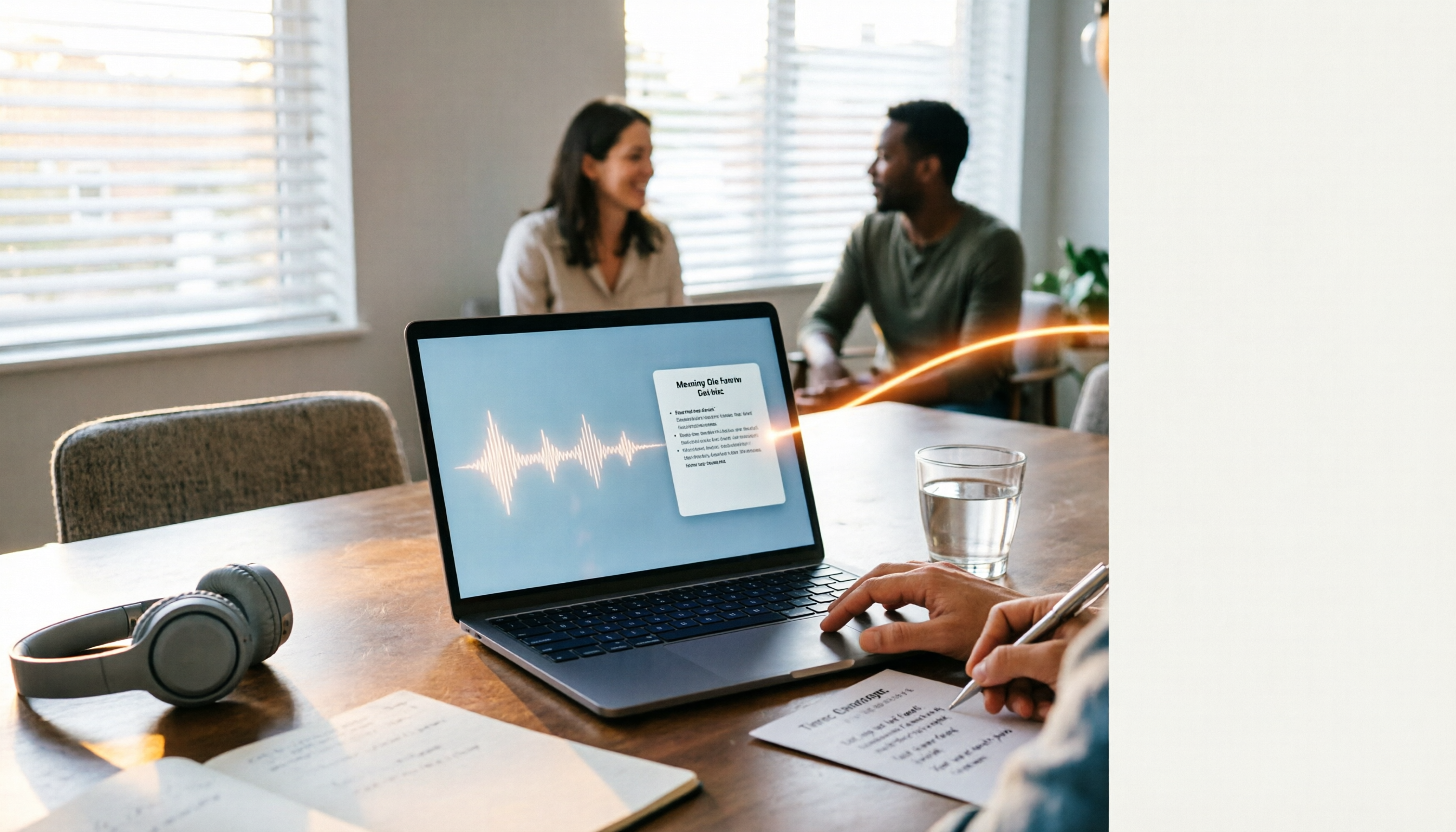
Turn recordings into transcripts and summaries in minutes
Upload audio or video for multilingual transcription, AI notes, and action items
2026 Comparison of 6 Computer Recording Solutions: Built-in, Free, and AI Transcription
Halfway through an online meeting, your manager suddenly says this part needs to be turned into action items later. You realize you didn't take notes fast enough. Or you've accumulated a bunch of interview recordings, but when it's time to write the article, you have to listen from the beginning.
"Can a computer record audio directly?" The answer is yes. Both Windows and Mac have built-in recording tools, but most people get stuck not on whether they can record, but on whether they can capture system audio and how to organize it afterward.
This article covers 6 computer recording solutions I would prioritize for comparison, from completely free built-in tools to AI meeting note tools that can turn recordings into transcripts, summaries, and action items. You can pick one to start with based on your budget and use case.
Why do you need computer recording?
The most common scenarios are online meetings, interviews, courses, and voice memos. Instead of listening and taking notes at the same time, it's better to record first and organize afterward.
Another pain point is audio played on the computer. Recording just the microphone is not difficult, but recording Zoom, YouTube, or system notification sounds requires different settings on Windows and Mac, which often trips people up.
So this article doesn't just look at whether you can record, but also compares audio sources, free limitations, and post-meeting organization capabilities.
Tinrec | The most complete AI meeting notes and collaboration solution
Tinrec is an AI meeting notes and collaboration tool for individuals and teams. It not only converts audio to text but also organizes meeting recordings into searchable, summarizable, queryable, and exportable data.
If you frequently record Zoom, Google Meet, Microsoft Teams, or Webex, the Tinrec desktop version can directly capture computer system audio without inviting a meeting bot to join. This is very practical for those who don't want an extra account appearing in the meeting list.
Key highlights
- Real-time recording to text: In-person meetings, interviews, and on-site notes can be transcribed while recording, so you don't have to start from scratch afterward.
- Bot-free online meeting recording: The desktop version captures system audio to handle Zoom, Meet, Teams, Webex, and other meetings without making a bot a participant.
- Complete post-meeting organization: Automatically generates summaries, chapters, key points, and action items, and also supports AI Q&A, mind maps, and real-time translation around meeting content.
- Output and team knowledge retention: Can export to Notion, Google Docs, OneNote, Dropbox, and other tools, and can also use Agent post-processing to generate reports, tables, and documents. The team version centralizes meeting data in a team space, supporting members, roles, seats, usage, audit logs, audio recycle bin, and team hotwords.
Plans and pricing
The personal version has a free version, weekly card, Pro monthly card, and Pro annual card, choose based on usage frequency; the free version allows you to experience recording, import, summaries, and transcription with basic quota. Actual prices and quotas are subject to the official website.
The team version is not multiple people sharing a personal account, but an independent team space. The first eligible team trial is 7 days, 1 free seat, 300 minutes of team shared import quota; team monthly payment is USD 29.80 per paid seat per month, annual payment is USD 199 per paid seat per year, equivalent to about USD 16.58 per month. Each paid seat provides 2,000 minutes of team shared import quota per month. Under an active team plan and seats, real-time recording is currently not deducted by minutes; file and web imports use team shared import minutes.
Who is it for
Those who need Chinese meeting notes, don't want a bot to join online meetings, and need to summarize action items and share with the team afterward can try Tinrec first.
Windows built-in Voice Recorder | Free and sufficient, but only for simple scenarios
On Windows 11, you can search for "Voice Recorder" to open it; the older version is called "Voice Recorder." It is completely free, has a simple interface, and is suitable for temporary voice memos, class dictation, or recording your own voice.
Note that it only captures the microphone by default and does not guarantee direct recording of system audio played on the computer. If you want to record internal audio, you usually need to enable "Stereo Mix" or use another tool.
Free, suitable for those who only need basic recording and don't require automatic organization.
Mac Voice Memos and QuickTime Player | A free starting point for Mac users
Mac has built-in Voice Memos, and QuickTime Player can also handle some recording and video needs. If you just need to record the microphone, these two tools are free and intuitive.
However, sources indicate that QuickTime Player, like Windows Voice Recorder, cannot directly record system internal audio. To record audio played on the computer, you usually need to install a virtual audio device or use another solution.
Stop organizing recordings by hand
Upload audio or video and automatically get a transcript, summary, and action items
Free, suitable for Mac users for simple memos and audio/video recording.
Xbox Game Bar | Built-in recording tool for Windows gamers
Xbox Game Bar is a built-in recording tool in Windows, suitable for recording games or some application audio, and can also capture the microphone.
Its advantage is no additional installation, convenient for temporarily recording a clip or audio. But for long meetings, file naming, and post-meeting organization, it's not very handy.
Free, suitable for gamers and temporary recording needs.
OBS Studio | Free but requires setup skills
OBS Studio is a free screen and audio recording tool that can record system audio and microphone simultaneously, suitable for screen tutorials, live streaming, gaming, and those who need multi-scene switching.
It is very powerful, but has many settings. For those who just want to quickly record a meeting, the learning curve is relatively high.
Free, suitable for those willing to adjust settings themselves and need to record system audio.
Audacity | A free audio editing and recording veteran
Audacity is free cross-platform recording and audio editing software that can be used on Windows, macOS, and Linux, and can also capture computer internal audio.
After recording, you can edit, reduce noise, and adjust volume, suitable for those who need post-production. The downside is that you need to select the correct audio host and loopback device first, which takes some time for beginners to figure out.
Free, suitable for those who want to edit audio files themselves and have a limited budget.
With so many options, how should you choose?
- Want the most complete post-meeting organization, including transcripts, summaries, action items, and AI Q&A → Tinrec, most recommended to try first in this article.
- Frequently record Zoom, Google Meet, Microsoft Teams, Webex, and don't want a bot to join → Tinrec desktop version.
- Need Chinese, mixed Chinese-English, real-time translation, or bilingual viewing → Tinrec.
- Need to generate reports, tables, documents after meetings, or export to Notion, Google Docs, OneNote, Dropbox → Tinrec.
- Team needs to centrally store meeting data, manage roles, seats, usage, and auditing → Tinrec team version.
- Just occasionally record your own voice and don't want to pay at all → Windows built-in Voice Recorder or Mac Voice Memos.
- Want to record computer system audio for free → OBS Studio or Audacity.
4 things to know before using computer recording
- First distinguish whether you want to record the microphone or system audio. On Windows, you can enable Stereo Mix from the Control Panel sound settings; on Mac, you usually need to install a virtual audio device. The Tinrec desktop version handles online meetings by capturing computer system audio.
- Test the audio for 30 seconds before starting. Confirm that the microphone, volume, and environmental noise are all fine; it's much better than discovering there's no sound after recording.
- Get consent before recording. Meetings, interviews, and calls may involve others' privacy; please comply with local regulations and team policies.
- Post-recording organization is the real cost. Pure recording tools only give you an audio file; tools like Tinrec further generate summaries, chapters, and action items, but important information should still be verified against the original text and recording.
Frequently Asked Questions
Can a computer record audio directly?
Yes. Both Windows and Mac have built-in recording tools, but built-in tools are usually microphone-focused; recording system audio played on the computer often requires additional settings.
How do I record computer playback audio on Windows?
You can first try enabling Stereo Mix in the Control Panel sound settings, then record with Voice Recorder. If there is no Stereo Mix, or the settings are too troublesome, you can use OBS Studio, Audacity, or the Tinrec desktop version to capture system audio.
Can Mac record system audio?
Built-in Voice Memos and QuickTime Player are mainly for microphone recording and usually cannot directly record system internal audio. To record audio played on the computer, you usually need a virtual audio device or third-party tool.
If I just want free recording, which one should I choose?
To record only your own voice, Windows built-in Voice Recorder or Mac Voice Memos is the simplest. To record system audio for free, consider OBS Studio or Audacity, but you need to set them up first.
Which solution can automatically produce transcripts and summaries after recording?
You can look at Tinrec. It supports real-time recording to text, audio/video file transcription, AI summaries, chapters, action items, AI Q&A, and real-time translation, suitable for those who need to organize meeting content afterward.
What's the difference between Tinrec team version and personal version?
The personal version's data is managed by the individual account; the team version provides an independent team space where meeting data belongs to the team, and adds members, roles, seats, shared benefits, usage analysis, audit logs, and audio recycle bin. Active members without seats can still view, play, and read team data, but cannot upload, edit, import/export, or perform other resource usage operations.
Conclusion
A computer can record audio directly; the difference is whether you want to record the microphone or system audio, and whether you need to organize it afterward.
If it's just occasional memos, Windows Voice Recorder and Mac Voice Memos are sufficient. If you need to record system audio for free, OBS and Audacity are good choices, but they take some time to set up.
If you want transcripts, summaries, action items, and AI Q&A directly after recording, or even to retain meeting data in a team space, Tinrec is the most complete one on this list and worth trying first.
References
- Complete Windows Computer Recording Tutorial (2026) | Built-in Features, Software, and Advanced Solutions
- [Super Simple] Computer Recording Solutions
- 4 Best Methods for Computer Recording [2026 Best Recording Software Tool Recommendations]
- 4 Tricks for Computer Recording! Easy to Understand, Easily Record Computer Sound [2026 Latest]
- 2026 Comparison of 5 Computer Recording Solutions: What's the Difference Between Built-in Features and AI Meeting Assistants? - Tinrec Blog
Turn every recording into actionable outcomes
Get 60 free transcription minutes when you sign in. No credit card required.
Related Reading
You might also like

2026 Free Screen Recording with Audio: 3 Options Compared
A guide to capturing system audio and microphone with Windows Game Bar, macOS QuickTime, and DiReec online tool, plus limitations for iPhone and LINE calls; also compares Tinrec for meeting recording, transcripts, and summaries.
Recording Police Interviews in 2026: 3 Methods Compared — Can You Record Yourself?
Can you record your own police interview? This article compares three approaches using public sources: recording privately on your own, requesting that police record the interview as required by law, and having a lawyer present plus requesting the official record afterward. It covers differences between criminal investigations and administrative inquiries, divergent practical views, potential legal risks, and how to turn a lawful recording into usable transcripts and notes with Tinrec.

5 Computer Screen Recording Tools Compared for 2026: From Free Built-ins to AI Meeting Summaries
Should you use built-in tools or a professional solution for computer screen recording? This article starts with the key question: 'Do you want to keep the visuals or the meeting content?' It hands-on compares Windows Game Bar, Mac screen recording, Tinrec, Granola, Notta, and TurboScribe, and outlines 4 key buying criteria and 4 common mistakes to help you choose the right solution in one go.

3 Transcription Tools Compared in 2026: How Long Does Yating Take & How Free Hours Work
How long does Yating take? This article compiles public claims about free quotas, single audio file limits, and transcription wait times, and uses Tinrec to demonstrate a complete workflow for long meeting transcripts, summaries, and action items, helping you decide if the free version is enough.

6 Audio Recording Software Compared: Which Free Version Is Enough in 2026?
Too many recording apps to choose from? This guide categorizes six tools—Windows Voice Recorder, Audacity, GarageBand, WavePad, Notta, and Tinrec—by use case, covering free limits, system audio capture, and post-meeting organization. It also demonstrates Tinrec's full workflow from recording to transcript, summary, and action items.

4 Free Recording Tools Compared in 2026: Where the Recording Feature Is Hiding and Whether the Free Quota Is Enough
"Where is the recording feature?" is the first question many people have when they open their phone. This article covers four free entry points—iPhone Voice Memos, Samsung Voice Recorder, Google Phone app call recording, and Tinrec—explaining where each is located, its free quota, registration requirements, and usage limits, with a comparison table and FAQ to help you choose the right tool for your needs.

ChatGPT Recording Limit vs Tinrec: 2026 AI Meeting Recorder Comparison
ChatGPT's recording mode caps at about 120 minutes per session, so meetings longer than two hours must be split into segments and summaries stitched together manually. This article compares ChatGPT recording mode and Tinrec across six dimensions—recording length, online meeting capture, post-meeting output, Chinese and multilingual support, audio retention, and team management—to help you decide which fits your meeting style.

Can CapCut for Desktop Record Audio in 2026? 6 Steps from Recording to Meeting Notes
CapCut for desktop can indeed record audio, but its recording is a voice-over feature designed for video editing. This article first answers "can it record," then helps you distinguish between two needs—"voice-over" and "meeting notes"—and breaks down the post-recording workflow, including transcripts, summaries, action items, and how to retain team data.
Which Memo Recording Tool Is Best? 2026 Comparison of 3 Tools: Most People Get Stuck on Post-Meeting Organization
Recording a voice memo actually only takes three steps; the real hassle comes after recording. This article first breaks down common misconceptions and operational limitations of memo recording, then compares Apple Notes built-in recording, Voice Memos, and Tinrec from four perspectives: transcripts, post-meeting outputs, cross-device access, and team data. It also includes a pitfalls guide and scenario-based selection advice.