
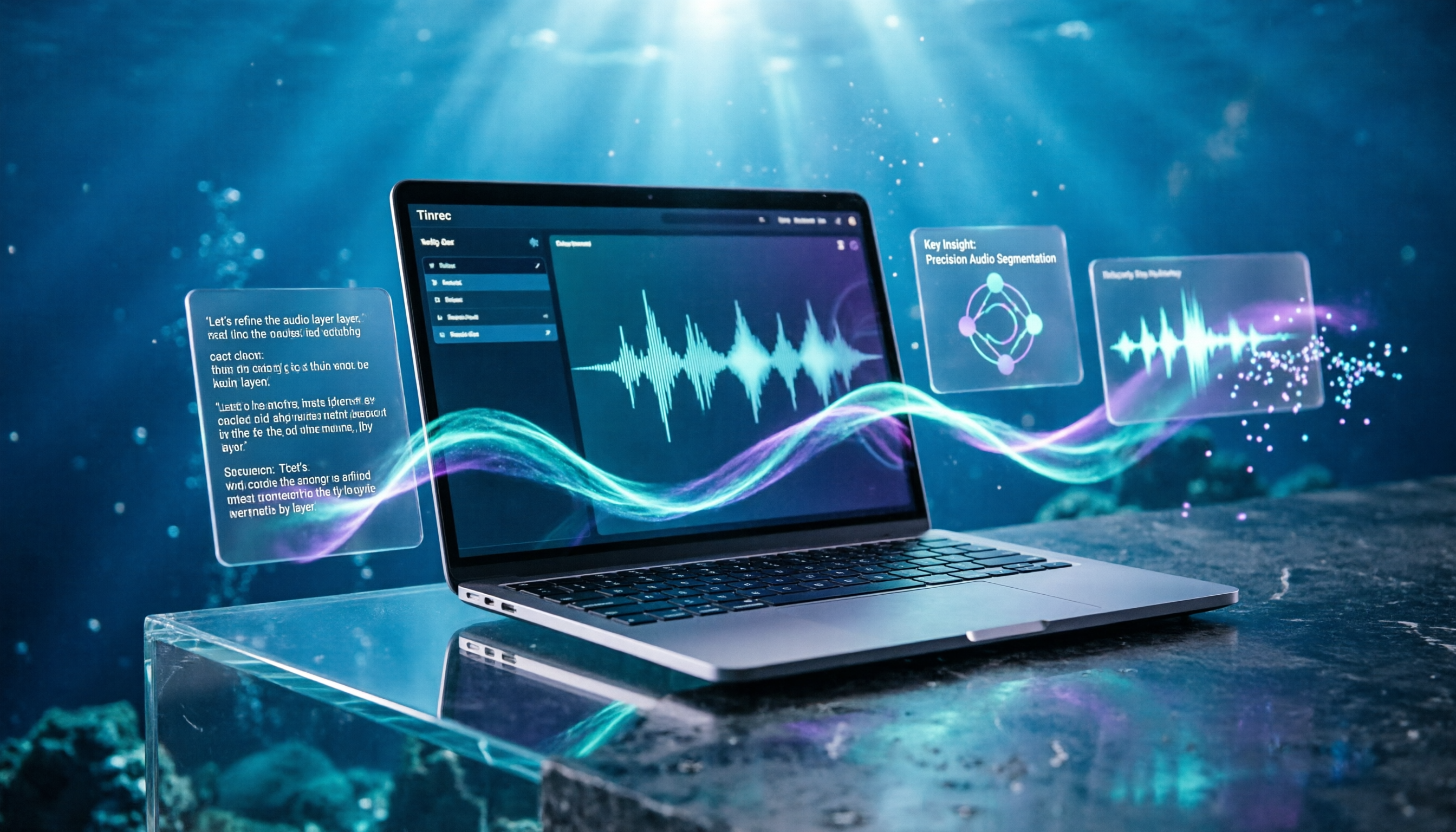
Turn recordings into transcripts and summaries in minutes
Upload audio or video for multilingual transcription, AI notes, and action items
Many people hit the same snag when recording computer audio for the first time: the meeting ends, the video finishes, you hit stop and play back—only to hear ambient noise from the microphone. Not a single word of the computer's audio was captured.
The problem isn't the record button; it's the "line" you're recording. Your computer's system audio (what's playing through the speakers) and microphone audio are two different inputs, and most recording apps default to capturing only the microphone.
This guide uses Tinrec (Miao Ting Lu Yin) desktop version as an example to walk you through recording computer audio from start to finish. We'll also cover alternative routes like Windows Stereo Mix, Audacity, and OBS.
Before You Start | What You'll Need
- A Windows or macOS computer with working speakers or headphones
- Download Tinrec desktop version (also available as web and mobile app, usable across devices)
- Content you want to record: an online meeting, online course, interview, or audio playing in a web page
- A stable internet connection (real-time transcription requires internet)
- A quick reminder: before recording a meeting or class, make sure participants are aware and comply with local regulations
Step 1 | Distinguish "System Audio" from "Microphone Audio"
You don't need any software for this step, but if you don't get it, everything else is wasted.
System audio is the sound your computer is playing, such as the other person's voice on Zoom, a YouTube video, or an online course's audio track. Microphone audio is the sound in your room, including your voice, air conditioning, and keyboard clicks.
Why distinguish? Because the recording methods are completely different. Windows' built-in Voice Recorder mainly captures the microphone; to record system audio, you need to enable Stereo Mix separately. macOS, based on Core Audio architecture, blocks system audio recording by default and requires a virtual audio driver.
Figure out which one you need first, so you don't discover after an hour of recording that the entire file is noise.
(Illustration: A person sitting at a desk in an online meeting, hearing the other party through headphones, a glass of water next to the laptop, conveying a focused "being recorded" atmosphere)
Step 2 | Record Computer Playback with Tinrec Desktop
The goal of this step is to get a clean, complete system audio file.
Open Tinrec desktop and start recording. It directly captures this computer's system audio—meaning the sound is captured the moment it comes out of the speakers. No extra virtual cable needed, and no need to invite a meeting bot into the meeting room as another participant.
Why does this matter? If you're recording someone else's online meeting, adding a bot means an extra member appears on screen, which some people find uncomfortable. Moreover, bots failing to join, being late, or being removed by the host are not uncommon. Capturing audio directly from the computer bypasses this variable.
This method can handle meeting audio played on the computer from platforms like Zoom, Google Meet, Microsoft Teams, and Webex. Note that it requires you to actively start recording; it does not automatically join every meeting on your calendar.
Once done, the recording appears in your workspace, ready for transcription.
(Illustration: A laptop screen showing an ongoing online meeting, with a recording indicator lit in the corner, conveying "meeting proceeds as usual, recording happens simultaneously")
Step 3 | Transcribe While Recording
The goal of this step is to turn audio into searchable text.
Tinrec supports real-time transcription, so the transcript grows as you record. When the meeting ends, you already have a full text with timestamps—no need to spend another hour re-listening.
If you have existing audio or video files, you can upload them directly for transcription without re-recording. This is especially useful for "I forgot to record last week's meeting" situations.
Why emphasize "transcribe while recording"? Because it moves the starting point of organization earlier. The traditional workflow is record → re-listen → type, three separate stages; transcribing while recording completes the first two stages simultaneously.
Actual results depend on recording quality. Meetings with clear audio and non-overlapping speech yield highly readable transcripts; in noisy environments with multiple people talking over each other, manual proofreading is still needed.
(Illustration: Recording waveform on the left, transcript text growing line by line on the right, showing real-time generation dynamics)
Step 4 | Let AI Organize Summary, Chapters, and Action Items
The goal of this step is to save you from reading the entire transcript from scratch.
After recording, Tinrec generates a summary, chapters, key points, and action items. A 60-minute meeting becomes a few section headings plus a few action items.
Stop organizing recordings by hand
Upload audio or video and automatically get a transcript, summary, and action items
Why do this? Because a transcript only solves "having a record," not "being able to find things." What most people really need is: what was the conclusion of this meeting, who needs to do what, and when to follow up next time.
If content is cross-language, you can enable real-time translation during recording and view it in original, translated, or bilingual side-by-side format.
After completion, you get meeting material ready for further processing, not an 8MB audio file.
(Illustration: A well-organized meeting summary page with chapter headings at the top and bulleted key points and action items below, clean and neat)
Step 5 | Ask Follow-up Questions with AI Q&A, Then Export and Share
The goal of this step is to bring the data into your existing workflow.
For a single meeting or accumulated data from multiple meetings, you can ask questions directly, such as "What was the budget cap the client mentioned?" or "Was there any follow-up on the last decision?" Tinrec supports AI Q&A around meeting content and can further generate reports, tables, or documents based on meeting content.
When handing over to colleagues or archiving, it supports multiple export formats and can export to Notion, Google Docs, OneNote, Dropbox, and other tools for continued use.
For team use, the team version centralizes meeting recordings, transcripts, summaries, and action items in a shared team space, where members can view and reuse historical data; administrators can manage roles, seats, sharing permissions, usage, and audit logs.
(Illustration: A team workspace list with meeting folders on the left and member list and usage statistics on the right, conveying "data accumulation")
FAQs and Troubleshooting
Q: Only microphone audio is recorded; computer playback is completely missing?
This is the most common situation, meaning the wrong audio source was selected. On Windows, enable "Stereo Mix"; on macOS, a virtual audio driver is needed; or use Tinrec desktop to directly capture system audio and skip these settings.
Q: Can't find "Stereo Mix" in Control Panel?
Right-click on the "Sound" → "Recording" tab and check "Show Disabled Devices"; most sound cards will list it. If still not there, your audio driver doesn't support it, and you'll need another solution.
Q: Do I need to invite a bot to the meeting with Tinrec?
No. The desktop version captures this computer's system audio, so no extra account appears in the participant list. This is the main difference from meeting-bot-type tools.
Q: Should I turn off notification sounds while recording?
Yes, recommended. System audio recording captures whatever the computer emits—Line notifications, email alerts will all be recorded. Spend 10 seconds enabling Focus Mode before recording to save editing time later.
Q: Is the free version enough?
If you only occasionally organize a recording, the free version offers a basic quota, enough to try a few meetings. If you have regular weekly needs, consider Pro; for short-term intensive use (e.g., a week of interview marathons), a weekly pass is more cost-effective. Actual plans and prices are subject to the official purchase page.
Q: Typos in the transcript—is that normal?
Yes. Transcription quality is affected by recording quality, accents, noise, overlapping speech, and technical terms; don't expect 100% accuracy. For important numbers or decisions, it's recommended to cross-check by replaying the original audio at the timestamp.
Advanced Tips | Take Efficiency to the Next Level
1. Team Hotwords: Stop Mishearing Technical Terms
If your team often uses product codes, proper nouns, or abbreviations, maintain a hotword list in the team space. This is a team-version-only feature to improve recognition of specialized vocabulary, reducing proofreading work over time.
2. Cross-Meeting Q&A: Turn Historical Data into a Database
AI Q&A isn't limited to a single meeting. When meeting data accumulates in the same space, you can ask "How many times has this client raised price concerns in the past?"—turning scattered recordings into a searchable knowledge base.
3. Real-Time Translation: No Need to Wait for Post-Meeting for Cross-Language Meetings
During international meetings, you can view original and translated text simultaneously, eliminating the need for a separate translation process afterward.
If You Don't Use Tinrec, Here Are Other Options
Windows Stereo Mix + Built-in Voice Recorder: Completely free, no installation needed, but Voice Recorder cannot capture system audio alone—it also captures the microphone, and the maximum recording length is 3 hours.
Audacity: Free and open-source; on Windows, select WASAPI loopback device to capture only system audio. Suitable for those who need post-production editing. Downside: the interface is engineer-style; you'll need to explore a bit the first time.
OBS Studio: Free and open-source; you can set desktop audio as a separate track, making it easy to extract clean audio later. Recommended for users willing to spend time setting up multi-track recording.
These solutions solve "recording." If you also need transcripts, summaries, action items, and follow-up Q&A after the meeting, that's a different level of problem.
Conclusion
With these 5 steps, you can now: use Tinrec desktop to directly record meeting audio played on the computer, generate transcripts simultaneously, let AI organize summaries and action items, dig out key points with Q&A, and finally export to colleagues.
The key is just one sentence: first distinguish system audio from microphone audio, and the rest will flow smoothly. Find a meeting recording you have and run through the process once—it'll be more impactful than reading ten tutorials.
References
- How to Record Computer Audio? 2026 Complete Tutorial and AI Transcription Tool Recommendations - Miao Ting Lu Yin Blog
- 4 Ways to Record Computer Audio! Simple and Easy, Record Computer Sound Effortlessly [2026 Latest]
- How to Record Computer Audio in Win11? 5 Methods Explained + Complete Tutorial - EaseUS
- How to Record Computer Audio in 2026? Complete 4-Step Tutorial - Miao Ting Lu Yin Blog
- 4 Best Ways to Record Computer Audio [2026 Best Recording Software Recommendations]
Turn every recording into actionable outcomes
Get 60 free transcription minutes when you sign in. No credit card required.
Related Reading
You might also like

2026 Comparison of 3 Audio-to-Text Tools: Good Tape, Yating Transcription, and Tinrec Tested on Chinese Meetings
Is Good Tape any good? I put it to the test alongside Tinrec and Yating Transcription in the same workflow. Starting from common pitfalls, this article compares Chinese meeting transcription, post-meeting organization, team collaboration, and pricing, clarifying who Good Tape is for and when to switch tools.

2026 Complete Guide to "Verbatim": From Word Meaning to Practical Transcript Applications
"Verbatim" (逐字, pronounced zhú zì) means processing text one character at a time in sequence. This complete guide starts with the definition, part of speech, and usage, explains real-world scenarios for verbatim transcripts at work, and uses Tinrec as an example to demonstrate how to quickly turn meetings, interviews, and online courses into searchable, queryable, and collaborative transcripts.

How to Turn Meeting Recordings into Minutes in 2026: 5 Steps to a Transcript + Auto-Generated Action Items
How do you turn a meeting recording into meeting minutes? Using Tinrec as an example, this guide walks you through 5 steps—recording, transcription, proofreading, AI summaries, and export—plus answers to common questions and advanced tips.

The Complete Guide to Audio Transcription in 2026: From Verbatim Transcripts to Actionable Meeting Notes
Audio files can certainly be transcribed into text, but the real difference lies in what happens after transcription. This article starts from the decision point of 'Do you want a verbatim transcript or a document you can deliver?' and explains the core capabilities of audio-to-text conversion, practical use cases, and purchasing considerations. It also demonstrates a complete workflow from recording, transcription, summarization, action items, to team knowledge retention using Tinrec.

LINE Video Call Beauty Filter Guide 2026: 6 AI Adjustments + Auto-Apply Across Devices
LINE video calls have built-in beauty filters—no extra app needed. This guide walks you through where to find the settings, the six adjustment parameters, combining filters with backgrounds, fixing poor lighting, and organizing post-meeting notes. It also covers common questions and real-world limitations.

The Complete Guide to Meeting Minutes in 2026: From Transcripts to Action Items
What exactly should meeting minutes capture? Starting from the real pain points of mid-level managers, this article breaks down the 4 core elements every set of meeting minutes should include, the fields they need, and how AI tools can help you go from recording to action items. It also includes 5 checkpoints for choosing a meeting minutes tool and answers to common questions.

2026 Guide to Free HOA Meeting Recording Options: 3 Tools Compared
From legal considerations and bylaws restrictions to practical recording tips, this guide covers whether HOA meetings can be recorded, whether recording files can be requested, and compares Tinrec, Granola, and TurboScribe as free options for post-meeting organization.

2026 Comparison of 4 Meeting Transcription Tools: Can You Record Meetings and How to Use the Recordings
Start with three key questions to understand the legal and practical boundaries of meeting recording, then compare Tinrec, Granola, Notta, and Otter.ai on Chinese transcription, post-meeting organization, AI Q&A, and team collaboration. Finally, get selection advice for students and teams.

3 LINE Meeting Recording Tools Tested in 2026: The Most Time-Saving Way to Get a Transcript
LINE meeting rooms don't have built-in recording, and iPhone screen recording mutes the microphone. This article compares three recording and post-meeting workflows from real meeting scenarios, and tests how Tinrec turns LINE meeting recordings into searchable transcripts, summaries, and action items. It also covers iOS and Android limitations and pitfalls to avoid.