

Turn recordings into transcripts and summaries in minutes
Upload audio or video for multilingual transcription, AI notes, and action items
4 Word Voice Input Solutions Compared in 2026: Where Is the Microphone Button and What to Do After You Speak?
Where Is the Microphone in Word? The Answer First, Then the Choices
Let me clarify the location first, because that's what most people searching this phrase really want to know.
There is no standalone button called "Microphone" in Word. The feature you're looking for is called "Dictate."
The path is: Home > Dictate. The icon itself is a small microphone.
After you click it, a floating dictation toolbar appears on screen, also with a microphone icon, used to pause and resume. The keyboard shortcut is ALT + '.
But there are three prerequisites here, and this is where many people get stuck:
- You must be signed in to Microsoft 365 on a device that supports a microphone.
- The internet connection must be stable. When offline, the dictation button turns gray and looks like the feature has disappeared.
- On first use, a microphone authorization prompt appears. If you don't click Allow, it won't work either.
(Screenshot here: Word "Home" tab, arrow pointing to the "Dictate" microphone icon on the right)
So the real question isn't actually where the button is.
It's: Where do you plan to complete the task of turning speech into usable data?
I've seen this situation too many times: the button is found, you speak, and the transcript lands in the document. Then the meeting ends, and you still have to listen through it yourself to add the summary, action items, and who's responsible for what.
This article addresses that "then what."
Think Before You Choose: 4 Decision Points That Determine What You Should Use
Decision Point 1: Do You Want to "Type While Thinking" or "Organize After Speaking"
If you just don't want to type and want to dump sentences flashing through your mind into a document, Word's built-in dictation is completely sufficient, and you don't need to install anything extra.
But if you need a complete record of a meeting or an interview, what you need isn't an input method—it's an organization workflow.
These two things are often discussed together, and the result is choosing the wrong tool.
Decision Point 2: Is the Recording Kept?
Dictation produces text. Things beyond text—the tone at the time, the sentence you didn't catch, a number you want to verify three months later—depend on the recording.
My habit is: always keep an audio file for important content. Transcripts can be edited; audio can't be redone.
Decision Point 3: Chinese and Mixed Chinese-English
Meetings in Taiwan are rarely pure Chinese. Product names, job titles, technical terms—English gets mixed in all the time.
This mixing is the toughest test for transcription tools. Try it with a real recording of one of your own meetings first; don't just look at the demo sentences on the official website.
Decision Point 4: Is This Something Only You Do, or Does the Team Need to Share It?
For personal use, speed is the priority.
For team use, the priority is "will this data still be findable six months from now, can new hires access it." That's a completely different level of need.
Tinrec (Instant Recording)—I Use It to Cover "That Post-Meeting Part"
If Word dictation solves "input," then what I use Tinrec for is "after input."
Tinrec is an AI meeting notes and collaboration tool for individuals and teams, available on web, desktop, and mobile.
Here's how I actually use it: when a meeting starts, whether online or offline, I start recording in Tinrec first. It transcribes as it records, and by the time the meeting ends, the transcript is already there.
The online meeting part is especially worth mentioning. Its desktop version directly captures the computer's system audio, handling meetings on Zoom, Google Meet, Microsoft Teams, Webex, and similar platforms without inviting a meeting bot to join as a fourth participant. To me, this isn't a technical detail—it's a matter of etiquette. When an unknown account suddenly appears in a client meeting, you have to spend five minutes explaining it.
After the meeting ends is where it really pulls ahead.
It automatically generates summaries and chapters, breaking a one-hour session into a scannable structure. Action items are also extracted—who promised what, when it's due—listed right there.
Then there's my most-used feature: AI Q&A. I can directly ask it "What was the budget ceiling the client mentioned in this meeting?" It doesn't throw keyword search results at me; it understands the semantics and answers directly. For the same question, manually Ctrl+F in the transcript would take about three rounds.
Stop organizing recordings by hand
Upload audio or video and automatically get a transcript, summary, and action items
The output side also fits into my existing workflow. Transcripts and summaries can be exported in common formats or brought into Notion, Google Docs, OneNote, Dropbox—places I already use—for further processing. When meeting conclusions need to become formal documents, it can also directly generate drafts of reports, tables, and meeting minutes.
Let me mention the limitations so you don't set the wrong expectations.
It's quota-based. The free version has a basic quota for trying it out; heavy use requires payment. If your need is just "occasionally dictate a paragraph into a document," Word's built-in dictation is more direct—no need to open another tool. Also, transcription quality is affected by the recording environment—distant microphones, echoey conference rooms, multiple people talking over each other—any tool will suffer. For important content, I still go back and check against the recording.
So who is it for?
People who meet frequently and need to turn meeting content into data. And situations where teams need to share—Tinrec's team version is a separate team workspace where meeting data belongs to the team, with members, roles, and seats managed separately, so data doesn't leave when a member leaves. That's the most fundamental difference between the personal and team versions.
Besides Word's Built-in Dictation, What Other Options Are There?
Word's built-in dictation: No extra installation, no switching windows—that's its biggest value. But its positioning is clear—turn speech into text, that's it. Summaries, action items, follow-up questions—you do all of that yourself. Suitable for moments when "I just want to get my thoughts into the document right now."
Notta: Multilingual transcription and file import are well done, and it can handle translation and meeting notes needs. But if you want desktop bot-free recording of online meetings plus post-meeting team data retention, that's where Tinrec is currently more complete.
Otter.ai: A mature choice for English meetings, with a generous free tier and a good experience in business English scenarios. If your meetings are primarily in English, it's a very reasonable option. But for the Chinese and mixed Chinese-English meetings common in Taiwan workplaces, Tinrec's experience is closer to the need.
Pitfall Guide: The 3 Most Common Mistakes with Voice Input
Pitfall 1: Thinking the microphone button is gone when the feature is actually locked.
If the dictation button is gray, it's most likely offline, not signed in to Microsoft 365, or the browser has blocked microphone permission on the web version. Check these three things first—don't rush to reinstall.
Pitfall 2: The microphone is occupied by another program.
The most common cause of "Dictation can't hear your voice" is another app or webpage using the microphone. Close it, refresh, and re-authorize—that usually fixes it.
My own approach: before starting a formal recording, say a sentence to test whether text appears. This small step saves so much redo time.
Pitfall 3: Treating voice input only as a "typing replacement."
That's the biggest waste. What voice input really saves isn't your typing time—it's the time you spend "re-listening to an hour of recording to find that one sentence." So you should design the workflow in reverse—first ensure you have the audio file and transcript, then let the tool extract summaries and action items for you.
(Screenshot here: Tinrec's summary and action items screen after a meeting, arrow pointing to the AI Q&A input box)
Conclusion: Which One Should You Actually Use?
In one sentence: For typing in Word, use Word Dictate; for turning meetings into data, use Tinrec.
It's clearer by scenario:
- Just don't want to type, want to quickly dump sentences into a document → Word built-in dictation, Home > Dictate, fastest.
- Need to record online meetings without inviting a bot → Tinrec desktop version, captures system audio.
- Need summaries, chapters, and action items after meetings → Tinrec, that's its home turf.
- Want to ask three months later "what was the budget figure at the time" → Tinrec's AI Q&A.
- Team needs to share meeting data, manage members and seats → Tinrec team version.
- Mainly recording English meetings → Otter.ai is also quite sufficient.
Quick Start: 6 Steps You Can Do Today
- Open Word, confirm you're signed in to Microsoft 365, click "Home > Dictate," and authorize the microphone.
- Say a sentence to confirm text appears, then start your actual content.
- To pause, press
ALT + 'or click the microphone icon on the floating toolbar. - At your next meeting, try recording with Tinrec once and compare the output differences.
- After the meeting, look at the summary and action items first, then use AI Q&A to follow up on a question you would have had to re-listen to find.
- Export the transcript to where you normally work, so it enters your existing workflow.
The tools themselves aren't hard. What's hard is whether you're willing to design "that post-speaking part" into your workflow too.
Start by trying it with one meeting, adjust gradually, and you'll find your own rhythm.
References
- Dictate your documents in Microsoft Word | Microsoft Support
- Dictate your documents in Word - Microsoft Support
- How to Use Word Voice Input in 2026? Complete 5-Step Tutorial - Instant Recording Blog
- How to Dictate Documents in Microsoft Word - Zhihu
- How to Turn On Voice Typing and Dictation in Word | Speechify
Turn every recording into actionable outcomes
Get 60 free transcription minutes when you sign in. No credit card required.
Related Reading
You might also like

Word Video Recording in 2026: 5 Free Solutions Compared
Word doesn't have a screen recording feature—only dictation and transcription. This guide covers 5 practical approaches, from Word's built-in tools and free add-ins to meeting note tools like Tinrec, helping you choose the right solution for your needs, with free quotas, pricing, and pitfalls to avoid.

The Complete 2026 Guide to iPhone Text-to-Speech: 4 Built-in Methods and When to Use Them
Your iPhone can read text aloud right out of the box, but Live Speech, Speak Screen, Speak Selection, and creating audio files with Shortcuts are very different. Based on real campus scenarios, this guide helps you decide which one to use, how to set up Shortcuts, how output formats differ, and honestly explains what tool to use for turning class recordings into reviewable text.
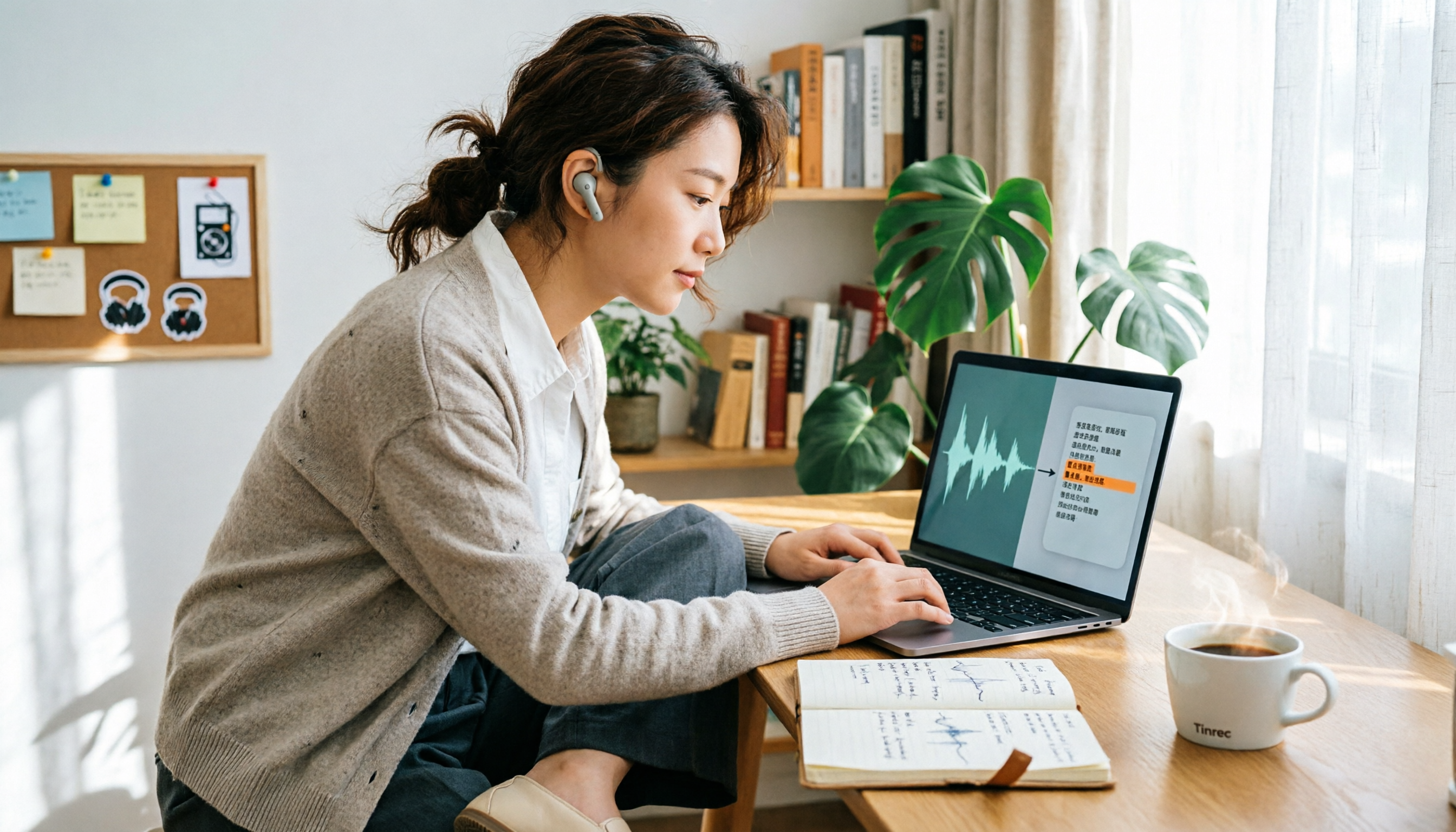
Gemini Audio to Transcript Free Options in 2026: 5 Tools Compared
Can Gemini actually turn audio files into transcripts? This hands-on comparison of 5 free recording-to-text options covers Gemini's upload limits and output format, plus the quotas and post-meeting capabilities of Tinrec, Notta, Otter.ai, and TurboScribe—so you can decide which one truly saves you from re-listening.

2026 Vocal AI Comparison: 4 Tools Tested for Meeting Transcription vs. Voice Generation
People searching "Is Vocal AI good?" actually have two different needs: one is AI voice generation and vocal separation, and the other is turning meeting or interview recordings into organized data. This article first helps you decide which path to take, then tests and compares four tools—Tinrec, Notta, Granola, and PLAUD—on recording method, Chinese recognition, post-meeting organization, free tier, and team collaboration, and summarizes the four most common buying mistakes.

2026 Comparison of 3 Note-Taking Recording Tools: Is the iPhone Built-in Recorder Enough?
Can the Notes app record audio? Yes, but recording alone doesn't mean it's usable. Based on the real needs of a mid-level manager with 15 meetings per week, this article tests and compares the built-in recording in iPhone/Mac Notes, Notta, and Granola, and breaks down how Tinrec differs in transcripts, AI Q&A, action item extraction, and team knowledge retention—helping you choose the one that truly saves you from re-listening to an hour-long meeting.

5 Best Transcription Tools in 2026: Is Yating Good Enough? Which Saves More Post-Meeting Time?
Yating performs well with Taiwanese accents and Taiwanese Hokkien, but organizing the transcript afterward is the real time sink. This article addresses common misconceptions, breaks down the capabilities transcription tools should have, practical use cases, and 5 purchase checkpoints. It uses Tinrec's real-time transcription, AI summaries, bot-free meeting recording, and team spaces as concrete examples to help you decide whether you need 'accurate transcription' or 'fast organization'.
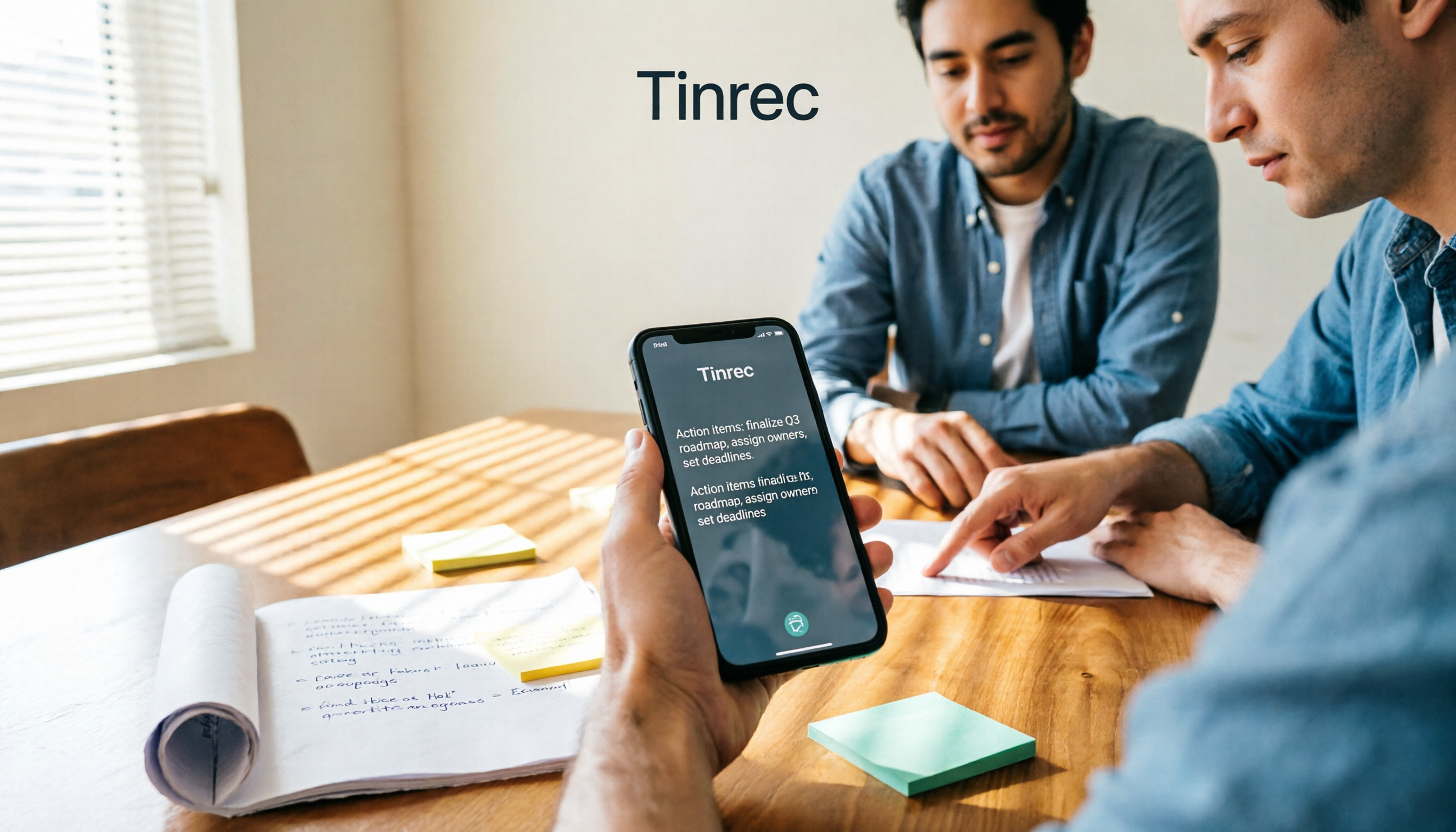
3 Free iPhone Photo-to-Text Methods for 2026: Built-in Features vs. Meeting Notes Compared
No app download needed to turn iPhone photos into text. This guide compares Live Text, Notes scan text, and Shortcuts—three free methods—covering version requirements, best use cases, and limitations. It also contrasts Tinrec's approach to meeting transcription, post-meeting organization, and team collaboration to help you decide which tool fits your needs.

2026 Comparison of 5 Online Meeting Software: Is the Free Version Enough, and How to Fill In Meeting Notes?
A roundup of 5 common online meeting software in 2026: Google Meet, Zoom, Microsoft Teams, Cisco Webex, and LINE, covering their positioning and limitations. It also explains how to use Tinrec to fill in transcripts, summaries, action items, and team knowledge after meetings, with practical judgment on free quotas and team plan pricing.

2026 Screen Recording to Text Tools Compared: Is EverCam's Free Version Enough?
Is EverCam really free? What's the difference between the trial and free versions, what are the actual limitations of the free version, and can recorded videos be exported and published? This article compiles official statements and compares the workflows suited for EverCam, Tinrec, Otter.ai, Notta, and Granola to help you decide if the free version is sufficient and when to switch tools.